
- Overview
- Scorecard
- Updates37
Obsidian plugin to view your notes as mindmaps using Markmap.
Table of contents
Usage
Open the command palette (cmd/ctrl-p) and begin typing the name of one of the 2 commands.
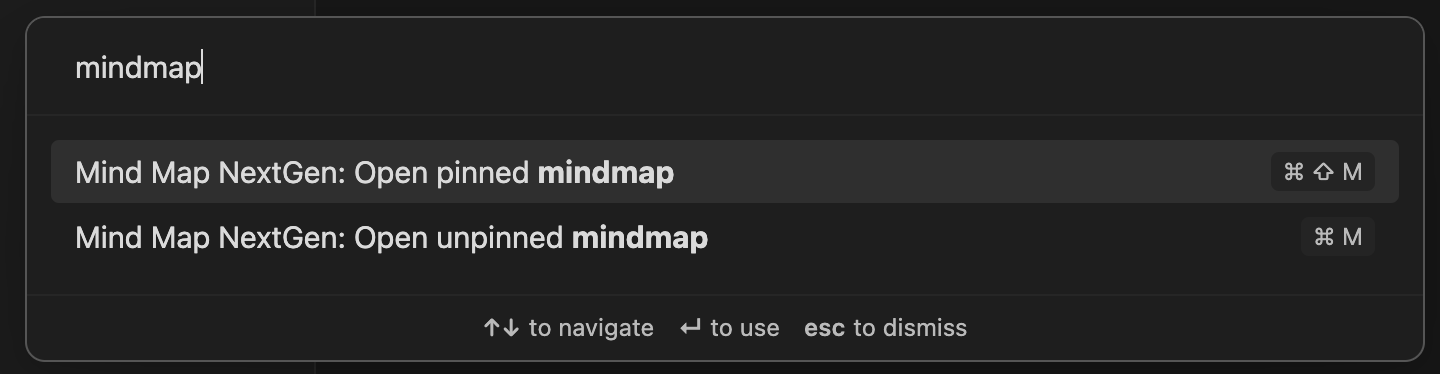
What's the difference between a pinned and an unpinned mindmap? A pinned mindmap is linked to a single Markdown document. An unpinned mindmap will update based on whichever document is the last one you clicked on.
You can also insert mindmaps inside your document using a Markdown code block tagged with "markmap". For example:
```markmap
# Mindmap
## Mindmap
```
"More options" menu
This is the menu in the top right of each tab.

Pin/Unpin
Switch the tab to unpinned, or pin it to the active document.
Copy screenshot
Copy a PNG of the mindmap to the clipboard. Background and text color are configurable in settings or the document's frontmatter.
Collapse all
Closes all mindmap nodes, leaving just the root visible
Toggle toolbar
Show or hide the toolbar in the bottom right of the mindmap
Other Features
Checkboxes
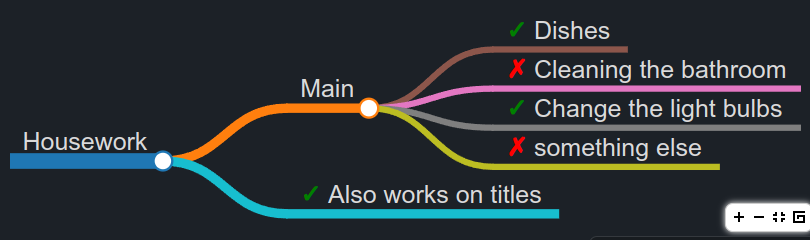
Checkboxes will be displayed in the mindmap like so:
# Housework
## Main
- [x] Dishes
- [ ] Cleaning the bathroom
- [x] Change the light bulbs
- [ ] something else
## [x] Also works on titles
LaTeX
LaTex expressions will be rendered in your mindmaps. Surround an inline expression with a dollar sign on either side.
$\frac{\partial f}{\partial t}$
Or use two dollar signs for a multiline expression.
$$
\frac{\partial f}{\partial t}
$$
Syntax Highlighting
This uses highlightjs for syntax highlighting, so you need to use highlightjs compatible colour schemes. Here's a demonstration of all the colour schemes provided by highlightjs: https://highlightjs.org/examples Once you've picked a colour scheme, you can download it from here: https://cdn.jsdelivr.net/npm/@highlightjs/[email protected]/styles/
Put the css file in your Snippets folder and turn it on in Settings > Appearance.
tokyo-dark is a nice pair of themes for light and dark mode. Mindmap Nextgen is not yet able to switch between light and dark mode syntax highlighting automatically
Per-node styling and folding
You can style individual nodes and control their folding using inline HTML comments with CSS-style declarations:
# Project <!-- nodeColor: #663366 -->
## Risks <!-- bgColor: red; color: white; fold: this -->
- Item one
- Item two
## Goals <!-- nodeColor: #2e86de; fold: tree -->
### Short term
### Long term
Supported parameters:
| Parameter | Effect | Propagates to children |
|---|---|---|
nodeColor |
Branch line/circle color | ✅ Yes |
bgColor |
Node label background | ❌ No |
color |
Node label text color | ❌ No |
fold: this |
Collapse this node by default | ❌ No |
fold: tree |
Collapse this node and all descendants | ❌ No |
Frontmatter
Some settings can be set in each document's frontmatter. Frontmatter settings take precedence over global settings, when set.
The plugin will use any of markmap's settings except for extraJs and extraCss).
Example:
---
markmap:
  screenshotTextColor: #28F48D
  highlight: true
  titleAsRootNode: true
---
Settings
Coloring approaches
There are three approaches to coloring the branches of the mindmap for you to choose from, either in plugin settings or each document's frontmatter.
Branch coloring
This mode will choose random colors per branch. "Color freeze level" decides at what depth the branches will stop changing colors.
Depth coloring
In this mode, branches are colored based on their depth in the mindmap. You can choose the first three levels' colors, plus a default color for levels deeper than three.
Single color
In this mode, all branches are the same color.
Line thickness
Set line thickness for the first three depth levels, and a default thickness for levels beyond that.
Highlight inline markmaps
Frontmatter setting: highlight
Add a background to inline markmaps to make them stand out from the rest of the page.
Use title as root node
Frontmatter setting: titleAsRootNode
Generate mindmaps with the title at the bottom level, so you can avoid repeating the title.
Screenshot settings
Frontmatter settings: screenshotTextColor, screenshotBgColor
Decide what colors the screenshot function will use.
Take screenshots via the "More options" menu.
Markmap settings
There is a section in the plugin settings for adjusting the shape and size of different parts of the mindmap. It might seem confusing at first. You'll have to fiddle around with different combinations of settings to get it the way you like.
Contributing
Running in development
- Clone this repo into your vault plugins folder.
- This is at
<vault path>/.obsidian/plugins - Use Manage Vaults to find the path to your vault.
cd <vault path>/.obsidian/pluginsgit clone https://github.com/james-tindal/obsidian-mindmap-nextgen
- This is at
- Open the repo:
cd obsidian-mindmap-nextgen - Install dependencies:
pnpm i - Compile and watch for changes:
npm run dev
- Go to Settings > Community plugins in Obsidian.
- Ensure restricted mode is off
- Click the reload plugins button
- Enable Mindmap NextGen
Releasing a new version
- ensure dependency installed: jq
- run release-1.sh
- merge the created branch into main via pull request
- run release-2.sh to create a tag which triggers a Github action to push the new release to the Obsidian plugins registry