Chronos Timeline
 Claire Froelich59k downloads
Render interactive timelines inline in your notes from simple markdown
- Overview
- Scorecard
- Updates50
Render interactive timelines in your Obsidian notes from simple Markdown. Make time make sense.
Powered by chronos-timeline-md, a markdown wrapper for vis-timeline.
Try it in the Live Playground
Features
- Portable plain text data
- Obsidian Bases view
- Text-to-timeline with AI
- Generate combined timeline from all Chronos items in folder
- Note linking
- Grouping
- Colors
- Render timelines anywhere outside Obsidian
Quickstart
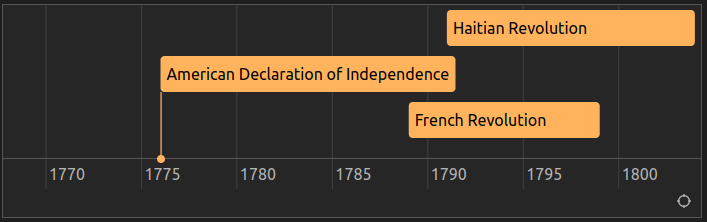
Create timelines in your notes by opening a chronos codeblock and adding items
```chronos
- [1789~1799] French Revolution
- [1791~1804] Haitian Revolution
- [1776] American Declaration of Independence
```
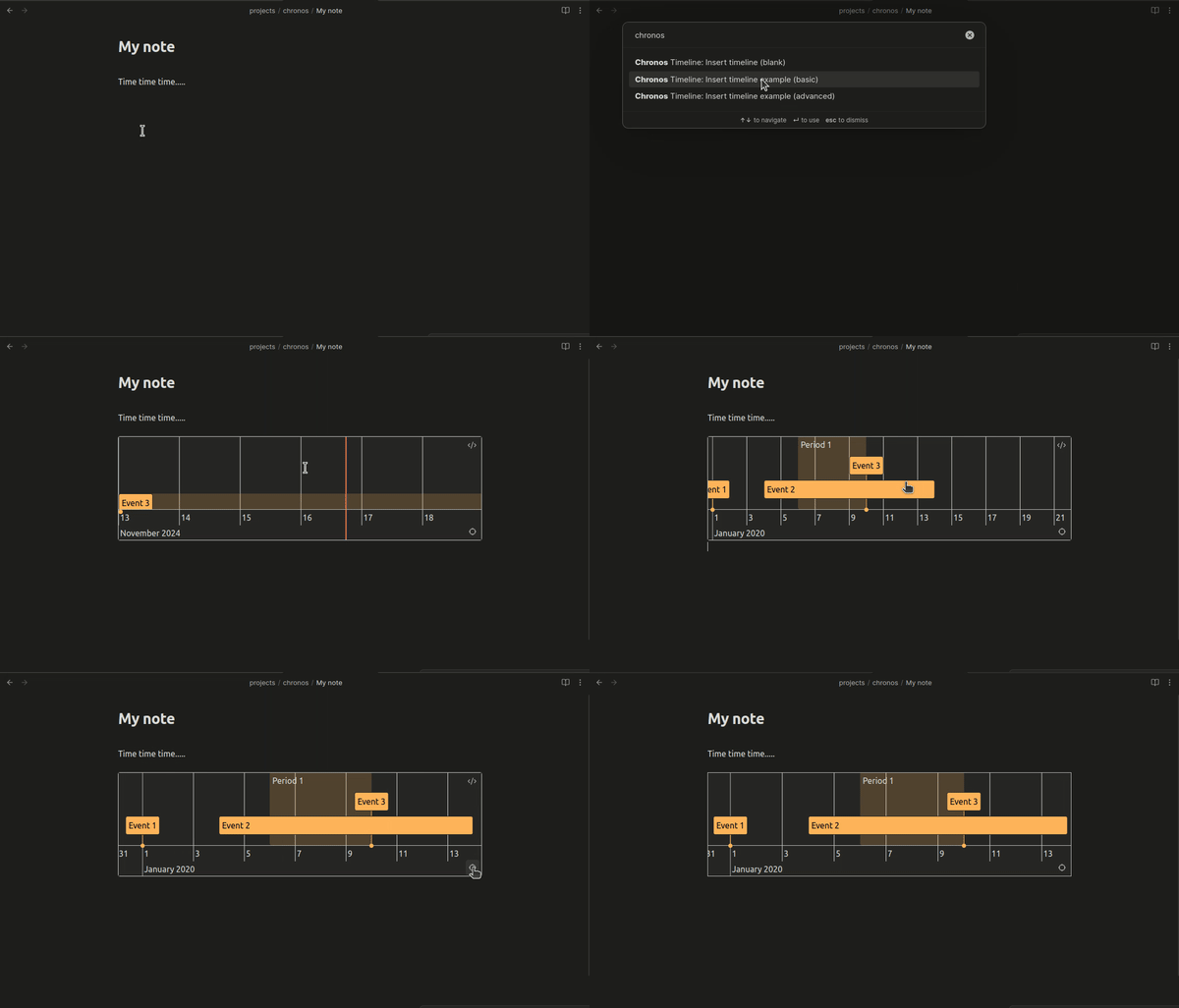
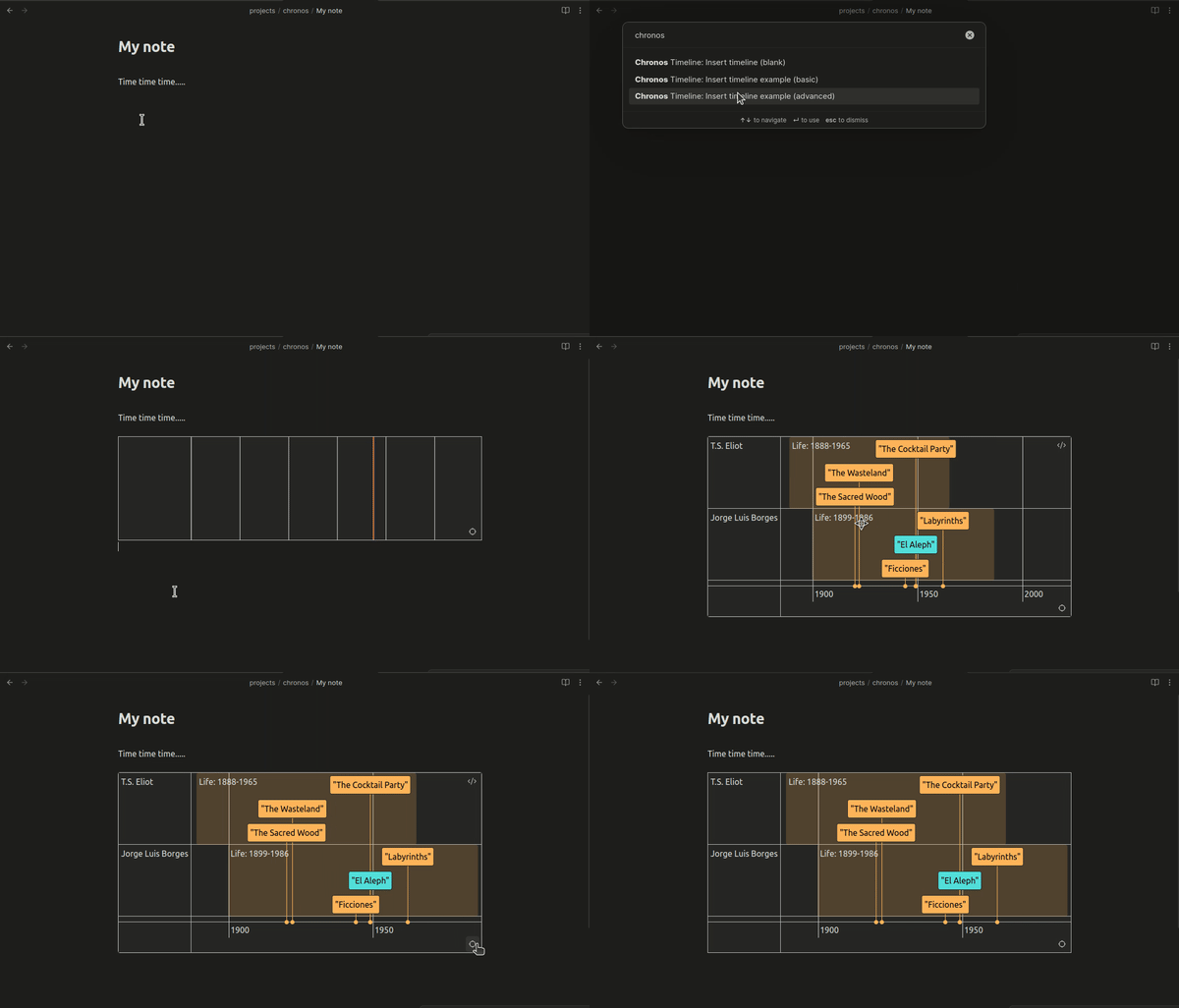
You can insert blank, basic, or advanced templates using the Command Pallete (ctrl/cmd + p, "Chronos")
Insert basic template
Insert advanced template
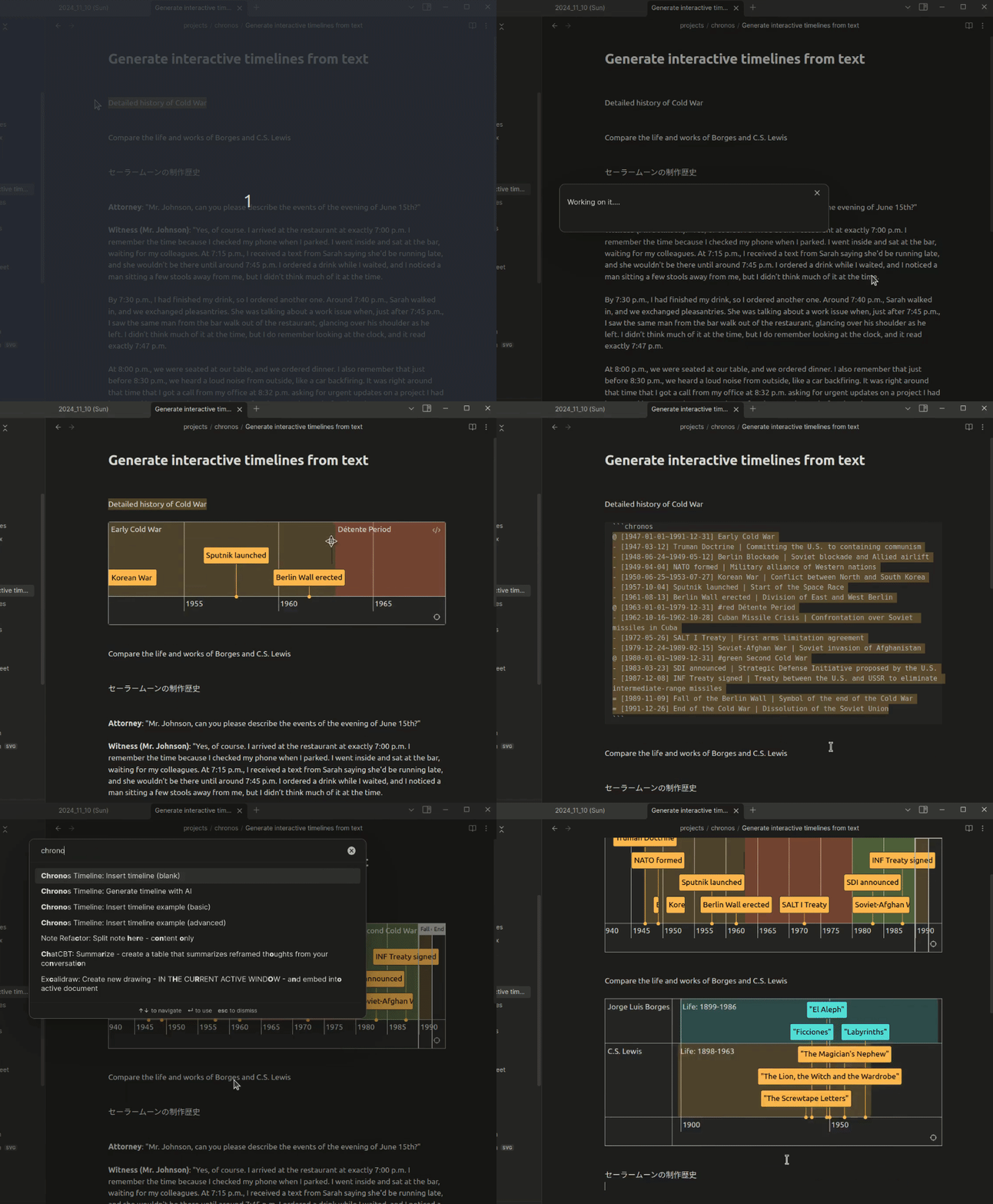
Generate timeline with AI
Highlight text in your notes and run the "Generate" command.
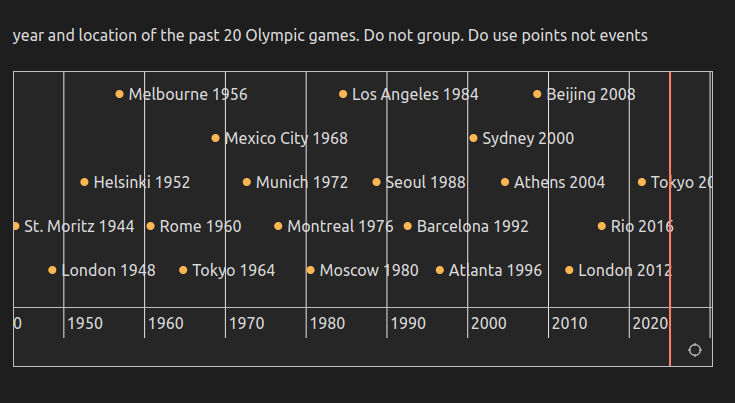
Input can be long text in your notes with time information, or vague like:
- "Detailed history of the Cold War"
- "Compare the life and works of Borges and C.S. Lewis"
- "Year and location of the past 20 Olympic games. Do not group. Do use points not events"
Generate timeline from folder
Automatically create combined timelines from all Chronos items found in a folder.
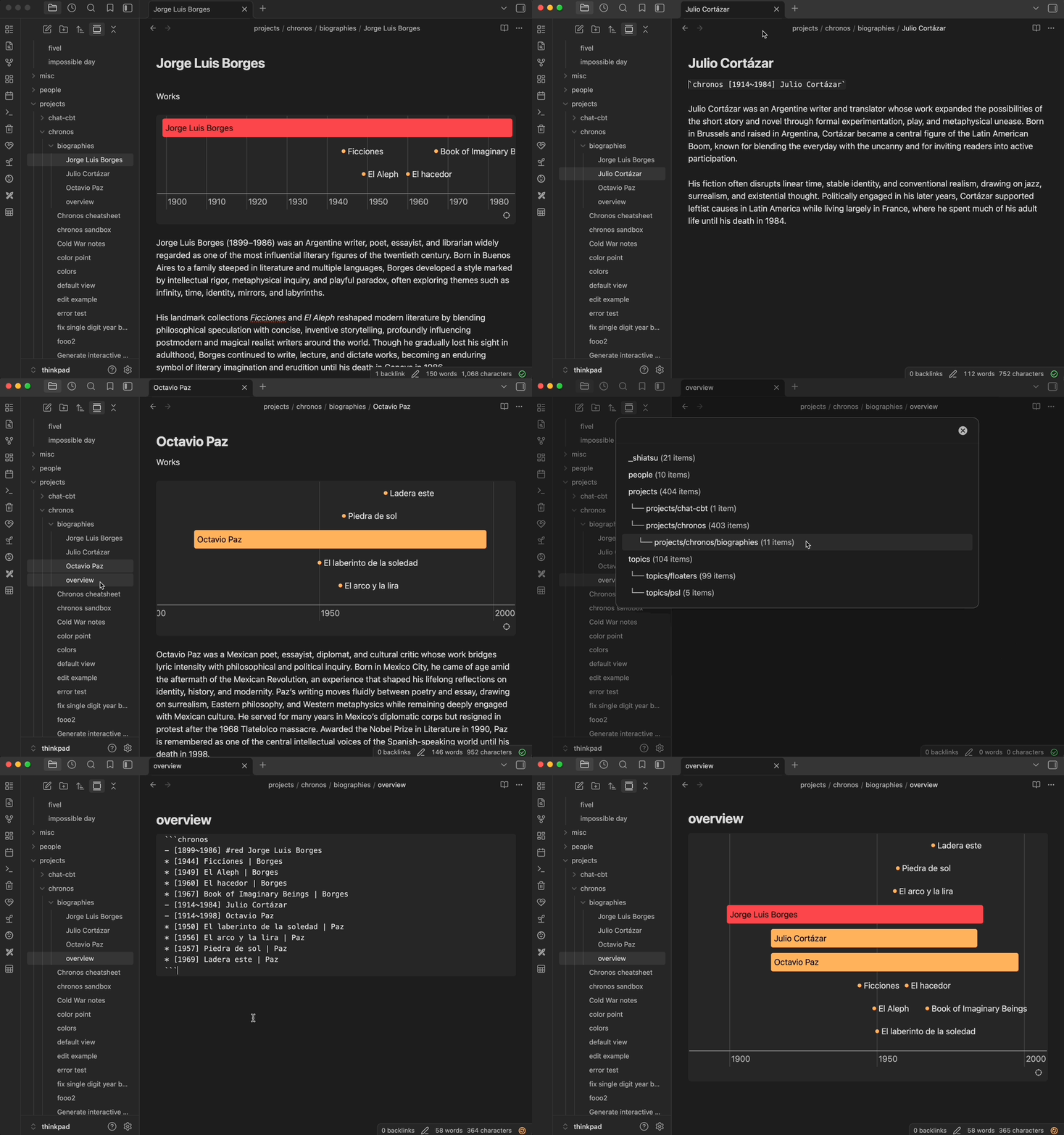
Use the command palette (Cmd/Ctrl + P): Chronos > Generate Timeline from Folder
The plugin will:
- Show you a list of folders that contain Chronos items
- Extract all Chronos items from the selected folder
- Generate a combined timeline using all these items
- Insert the timeline code at your cursor position
This is perfect for:
- Visualizing collections of dated notes (journals, meetings, project milestones)
- Combining themed items (by topic, person, project, etc)
- Generating chronological overviews of any folder
Timelines with 26+ items automatically get a HEIGHT 300 flag for easy viewing. You can remove the flag if you prefer.
Tip: Use inline chronos blocks in your notes for quickly collecting timeline items that you don't particularly care about rendering in respective notes
The below item will not render in your notes, but will be picked up in the "Generate Timeline from Folder"

`chronos @ [2025~2026] Year of the Snake`

If you omit the Chronos item type (Event `-`, Period `@`, Point `*` etc), it will default to an Event (`-`) in your combined timeline.

`chronos [2025~2026] Year of the Snake`

^ Event
Cheatsheet
After installing the Chronos Timeline plugin, paste the contents of this cheatsheet into a file in your vault to play with examples
Contents
- Chronos Timeline: interactive timelines for Obsidian
- Syntax Overview
- Obsidian Bases view
- Note linking (beta)
- Dynamic Timelines
- Actions
- Localization
Syntax Overview
Chronos parses Markdown in chronos code blocks into objects on a timeline
```chronos
<chronos timeline items here>
```
The first character of each line in your chronos block determines the item type:
Certain items can be modified with colors and group membership (see Modifiers)
A note on dates
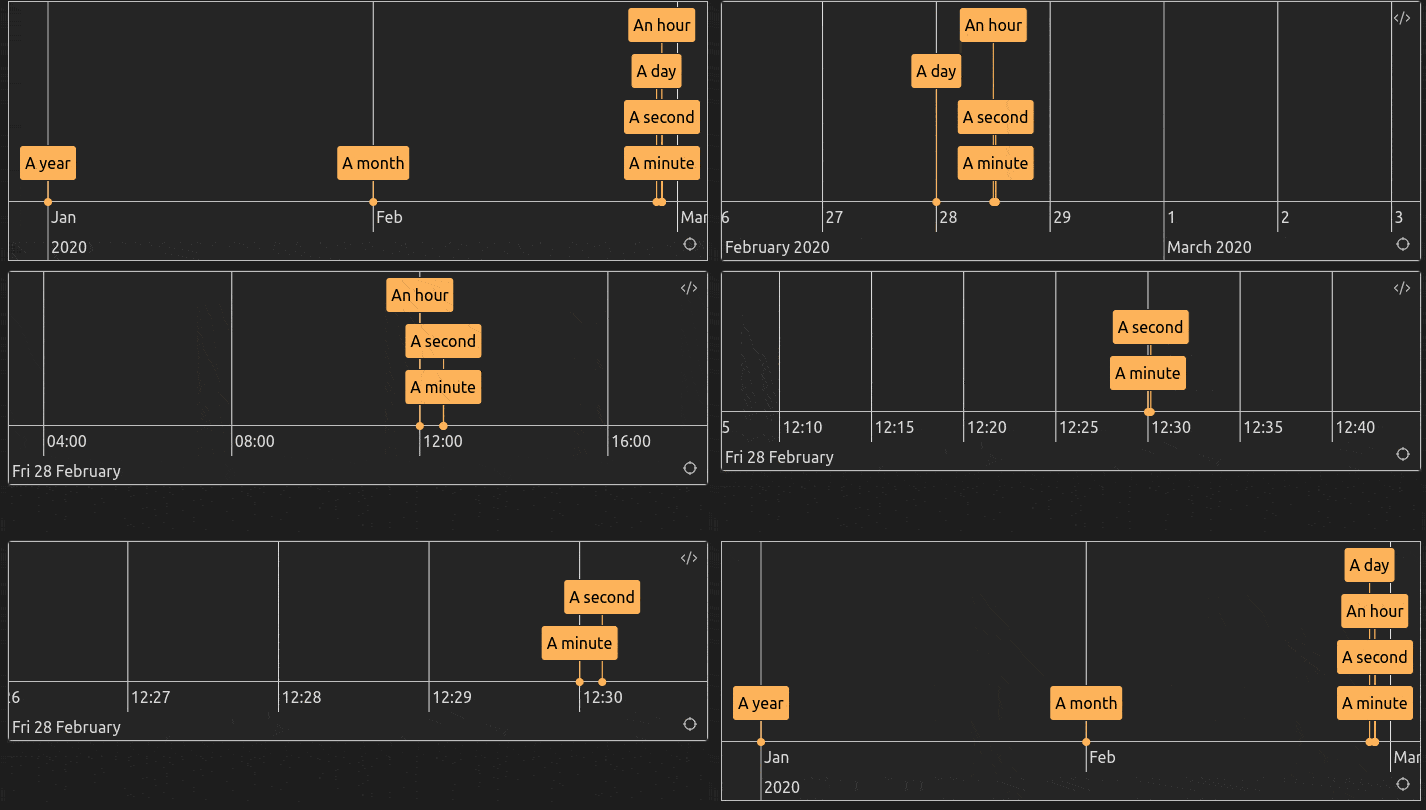
Chronos can visualize dates from the year down to the second level, using the syntax YYYY-MM-DDThh:mm:ss.
The only required component of a date is the year (YYYY). Beyond that, you can specify additional time granularity as needed for your use case.
If not explicitly provided:
- The month and day default to
01(January and the 1st) - The hour, minute, and second default to
00(top of the hour or minute)
Hours use 24-hr military time. So 3am is 03, while 3pm is 15
Examples
- [2020] A year
- [2020-02] A month
- [2020-02-28] A day
- [2020-02-28T12] An hour
- [2020-02-28T12:30] A minute
- [2020-02-28T12:30:09] A second
Date ranges
Date ranges are separated by a tilde ~, NOT a hyphen! Look out :)
The start and end date must be in chronological order.
- [2020~2024]
- [2024-02-28~2024-05-11]
- [2024-02-28T05:30~2024-02-28T08:30]
BCE time
You can signify BCE times with the negative symbol (-)
- [-10000]    <--- 10000 BCE
- [-550~-20]  <--- 550 ~ 20 BCE
- [-550~550]  <--- 550 BCE ~ 550 CE
Limitations
- Dates must be between year 271,821 BCE and 275,761 CE, due to how Dates work in JS
Events -
Events can include a single date or a date range.
Events with a single date
Syntax
- [Date] Event Name
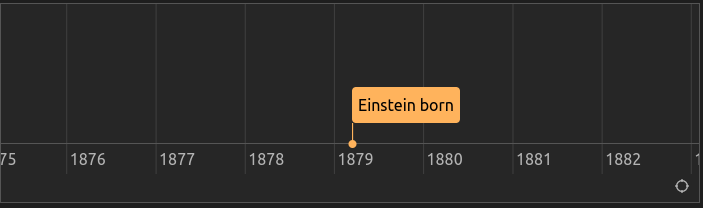
Only [Date] is required. If no Event Name is provided, the event title will default to the date or date range.
Example
```chronos
- [1879-03-14] Einstein born
```
Events with start and end dates
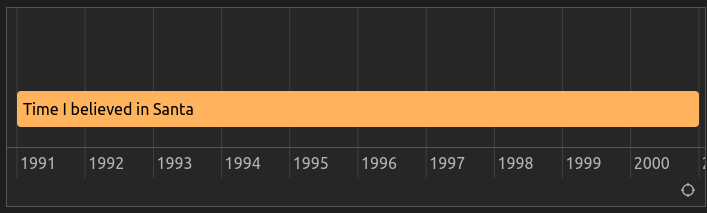
A date range is represented with a tilde (~) between the start and end dates.
Syntax
- [Date~Date] Event Name
Example
```chronos
- [1991~2001] Time I believed in Santa
```
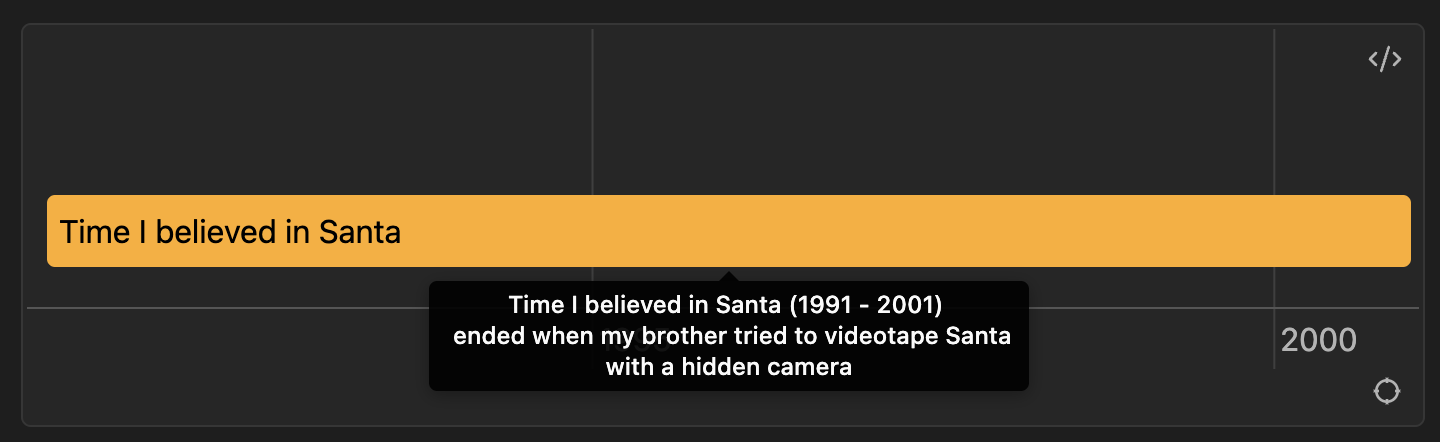
Events with descriptions
You can add additional information to an event by adding a pipe | after the Event name. This text will appear in a popup when you hover over an event.
Example
```chronos
- [1991~2001] Time I believed in Santa | ended when my brother tried to videotape Santa with a hidden camera
```
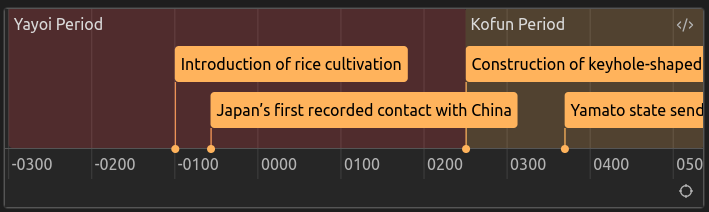
Periods @
Periods are spans of time displayed with a semi-transparent background. Periods must be a range with a start and end date. Period Name is optional
@ [Date~Date] Period Name
Example
```chronos
@ [-300~250] #red Yayoi Period
- [-100] Introduction of rice cultivation
- [-57] Japan’s first recorded contact with China

@ [250~538] Kofun Period
- [250] Construction of keyhole-shaped kofun burial mounds begins
- [369] Yamato state sends envoys to Korea
```
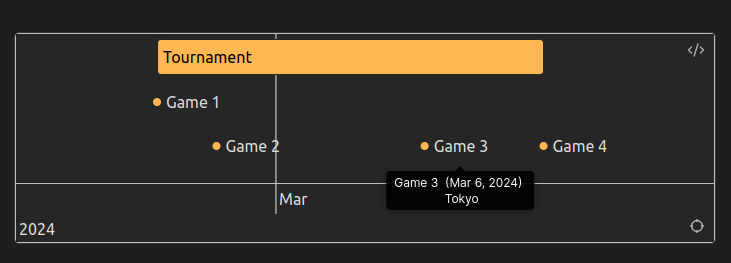
Points *
Points are ideal for marking a point in time. You can optionally add a Description that will appear on hover.
* [Date] Point Name | Description
```chronos
- [2024-02-26~2024-03-10] Tournament
* [2024-02-26] Game 1 | Austin
* [2024-02-28] Game 2 | Los Angeles
* [2024-03-06] Game 3 | Tokyo
* [2024-03-10] Game 4 | Jakarta
```
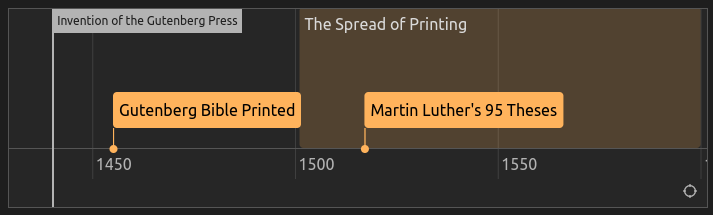
Markers =
Markers can be used to highlight a key milestone in time. Markers must be a single date. Marker Name is optional
= [Date] Marker Name
Example
```chronos
= [1440] Invention of the Gutenberg Press

- [1455] Gutenberg Bible Printed
@ [1501~1600] The Spread of Printing
- [1517] Martin Luther's 95 Theses
```
Comments #
Chronos will ignore any line that starts with #. You can use this to write comments to yourself or block out items.
Example
```chronos
# this line is a comment, it will be ignored by chronos

- [1789~1799] French Revolution
- [1791~1804] Haitian Revolution
- [1776] American Declaration of Independence

# the event below will not render, since it has been commented out
# - [1939~1945] World War II
```
Flags >
You can add flags to your timeline by using the > symbol. Flags are parsed on separate lines, and are case insenstive. You can use multiple flags.
Example: The timeline below uses the NOTODAY and ORDERBY flags, to hide the current time marker and to order the stack of overlapping items by start date.
```chronos
> NOTODAY
> ORDERBY start

- [2022~2024] foo
- [2020~2024] bar
```
NOTODAY flag
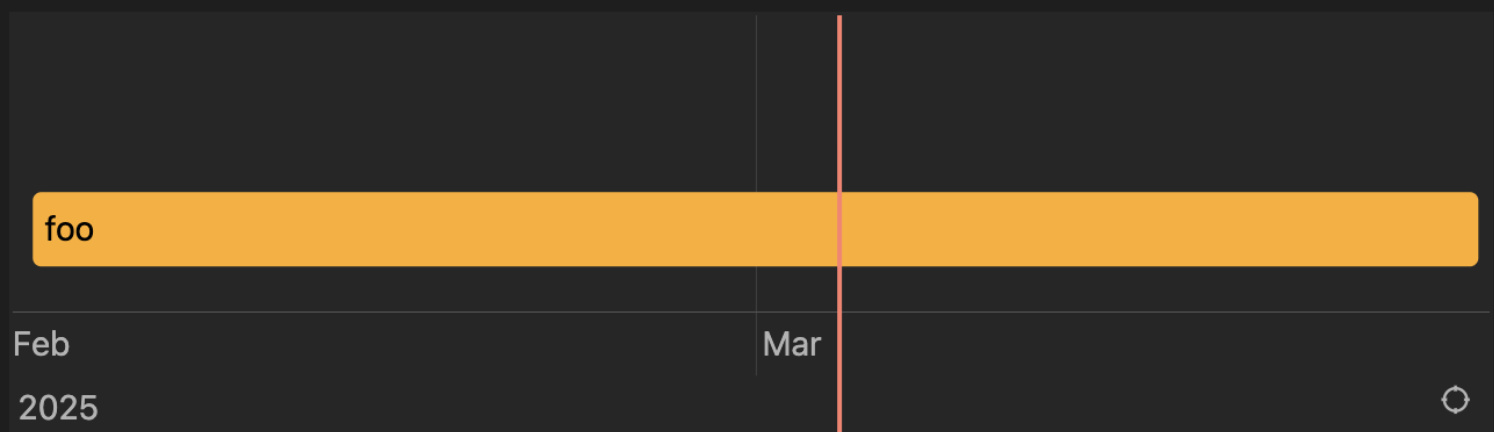
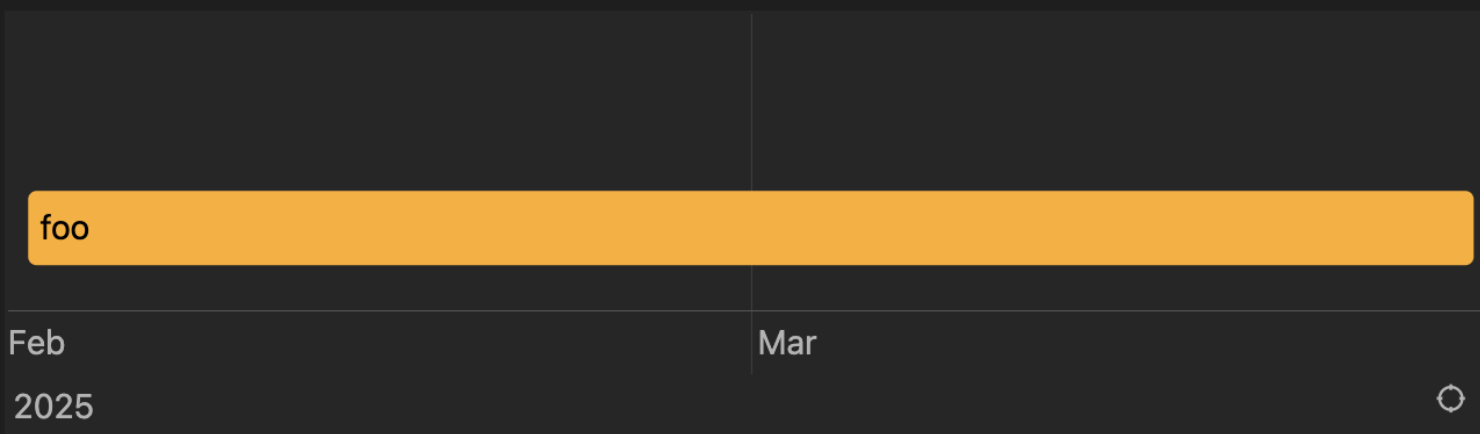
Hide the vertical bar that marks today's time
> NOTODAY
(without flag)
```chronos
- [2025-02-02~2025-03-28] foo
```
(with flag)
```chronos
> NOTODAY
- [2025-02-02~2025-03-28] foo
```
HEIGHT flag
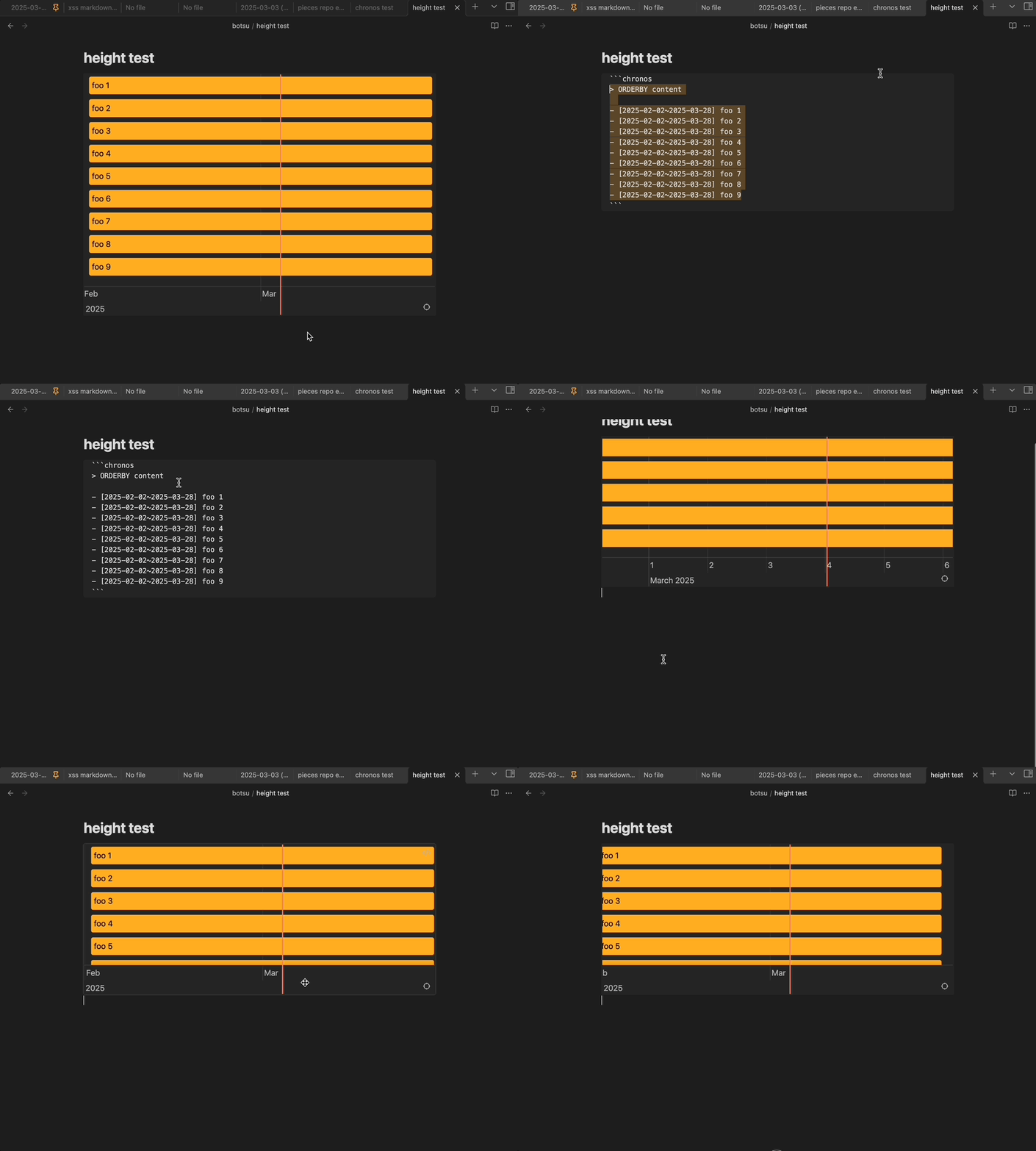
Set a fixed height for a given timeline (in pixels).
If needed, you can vertically scroll your timleline by clicking and dragging up or down
> HEIGHT <number of pixels>
```chronos
> HEIGHT 300

- [2025-02-02~2025-03-28] foo 1
- [2025-02-02~2025-03-28] foo 2
- [2025-02-02~2025-03-28] foo 3
- [2025-02-02~2025-03-28] foo 4
- [2025-02-02~2025-03-28] foo 5
- [2025-02-02~2025-03-28] foo 6
- [2025-02-02~2025-03-28] foo 7
- [2025-02-02~2025-03-28] foo 8
- [2025-02-02~2025-03-28] foo 9
```
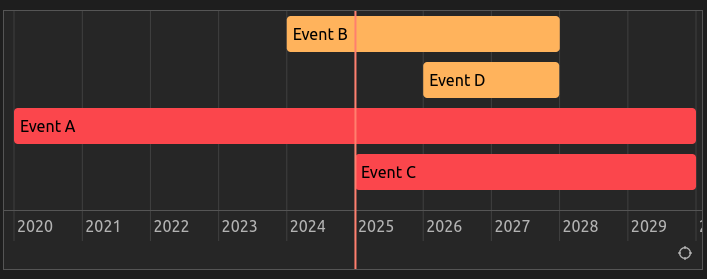
ORDERBY flag
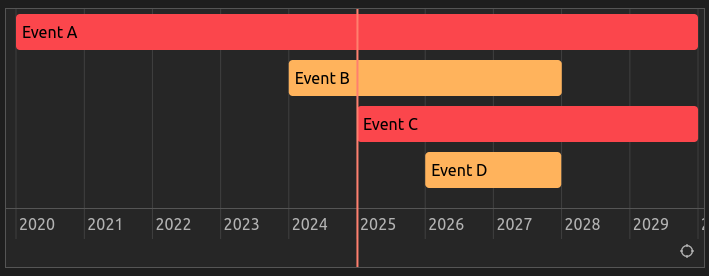
By default, Chronos ordering is set by the stacking of the elements in the timeline.
The ORDERBY flag can be used to specify an ordering
[!WARNING]
Ordering can make the timeline laggy when there are many items. Use with precaution
> ORDERBY start|-content
- You can use any of these fields:
start|end|content|color|description.- Start date | end date | item label content | color | item description
- You can stack them by joining them with a pipe
|to add another sorting level. - You can prepend a dash
-to any of the fields to order in descending order on this field.
Example
Order by start date
```chronos
> ORDERBY start

- [2026~2028] Event D
- [2024~2028] Event B
- [2025~2030] #red Event C
- [2020~2030] #red  Event A
```
Order by color and start
```chronos
> ORDERBY color|start

- [2026~2028] Event D
- [2024~2028] Event B
- [2025~2030] #red Event C
- [2020~2030] #red  Event A
```
DEFAULTVIEW flag
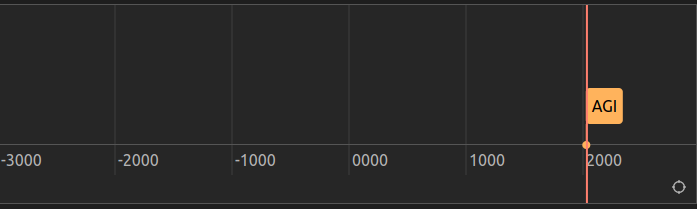
Use the > DEFAULTVIEW start|end flag to specify default start and end dates for your timeline's initial load. You can use YYYY-MM-DD timestamps for the start and end date, with the minimum requirement being YYYY.
> DEFAULTVIEW  -3000|3000

- [2024] AGI
Modifiers
Modifiers #color and {Group} can be added to Events (-) and Periods (@) with the following optional syntax.
- [Date-Date] #color {Group Name} Name | Description
The modifiers must go in this order: between Dates and Name, with color first if both color and group are used.
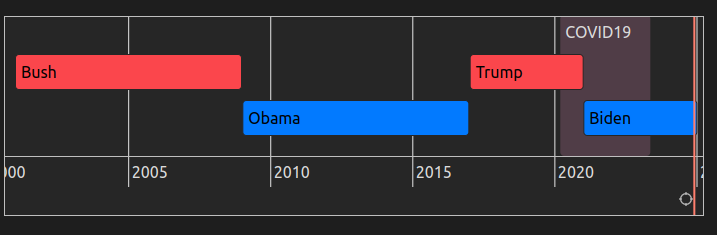
Colors #color
By default, Chronos matches your Obsidian theme color.
To give items a specific color, you can include an available color after the date: #red | #orange | #yellow | #green | #blue | purple | #pink | #cyan
Example
```chronos
- [2001~2009] #red Bush
- [2009~2017] #blue Obama
- [2017~2021] #red Trump
- [2021~2025] #blue Biden

@ [2020-03-11~2023-05-11] #pink COVID19
```
Groups {}
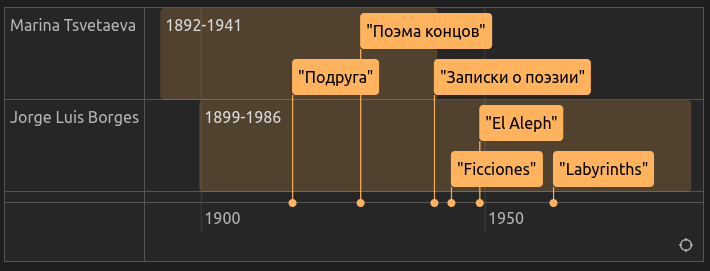
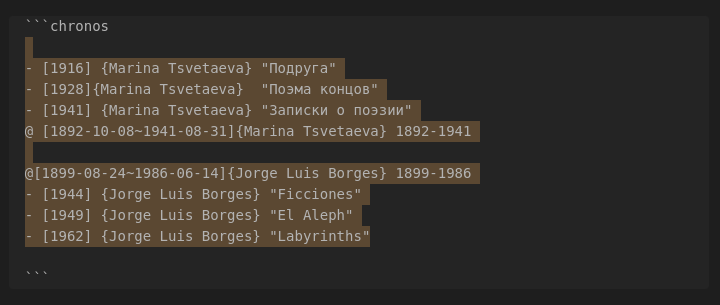
Events and Periods can be grouped into "swimlanes" by specifying a Group Name in curly brackets {} after the Date (or Color, if present). Group names are case sensitive and may contain spaces.
The order of items does not matter, but the example below lumps items together by group for human legibility.
Example
```chronos
@ [1892-10-08~1941-08-31]{Marina Tsvetaeva} 1892-1941
- [1916] {Marina Tsvetaeva} "Подруга"
- [1928] {Marina Tsvetaeva}  "Поэма концов"
- [1941] {Marina Tsvetaeva} "Записки о поэзии"

@[1899-08-24~1986-06-14]{Jorge Luis Borges} 1899-1986
- [1944] {Jorge Luis Borges} "Ficciones"
- [1949] {Jorge Luis Borges} "El Aleph"
- [1962] {Jorge Luis Borges} "Labyrinths"
```
Advanced example
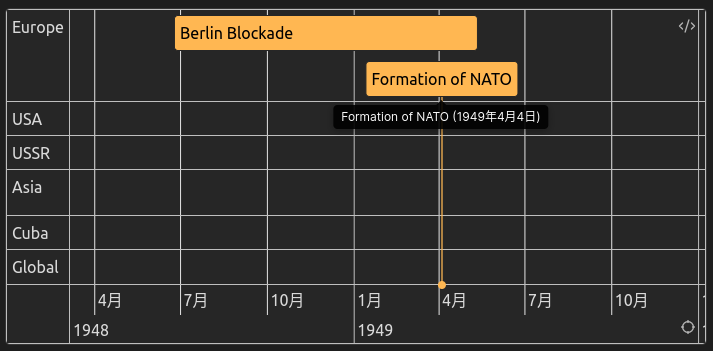
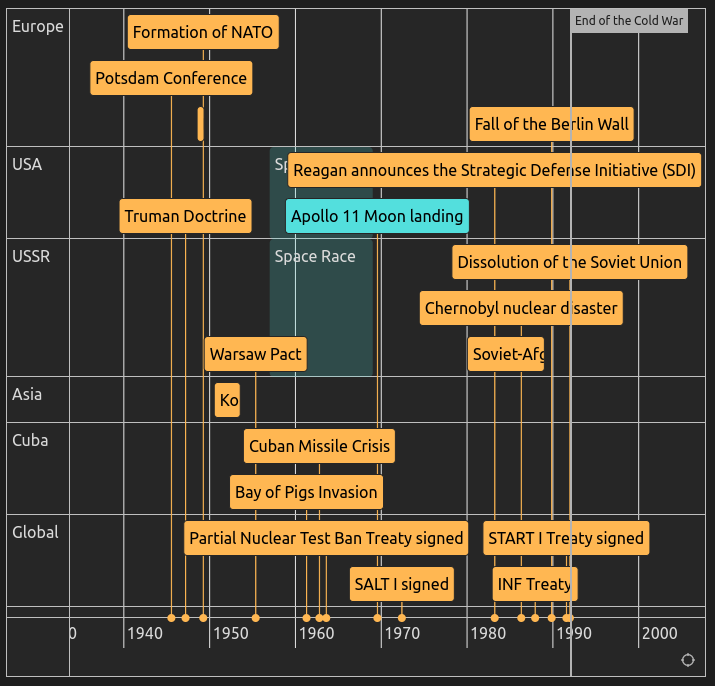
This example combines Events, Periods, Markers, Comments, Descriptions, Groups and Colors
```chronos
- [1945-07-17] {Europe} Potsdam Conference | where post-WWII Europe is divided
- [1947-03-12] {USA} Truman Doctrine | committing the U.S. to containing communism
- [1948-06-24~1949-05-12] {Europe} Berlin Blockade | and Airlift in response to Soviet actions in Berlin
- [1949-04-04] {Europe} Formation of NATO

# Early Cold War

@ [1957~1969] #cyan {USSR} Space Race
@ [1957~1969] #cyan {USA} Space Race
- [1950-06-25~1953-07-27] {Asia} Korean War | between North and South Korea
- [1955-05-14] {USSR} Warsaw Pact | in response to NATO
- [1957-10-04] #cyan {USSR} Sputnik launched | initiating the Space Race
- [1961-04-17] {Cuba} Bay of Pigs Invasion | in Cuba

# Height of Tensions

- [1962-10-16] {Cuba} Cuban Missile Crisis | a peak confrontation between the U.S. and USSR
- [1963-08-05] {Global} Partial Nuclear Test Ban Treaty signed
- [1969-07-20] #cyan {USA} Apollo 11 Moon landing | U.S. wins the Space Race
- [1972-05-26] {Global} SALT I signed | first Strategic Arms Limitation Treaty

# Détente Period

- [1979-12-24~1989-02-15] {USSR} Soviet-Afghan War | straining Soviet resources
- [1983-03-23] {USA} Reagan announces the Strategic Defense Initiative (SDI)
- [1986-04-26] {USSR} Chernobyl nuclear disaster
- [1987-12-08] {Global} INF Treaty | signed, eliminating intermediate-range nuclear missiles

# Late Cold War

- [1989-11-09] {Europe} Fall of the Berlin Wall | symbolizing the end of Cold War tensions
- [1991-07-31] {Global} START I Treaty signed | further arms reduction
- [1991-12-26] {USSR} Dissolution of the Soviet Union | officially ending the Cold War

= [1991-12-26] End of the Cold War

```
Obsidian Bases view
By adding frontmatter properties to your notes, you can easily make dynamic and highly portable timelines! Any note with at least a start property will show. Properties marked with ? below are optional
start           (Chronos date)
end?            (Chronos date)
content?        (Optional alternate title - defaults to note name)
type?           (event|point|period|marker - defaults to event)
color?          (red|orange|yellow|green|blue|purple|pink|cyan|<hexcode>)
description?
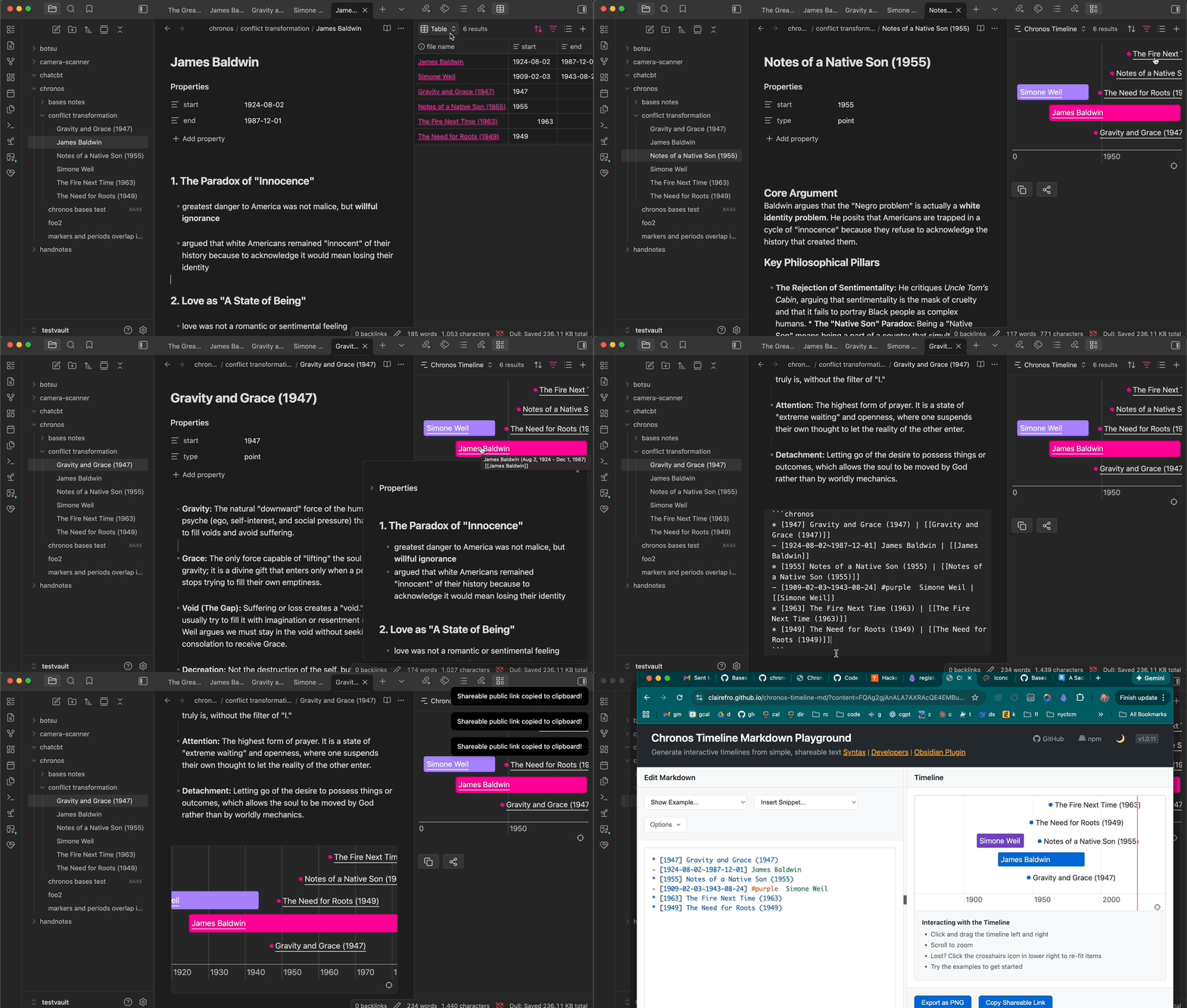
Bases: Adding a Chronos Timelines Bases view
- From a base, click "Add View" from the Views dropdown
- Select "Chronos Timeline" view and give a custom name
- (Optional) Select filters for notes (ex: all notes in a given folder, all notes with tag
#history, etc...)
Note: Only notes with
startproperty will show up in the timeline - other notes will be ignored.
Dragging your Bases view into the right or left side panels allows you to watch your timeline update in realtime as you add notes and update properties.
- Select all relevant properties to rendering your timeline
(You can also create properties with Formulas. See Formulas section)
Bases: Adding properties to notes
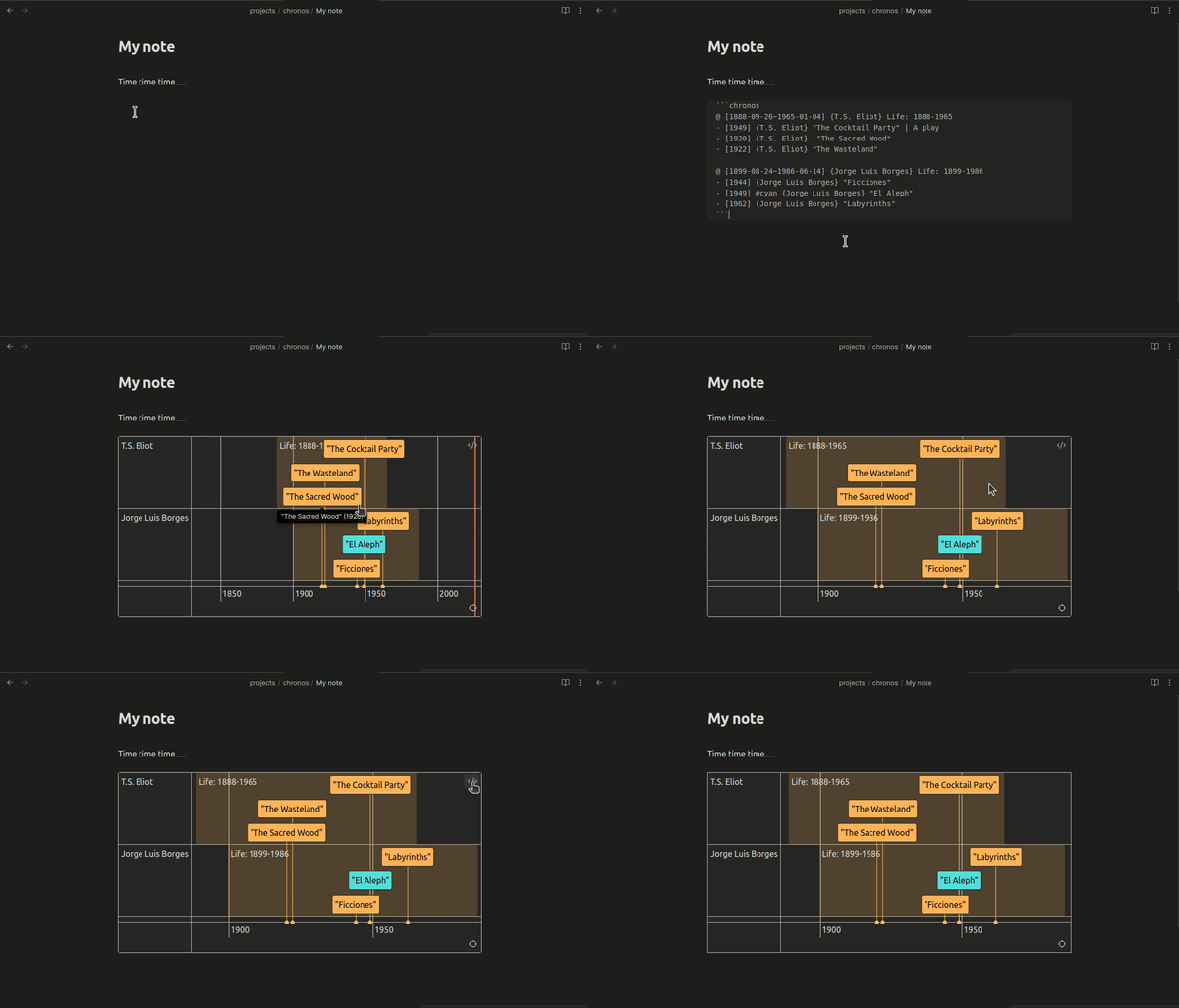
At the very top of a note you'd like to see in the Chronos Timeline Bases view, add properties by typing --- on the first line (Figure A). Or by using the properties wizard if it is already showing (Figure B).
Figure A
Figure B
start           (Chronos date)
end?            (Chronos date)
content?        (Optional alternate item title - defaults to note name)
type?           (Option: event|point|period|marker - defaults to event)
color?          (Optional: red|orange|yellow|green|blue|purple|pink|cyan|<hexcode>)
description?    (Optional)
Bases: Using custom property names
You can change the default property names (start,end etc) from the Chronos Timeline plugin settings.
Bases: Using Formulas to calculate custom values for properties
You can use Obsidian's formulas feature in Bases to implement custom logic for your properties.
For example, this can be useful for creating groups by folder name, some other property like "author", or any custom logic you come up with. See Obsidian's Formula documentation for more.
Bases: Grouping
Groups in the Chronos Timeline view are not created via the Bases "Group by" query selector, rather by adding another property on your items called group (or the custom name you give this property in your Settings)
There are two options: resolve the group property using note frontmatter, or a Bases Formula.
For a Formula example, let's say you wanted to group items by some property like author
- Make sure an
authorproperty exists on your items - (Optional) Add a filter to target specific items. In this example, we target a folder
- In your Bases view, add a Formula property named
group, set it's value toauthor
- Ensure all properties related to rendering your timeline are selected
Voila!
Formulas also allow for more complex logic to determine groups. For example, if you want to assign group labels based on the folder a given note is in:
if(file.folder.contains("Japan"), "Japan", if(file.folder.contains("China"), "China", ""))
See Obsidian's Formula documentation for more.
Bases: How Chronos Timeline Bases view resolves properties
There are two rules to know:
The Chronos Timeline Bases view will only display properties that are selected.
If two properties of the same name are selected (ex:
groupin a note frontmatter, andgroupas a custom formula) the Formula value will override the note frontmatter.
This ensures that you can override any existing frontmatter in your notes if you wish (ex: you're already using start property for some other purpose, or want to format start differently for Chronos)
Bases: Interacting with the Chronos Timeline view
The Chronos Timeline Bases view automatically links to the related note.
You can hover on an item and hold Cmd/Ctrl to see a note preview before jumping.
You can also Copy the generated markdown (to paste in chronos blocks in your notes), or Copy a shareable link (stripped of wikilinks) that you can send your friends online
Note linking (beta)
Link to other notes in your vault by adding a wiki link to either the item name or description. Type [[ then a few characters in your note title for Obsidan to auto-suggest a path to insert. Chronos will link to the first link provided in an item.
Works for Event and Point type items. You can add a link to the item name (link path visible), or the description (link path hidden). Items with a link will appear underlined.
Left-click: open link in current tab Middle-click or Shift + click: open link in new tab
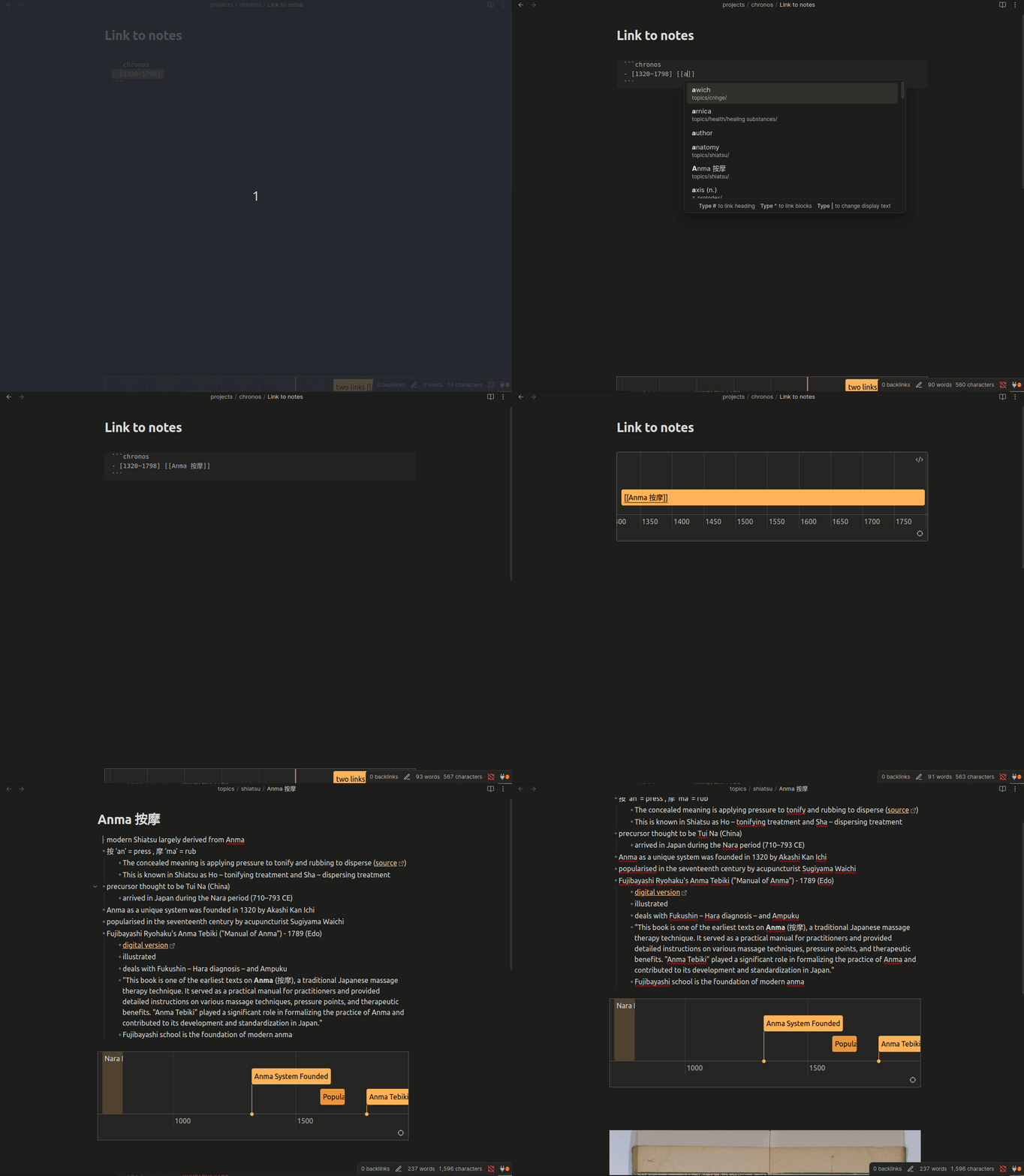
Examples:
```chronos
- [2021~2022] No link
- [2023~2024] With link [[path/to/note]]
- [2022~2024] Link in description | [[path/to/note]]
* [2022] Link in description | [[path/to/note]]
```
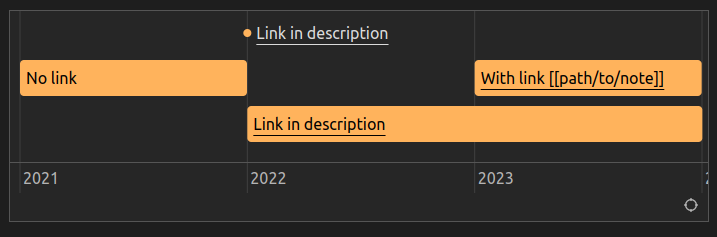
You can link directly to a section heading in a note by adding #section name to the path
```chronos
- [2021~2022] My long note | [[path/to/note#section]]
```
Note: Moving or renaming a note SOMETIMES updates links in your Chronos timeline blocks, if the path is used for the link (not an alias, ex: just
noteinstead ofpath/to/note). I'm working on updating alias links safely
Previewing links
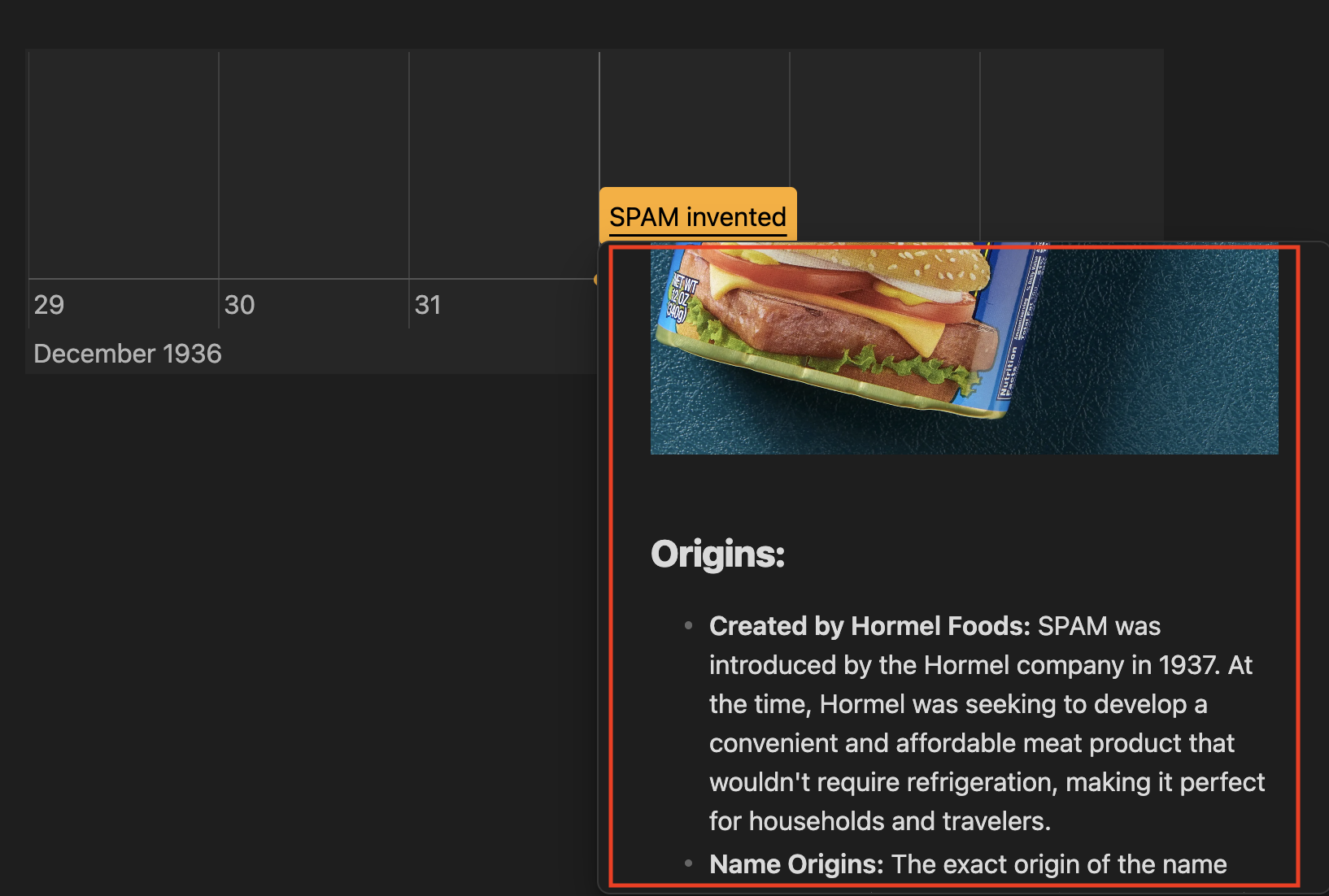
While hovering a timeline item with a link, press Control or Command to show a preview of the linked note
Dynamic Timelines
Turn your Obsidian notes into living, breathing timelines that update automatically as you work. By combining Chronos with Dataview, you can create timelines that dynamically reflect your notes, tasks, or any other data in your vault.
Prerequisites
- Dataview plugin installed
- JavaScript queries enabled in Dataview settings
You can put your dataview code inside of dataviewjs code fences:
```dataviewjs

```
Basic Example
Create a timeline of birthdays from notes in the directory Contacts and also link the notes:
```dataviewjs
const pages = dv.pages('"Contacts"').where((p) => p.birthday); // skip all without birthday

let events = pages
    .map((p) => {
        const date = new Date(p["birthday"]).toISOString().split(".")[0];
        const title = p.file.name;
        return `- [${date}] ${title} | [[${title}]]`;
    })
    .join("\n");

const chronosBlock = `\`\`\`chronos\n${events}\n\`\`\``;
dv.paragraph(chronosBlock);
```
Advanced Usage
Create a timeline of all contacts' birthdays, with family members highlighted in blue:
```dataviewjs
// Query all contacts with birthdays
const contacts = dv.pages('"Contacts"').where((p) => p.birthday);

// Generate events with family members in blue
let events = contacts
    .map((p) => {
        const date = new Date(p.birthday).toISOString().split("T")[0];
        const isFamily = p.tags?.includes("family");
        const color = isFamily ? "#blue" : "";
        return `- [${date}] ${color} ${p.file.name} | [[${p.file.path}]]`;
    })
    .join("\n");

// Add some styling
const chronosBlock = `\`\`\`chronos
> ORDERBY start

# Birthday Timeline
${events}
\`\`\``;

dv.paragraph(chronosBlock);
```
Combining Dynamic and Static Events
You can mix dynamically generated events with static timeline entries. Here's an example that combines dynamic birthdays with fixed holidays and periods:
```dataviewjs
// Query all contacts with birthdays
const contacts = dv.pages('"Contacts"').where((p) => p.birthday);

// Generate birthday events
let birthdayEvents = contacts
    .map((p) => {
        const date = new Date(p.birthday).toISOString().split("T")[0];
        const isFamily = p.tags?.includes("family");
        const color = isFamily ? "#blue" : "";
        return `- [${date}] ${color} ${p.file.name} | [[${p.file.path}]]`;
    })
    .join("\n");

// Combine with static events
const chronosBlock = `\`\`\`chronos
> ORDERBY start

# Important Dates
@ [2024-12-20~2025-01-05] #pink Holiday Season
= [2024-12-25] Christmas Day
= [2025-01-01] New Year's Day

# Birthdays
${birthdayEvents}
\`\`\``;

dv.paragraph(chronosBlock);
```
Tips
- Use frontmatter dates for consistent formatting (also for ranges)
- Style events with dynamic colors and groups using any Dataview query logic
- Mix with static events and periods
- Leverage Dataview's full query capabilities to generate timeline events
The timeline updates automatically whenever your source notes change!
Actions
Edit
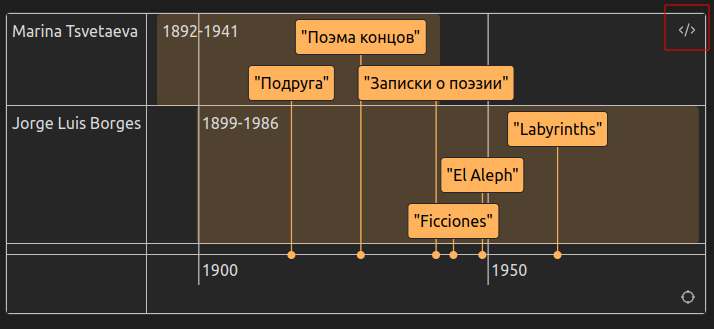
To enter Edit mode an update your chronos Markdown, hover over the timeline and click the code icon that appears in the upper-right corner.
Refit
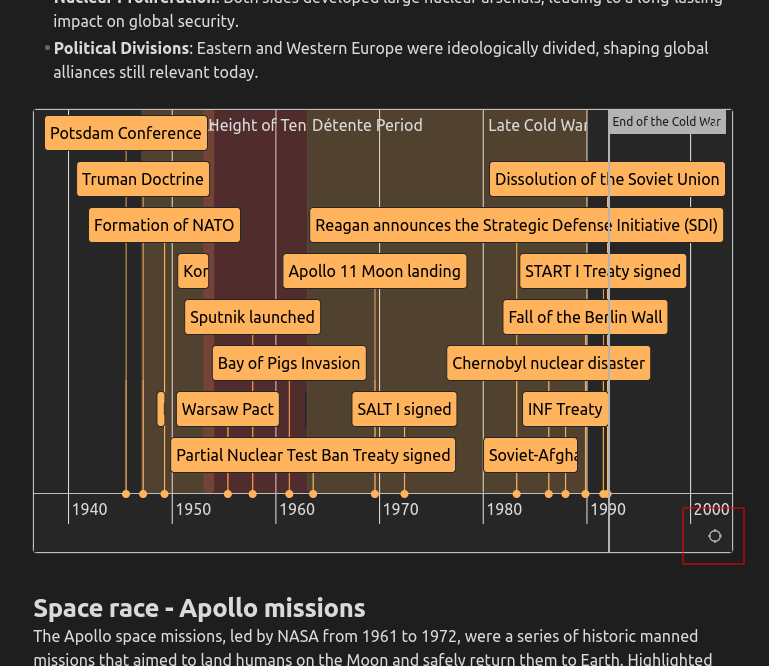
Click the Refit button (crosshairs icon) in the lower-right corner to adjust all items to fit within the view window.
Toggle width
Hover on the timeline and click the width toggle in the upper left to expand the timeline to the width of your editor.
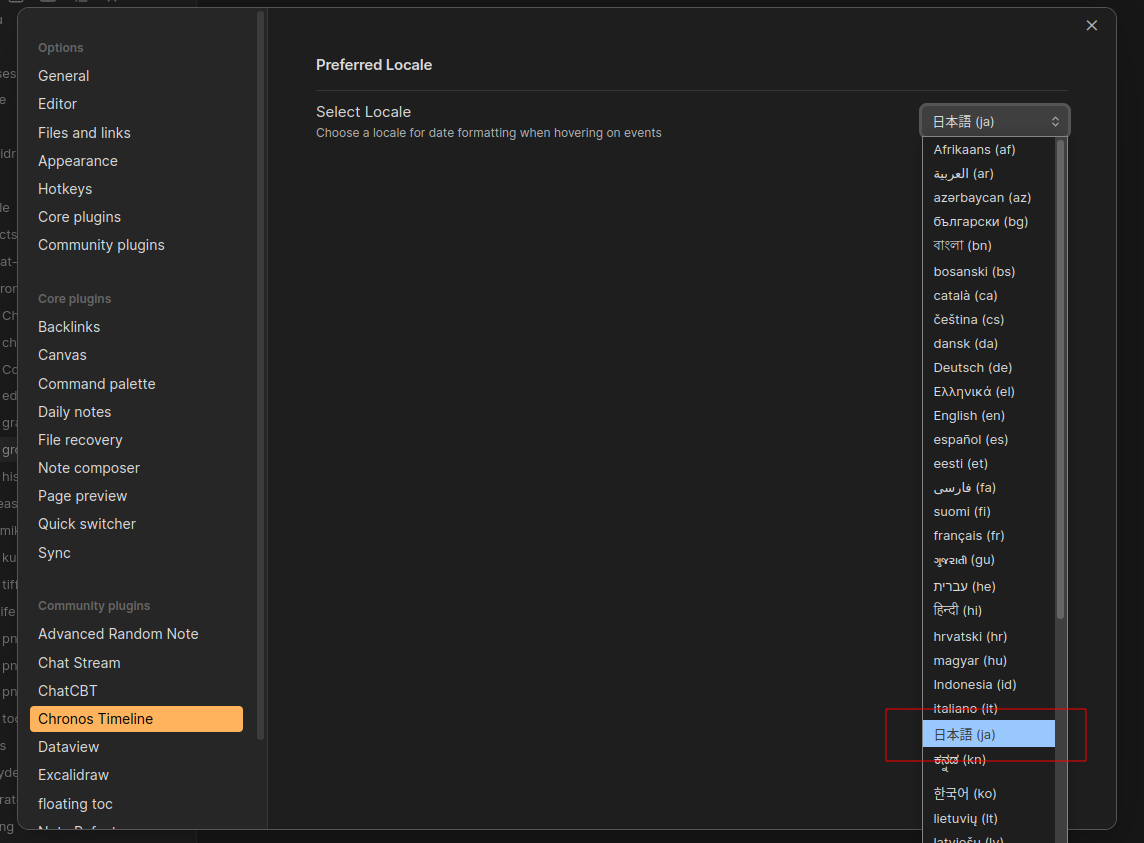
Localization
You can choose your preferred language for dates, from the Chronos Timeline plugin settings.
Available options depend on your system's language settings.