Zone Scroll Zoom
 kqint999 downloads
Zoom where your mouse is — font in editor, interface elsewhere.
- Overview
- Scorecard
- Updates12
An Obsidian plugin that scales the interface and font with keyboard shortcuts, where the zoom behavior adapts to your mouse position.
Features
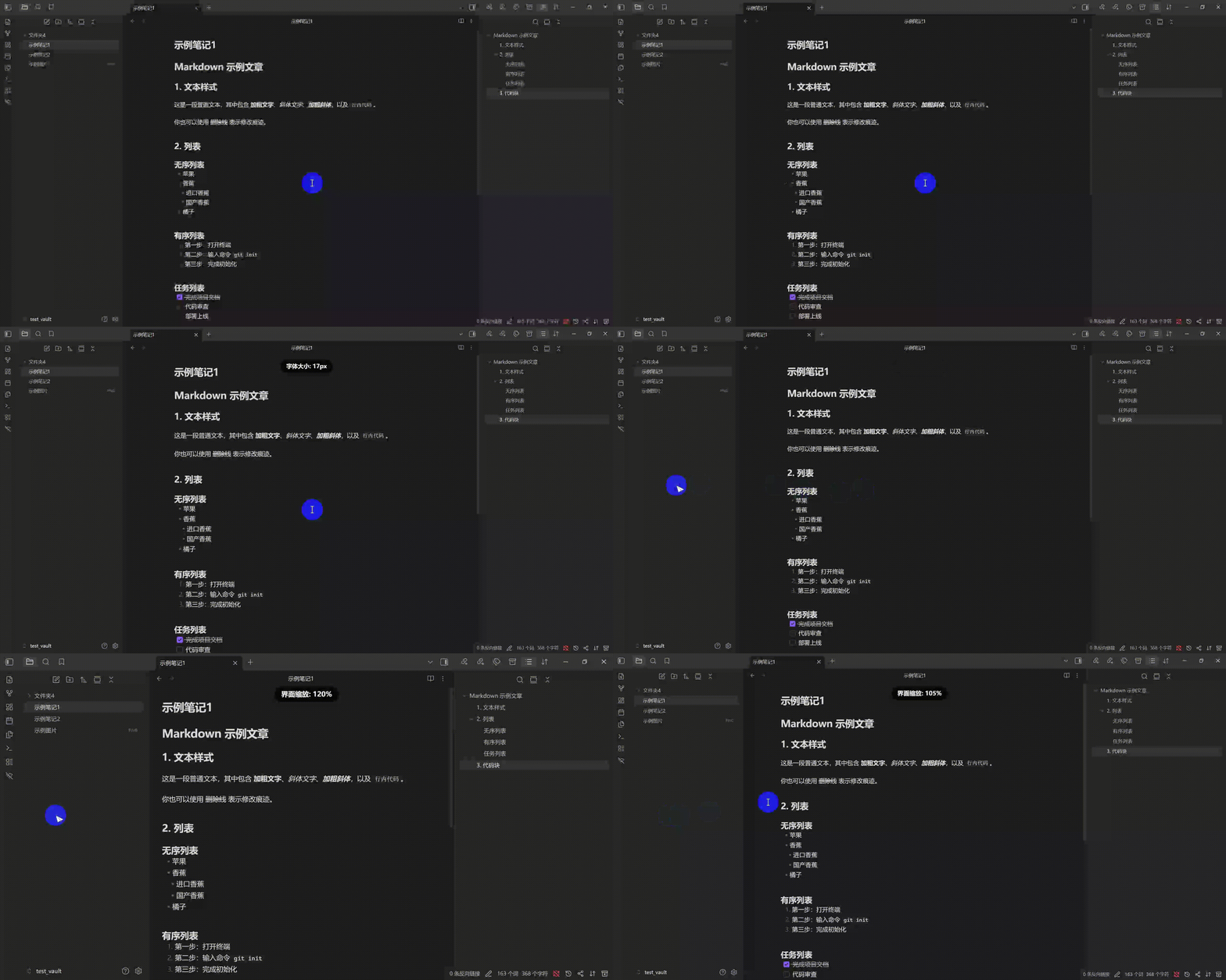
- Shortcut Zoom: Use keyboard shortcuts to zoom in different areas (default: Ctrl + Scroll Wheel).
- Zone-Based Zooming:
- Mouse in Editor Area: Zooms the editor font size.
- Mouse in Non-Editor Area: Zooms the entire Obsidian interface (including sidebar, menus).
- Real-time Status Display: A clean OSD indicator appears at the top of the screen, showing the current scale/font size in real time.
- Customizable Settings: Adjust zoom precision in settings, modify shortcuts (supports Ctrl/Cmd, Shift, Alt). Personal settings are automatically saved to
data.json. - Multi-language Support: Supports English, Simplified Chinese, and Traditional Chinese. Switch languages in settings or follow Obsidian's system language.
- Reset Zoom Ratio: A button in the settings page to quickly restore default font size (16px) or interface scale (100%).
[!note] Before using this plugin, go to Settings → Appearance and disable "Quick font size adjustment".
Installation
Community Plugin Marketplace
Open Obsidian Settings → Community Plugins → Browse, search "Zone Scroll Zoom", install and enable.
Or visit the plugin page and click "Add to Obsidian".
BRAT Installation
- Install BRAT.
- Open BRAT settings →
Add Beta Plugin. - Enter repository:
kqint/obsidian-zone-scroll-zoom.
Manual Installation
- Download
main.jsandmanifest.jsonfrom releases/latest. - Create an
obsidian-zone-scroll-zoomfolder inside.obsidian/plugins/, and placemain.jsandmanifest.jsoninto this folder. - Enable the plugin in Obsidian settings.
Internationalization
Language source files are located in src/locales/:
src/locales/en.jsonsrc/locales/zh-CN.jsonsrc/locales/zh-TW.json
Adding a New Language
- Copy
src/locales/en.jsontosrc/locales/xx.jsonand translate all string values (keep the keys as-is). - In
src/i18n.ts, register your locale by adding:- An import for your JSON file
- An entry in
BUILT_IN_LOCALES - Obsidian language code mappings in
OBSIDIAN_LANG_MAP - Locale metadata in
LOCALE_META
- Add the locale option name to all existing locale files under
settings.language.options. - Run
npm run buildand test.
See CONTRIBUTING.md for the detailed step-by-step guide.
License
HealthExcellent
ReviewPassed
About
Scale Obsidian by mouse zone using keyboard shortcuts: zoom editor font when the cursor is in the editor area and zoom the entire interface when the cursor is outside. Display a live on-screen indicator of the current scale and reset font/interface zoom back to defaults from settings.Details
Current version
1.3.6
Last updated
3 months ago
Created
8 months ago
Updates
12 releases
Downloads
999
Compatible with
Obsidian 1.8.7+
Platforms
Desktop only
License
MIT