
- Overview
- Scorecard
- Updates23
Create, navigate, and edit Obsidian footnotes all from the keyboard:
- One hotkey for footnote creation/editing: insert a new footnote, and jump between the footnote reference and its definition
- Popup editor: edit the footnote right at your cursor, no scrolling to the bottom
- Numbered, named, and inline footnote styles
- Selection to footnote: turn text you already wrote into a footnote with one press
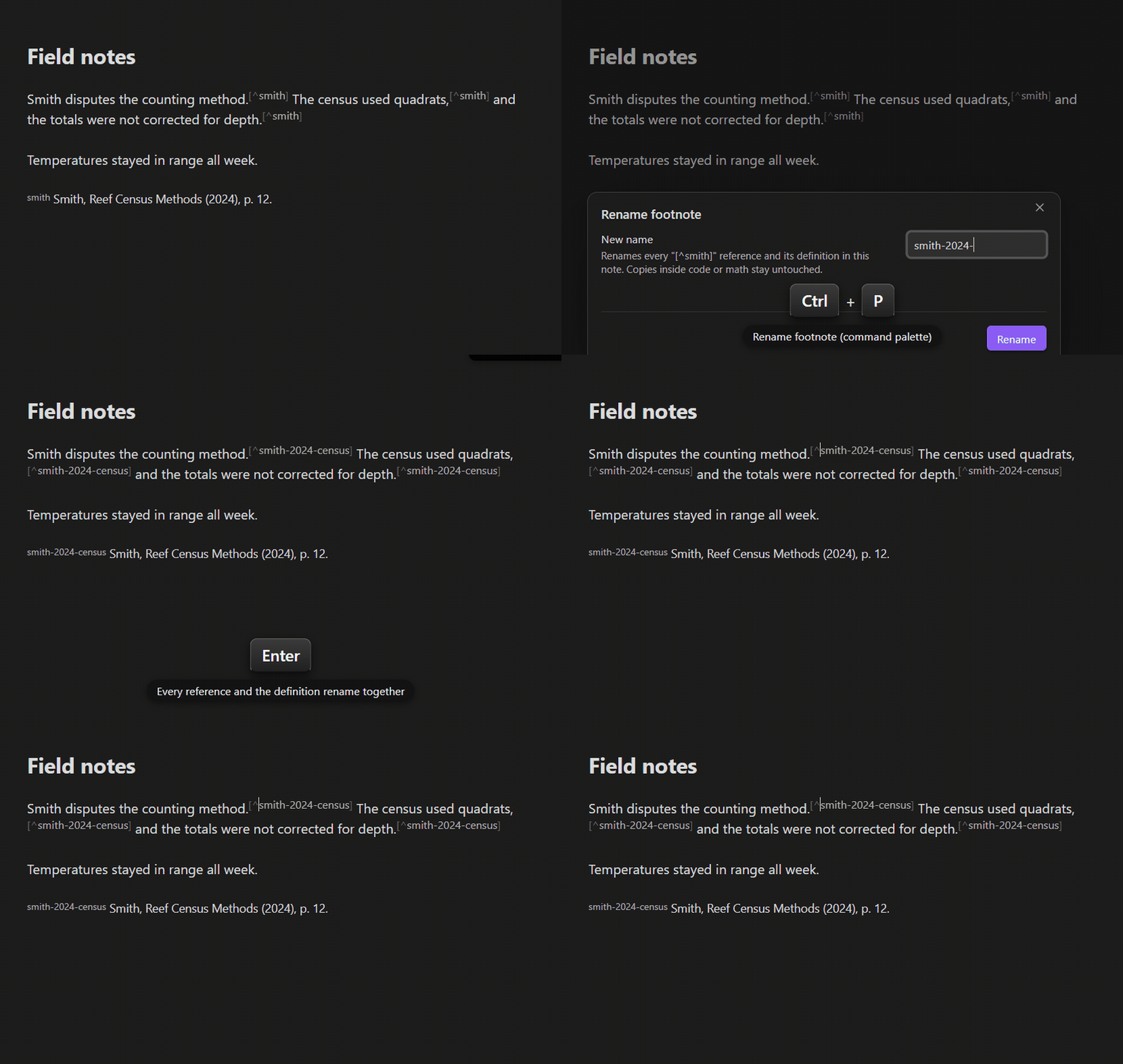
- Rename a footnote everywhere at once, like renaming a variable in a code editor
- Footnote linter to keep footnote formatting tidy
- Per-note footnote prefixes keep footnotes unique even when multiple chapters are merged into a larger document, such as with the Longform or Easy Bake plugins
- Works on Obsidian Mobile

FIRST: set up your hotkeys
The plugin adds its commands without hotkeys, so assign your own right after installing by going to:
Settings → Hotkeys → search for "Footnote Shortcut" → click the ⨁ next to a command → press your preferred keys
Of the plugin's 7 commands, the ones you'll press constantly should have hotkeys. I personally use:
| Command | Recommended hotkey |
|---|---|
| Insert / navigate numbered footnote | Alt+0 |
| Insert / navigate named footnote | Alt+- |
| Insert inline footnote | Alt+= |
| Insert inline footnote from clipboard | Alt+Shift+= |
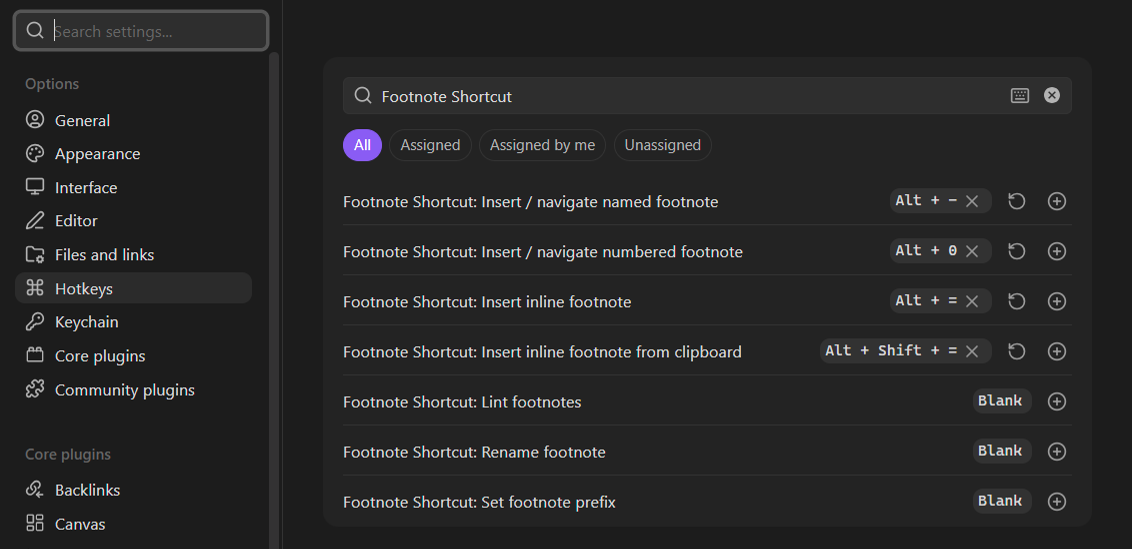
The other 3 (Lint footnotes, Rename footnote, and Set footnote prefix) come up less often, so running them from the command palette works fine. Give them hotkeys too if they become part of your routine.
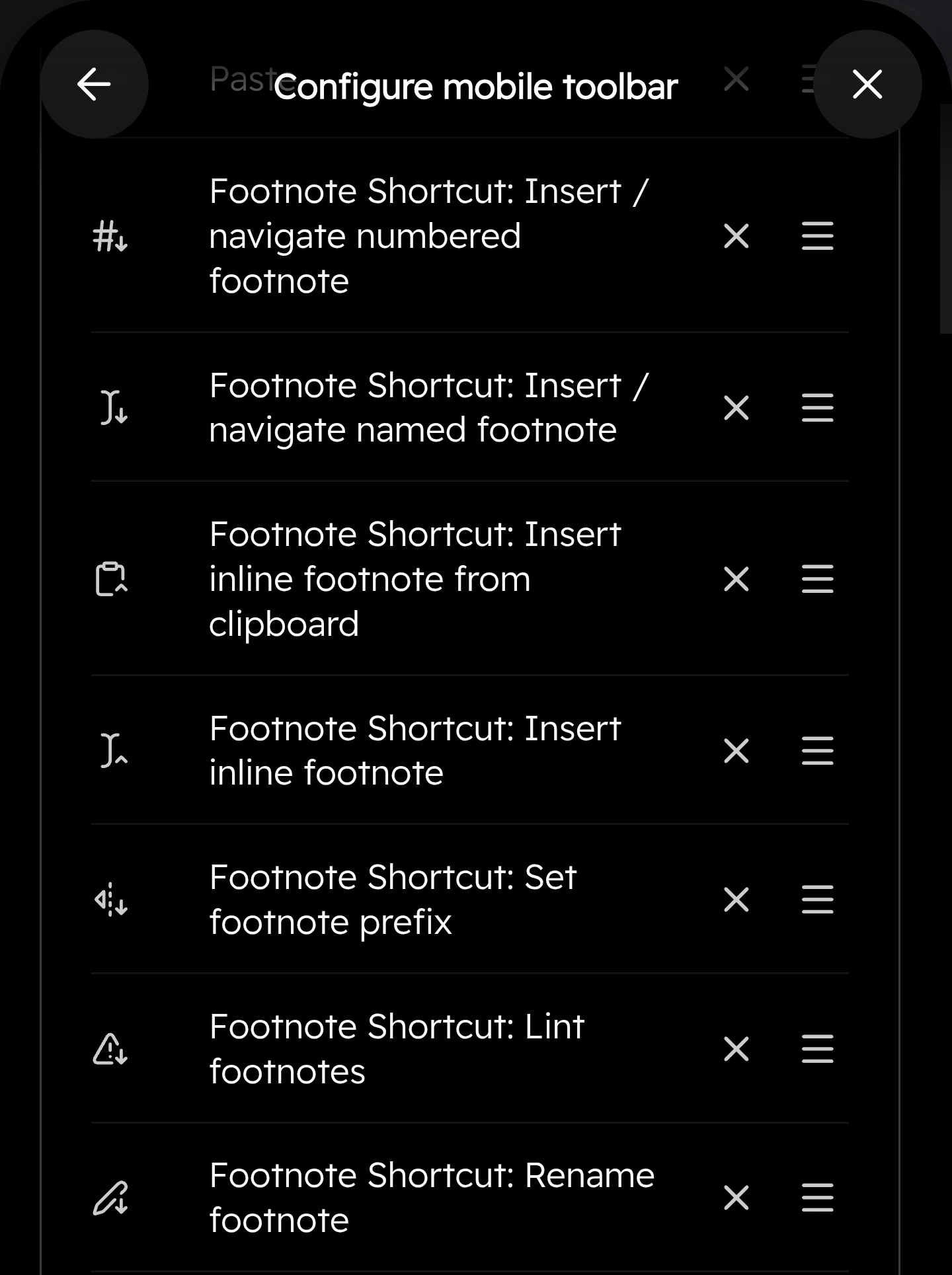
Everything also works on mobile from the toolbar, each with their own unique toolbar icons.
Creating footnotes
Numbered footnotes
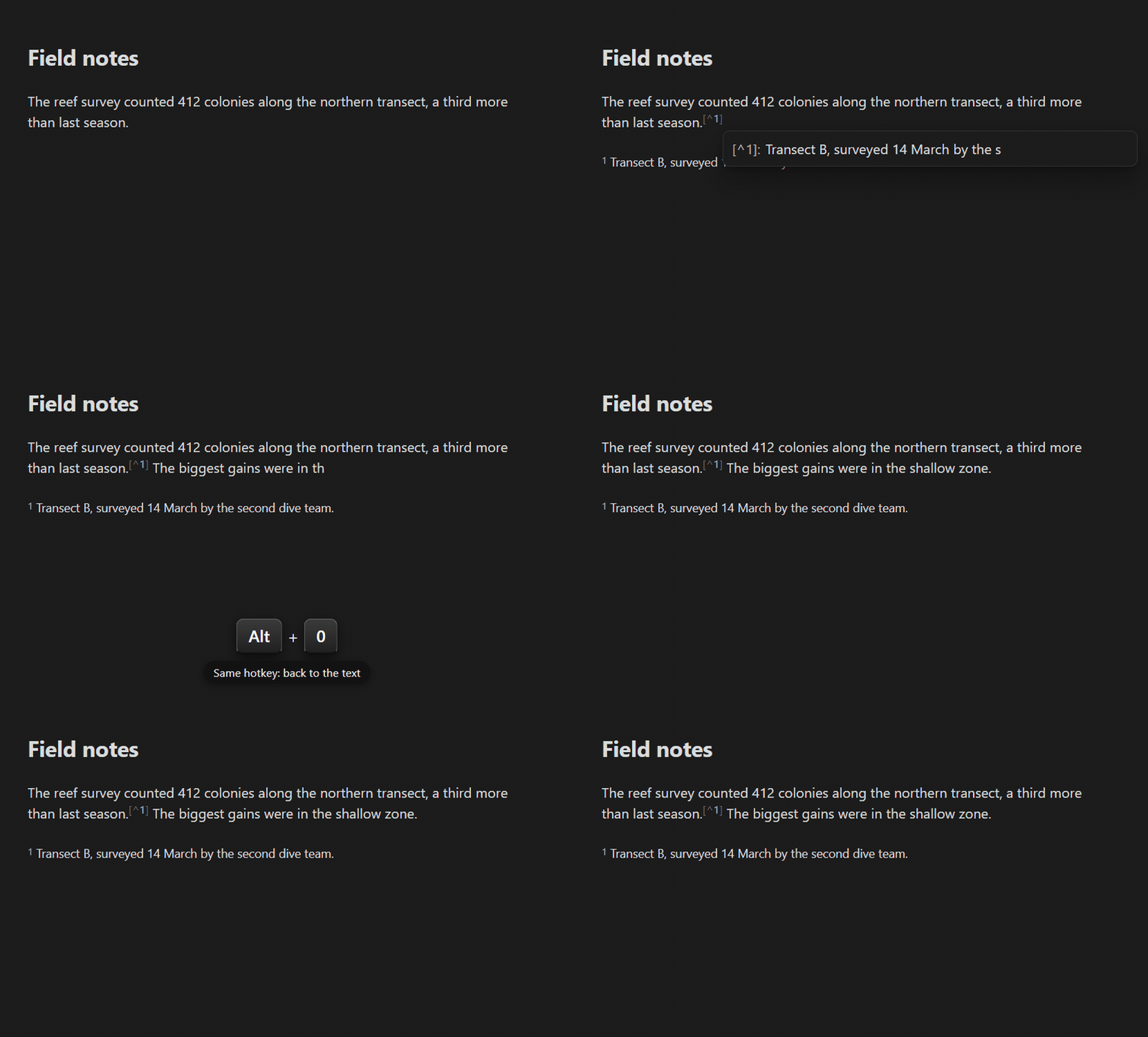
Put your cursor where the footnote belongs and press the hotkey. The plugin finds the next free number, inserts the reference (say [^1]), creates the matching [^1]: definition at the bottom of the note, and lets you type the definition text immediately.
Footnotes are never created inside code, math, comments, frontmatter, or another footnote's definition, where they would be invalid. The plugin refuses in those locations and alerts you.
Named footnotes
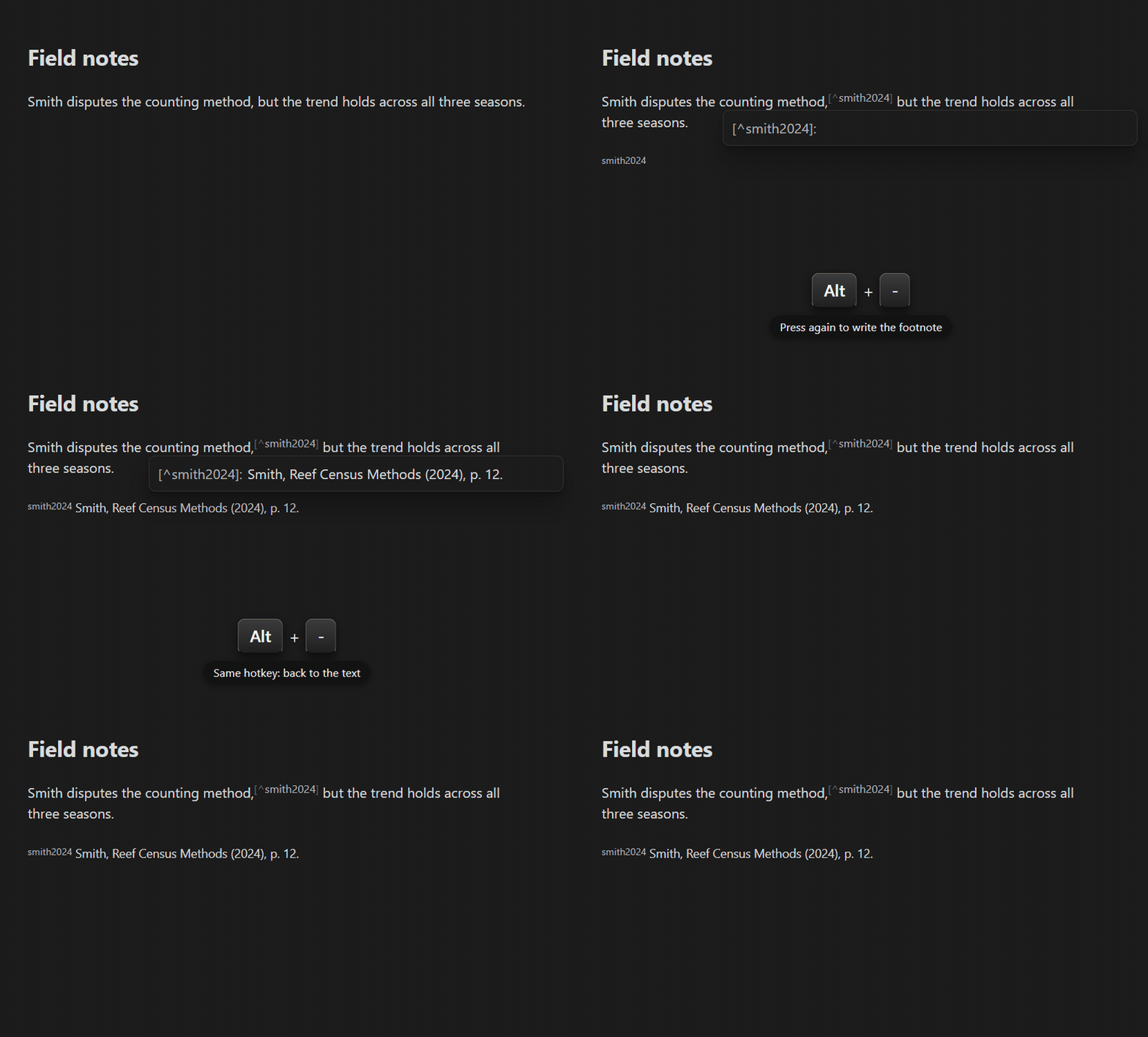
Named footnotes (like [^smith2024]) take 2 quick presses:
- First press inserts an empty reference
[^]with your cursor between the brackets. Type the name. - Second press (with your cursor still on the reference) creates the matching
[^smith2024]:line and lets you write the definition text.
Names can hold almost anything ([^smith2024], [^arXiv:1234.5678], [^注]). The exceptions are spaces, backticks, brackets, and #, which Obsidian can't render or find. The plugin refuses those invalid characters and alerts you.
Inline footnotes
2 commands cover Obsidian's inline ^[...] style:
- Insert inline footnote places
^[]with your cursor inside, ready to type. Press the hotkey again when you're done and the cursor hops out past the closing bracket, so you never need the arrow keys. - Insert inline footnote from clipboard wraps whatever you've copied into
^[...]in one press. Multi-line clipboard text is flattened to one line, and anything that would break the footnote (e.g. stray brackets) is escaped automatically.
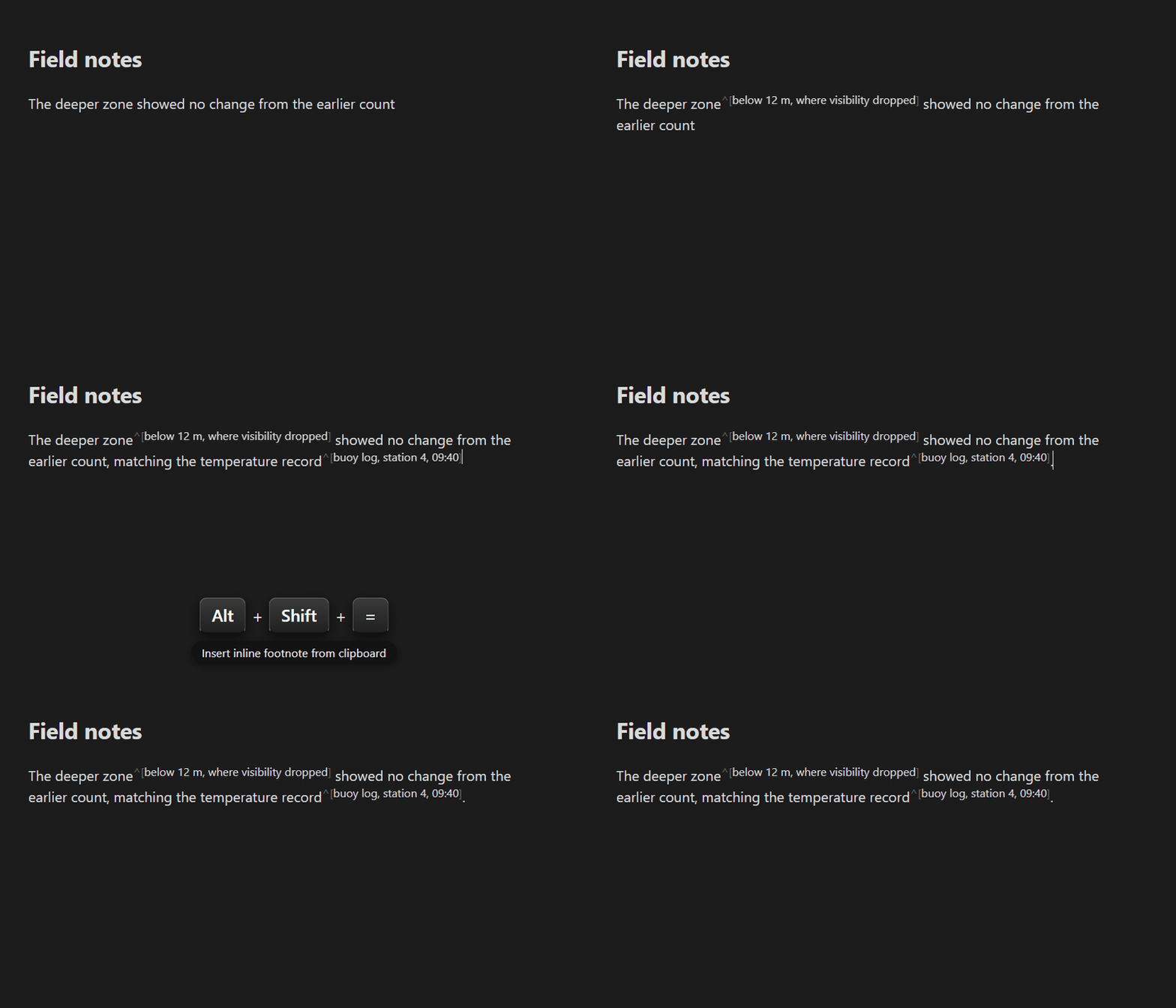
Inside tables
Footnotes work in table cells too: the reference goes into the cell and the definition lands below the table. Undoing a footnote made from a cell can take 2 undos, because the cell and the note are separate editors. A notice tells you when the first undo has only removed the definition, and whether a second undo removes the reference too.
Turn selected text into a footnote
Sometimes you write something mid-sentence and realize it should be a footnote. Select it and press a footnote hotkey:
- The numbered hotkey replaces the selection with the next numbered footnote reference and moves the selected text into that footnote's definition. Multi-paragraph selections work too: the whole block becomes one multi-paragraph footnote, including whole code blocks, callouts, etc.
- The named hotkey asks you for a name first, then does the same under
[^yourname]. Confirm with Enter, the Create button, or just press any footnote hotkey again. - The inline hotkey wraps the selection as
^[...]right where it is. It accepts single-line selections only, as only those format correctly. For a multi-line selection, it points you to the previous 2. - A selection that starts or ends mid-word grows to whole words first, plus one trailing punctuation mark, so a sloppy drag still produces a clean footnote. Turn Expand selections to whole words off in the settings if you want the exact selection.
- A selection that contains/cuts-through an existing footnote refuses to convert, as footnotes can't be nested inside other footnotes. Nesting is prevented throughout the plugin, and linting alerts you if a note already has hand-typed nesting.
- Tables: text inside one cell converts, as well as a whole table selected edge to edge (with or without the text around it). A selection that cuts through a table's pipes refuses, to avoid breaking the table.
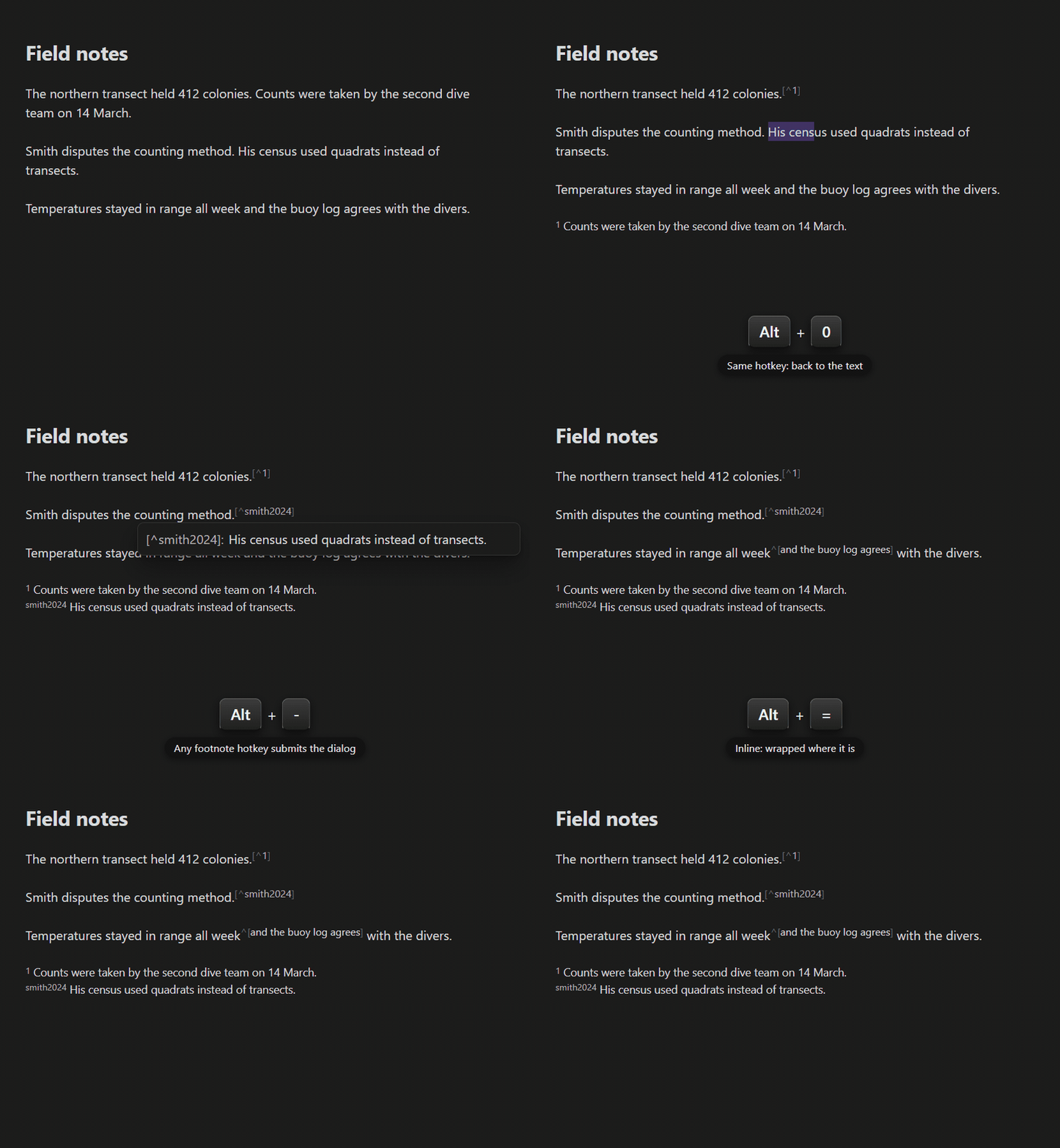
Creating footnotes at multiple cursors
Multiple cursors (Alt+click) get the same footnote at every one of them, handy when one source is cited in several places:
- The numbered hotkey puts the same
[^N]at every cursor, sharing a single definition. - The named hotkey drops footnote brackets around every cursor and leaves a cursor inside each pair, so you type the name once and it lands everywhere. Press the hotkey again with the cursors still inside to create the shared definition.
- The inline hotkey also drops footnote brackets around every cursor, so you type the footnote text once and it lands everywhere.
- Pasting as an inline footnote wraps the same clipboard text at every cursor.
If any cursor sits where a footnote can't go, nothing is inserted anywhere. Every multi-cursor insertion ends with a single cursor after the first reference.
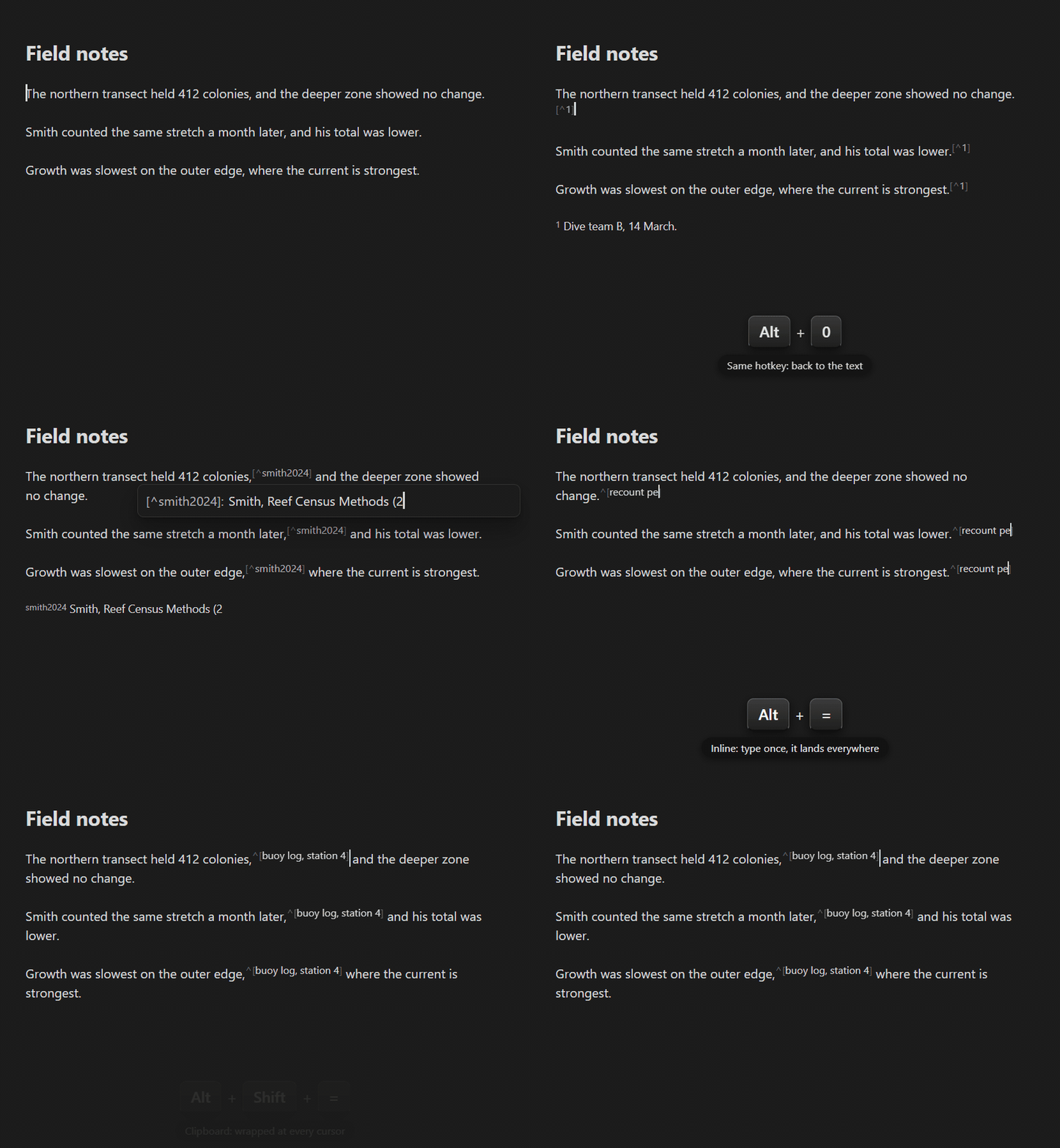
Navigating footnotes
The insert hotkeys double as navigation. What they do depends on where your cursor is:
- On a footnote reference (inside
[^3]in your text): open its definition in a popup right at your cursor (or by jumping to the definition, when the footnote popup is off). - On a footnote definition at the bottom (a
[^3]: …line): jump back to where its reference is used in your text. - Anywhere else: insert a new footnote, as described above.
One hotkey takes you back and forth between a reference and its note.
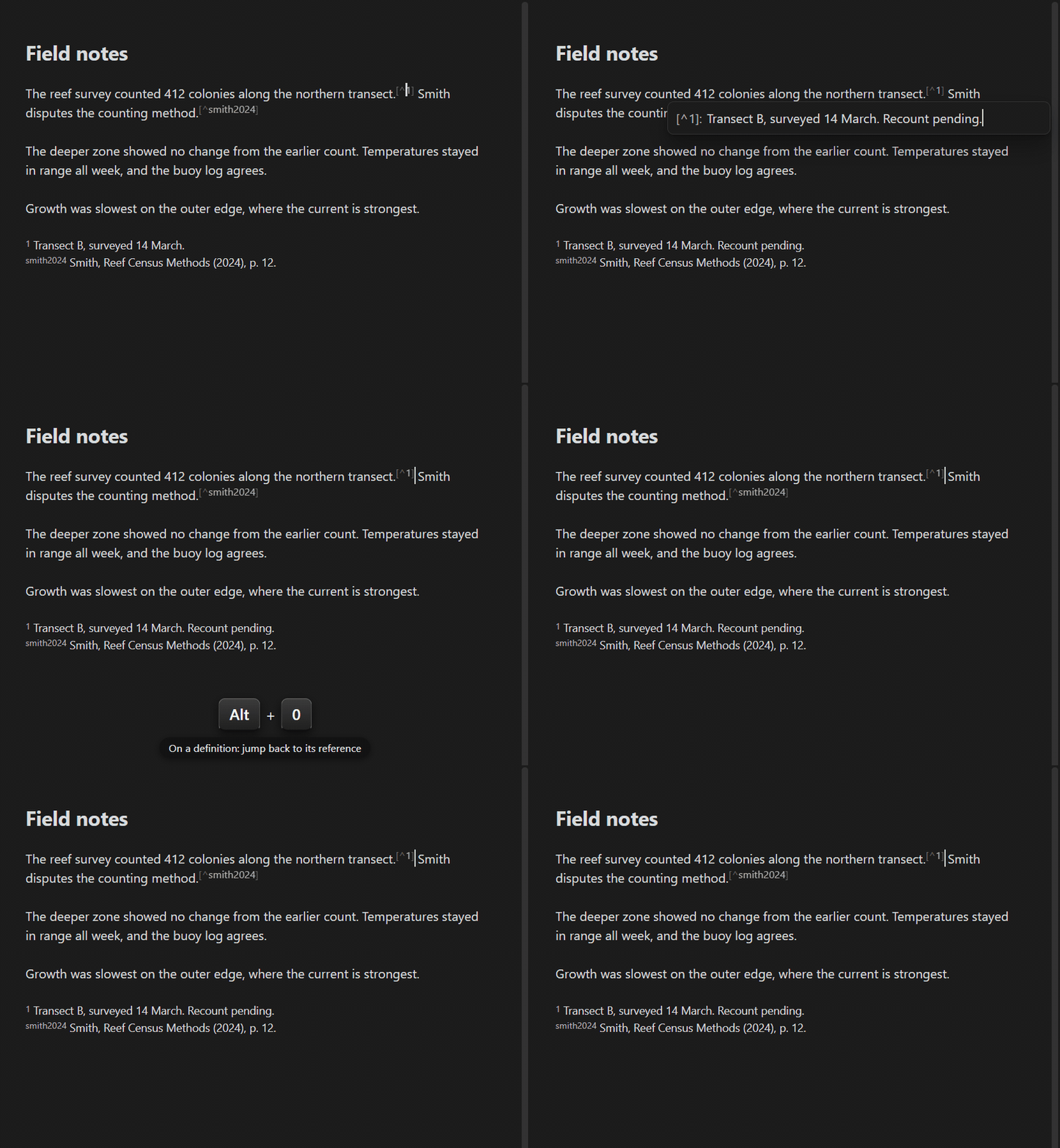
Renaming a footnote
Put your cursor on any reference or definition and run Rename footnote. It works like renaming a variable in a code editor: every reference and the definition get the new name in one step. It's also in the right-click menu when you click on a footnote, just like Obsidian's own rename for headings. Names are case-insensitive, so [^Note] and [^note] count as the same footnote. The command refuses names that are already taken and names a footnote can't have, and under a per-note prefix the new name gets the prefix added for you.
The popup editor
Creating or visiting a footnote opens its definition text in a small editor right at your cursor, so you never lose your place in the note. Close it with the same hotkey, Escape, or by clicking anywhere outside. Switching to Reading view closes it too. If a footnote has more than one definition, the hotkey jumps to the last definition instead (the one Reading View renders) so you can sort it out (or let the linter merge them). If you prefer the classic jump-to-the-bottom behavior, turn off Edit footnotes in a popup in the settings.
Keeping footnotes tidy: the linter
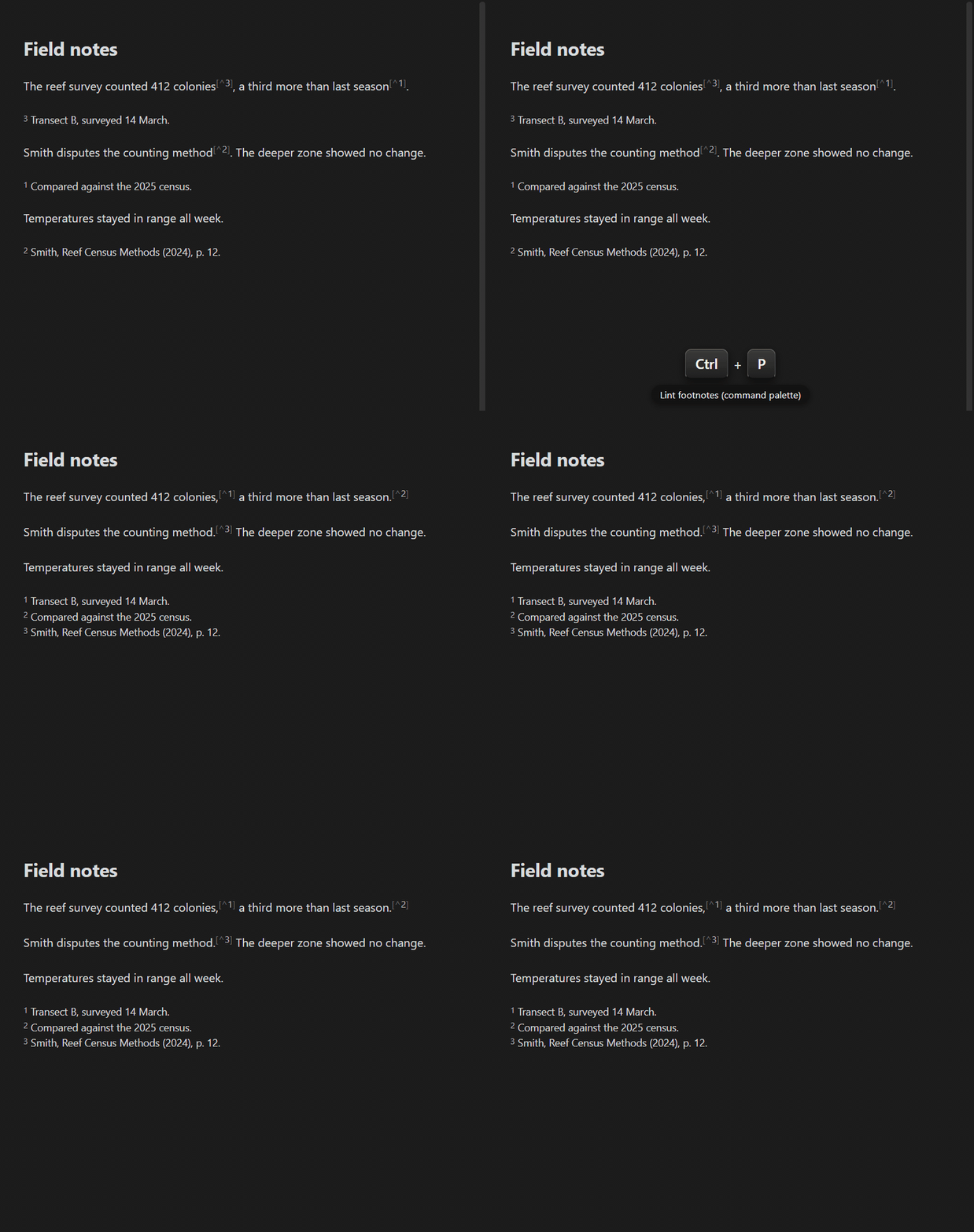
Writing and revising can leave footnotes messy. The Lint footnotes command cleans up the whole note in one pass:
- Move footnote references after punctuation: Moves references that sit before punctuation, or inside closing quotation marks, brackets, or emphasis, to sit after them (
word[^1].becomesword.[^1], and"quote[^1]".becomes"quote".[^1]), the placement every major style guide recommends. - Gather definitions: Moves every footnote definition under your specified footnote section heading, or to the bottom of the note.
- Fix definitions hidden by a missing blank line: a
[^1]:line typed directly under a paragraph is plain text to Obsidian, and its footnote never shows. The linter inserts the blank line it needs (or, with the rule off, alerts you about it). - Alert/delete orphans: Orphans are footnote references without a definition or definitions without a reference. You choose whether the plugin alerts you or deletes orphans.
- Merge duplicate definitions: if you accidentally have multiple definitions for the same footnote name, the plugin can alert you or merge them into one.
- Reindex: renumbers footnotes
1, 2, 3…in the order they appear and reorders their definitions to match. Named footnotes keep their names (or get numbers too, if you enable Renumber named footnotes).
Each rule can be toggled individually in Settings → Footnote Shortcut → Linting, along with 2 automatic triggers (both off by default):
- Lint on save: lints the note whenever you press Ctrl/Cmd+S (vim users:
:wworks too). - Lint on footnote creation: lints the note right after you create a new footnote.
The linter also watches for problems it can't fix by itself and tells you about them, naming every footnote involved:
- an empty
[^]reference you never named, references with no definition or definitions nothing uses (while delete orphaned references/definitions are off) - a definition typed directly under a paragraph with no blank line above it as Obsidian shows it as plain text (while Fix definitions hidden by a missing blank line is off)
- duplicate definitions (while Merge duplicate definitions is off)
- names a footnote can't have (spaces, backticks, brackets,
#) - footnotes nested inside another footnote's definition.
For chapter notes: per-note footnote prefix
If you're writing a book via chapter notes (e.g. when using the Longform or Easy Bake plugins), plain numbering collides when you merge the chapters back together: every chapter has its own [^1], so Obsidian confuses footnotes from chapter 1 with those from every other chapter.
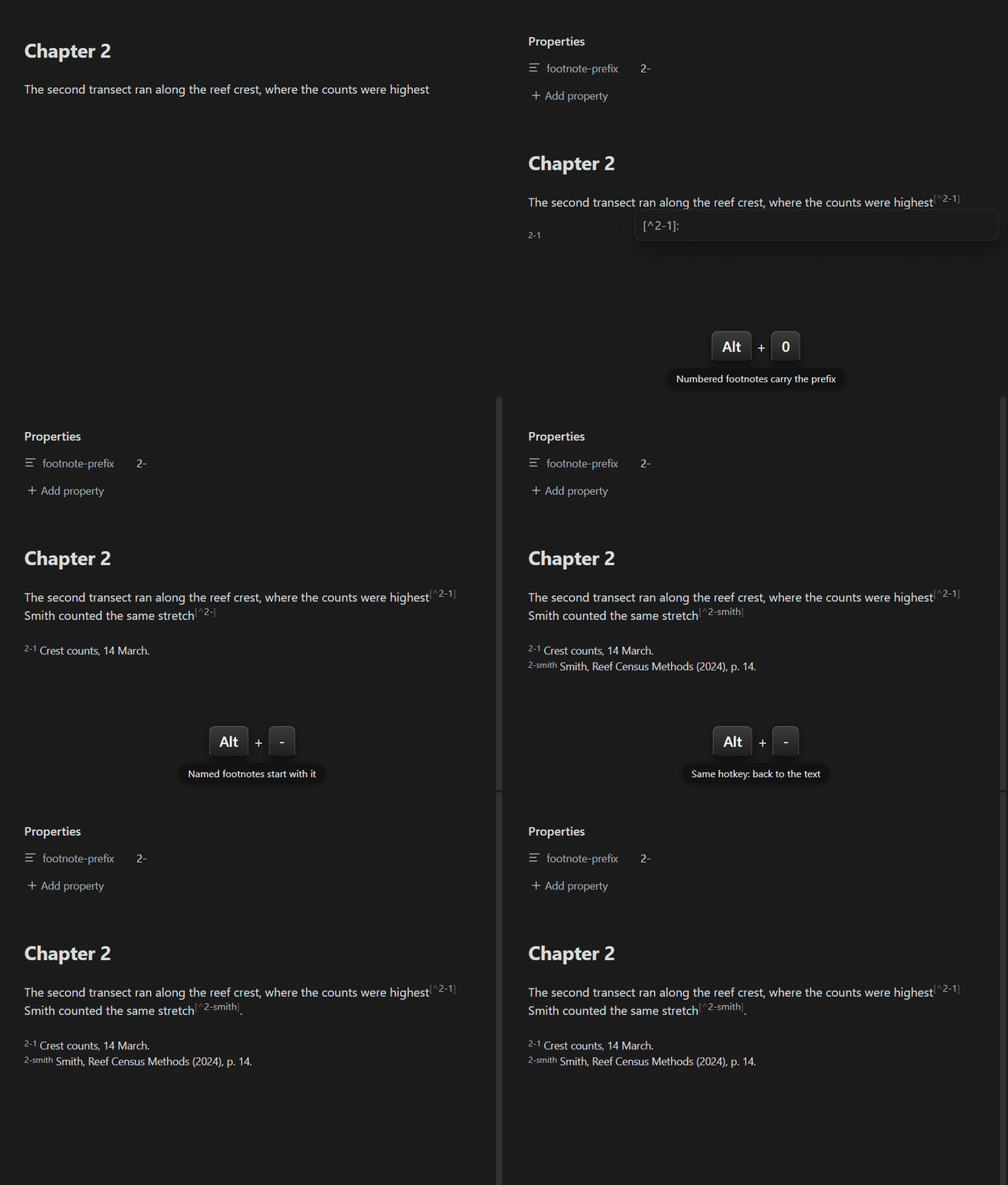
To fix this, turn on Per-note footnote prefix and give each chapter its own unique prefix, so footnotes stay unique across the whole book:
- Run the Set footnote prefix command and enter a prefix, e.g.
2-for chapter 2 (this saves afootnote-prefixproperty in the note). - From then on, the numbered command inserts
[^2-1],[^2-2], … and the named command starts new references with the prefix ([^2-]) filled in. - The linter understands prefixes too: it renumbers
[^2-x]footnotes within their own namespace, and can also convert a note's existing plain footnotes to carry the prefix (Apply the note's footnote prefix, on by default).
Notes without the property keep normal [^1], [^2], … numbering. A prefix follows the same rules as a footnote name and can't end in a digit, as then [^2-1] and [^21] would be indistinguishable.
Other settings
- Insert footnote reference at end of word (on by default): pressing the hotkey mid-word places the reference at the end of the word, past any closing quotation marks, brackets, or emphasis and the punctuation after them, so you don't have to aim.
- Expand selections to whole words (on by default): the selection twin of the above; a selection converted into a footnote grows to whole words first.
- Enable section heading (off by default): automatically adds a heading (e.g.
# Footnotes) above your footnote definitions. The heading text is fully customizable, can span multiple lines, and if it already exists in the note it's reused instead of duplicated. - Trim blank lines (on by default): removes stray blank lines from the end of the note when the first footnote is added.
More info
- If you're new to footnotes, +1creator's video tutorial covers footnotes in Obsidian and includes a full walkthrough of the 0.1.3 version of this plugin.
- Plugin wiki
Background
This plugin is based on the great idea by jacob.4ristotle posted in the "Footnote Shortcut" thread:
Use case or problem:
I use Obsidian to take school notes, write essays and so on, and I find myself needing to add frequent footnotes. Currently, to add a new footnote, I need to:
- scroll to the bottom to check how many footnotes I already have
- type [^n] in the body of the note, where n is the next number
- move to the end of the note, type [^n] again, and then add my citation.
Created by Alexis Rondeau and Micha Brugger, maintained and expanded by Jason Qin.
For developers
- Build:
npm install, thennpm run build(type-checks withtscand bundles with esbuild).npm run devwatches for changes. - Tests:
npm testruns the Vitest unit suite intest/; behavioral policies (reindexing rules, reference parsing, edge cases) are pinned there, and the fast-check property tests fuzz both the linter and the insert commands over randomly generated documents, including a differential oracle that re-parses every document with micromark before and after linting.manual-tests/contains scripted in-app scenarios, andscripts/smoke-test.mjsdrives a live Obsidian instance. - Static checks:
npm run lint(ESLint with the Obsidian plugin guidelines plus typescript-eslint'sstrict-type-checked) andnpm run knip(dead exports and unused files/dependencies, kept at zero findings). - Mutation testing:
npm run mutationruns Stryker locally as a pre-release audit (incremental cache makes re-runs fast). Not wired into CI on purpose. - Architecture:
src/main.tsregisters commands and settings; the command cascade and creation steps live insrc/commands/, the shared markdown scanner and footnote grammar insrc/parsing/, editor and caret utilities insrc/editor/, and the linter with its pure rules insrc/linting/. - Contributions welcome. See CONTRIBUTING.md and TESTING.md.