
- Overview
- Scorecard
- Updates99
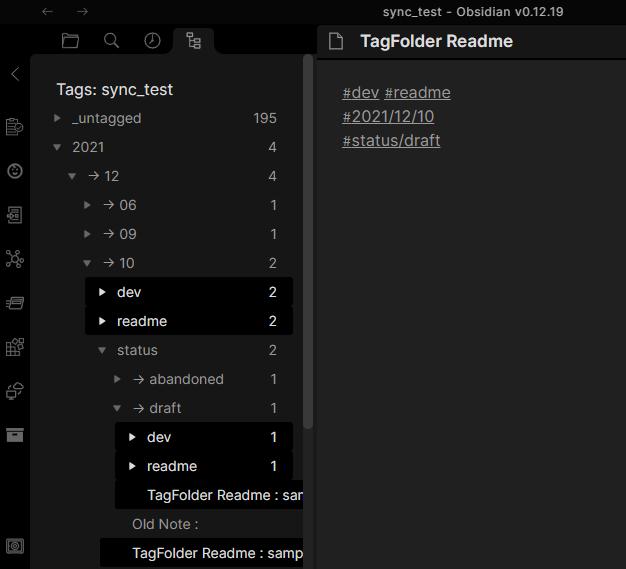
This is the plugin that shows your tags like folders.
How to use
Install this plugin, press Ctrl+p, and choose "Show Tag Folder".
Behavior
This plugin creates a tree by tags permutation.
Like this,
Simple case
If you have docs,
Apple : #food #red #sweet
Pear  : #food #green #sweet
Tuna  : #food #red
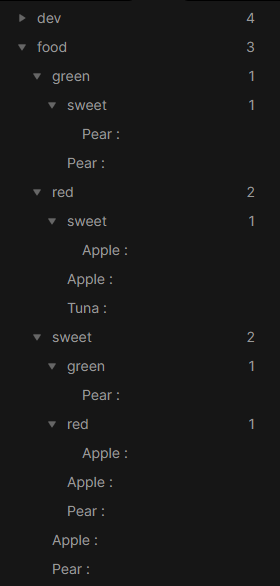
...and more are shown.
Case of respecting nested tags
The nested tag works well for Tag Folder.
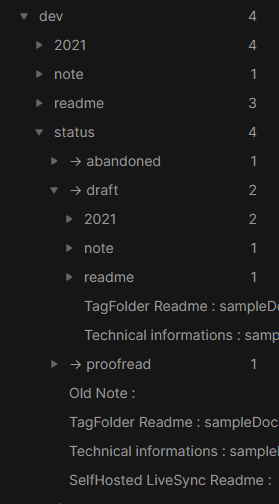
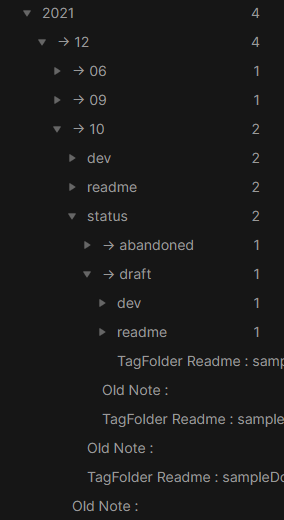
Tag Folder respects nested tags and makes the dedicated hierarchy. The nested child doesn't leak out over the parent.
TagFolder Readme: #dev #readme #2021/12/10 #status/draft
Technical information: #dev #note #2021/12/09 #status/draft
SelfHosted LiveSync Readme : #dev #readme #2021/12/06 #status/proofread
Old Note: #dev #readme #2021/12/10 #status/abandoned
Tag hierarchy of status
Tag hierarchy of date
Search tags
You can search tags. like this:
sweet -red | food -sweet
When using this filter, this plugin shows only "Pear" (Sweet but not red) and "Tuna" (food but not sweet).
Settings
Behavior
Always Open
Place TagFolder on the left pane and activate it at every Obsidian launch.
Use pinning
We can pin the tag if we enable this option.
When this feature is enabled, the pin information is saved in the file set in the next configuration.
Pinned tags are sorted according to key in the frontmatter of taginfo.md.
Pin information file
We can change the name of the file in which pin information is saved. This can be configured also from the context-menu.
| Item | Meaning of the value |
|---|---|
| key | If exists, the tag is pinned. |
| mark | The label which is shown instead of 📌. |
| alt | The tag will be shown as this. But they will not be merged into the same one. No # is required. |
| redirect | The tag will be redirected to the configured one and will be merged. No # is required. |
Disable narrowing down
TagFolder creates the folder structure by collecting combinations of tags that are used in the same note, to make it easier for us to find notes. When this feature is enabled, collected combinations are no longer structured and show as we have organized them in a manner.
Files
Display Method
You can configure how the entry shows.
Order method
You can order items by:
- Displaying name
- Filename
- Modified time
- Fullpath of the file
Use title
When you enable this option, the value in the frontmatter or first level one heading will be shown instead of NAME.
Frontmatter path
Dotted path to retrieve title from frontmatter.
Tags
Suggested tag tree styles
Select a suggested style to see a small example beneath the setting, then choose Apply to update the related tag-tree settings together. The applied settings remain individually editable.
Simple listshows notes directly beneath each tag and displays their other tags as labels.Drill-downuses other tags as additional folders and shows notes at the deepest matching level.Full treealso shows notes at intermediate levels.
Order method
You can order tags by:
- Filename
- Count of items
Use virtual tags
When we enable this feature, our notes will be tagged as their freshness automatically.
| Icon | Edited ... |
|---|---|
| 🕐 | Within an hour |
| 📖 | Within 6 hours |
| 📗 | Within 3 days |
| 📚 | Within 7 days |
| 🗄 | Older than 7 days ago |
Display folder as tag
When we enable this feature, the folder will be shown as a tag.
Store tags in frontmatter for new notes
This setting changes how tags are stored in new notes created by TagFolder. When disabled, tags are stored as #hashtags at the top of new notes. When enabled, tags are stored in the frontmatter and displayed in the note's Properties.
Template for new notes
When this setting is set to a valid markdown template path, TagFolder uses that template immediately when creating a new note from the tag tree. The .md extension is optional. If a non-empty path is invalid, TagFolder opens a template picker. If the setting is empty, TagFolder creates the note without a template and uses the configured Properties or hashtag behaviour.
Settings suggestions are captured when the settings tab opens; reopen the tab to refresh them. The new-note template selection dialog captures a fresh list each time it opens.
Templates can include these placeholders, which are replaced with the tags from the clicked location:
| Placeholder | Replacement |
|---|---|
{{expandedTags}} or {{tags}} |
Tags as hashtags, e.g. #tag1 #tag2 |
{{tagList}} |
Tags as comma-separated text, e.g. tag1, tag2 |
{{tagPath}} |
Tags as a slash-separated path, e.g. tag1/tag2 |
{{tagName}} |
The last tag in the clicked context |
{{tagsJson}} |
Tags as a JSON array |
{{tagsYaml}} |
Tags as YAML list lines |
Actions
Open notes by tags
Run Open note by tags from the command palette to find and open a note by incrementally adding tag conditions. Positive tags use OR matching and results with more matching tags appear first. Prefix a tag with - to exclude matching notes completely. A separate note input fuzzily filters titles and Vault-relative paths.
Run Open note with similar tags while a Markdown note is active to start with that note's tags selected. The active note itself is omitted from the results.
The dialogue is keyboard-operable:
- Type a tag, then press
SpaceorEnterto accept a completion. - Press
Backspacein an empty tag input to remove the last tag, or pressArrowLeftto select a tag chip and remove it withBackspaceorDelete. - Press
TaborShift+Tabto switch between the tag and note inputs. - Press
ArrowUporArrowDownto select a completion or note. - Press
Enterto open the selected note, orCtrl+Enter/Cmd+Enterto open it in a new tab.
See the complete interaction design for focus, nested-tag matching, accessibility, and IME behaviour.
Search tags inside TagFolder when clicking tags
We can search tags inside TagFolder when clicking tags instead of opening the default search pane. With control and shift keys, we can remove the tag from the search condition or add an exclusion of it to that.
List files in a separated pane
When enabled, files will be shown in a separated pane.
Arrangements
Hide Items
Configure hiding items.
- Hide nothing
- Only intermediates of nested tags
- All intermediates
If you have these items:
2021-11-01 : #daily/2021/11 #status/summarized
2021-11-02 : #daily/2021/11 #status/summarized
2021-11-03 : #daily/2021/11 #status/jot
2021-12-01 : #daily/2021/12 #status/jot
This setting affects as like below.
- Hide nothing
daily
    → 2021
        → 11
            status
                → jot
                    2021-11-03
                → summarized
                    2021-11-01
                    2021-11-02
                2021-11-01
                2021-11-02
                2021-11-03
            2021-11-01
            2021-11-02
            2021-11-03
        2021-11-01
        2021-11-02
        2021-11-03
        2021-12-01
        → 12
            :
    2021-11-01
    2021-11-02
    2021-11-03
    2021-12-01
- Only intermediates of nested tags Hide only intermediates of nested tags, so show items only on the last or break of the nested tags.
daily
    → 2021
        → 11
            status
                → jot
                    2021-11-03
                → summarized
                    2021-11-01
                    2021-11-02
            2021-11-01
            2021-11-02
            2021-11-03
        → 12
            :
- All intermediates Hide all intermediates, so show items only deepest.
daily
    → 2021
        → 11
            status
                → jot
                    2021-11-03
                → summarized
                    2021-11-01
                    2021-11-02
        → 12
            :
Merge redundant combinations
When this feature is enabled, a/b and b/a are merged into a/b if there are no intermediates.
Do not simplify empty folders
Keep empty folders, even if they can be simplified.
Do not treat nested tags as dedicated levels
If you enable this option, every nested tag is split into normal tags.
#dev/TagFolder will be treated like #dev and #TagFolder.
Reduce duplicated parents in nested tags
If we have the doc (e.g., example note) with nested tags which have the same parents, like #topic/calculus, #topic/electromagnetics:
- Disabled
topic
     - > calculus
         topic
               - > electromagnetics
                   example note
         example note
- Enabled
topic
     - > calculus
          - > electromagnetics
              example note
         example note
Filters
Target Folders
If we set this, the plugin will only target files in it.
Ignore Folders
Ignore documents in specific folders.
Ignore note Tag
If the note has the tag that is set in here, the note would be treated as there was not.
Ignore Tag
Tags that were set here would be treated as there were not.
Archive tags
Development
Contributor setup, tests, and UI/Vault workflow architecture are documented in the developer guide.