Reveal Active File Button
 Clare Macrae24k downloads
Add a button to the top of the File Explorer, to reveal the active file.
- Overview
- Scorecard
- Updates8
Purpose
Reveal Active File Button is an Obsidian plugin that adds a single-click button to make the Obsidian.md File Explorer/Navigator show your active file, for example to find neighbouring files.
This is a convenient addition to these built-in options already included in Obsidian:
- The command "File explorer: Reveal active file in navigation"
- The pane menu option "Reveal file in navigation"
Usage
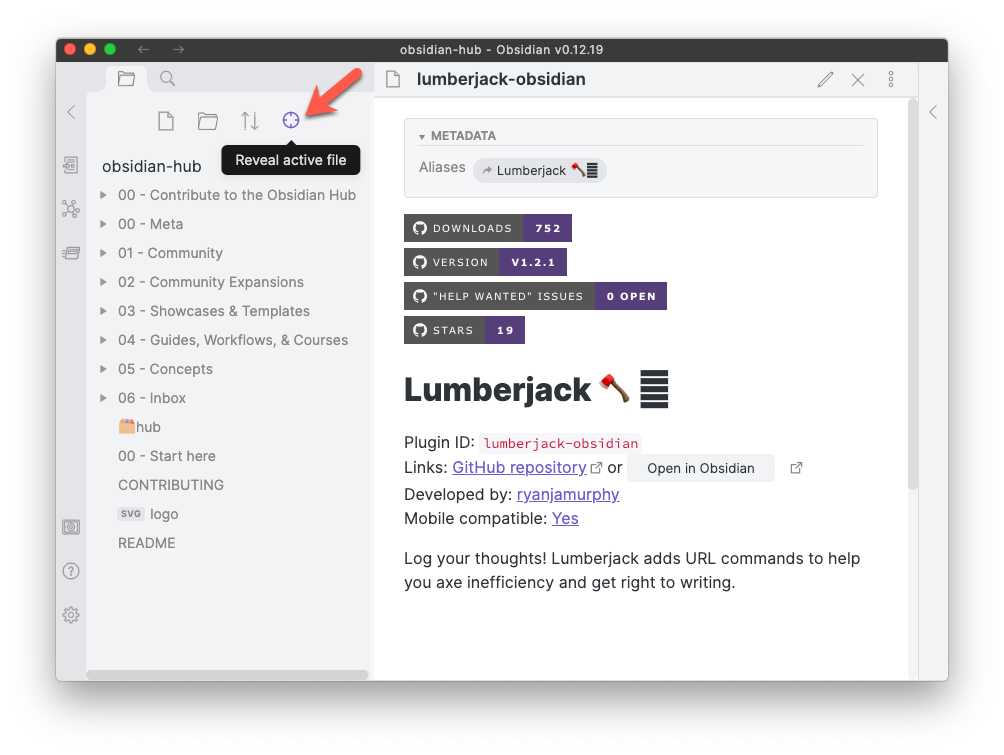
To scroll Obsidian File Explorer/Navigator show your active file, click on the crosshairs icon:
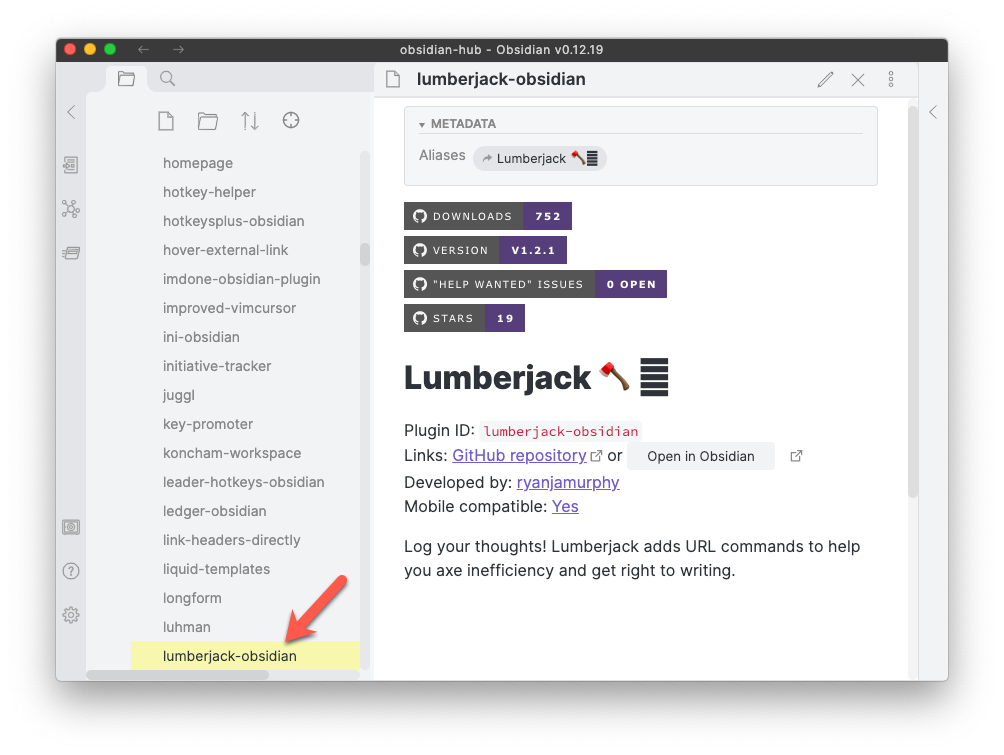
The result:
Tips
If scroll position isn't quite correct
- If the File Explorer/Navigator does not quite scroll to the correct position, click the button a second time and it will work.
- Explanation: the button simply invokes the built-in Obsidian command "File explorer: Reveal active file in navigation".
- In large vaults, or for a file in a folder with a large number of files, the command does not always move to the correct position the first time.
- A second request appears to work reliably.
If you tested version 1.0.0
If you are one of a few people that tested this plugin before it was added to the list of Community Plugins, you should remove that old version, as the plugin has been renamed.
For help with doing that, see Removing version 1.0.0.
Changelog
See Changelog.
Development
Doing a release
Instructions based on https://docs.obsidian.md/Plugins/Releasing/Release+your+plugin+with+GitHub+Actions
- Preparation:
- Make sure you are on
main. - Make sure you have pushed all changes.
- Check that the Verify Commit action succeeded.
- On the Obsidian Scanner, run 'Review branch' on the default branch to check that there are no new issues.
- Make sure you are on
- Set the Obsidian
minAppVersionvariable inmanifest.jsonto be consistent with the "obsidian" field inpackage.json. - Run one of the following commands, which will check, update version numbers and push the changes:
npm version patchnpm version minornpm version major
- Publish the release:
- Browse to the Actions tab. The workflow might still be running, or it might have finished already.
- When the workflow finishes, browse to the Releases tab in the sidebar on the right side. The workflow has created a draft GitHub release and uploaded the required assets as binary attachments.
- Select Edit (pencil icon) on the right side of the release name.
- Add release notes to let users know what happened in this release, and then select Publish release.
- Go to the Obsidian Scanner and click ... then "Check for new releases".
- Update the CHANGELOG.md file with the new version number and release notes (copied from the GitHub release).
Related Plugins
- Collapse All
- This plugin collapses and expands the file explorer
- It is compatible with this plugin: both can be installed, and are useful alongside each other, as shown in this image:

- Automatically Reveal Active File
- Use this if you always want the navigator to show the active file
- And you don't mind Obsidian jumping away from other views, like Search results or the Tags panel
Thanks
- This code is heavily based on Nathan Smith's Collapse All plugin, with thanks.