Hotkey Helper
 pjeby91k downloads
Easily see and access any plugin's settings or hotkey assignments (and conflicts) from the Community Plugins tab.
- Overview
- Scorecard
- Updates33
New in...
- 0.3.13: Commands to let you open hotkeys or settings by typing the plugin name
- 0.3.12: Jump to edit a hotkey with Ctrl- or Cmd-Enter from the command palette!
- 0.3.8: Hit enter while typing in the community plugin search box to open the plugin catalog with that search
- 0.3.5: Plugin searches are saved and carry through when browsing the plugin catalog
- 0.3.2: Link to plugins with Plugin URLs, and configuration buttons in the plugin browser
- 0.2.1: support for core plugins and non-plugin hotkeys as well as community plugins
This plugin makes it easier to manage plugins' hotkeys and options in Obsidian.md, by adding icons next to each plugin (in the Core and Community plugin tabs) that you can use to open that plugin's options or hotkey assignments.
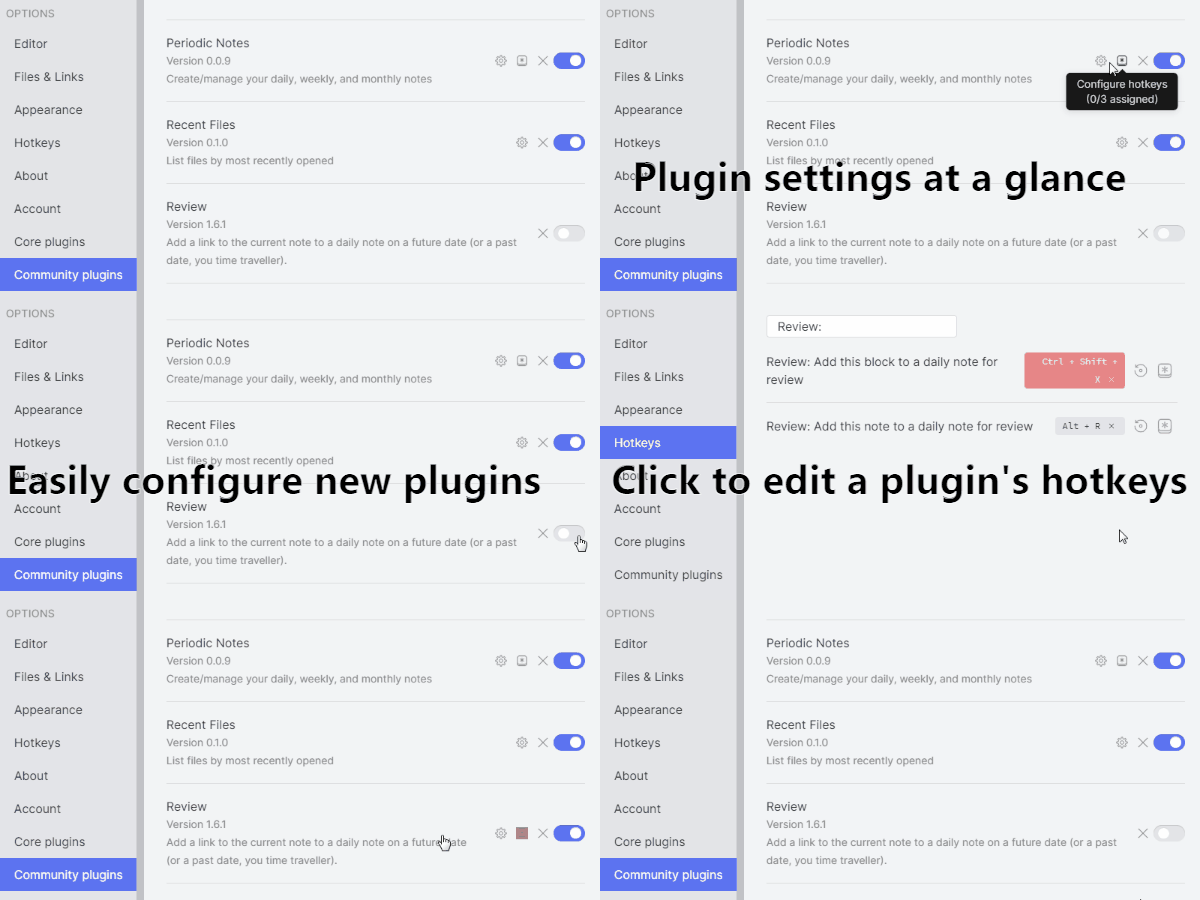
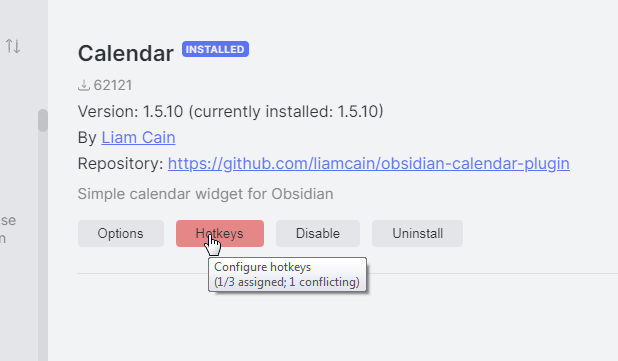
Better still: hovering over the hotkeys icon shows you how many commands the plugin has, how many of those commands have hotkeys assigned, and how many of the assignments are in conflict with any other hotkey assignments. (The icon is also highlighted with your theme's error background color if there are any conflicts.)
The icons automatically come and go or change color as you enable or disable plugins, so you can immediately find out where a conflict is taking place, and easily review or set up a new plugin's hotkeys or settings.
In addition, when you enable a plugin from the community plugins viewer, you can immediately access its configuration and hotkeys:
Installation
To install the plugin, search for "hotkey helper" in Obsidian's Community Plugins interface. Or, if it's not there yet, just visit the Github releases page, download the plugin .zip from the latest release, and unzip it in your vault's .obsidian/plugins/ directory.
Either way, you can then enable it from the Obsidian "Community Plugins" tab for that vault.
If you encounter any problems with the plugin, please file bug reports to this repository rather than using the Obsidian forums: I don't check the forums every day (or even every week!) but I do receive email notices from Github and will get back to you much faster than I will see forum comments.
Plugin URLs
When this plugin is enabled, you can open plugin information using URLs of the form obsidian://goto-plugin?id=plugin-id. This will open the Community Plugins browser of the current vault, displaying information for that plugin. So for example, the URL obsidian://goto-plugin?id=hotkey-helper will open this page in Obsidian's plugin browser (if your current vault has Hotkey Helper enabled).
This means that if you are a plugin author and want to make it easy for people to find and install your plugin (i.e., without needing to type in its name), you can just include a URL wherever you're promoting your plugin (or others are sharing it. (Note: Github strips obsidian:// URLs from markdown, so if you want to include a link in your project's README, you can link to e.g. https://obsidian-plugins.peak-dev.org/goto/hotkey-helper/ to get a redirect to the actual Obsidian URL. Hopefully this can be replaced with a redirector at an official domain in the future.)
In addition to the id= argument, you can also add &show=config or &show=hotkeys to the URL to make it go directly to the settings or hotkey configuration for that plugin (if it's installed, enabled, and has a settings tab or commands). This can make it easier to support your users, by being able to give a link rather than lengthy instructions to locate the specific items/areas needed.
Known Issues/Current Limitations
- If you search in the Hotkeys tab for a string without spaces, ending with
:, it will only display commands provided by the named plugin; e.g. searching forworkspaces:would list only commands from the built-in Workspaces plugin (if enabled), rather than all commands whose name contains the word workspaces followed by a:.