Floating Search
 Boninall53k downloads
Search text by using Obsidian default search view.
- Overview
- Scorecard
- Updates33
You can use search view in modal now.
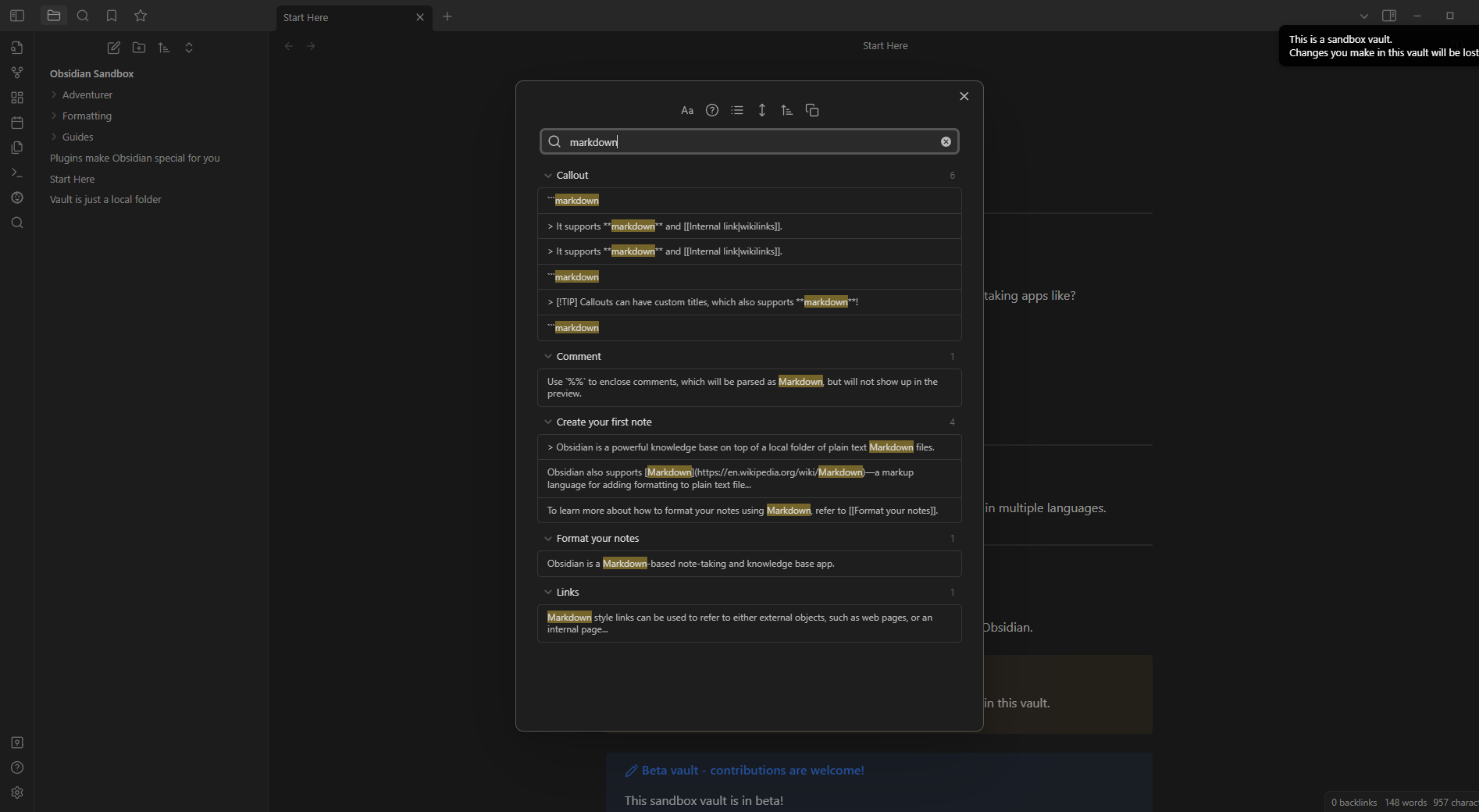
- Set hotkey for open float search quickly.
使用说明 | Usage
- Three main commands:
Search Obsidian Globally: Searches all global content, and the characters entered will be cleared automatically after each search;Search Obsidian Globally (With Last State): Searches all global content, and the characters entered will be cleared 30 seconds after each search;Search In Current File: Searches the content of the current file;
- When the cursor is focused on the search input box:
- Use the up and down arrow keys to switch between search results;
- When a search result is selected, hold the Shift key and press the up or down arrow keys to expand the results upwards or downwards; when focused on a file name, you can collapse the search results under the current file name;
- When a search result is selected,
- Press Enter to open the file in the background;
- Press Ctrl+Enter to open a new page in the background and open the file;
- Press Alt+Enter to open the file and close the popup;
- Press Ctrl+Shift+Alt+Enter to open the file in a new window and close the popup;
- When a search result is selected, press Tab to preview the corresponding file in the current popup's right side, and Shift+Tab to close the preview;
- When a search result is focused, press Ctrl+Shift+C to copy the selected search result content;
- When a file is being previewed, press Ctrl+E to toggle the file's reading mode;
- When a file is being previewed, press Ctrl+G to jump from the input box to the content of the previewed file, or from the previewed file content back to the input box;
- When a file is being previewed, press Tab twice to jump into the content of the previewed file, or use Ctrl+Tab to switch back to the input box from the previewed file.
- Mouse click behavior:
- When a file is being previewed:
- Clicking a new search result with the mouse will not automatically close the popup, but instead switch the file in the preview window;
- Use Alt+mouse click to open the file and close the popup;
- When no file is being previewed:
- Clicking a search result with the mouse will automatically close the popup and navigate to the file, and other behavior is the same as Obsidian's default behavior;
- When a file is being previewed:
- The right-click context menu can quickly search the selected text;
- There is a default
obsidian://fs?query=xxxxxxURI command, which you can use to invoke Float search from external sources; - When you click to navigate within the previewed file page, the current previewed file page will be automatically replaced.
- 三个主要命令:
Search Obsidian Globally:用于搜索全局的所有内容,每次搜索后的字符都会自动清空;Search Obsidian Globally (With Last State):用于搜索全局的所有内容,每次搜索后的字符都会在三十秒后清空;Search In Current File:用于搜索当前文件的内容;
- 当光标聚焦在搜索输入框的时候:
- 按上下方向键来切换选择结果;
- 当有一个搜索结果被选择时,按住 Shift 键再按上下方向键来向上展开或者向下展开结果;当聚焦在文件名上的时候,可以折叠当前文件名下的搜索结果;
- 当有一个搜索结果被选择时,
- 按 Enter 来在背景中打开文件;
- 按 Ctrl+Enter 则是在背景中打开新页面且打开文件;
- 按 Alt+Enter 则是打开该文件且关闭弹窗;
- 按 Ctrl+Shift+Alt+Enter 则是用新窗口打开该文件,且关闭弹窗;
- 当有一个搜索结果被选择时,按 Tab 来在当前弹窗的右侧预览对应的文件,Shift+Tab 则是关闭预览;
- 当有一个搜索结果被聚焦时,按 Ctrl+Shift+C 来复制选中的搜索结果内容;
- 当有一个文件正在被预览时,按 Ctrl+E 来切换文件的阅读模式;
- 当有一个文件正在被预览时,按 Ctrl+G 来从输入框跳转到预览文件的内容中,或从预览文件内容中跳转回输入框;
- 当有一个文件正在被预览时,按两次 Tab 来跳转到预览文件的内容中,或用 Ctrl+Tab 从预览文件中跳转回输入框;
- 鼠标点击的行为:
- 当存在文件在预览中时:
- 用鼠标点击新的搜索结果不会再自动关闭弹窗,而是在切换预览文件窗口的文件;
- 用 Alt+鼠标来打开文件且关闭弹窗;
- 当不存在文件在预览中时:
- 用鼠标点击搜索结果自动关闭弹窗且跳转文件夹,其它与 Obsidian 的默认行为一样;
- 当存在文件在预览中时:
- 右键菜单可以快速搜索选中的文本;
- 有一个默认的
obsidian://fs?query=xxxxxx的 URI 命令,你可以用这个命令来从外部唤起 Float search - 当你在预览文件页面中点击跳转时,会自动覆盖当前的预览文件页面。
Support
If you are enjoying this plugin then please support my work and enthusiasm by buying me a coffee on https://www.buymeacoffee.com/boninall.
HealthGood
ReviewCaution
About
Open a floating search modal to search globally or within the current file. Assign a hotkey for instant access and choose between last-state or auto-clearing searches. Preview results in a side pane, navigate results, open files in background or new windows, and copy or jump between input and preview without closing the popup.Details
Current version
4.3.0
Last updated
6 months ago
Created
4 years ago
Updates
33 releases
Downloads
53k
Compatible with
Obsidian 1.2.0+
Platforms
Desktop, Mobile
License
GPL-3.0
Sponsor