Tray-Extended
 Raphael Kuster334 downloads
Tray-Extended is a fork of Tray with extended window management and global quick notes
- Overview
- Scorecard
- Updates13
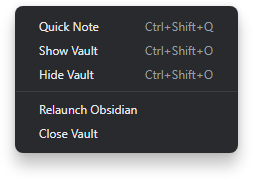
Tray-Extended is a fork of dragonwocky's original Tray plugin. It can be used to launch the Obsidian app on system startup and run it in the background, adding global hotkeys and a tray menu to toggle window visibility and create quick notes from anywhere in your operating system.
Configuration
Window management
| Option | Description | Default |
|---|---|---|
| Launch on startup | Open Obsidian automatically whenever you log into your computer. | Disabled |
| Hide on launch | Minimises Obsidian automatically whenever the app is launched. If the "Run in background" option is enabled, windows will be hidden to the system tray/menubar instead of minimised to the taskbar/dock. | Disabled |
| Run in background | Hide the app and continue to run it in the background instead of quitting it when pressing the window close button or toggle focus hotkey. Launching Obsidian again, including through an obsidian:// URI, restores and focuses hidden windows. |
Disabled |
| Hide taskbar icon | Hides the window's icon from from the dock/taskbar. This may not work on Linux-based OSes. | Disabled |
| Create tray icon | Add an icon to your system tray/menubar to bring hidden Obsidian windows back into focus on click or force a full quit/relaunch of the app through the right-click menu. | Enabled |
| Tray icon image | Set the image used by the tray/menubar icon. Recommended size: 16x16 |  |
| Tray icon tooltip | Set a title to identify the tray/menubar icon by. The {{vault}} placeholder will be replaced by the vault name. |
{{vault}} | Obsidian |
| Toggle window focus hotkey | This hotkey is registered globally and will be detected even if Obsidian does not have keyboard focus. Format: Electron accelerator | CmdOrCtrl+Shift+Tab |
The Relaunch Obsidian and Close Vault actions can be triggered from the tray/menubar context menu,
or with the in-app command palette (search for "Tray: Relaunch Obsidian" or "Tray: Close Vault").
Hotkeys can be assigned to the commands via Obsidian's built-in hotkey manager.
If a global hotkey is unavailable, Tray-Extended shows a notice when it starts. A shortcut can only
be registered by one application at a time. After migrating from the legacy Tray plugin, disable it
before enabling Tray-Extended so it cannot retain the same global hotkeys.
URI shortcut
Tray-Extended registers these URI handlers:
| URI | Behavior |
|---|---|
obsidian://tray-extended/toggleWindows |
Toggles vault-window visibility. |
obsidian://tray-extended/showWindow |
Ensures the vault window is visible and focused. It also cancels the one-time startup hide so the window remains visible during launch. |
obsidian://tray-extended/showWindow?ignoreStartupHide=false |
Ensures the vault window is visible but permits a pending startup hide to run. |
obsidian://tray-extended/hideLeftSidebar |
Collapses the left workspace sidebar. Safe to call repeatedly. |
On Linux Wayland desktop environments, bind a system shortcut with
xdg-open obsidian://tray-extended/showWindow.
Quick notes
| Option | Description | Default |
|---|---|---|
| Quick note location | New quick notes will be placed in this folder. | |
| Quick note date format | New quick notes will use a filename of this pattern. Format: Moment.js format string | YYYY-MM-DD |
| Quick note template | Optional vault-relative Markdown file. The field suggests notes in the vault; combined with the template mode it controls how the template is applied. | |
| Quick note template mode | Controls how the configured template is applied: Ask each time (default), Always apply, or Never apply. |
Ask each time |
| Quick note hotkey | This hotkey is registered globally and will be detected even if Obsidian does not have keyboard focus. Format: Electron accelerator | CmdOrCtrl+Shift+Q |
The template is copied as-is. To use dynamic template expressions, install Templater and enable its trigger for new file creation.
Beta testing with BRAT
BRAT installs GitHub release assets rather than branch contents. Every push outside main starts
the Beta Release workflow, which waits for approval before publishing a prerelease containing
main.js and manifest.json. Configure the one-time approval gate in GitHub → Settings →
Environments → beta-release by adding yourself as a required reviewer. A manual run can supply
a custom prerelease version such as 1.0.11-beta.0; otherwise it derives one from manifest.json
and the Actions run number. Add the repository to BRAT and select that prerelease. The normal
release workflow only publishes from main.
Installation
Obsidian Marketplace
- In Obsidian, navigate to Settings → Community plugins.
- Press the Browse button beside the Community plugins option.
- Search for
Tray-Extendedin the Filter text input. - Select
Tray-Extendedand press Install. - Once the plugin has finished installing, press Enable.
- Press the Options button.
- Configure the plugin as you wish.
- You're done! 🎉
Manual
- Download this repository.
- Copy it into your vault's
.obsidian/plugins/tray-extendeddirectory. - In Obsidian, navigate to Settings → Community plugins.
- Press Turn on community plugins if you haven't already.
- Find
Tray-Extendedin the list of Installed plugins and toggle it on. - Press the ⚙️ button beside the toggle you just used.
- Configure the plugin as you wish.
- You're done! 🎉
Disclaimer
This plugin is provided as-is and is designed for personal use. It has not been tested on every platform and may not work as expected with all future updates. If you notice something is not working as intended, please open a bug report or pull request so it can be fixed.
The Obsidian logo is distributed with this plugin as the default image for the system tray/menubar icon, intended to be used within Obsidian. This logo remains the property of the Obsidian project and is not under the same license as the plugin's source code.