Speed Reader
 madhusudan-kulkarni1k downloads
RSVP-based speed reading for your notes - flash one word at a time with optimal recognition point highlighting.
- Overview
- Scorecard
- Updates6
Read long Obsidian notes faster without losing focus.
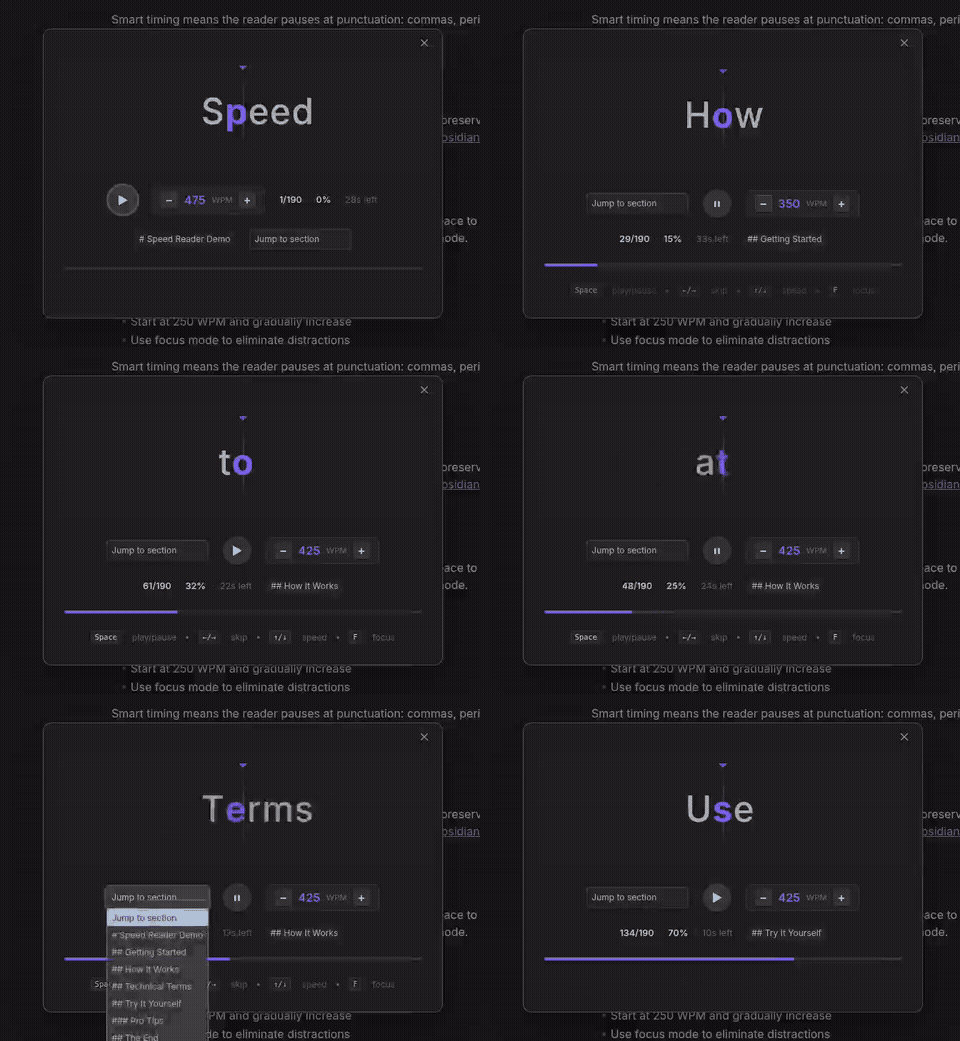
Speed Reader uses RSVP (rapid serial visual presentation) to turn your notes into a focused word-by-word reading flow, so you can move through dense writing, saved articles, drafts, and study notes with less eye movement and fewer distractions.
Why Speed Reader?
Long notes are easy to skim badly and hard to read deeply. Speed Reader helps you stay locked on one word at a time, control your pace, and finish notes without constantly losing your place.
Use it when you want to:
- Get through long notes faster
- Review research or study material
- Read drafts without visual clutter
- Stay focused when your attention keeps jumping
- Read selected passages without leaving Obsidian
Features
- Word-by-word reading. Read in a focused RSVP view instead of scanning full paragraphs.
- Optimal recognition point highlighting. Highlights the key letter in each word to help your eyes recognize words faster.
- Markdown-aware cleanup. Strips formatting noise like links, callouts, tables, code blocks, frontmatter, footnotes, and math equations before reading.
- Natural pacing and soft start. Adds small pauses at punctuation, numbers, and longer words, with a smooth speed ramp on resume.
- Post-read summary. Shows words read, elapsed time, and effective average WPM upon completion.
- Font customization. Choose between default, monospace for fixed-pitch optical centering, or sans-serif.
- Adjustable, auto-fitting display. Configure reading window width with centered ORP alignment and proportional auto-fit so long words never clip.
- Arabic and RTL script support. Preserves cursive ligatures in connected scripts using CSS gradient text highlights.
- Live speed control. Change WPM, skip forward or backward, and jump between sections while reading.
- Focus mode. Hide controls and keep only the current word on screen.
- Selection support. Read selected text or start from the entire note.
How it works
- Open a note in Obsidian.
- Select text, or leave nothing selected to read the full note.
- Run Speed Reader: Start speed reading.
- Press Space to start, pause, or resume.
Keyboard shortcuts
| Key | Action |
|---|---|
Space |
Play / pause |
R |
Restart from beginning |
← / → |
Skip 10 words |
[ / ] |
Jump to previous / next section |
Home / 0 |
Seek to start |
↑ / ↓ |
Change speed by 25 WPM |
F |
Toggle focus mode |
Esc |
Close reader |
Install
From Community Plugins
Open Settings → Community plugins → Browse, search for Speed Reader, then install and enable it.
Manual install
Download main.js, manifest.json, and styles.css from the latest release, then place them in:
<vault>/.obsidian/plugins/speed-reader/
Good for
- Students reviewing notes
- Writers reading drafts
- Researchers going through saved material
- Anyone who wants a calmer way to read inside Obsidian