Single File Section Cards
 JORDAN LONG2k downloads
All the advantages of larger notes without the complexity. View any note's subsections and images/URLs as a set of cards. Edit, reorder, flip, stick & delete document sections graphically.
- Overview
- Scorecard
- Updates68
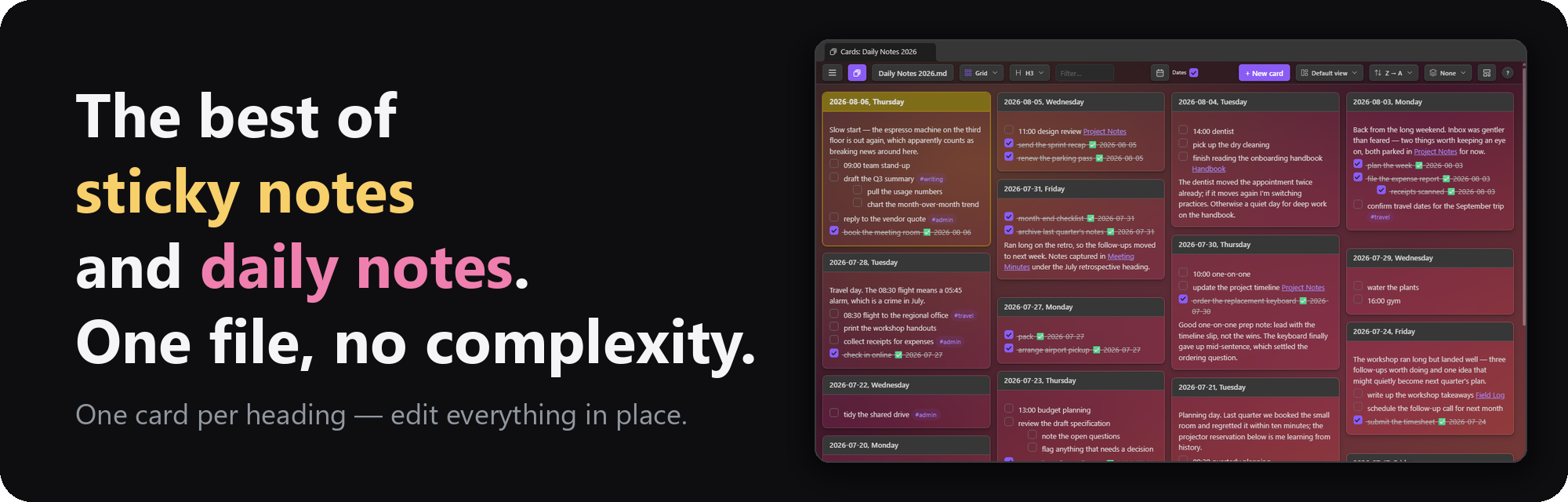
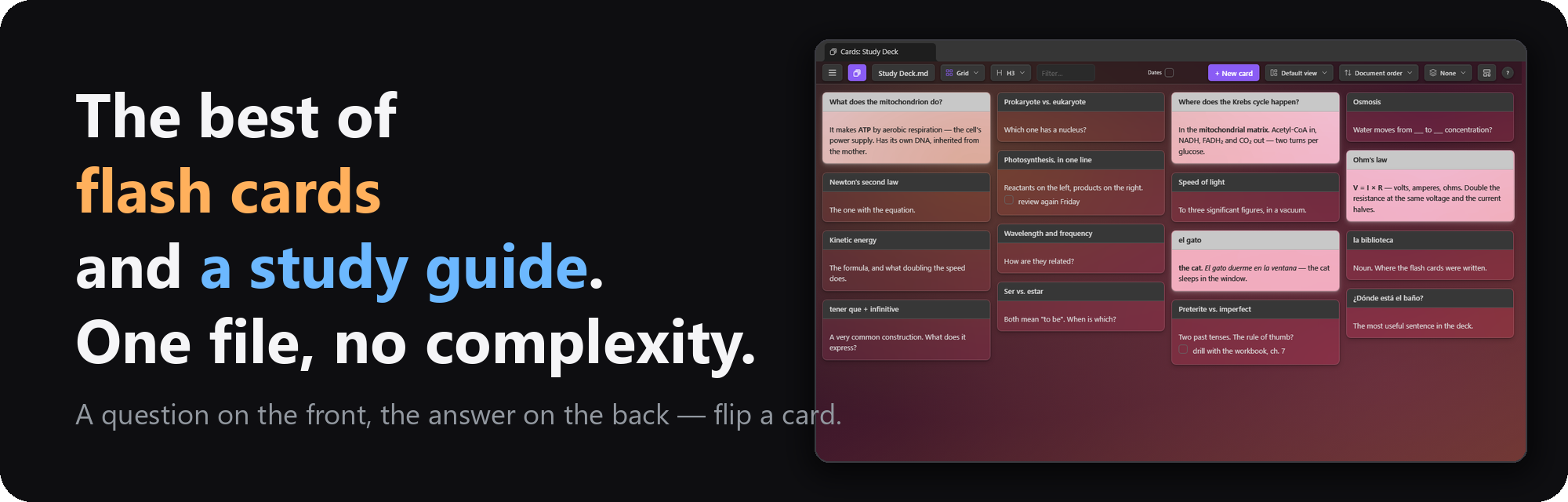
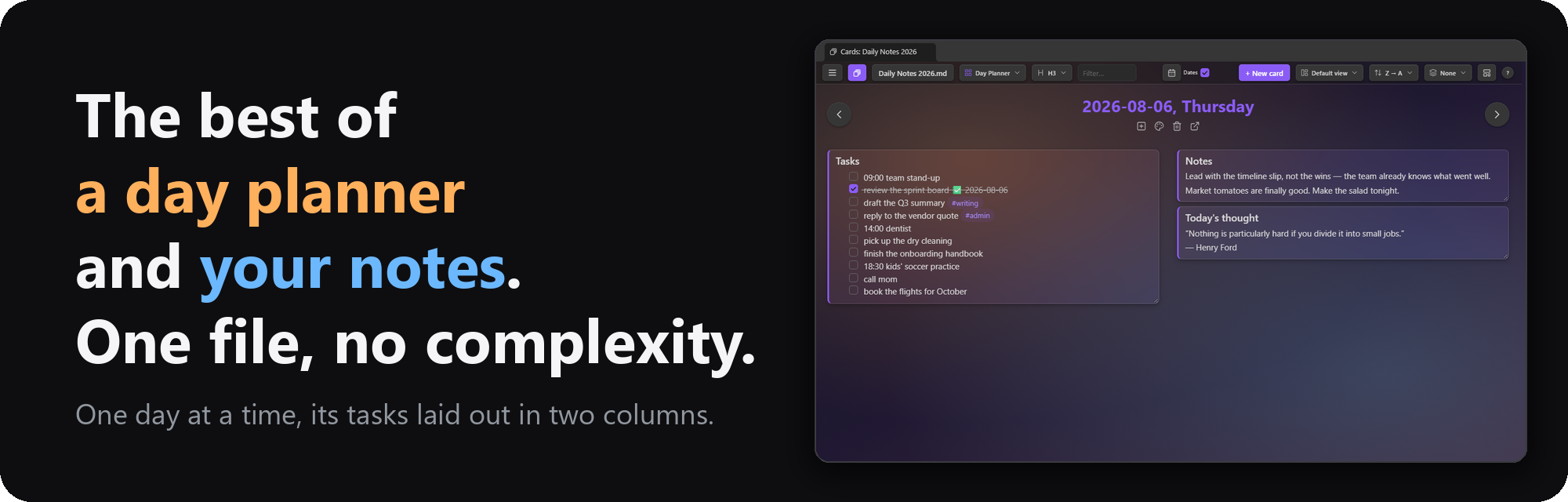
An Obsidian plugin that shows the sections of one note as a wall of cards — one card per heading — and lets you edit any section in place. With many layout and view options, it functions as a home for ad hoc dashboards, a day planner, sticky notes, flash cards, task management, brainstorming, and a diary or journal.
Why one big note? A single file has real advantages over a folder of small ones: an AI agent can read the whole context in one go, nothing about the structure is locked into a plugin, and any app that edits Markdown can edit it. The usual price is excessive scrolling. This plugin removes that price: the note stays one plain Markdown file, and you work in the view that fits the job — a wall of cards, a calendar, a day planner, a canvas — landing on the section you want without scrolling for it.
While this is a standalone plugin that works on any note, it pairs nicely with Single File Daily Notes as well as Tasks.
Install it from the Obsidian community plugin directory → · Release notes
If this plugin is useful to you, you can support its development:
New in 2.0
- New note wizard. ☰ → Note → New note… makes a blank note, or one shaped as a Kanban
board, a SWOT analysis, an Eisenhower matrix, or a GTD system — or on the headings of any note
in the vault, its text left behind. Section names are editable, an Introduction and Additional notes are a toggle each,
and a one-line hint can sit under every heading. Any note with
cards-preset: truein its properties joins the list as a preset of your own (see Templates). - Saved layouts. Name a Custom Grid arrangement — placements, zoom, and the note's background — and switch between the note's saved layouts from the tray, the toolbar's Layout picker, or the New note wizard. A changed layout wears an asterisk and asks before it's lost (see Custom Grid).
- Many user interface improvements.
What it does
- One card per heading. Pick which level becomes a card (H1–H6). Multiple layouts, sort orders, and per-card colors.
- Work directly on the cards. Click a card to edit its body (the heading stays in the title bar). Rename cards, tick task checkboxes, delete cards, pin to top.
- Drag and drop. Reorder cards, drag one into another to make it a section there (see Nesting a card), or drag a task, paragraph, or image onto another card.
- Undo.
Ctrl/⌘+Ztakes back the last card change to the note — a move, nest, delete, edit, drag, or tick — andCtrl/⌘+Shift+Zredoes it (also in the ☰ menu). See Undo. - Select many. Click a title bar to select its card, Shift-click to select multiple cards.
- Group by. Divider bars over buckets — first tag, date, open tasks, stars, or length — from the toolbar's Group picker. Collapse any card to its title bar; both are remembered.
- Plays with the Tasks plugin. Ticking a checkbox uses its toggle (recurring tasks recur), and the right-click menu gains its create/edit dialogs.
- Flash cards. A marker line splits a section into a front and a back; the card's flip button turns it over to the answer, definition, or notes behind (see Card Flip).
- Make it yours. Apply custom card colors and background images.
- Arrange freely, and keep the arrangements. The Custom Grid canvas places sections where you drop them; save an arrangement under a name and switch between saved layouts at will.
- Calendar feeds. Give a note a calendar's iCal (.ics) address — Google, Outlook, iCloud — and a day's events fill that day's card under a heading of your choosing: one day from its card, or every day at once, making cards for the calendar's days the note doesn't have yet (see Calendar feeds).
- Templates. New cards can start from a template note, and new notes from the New note wizard's built-in structures, your preset notes, or the headings of any note.
- Deck. The toolbar's deck button (or
D) flips the view to thumbnails of your pinned and most recent card notes, each wearing its note's background — click one to hop over.
Layouts
Pick a layout from the toolbar's Layout button beside the note's name — it opens a grid
of every layout, an icon and name each — from the Layouts row of the toolbar's ☰ menu or
any right-click menu, or press L to cycle (Shift+L backwards). Card level, View mode, Sort, and
Group are the same kind of button: an icon, the current choice, and a grid of icon tiles to
pick from. Layouts you never use
in a note can be hidden from it: Ctrl/⌘-click one in the Layouts menu and it leaves that
note's dropdown and L cycle, staying in the menu dimmed as "(hidden)" — click it there to
bring it back (remembered per note; the layout showing can't be hidden — switch away first).
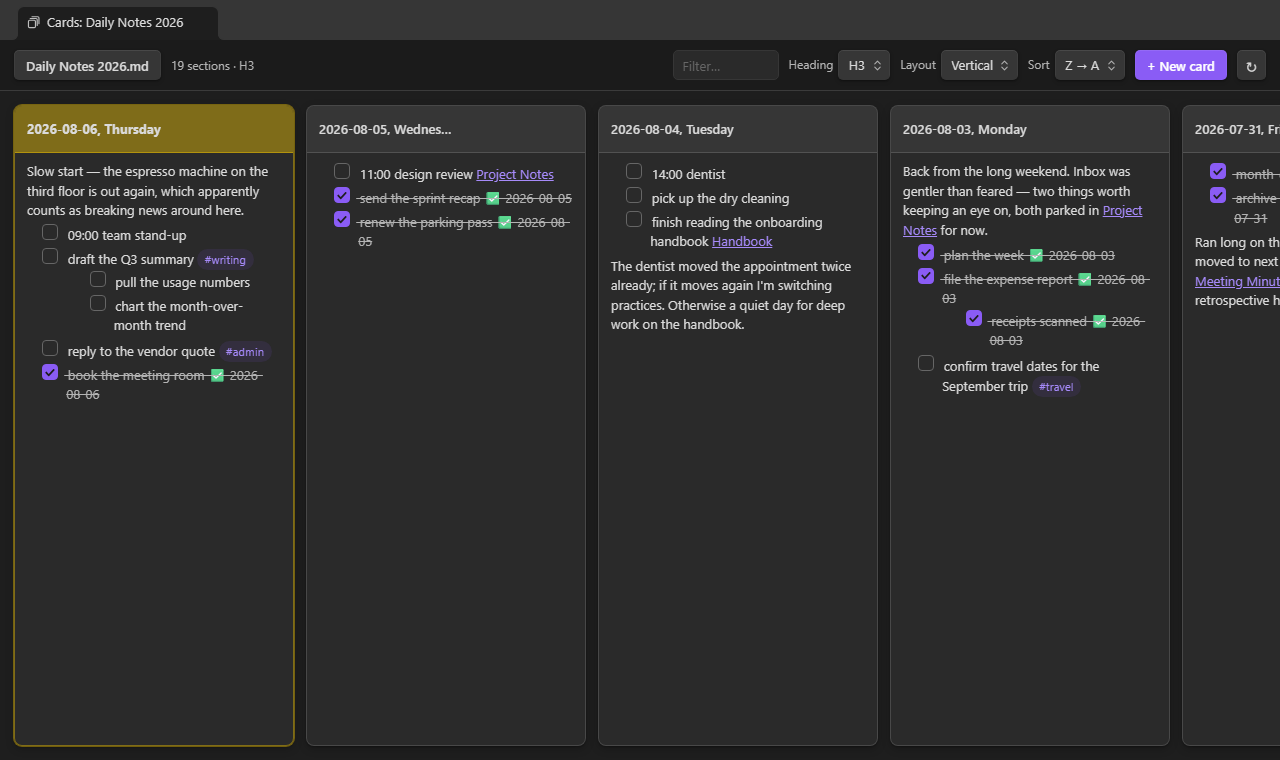
Vertical
Full-height cards side by side.
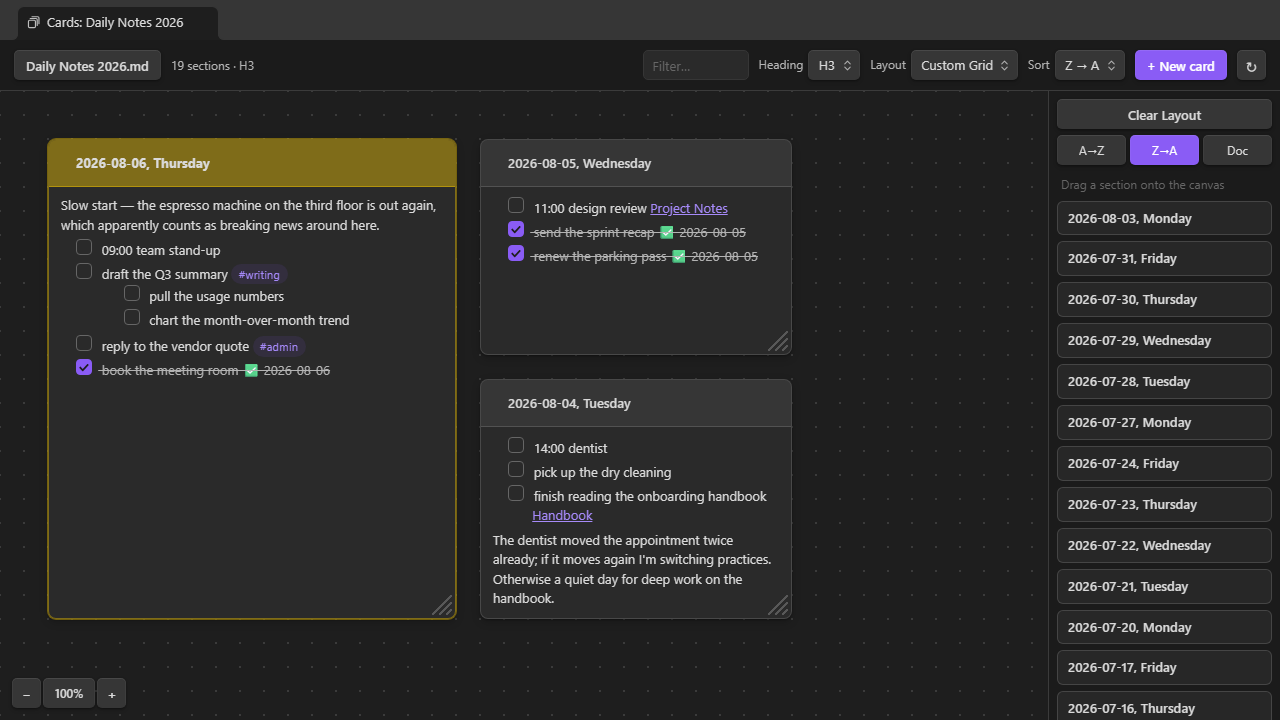
Custom Grid
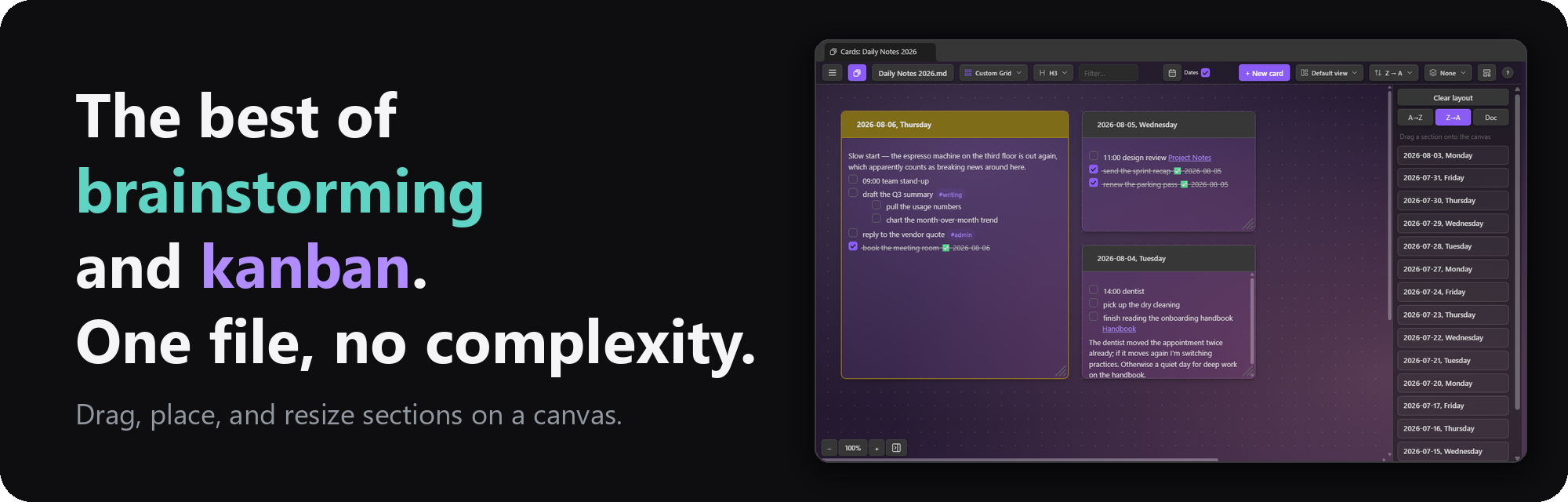
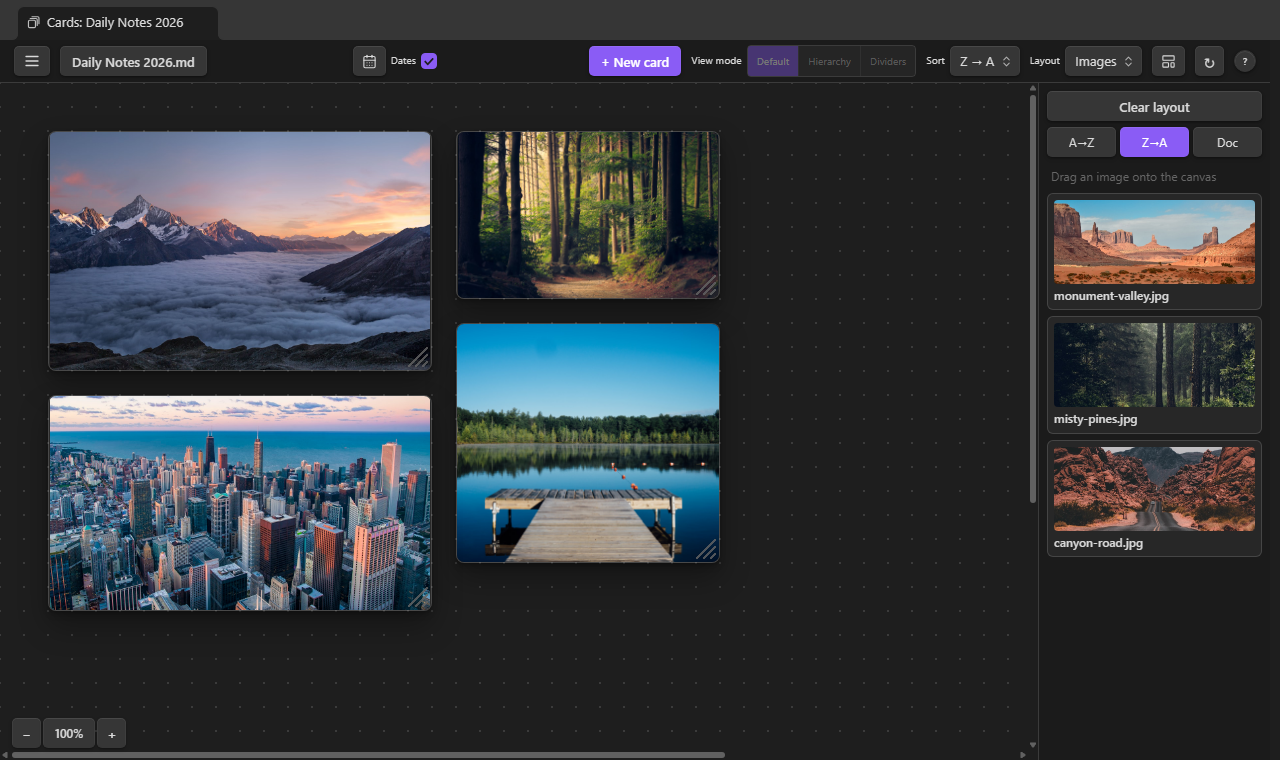
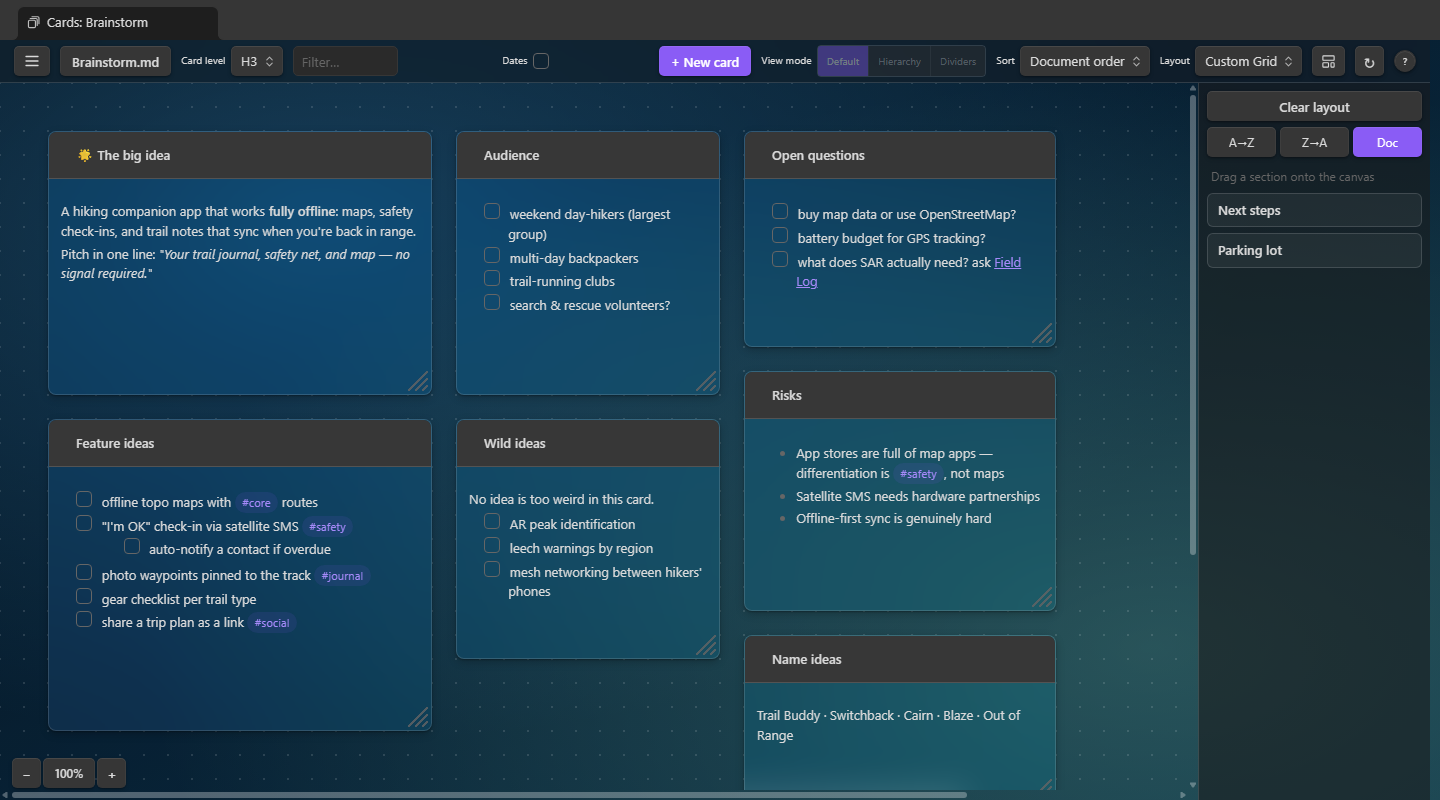
A freeform canvas: drag sections on from the tray, then place, move, and resize them. The arrangement is remembered per note in the plugin's data — never in your notes. The chevron beside Clear layout folds the tray to a slim bar so the canvas takes almost the whole pane; a click on that bar, the panel button in the zoom controls (bottom-left), or ☰ → Show the list beside the canvas brings it back. The Images and Links canvases fold the same way. Saved layouts (the row beneath) name the current arrangement — placements, zoom, and the note's background — so a note can switch between, say, a "SWOT" grid and a "Timeline" strip; pick one from the dropdown to apply it, save again under the same name to update it. Once the canvas drifts from the applied layout its name wears an asterisk, and clearing the canvas, switching layouts, or leaving the Custom Grid first asks whether to save. Saved layouts also appear as tiles in the toolbar's Layout picker, after the layouts, so one is a click away from any layout; and the New note wizard offers a template note's saved layouts, so a note made from a template can open on one of them.
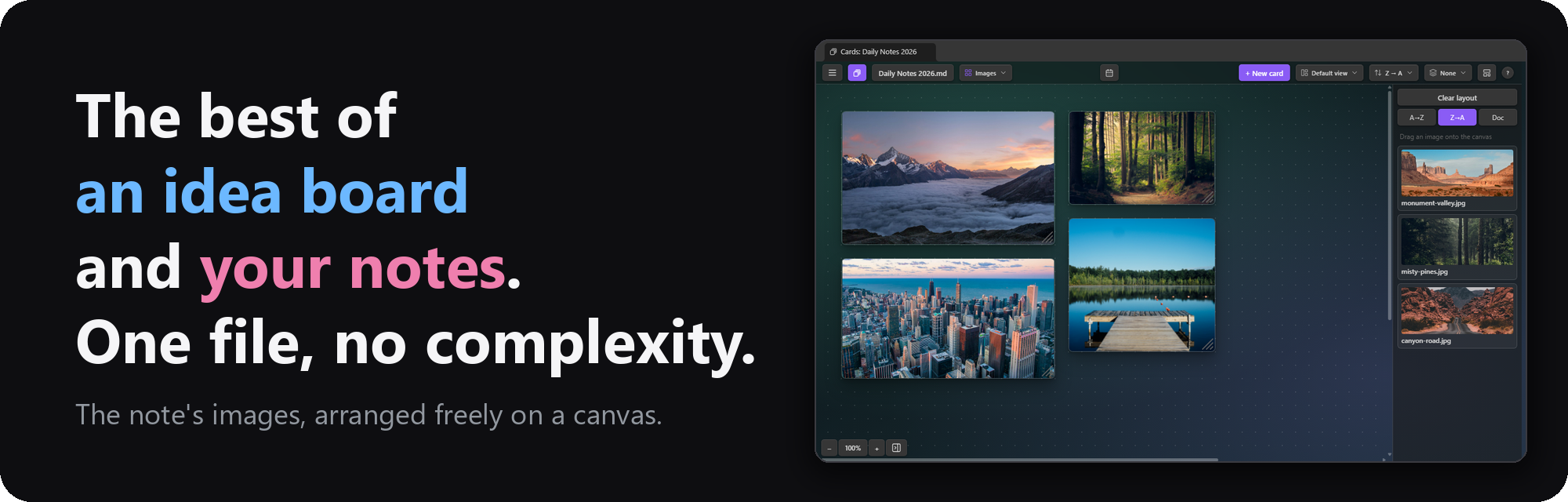
Images
The same canvas for the note's images and videos — a reference or idea board built from what the note already links. Hover a preview to magnify it or open the original; right-click to copy, cut, delete, or paste.
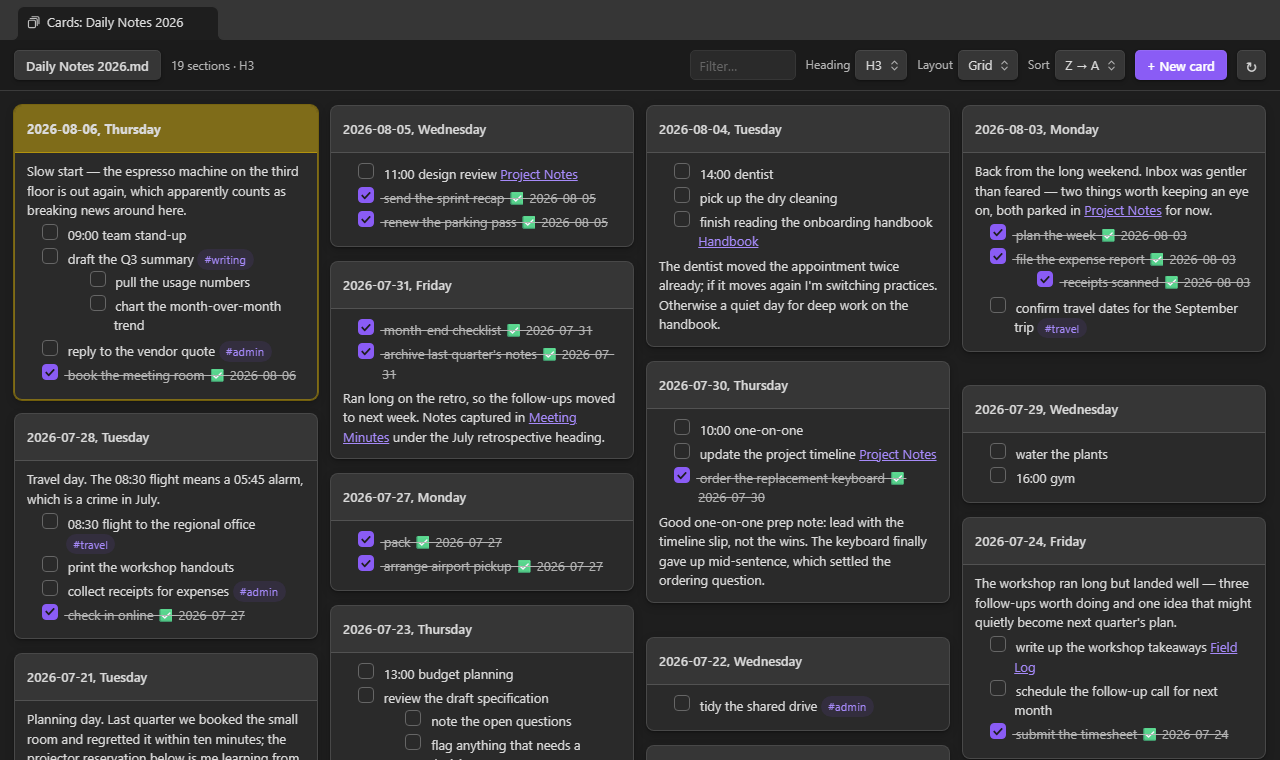
Grid
Masonry columns: every card takes only the height it needs.
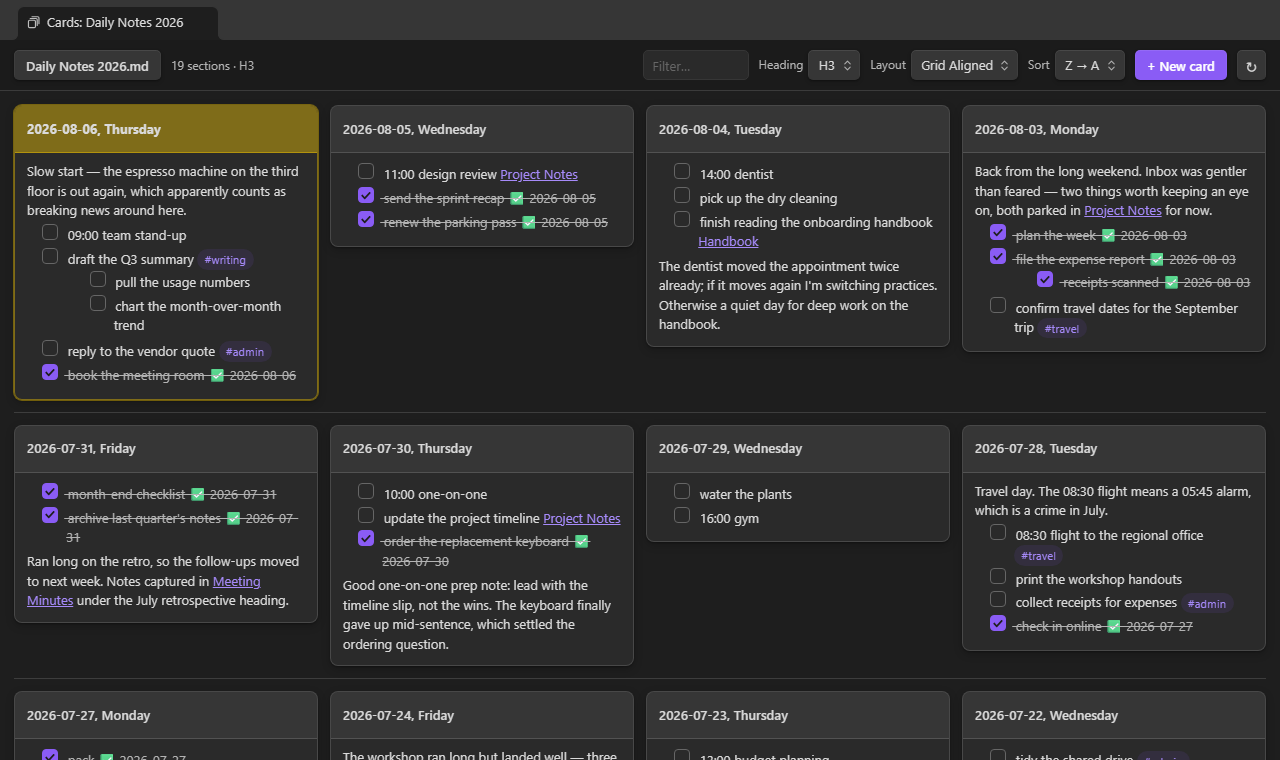
Grid Aligned
A uniform grid — every row starts at the same height, with a rule between rows.
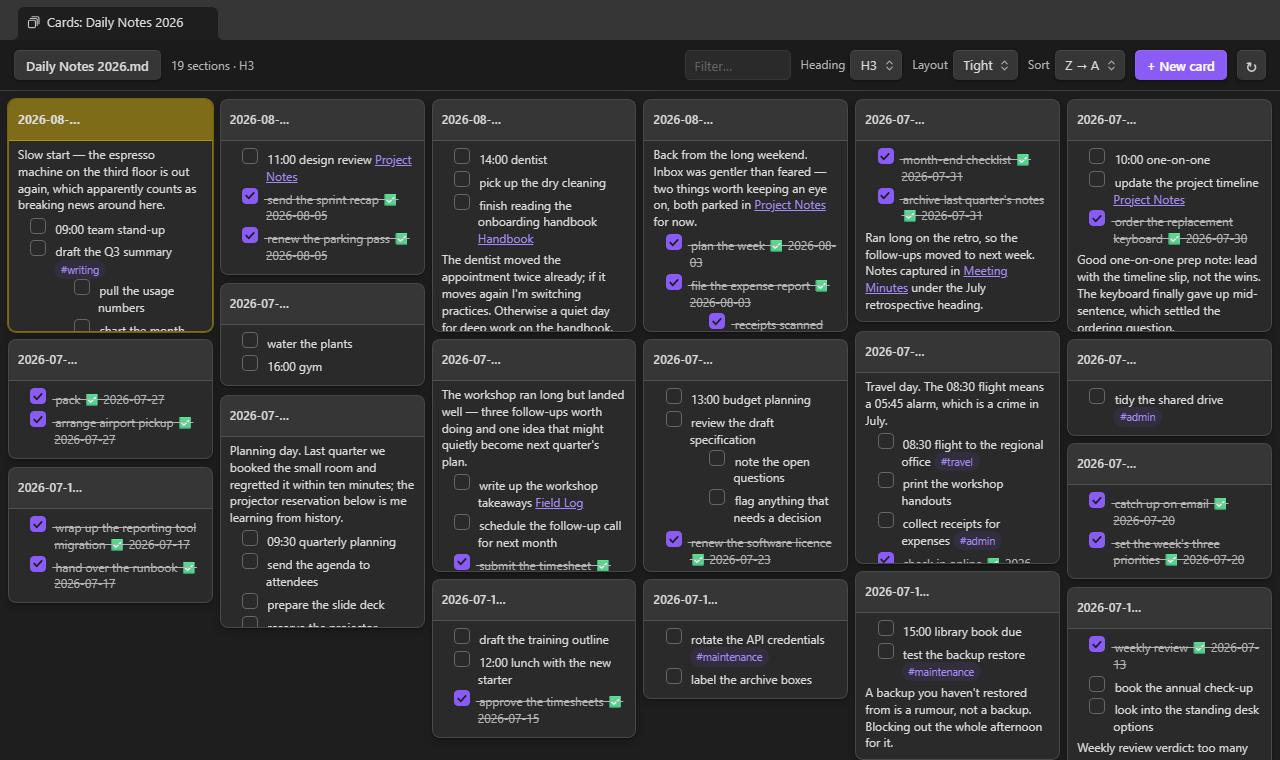
Tight
The same masonry packing, denser: narrower columns, smaller gaps and type.
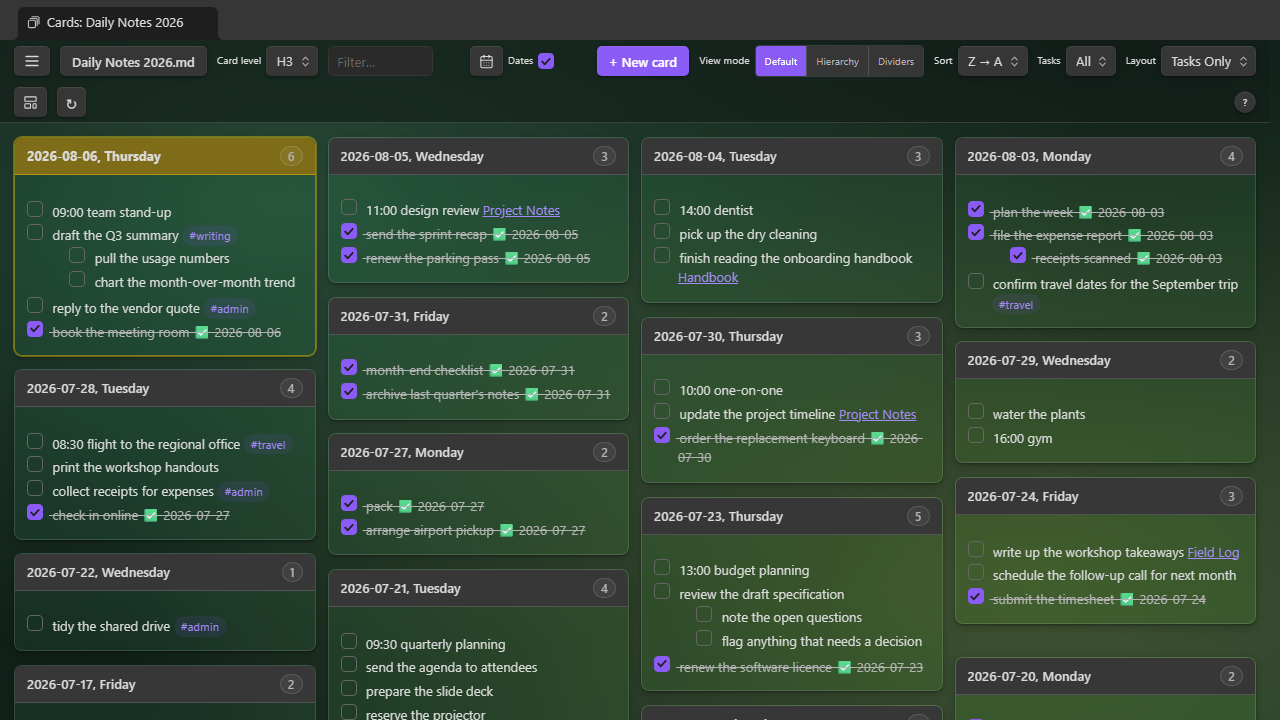
Tasks Only
Each card shows only its task lines, ordered by date, #tag, or task count, with an
open/done filter and a per-card count badge. Editing still opens the section's full text.
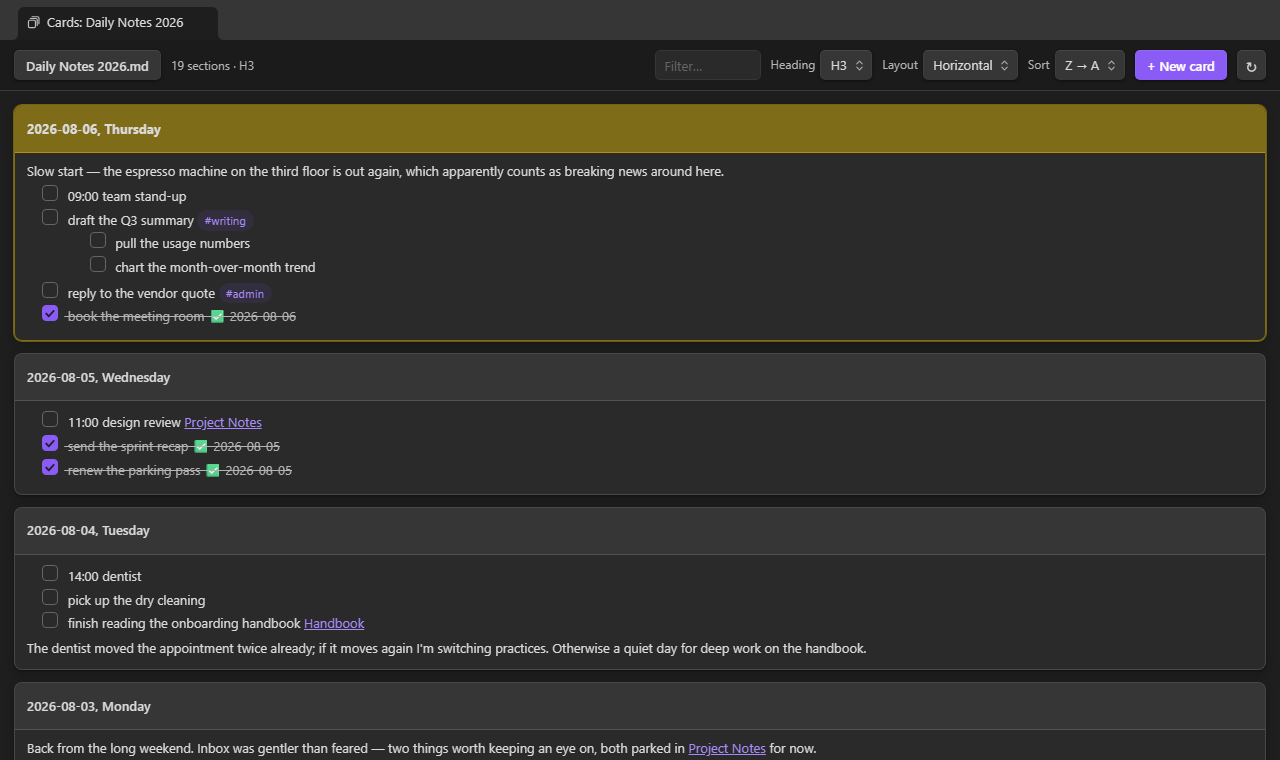
Horizontal
One card per row, full pane width.
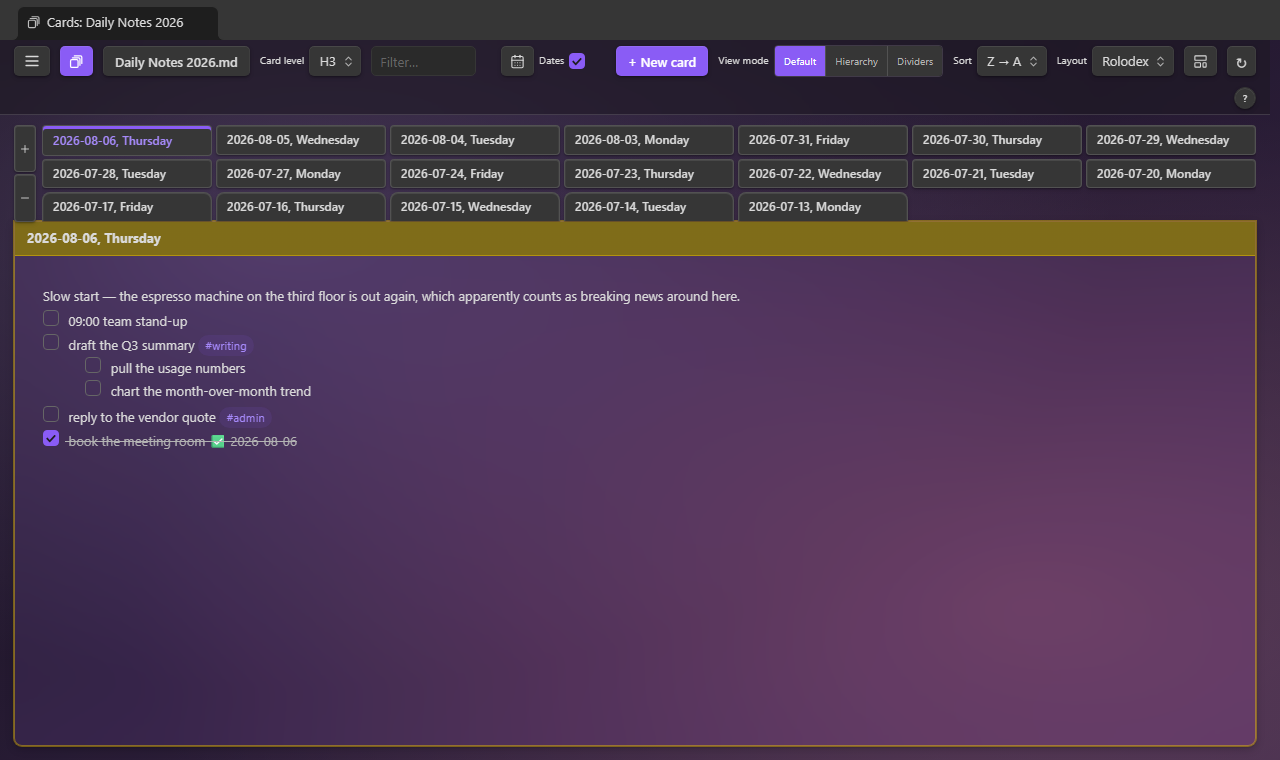
Rolodex
One card at a time, filling the pane, with every card's title as a tab across the top — the
strip grows to more rows as titles pile up, and past four it scrolls sideways. Click a tab (or
press , / .) to turn to that card, drag a tab onto another to move its section there in the
note, or drag a paragraph or task from the card onto a tab to send it to that card.
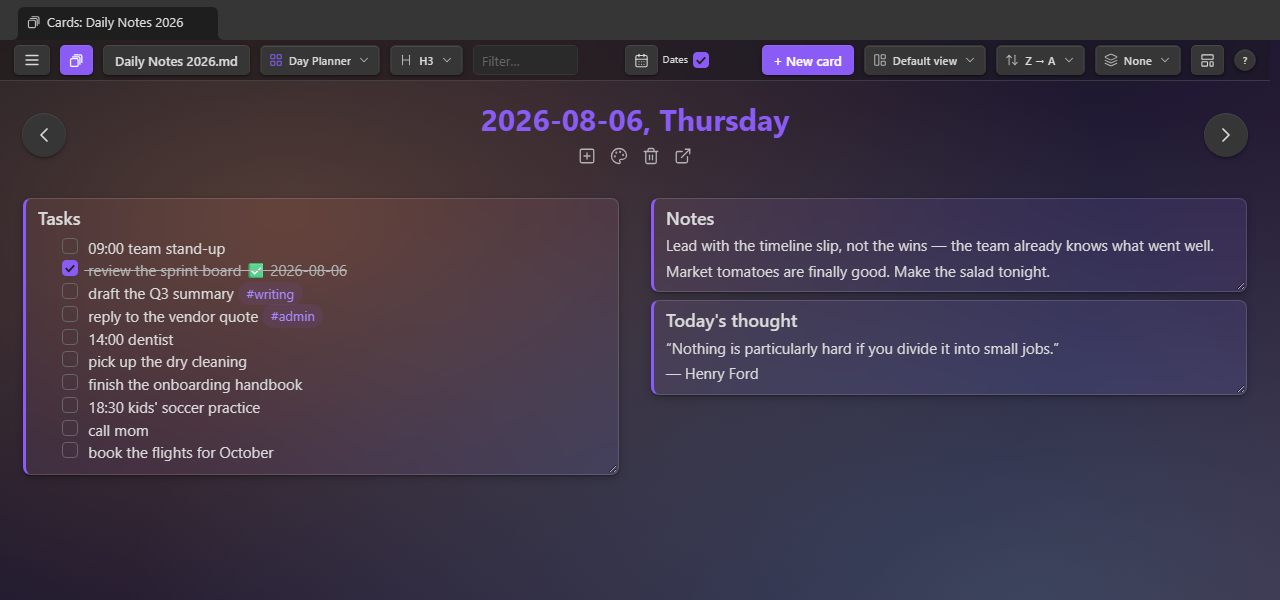
Day Planner
One day on one page: the card's title sits across the top with arrows to yesterday and tomorrow, and each sub-heading directly beneath it is a card of its own in one of two columns, its tasks and any deeper headings inside (a month shows its weeks, each week its days); loose lines above the first sub-heading form one card, named after the unfiled card. Drag a card to the other column or into a new order, resize it, tick its tasks, or send it to the next day by dropping it on an arrow — the note changes underneath, and the arrangement is remembered per note. Right-click a card for its column, height, edit, and copy options, or Delete card to remove that sub-heading and everything beneath it. Stepping onto a day with no card offers to create it or to skip to the nearest day that has one.
Document setup
☰ → Document setup… says what each heading level of the note holds: nothing, text in document order, text in alphanumeric order, or a year, month, week, or day. With the toolbar's Dates checkbox on, the defaults are detected from the headings themselves (“September 2026” at H1 is a month in the “MMMM YYYY” spelling, ISO days at H3 are days); with it off every level is text. The Day Planner's arrows follow the setup: at a month level → is the next month and ← the one before, a missing month can be created on the spot, and at an alphanumeric level the arrows walk the sections A→Z (numbers by value). Saved per note; Reset to detected forgets the saved rows.
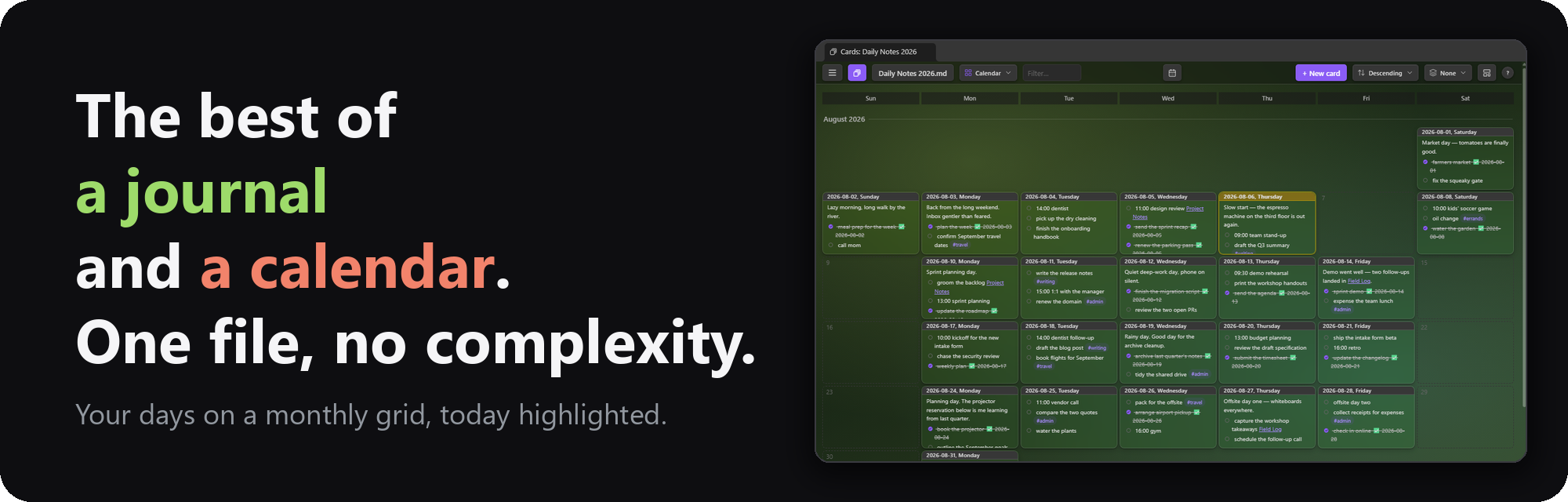
Calendar
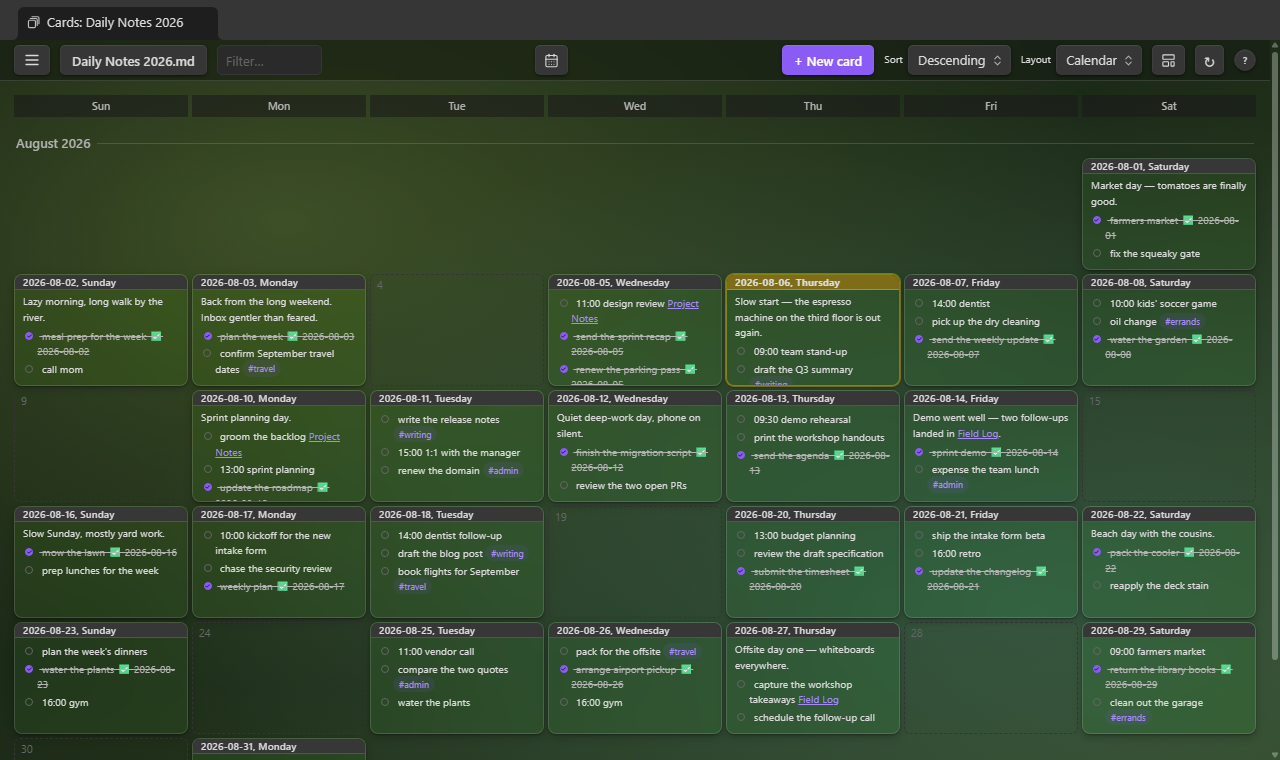
Date cards on a calendar grid, today highlighted — the layout opens on today, with today's cell ringed even when it has no card yet. Click an empty day to start its card, or drag a card onto another day to move it. Needs date headings.
A range picker in the toolbar says how much of the calendar one screen holds: a month,
two weeks, a week, or a day — or press M, 2, W or D while the Calendar is showing
(C switches to the Calendar from any layout), or pick one under Layouts → Calendar in the
☰ or any right-click menu, which switches to the Calendar in that range. The range is remembered per note. Month and
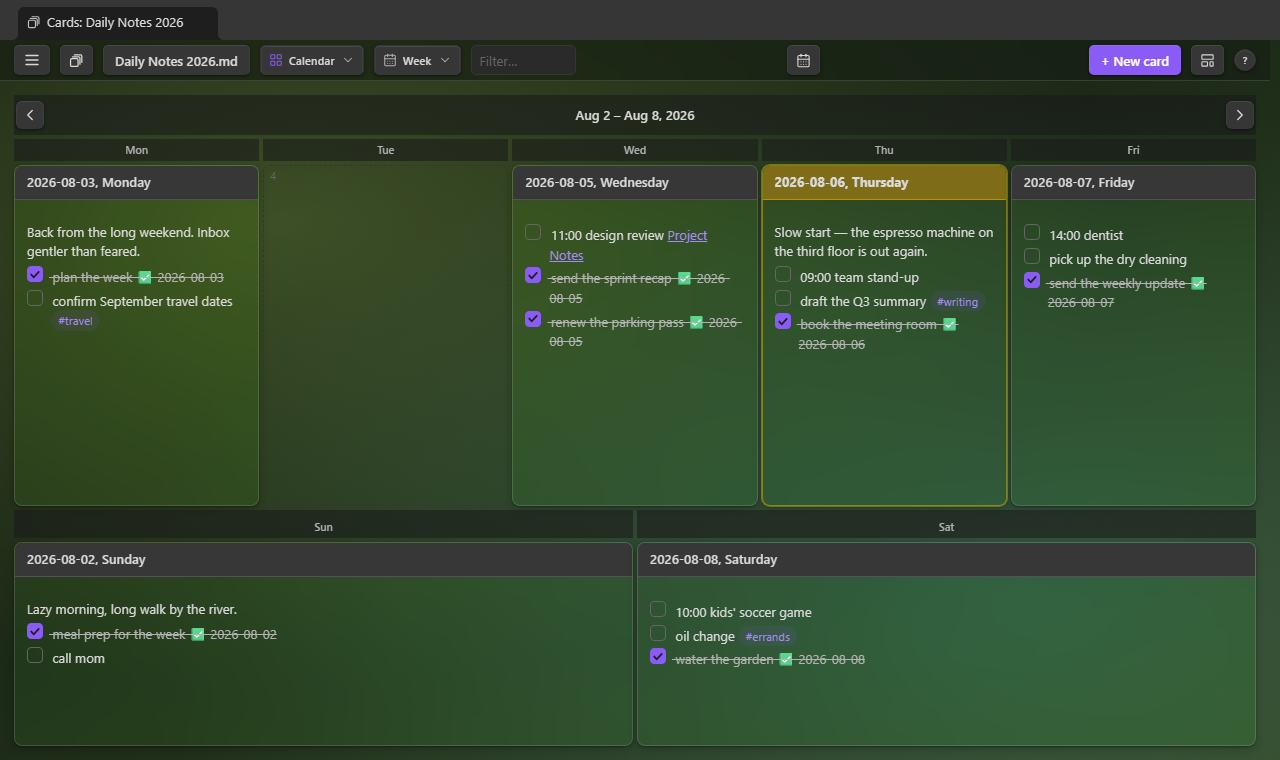
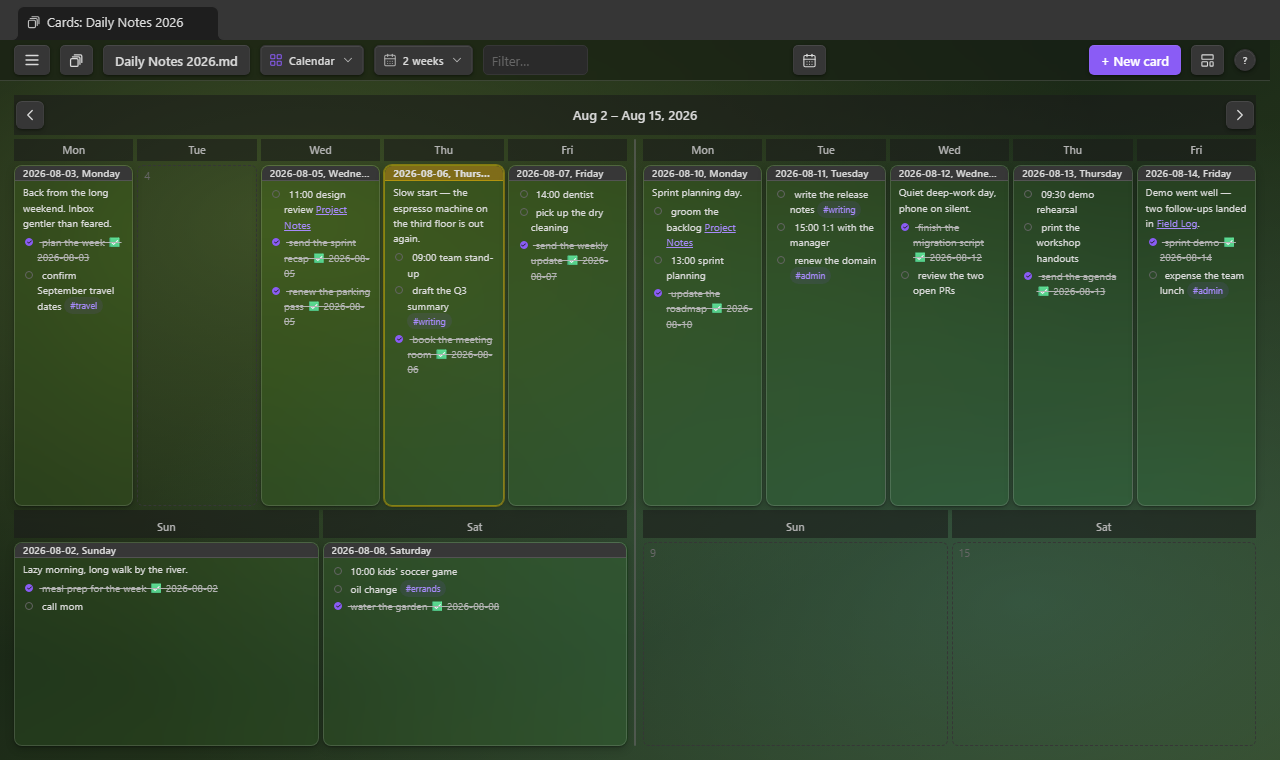
2 weeks shrink their cards to fit their narrow day cells; Week and Day read at the ordinary
card size.
Month — every month between the first and last dated card, scrolling, under a pinned row of weekday names. The sort control orders the months.
Week — one week in the shape of a paper planner: the five weekdays across the top, the weekend lying along the bottom in a band of its own, all of it filling the pane so a day's card shows most of itself rather than a corner. Both runs keep the week's own order, so a Sunday-first week has its weekend bracketing the weekdays rather than trailing them.
2 weeks — that planner twice, side by side: all ten weekdays across the top, each week's weekend in the band beneath it, and a rule down the middle between the two weeks. Its arrows step one week at a time, so the week you were looking at stays on screen — it just moves to the other side.
Day — one day, filling the pane.
In 2 weeks, Week and Day, a click on a day's card edits it in place, like a card in any other layout; a Month cell is too small for that, so a click there opens the day big first.
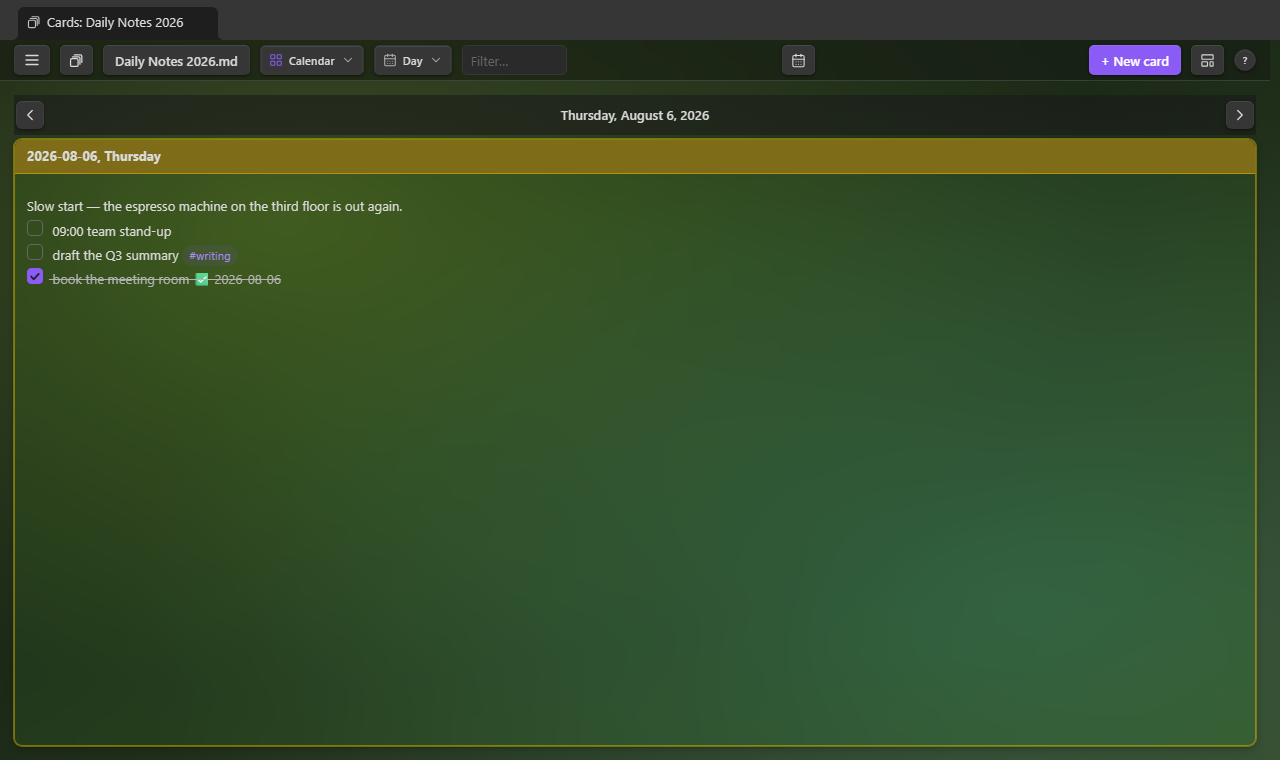
2 weeks, Week and Day carry a row of arrows: ‹ and › walk a week (or, for Day, a day) at a
time — as do the , and . keys — and Today comes back once you've wandered off. They
walk past the note's dated days too: that's how a day the note has never mentioned gets its
card.
Heatmap
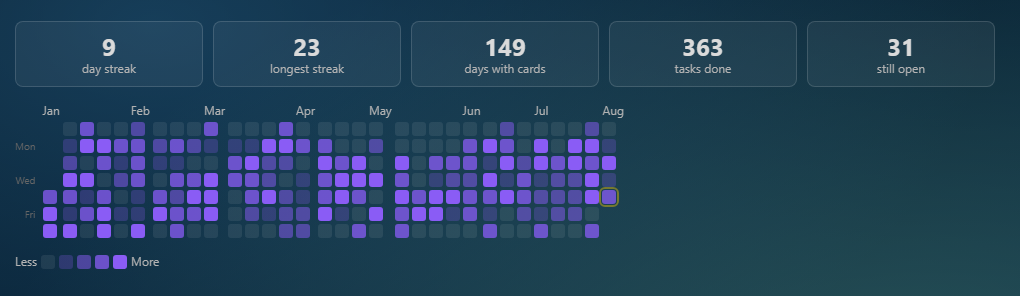
A year-at-a-glance graph of the dated cards, shaded by tasks done, with streak stats above. Click a day to open (or create) its card. Needs date headings.
Links
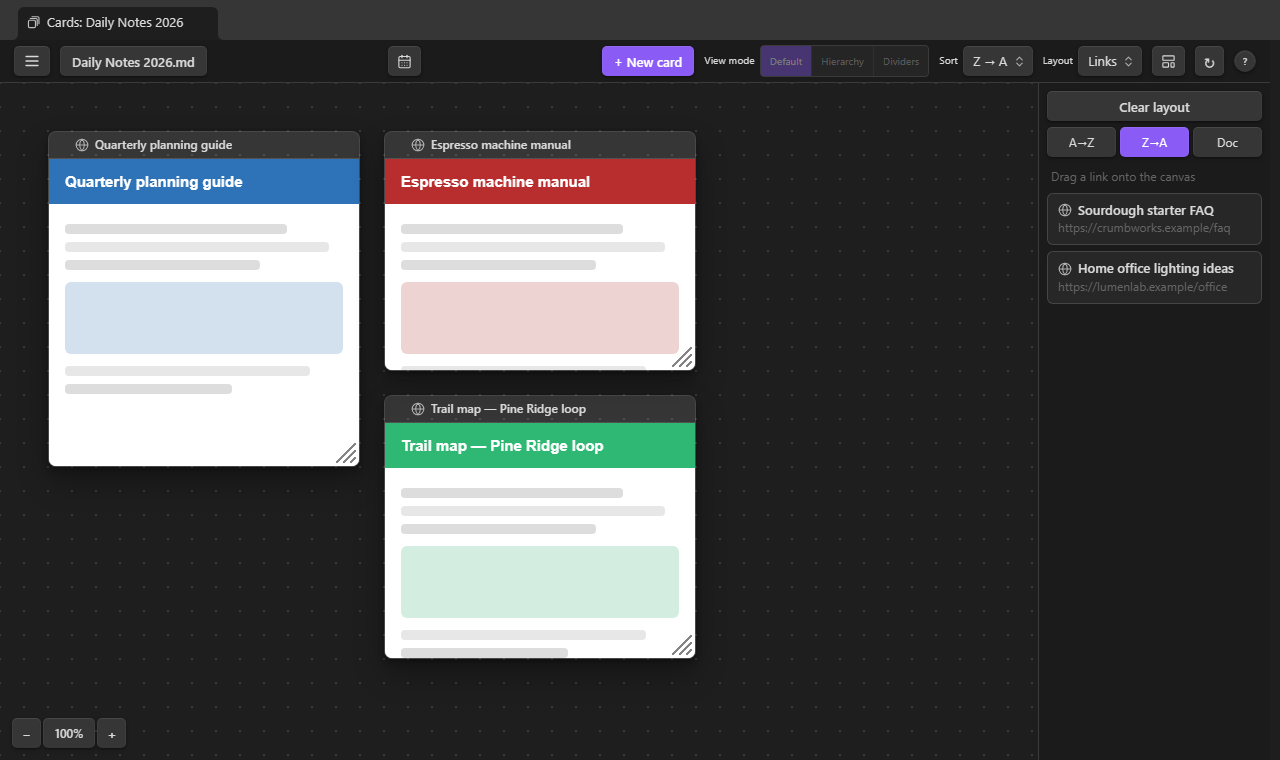
The canvas for the note's web links: placed tiles show a live page preview. The magnifier opens the page big and interactive; ↗ opens it in your browser.
Hierarchy & Dividers
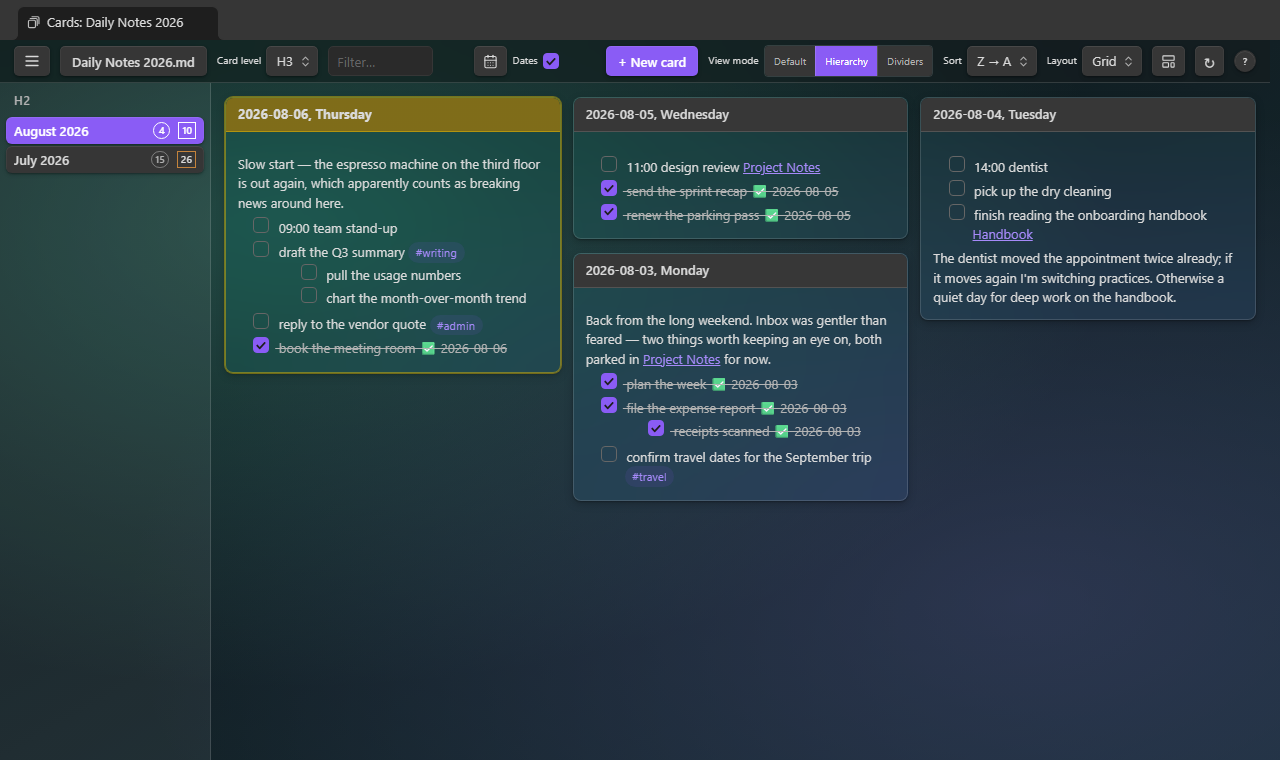
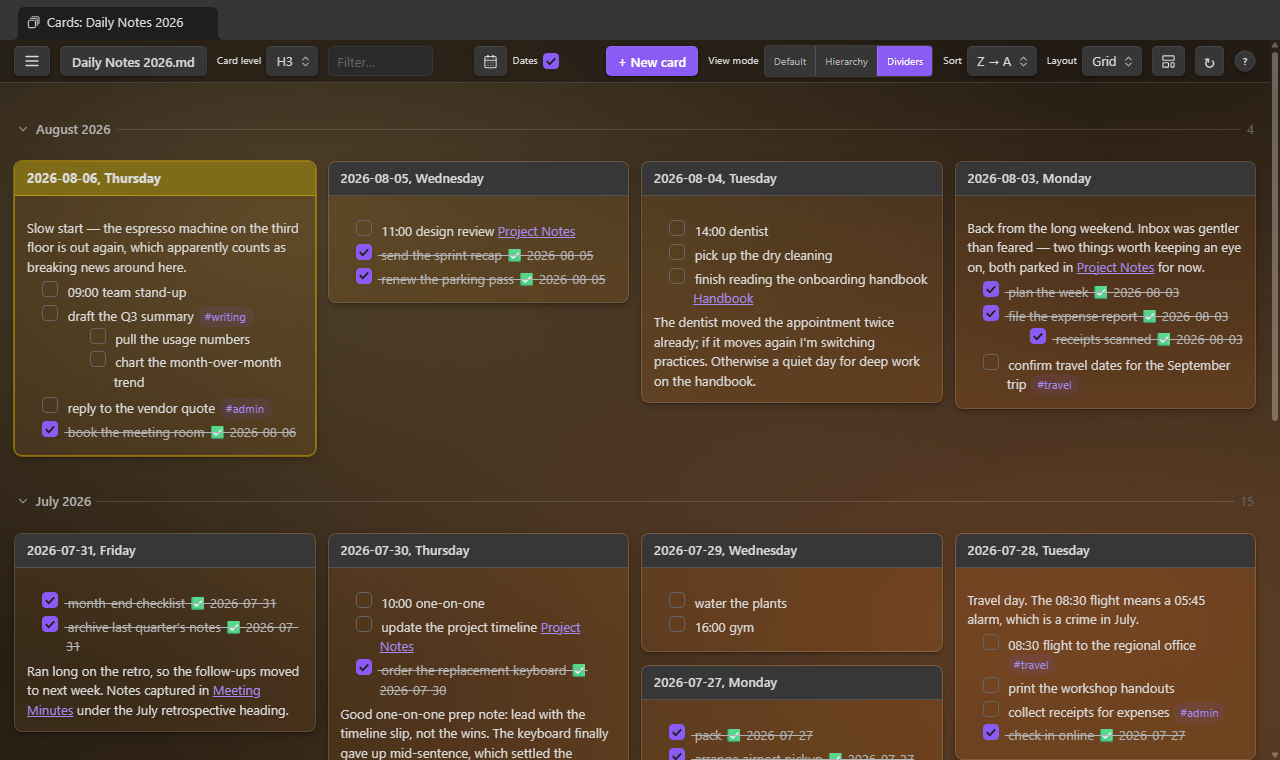
The toolbar's View mode toggle groups cards by the headings above the card level, in any
layout except the Custom Grid canvas. Hierarchy adds drill-down columns on the left — click
a heading to see its branch, with card and open-task counts per row. Dividers keeps one
wall, split by a collapsible bar per ancestor heading; the count at the bar's right end shows
the group's size. In either mode, , and . step to the previous/next heading — switching the
selected column row in Hierarchy, scrolling the previous/next bar to the top in Dividers.
On mobile
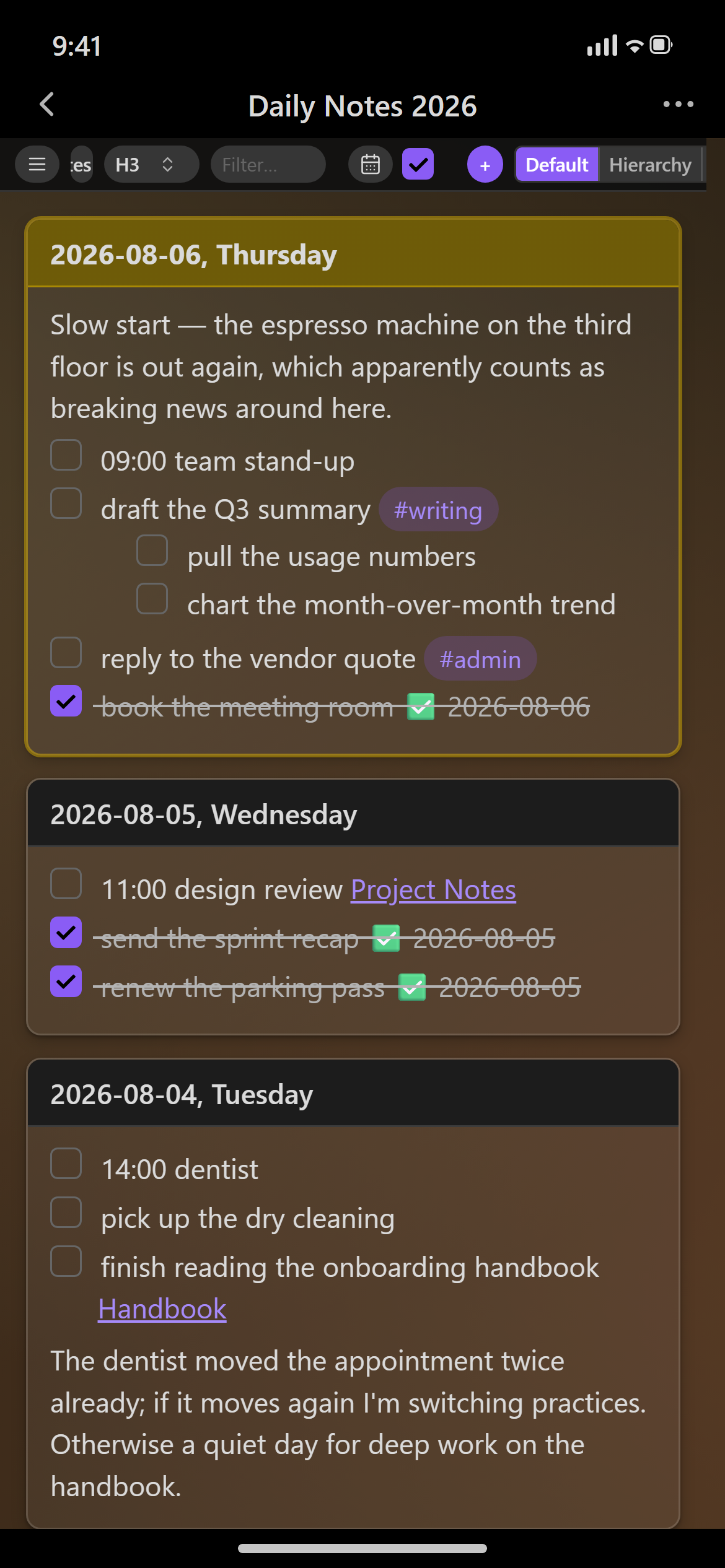
Mobile support has been greatly improved and is now regularly tested on iOS. The Horizontal layout makes an excellent way to input data on the go: one full-width card per section, with quick add, checkboxes, and in-place editing a thumb-tap away. On a phone or tablet the title bar keeps the full card title: tap a card's ⋯ button for its actions (quick add, color, rename, delete, open in the note, and the rest). The toolbar is trimmed to fit, and its calendar button opens the system date picker to jump to a day's card.
Group by
The toolbar's Group dropdown puts divider bars over buckets of cards instead of the ancestor
headings: Tag (a card's first #tag), Date (the heading's date, else the latest date in
the body — Upcoming, Today, Yesterday, This week, This month, Older), Open tasks (6+, 3–5,
1–2, none), Stars, or Length (long, medium, short). Cards keep the active sort inside a
bucket; click a bar to collapse its bucket. The choice is remembered per note, like the sort.
Nesting a card
Drag a card onto another card's body and it becomes a section of that card: its heading moves one level down (H3 → H4), with any headings inside it. It lands at the first sub-heading, or the card's end, after where you drop it — never between two lines of text, which would pull them under its heading. While you drag, the target card is outlined and a bar marks the spot, labelled with the new heading level. The drop asks before it nests (settings → Ask before nesting a dragged card turns the prompt off), and the notice afterwards has an Undo button. Drop on a title bar instead to reorder. Nesting works in any sort order and with a selection of cards; a card with a back side (Card Flip), or one already holding an H6 heading, can't be nested.
Undo
Every change the cards make to a note can be taken back: moving, nesting, merging, renaming,
creating, or deleting cards; editing a card (one step per edit, however often it saves); dragging,
starring, or deleting lines; ticking tasks; calendar feed updates. Press Ctrl/⌘+Z in the cards
view (or ☰ → Undo …, or the Undo the last card change command) to step back, and
Ctrl/⌘+Shift+Z to redo. The delete and nest notices carry an Undo button too. Each note keeps
its own history, about 30 steps, for the session. If the note was changed some other way since
(in the editor, by sync, by another plugin), undo refuses rather than overwrite that change. View
settings such as pins, colors, and canvas positions aren't part of it.
Selecting many cards
Selection works like a file manager: click a card's title bar to select it, Shift-click another
card to select the run between them, Ctrl/⌘+A for every visible card, and click empty space (or
press Esc) to clear. Ctrl/⌘-click makes a card big instead.
Changing the sort or grouping keeps the selected card in view. A bar along the bottom then offers Pin, Unpin,
Color…, Flip / Unflip (two-faced cards), Rename card… (rewrites the heading text; pins, colors, placements, and [[Note#Heading]] links to it anywhere in the vault follow), and Delete…; a title bar's right-click menu
has the same, plus Move selected before / after this card. Dragging one selected card drags
them all (document order). Esc clears the selection.
Keyboard. The arrow keys move a dashed focus ring to the nearest card in that direction;
Enter opens that card's editor, Space selects or deselects it, and Shift+arrow extends the
selection as it moves. In the Rolodex and the Day Planner, left and right step to the
neighbouring card; on the Calendar's 2 weeks, Week and Day ranges, , and . walk the calendar.
The action strip
Hovering a card's title bar reveals its buttons just beneath it — quick add, update from the calendar feed (on a dated card, when the note has a feed), color, delete, make big, sticky, open in the note, and flip. They sit over the body's first line, so the strip ends with an arrow that sends it to the card's bottom edge instead (and back again), leaving the first line free to read and click. The move lasts while the note is open.
Collapsing cards
The chevron in a title bar's action strip (or Collapse card in its right-click menu) folds a card to its title bar; click again to open it. Collapsed cards are remembered per note.
Brainstorming with cards
A single note makes a whole brainstorm: one ### heading per theme, and the wall becomes your
sticky notes (sample-vault/Brainstorm.md is this example).
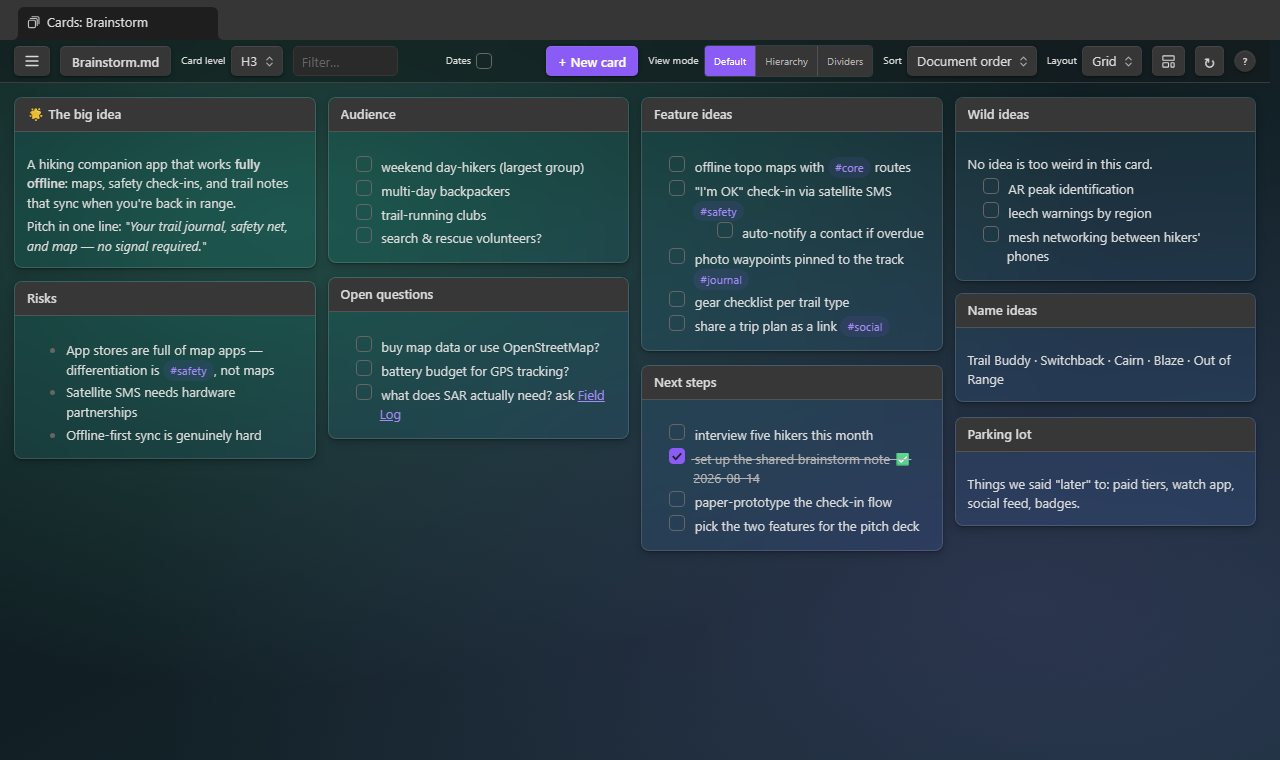
Then switch to Custom Grid and arrange: cluster related themes, size cards by importance, and leave the "later" cards in the list on the right. Drag tasks between cards.
The right-click menu
Right-click a task or paragraph on a card (long-press on mobile) for a menu.
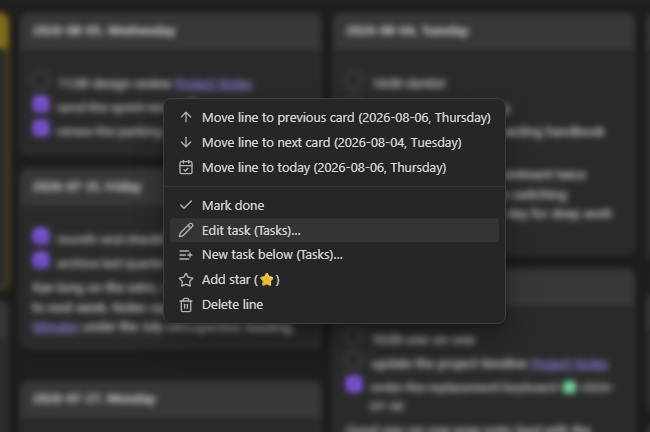
- Move line to previous / next card — sends the block to the neighbouring card in the current sort order
- Move line to today — on a dated note, sends the block to today's card, creating it first if the note doesn't have one yet
- Edit line… — opens the block in a small edit window, in the same live-preview (or source/plain) editor mode cards use; double-clicking the line opens it too
- Mark done / Mark undone — ticks or unticks the task where it sits
- Copy / Cut line — puts the block on the clipboard; Cut also removes it from the section
- Paste below — inserts the clipboard contents after the block (from a card's empty space, Paste at end appends to the card instead)
- Add star / Remove star — marks the line with the star emoji, for the toolbar's starred-only view (see Filter and starred lines)
- Delete line — removes the block (and sub-items) from the section
Working with the Tasks plugin
When Tasks is installed and enabled, the integration switches on by itself:
- Ticking a checkbox goes through Tasks, so recurring tasks spawn their next occurrence and done dates follow your Tasks settings. (The "Toggle tasks with the Tasks plugin" setting, on by default.)
- Edit task (Tasks)… — the right-click menu opens a task in Tasks' edit dialog (via a normal editor, since Tasks edits at a cursor).
- New task (below) (Tasks)… — Tasks' create dialog, inserting the finished line below the clicked block, or at the section's end from a card's empty space.
Without Tasks, the menu omits those entries and this plugin's own toggle applies — with the
optional ✅ YYYY-MM-DD done date.
Ctrl/⌘+T in a card editor opens the Tasks plugin's dialog for the task on the cursor line, or creates a new task there — the same as Tasks' own Create or edit task command. (The plain-text editor has no cursor for Tasks to read, so it gets the create dialog and the line drops in at the cursor.)
Due-task marks (settings → Tasks → Mark cards with due tasks, on by default): a card with an
open task due today gets an amber pill and edge; one with an overdue task, red. Both Tasks-style
📅 2026-09-10 dates and Dataview [due:: 2026-09-10] fields count.
Pinned cards
Every card's title bar has a pin button (click again to unpin). Pinning pulls the card into a pinned section at the top of the wall regardless of sort order, remembered per note across layouts, views, and restarts.
Filter and starred lines
The toolbar's filter box (Ctrl/⌘+F) narrows the wall to cards containing the typed text;
Esc clears it. For longer-lived highlighting, right-click a line and pick Add star —
the star emoji is written into the note as plain text, and the toolbar's star toggle (key
S) then shows only the starred lines.
Stickies
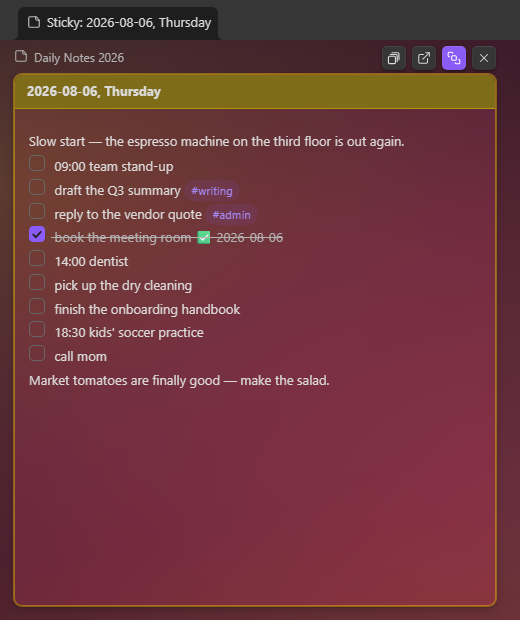
Any card can float in a window of its own: click the sticky-note button in its action strip, or Open in a sticky window on its title bar menu. The window shows just that card — tasks, editing, and all — stays in sync with the note, and can be kept on top of every other window with the button in its strip. Desktop only.
The Deck
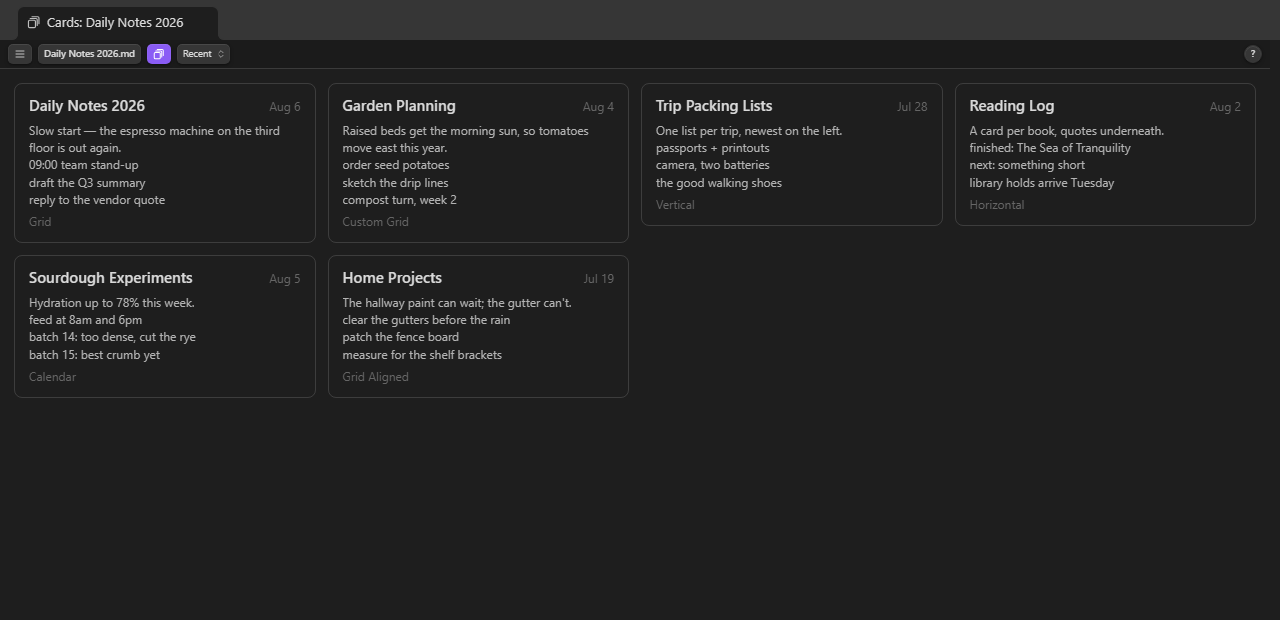
The toolbar's deck button (or D) flips the view to thumbnails of your card notes —
pinned ones first, then the most recently opened — each with the note's first lines,
its layout, and its own background. The Deck has a background of its own too (☰ →
Background while it shows), apart from any note's, and its note picker reads as empty. Click one to hop over; the Sort dropdown reorders them by recency,
file name, or the file's modified/created time. Right-click a tile for Rename note…
(links update and the remembered view follows) above Obsidian's own file menu.
Manage notes
The ☰ menu's Manage notes… (also a command) lists every note the plugin remembers a cards view for — searchable, pinned notes first, each with its heading level and layout. Click a note to open it, or use the row's buttons: pin it into the right-click menu's quick switch, rename it (links update), duplicate it with its view settings, forget the remembered view, or delete the note.
The menu, and per-note backgrounds
The ☰ button at the toolbar's left end (or M) collects the controls in two groups. Card:
New card, the note's card template, Flip all cards over and back, Highlight today's card, and
Background. Note: New note, Manage notes, Document setup, Reload from file, then the
Layouts row, the Dates group, and Settings. In the Deck the note-specific items step aside and
Background edits the Deck's own backdrop.
Background gives the note's card wall an image — from the vault, your computer, or a URL (downloaded once into the attachment folder) — or a generated gradient, with live sliders for transparency, brightness, and saturation, all remembered per note.
Network use. The plugin goes online for two things only: downloading a background image from a URL (once, when you pick one), and fetching a note's calendar feed from the address you gave it (when you update a day — or when the note opens, if you turn that on). Nothing is sent anywhere else, and everything else works fully offline.
Style Settings
With the Style Settings plugin installed, Settings → Style Settings → Single File Section Cards offers visual knobs: card gap, column width, wall padding, card surface strength per theme, a flat (shadowless) card toggle, calendar day-cell height, and the default background-image veil. Without Style Settings everything simply uses the defaults.
Card colors
Every card's title bar has a palette button offering nine colors, which tint the card's border and title bar in every layout. Colors are remembered per note in the plugin's data.
Card Flip
A card can have two faces. Put the back-side marker on its own line and everything above it is the card's front, everything below its back — a study question with the answer behind it, a term and its definition, or notes and metadata kept out of the way.
### Capital of France?

%% flip %%
Paris — since 508, with a gap for Vichy.
Cards with a back get a flip button (a horizontal loop arrow) at the end of the title bar's action
strip, and a Flip the card over item in its right-click menu. The faces slide past each other,
the flipped card shows in inverted colors so it stands out, and the card keeps its size — a longer
back scrolls. F flips the card under the pointer, Shift+F turns every card face up, and the
toolbar menu has Flip all cards over / back. Flipped cards stay flipped through edits,
layout switches, and closing and reopening the note (remembered per note in the plugin's data). Making a card big shows both faces stacked, the back under a labelled rule. The back is
display-only; click the card to edit the whole section.
The default marker %% flip %% is an Obsidian comment, invisible in reading view. Any text works
(settings → Card Flip → Back-side marker), such as --- or <!-- back -->. Leave a blank line
above it. The Flip-over button setting (on by default) turns the whole feature off.
New-card options, per note
The toolbar button beside + New card holds the open note's new-card options: a template note, and the note's own heading-name format.
Templates
Two kinds: a card template that pre-fills every new card in a note (☰ → Card → Card template for this note…), and the New note wizard, which makes a blank note or one shaped by a built-in structure, a preset, or a copy of one of your notes (☰ → Note → New note…). Both fill the same placeholders.
Card templates
A card template pre-fills the body of every new card, so a daily-notes file can start each day with the same skeleton. Pick one via the new-card options button ("Choose template note…") — one template per note, stored in the plugin's data, never in your notes; the button wears the accent color while one is set. On + New card the template is read, its placeholders filled in, and the new card opens for editing.
Placeholders.
| Placeholder | Becomes |
|---|---|
{{title}} |
The new card's heading text |
{{date}} / {{date:FORMAT}} |
The date named in the new heading — today if it names none |
{{time}} / {{time:FORMAT}} |
The current time |
FORMAT is a moment format string, as in
Obsidian's core Templates. {{date}} follows the card, not the clock: back-filling a card for
last Tuesday writes last Tuesday's date.
Example. With this template note:
- [ ] Standup notes
- [ ] Review {{date:dddd}}'s plan
- [ ] Shutdown checklist ({{title}})
creating the card 2026-08-20, Thursday produces:
### 2026-08-20, Thursday
- [ ] Standup notes
- [ ] Review Thursday's plan
- [ ] Shutdown checklist (2026-08-20, Thursday)
New note
☰ → Note → New note… (also a command) makes a note: blank, or shaped as a Kanban board,
SWOT analysis, Eisenhower matrix, or GTD system — or on the headings of any existing
note, so any note can serve as a template. Name it, rename its sections, add an Introduction,
Additional notes, or a hint under each heading, and pick the layout it opens in (a board
opens as columns, a matrix as a 2×2 canvas). Placeholders like {{title}} are filled in.
Your own presets. Add cards-preset: true to a note's properties and it joins the template
list. Optional: cards-description (the line under the picker), cards-layout (the layout it
opens in), and cards-matrix: true (a 2×2 canvas). An italic line under a heading becomes that
section's hint.
---
cards-preset: true
cards-layout: custom
cards-matrix: true
---
## Went well
*Wins worth repeating.*
Dates, per note
The toolbar's Dates checkbox says whether the open note's headings name dates. It governs the today-card highlight, the jump-to-today scroll, and the calendar button — per note. Until clicked, it decides from the note itself; click it once and your choice is remembered.
Hide future or past dates
With Dates on, the two buttons beside the toolbar's calendar button (also in the ☰ menu) hide dated cards after today, or before it; today's card and undated cards always show. A bar along the bottom says what's hidden, with a button to show it again, and jumping to a hidden date turns the hide off. Remembered per note. The Calendar, Heatmap, and Day Planner ignore it.
Text a level leaves out
Pick a card level that only some of the note uses — H4 in a note of H1 months, H2 weeks, and H3 days — and everything written under the other headings is off the wall. A bar along the pane's bottom then says how many lines of text sit under which levels without a card, with Show H2 (or whichever level would hold the most) to switch, Hierarchy view to at least see those headings as columns, and a close button to dismiss it for that note and level. The Rolodex and Day Planner show it too, since one card at a time hides the rest of the note even more quietly.
Jump to a date
With Dates on and date headings present, a calendar button appears beside the checkbox. Pick a date — or the picker's Today — and the view scrolls to that card and flashes it; if no card exists for the date, a prompt offers to create it (template applied, default placement). On the Calendar's 2 weeks, Week and Day ranges, the calendar first turns to the range holding that day, so the card (or its empty cell) is on screen to land on. The same goes for a link to a dated card and for Open today's section.
Calendar feeds
A note can follow a calendar. Give it the calendar's iCal (.ics) address and a day's events fill that day's card, under a heading of your choosing — read-only, so nothing is ever sent to the calendar. Any calendar that publishes an iCal address works: Google, Outlook, iCloud.
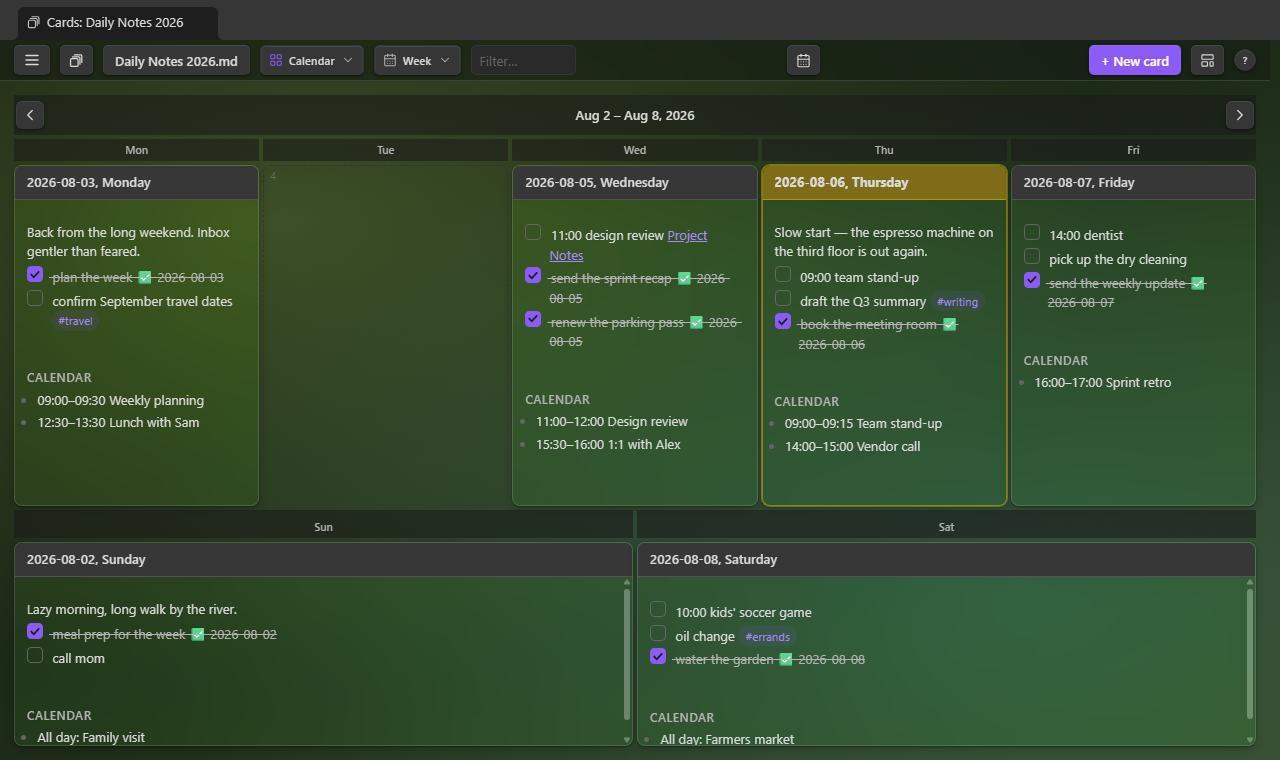
Set it up. ☰ → Calendar feed…, paste the address, and Test — it fetches the feed and says the calendar's name and how many events it has today — then Save. In Google Calendar, the address is under the calendar's settings → Integrate calendar → Secret address in iCal format. Each note has its own feed, so a work note can follow the work calendar and a personal note yours; ☰ → Calendar feed… again changes or removes it.
What an update writes. A day's events go under a heading one level below the card, all-day events first, then by time:
### 2026-07-22, Wednesday
- [ ] tidy the shared drive

#### Calendar
- All day: Offsite
- 09:00–09:30 Stand-up
- 14:00–15:00 Design review
Updating one day, or all of them.
- A card's ↻ button (on its action strip, on dated cards), or right-click the card — or any line in it — → Update from calendar feed: that day.
- ☰ → Update today from calendar feed: today's card, made first if the note doesn't have one.
- ☰ → Update all days from calendar feed…: every dated card in the note, in one go. It fetches the feed first and tells you how many cards and events it would touch before changing anything. It also finds the days on the calendar the note has no card for, and asks how far to go making them — this week, this month, this year, or all (from the feed's first event to a year from today, since repeating events with no end would otherwise go on forever) — each with its count, and Don't make any the default. New cards are made the way you'd make them yourself: the note's heading format and card template, placed by your new-card placement, with that day's events already in.
- The two ☰ updates are commands too, and a setting can update today's card each time the note opens.
How updates behave.
- The feed's lines are replaced, yours stay. Moved, added, and cancelled events all follow; anything you write under the heading yourself stays, after them. A day with nothing new leaves the file untouched.
- Each feed line carries a hidden tag (
^ical-…, an Obsidian block id), which is how an update tells its lines from yours. It doesn't show when reading; delete it from a line to make that line your own. - Repeating events follow their rules, skipped dates, and occurrences moved one at a time;
multi-day and overnight events show on every day they cover (
22:00–…,…–01:00); times are shown in your time zone, 24-hour.
Settings → Calendar feeds.
- Heading for a day's events — default Calendar.
- Where the heading goes — the bottom of the card, or the top, right under its title. It decides only the first time; after that the heading stays wherever it is, so you can move it by hand. At the top, the rest of the card follows the events, so in Markdown terms it sits under the heading too (the Day Planner shows it inside the heading's card) unless it has a heading of its own.
- Write events as tasks — open tasks instead of bullets; a task you tick stays ticked through updates.
- Update today's card when the note opens — once per note each session, only if today's card exists.
The address is private. It's kept in the plugin's data, not in the note. A secret address lets anyone who has it read the calendar, so treat it like a password — and if you use Obsidian Sync with plugin settings, it travels with them.
Usage
- Click the deck icon in a note's top-right corner: that tab becomes the note's cards view (settings → Open regular note as card button turns the icon off).
- Right-click any note in the file explorer (or its tab header) and choose Open as cards.
- Click the deck-of-cards icon in the ribbon, or run one of the commands:
Single File Section Cards: Open today's section— the default note as cards with today's card brought into view, created first if the note doesn't have one yet (also the calendar-check icon in the ribbon, "Open default card"). A note that doesn't use date headings (the toolbar's Dates toggle is off, or its cards carry no dates) opens the card named by the Default card for undated notes setting instead, creating it if needed — or, with that setting empty, just opens. The single-file stand-in for the core Daily notes plugin's "Open today's daily note"; give it that command's hotkey under Settings → Hotkeys.Single File Section Cards: Open section cards (default note)Single File Section Cards: Open section cards in a new tabSingle File Section Cards: Open section cards for the active noteSingle File Section Cards: Create new cardSingle File Section Cards: Undo the last card change/Redo the last undone card changeSingle File Section Cards: Update today's card from the calendar feedandUpdate every day in this note from the calendar feed— when the note in front has a calendar feedSingle File Section Cards: New note— the New note wizardSingle File Section Cards: Manage notes— the notes manager
- The toolbar button switches notes: your default note, notes you've viewed as cards, and recently opened notes lead the list, with the rest of the vault's notes below them — type to search everything by name or path.
Settings
| Setting | What it does |
|---|---|
| Default note | Vault-relative path opened by the ribbon icon and command |
| Open regular note as card button | A deck icon in every note's top-right that opens the note as cards in the same tab (on by default) |
| Reopen remembered notes as cards | A note you've viewed as cards before opens in the cards view instead of the editor; a card's ↗ button still reaches the editor (off by default) |
| Heading level | Which heading rank becomes a card (H1–H6) |
| Only list heading levels the note contains | The toolbar's Card level picker offers just the levels the open note uses (every level when the note has no headings) |
| Show unfiled text as a card / Unfiled card title | Text above the first heading (below any properties) becomes its own card, with a display-only title (off by default) |
| Show properties as a card / Properties card title | The note's properties (frontmatter) become the first card, as a table of names and values; editing the card edits the raw properties text. Display-only title (off by default) |
| Jump to today's card | Scroll to today's card when a note opens in the view (on by default; needs the note's Dates checkbox) |
| Keep pinned cards on screen | Pinned cards stay on screen while the rest scroll — below the toolbar, or left of the row in Vertical (on by default; not in Custom Grid) |
| Mark cards with due tasks | Amber badge and edge for cards with an open task due today, red for overdue (Tasks 📅 or Dataview due fields); click the badge to jump to the first overdue task |
| Card colors | Each of the nine card colors' RGB value and label, with preset palettes to apply in one pick |
| Card Flip | Flip-over button on cards that hold the back-side marker line; the marker text itself (default %% flip %%) |
| Default sort | A→Z, Z→A, or document order |
| Default layout | Grid, Grid Aligned, Tight, Horizontal, Vertical, Custom Grid |
| Show open-task counts in Hierarchy columns | Square badge per column row counting the unfinished tasks beneath it (on by default) |
| Default heading name | Date format used to pre-fill "New card" (any note can set its own from the toolbar's new-card options menu) |
| Default placement | Where a new card is inserted |
| Default card for undated notes | Card that "Open default card" / "Open today's section" opens (creating it if needed) when the default note doesn't use date headings; empty just opens the note |
| Ask before nesting a dragged card | Confirm before a card dropped on another card's body becomes its section (on by default) |
| Autosave open card editors | Write an open editor's content to the note every few minutes, and when the view closes, so an edit left open isn't lost (on by default) |
| Autosave interval | Minutes between autosaves while a card editor is open (default 5) |
| Toggle tasks with the Tasks plugin | Route checkbox ticks through the Tasks plugin when it's installed (recurrence, its done dates) |
| Completion date on tasks | Append ✅ YYYY-MM-DD when a task is ticked |
| Cross out nested items | Whether ticking a task also strikes through the items nested beneath it |
| Star emoji | The emoji "Add star" writes at the start of a line, matched by the starred-only view (default ⭐) |
| Card height | Maximum card height before the body scrolls |
| Card text size / Divider text size | Scale the text on cards (titles, bodies, editors) and, separately, on the divider bars, relative to the theme |
| Date detection format | An extra moment pattern that marks a heading as a date, with * wildcards for text around it (*MMMM D, YYYY*) |
| Start the week on | First day of the Calendar layout's weeks: the language default, Sunday, or Monday |
| Heading for a day's events | The heading a calendar feed writes a day's events under, one level below the card (default Calendar) |
| Where the heading goes | Where a day's card gets the feed heading the first time: the bottom of the card, or the top, under its title (default bottom) |
| Write events as tasks | Feed events as open tasks instead of plain bullets; a ticked one stays ticked through updates (off by default) |
| Update today's card when the note opens | Fetch the note's feed and update today's card the first time the note opens as cards in a session (off by default) |
| Toolbar | Full, or Compact on one line with icons only (also switchable by right-clicking the toolbar) |
| Deck thumbnails | How many notes the Deck shows: pinned notes first, then the most recently opened |
| Card editor | Live preview, source mode, or a plain text box when editing a card |
| Save edits when leaving a card | An open editor commits its changes when the wall re-renders under it (switching notes or layouts, opening the Deck, an outside change) instead of discarding them |
Install
From the community plugin directory (recommended)
In Obsidian, open Settings → Community plugins → Browse, search for Single File Section Cards, install, and enable. Updates arrive through the normal plugin updater.
With BRAT (pre-release versions)
To track releases straight from this repository, add jordanlong121/singlefilesectioncards as
a beta plugin in BRAT.
FAQ
Is this vibe-coded? Yes!
Will you maintain this? Yes! I use it everyday and want to make it the best I can.
Are there other plugins like it? Not that I am aware of.
What if I prefer smaller files? The plugin works with any file — the feature set just benefits larger ones more.
Do you need the Single File Daily Notes plugin for this to work? No, but you should use it because it's cool.
Do you need the Tasks plugin? No — checkboxes, done dates, and the right-click menu all work without it. If it's installed, ticking goes through Tasks (so recurring tasks recur) and the menu gains its create/edit dialogs.
Do you accept feature or bug fix requests? Yes, please open an issue on the GitHub page.
License
MIT. Calendar feeds are read with ical.js (Mozilla Public License 2.0), bundled unmodified.