Image Preview on Icon Hover
 rama1997828 downloads
Adds custom image previews when hovering over various UI icons.
- Overview
- Scorecard
- Updates4
Enhance your Obsidian experience by adding image popups when hovering over various icons in the user interface!
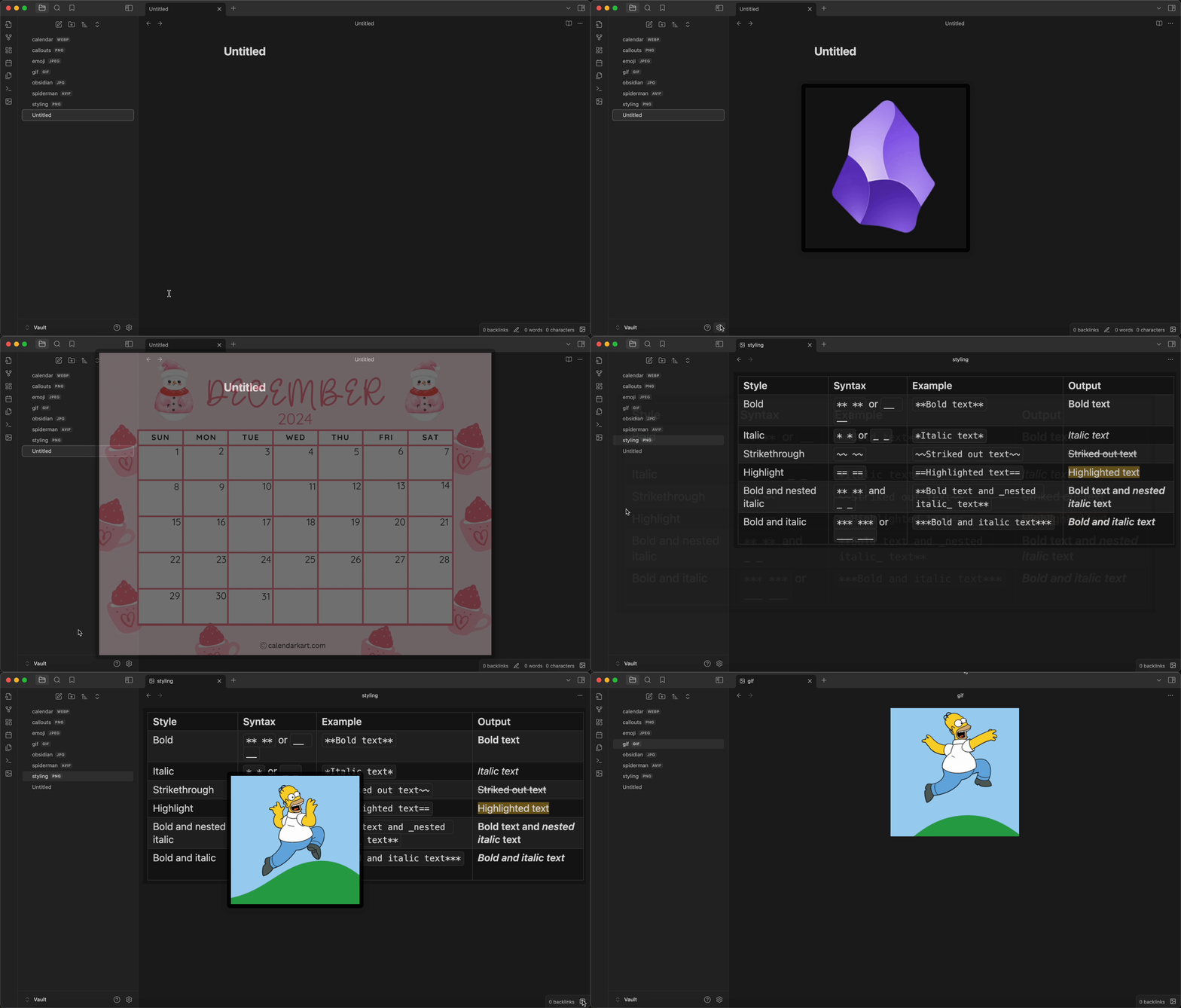
✨ Features
- Custom Image Previews: Add your own images to hover over various Obsidian icons
- Flexible Configuration: Customize images for:
- Vault Switcher
- Help Icon
- Settings Icon
- Left/Right Sidebar Toggles
- Ribbon Bar Icons
- Status Bar Icons
- Interactive Icon Management:
- Add, remove, and customize ribbon bar icons and status bar icons
- Search and select from a wide range of Obsidian icons
- Easily assign custom images to any icon
🚀 Installation
From Obsidian's Community Plugins
- Open Obsidian
- Go to Settings → Community Plugins
- Enable Community Plugins if not already done
- Click "Browse" and search for "Image on Icon Hover"
- Click "Install"
From GitHub
- Download the Latest Release from the Releases section of the GitHub Repository
- Put files to your vault's plugins folder:
/.obsidian/plugins/image-preview-on-icon-hover - Reload Obsidian
🎨 Usage
Configuring Core Obsidian Icons
- Open Obsidian Settings
- Navigate to the "Image on Icon Hover" tab
- You'll find sections for:
- Left/Right Sidebar Toggle
- Vault Switcher
- Help Icon
- Setting Icon
- Enter the path to your desired image (e.g.,
images/example.png)
Managing Ribbon and Status Bar Icons
- In the plugin settings, you can:
- Add new icons with the "+" button
- Select icons
- Choose unique images for each icon
- Delete existing icons
Image Path Guidelines
- Use relative paths from your vault root
🤝 Contributing
Contributions are welcome! Please feel free to submit a Pull Request.
🐛 Reporting Issues
If you encounter any issues or have suggestions for improvements, please open an issue on the GitHub repository.
HealthGood
ReviewCaution
About
Add image popups to Obsidian UI icons on hover, including the vault switcher, help and settings icons, sidebar toggles, ribbon icons, and status bar icons. Assign and manage custom images for any icon and add or remove ribbon/status icons for tailored previews.Details
Current version
1.0.3
Last updated
2 years ago
Created
2 years ago
Updates
4 releases
Downloads
828
Compatible with
Obsidian 1.7.7+
Platforms
Desktop, Mobile
License
MIT
Sponsor