
- Overview
- Scorecard
- Updates13
A plugin for displaying inline "callouts" in Obsidian.md; a successor to the Badges plugin by the same author. Key differences: simpler syntax, access to all Lucide icons in Obsidian, modal interfaces for icon suggestions, new inline callout and modify inline callout.
Installation
[!IMPORTANT] Requires Obsidian v1.13.0 or later. The settings tab uses the declarative settings API introduced in that version, so the plugin will not install on earlier releases. Vaults below v1.13.0 will continue to be offered v0.1.12, the last compatible release.
Install from community.obsidian.md
From Obsidian's settings or preferences:
- Community Plugins > Browse
- Search for "Inline Callouts"
Manually:
- download the latest release archive
- uncompress the downloaded archive
- move the
inline-calloutsfolder to/path/to/vault/.obsidian/plugins/ - Settings > Community plugins > reload Installed plugins
- enable plugin
or:
- download
main.js,manifest.json&styles.cssfrom the latest release - create a new folder
/path/to/vault/.obsidian/plugins/inline-callouts - move all 3 files to
/path/to/vault/.obsidian/plugins/inline-callouts - Settings > Community plugins > reload Installed plugins
- enable plugin
Demo
[!NOTE] See demo markdown file here
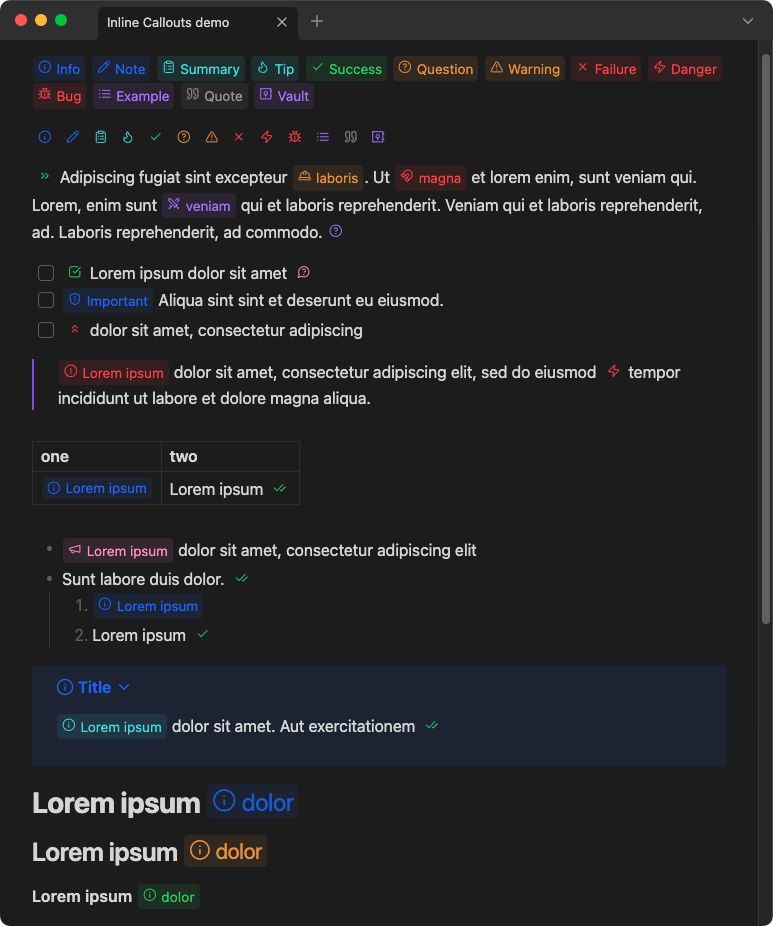
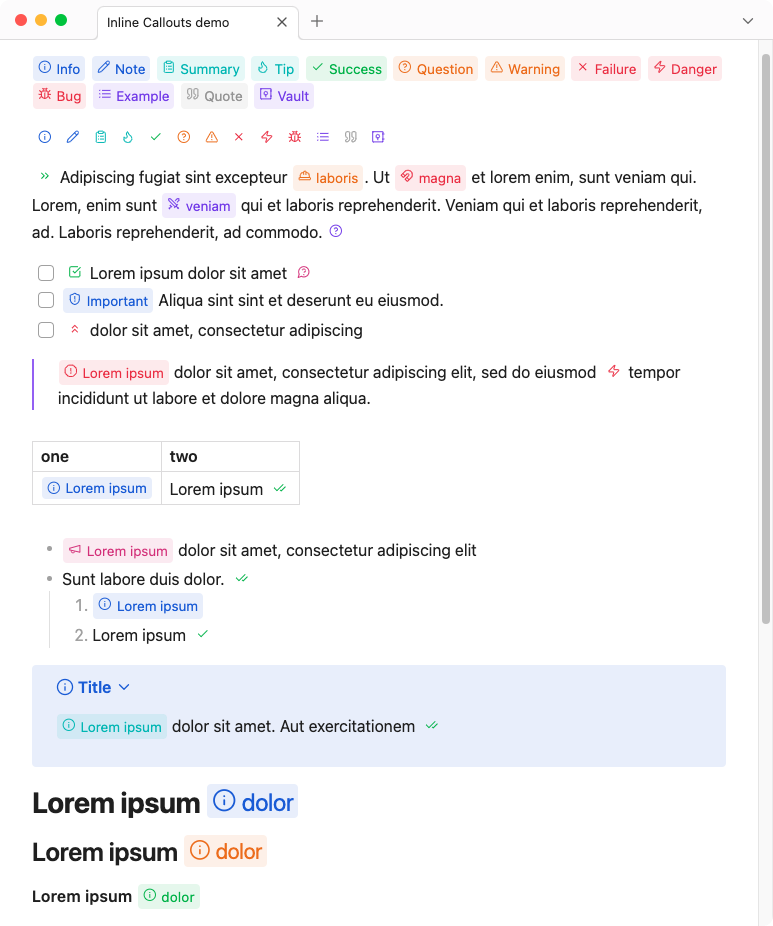
Features
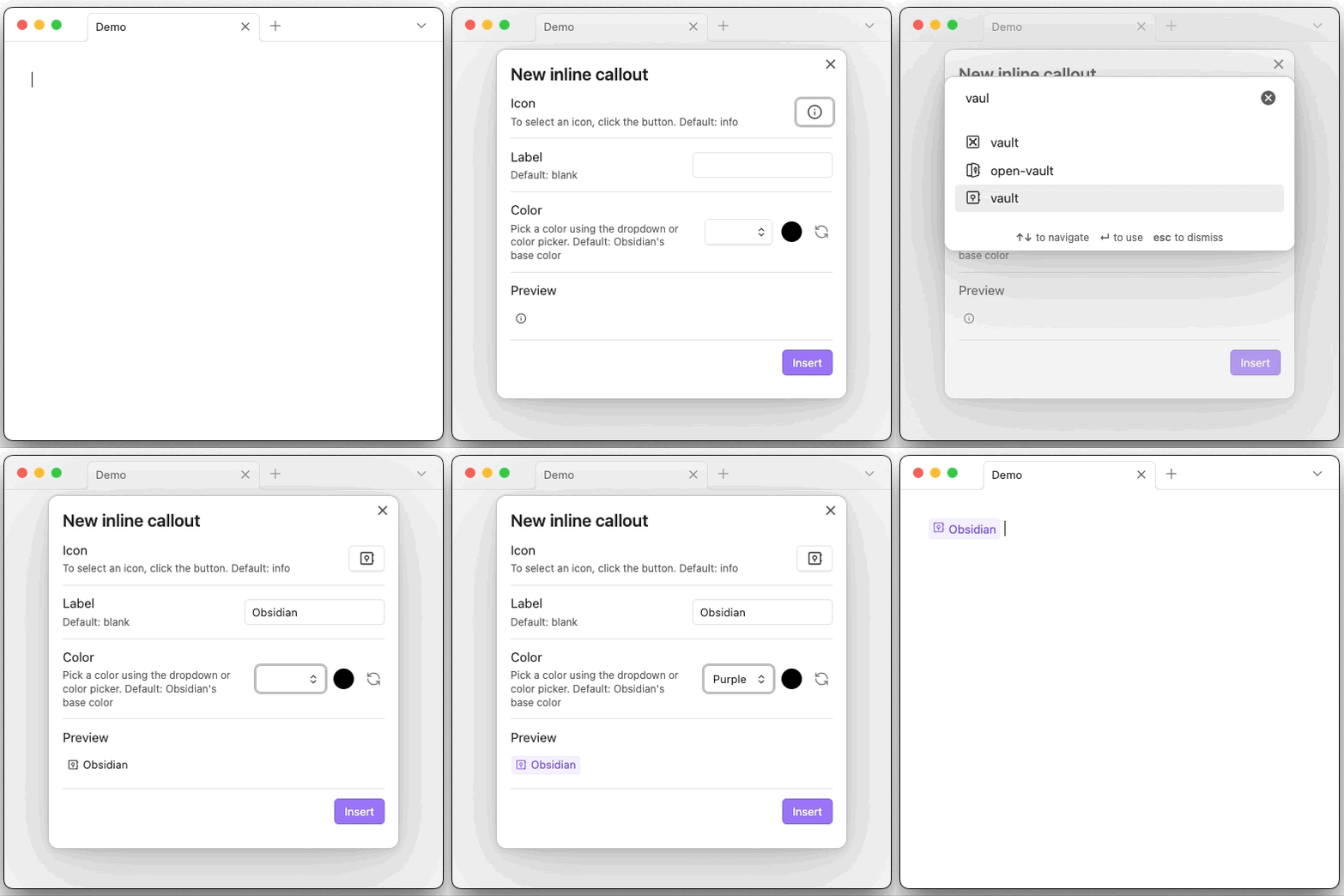
"New inline callout" modal
👇️ Show GIF screencast
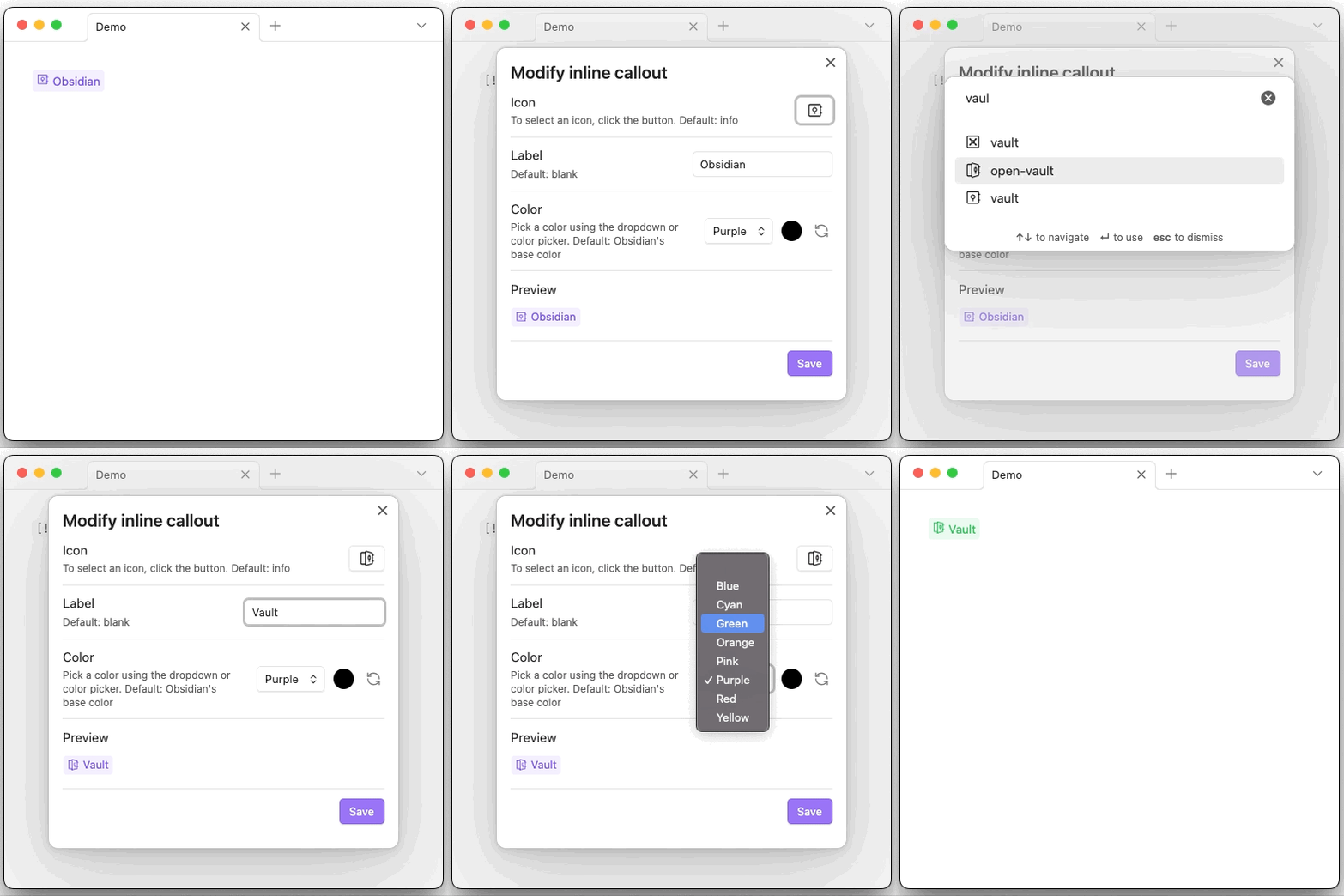
"Modify inline callout" Modal
👇️ Show GIF screencast
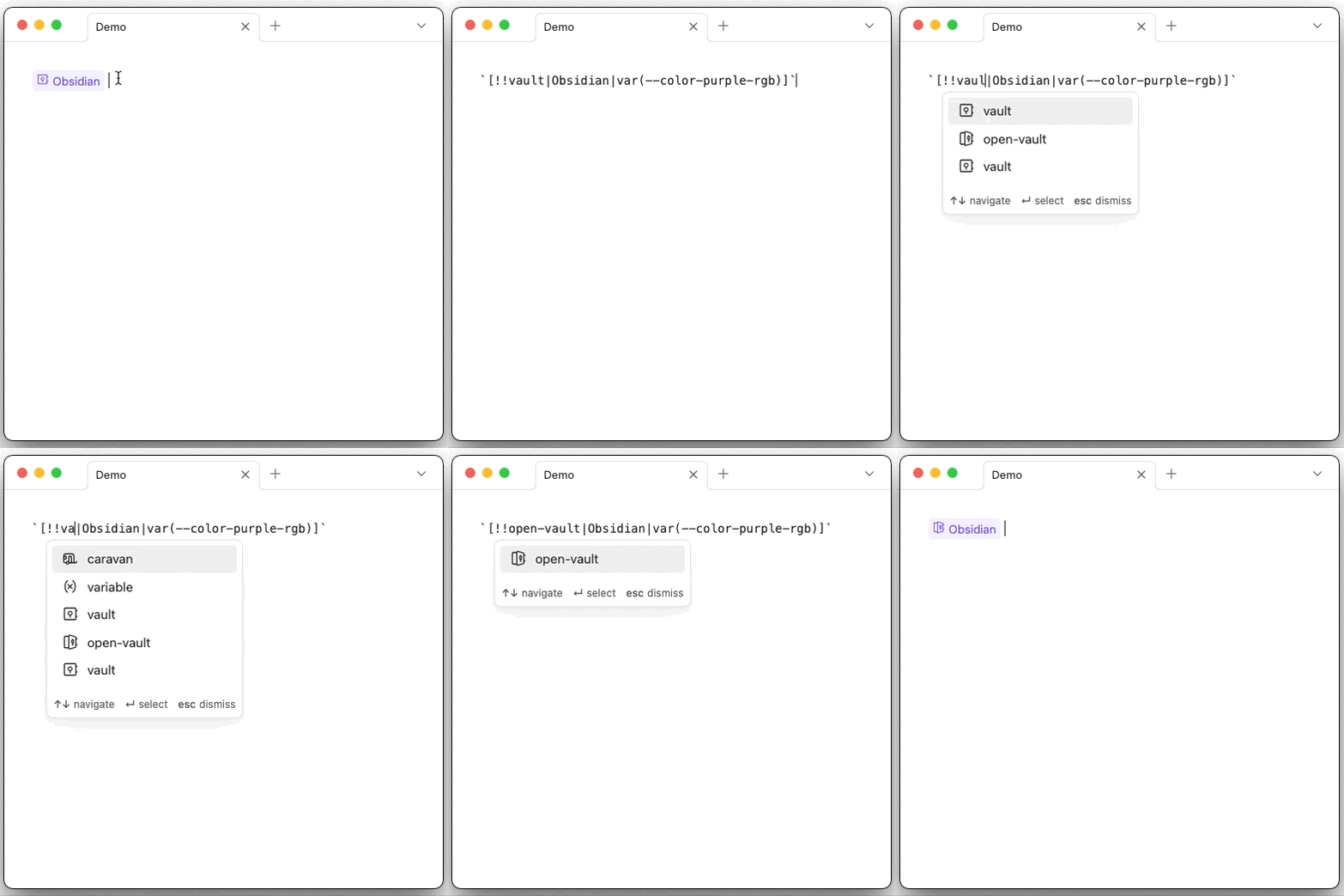
Editor auto-complete icon suggester
👇️ Show GIF screencast
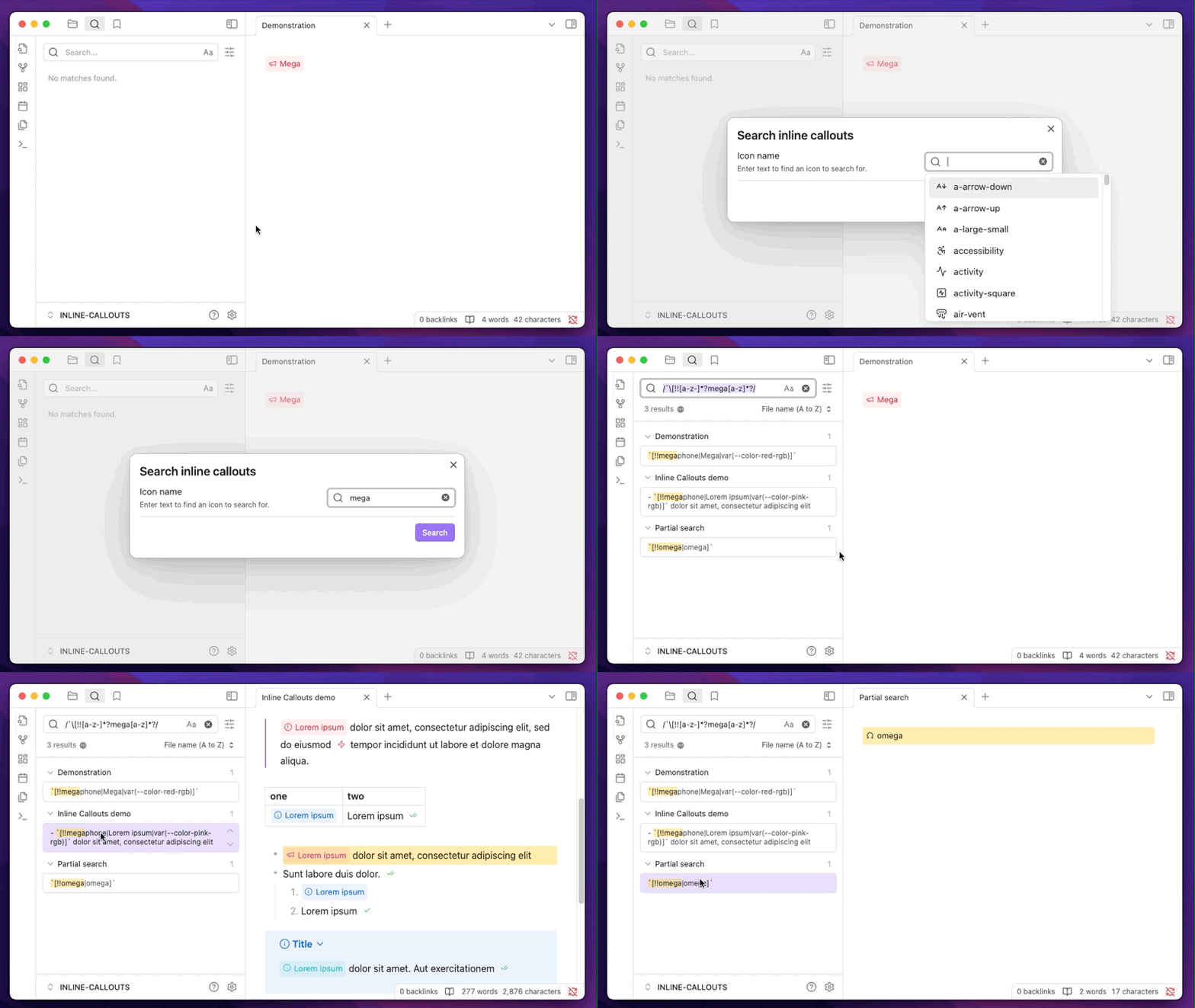
"Search for inline callouts" modal
👇️ Show GIF screencast
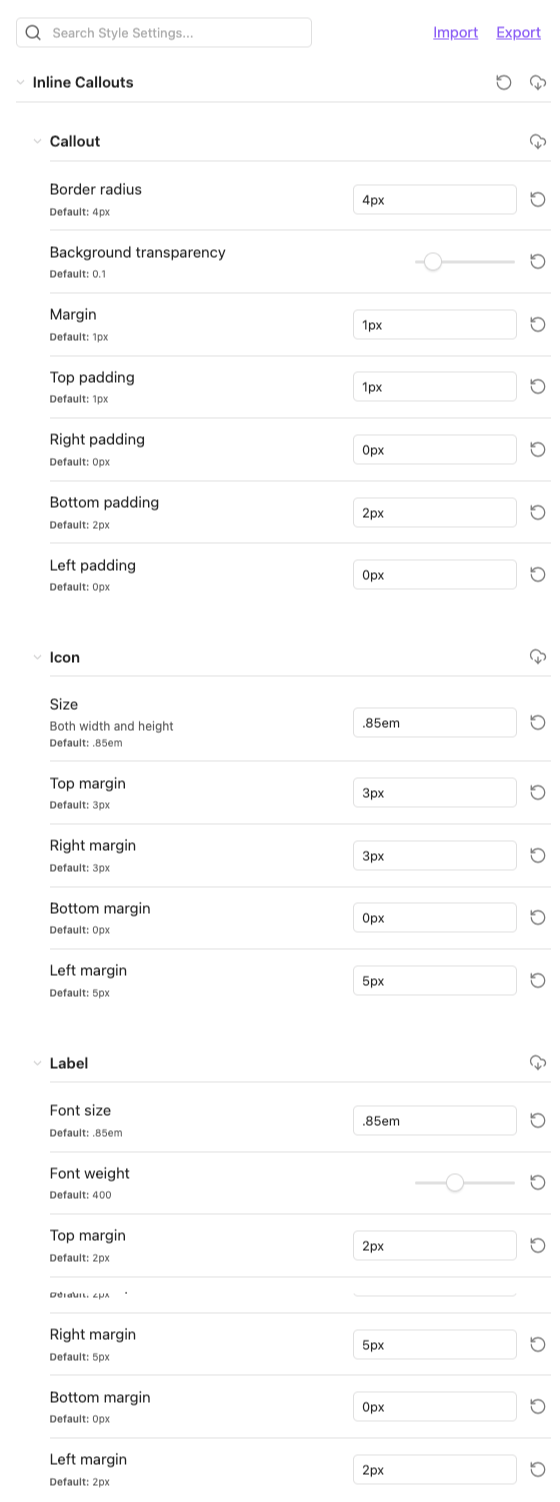
Compatible with Style Settings plugin
👇️ Show screenshot
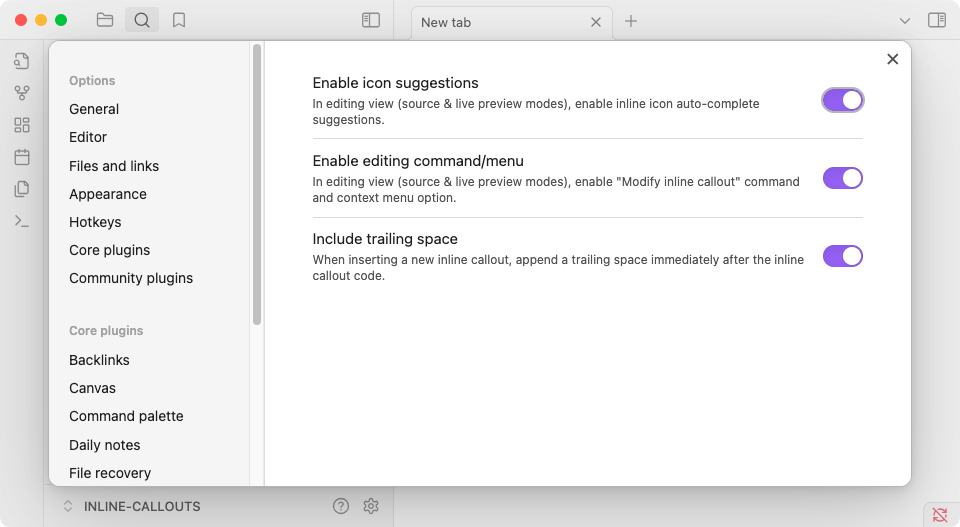
Settings
👇️ Show screenshot
Usage
Syntax
`[!!ICON|LABEL|COLOR]`
| Syntax | Details |
|---|---|
ICON |
Lucide icon name, or none/blank for no icon |
LABEL(optional) |
Callout label/title text |
COLOR(optional) |
Hex, RGB values, or Obsidian CSS var |
[!IMPORTANT] The
LABELcannot contain either the|pipe or the`backtick symbols, as they are used as delimiters for the custom syntax.
Caveats
- Consecutive inline callouts must be separated by at lease one space, character, or line return to be rendered correctly in reading view.
- Inline callouts do not work inside wiki or external link markdown
- Markdown and HTML code is NOT rendered in the callout label
- When using inline callouts in a table, the pipe characters must be escaped by a backslash
\. e.g.:| example | | ---------------------------------------- | | `[!!info\|Lorem\|var(--color-blue-rgb)]` |
CSS
Custom CSS styles can be applied via CSS snippets. All colors and styles can be over-written just the same.
See CSS snippets - Obsidian Help
Variables
body {
    --inline-callout-font-family: inherit;
    --inline-callout-font-size: .85em;
    --inline-callout-font-weight: 400;
    --inline-callout-border-radius: 4px;
    --inline-callout-bg-transparency: .1;
    --inline-callout-margin: 1px;
    --inline-callout-padding-top: 1px;
    --inline-callout-padding-right: 0px;
    --inline-callout-padding-bottom: 2px;
    --inline-callout-padding-left: 0px;
    --inline-callout-icon-size: .85em;
    --inline-callout-icon-margin-top: 3px;
    --inline-callout-icon-margin-right: 3px;
    --inline-callout-icon-margin-bottom: 0px;
    --inline-callout-icon-margin-left: 5px;
    --inline-callout-label-margin-top: 2px;
    --inline-callout-label-margin-right: 5px;
    --inline-callout-label-margin-bottom: 0px;
    --inline-callout-label-margin-left: 2px;
}
Obsidian.md RGB color variables
var(--mono-rgb-0)
var(--mono-rgb-100)
var(--color-red-rgb)
var(--color-orange-rgb)
var(--color-yellow-rgb)
var(--color-green-rgb)
var(--color-cyan-rgb)
var(--color-blue-rgb)
var(--color-purple-rgb)
var(--color-pink-rgb)
Style Settings plugin
The above --inline-callout-* CSS variables can be modified via the Style Settings plugin
Development
Clone this repo
cd /path/to/vault/.obsidian/plugins
git clone https://github.com/gapmiss/inline-callouts.git
cd inline-callouts
Install packages and run
npm i
npm run dev
Enable plugin
- open
Settings→Community plugins - enable the
Inline Calloutsplugin.
Credits
Some code inspired by and derived from:
- chrisgurney/obsidian-note-toolbar
- javalent/admonitions
- Moyf/easy-copy
- nhaouari/obsidian-textgenerator-plugin
- steven-kraft/obsidian-markdown-furigana
Thank you!
Notes
Lucide Icons: https://lucide.dev
Lucide Icons LICENSE: https://lucide.dev/license