Iconic
 Holo241k downloads
Customize your icons and their colors directly from the UI, including tabs, files & folders, bookmarks, tags, properties, and ribbon commands.
- Overview
- Scorecard
- Updates27
A plugin for iconophiles, designed to blend seamlessly with vanilla Obsidian.
Click almost any icon on a tab, sidebar, ribbon, or the title bar to swap in one of the 1,700+ Lucide icons included in the app, or one of the 1,900+ emojis that your device supports.
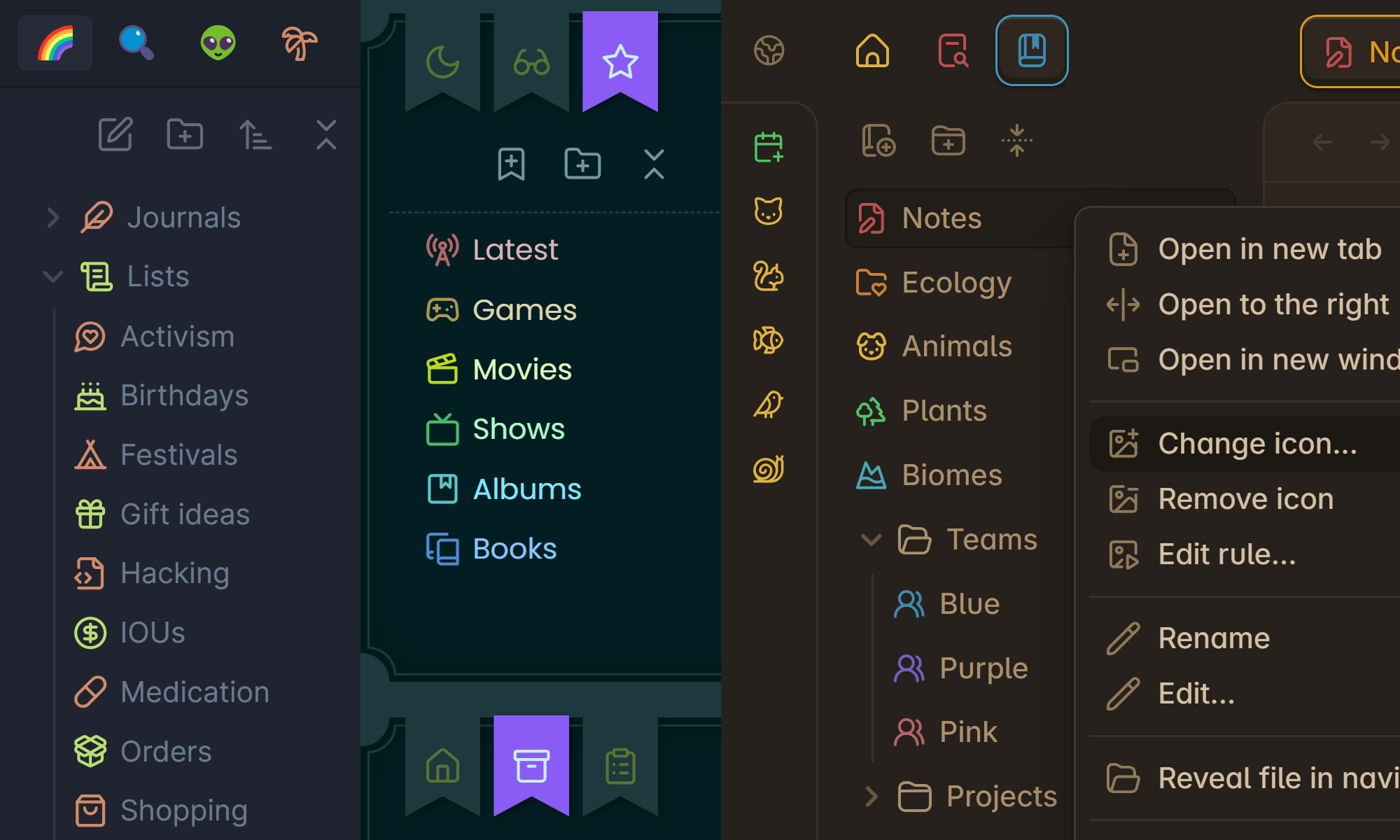
⤿ Themes: Ayu Light & Mirage / Fancy-a-Story / Primary
Includes language support for English, Arabic, German, Spanish, French, Indonesian, Japanese, Russian, Ukrainian, and Simplified Chinese. Most of these languages are currently machine-translated, but if you can supply more accurate translations, please send a message or a pull request :)
Supported items
- Tabs 📑
- Files & Folders 📝📂
- Bookmarks & Groups 🔖📂
- Tags 🏷️
- Properties 📦
- Ribbon commands 🎀
- Minimize/Maximize/Close buttons 🪟
- Sidebar toggles ◀️▶️
- Help/Settings buttons ❔⚙️
- Pin buttons (on tablets) 📌
How to use
Changing an icon
Secondary-click an item from the list above, then click Change icon from the menu. You can open menus on mobile by pressing & holding an item. Certain lists like Files, Bookmarks, and Properties let you hold Alt or ⇧ Shift to select multiple items at once.
Every icon is searchable by name and keywords, which you can view by hovering over (or long-touching) that icon. You can filter between icons and/or emojis by clicking the toggle buttons at the bottom. When you're ready, click an icon to select it immediately.
You can also choose one of nine named colors per icon. These color tones are determined by your current CSS theme. If you prefer a specific RGB color, secondary-click the bubble to open the full color picker. Click the Save button to apply color changes only.
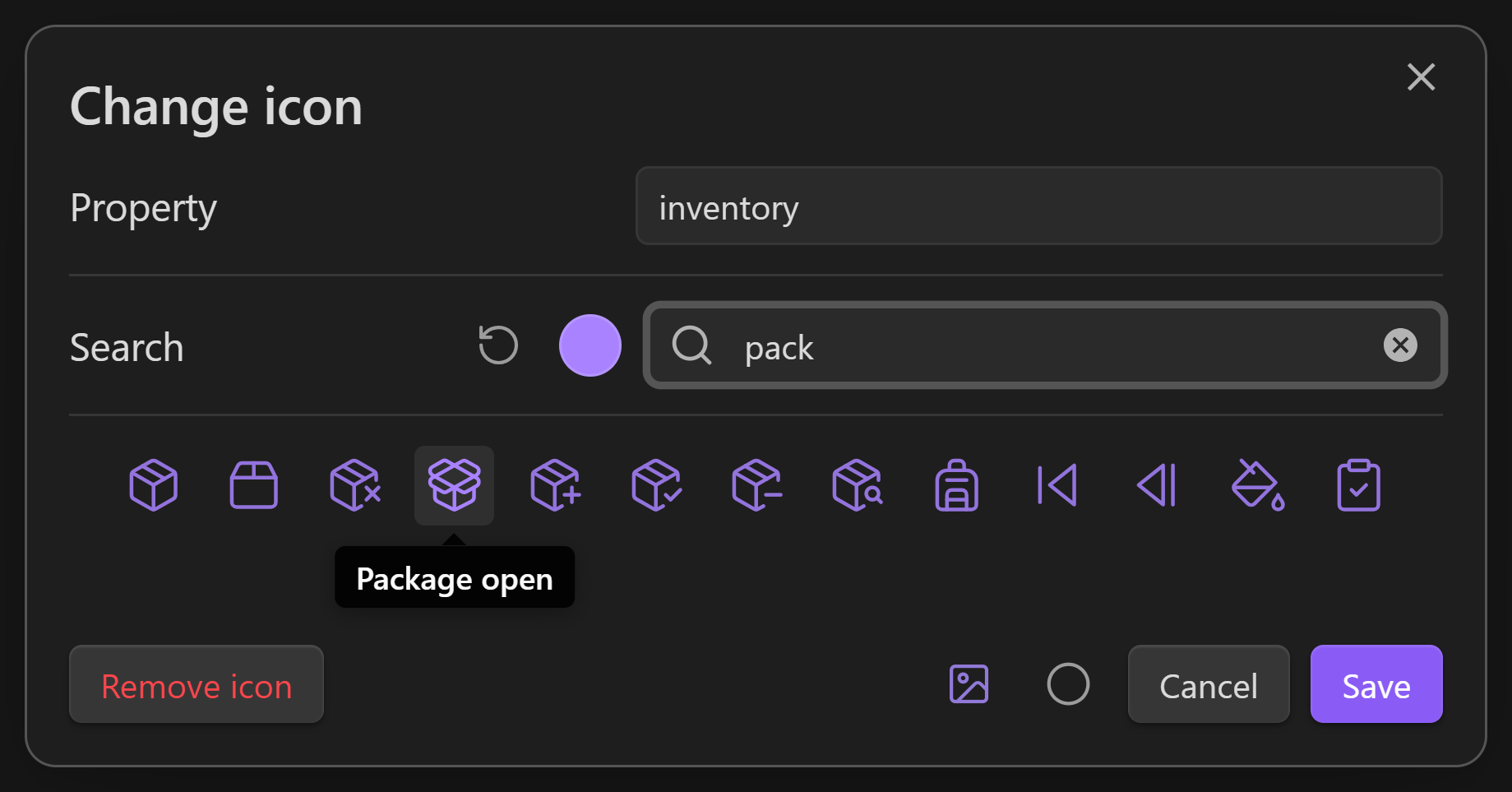
The icon picker will also display a warning if a rule in your rulebook is overruling its icon. To learn about that feature, see the sections below.
Setting up rules
You can set up a rulebook to automate your file & folder icons based on a variety of conditions, like their name, their extension, their parent folder, their tags, their property values, the date you've created or modified them, and even the current time of day. Automated icons never remove your custom icons — only replace them visually — so you can be as experimental as you want.
Open the rulebook from the ribbon, from the plugin settings, or by using the Open rulebook command. There are currently two pages in the rulebook: File rules and Folder rules, which affect files and folders respectively.
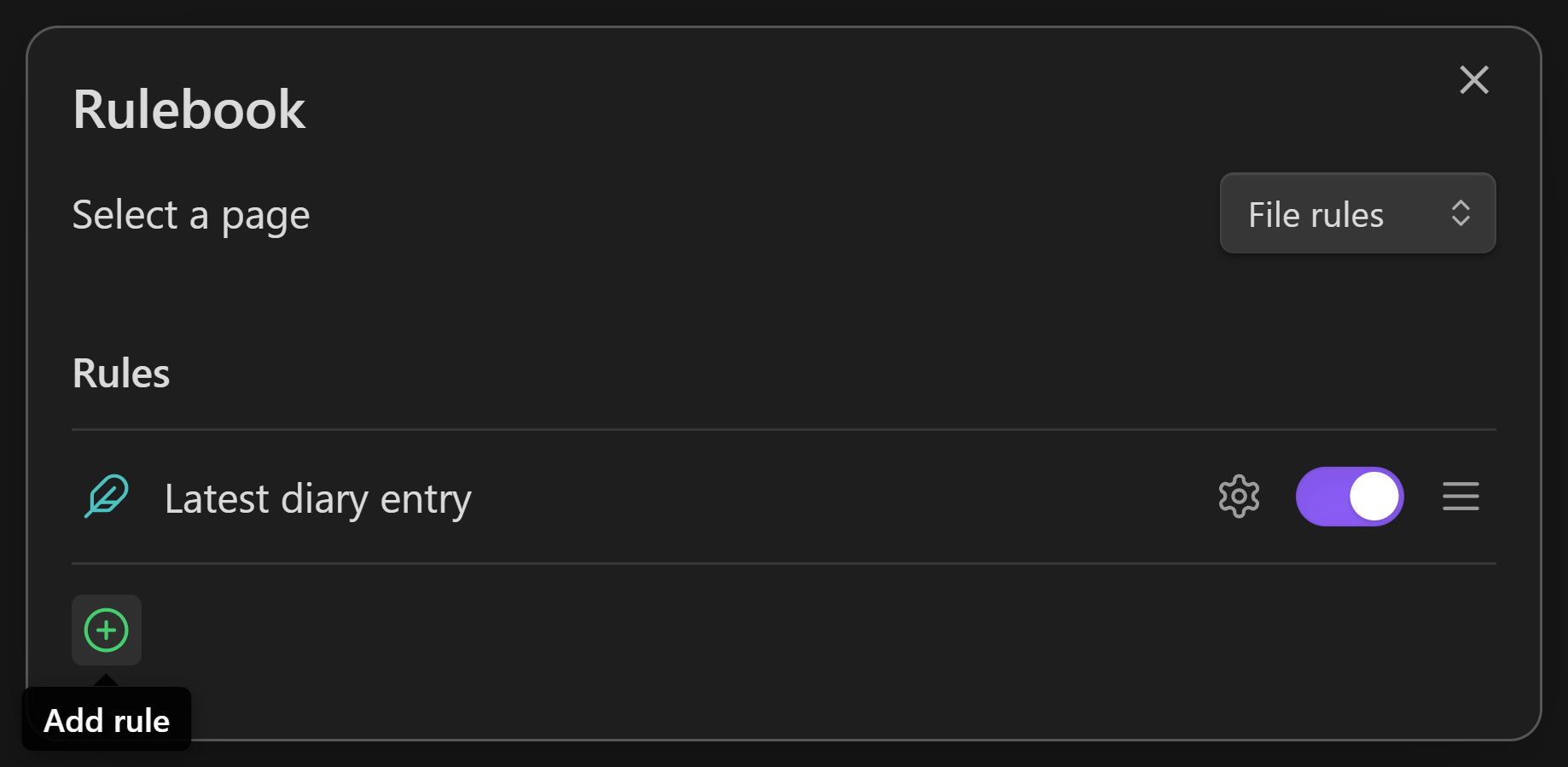
Click the + button to add a new rule, or secondary-click an existing rule to open a submenu with more actions.
Every rule has a name, and an icon, which will overrule the icon of anything that it matches. You can enable and disable a rule using its toggle switch. Rules at the top of the list have the highest priority, and you can drag them up & down using their handles.
To start editing a rule, click the ⚙️ beside it.
Editing a rule
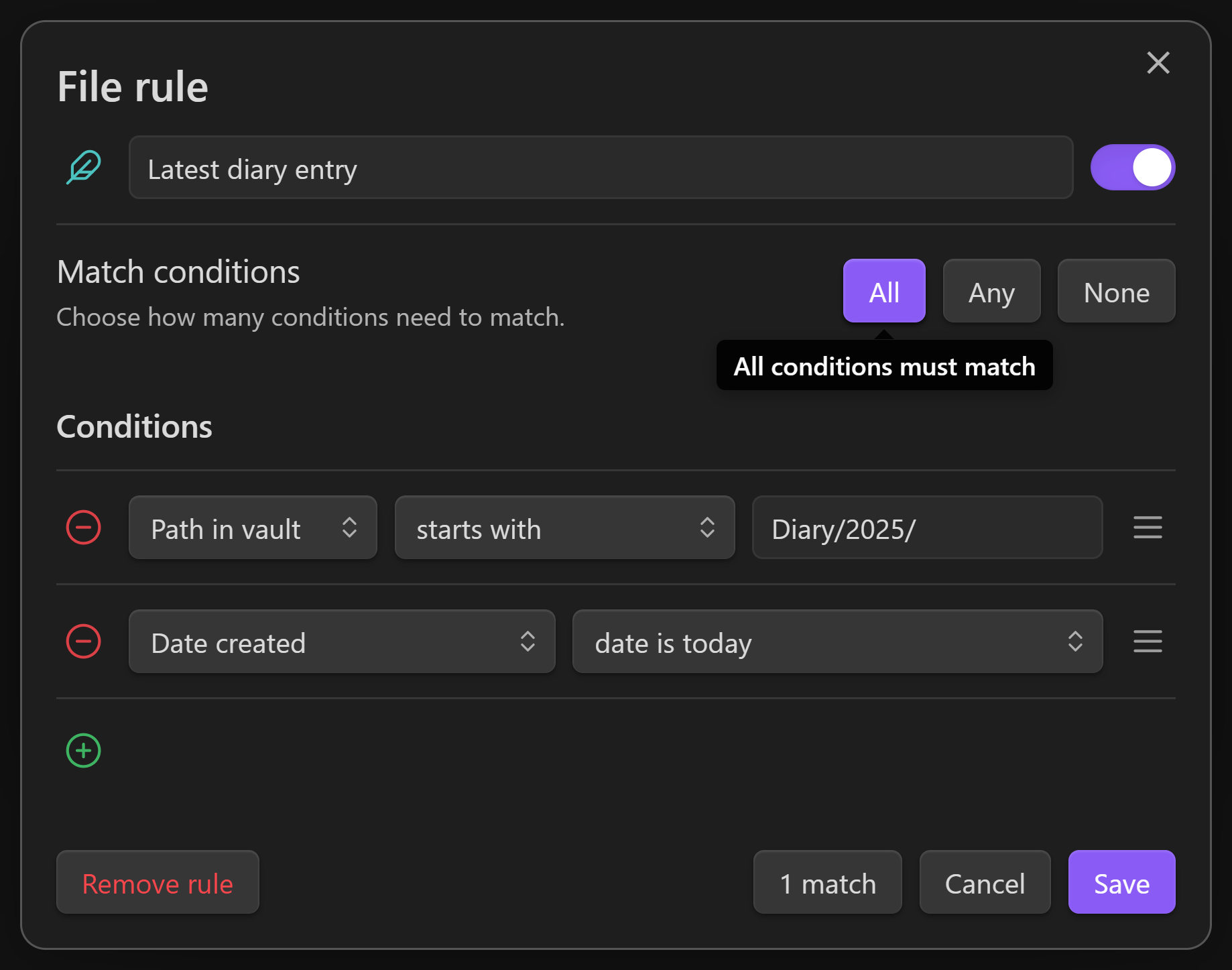
You can edit a rule's conditions in this window. A condition is a true or false test — it either matches, or it doesn't, and you can add any number of conditions to a rule. Rules interpret their conditions based on their All / Any / None setting. For example, if you want a rule to match when any of its conditions match, click the Any button. You can always see what your rule is matching by clicking the Matches button at the bottom.
If a rule is overruling an icon anywhere in Obsidian, you can secondary-click that icon and choose Edit rule to return to this window quickly.
There are several types of conditions you can add to a rule:
Iconchecks the icon set to a file/folderColorchecks the color set to a file/folderNamechecks the simple name of aFile/FolderFilenamechecks the full name of aFile.mdExtensionchecks the file extension, likemd,canvas,jpg, etc.Folder pathchecks the initialPath/Leading/To/Your/filePathchecks the entirePath/Leading/To/Your/File.mdHeadingschecks for# Headingsinside a noteLinkschecks for[[Links]]inside a noteEmbedschecks for![[Embeds]]inside a noteTagschecks for tags inside a note, including#hashtagsand thetagspropertyCreated timechecks the date & time a file was createdModified timechecks the date & time a file was modifiedSystem clockchecks the date & time on your deviceProperties...checks the value of a specific property inside a note
Date & time conditions are checked once every minute, so you can use them to modify your icons in real time.
What makes this plugin different from Iconize?
Iconic and Iconize can both change the icons & colors of files & folders, and automate icons based on their filepath. But Iconic can also:
- Change icons by clicking them directly
- Change icons & colors from the same dialog
- Dynamically shift colors to match your theme
- Automate icons using a conditional rule system
- Change icons of plugin tabs, tags, properties, ribbon commands, and window buttons
Can I use both plugins together?
Sort of, just expect a few visual bugs! They currently do some fighting over control of tab icons and the Bookmarks pane.
License
This plugin is released under an MIT No Attribution license, which means you're free to modify and republish its source code without crediting the authors of this repository. It also protects those authors from liability for accidental damages, so I recommend using a similar license if you republish this code.
[!IMPORTANT] This license does not cover the
/resfolder, which contains copyrighted text licensed by Lucide Icons and Unicode, Inc. These licenses require attribution. SeeLICENSES-THIRD-PARTYfor details.