Advanced Audio Recorder
 akhmialeuski2k downloads
Advanced audio recording with input device and folder configuration.
- Overview
- Scorecard
- Updates14
Advanced Audio Recorder lets you record, play, clean up, and transcribe audio directly inside Obsidian.
Use it for voice notes, meetings, interviews, lectures, and dictation. Record audio with one click, play it back in an enhanced waveform player, add bookmarks and chapters, split or convert files, and clean up noisy recordings when needed.
The plugin also includes built-in transcription. You can transcribe recordings or existing audio files in your vault using the OpenAI-compatible Whisper API (OpenAI, Groq, and other hosts), Deepgram, Google Gemini, Mistral Voxtral, or a local offline whisper.cpp model. Transcripts can include speaker labels, clickable timestamps, and an optional AI summary saved next to your note.
All audio and generated files stay in your vault. API keys are stored locally and are never sent anywhere except to the transcription provider you choose.
Works on desktop and mobile (iOS and Android). Some features are desktop-only (multi-track recording, local whisper.cpp transcription, input device selection); see Mobile support for the platform differences. Requires Obsidian 1.6.6 or newer. MIT licensed.
The full documentation lives in the docs folder, and the same link is built into the plugin's settings tab.
Features
- Recording: one-click capture with pause, resume, live status feedback, automatic splitting of long sessions, and crash recovery. Record in stereo or mono - including keeping just one channel of a dual-input audio interface.
- Multi-track recording: capture up to eight input devices at once for multi-microphone interviews.
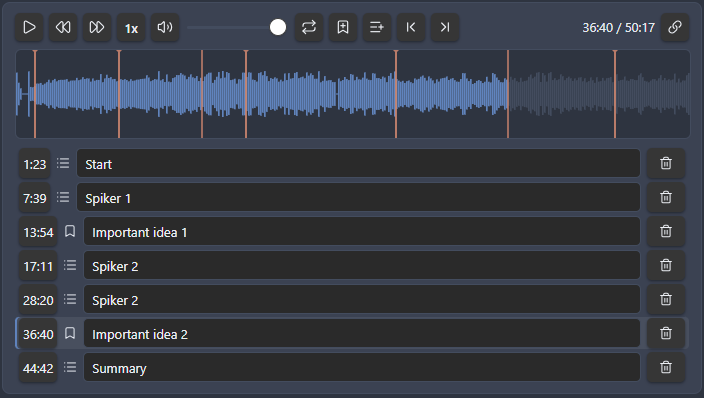
- Enhanced audio player: inline waveform with adjustable speed, skip, loop, volume, per-recording bookmarks, chapters, and clickable timestamp links.
- Transcription: OpenAI-compatible Whisper API, Deepgram, Google Gemini, Mistral Voxtral, or fully offline whisper.cpp, with speaker diarization and JSON, SRT, WebVTT, or plain-text output.
- LLM post-processing: optionally clean up or summarize any transcript with OpenAI, Anthropic, Gemini, or Mistral.
- Audio cleanup: high-pass filter, noise gate, and loudness leveling, written to a fresh copy.
- Formats and file operations: convert between WAV, WebM, OGG, MP3, MP4, M4A, AAC, and FLAC (with an optional mono downmix), and split long files from the right-click menu.
- Command line (desktop, Obsidian 1.12.2+): start or stop a recording, ask what the recorder is doing, or transcribe a vault file from a terminal.
Recording is fast and forgiving. Start and stop from the ribbon or a command, follow live feedback in the status bar, and pause or resume without losing anything. Capture up to eight input devices at once for multi-microphone interviews, let long sessions split into fixed-length parts automatically, and recover the audio on the next launch if Obsidian closes mid-recording. See Recording and Multi-track recording.

The enhanced player turns playback into a first-class part of your notes. Recordings embed as a player with a clickable waveform, adjustable speed, skip, loop, and volume. Add per-recording bookmarks and chapters, move between them, and copy timestamp links that jump straight to a moment in the audio. See the enhanced audio player.
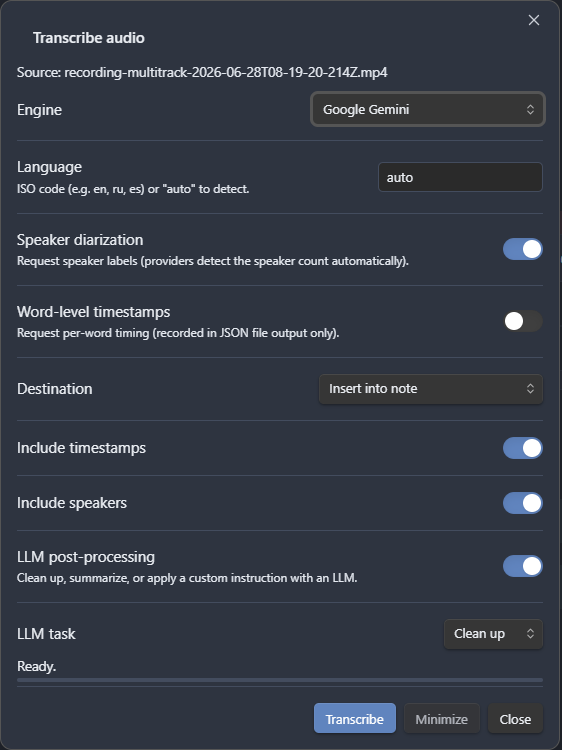
Transcription turns any recording, or any audio file already in your vault, into text with the engine that fits your needs: the OpenAI-compatible Whisper API (Groq and other compatible hosts included), Deepgram, Google Gemini, Mistral Voxtral, or a fully offline whisper.cpp model that never touches the network. Deepgram, Gemini, and Voxtral add automatic speaker diarization, so meetings and interviews come back labelled by speaker. You decide where the transcript goes and in which format (JSON, SRT, WebVTT, or plain text), with timestamps you can click to jump the player to the right moment. An optional pass through an LLM (OpenAI, Anthropic, Gemini, or Mistral) cleans up the wording or condenses the transcript into key points and action items. See Transcription and LLM post-processing.
Everything else keeps your audio tidy. Convert recordings between WAV, WebM, OGG, MP3, MP4, M4A, AAC, and FLAC, and split long files into parts straight from the right-click menu; the formats you can record in are the subset your platform supports. Clean up noisy audio on demand with a high-pass filter, noise gate, and loudness leveling, always written to a fresh copy so the original is left untouched. See Formats, File operations, and Audio cleanup.
Installation
- In Obsidian, open Settings, go to Community plugins, and turn off Restricted mode if it is on.
- Click Browse, then search for "Advanced Audio Recorder".
- Click Install, then Enable.
Quick start
- Click the microphone icon in the left ribbon, or run "Start/stop recording" from the command palette.
- Speak, then click again to stop.
- The recording is saved to your vault and embedded in the active note.
No default hotkeys are assigned. Set your own in Settings, under Hotkeys.
Support
If this plugin saves you time, consider supporting its development: Buy Me A Coffee.
Troubleshooting and bug reports
If something is not working, start with the troubleshooting guide. When you report a problem, follow the bug reporting guide and open an issue on GitHub.
License
Released under the MIT License.