Zoho Znote Import
 theluckystrike1 downloads
Import Zoho ZNote exports as notes with card dates, tags, checklists, and local attachments.
- Overview
- Scorecard
- Updates1
Zoho Znote Import turns supported cards from a local Zoho Notebook native export into Markdown notes. Select one ZIP, give the import a new folder, and read the report after it finishes. The free import keeps card titles, dates, colors, tag strings, tasks, and local resources. You can read the resulting notes without this plugin.
This importer reads the native ZNote format. It expects notebook meta.json files and .znote TAR archives with a Note.znel XML envelope. A Zoho HTML export uses a different format and is outside this importer's scope.
Features
Read a local native archive
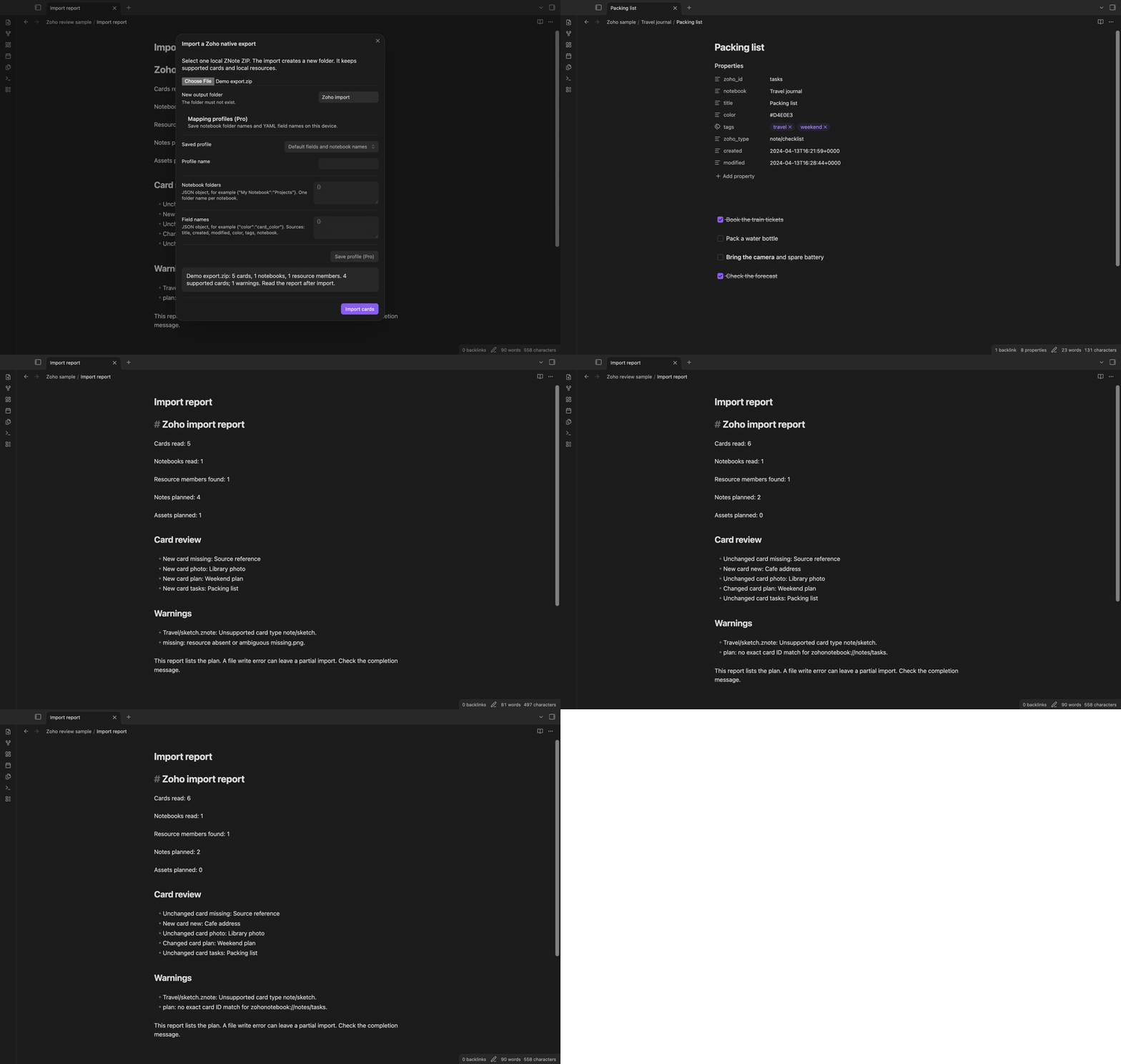
Select a ZIP with the file picker. The dialog shows the card, notebook, and resource counts before import. The archive stays on your device. The plugin reads the selected file outside the vault because the export can be in your downloads folder. It does not scan neighbouring files.
The input limit is 64 MiB. Expanded ZIP data is limited to 192 MiB and 10,000 members. These are rejection limits, not a capacity claim for a particular device.
Keep card fields and local attachments
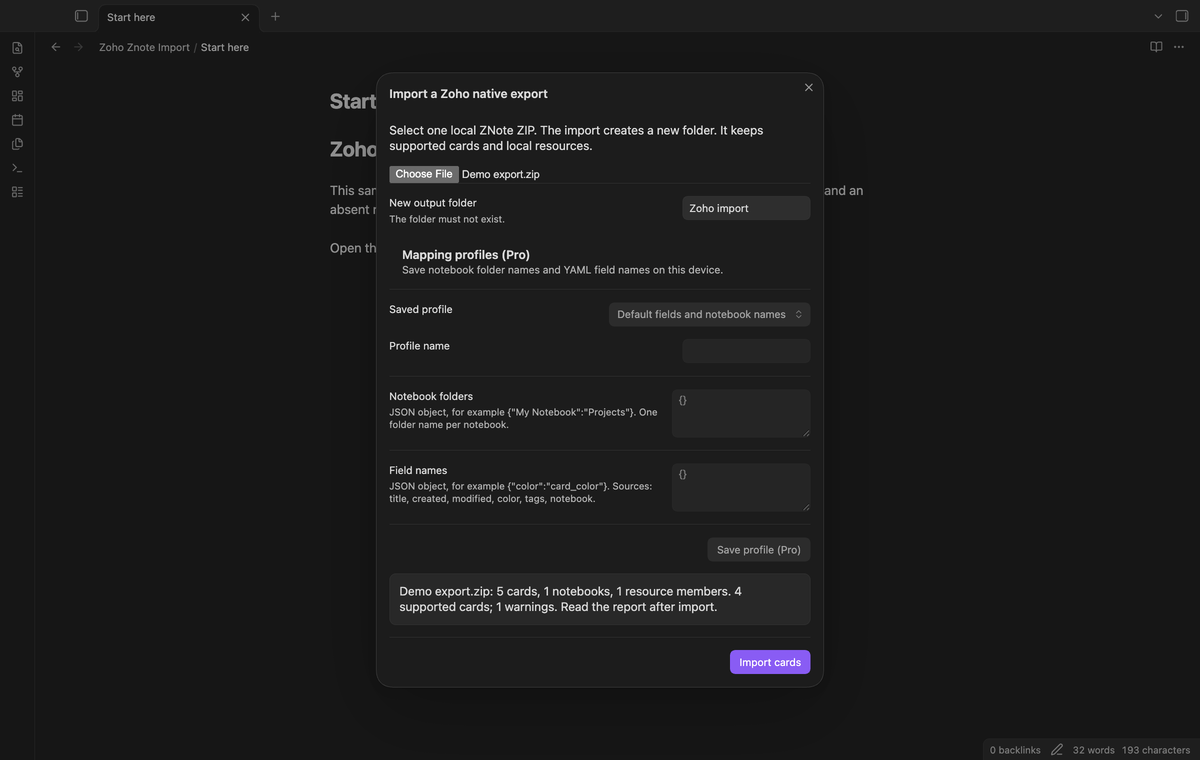
Text, mixed text, checklist, and image cards become notes. Source title, notebook name, color, tags, type, and card ID become YAML properties. Valid source dates set the file creation and modification dates. An invalid date stays as source text and produces a warning.
A znresource element must match one file path in that card's TAR. The importer copies the bytes to a card asset folder. Raster image resources become local embeds. Other resources become local links. Duplicate note titles receive numbered file names.
Convert checklists and text
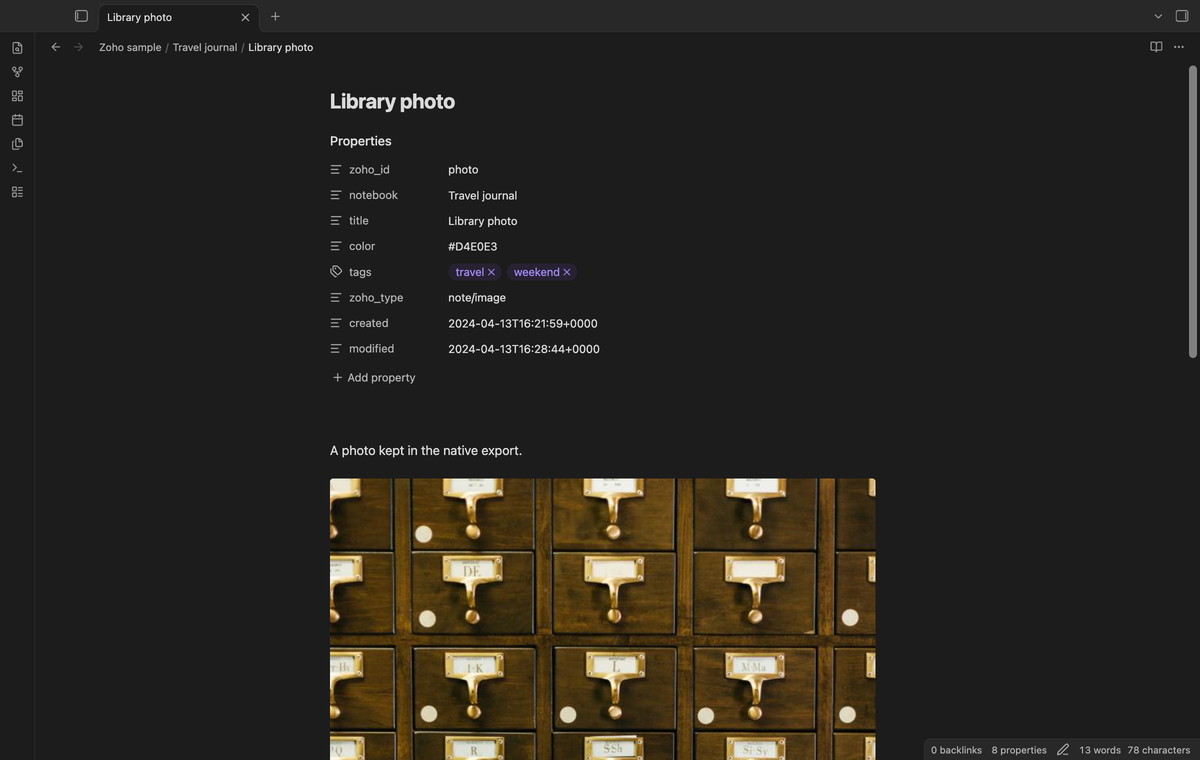
Checkbox values become Markdown tasks. Checked and unchecked tasks keep their source order. The text converter uses Obsidian's HTML conversion for headings, lists, emphasis, quotes, code, and basic tables. It removes active HTML and remote image tags before conversion.
Internal links become local links only when the target card ID matches a supported card in the same import. A missing target keeps its source reference and adds a warning. The converter does not search for a similar title.
Read the import report
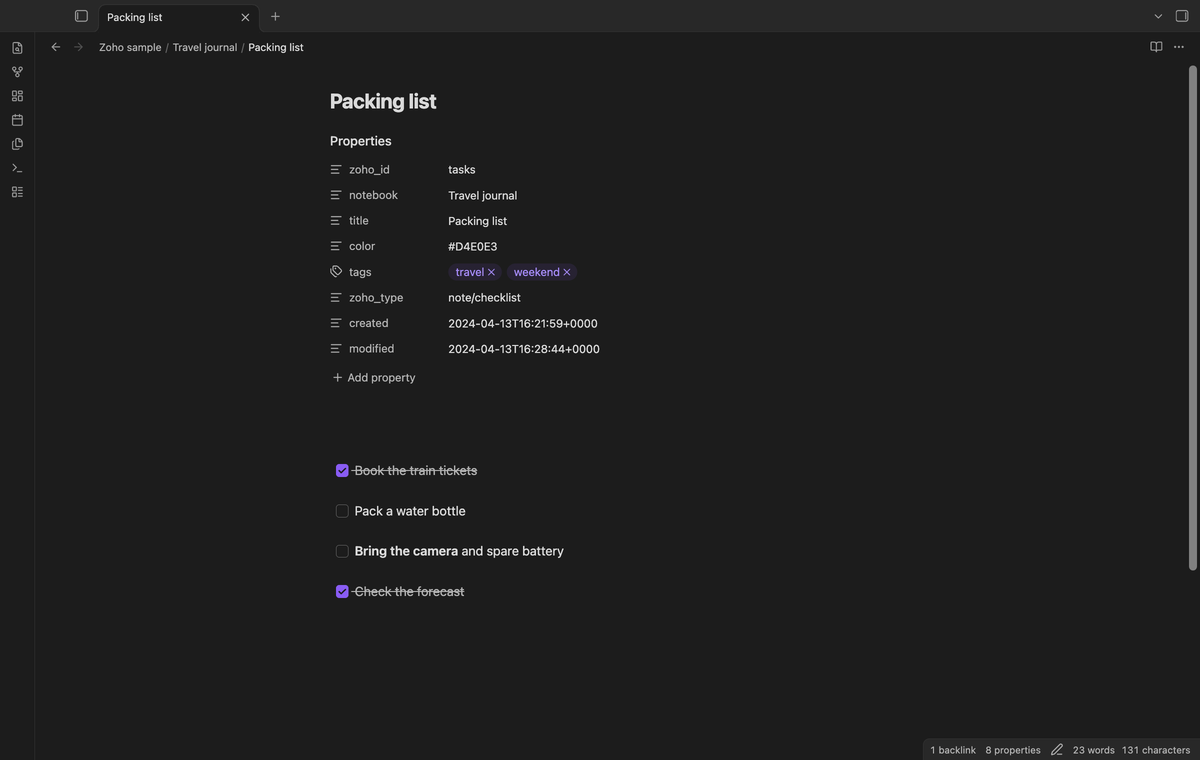
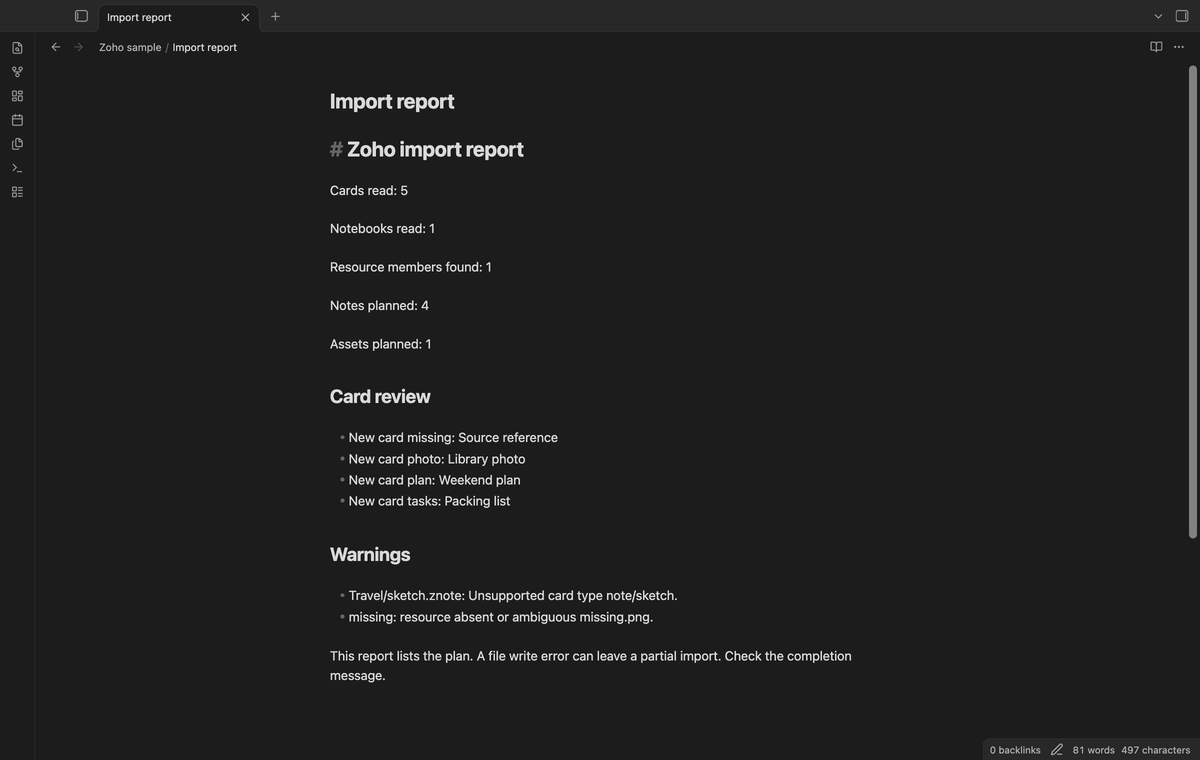
The report lists the input counts, planned output counts, card review, and warnings. Sketch, audio, encrypted, malformed, and unknown cards are skipped. A missing attachment reference stays in the note as text. The source card files stay in the ZIP.
The TAR reader rejects parent traversal, links, device members, duplicate paths, and broken checksums before that card can produce output. The import creates files through the Vault API. It stops when the output folder exists.
Save mapping profiles (Pro)
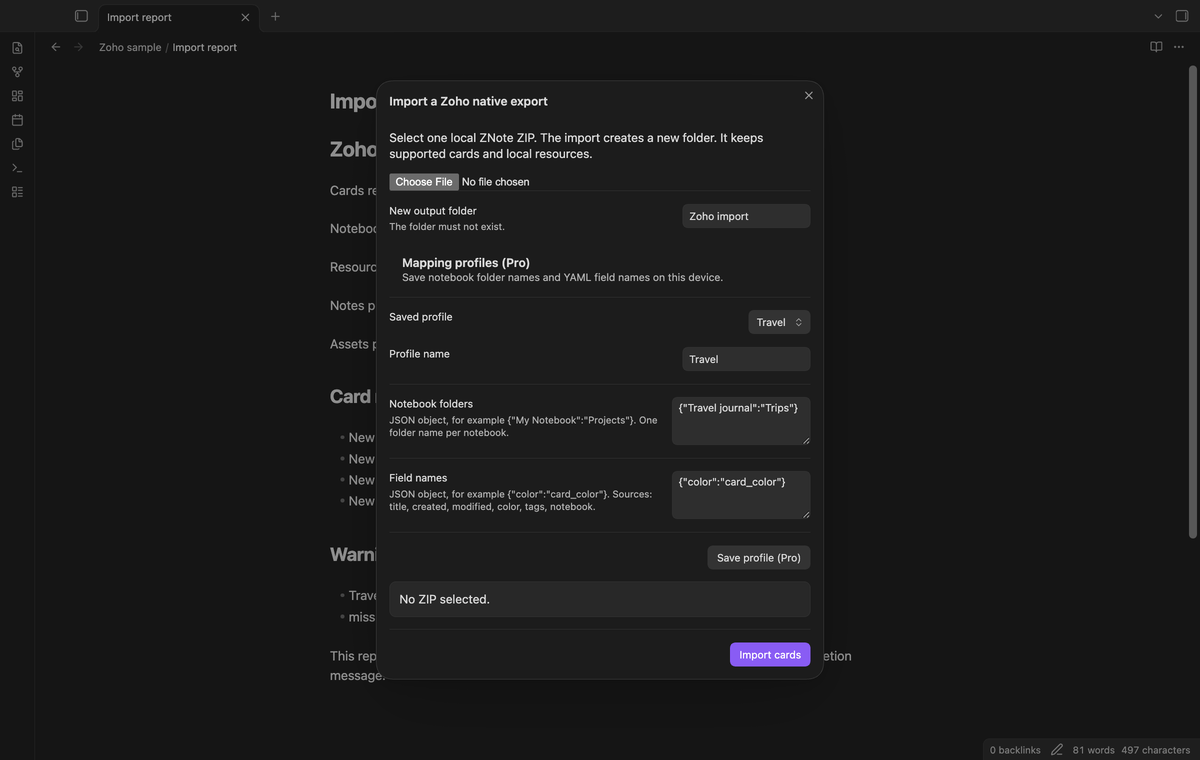
Save notebook folder names and YAML field names in a named local profile. For example, map My Notebook to Projects, and color to card_color. A notebook mapping supplies one folder name. Field mappings use distinct property names; the card ID and card type retain their names.
Profiles stay in the plugin's local settings. Select a saved profile in the import dialog. The dialog disables profile controls when it opens with Pro off. The free import uses the default names.
Compare a later export (Pro)
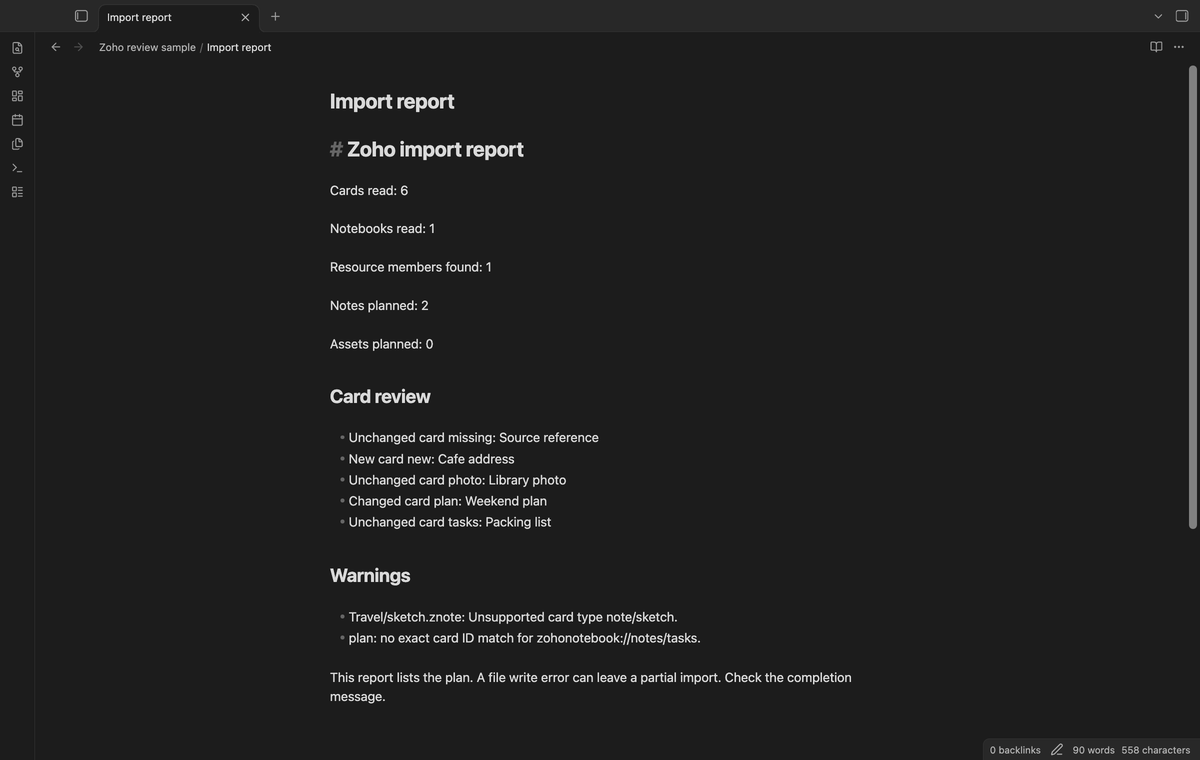
Choose a baseline import folder and a new review folder. The plugin reads the baseline's Card index.json, then compares card IDs and SHA-256 values of the later card TAR bytes. New and changed readable cards go to the review folder. Unchanged cards appear in the report. IDs absent from the readable later cards are listed for review.
The comparison leaves baseline notes in place. It does not merge text or compare your edits to imported notes. TAR metadata changes can mark a card as changed. A link to an unchanged card stays a source reference in the review note.
Install
Use Obsidian 1.13.4 or later. For manual installation, copy main.js, manifest.json, and styles.css from the plugin release into <vault>/.obsidian/plugins/zoho-znote-import/. Open Community plugins in Settings and enable Zoho Znote Import. Keep the three files together in that folder.
Usage
- Export a notebook in Zoho's native ZNote format and keep a copy of the ZIP.
- Open the command palette and run Zoho Znote Import: Import a native export ZIP.
- Select the local ZIP. Check the counts in the dialog.
- Enter a new output folder and select Import cards.
- Read the completion message and open
Import report.mdin that folder. Check the notes and assets before you remove source data.
A write error can leave a partial import. The report lists the plan, so its counts alone do not prove that a write finished. The completion message gives the completed counts. Keep the partial folder for inspection and use a new folder to retry.
Settings
The settings tab contains GitHub Sponsors sign-in, refresh, sign-out, and Pro status. Archive controls are in the import dialog. The output folder defaults to Zoho import; a comparison defaults to Zoho review. Change these names for separate runs.
Pro mapping controls accept JSON objects with string values. Notebook folders map source notebook names to destination names. Field names can map title, created, modified, color, tags, and notebook. Enter a profile name and select Save profile (Pro). Reopen the dialog to select the saved profile.
FAQ
What has been tested?
Tests cover the public 2022 and 2024 native samples, generated unsafe archives, task order, resource bytes, dates, folder conflicts, mapping profiles, and card comparison. The two sample ZIPs are from jimmy-test-data. The parser examples in zoho-notebook-to-obsidian helped identify the native fields. This plugin uses its own reader and converter.
What has not been tested?
Physical mobile use, Windows and Linux app runs, light-theme captures, current Zoho exports, large archives, live payment, and signed-in GitHub requests have not been tested. The importer uses browser and public Obsidian APIs, with no Node or Electron runtime dependency.
Which card data is left out?
Reminders, location fields, advanced table layout, and visual card rendering are left out. Audio, sketch, encrypted, and unknown types are reported. Keep the source export when these fields matter to you.
Payment, account and network
The core features are free. Pro features need a GitHub Sponsors sponsorship of theluckystrike: $5 a month or more, or $15 once. A total payment of $15 meets the payment requirement for Pro without further payment. Sign-in and the checks below still apply. Your notes stay readable and editable with or without Pro.
GitHub handles the payment. Sponsor at https://github.com/sponsors/theluckystrike. You need no account for the free features. Pro needs the GitHub account that sponsors.
Until you select "Sign in with GitHub" in the settings, Zoho Znote Import makes no network requests. Sign in uses the GitHub device flow. Zoho Znote Import sends its public client ID and the scope read:user to https://github.com/login/device/code and shows you a code. While you enter the code at https://github.com/login/device, it asks https://github.com/login/oauth/access_token every few seconds to check the sign-in status. The scope permits profile reads only. GitHub needs this access to show the sponsorship tier. It grants no repository scope and no write access.
After sign in, Zoho Znote Import sends one query to https://api.github.com/graphql. It checks if the signed-in account sponsors theluckystrike. It asks for the tier and the total payment to theluckystrike. The plugin reuses a successful check for 7 days. Failed checks can retry after 6 hours. Select Refresh to request an earlier check. It sends no note content, file names or other vault data, and it has no telemetry.
After a successful check, Pro can work offline for up to 14 days. Sign out or a negative sponsorship answer turns Pro off. The plugin stores the GitHub token through the secret storage API of Obsidian. It does not put the token in its saved settings or its local sponsorship data. The local storage of this device keeps your GitHub login, the tier and the time of the last check. Sign out clears the token. You can also revoke the access in your GitHub settings, under Applications.
Support
Use this repository's issues to report a problem. Include the plugin version, Obsidian version, source export date, and the report text. Remove private content before you share a sample. A small ZIP with one failing card helps reproduce an archive problem. For a file write failure, also state the output folder and the completion message.
ZIP decoding uses fflate under the MIT license. Its notice is in docs/FFLATE-LICENSE.txt and the bundle.