yt-dlp Interface
 KfirG35 downloads
Download video and audio from YouTube and many other sites with yt-dlp.
- Overview
- Scorecard
- Updates4
Download video and audio from YouTube and hundreds of other sites with yt-dlp, right from your notes: paste a link or right-click one, pick a preset (MP4, MP3, WAV, a clip, a GIF…), and the file lands in your vault — embedded in the note if you like.
Desktop only. Made and tested first on Windows 10/11; macOS and Linux are supported where the tools are.
Features
- Side panel (ribbon icon or the command Open panel):
- Download: paste links (one per line), pick a preset, quality, container, subtitles and folder, then press Download (or Ctrl+Enter).
- Search: search YouTube. Each result can be downloaded, linked, saved offline, or dragged into a note.
- Queue: progress, speed and time left, with cancel, retry, open and show in folder.
- Library: everything you downloaded.
- Hosts (Windows): block and unblock sites.
- Log: the exact command of every download.
- Right-click any video link, in editing or reading view. The menu has:
- Download, Download to… (your favourite folders) and Download with options…
- Download audio
- Download & replace link with embed
- Make GIF / clip…
- Block this site (Windows)
- Presets:
- MP4 that plays everywhere (H.264), best quality, or a maximum height (480p to 4K).
- Audio only: MP3, M4A, Opus, OGG (Vorbis), FLAC or WAV.
- A clip (time range), a GIF, subtitles only, or the thumbnail only.
- Edit, duplicate, reorder or add your own, with raw yt-dlp arguments if you want them.
- Clips and GIFs: download only a time range (
8,0:08,00:00:08; at=time in the link becomes the start), or turn it into an optimized GIF. - Subtitles: choose your languages, include auto-generated captions, and get YouTube's "rolling" auto-captions cleaned into readable two-line blocks. Subtitles are embedded as tracks in MP4/MKV, or kept as
.srt. - Series mode: each pasted link (or every item of a playlist) becomes the next episode, named
Name S01E00001.mp4and saved inSeries/Name/. - Playlists and channels: the plugin shows the item count and asks first. You can download all items or a range like
1-5,8. - Note integration:
- When a download finishes, insert
![[video.mp4]]and a source line at the cursor, using a template with{{embed}} {{title}} {{url}} {{channel}} {{date}} {{duration}}. - Optionally create a note for every download, with properties.
- When a download finishes, insert
- Fill in video titles: turns bare YouTube links in a note into
[Real title](link). - In-note player (optional, off by default): YouTube links become a native player with quality, speed, picture-in-picture, fullscreen and keyboard shortcuts.
- Offline copies: Save offline keeps the video and the audio as two files that play in sync without internet.
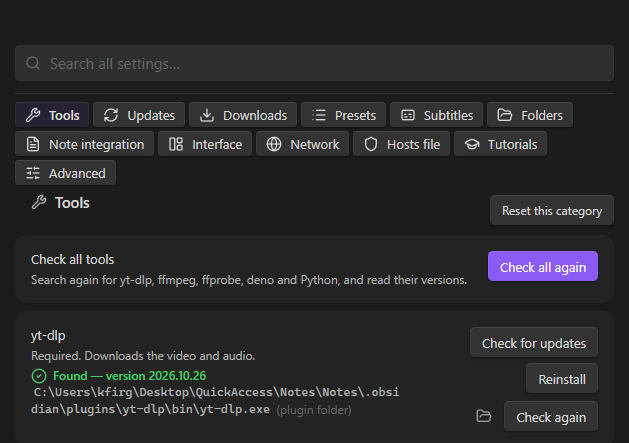
- Settings: grouped into categories, with one search box across all of them.
- Interactive tutorials for every feature: they point at the real buttons and wait for you to try them.
Installation
From Obsidian's community plugins
Open Settings → Community plugins → Browse, search for yt-dlp interface, then press Install and Enable.
With BRAT (beta versions)
- Install the BRAT plugin from the community plugins.
- In BRAT, choose Add beta plugin and enter
kfirgumay2005-hash/yt-dlp-Interface. - Enable yt-dlp interface under Community plugins.
Manually
- Download
main.js,manifest.jsonandstyles.cssfrom the latest release. - Put them in
<your vault>/.obsidian/plugins/ytdlpinterface/. - Reload Obsidian and enable yt-dlp interface under Community plugins.
Setting up the tools
The plugin uses free command-line programs. When you first enable it, a setup window shows what was found on your computer and installs the missing ones with one click:
| Tool | Needed for |
|---|---|
| yt-dlp | Required: the actual downloading. |
| ffmpeg (+ ffprobe) | Merging video and audio, converting audio, clips, GIFs, embedding subtitles. |
| deno | The JavaScript runtime yt-dlp needs for full YouTube support. |
| Python | Only if you run yt-dlp as a pip module instead of the standalone program. |
Install downloads the official release from GitHub into the plugin folder (
.obsidian/plugins/ytdlpinterface/bin/by default; change it in Settings → Folders → Tools folder):- yt-dlp from
yt-dlp/yt-dlp - ffmpeg from
yt-dlp/FFmpeg-Builds - deno from
denoland/deno
Every file is checked against the release's published SHA-256 checksum. A file that doesn't match is deleted, and nothing is installed.
- yt-dlp from
On Windows you can also use Install with winget (
Gyan.FFmpeg,DenoLand.Deno,Python.Python.3.13).Already have them? The plugin finds tools in WinGet, scoop, Chocolatey, Homebrew,
~/.deno/binand yourPATH. On Windows it also reads the PATH from the registry, in case Obsidian started before you installed something. You can also point to your ownyt-dlp.exein Settings → yt-dlp interface → Tools (Browse…, then Test).macOS: there is no ready-made ffmpeg download from the yt-dlp builds, so install it with
brew install ffmpeg.
Updates
Sites change often, and an old yt-dlp stops working with them.
- The plugin checks GitHub for new versions in the background (every 24 hours by default; results are cached).
- When you start a download while a newer yt-dlp exists, a small notice offers Update now, Later or Skip this version. The download starts either way.
- Auto-update (off by default) updates the plugin's own copies quietly before the next download.
- Channels: stable (default), nightly (newest site fixes) and master.
- Tools you installed yourself are never replaced without asking. The plugin uses the right method for each:
yt-dlp -Ufor your ownyt-dlp.exewinget upgradefor winget installspip install -Ufor pip installs- Homebrew, scoop and Chocolatey installs: the plugin shows the command to run.
- If a download fails with a typical "outdated yt-dlp" error, the error offers Update now.
Hosts-file manager (Windows)
This feature blocks and unblocks YouTube (or any site) on the whole computer by editing C:\Windows\System32\drivers\etc\hosts.
- What it changes:
- Blocking adds a line like
127.0.0.1 www.youtube.com. Turning an entry off comments it out (#127.0.0.1 www.youtube.com). - Everything else in the file stays exactly as it was: Microsoft's header,
localhostlines, other entries and comments. - If there is no hosts file, it is created with Windows' default content (named exactly
hosts, no extension, CRLF line endings).
- Blocking adds a line like
- Administrator prompt:
- Writing the hosts file needs administrator rights, so every change shows Windows' UAC prompt. You never have to run Obsidian as administrator.
- The elevated step only copies a prepared file over the hosts file and flushes the DNS cache. Site names never appear in any command line.
- If you decline the prompt, nothing changes.
- Backups: before every change, the current file is copied to
.obsidian/plugins/ytdlpinterface/hosts-backups/hosts-YYYYMMDD-HHMMSS(the last 20 are kept; the folder can be changed in Settings → Folders). Backups… and the command Restore hosts backup… bring any of them back. - hosts.ics: Windows also reads
hosts.icsnext to the hosts file (Internet Connection Sharing / mobile hotspot writes it, and some blockers do too). Blocks there stay after you unblock a site inhosts; the Hosts tab warns whenhosts.icsblocks YouTube. Reset hosts.ics… erases all of its content after saving a copy ashosts.ics-YYYYMMDD-HHMMSSin the backups folder (one administrator prompt). - Flush DNS: tries without administrator rights first. On PCs where Windows answers "The requested operation requires elevation", it asks for permission.
- Verification: after writing, the file is read again. If Windows Defender or another security program reverted the change, you'll see what happened and how to allow it.
- Browsers: browsers using "secure DNS" (DNS over HTTPS) or their own cache may ignore the hosts file until restarted. The Hosts tab explains how to turn that off.
- Downloads: blocking YouTube also blocks yt-dlp. When you download from a blocked site, the plugin offers to unblock it only for the download, then blocks it again when the download finishes, even if Obsidian is restarted in between.
Privacy and network use
No telemetry, no accounts, no ads. The plugin connects to the internet only for these:
| What | Where | When |
|---|---|---|
| yt-dlp itself | The sites you download from or search (e.g. youtube.com) | When you download, search, open the options dialog or press play in the player |
| Tool versions and downloads | api.github.com, github.com, objects.githubusercontent.com |
Update checks (cached, at most every few hours) and installs/updates |
| Video titles | www.youtube.com/oembed |
Fill in video titles, and the in-note player's title |
| Thumbnails | i.ytimg.com and the sites in your queue |
Showing search results, the queue and the player |
| winget / pip | Microsoft's winget sources / PyPI | Only when you choose Install with winget or a pip install |
Your proxy setting is used by yt-dlp and by the plugin's own tool downloads (HTTP proxies).
Locally, the plugin runs yt-dlp, ffmpeg, ffprobe, deno, python/py and winget with fixed argument lists; it never uses a shell. On Windows it also runs reg query (to read your PATH), taskkill (to stop a cancelled download), ipconfig /flushdns, and PowerShell (only for the hosts-file prompt).
Windows notes
- Plugin folders: Settings → Folders sets where the plugin keeps installed tools, hosts backups and temporary download files (absolute paths, or relative to the vault). When you change one, the plugin offers to move what is already there.
- Titles and folders with Hebrew and other non-English characters are fine: yt-dlp runs with UTF-8 output.
- File names are made safe: characters Windows forbids are removed, and reserved names (
CON,NUL…) and the 260-character path limit are handled. Existing files are never overwritten silently; you getTitle (1).mp4, or you're asked first. - Corporate networks that inspect HTTPS: the Corporate network setting (on by default on Windows) makes yt-dlp use the Windows certificate store. Certificate checks are never turned off.
- Cancelling a download stops yt-dlp and everything it started (
taskkill /T).
Responsible use
Only download content you own, or that you have permission to download, and respect the terms of the sites you use. This plugin doesn't circumvent DRM or paywalls. It uses yt-dlp, which downloads what a site makes available to you.
Commands
All commands have no default hotkeys; set your own in Settings → Hotkeys.
- Downloads:
- Open panel
- Download link from clipboard (+ with options…)
- Download link under cursor (+ with options…)
- Download all links in this note…
- Make GIF from link under cursor
- Cancel current download · Cancel all downloads · Retry failed downloads
- Notes: Fill in video titles in this note
- Tools: Check for tool updates · Update yt-dlp now · Open tools setup · Check tools again
- Hosts file (Windows): Block YouTube · Unblock YouTube · Toggle YouTube block · Open hosts manager · Restore hosts backup… · Flush DNS cache · Reset hosts.ics…
- Help: Start tutorial… · Search settings…
Development
npm install
npm run dev     # watch build into main.js
npm run build   # typecheck + production build
npm test        # unit tests (Node's built-in test runner)
See CLAUDE.md for the project's standing rules.
License
MIT © KfirG