View Tabs for Bases
 tttatsuo4 downloads
Show a base's views as tabs next to the result count. Drag to reorder, and set each tab's color, size and visibility.
- Overview
- Scorecard
- Updates2
English | 日本語 | 简体中文 | 繁體中文 | 한국어 | Deutsch | Français | Español
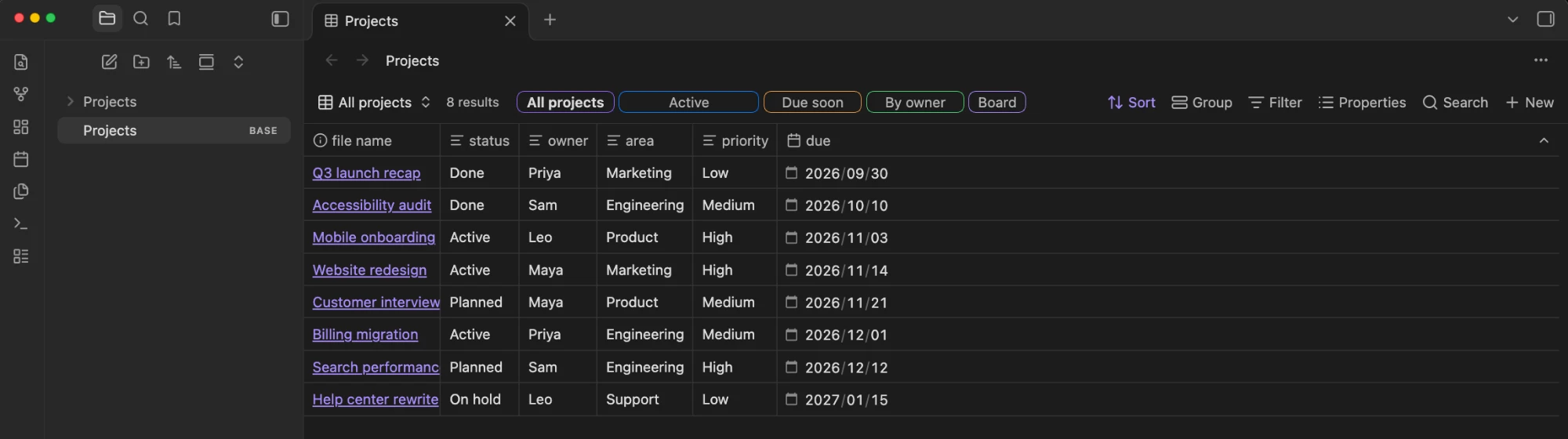
See every view of an Obsidian base at a glance. This plugin lists a base's views as tabs right next to the result count, so you can switch views with one click instead of opening the view menu.
Features
- Tabs in the toolbar: each view gets a tab beside the result count, and the current view is highlighted.
- One-click switching: click a tab to open its view.
- Drag to reorder: drop a tab onto another to move it. This reorders the views themselves, so the built-in view menu shows the same order.
- Per-view tab settings: choose whether each view has a tab, and set the tab's color (outline) and size (width).
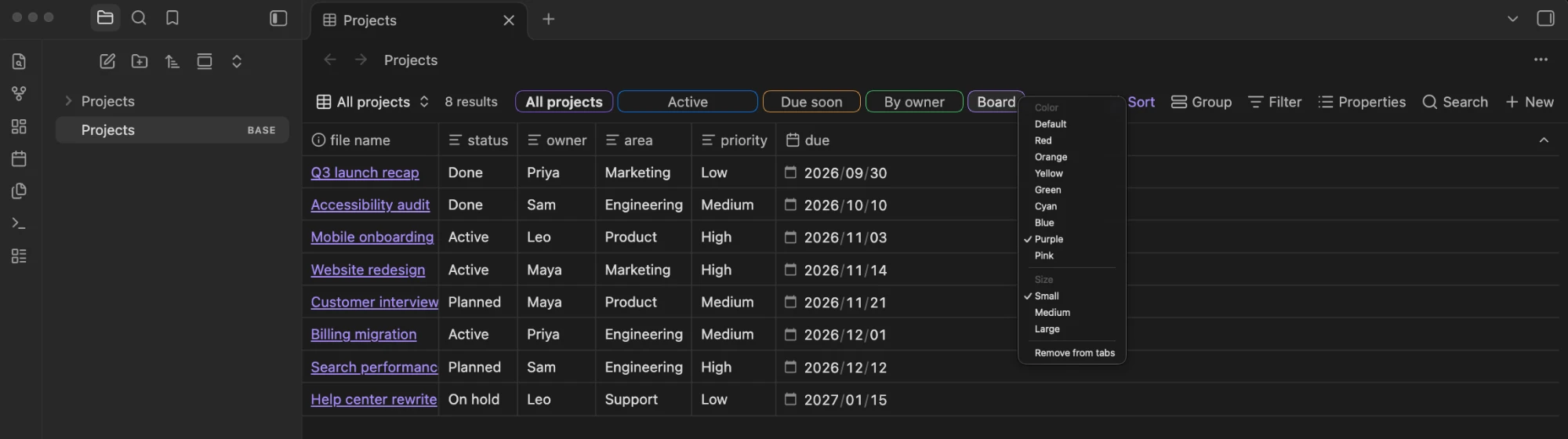
- Context menu: right-click a tab to change its color or size, or to remove it from the tabs.
- Scrolls when crowded: when the tabs don't fit, they scroll sideways (the mouse wheel works too) and fade at the edges. The built-in toolbar buttons keep their size.
Installation
- Community plugins (once listed): open Settings → Community plugins → Browse, search for "View Tabs for Bases", select Install, then Enable.
- Manual: download
main.js,manifest.jsonandstyles.cssfrom the latest release into<Vault>/.obsidian/plugins/view-tabs-for-bases/, then enable the plugin in Settings → Community plugins.
Requires Obsidian 1.14.0 or later. Desktop only.
Usage
Open a .base file. Its views appear as tabs next to the result count.
To change a tab, right-click it and pick a color, a size, or Remove from tabs.
You can also open Configure view from the view menu and use the Tab settings section at the bottom: Show in tabs, Color and Size.
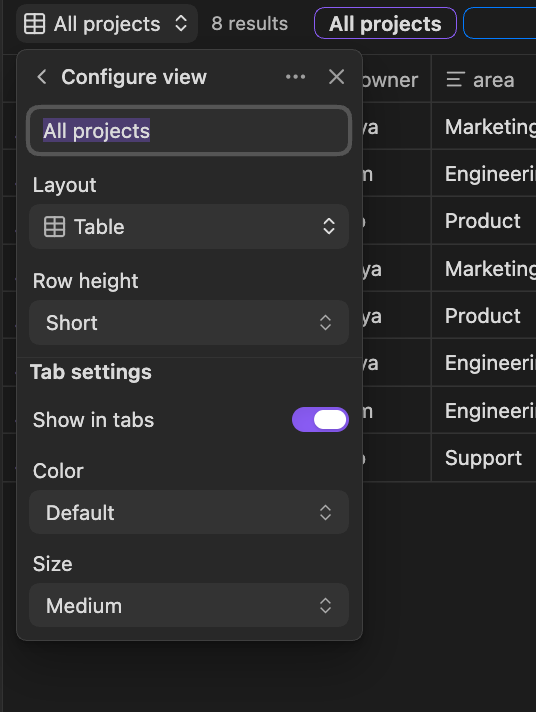
To bring back a removed tab, open that view's Configure view from the view menu and turn Show in tabs back on.
To turn the tabs off everywhere, switch off Show view tabs in the plugin's settings.
Where settings are stored
Tab settings are saved in the .base file, inside each view, under a single key. Only values that differ from the defaults are written:
views:
  - type: table
    name: Overview
    viewTabsForBases:
      color: blue
      size: large
  - type: table
    name: Drafts
    viewTabsForBases:
      show: false
The settings stay with the base when you rename, copy or sync it. If you uninstall the plugin, Obsidian ignores the key, and you can delete it by hand.
Languages
The plugin follows Obsidian's language. It's available in English, العربية, বাংলা, Català, Čeština, Dansk, Deutsch, Ελληνικά, Español, فارسی, Suomi, Français, עברית, Magyar, Bahasa Indonesia, Italiano, 日本語, ខ្មែរ, 한국어, Nederlands, Norsk, Polski, Português, Português do Brasil, Română, Русский, Slovenčina, Svenska, ไทย, Türkçe, Українська, Tiếng Việt, 简体中文 and 繁體中文. Other languages fall back to English.
Apart from English and Japanese, the translations haven't been reviewed by native speakers yet. If something reads oddly in your language, please open an issue or a pull request that edits src/i18n.ts.
Limitations
- Tabs appear only for a
.basefile open in its own tab. Bases embedded in notes (![[file.base]]orbasecode blocks) aren't supported yet. - In pop-out windows the tabs work, but the Tab settings section doesn't appear in Configure view. Use the tab's context menu there instead.
- Desktop only.
- Obsidian has no public API for the Bases toolbar or its list of views, so the plugin relies on Obsidian's internals for these. A future Obsidian update may stop the tabs from showing. If that happens, the plugin quietly does nothing: your bases and views are left untouched, and the tab settings stay in the file.