Todos
 lorenzo12 downloads
Display Markdown tasks in a sidebar tab alongside Outline and jump to their position on click.
- Overview
- Scorecard
- Updates4
Todos adds a dedicated task panel next to Obsidian's Outline tab. It lists all tasks (- [ ] / - [x]) in the note you are currently reading—in the exact order they appear—so you can review what's left and jump straight to any task with one click.
Why Use Todos?
Long notes often accumulate - [ ] tasks scattered across multiple sections. Instead of scrolling through the whole file or setting up heavy vault-wide queries, Todos gives you a lightweight, per-note checklist right in the right sidebar:
- See only what matters right now — incomplete tasks are shown by default, with a live count badge on the tab icon.
- Read tasks as they actually look — LaTeX math (
$...$/$$...$$), bold/highlights, links, and embedded images render using your current theme. - Jump without losing your place — clicking a task scrolls the note to that line without moving your typing cursor.
How to Use
1. Open the Todos Tab
After enabling the plugin, a Todos icon (checkbox) appears in the right sidebar alongside Outline.
- The badge on the tab icon shows how many incomplete tasks remain in the current note.
- Quick toggle: When you are already on the Todos tab, click the Todos tab icon again to switch between Incomplete and All tasks.
2. Filter by Status
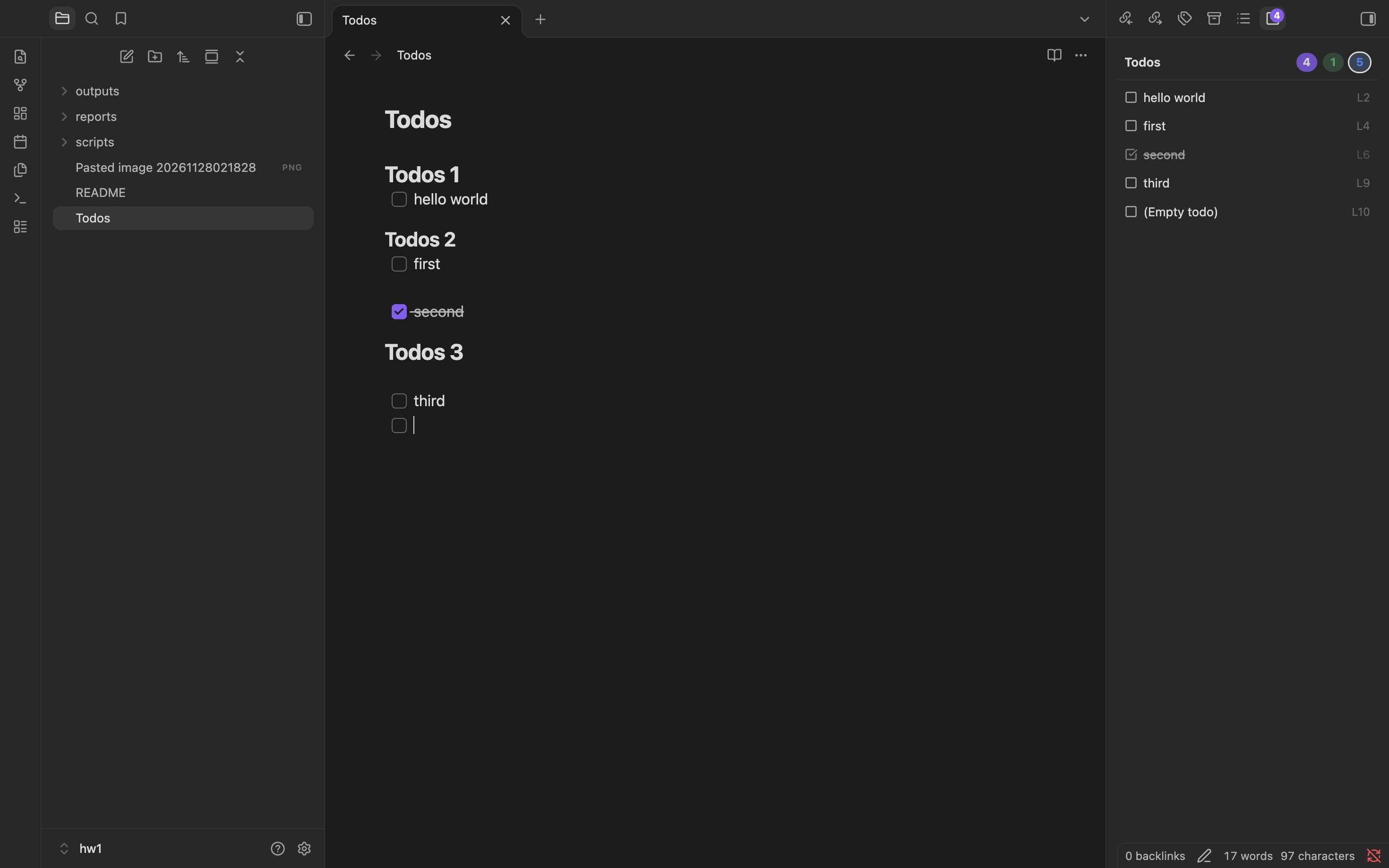
Use the three colored pills in the panel header:
| Pill | Meaning |
|---|---|
| Accent | Incomplete tasks (- [ ]) — default view |
| Green | Completed tasks (- [x]) |
| Blue | All tasks in the current note |
3. Navigate & Inspect
- Click any item (or heading) to scroll the editor or reading view directly to that line (
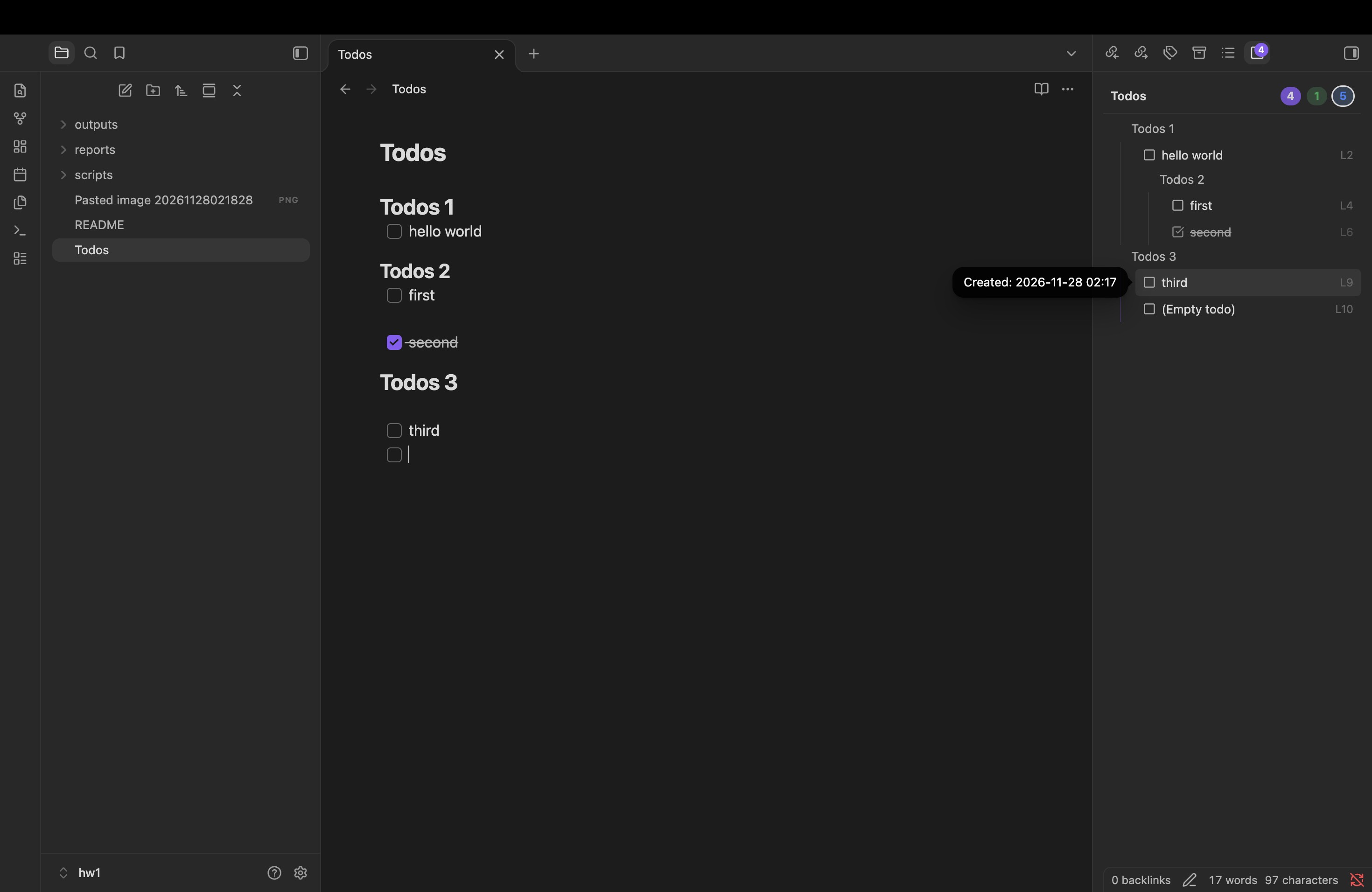
Lxx). Your cursor stays where it was, and the Todos panel keeps its scroll position. - Hover over any task to see its creation time:
- If the line already has a date (
➕ YYYY-MM-DDfrom Tasks orcreated:: YYYY-MM-DDfrom Dataview), that date is shown. - Otherwise, Todos records the time it first saw the task locally on your device.
- If the line already has a date (
4. See Which Section a Task Belongs To (Two Modes)
- Double-click Breadcrumb (default)
- Double-click any task in the list to reveal its parent heading path (for example,
Section 1 › Subsection) right above it. - Click any heading in the breadcrumb to jump there. Double-click the task again to hide it.
- Double-click any task in the list to reveal its parent heading path (for example,
- Full Outline Mode (optional)
- Turn on Show outline in Todos in settings to display the note's full heading tree with indentation guides and tasks nested underneath.
- Hover over a heading for 0.3 seconds to reveal its collapse button (position configurable: Left, Right, or Bottom), and click to fold or unfold that section.
Screenshots
| Task List & Status Filters | Double-Click Parent Breadcrumb |
|---|---|
 |
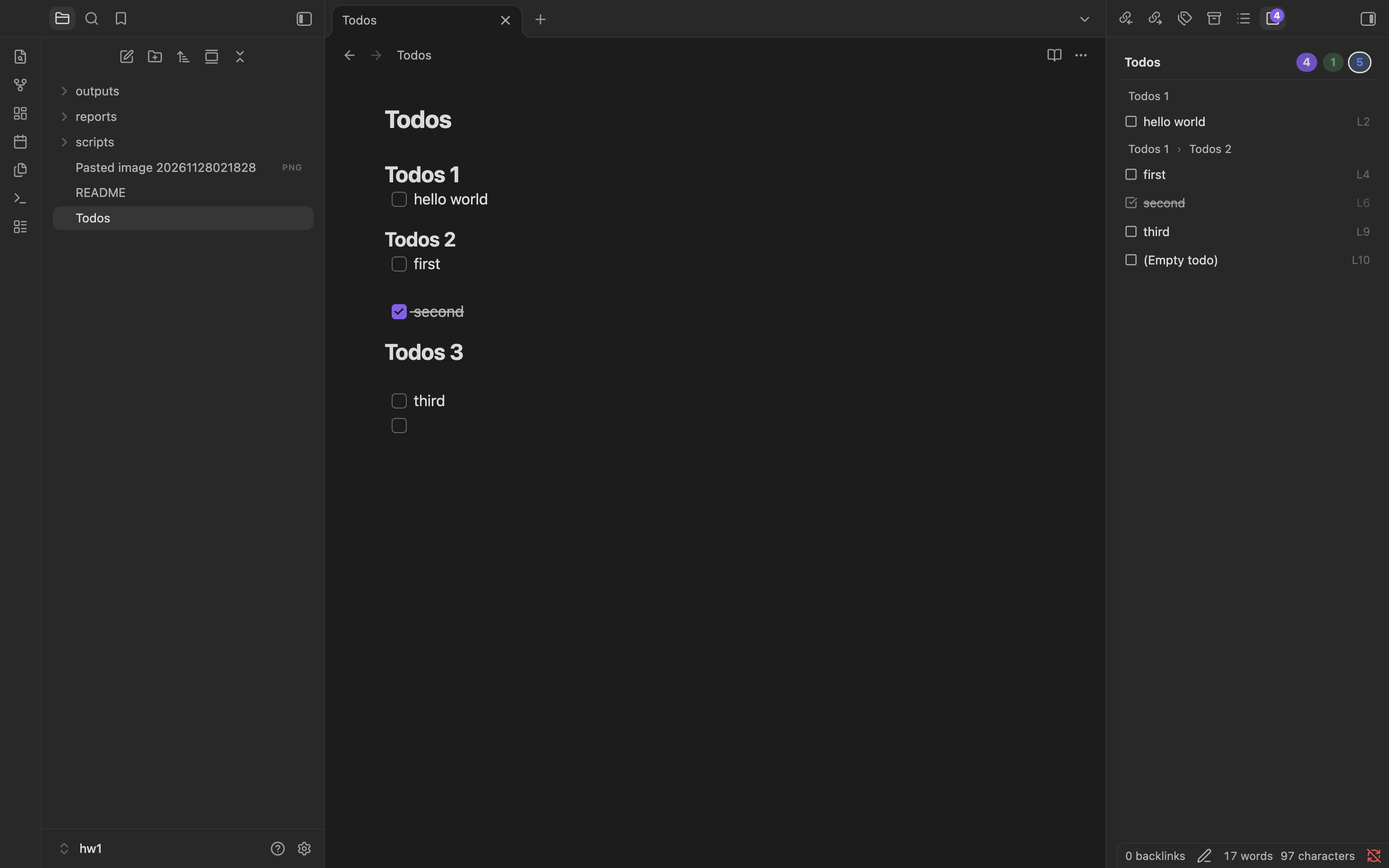 |
| Filter between incomplete, completed, and all tasks using the header pills | Double-click any task to reveal its parent heading path (Todos 1 › Todos 2) |
| Full Outline Tree & Creation Time Tooltip | Collapsible Outline Sections |
|---|---|
 |
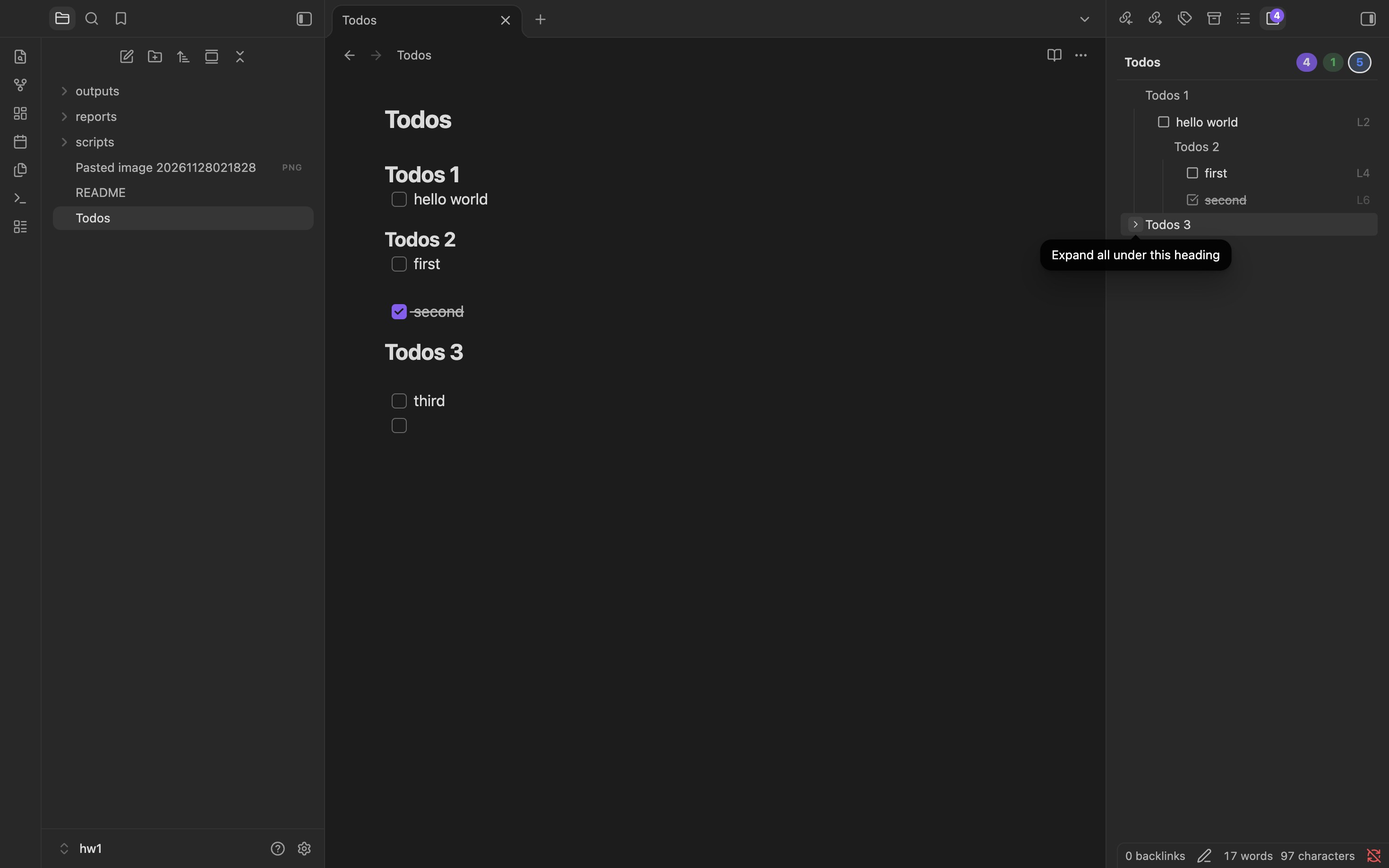 |
| Optional full outline mode with indentation guides and hover timestamp tooltip | Hover a heading for 0.3s to reveal the collapse/expand control |
Supported Markdown Syntax
- Bullet tasks:
- [ ],* [ ],+ [ ] - Numbered tasks:
1. [ ],1) [ ] - Completed tasks:
[x]or[X] - Tasks inside blockquotes:
> - [ ] - Automatically ignores YAML frontmatter and fenced code blocks (
```/~~~).
Settings
Go to Settings → Community plugins → Todos:
| Setting | Default | Description |
|---|---|---|
| Show outline in Todos | Off | Show the full document heading tree inside the Todos panel with indentation guides. |
| Outline collapse button position | Left | Where the collapse button appears after hovering a heading for 0.3s (Left, Right, or Bottom). Active when Show outline in Todos is on. |
| Double-click todo to show its outline | On | Double-click a task to show its parent heading breadcrumb. Automatically disabled when Show outline in Todos is on. |
The interface language automatically follows your Obsidian app language (English and Chinese are built in).
Installation
From Obsidian Community Plugins
Once approved in the Community Plugins directory:
- Open Settings → Community plugins → Browse.
- Search for Todos and click Install, then Enable.
Manual Installation
- Download
main.js,manifest.json, andstyles.cssfrom the latest release. - Place them inside
<your-vault>/.obsidian/plugins/todos/. - Reload Obsidian and enable Todos in Settings → Community plugins.
Privacy & Data
- 100% local: No network requests, no analytics, and no telemetry.
- Only plugin settings and first-seen task timestamps are stored locally in
.obsidian/plugins/todos/data.json.
Development
npm install
npm run lint
npm run build