Search...Search plugins and themes...
⌘K
Sign in
  • Get started
  • Download
  • Pricing
  • Enterprise
  • Account
  • Obsidian
  • Overview
  • Sync
  • Publish
  • Canvas
  • Mobile
  • Web Clipper
  • CLI
  • Learn
  • Help
  • Developers
  • Changelog
  • About
  • Roadmap
  • Blog
  • Resources
  • System status
  • License overview
  • Terms of service
  • Privacy policy
  • Security
  • Community
  • Plugins
  • Themes
  • Discord
  • Forum / 中文论坛
  • Merch store
  • Brand guidelines
Follow us
DiscordTwitterBlueskyThreadsMastodonYouTubeGitHub
© 2026 Obsidian

Tabbed

flowing-abyssflowing-abyss57 downloads

Create lazy-loading tabs in your notes.

Add to Obsidian
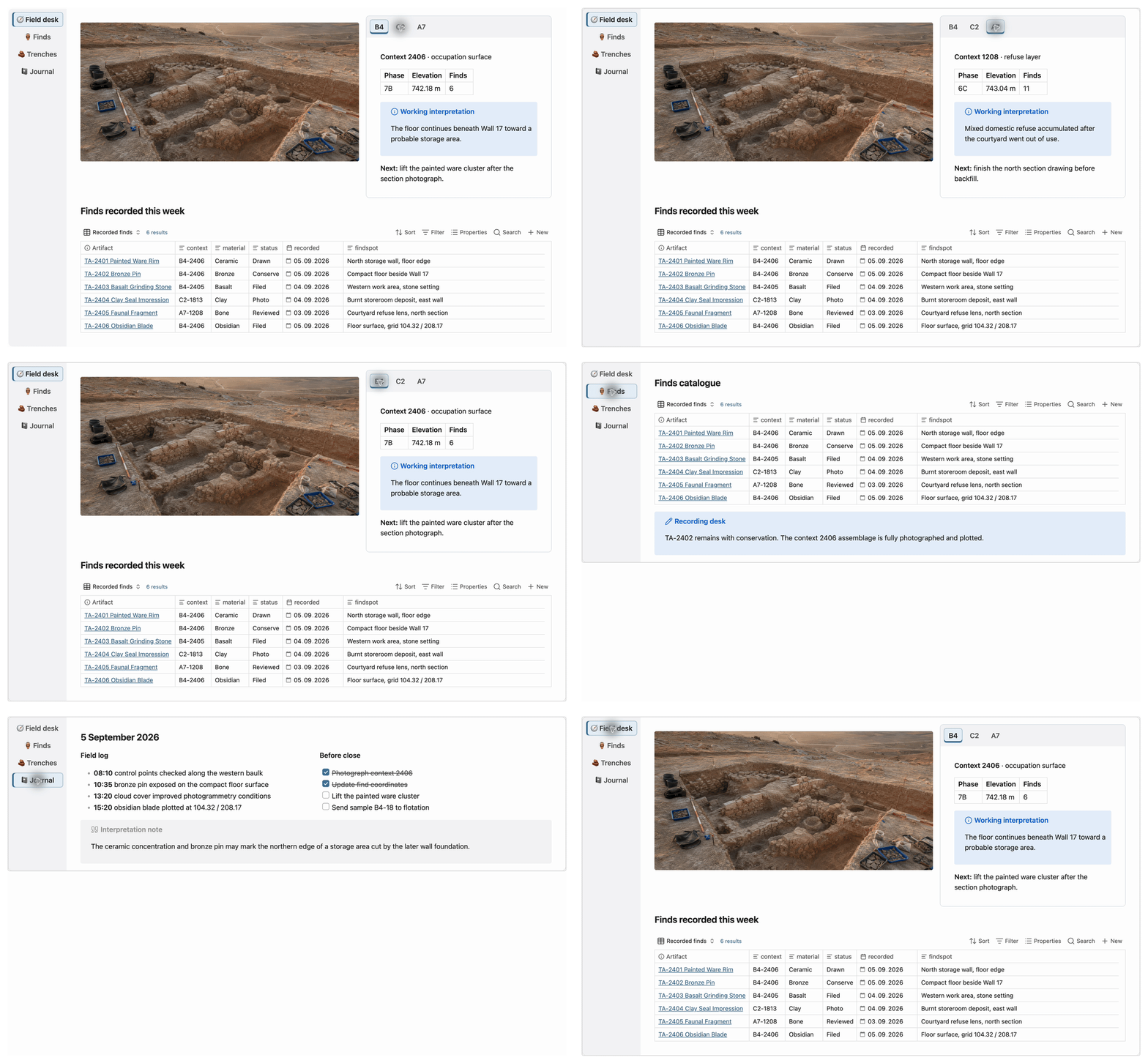
Tabbed screenshot
  • Overview
  • Scorecard
  • Updates3

Tabbed showcase

Create accessible, lazy-loading tabs for Markdown content in Obsidian. Only the active tab body is rendered, so Bases, embeds, media and nested tabs load on demand. Works on desktop and mobile.

Usage

Copy this block into a note:

```tabs
tab: Preview
This tab contains **Markdown**.

tab: Details
Only the selected tab body is rendered.
```

Tab titles support Markdown, and active tab bodies can contain any Markdown content, including nested tabs blocks.

Columns

Create equal columns with a fenced columns block:

```columns
column:
Left content.
column:
Right content.
```

Titles and weights are optional. Omitted weights are equal; use positive weights for proportions such as 2:1:

```columns
column: Main
weight: 2
Main content.

column: Context
weight: 1
Context content.
```

Narrow rows scroll horizontally by default. Put stack before the first column to stack vertically when narrow:

```columns
stack
column:
Left content.
column:
Right content.
```

Columns support Markdown, Bases, embeds and nested layouts. Inside tabs, use tilde fences for the inner columns:

```tabs
tab: Dashboard
Full-width content.

~~~columns
column:
Recent notes.
column:
More recent notes.
~~~
```

Another enabled plugin using the columns fenced language may conflict.

Options

Put options before the first tab: line, separated by commas or newlines:

Options Effect
top, bottom, left, right Place the tab titles on that side of the active panel.
one, multi Keep titles on one scrollable line or allow multiple lines.
action-add, action-edit, action-none Choose the control shown at the end of the tab list.

Horizontal tabs use Left/Right; vertical tabs use Up/Down. Home and End move focus, and Enter or Space activates a tab.

Editing

  • Add or edit tabs from the optional end control.
  • Right-click a title to add, delete, copy or paste a tab.
  • Optionally double-click the active body to edit it.
  • Optionally drag titles to reorder or move tabs between blocks on desktop.
  • Use normal Obsidian Undo to restore source changes.

Reading view keeps navigation and lazy rendering but hides source-changing controls. Drag-and-drop is desktop-only.

Settings

Open Settings → Tabbed to configure the separator, new-tab defaults, controls, notices, editing behavior, title layout, border, content padding and maximum height.

Installation

Install Tabbed from the Obsidian Community Store.

Credits

Tabbed is a compatibility-focused successor to Huajin's Markdown Tabs, which was inspired by Code Tab.

License

MIT

HealthExcellent
ReviewSatisfactory
About
Create accessible, lazy-loading tabs for Markdown content in Obsidian. Render only the active tab body so embeds, media and nested tabs load on demand, with Markdown titles and editable, reorderable tab sets that work on desktop and mobile.
Markdown
Details
Current version
2.1.0
Last updated
5 days ago
Created
2 weeks ago
Updates
3 releases
Downloads
57
Compatible with
Obsidian 1.13.7+
Platforms
Desktop, Mobile
License
MIT
Report bugRequest featureReport plugin
Sponsor
Support
Author
flowing-abyssflowing-abyss
flowing-abyss.com
GitHubflowing-abyss
t.me
boosty.to
habr.com
  1. Community
  2. Plugins
  3. Markdown
  4. Tabbed

Related plugins

Importer

Convert your data to Markdown files you can use in Obsidian. Works with Apple Notes, OneNote, Evernote, Notion, Google Keep, and many other formats.

Custom Frames

Turn web apps into panes using iframes with custom styling. Also comes with presets for Google Keep, Todoist and more.

Consistent Attachments and Links

Move note attachments and update links automatically.

Outliner

Work with your lists like in Workflowy or Roam Research.

Image Captions

Add captions to images with inline Markdown and link support. The caption format is compatible with the Commonmark spec and other Markdown applications.

Various Complements

Complete words similar to auto-completion in an IDE.

Typewriter Mode

Typewriter scroll, writing focus, current line highlight, paragraph dimming, and more!

Linter

Format and style your notes. Linter can be used to format YAML tags, aliases, arrays, and metadata; footnotes; headings; spacing; math blocks; regular Markdown contents like list, italics, and bold styles; and more with the use of custom rule options.

Chat View

Chat View lets you quickly and easily create elegant Chat UIs in your Markdown Files.

Heading Shifter

Easily Shift and Change Markdown headings.