T-Wiki
 T00143 downloads
Turn source documents into a structured, traceable, LLM-powered wiki.
- Overview
- Scorecard
- Updates11
把文档、网页、音视频和个人笔记整理成可追溯、可审阅、相互链接的 Markdown 知识库。
T-Wiki 不只是生成一份摘要。它先保留标准化来源,再由 LLM Agent 比较现有知识、提出变更,经过用户审阅后写入 Wiki,最后通过索引和 WikiLink 支持关联查询。
T-Wiki 不要求安装 Claude Code。Agent Runtime 已内置在插件中,但需要用户自行提供支持原生 Tool Calling 的 LLM API。
Obsidian 社区页面 · GitHub Releases · 更新记录 · 安全说明
T-Wiki 工作台
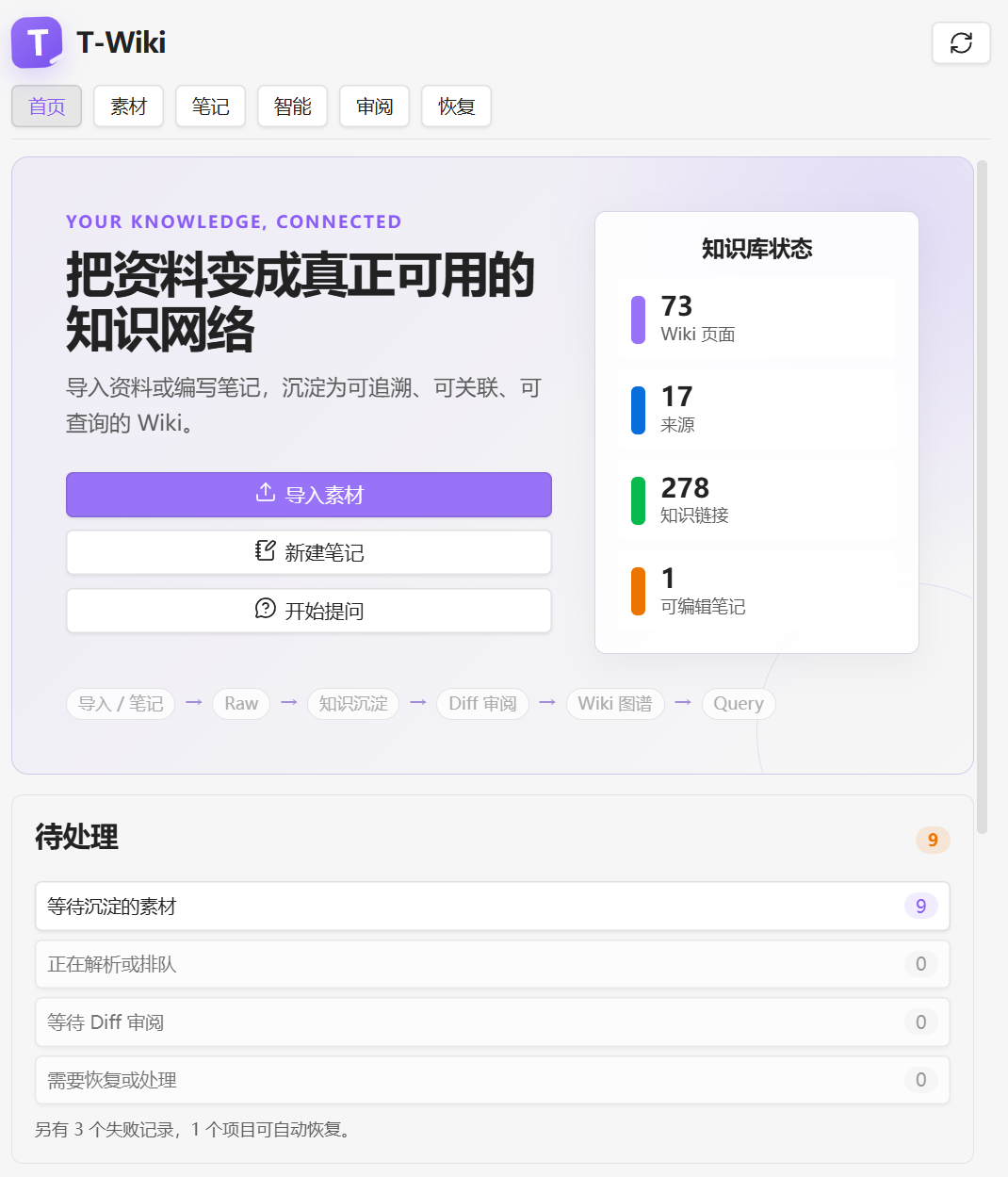
从首页可以导入素材、创建笔记或开始提问,并查看 Wiki 页面、来源、知识链接和待处理任务。
工作流程
导入或编写 → Raw → 知识沉淀 → Diff 审阅 → Wiki 图谱 → Query
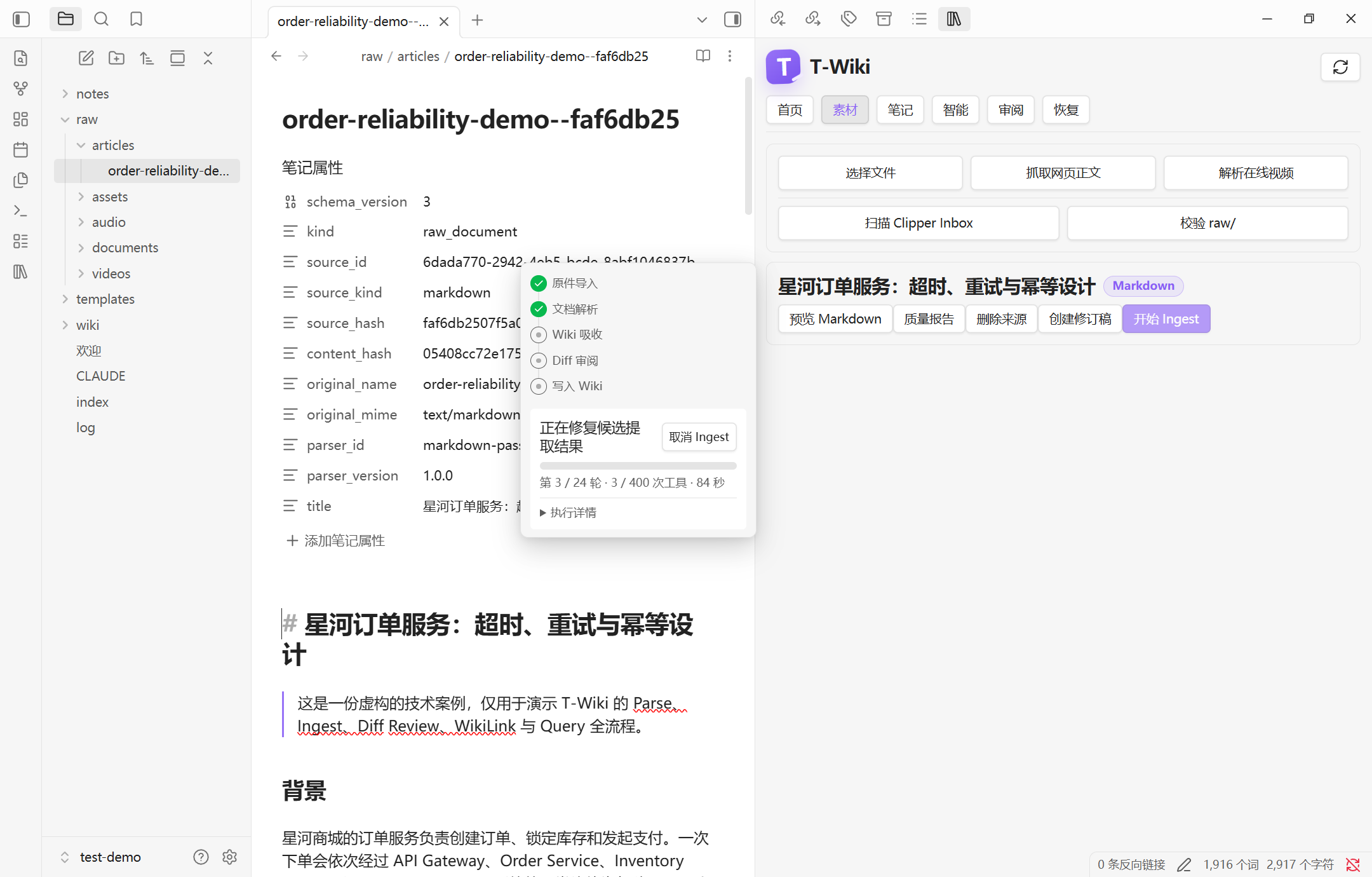
1. Parse 与 Ingest
资料先被解析为带来源 Hash 的 canonical Raw。用户开始 Ingest 后,Agent 才会阅读原文、比较已有 Wiki 并生成知识候选。
2. Diff 审阅
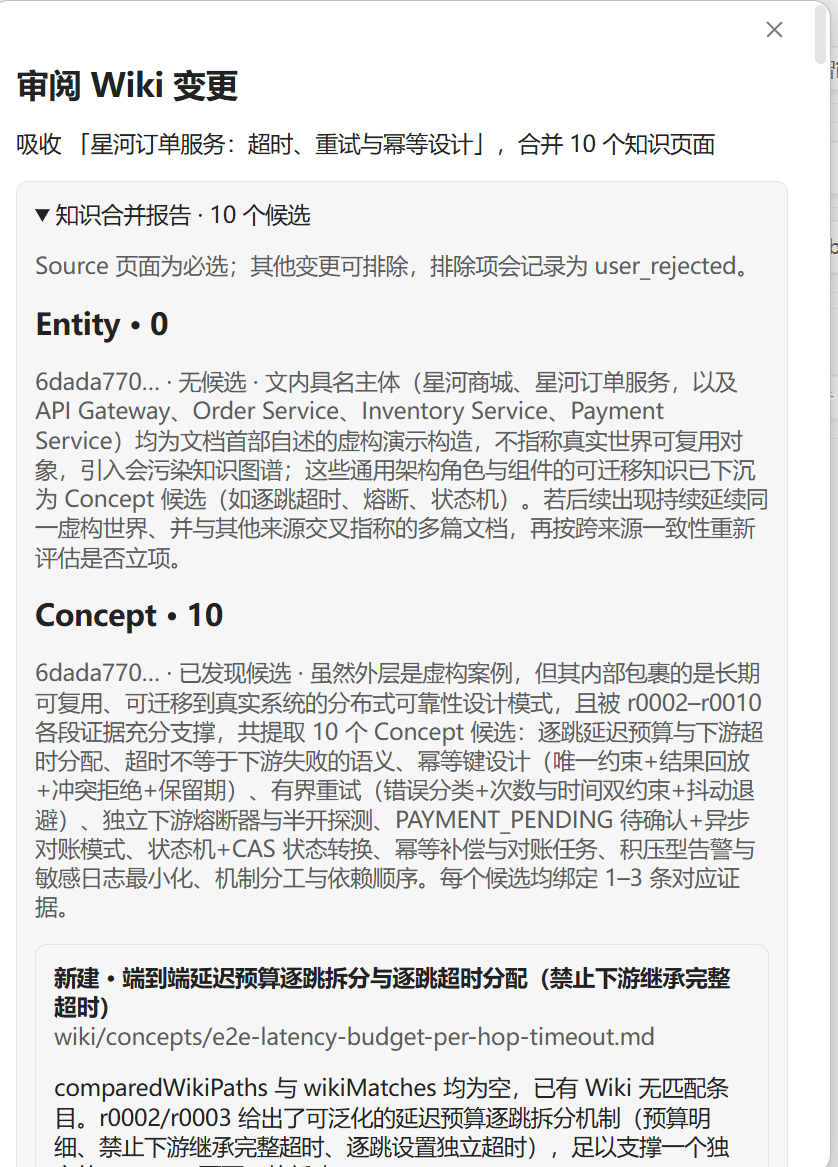
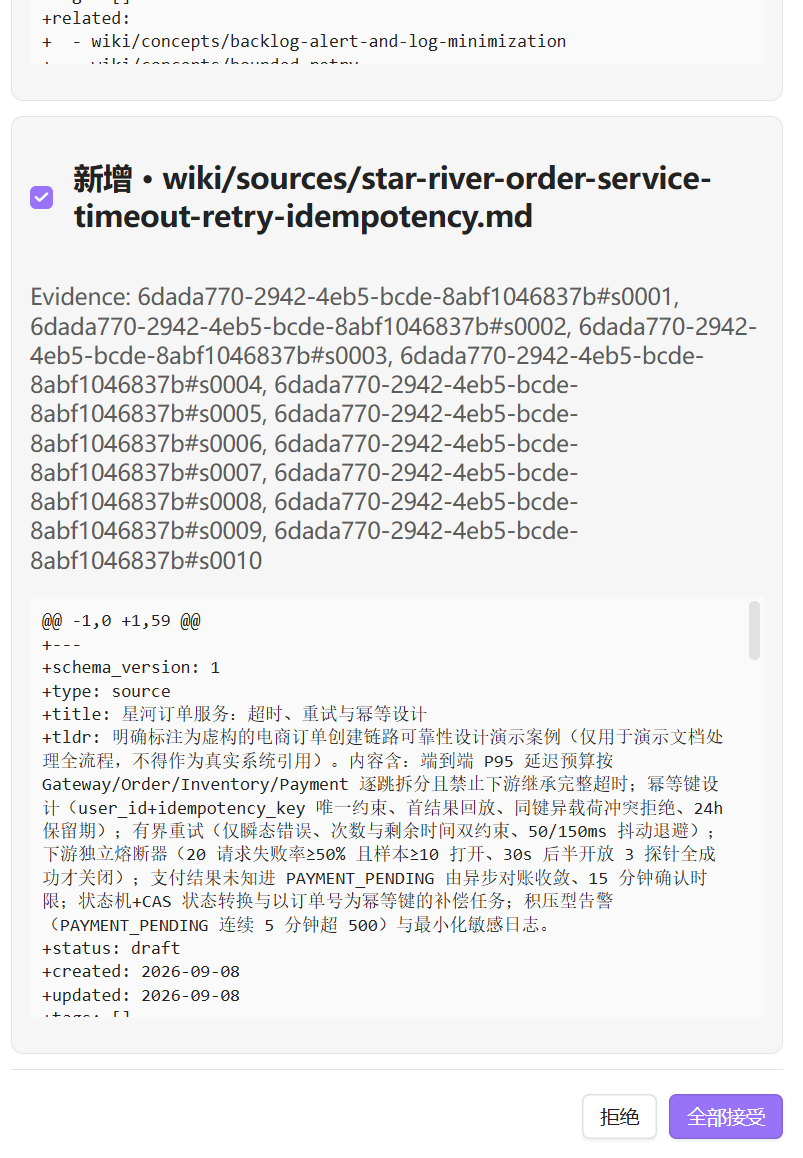
Agent 不会直接修改 wiki/。候选报告和逐页 Diff 会先交给用户检查,知识页面可以接受或拒绝,Source 页面负责保留来源追溯。
| 候选与覆盖报告 | Evidence、Diff 与应用 |
|---|---|
 |
 |
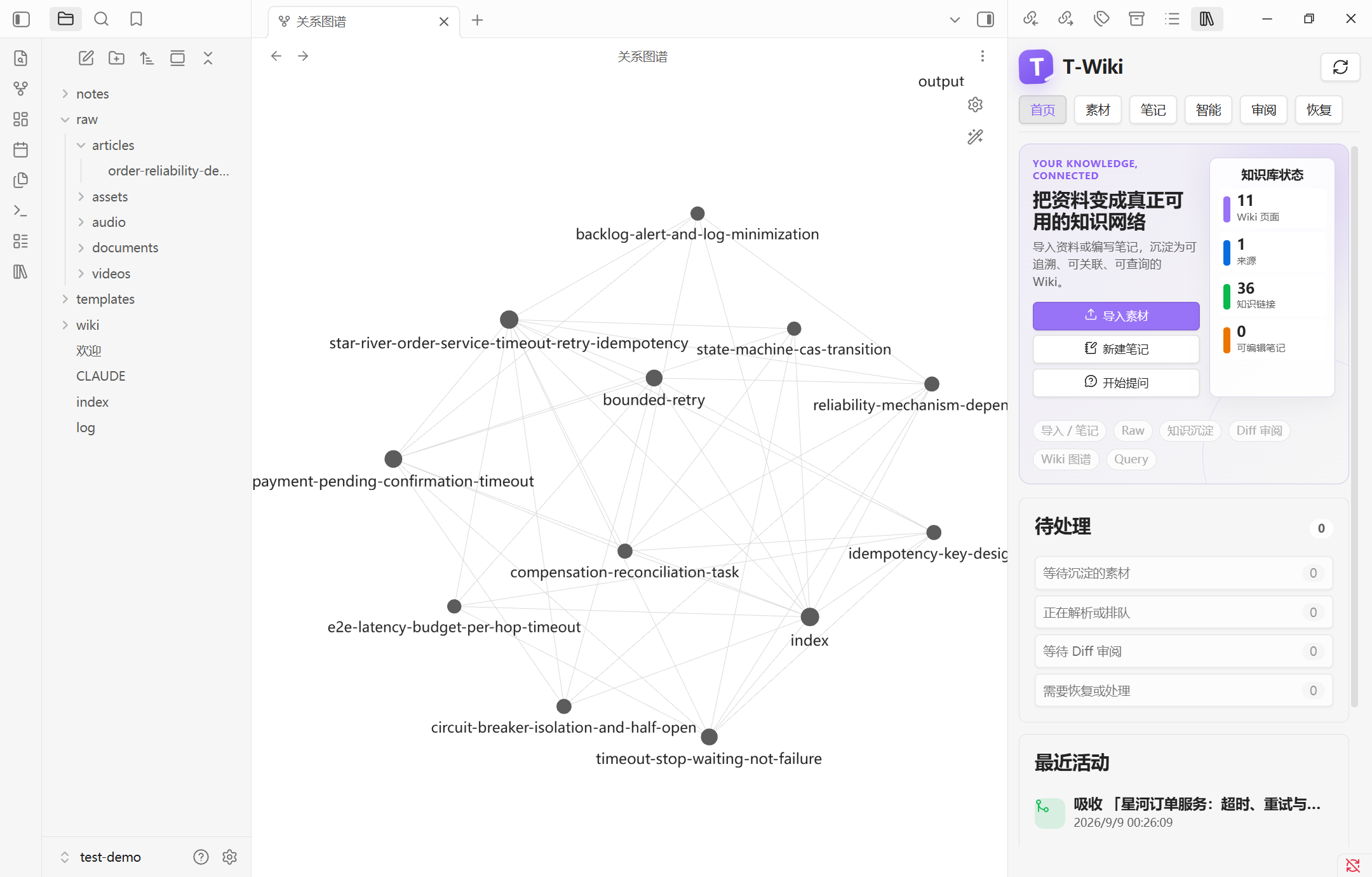
3. Wiki 图谱
通过审核后,Source、Concept、Entity 和 Synthesis 以 Markdown WikiLink 相连,可以直接使用 Obsidian 图谱和反向链接。
4. Query
Query 从 Navigation Index 选择相关 Wiki,再按需读取正文、沿链接继续探索,并校验最终引用。
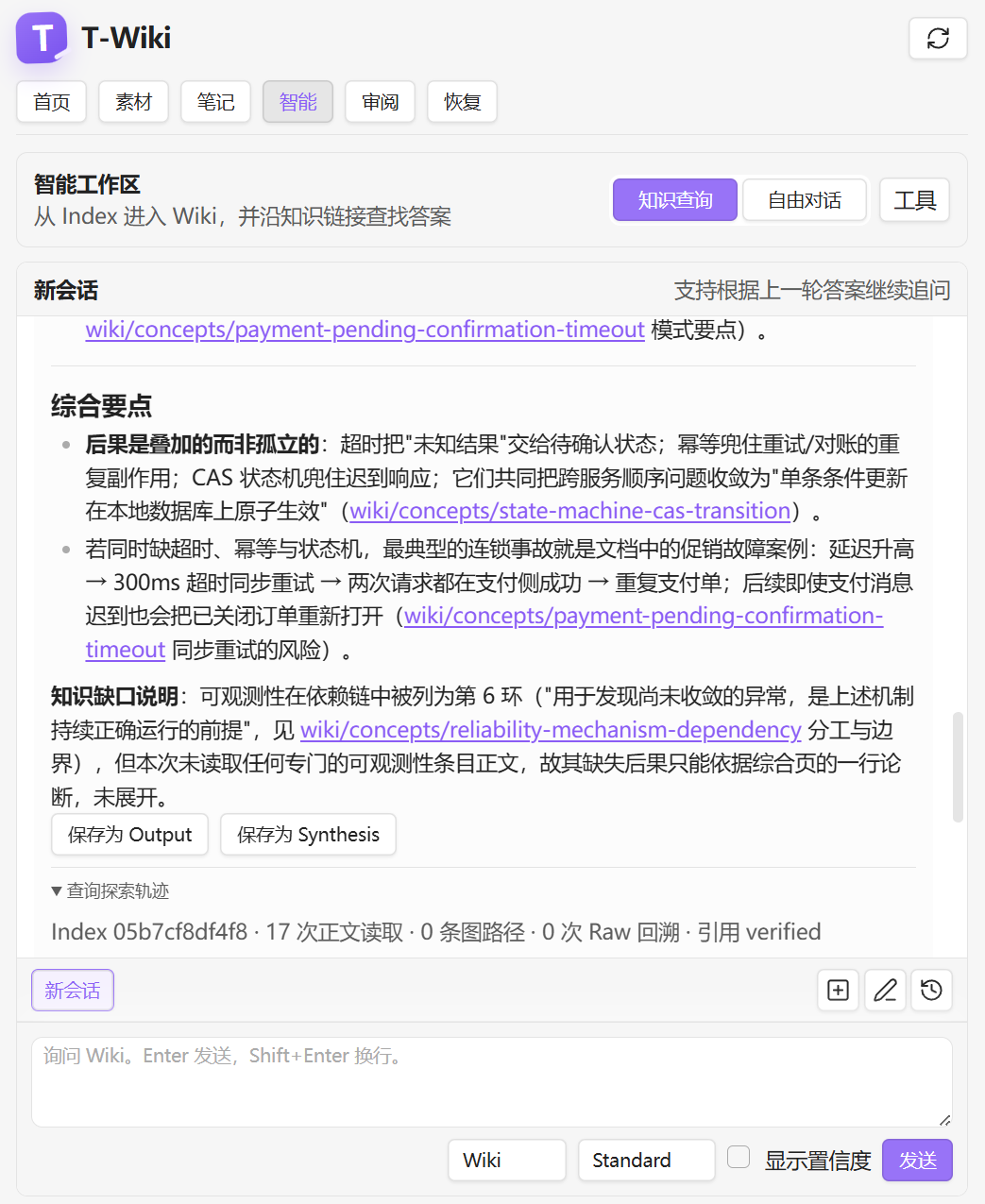
这张图展示的是 Index 导航、按需正文读取和引用校验;只有问题需要关系上下文时,Query 才会继续沿 WikiLink 和 backlinks 探索。
主要能力
- 导入 Markdown、TXT、PDF、网页、本地音视频和个人笔记。
- 可选 MinerU、Bilibili 字幕、远程 ASR、FFmpeg 关键帧和抖音 yt-dlp。
- 将不同来源统一发布为可验证、可追溯的 Raw Markdown。
- 提取 Entity、Concept 和 Synthesis,并先与已有 Wiki 比较。
- 使用 Evidence 支持结论,并额外检查数字、百分比和日期。
- 自动建立并校验 Source 与知识页面之间的 WikiLink。
- 支持个人笔记、Raw 修订、版本 Diff 和三方 Rebase。
- 使用 WorkingSet、CAS 和事务写入保护 Vault。
- 通过 Pending Plan、ParseAttempt、媒体 Checkpoint 和恢复中心处理意外中断。
快速开始
1. 安装插件
在 Obsidian 中打开 设置 → 第三方插件 → 浏览,搜索 T-Wiki 并安装。
也可以从 GitHub Releases 下载 main.js、manifest.json 和 styles.css,放入:
<Vault>/.obsidian/plugins/t-wiki/
重新加载 Obsidian,然后启用 T-Wiki。插件仅支持桌面端。
2. 初始化知识库
打开右侧 T-Wiki 工作台,在首页点击 初始化 T-Wiki,填写知识库名称、知识领域、目标读者和语言。
初始化会在当前 Vault 创建:
raw/              标准化且可验证的来源 Markdown
wiki/             审阅后写入的知识页面
notes/t-wiki/     用户笔记和 Raw 修订稿
templates/        Wiki 页面模板
.llm-wiki/        Manifest、索引、事务和恢复状态
初始化不会上传资料或调用 LLM。
3. 配置 LLM API
进入 设置 → T-Wiki → 常规:
- 选择
Anthropic Messages或OpenAI-compatible Chat Completions。 - 填写服务商要求的 Base URL 和 API Token。
- 为 Fast、Default、Deep 三种角色选择模型;只有一个模型时可以重复使用。
- 保持结构化输出为
Auto,并填写模型实际支持的 Context Window。 - 点击 测试连接,通过两轮 Tool Call / Tool Result 续轮测试后再正式使用。
API Token 只保存到 Obsidian Secret Storage。兼容服务必须正确实现原生 Tool Calling;仅能聊天的接口无法完成 Ingest 和 Query。
4. 导入、沉淀和查询
- 在 素材 页面选择文件或抓取来源。
- 等待 Parse 完成,按需点击 预览 Markdown 检查 Raw。
- 点击 开始 Ingest。
- 在 审阅 页面检查并应用 Diff。
- 打开生成的 Wiki 页面,或进入 智能 → 知识查询 提问。
5. 从自己的笔记开始
- 在 笔记 页面点击 新建笔记并输入标题。
- 在 Obsidian 中正常编写 Markdown。
- 选择 发布快照,只生成 Raw;或选择 发布并沉淀,继续进入 Ingest。
- 审阅 Wiki Diff 后再确认写入。
不要直接修改 raw/。需要修正已导入内容时,请创建 Raw 修订稿;旧 Raw 会继续作为不可变历史保留。
支持的来源
| 来源 | 默认处理方式 | 可选能力或依赖 |
|---|---|---|
| Markdown / TXT | 本地解析与规范化 | 无 |
| PDF.js 本地解析 | MinerU Cloud 或自托管 MinerU | |
| 公开网页 | 本地提取正文 | Web Clipper Inbox |
| 本地音频 | 远程 ASR 生成文字稿 | FFmpeg 分片、断点恢复、文字稿整理 |
| 本地视频 | ASR 文字稿 | FFmpeg 抽帧和独立视觉模型 |
| Bilibili | 平台公开字幕优先 | 无字幕时远程 ASR |
| 抖音 | yt-dlp 下载单个公开视频 | FFmpeg、远程 ASR 和视觉模型 |
| 用户笔记 | 本地 Markdown 编辑 | 发布快照后进入 Ingest |
可选解析配置
- 文档解析:配置解析并发和 MinerU。扫描型或复杂 PDF 可能上传至用户配置的服务。
- 来源采集:配置 Web Clipper Inbox 和抖音 yt-dlp。
- 音视频:选择 OpenAI-compatible Transcriptions 或 Whisper ASR Webservice;远程上传必须逐任务确认。
- 关键画面:配置 FFmpeg/FFprobe 和 OpenAI-compatible 视觉模型。
常用命令
以下命令可在 T-Wiki 的智能输入框中使用:
| 命令 | 作用 |
|---|---|
/query <问题> |
查询 Wiki |
/query <问题> --deep |
深度查询,并允许回溯 Raw |
/query <问题> --scope wiki|raw|hybrid |
指定查询范围 |
/save [内容] |
将内容或最近回答保存为 Wiki 页面 |
/save --type output|synthesis |
指定保存页面类型 |
/lint |
检查 Wiki 健康状态 |
/lint --fix |
生成可审阅的修复建议 |
/reindex |
重建 Wiki 索引 |
/agent status |
查看当前 Agent 状态 |
/agent cancel |
取消当前 Agent 任务 |
Ingest 通常直接在素材页操作,也支持:
| 命令 | 作用 |
|---|---|
/ingest scan |
查看可处理来源 |
/ingest process <sourceId或raw路径> |
处理单个来源 |
/ingest batch <来源1> <来源2> ... |
原子处理多个来源 |
数据、隐私与安全
- 默认文件操作限制在当前 Vault;Raw、Wiki、索引和恢复状态均保存在本地。
- Ingest 和 Query 会将相关 Raw/Wiki 上下文发送到用户配置的 LLM API。
- MinerU、ASR 和视觉服务可能接收 PDF、音频、缩略图或相关文字,请按资料敏感程度选择服务。
- 远程媒体上传必须逐任务确认;授权不会写入 Manifest。
- API Token 使用 Obsidian Secret Storage,不写入 Markdown、日志或普通配置。
- T-Wiki 不提供遥测;质量验收和 Agent 审计保存在本地,并避免保存正文。
完整安全边界和漏洞报告方式见 安全说明。
开发
npm install
npm run verify
npm run build
生产发布时,manifest.json、versions.json、Git Tag 和 GitHub Release 的版本必须一致。
License
MIT © T00