Search...Search plugins and themes...
⌘K
Sign in
  • Get started
  • Download
  • Pricing
  • Enterprise
  • Account
  • Obsidian
  • Overview
  • Sync
  • Publish
  • Canvas
  • Mobile
  • Web Clipper
  • CLI
  • Learn
  • Help
  • Developers
  • Changelog
  • About
  • Roadmap
  • Blog
  • Resources
  • System status
  • License overview
  • Terms of service
  • Privacy policy
  • Security
  • Community
  • Plugins
  • Themes
  • Discord
  • Forum / 中文论坛
  • Merch store
  • Brand guidelines
Follow us
DiscordTwitterBlueskyThreadsMastodonYouTubeGitHub
© 2026 Obsidian

Status Bar Organizer

opisekopisek13k downloads

Rearrange and hide status bar elements.

Add to Obsidian
  • Overview
  • Scorecard
  • Updates16

This plugin enables you to easily reorder elements of the status bar, as well as choose which to hide or show.

Basic Usage

Once installed, simply enable the plugin and head to the "Status Bar Organizer" settings page.

You'll see a row for every element on your status bar. Using the handle on the left side, you can drag and drop to change the order. Using the eye on the right side, you can toggle visibility of the elements.

The changes you make will persist, even after restarting Obsidian.

Deleting Plugins

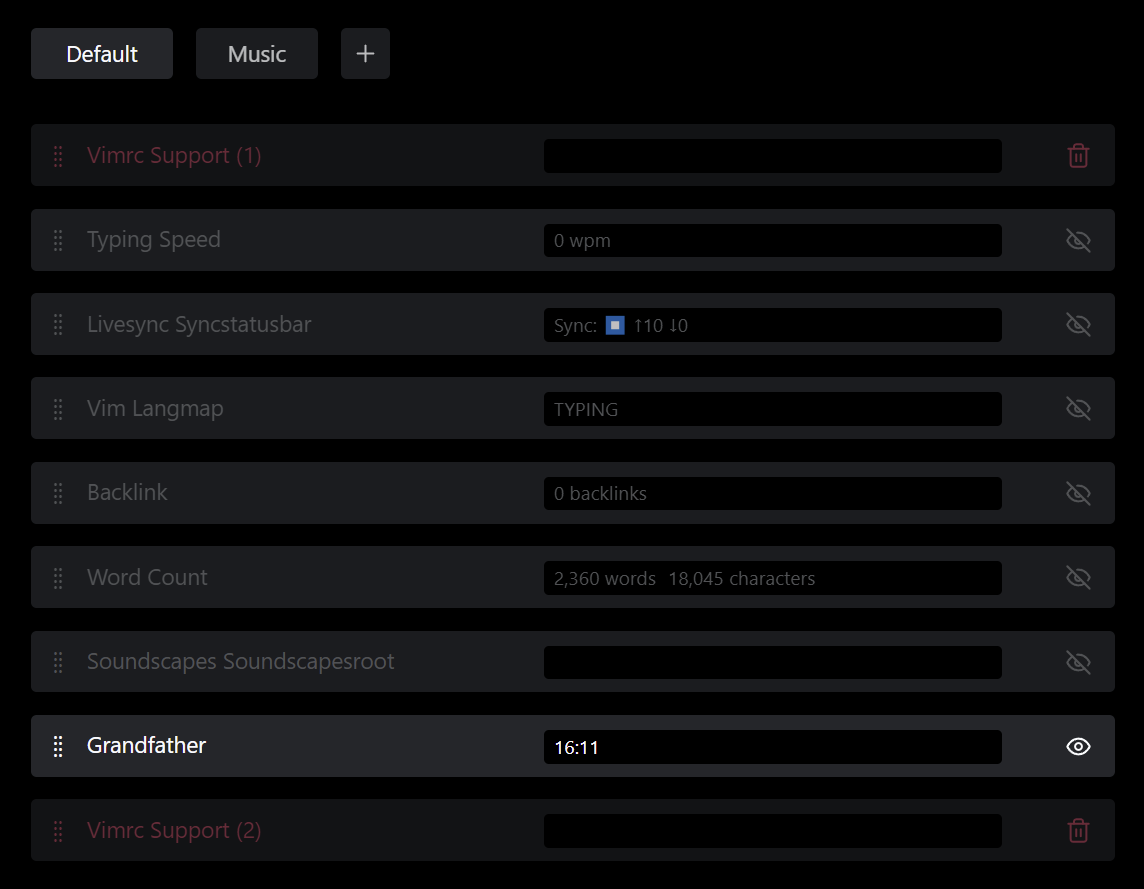
If you delete some plugin which has a status bar element, its position will be remembered and will still be displayed on the settings page. You can, however, simply click on the trash can symbol (where the visibility toggle previously was) to delete that entry.

Presets

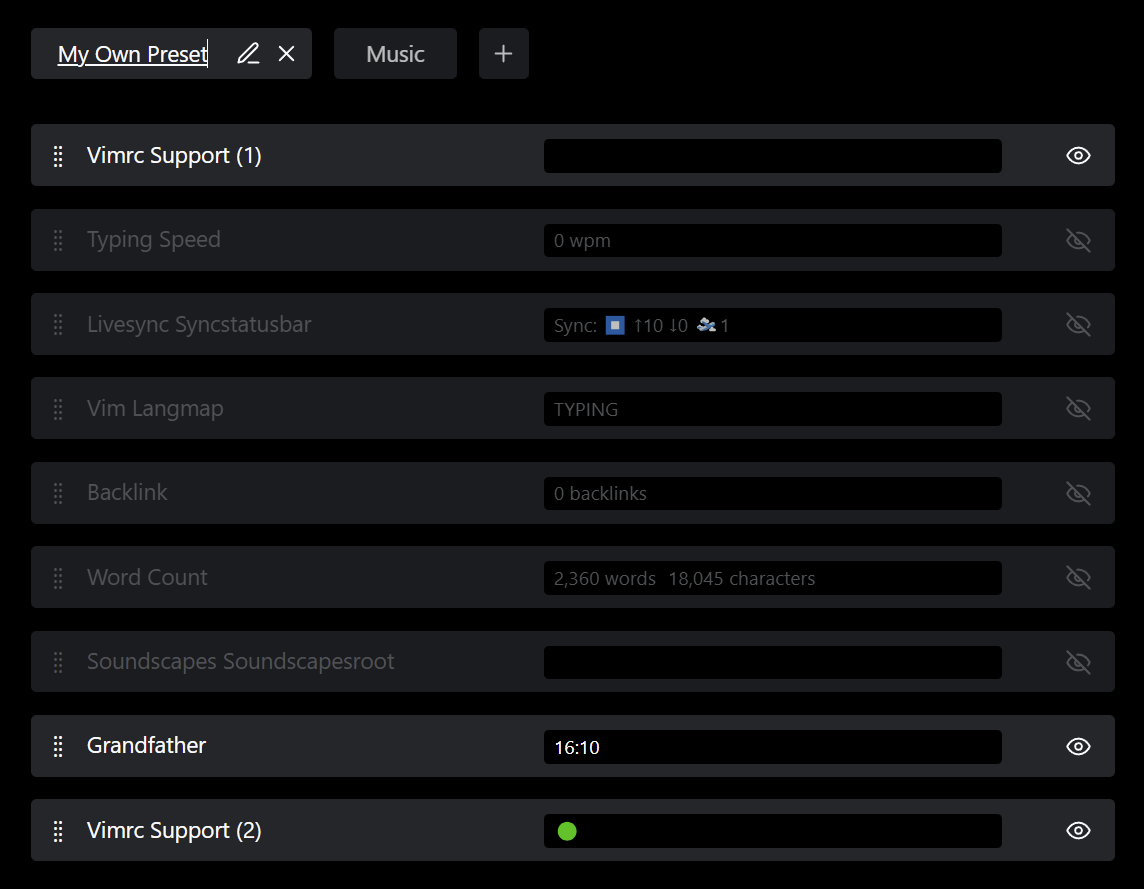
You can create multiple presets of your status bar by clicking the plus button in the top bar.

Switching between presets is accomplished by clicking the name of the preset you are interested in. The status bar and the settings page will automatically reflect that change.

Presets can be renamed and deleted with the pencil and cross buttons visible when hovering over the preset's entry in the top bar.

You can assign hotkeys to switch between different presets in Obsidian's "hotkeys" settings page.

It is also possible to separate the active preset for fullscreen and windowed modes. When activated in the plugin's settings page, the plugin will remember which preset was active in fullscreen mode and which in windowed mode. When entering and exiting fullscreen mode, the corresponding preset will be enabled. This is useful when you want to show different information during fullscreen operation, for example a clock provided by another plugin.

Gallery
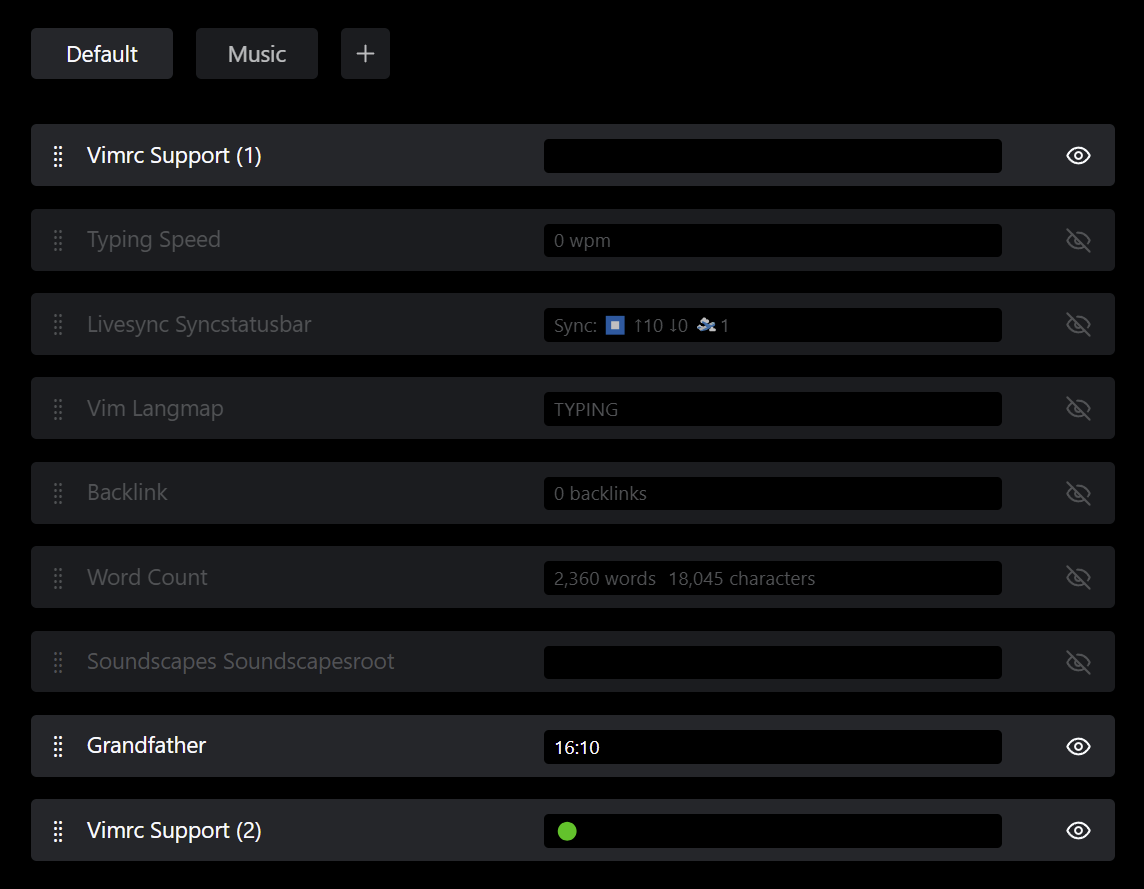
Plugin Settings Renaming Presets Deleted Plugins

66%
HealthGood
ReviewRisks
About
Reorder status bar elements with drag-and-drop and toggle their visibility to customize what appears. Create and switch between named presets — including separate fullscreen and windowed presets — that persist across restarts, and remove stale entries for deleted plugins.
Status barInterfaceHotkeys
Details
Current version
2.1.5
Last updated
7 months ago
Created
2 years ago
Updates
16 releases
Downloads
13k
Compatible with
Obsidian 0.15.0+
Platforms
Desktop only
License
GPL-3.0
Report bugRequest featureReport plugin
Author
opisekopisek
opisek.net/
GitHubopisek
  1. Community
  2. Plugins
  3. Status bar
  4. Status Bar Organizer

Related plugins

Tray

Run Obsidian from the system tray for customisable window management and global quick notes.

Colored Text

Color the selected texts.

Mousewheel Image zoom

Increase or decrease the size of an image by scrolling.

Floating Search

Search text by using Obsidian default search view.

Hotkey Helper

Easily see and access any plugin's settings or hotkey assignments (and conflicts) from the Community Plugins tab.

Hider

Hide interface elements such as tooltips, status bar, titlebar, and more.

Meta Bind

Make your notes interactive with inline input fields, metadata displays, and buttons.

Commander

Customize your workspace by adding commands everywhere, create macros and supercharge your mobile toolbar.

Agent Client

Chat with Claude Code, Codex, Gemini CLI, and more via the Agent Client Protocol — right from your vault.

Iconic

Customize your icons and their colors directly from the UI, including tabs, files & folders, bookmarks, tags, properties, and ribbon commands.