
- Overview
- Scorecard
- Updates43
Workspace++ is an Obsidian community plugin for saving, switching, and organizing workspace sessions. It is built for people who want Obsidian layouts to feel fast, native, and keyboard-friendly.
Highlights
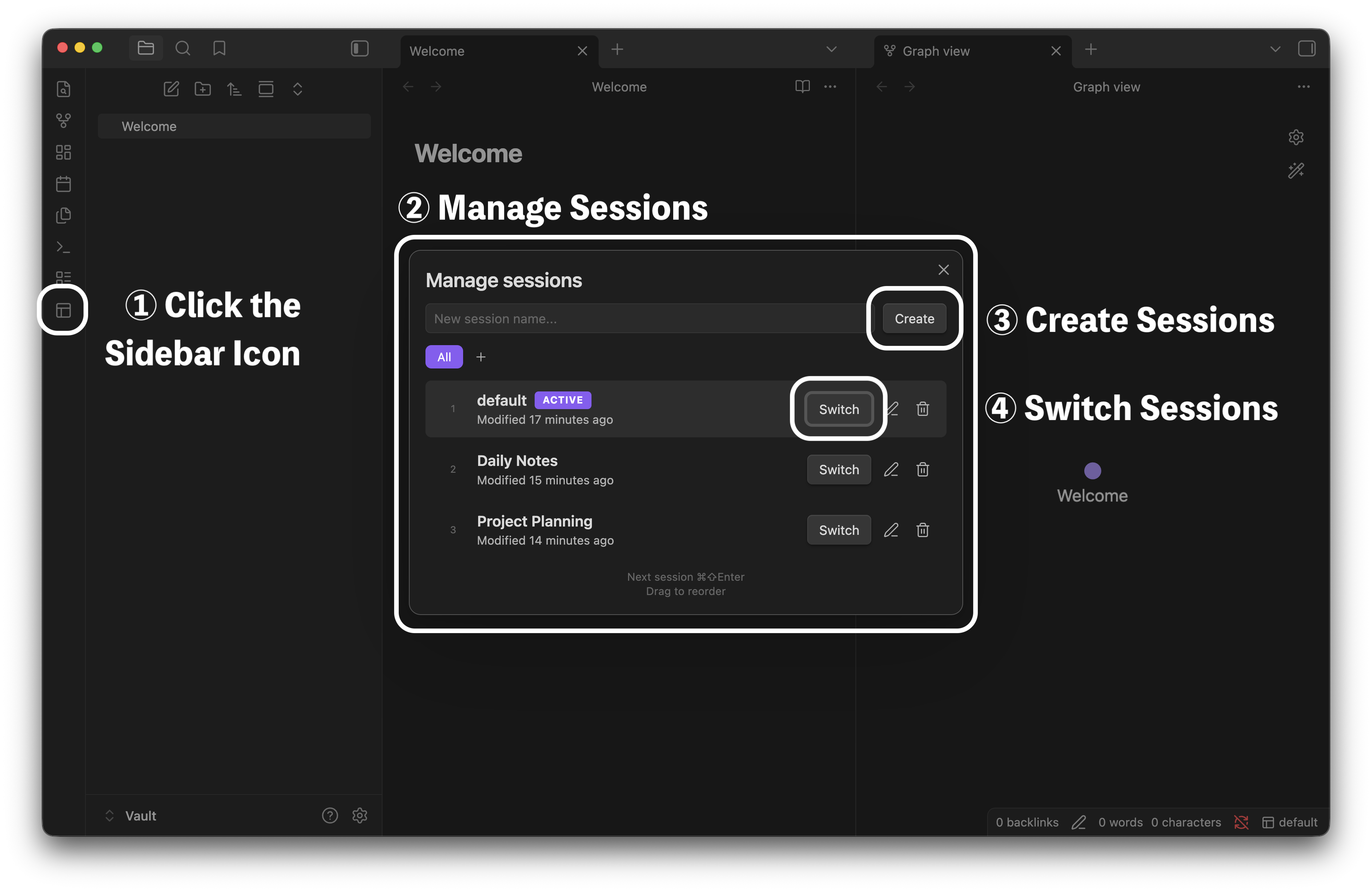
- Save the current workspace layout as a named session.
- Switch sessions from the status bar, quick switcher, command palette, hotkeys, or session manager.
- Use automatic save-on-switch, or turn it off for a manual save workflow.
- Organize sessions into groups.
- Customize status bar click, middle-click, right-click, and modified-click actions.
- Scroll on the status bar to switch sessions.
- See a status bar warning when a manual-save session has unsaved layout changes.
- Save, reload, duplicate, rename, delete, reorder, and bulk-delete sessions.
- Keep per-session version history and restore previous layouts.
- Export, import, and restore session backups.
- Load sessions from note frontmatter with
workspace-session. - Save the current note name as a session and write the matching frontmatter automatically.
- Use Workspace++ in 21 interface locales.
Features
Quick switching
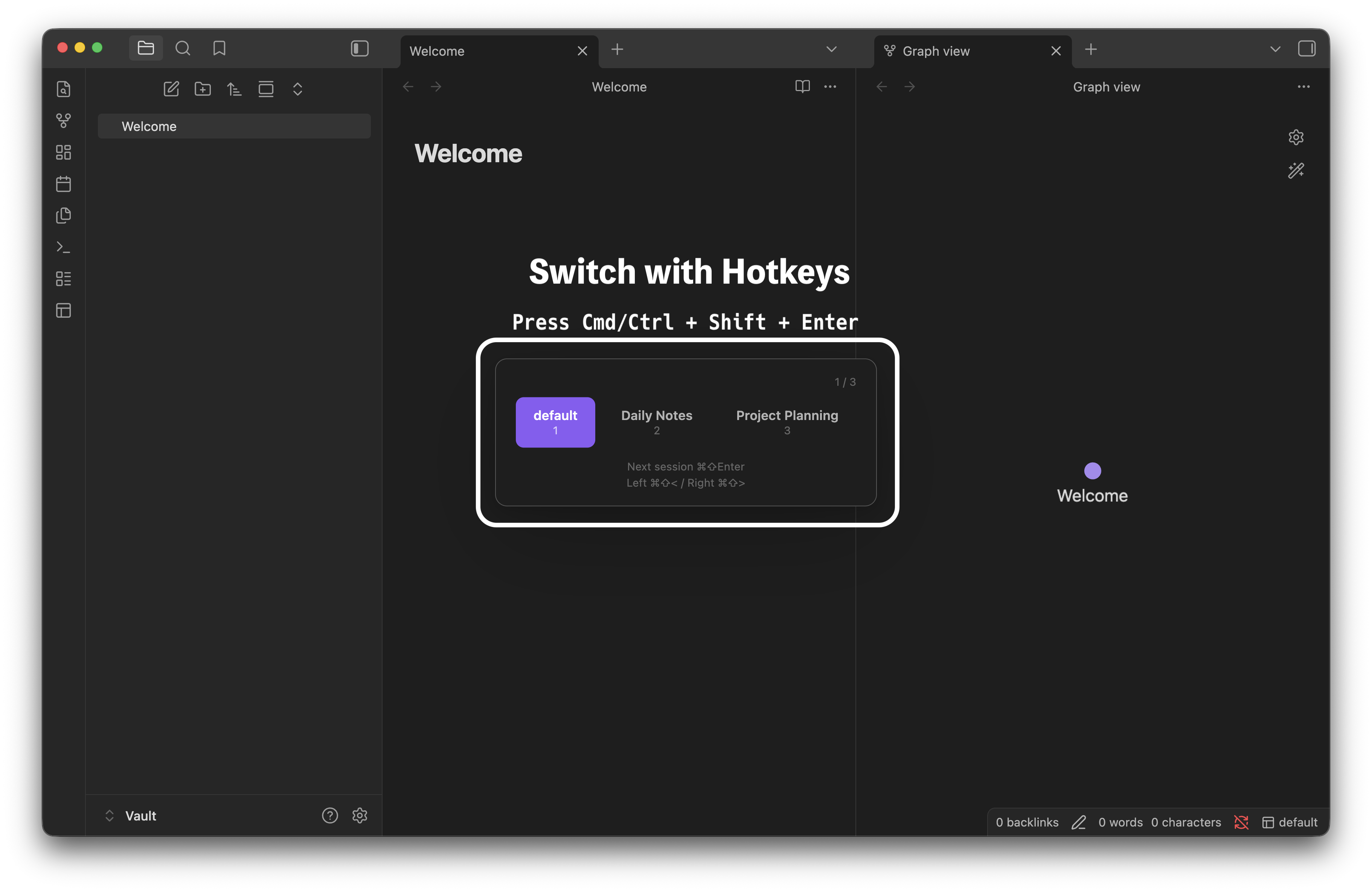
Cycle through sessions with Cmd/Ctrl+Shift+Enter, or move backward/forward with Cmd/Ctrl+Shift+, and Cmd/Ctrl+Shift+.. You can also register numbered or name-based session switch commands for custom hotkeys.
Session manager
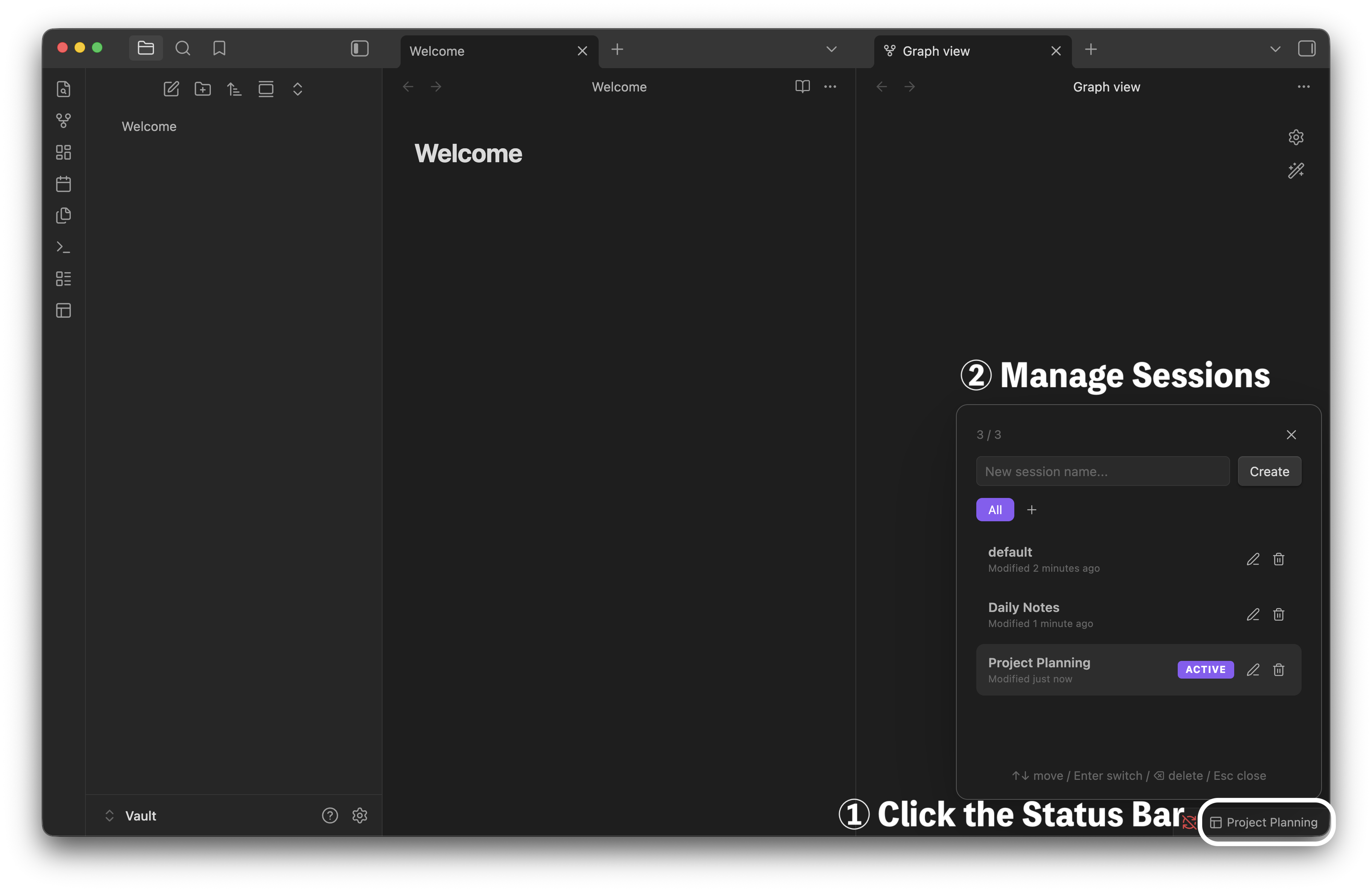
Open the session manager to switch, create, rename, duplicate, delete, reorder, bulk-delete, and group sessions.
Create, duplicate, delete
Create sessions from the current layout, duplicate the active session with Cmd/Ctrl+Shift+M, or delete it with Cmd/Ctrl+Shift+Backspace.
Rename and reorder
Rename the current session with Cmd/Ctrl+Shift+R, right-click sessions for context actions, and drag sessions to reorder them.
Status bar workflow
The status bar shows the active group and session. By default, click opens the quick switcher, Cmd/Ctrl+Click saves the current session, right-click opens the session menu, and Cmd/Ctrl+Right-click restores the latest version history entry.
You can customize status bar click actions in settings, including save, save as, reload without saving, rename, duplicate, previous/next session, blank session, version history, and "save current note name as session".
Save modes
Workspace++ defaults to automatic save-on-switch. If you prefer a manual workflow, turn auto-save off and use explicit save/reload commands. In manual mode, Workspace++ can warn before switching away from unsaved layout changes and highlight the status bar when the current layout differs from the saved session.
Manual-save tools include:
- Save current session.
- Save current session as a new session.
- Save the current layout to another existing session.
- Reload the current session without saving local layout changes.
Session groups
Groups let you organize sessions without deleting or duplicating them. You can switch groups, show all sessions, move sessions between groups, remove sessions from groups, and disable the group feature if you do not need it.
Session restore scope
By default, switching a session restores the main editor area and both sidebars. Restore sidebars can be turned off in settings, so that switching replaces only the main area and leaves the current sidebars alone. Turn it off if your sidebars come back empty after a switch.
Version history and backups
Workspace++ keeps per-session version history for layout changes and can restore previous layouts. It also keeps session backup files in the vault and supports manual export/import snapshots from settings or commands.
Automatic rotation backups are created on save, hourly, up to 3 generations.
Frontmatter sessions
Add this property to a note to load a session when that note is opened:
workspace-session: My Session
Workspace++ also provides a command, Save current note name as session, that writes workspace-session: <note-name> to the current Markdown note and creates or overwrites the matching session using the current layout.
Installation
From Community Plugins
- Open Obsidian Settings > Community plugins.
- Click Browse and search for Workspace++.
- Click Install, then Enable.
Community plugin page:
https://community.obsidian.md/plugins/workspace-plus-plus
From release
- Download
main.js,manifest.json, andstyles.cssfrom the latest release. - Create a folder at
<your-vault>/.obsidian/plugins/workspace-plus-plus/. - Place the three files into that folder.
- Open Obsidian Settings > Community plugins and enable Workspace++.
With BRAT
Use BRAT if you want to test unreleased changes directly from GitHub.
- Install the BRAT plugin.
- Open Settings > BRAT > Add Beta plugin.
- Paste this URL and click Add Plugin:
https://github.com/s1m4ne/obsidian-workspace-plus
Commands
All commands can be assigned custom hotkeys in Settings > Hotkeys.
Some commands follow a setting and are hidden when it is off: the group commands need Session groups, and Search sessions needs Show session filter.
| Command | Default hotkey |
|---|---|
| Manage sessions | - |
| Create new session | - |
| Create blank session | - |
| Duplicate current session | Cmd/Ctrl+Shift+M |
| Rename current session | Cmd/Ctrl+Shift+R |
| Delete current session | Cmd/Ctrl+Shift+Backspace |
| Previous session | Cmd/Ctrl+Shift+, |
| Next session | Cmd/Ctrl+Shift+Enter, Cmd/Ctrl+Shift+. |
| Switch to session 1-9 | Assignable |
| Save current session | Cmd/Ctrl+Shift+S |
| Save current session as... | - |
| Save current note name as session | - |
| Save current layout to session... | - |
| Reload current session (without saving) | - |
| Toggle auto-save on switch | - |
| Enable auto-save on switch | - |
| Disable auto-save on switch | - |
| Search sessions | - |
| View session version history | - |
| Export sessions snapshot | - |
| Import latest sessions snapshot | - |
| Switch group | - |
| Show all sessions (exit group) | - |
| Next group | Cmd/Ctrl+Shift+Tab, Cmd/Ctrl+Shift+G |
| Previous group | - |
Sync and storage
Sessions and settings are stored together in the plugin's data file:
.obsidian/plugins/workspace-plus-plus/data.json
This is deliberate. Obsidian Sync only carries four files out of a plugin folder -- manifest.json, main.js, styles.css and data.json -- so data.json is the only place sessions can live and still reach your other devices. For that to happen, Installed community plugins has to be enabled in your Obsidian Sync settings.
Version history and backups stay on the device that made them:
sessions.backup.json
history.json
backups/
Version history holds snapshots of workspace layouts, and layouts are device-specific -- restoring another machine's snapshot would reproduce the very breakage it is there to undo. Keeping it local also keeps data.json small, which matters because Sync skips files over its per-file size limit.
Keeping sessions in one vault
If you share .obsidian across several vaults, for example with Settings Profiles, every vault sees the same data.json and therefore the same sessions. Turn on Keep sessions in this vault only in Settings > Workspace++ > Advanced to store them here instead:
.workspace-plus-plus/sessions.json
Each vault then keeps its own sessions. Obsidian Sync cannot carry that file -- it excludes dot-folders -- so this trades device sync for vault separation. Third-party tools that sync the whole vault, such as Syncthing, still work.
Phones and desktops
Like Obsidian, which keeps workspace.json and workspace-mobile.json apart, each session keeps one layout for desktops and one for phones and tablets. The two share the session's name, place in the list and group; neither overwrites the other. Opening a session on a device that has never saved it shows the notes from the other kind of device and keeps that device's own sidebars.
Edits on more than one device
Sync tools such as iCloud, Dropbox and Syncthing move whole files, sometimes a minute late, so two devices can each save without having seen the other's change. Workspace++ merges rather than overwrites: a session created on one device is kept even if the other device saves before it arrives, each kind of layout keeps whichever was saved last, and a deleted session stays deleted even if the other device used it in the meantime. Deletions are remembered for thirty days.
It checks the session file every few seconds, so a change appears shortly after your sync tool delivers it. How long that delivery takes is up to the sync tool.
Languages
Workspace++ includes 21 interface locales:
English, Arabic, Bengali, Chinese Simplified, Chinese Traditional, French, German, Hindi, Indonesian, Italian, Japanese, Korean, Malay, Persian, Polish, Portuguese, Russian, Spanish, Thai, Turkish, and Vietnamese.
Video Demos
Show video demos
Quick switching
https://github.com/user-attachments/assets/b1dc94f7-b979-4b09-97e6-3ebf4837b5ed
Session manager
https://github.com/user-attachments/assets/27a02a7b-aaa8-4795-b67d-4348fa4012f7
Create, duplicate, delete
https://github.com/user-attachments/assets/c86b8000-c49e-442c-8246-17c181a4d921
Rename and reorder
https://github.com/user-attachments/assets/6041d80f-9c15-4a59-8d27-8a8f39d9dba6
https://github.com/user-attachments/assets/6c2b5a13-cc9f-43ca-bff1-944c5b318a92
Community
Bug reports, feature requests, and pull requests are welcome. Feel free to open an issue or PR.
If you find this plugin useful, please give it a star on GitHub. It helps others discover it.
License
MIT