Star Favorites
 Bugra Sitemkar65 downloads
Star your favorite notes and folders from the right-click menu and jump to them from a dedicated Favorites pane.
- Overview
- Scorecard
- Updates4
Star your favorite notes and folders straight from the right-click menu, and jump back to them from a dedicated Star Favorites pane.
Repository: github.com/bugrasitemkar/star-favorites Plugin-Page: Obsidian Community Plug-in Page
Features
- Right-click any note or folder (in the file explorer, or a note's tab) and choose Add to favorites. Once favorited, the same menu shows Remove from favorites.
- Favorited notes and folders get a ★ prefixed to their name in the file explorer.
- Click the star icon in the left ribbon (or run the Open favorites view command) to open a Star Favorites pane in the left sidebar listing every starred note and folder. Click an entry to open the note or reveal the folder; right-click an entry to unfavorite it.
- Favorites follow renames and moves automatically, and are cleaned up when the underlying file or folder is deleted.
- Multi-select support: select several files/folders in the explorer and add or remove them from favorites in one click.
The ★ marker is shown in the file explorer only (not in tabs, search, or backlink panes).
Screenshots
| Starred items in the file explorer | Favorites pane |
|---|---|
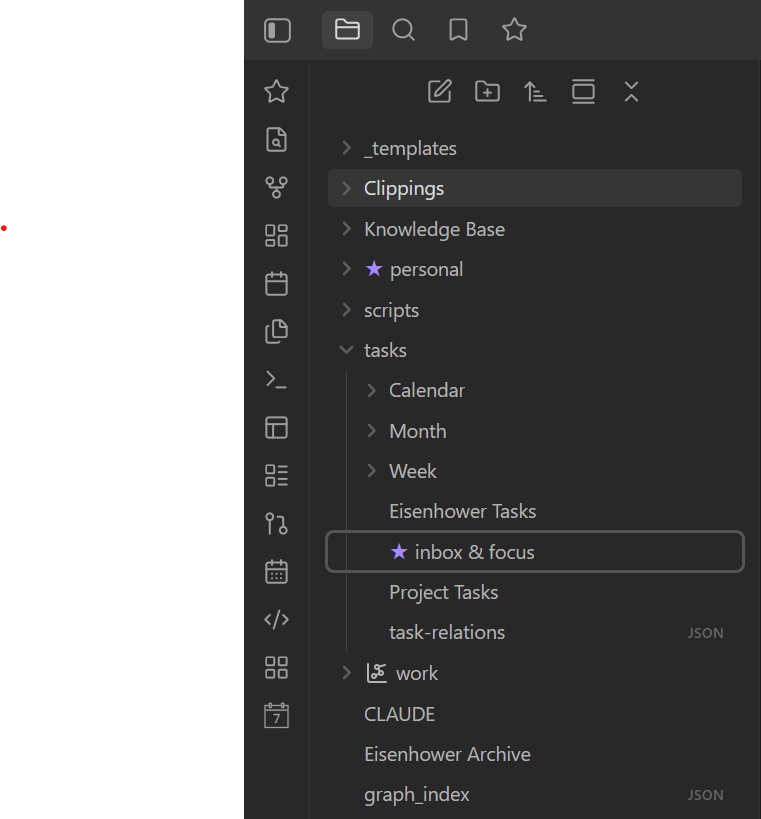 |
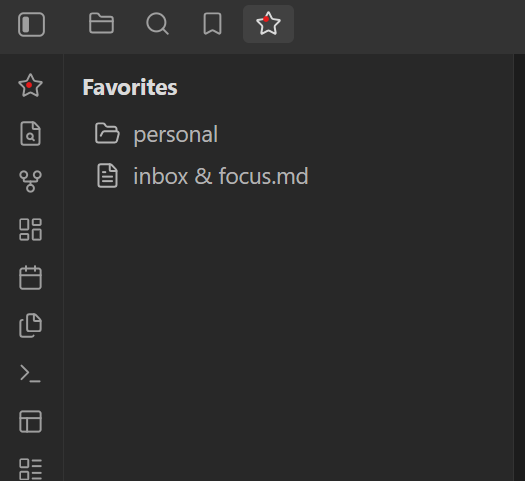 |
Installing for development
npm install
npm run dev
This watches main.ts and rebuilds main.js on save. To test inside a vault, either:
- Clone/copy this folder into
<YourVault>/.obsidian/plugins/star-favorites, or - Symlink this folder into
<YourVault>/.obsidian/plugins/star-favorites.
Then reload Obsidian (or use the "Reload app without saving" command) and enable Star Favorites under Settings → Community plugins.
Building for release
npm run build
This type-checks the project and produces a production main.js.
Publishing to the Community Plugins directory
- Push this repository to
github.com/bugrasitemkar/star-favorites. - Create a GitHub release whose tag matches
manifest.json'sversion(e.g.1.0.0, no leadingv), and attachmain.js,manifest.json, andstyles.cssas binary attachments to the release. - Fork
obsidianmd/obsidian-releases, add an entry forstar-favoritestocommunity-plugins.json, and open a pull request following their submission guidelines. - Bump future versions with
npm version <patch|minor|major>, which updatesmanifest.jsonandversions.jsonviaversion-bump.mjs.
License
MIT
HealthExcellent
ReviewSatisfactory
About
Star notes and folders from the file explorer or a note's tab via the right-click menu and mark them with a ★ prefix. Open the Star Favorites pane to jump to or reveal entries, unfavorite single or multi-selected items, and keep favorites synced across renames, moves, and deletions.Details
Current version
1.0.4
Last updated
3 weeks ago
Created
3 weeks ago
Updates
4 releases
Downloads
65
Compatible with
Obsidian 1.7.2+
Platforms
Desktop, Mobile
License
MIT