Simple Vimeo
 shimodatami11 downloads
Embed Vimeo videos in notes using ordinary Markdown image syntax.
- Overview
- Scorecard
- Updates1

Download the original SVG icon. This geometric V mark is original artwork, not the Vimeo or Obsidian logo.

Embed Vimeo videos in Obsidian with a single line of Markdown.

Simple Vimeo displays the player in Reading View and Live Preview, while keeping your original Markdown unchanged. A link to the original URL remains below the player.
Contents
- Installation
- Embed a video
- Illustrated walkthrough
- Edit an embed
- Supported URLs
- Settings
- Privacy and network access
- Troubleshooting
- Compatibility
Installation
Simple Vimeo is not yet listed in Obsidian's Community Plugins directory. Download the plugin package from GitHub Releases. The release includes main.js, manifest.json, and styles.css as individual assets, plus a ZIP with the illustrated guide.
Manual installation
- Open your vault folder in your file manager.
- Create the folder
.obsidian/plugins/simple-vimeo/if it does not already exist. - Copy these three plugin files into that folder:
main.jsmanifest.jsonstyles.css
- Reload Obsidian.
- Open Settings → Community plugins. Allow community plugins if prompted, then enable Simple Vimeo.
When updating, replace only those three files and reload Obsidian. Keep the existing data.json file: it contains your settings.
Embed a video
Copy the video's Vimeo sharing URL and place it inside Markdown image syntax:

For predictable layout, put each embed on its own line, with a blank line above and below it.
- Reading View: the video appears as a player.
- Live Preview: the video appears as a player when the cursor or selection is outside the embed syntax.
- Source mode: the original Markdown remains visible.
Use the player's controls to start playback. The plugin does not automatically start videos.
A plain link such as [Watch on Vimeo](https://vimeo.com/1224418843) is not converted into a player. Ordinary images, YouTube embeds, and code blocks are left unchanged.
Illustrated walkthrough
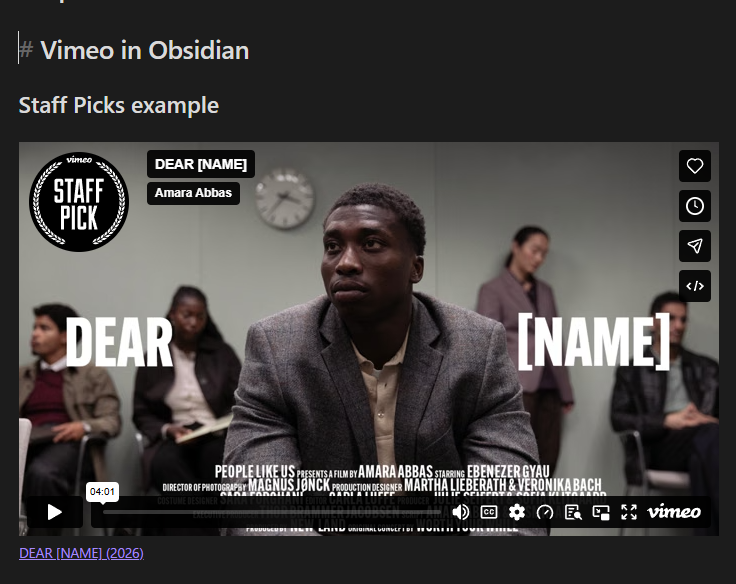
These screenshots show DEAR [NAME] by Amara Abbas, selected from the public Vimeo Staff Picks channel. The video belongs to its credited creator, not the plugin author. No personal or unlisted videos are used.
Watch the example on Vimeo · Browse Vimeo Staff Picks
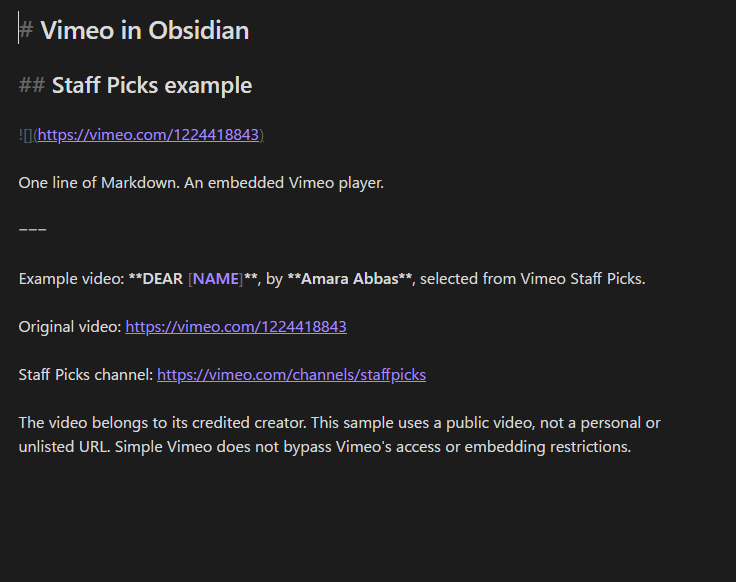
1. Write the Markdown
Put the sharing URL inside . In Source mode, Obsidian shows the original Markdown:
2. Use Live Preview
Switch to Live Preview and move the cursor outside the embed syntax. The URL becomes a Vimeo player, with the original link underneath:
3. Open Reading View
Reading View displays the same embedded video:
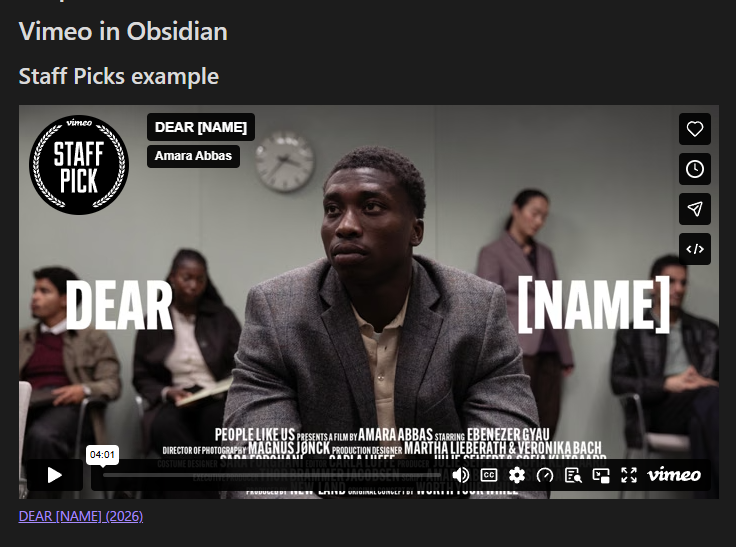
These are real Obsidian screenshots, cropped to the example note. They show the player before playback, not proof that a video has played. The screenshots do not show account details, vault paths, or unrelated notes. Video artwork and on-player credits remain the property of their respective owners; their inclusion illustrates the plugin interface and does not imply endorsement.
To try the same example, copy the content of the sample note into a note in your own vault. The sample remains ordinary Markdown; Simple Vimeo provides the player inside Obsidian. GitHub's README renderer does not run Obsidian plugins, so the README uses screenshots and a Vimeo link rather than a live player.
Edit an embed
In Live Preview, focus the editor and move the cursor into the embed line with the arrow keys, or extend a selection across its Markdown. On the tested desktop version, the actual literal Markdown appears, just as it does for a native YouTube embed. Edit the URL normally; moving the cursor and selection outside the syntax restores the player. There is no separate source-edit button. Vimeo's own player may still show its embed/share icon; that control belongs to Vimeo and does not edit your Obsidian note.
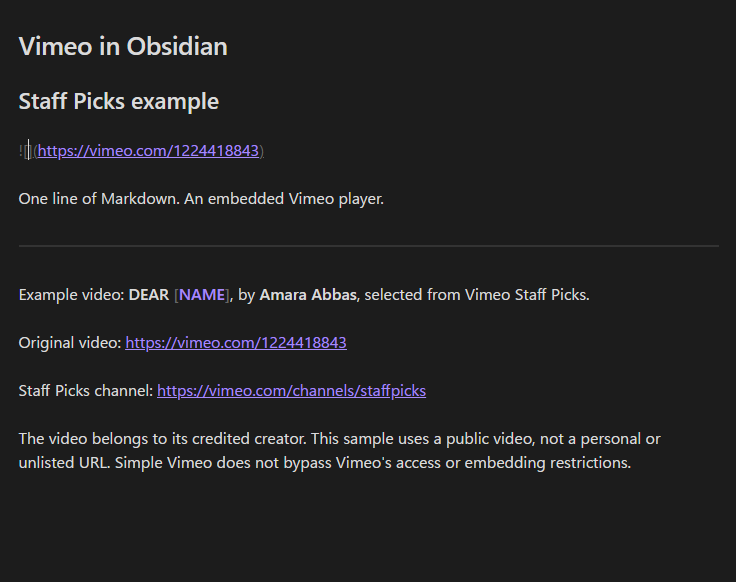
On unverified Obsidian versions, or when the native image compatibility seam cannot be safely adapted, selecting a Vimeo embed switches that note to Source mode instead. This preserves the original Markdown and makes editing reliable without disabling other native images. Switch back to Live Preview after editing. Reading View is display-only.
Supported URLs
The plugin accepts the following HTTPS URL formats:
https://vimeo.com/ID
https://www.vimeo.com/ID
https://vimeo.com/ID/HASH
https://vimeo.com/ID?h=HASH
https://player.vimeo.com/video/ID
https://player.vimeo.com/video/ID?h=HASH
ID must be a numeric video ID. HASH is the privacy hash supplied in a Vimeo sharing or embed URL. These are placeholders, not URLs to paste literally.
For an unlisted video, keep the supplied hash intact:

The example above illustrates the syntax only; replace it with the complete sharing URL for your video. The plugin never guesses or retrieves a missing privacy hash.
Vimeo management URLs such as https://vimeo.com/manage/videos/ID, channel URLs, and non-HTTPS URLs are not supported. Use the video's sharing link instead.
Only the video ID and privacy hash are passed to the player. Other query parameters are not treated as player configuration; the original URL is retained in the link below the player.
Settings
Open Settings → Simple Vimeo.
The plugin settings and descriptions are in English. Existing saved settings continue to work without migration.
| Setting | Meaning | Default |
|---|---|---|
| Use the Vimeo video title | Use the Vimeo video title for the link below the player. | On |
| Show upload year | Add the upload year to the title, when Vimeo provides it. Requires the title setting to be on. | Off |
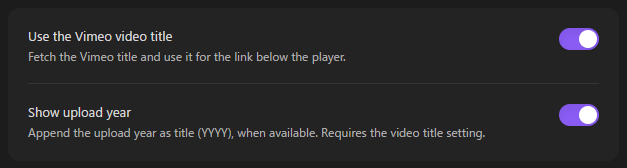
With both settings enabled, the link may look like Video title (2024).
If title retrieval is disabled or fails, the visible link is simply Vimeo, with no arrow or “Open” prefix. Its accessibility label is Open Vimeo. Fetched video titles and the optional upload year remain supported. The link remains usable even when metadata cannot be loaded.
Privacy and network access
Displaying an embed loads a player from Vimeo. An internet connection is required for playback.
With Use the Vimeo video title enabled, the plugin also sends the original video URL to Vimeo's oEmbed API to request metadata. For unlisted videos, this includes the privacy hash in that URL.
Turn the title setting off to stop these additional metadata requests. This does not stop the embedded player from connecting to Vimeo.
The plugin does not rewrite your notes or insert HTML returned by the metadata API. Treat unlisted sharing URLs as sensitive when sharing your Markdown notes.
Troubleshooting
I only see Markdown
Check that Simple Vimeo is enabled and that you are using Reading View or Live Preview rather than Source mode. In Live Preview, move the cursor and selection outside the embed syntax.
Use , not a plain URL or a normal Markdown link.
The player appears, but the video does not play
Open the original link below the player and check whether the video is accessible on Vimeo.
Simple Vimeo does not bypass private-video restrictions, passwords, embedding restrictions, domain allowlists, or DRM. A title loading successfully does not prove that playback is available.
The plugin cannot reliably inspect every error inside Vimeo's cross-origin player. The original link is kept as a fallback.
An unlisted video does not load
Copy the full sharing or embed URL again, including its privacy hash. A numeric ID alone may not be enough. Do not use a /manage/videos/ URL.
The title or year is missing
Check the title setting and your connection. Vimeo may reject the metadata request or omit the upload date. A missing title or year does not change the saved Markdown.
I am updating an existing installation
Preserve data.json, replace only main.js, manifest.json, and styles.css, and reload Obsidian. No note migration is required.
Compatibility
The current documented release is 0.1.6. Reading View, Live Preview, source editing, note switching, and plugin disable/re-enable have been tested on Windows with Obsidian 1.14.4.
The manifest requires Obsidian 1.14.4 or newer, matching the desktop version tested here. Newer versions are not automatically claimed as verified.
Mobile devices, other Obsidian versions, actual fullscreen interaction, and playback of real unlisted or domain-restricted videos have not been verified. Cursor-driven source reveal uses a small, guarded per-editor adapter for Obsidian's private native-image decoration field, verified only on desktop 1.14.4. It removes only exact parsed Vimeo image replacements, leaves other native rendering intact, and restores the original field update function on unload. Other versions use the Source-mode editing fallback; they are not claimed as tested. Live Preview also depends on the Markdown parser token structure.
Build and development
Install Node.js 22 or newer and npm, then run:
npm ci
npm run build
npm test
npm run lint
Editable sources are standard ESM JavaScript in src/; esbuild emits the CommonJS main.js that Obsidian expects. Obsidian and CodeMirror are provided by the host and are not bundled. The test loader transforms the actual ESM sources to CommonJS for the Obsidian test double; it does not replace their behavior.
See developer notes for the guarded native-image adapter, supported settings API, and verification boundaries. Licensed under MIT, copyright shimodatami. The license covers plugin code and original artwork, not third-party video artwork or Obsidian itself.