Sidebar Terminal
 Rhynelabs102 downloads
Run Claude Code, Codex and other terminal tools beside your notes, with native tabs and tmux-style splits.
- Overview
- Scorecard
- Updates6
AI agents, right inside Obsidian.
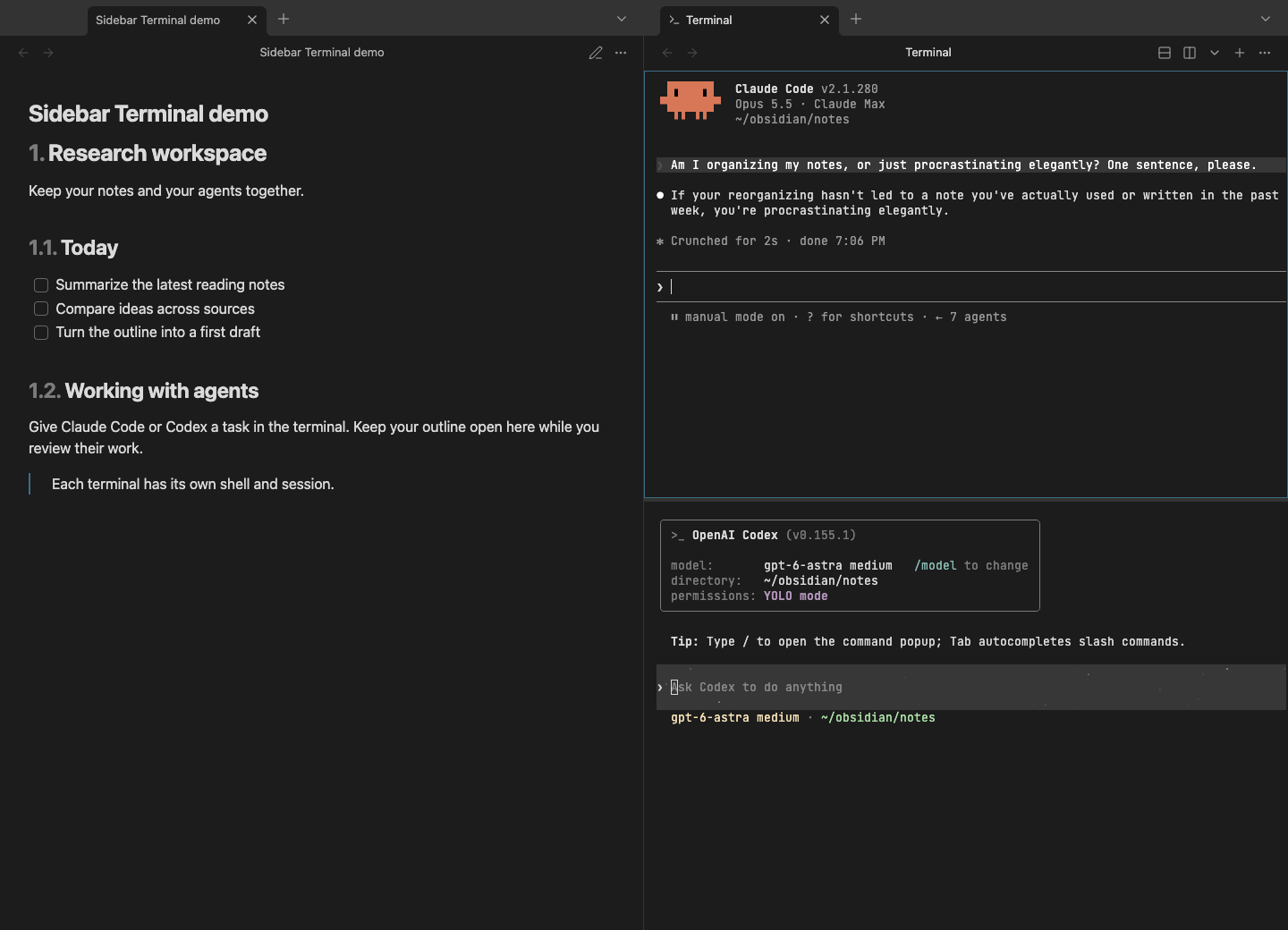
Run Claude Code, Codex and other terminal agents beside your notes. Keep your research, project plans and agent sessions in one workspace.
Install · Usage · Shortcuts · Development
Work with agents beside your notes
Ask an agent to work with your notes while you keep the outline open. Give each project its own terminal tab, or split a tab to run several tools side by side. Presets launch your installed CLIs; when a tool exits, the shell stays open for the next command.
Need a script, a Git command or an ordinary shell? Those work here too.
Built for Obsidian
- Native tabs and splits. Open several terminals as Obsidian tabs and split them right or down. Switching tabs keeps their jobs running.
- Your shell. Starts your configured interactive shell with its prompt, aliases and startup files.
- Presets. Launch an installed CLI in a new tab. When it exits, you are back in the same shell.
- Split with a shortcut.
⌘ Dsplits right;⌘ Shift Dsplits down. Resize with a drag, or use the optional tmux-style prefix. All shortcuts → - Theme-aware. Background, text and selection follow your Obsidian theme. Explicit RGB colors from TUI programs are shown unchanged.
- Drop notes as paths. Drag a note, folder or file from the explorer or Finder into a terminal to insert its quoted path, ready for an agent or a command.
- Sessions that stay. Closing a terminal tab keeps its shells and jobs; reopen it and continue. An ended shell restarts under its output, and the output returns after a restart.
Rendering uses xterm.js with bundled JetBrains Mono.
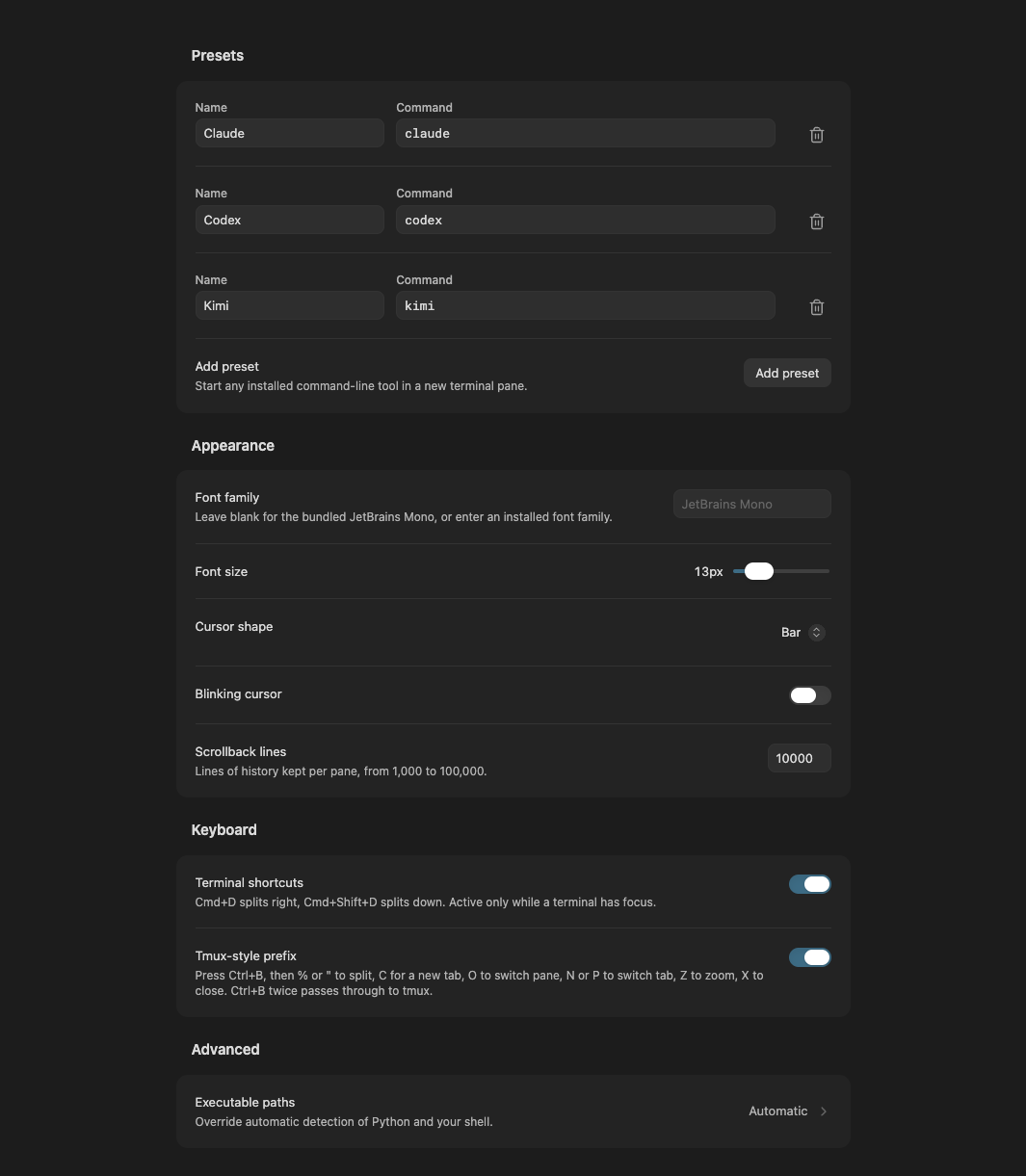
Settings screenshot
Requirements
- Obsidian 1.13.1 or later, desktop only
- Python 3
- Windows 10/11 only:
pywinpty>=3.0,<4installed for that Python
py -3 -m pip install "pywinpty>=3.0,<4"
Install
Open Sidebar Terminal in the Community directory and choose Add to Obsidian, then install and enable the plugin. You can also search for Sidebar Terminal under Settings → Community plugins → Browse.
Manual installation
- Download
main.js,manifest.jsonandstyles.cssfrom the latest release. - Put the three files in
<vault>/.obsidian/plugins/sidebar-terminal/. - Reload Obsidian and enable Sidebar Terminal under Settings → Community plugins.
Open a terminal with the ribbon icon or the Open terminal workspace command. To open one next to a note, use Open terminal in editor.
Good to know
- Sessions. Closing a tab keeps its shells and jobs running until you reopen it with the ribbon icon or Reopen closed terminal tab. Close pane and its processes ends a shell. Quitting Obsidian or reloading the plugin ends all sessions.
- Restored layouts. Tabs, splits, names, starting directories and previous output come back after a restart. Each pane starts a fresh shell under its previous output; commands and preset commands are not replayed.
- Saved output. When a tab closes or Obsidian quits, each pane's output is written to
.obsidian/plugins/sidebar-terminal/scrollback/in the vault. Turn off Restore output after restart in settings to keep terminal output out of the vault; existing files are deleted. - Working directories. New splits open in the pane's configured starting directory, not wherever you last moved with
cd. - System access. Shells, their configuration and the files your programs touch can live outside the vault. Programs run with your normal user permissions.
- Clipboard. The plugin reads clipboard text only when you invoke Paste and writes selected text only when you invoke Copy. It does not monitor clipboard changes.
- Path checks. The plugin checks whether configured directories and shell/Python executables exist. It does not index or read your documents; programs you start can access files with your user permissions.
- Privacy. The plugin has no network service, telemetry or accounts of its own, and downloads nothing. External CLIs such as Claude Code or Codex have their own accounts, network access and billing.
More detail on presets, appearance, executable paths and sessions is in docs/usage.md.
Status
This is an early release. It has been tested live in Obsidian on macOS. Windows and Linux adapters are included, but hands-on checks in Obsidian on those platforms are still pending. Automated platform checks run on GitHub.
Issues and pull requests are welcome. See the development guide and changelog.
License
Copyright © 2026 Rhynelabs. Released under the MIT License.
Bundled xterm.js packages keep their MIT notices and JetBrains Mono keeps its SIL Open Font License. See third-party notices. pywinpty is installed separately and is MIT licensed.
Sidebar Terminal is an independent project and is not affiliated with or endorsed by Obsidian.