Section Blocks
 paipa0334 downloads
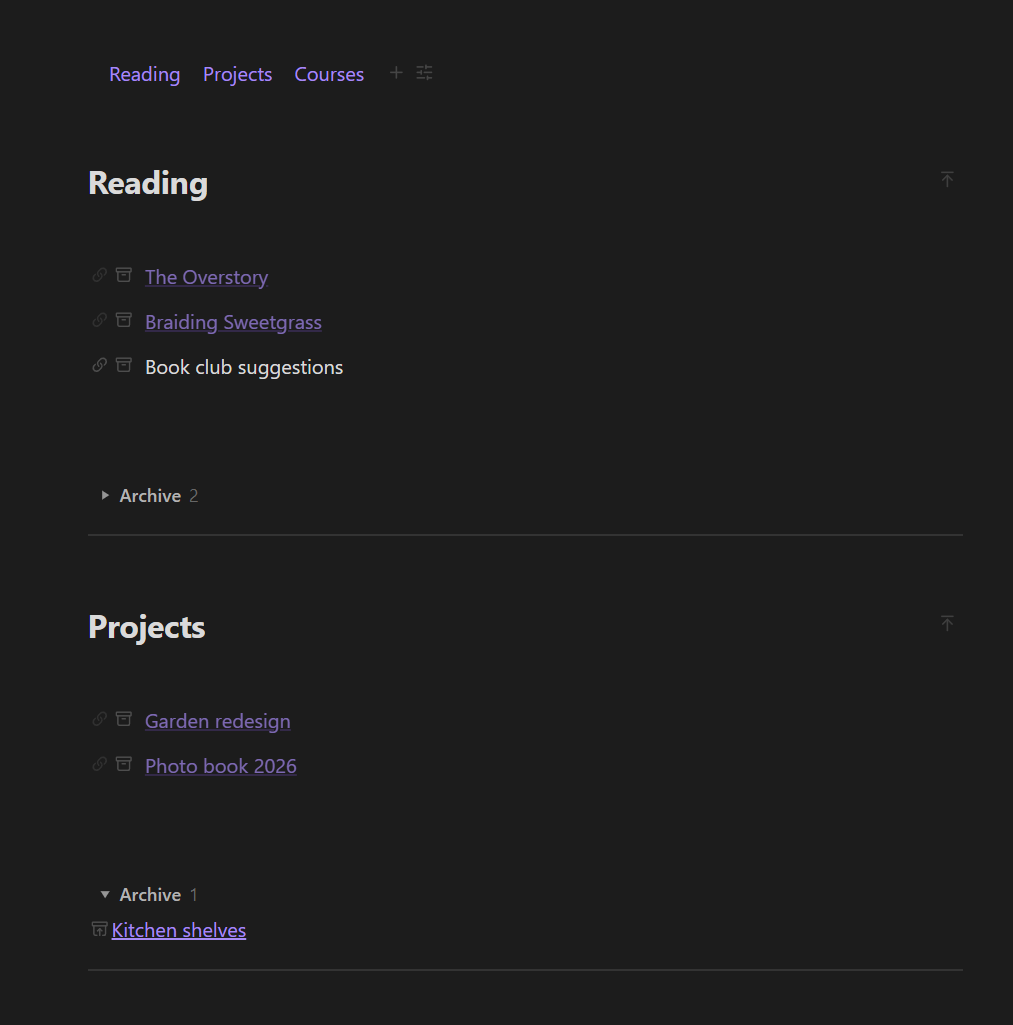
Sections for index notes: a heading, link rows with link and archive buttons, a folded archive, and a live section index. Also files section pages into folders and keeps each note's media beside it.
- Overview
- Scorecard
- Updates3
Turn a "home" or index note into a clean dashboard of sections, and keep the pages and images it links to filed away automatically.
Is this for you?
- You have one main note, such as Home, Projects or Reading, with lists of links that keep growing.
- Finished items clutter the list, but you don't want to delete them.
- New pages end up dumped in the vault root, and images land in one giant attachments folder.
- Moving a note means its images get left behind.
What you get
Sections
- Create section adds a heading with link rows underneath and a folded Archive at the bottom.
- Hover a row: 🔗 turns plain text into a new linked page; 🗄 moves the row into the archive (and back).
- A section index at the top lists every section as a clickable chip. Hide the ones you don't need.
Automatic filing
- Organize section pages of this note: each page a section links to moves into
<Pages root>/<Section title>/. - Organize media: each note's images and videos live in a
<note name> mediafolder right next to the note, and links are updated for you. Run it for one note or the whole vault. - With Organize media turned on, anything you paste or drop into a note goes straight into that note's media folder.
Quick start
- Open your index note and run Create section. Type a title.
- Add one item per line. Click 🔗 on a plain-text row to create the page.
- Done with something? Click 🗄 to archive it.
- Optional: run Insert index at top for the clickable section list.
Plain Markdown
# Reading
[[The Overstory]]
Book club suggestions

%% sb-archive {"open":false} %%
[[Atomic Habits]]
%% /sb-archive %%
Without the plugin you just see a heading and links.
Works on
Windows, macOS, Linux, iPhone / iPad and Android. Folder names are built with characters that are valid on every system, so a synced vault stays consistent everywhere.
Good to know
- The organize commands move files and rewrite links. Back up your vault (or use Obsidian Sync / git history) before the first Organize media of every note.
- Interface in English and Chinese: follows Obsidian's language by default, or pick one under the plugin's Language setting.
- To organize media for the whole vault the plugin lists all files in it. It only works inside your vault and nothing is sent anywhere.
- Works on its own. With Paipa Gallery, files dropped into a gallery follow the same
<note> mediarule; with Editor Enhancer, sections join its block menu.
Install
Settings → Community plugins → Browse, search Section Blocks, then Install and Enable.
License
MIT
HealthExcellent
ReviewSatisfactory
About
Turn a home or index note into a tidy dashboard of sections, and keep the pages and images it links to filed away automatically.
Use it if one main note (Home, Projects, Reading) has link lists that keep growing, if finished items clutter the list but you don't want to delete them, or if new pages and images pile up in the vault root.
Create section adds a heading, link rows and a folded Archive. Hover a row to turn plain text into a new page or to archive it. A clickable section index sits at the top. Organize commands move the pages of each section into their own folder and keep every note's images and videos in a "<note> media" folder next to it, updating links. Dropped or pasted files go there too.
Everything stays plain Markdown. Folder names are valid on every system, so synced vaults stay consistent on Windows, macOS, Linux, iOS and Android. Back up before organizing a whole vault for the first time.Details
Current version
1.3.0
Last updated
Last week
Created
Last week
Updates
3 releases
Downloads
34
Compatible with
Obsidian 1.5.0+
Platforms
Desktop, Mobile
License
MIT