QuickTimeBox
 loudinthecloud149 downloads
Embed interactive timeboxing in any note (quickly).
- Overview
- Scorecard
- Updates1
Plan your day directly inside your notes. Drop a quicktimebox code block anywhere in a note and get an interactive, editable timeline — no extra bloat needed.
What it does
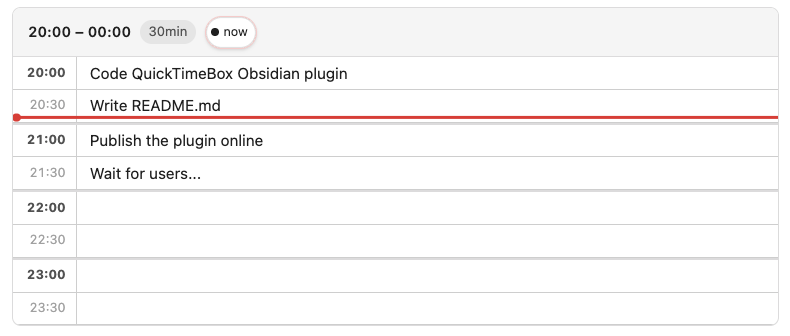
QuickTimeBox renders a structured time grid inside your Obsidian note. Each row is a time slot, you type your task directly into it. Changes are saved back to the note automatically.
Features
- Inline time grid — a clean table of time slots rendered right inside your note, from any start time to any end time
- Editable slots — click any slot and type; the note updates itself automatically after you finish
- Configurable granularity — slots of 15, 30, 60, or 120 minutes
- Live "now" indicator — a red line tracks the current time across the grid, updating every minute
- Now-line toggle — click the
● nowbutton in the header to show or hide the current time marker - Midnight-wrap support — ranges like
22:00–03:00work correctly across midnight - RTL support — set
"rtl": truein the block or write in a right-to-left note; the layout mirrors automatically
Installation (from source)
- Navigate to your vault's plugins folder:
<your-vault>/.obsidian/plugins/ - Clone the repository:
git clone https://github.com/loudinthecloud/obsidian-quick-timebox - Install dependencies and build:
cd obsidian-quick-timebox npm install npm run build - Reload Obsidian
- Go to Settings → Community plugins, find QuickTimeBox, and enable it.
Usage
Use the QuickTimeBox: Insert timeboxing command on any note.
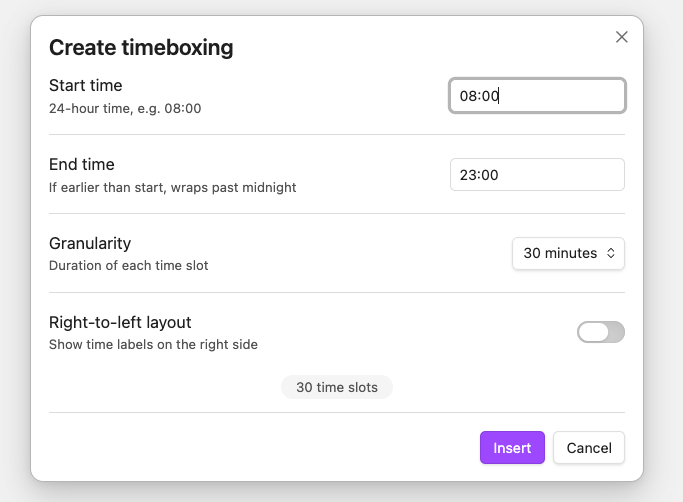
This will add a fenced code block with the language tag quicktimebox:
```quicktimebox
{
  "startTime": "20:00",
  "endTime": "00:00",
  "granularity": 30,
  "entries": {
    "20:00": "Code QuickTimeBox Obsidian plugin",
    "20:30": "Write README.md",
    "21:00": "Publish the plugin online",
    "21:30": "Wait for users..."
  },
  "rtl": false
}
```
| Field | Description |
|---|---|
startTime |
Start of the timeline (HH:MM) |
endTime |
End of the timeline (HH:MM) — can cross midnight |
granularity |
Minutes per slot: 15, 30, 60, or 120 |
entries |
Map of "HH:MM" → task text (pre-filled slots) |
rtl |
true to force right-to-left layout (optional) |
showNow |
false to hide the current-time indicator (optional, default true) |
Empty slots are blank and ready to type in. You don't need to list every time slot — only the ones you want pre-filled.
HealthExcellent
ReviewSatisfactory
About
Plan your day inside notes by dropping a quicktimebox code block to render an interactive time grid. Edit slots inline and save changes back to the note automatically. Show a live now indicator, choose slot granularity, and handle midnight-wrap and RTL layouts.Details
Current version
1.0.0
Last updated
5 months ago
Created
5 months ago
Updates
1 release
Downloads
149
Compatible with
Obsidian 0.15.0+
Platforms
Desktop, Mobile
License
0BSD
Sponsor