Quick Tray
 GOODJINC442 downloads
Keep Obsidian running in the Windows tray and provide quick note/search actions.
- Overview
- Scorecard
- Updates3
English | 한국어
Quick Tray keeps Obsidian available from the system tray and adds quick note/search actions.
Community plugin: https://community.obsidian.md/plugins/quick-tray
Screenshot
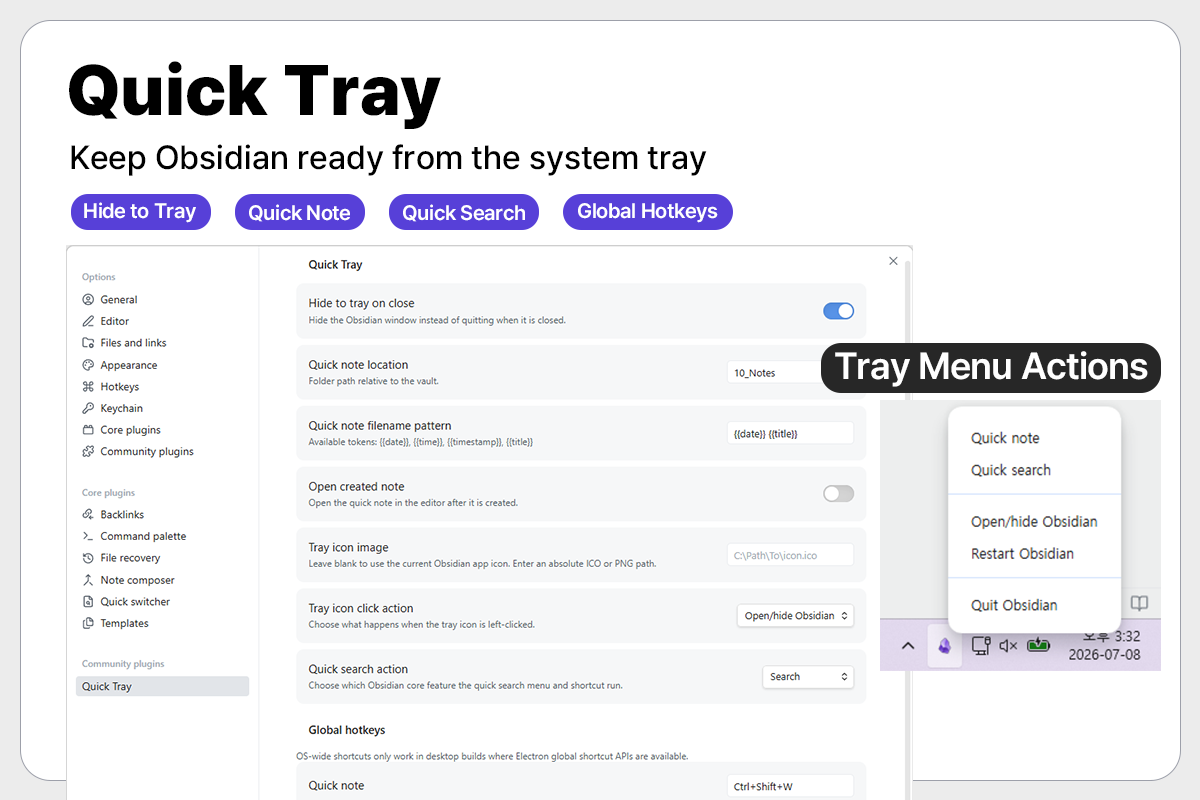
Features
- Hide Obsidian to the tray instead of quitting.
- Open, hide, restart, or quit Obsidian from the tray menu.
- Create a quick note from the tray or a global shortcut.
- Open Obsidian Search or Quick Switcher from the tray or a global shortcut.
- Choose what tray icon left-click does.
- Configure quick note folder, filename pattern, shortcuts, and tray icon.
- English by default, Korean when Obsidian language is Korean.
Default Shortcuts
- Quick note:
Ctrl+Shift+Q - Quick search:
Ctrl+Shift+K - Open/hide Obsidian:
Ctrl+Shift+O
Quick Note Filename Tokens
{{date}}:YYYY-MM-DD{{time}}:HH-mm{{timestamp}}:YYYYMMDDHHmmss{{title}}: note title
Installation
Install Quick Tray from Obsidian's community plugin browser:
- Open
Settings. - Go to
Community plugins. - Search for
Quick Tray. - Install and enable the plugin.
You can also open the plugin listing directly:
https://community.obsidian.md/plugins/quick-tray
Manual Install
- Run
npm install. - Run
npm run build. - Copy
main.js,manifest.json, andstyles.cssto:
VaultFolder/.obsidian/plugins/quick-tray/
- Enable
Quick Trayin Obsidian community plugins.
Known limitations
- Quick Tray is designed for Windows desktop environments.
- Global shortcuts may fail to register when a shortcut is already in use or restricted by Electron or Windows.
- Quick Tray works only while Obsidian is running. It cannot start or control Obsidian after the application has been fully quit.
Notes
By default, Quick Tray uses the current Obsidian app icon for the tray icon. The Obsidian logo remains the property of the Obsidian project.
HealthExcellent
ReviewPassed
About
Keep Obsidian available in the system tray and control it from the tray menu or global shortcuts. Create quick notes or open Search and Quick Switcher from the tray or via shortcuts, and hide, restart, open, or quit Obsidian with a click. Choose what the tray left-click does.Details
Current version
1.0.2
Last updated
2 months ago
Created
2 months ago
Updates
3 releases
Downloads
442
Compatible with
Obsidian 1.8.7+
Platforms
Desktop only
License
MIT