Properties Peek
 Anthirayas4 downloads
Hide note properties with a single click or hotkey, or take a quick temporary peek before they hide again.
- Overview
- Scorecard
- Updates2
Properties Peek lets you hide the Properties (YAML frontmatter) block across your notes with a single click or key press—so your notes read cleanly as if they have no properties at all—or take a quick temporary "peek" before they hide again automatically.
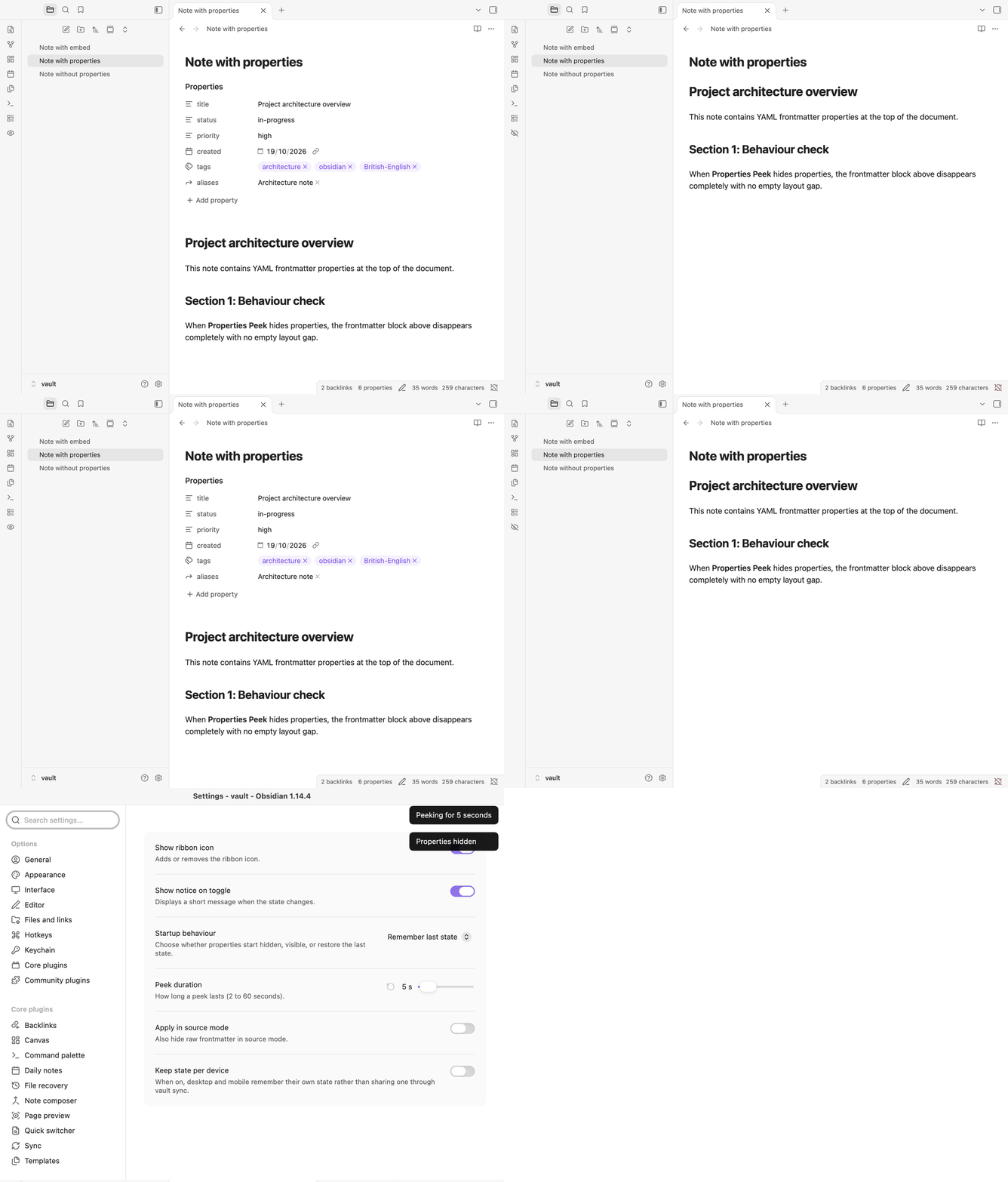
Why Properties Peek?
Obsidian's built-in setting (Settings → Editor → Properties in document → Hidden) can hide properties, but it comes with everyday friction:
- There is no ribbon icon to switch it on or off on the fly.
- There is no one-key toggle you can bind to a shortcut.
- There is no quick way to glance at your properties for a few seconds and have them hide again by themselves.
- Changing it means digging through the settings menu every single time.
Properties Peek removes that friction on both desktop and mobile:
- One-tap ribbon toggle — Click the eye icon in the left ribbon (or mobile ribbon menu) to hide or show properties across every open note and pop-out window at once.
- Temporary peek — Press your peek shortcut to reveal hidden properties for a few seconds (default
5 seconds, customisable from2to60seconds), then let them vanish again automatically without changing your saved state. - Purely visual & 100% safe — Your note files are never modified, and Obsidian's built-in Properties in document setting is never touched. Frontmatter remains completely available to Dataview, Bases, search, graph view, and every other plugin.
- Zero layout gap — When hidden, the properties area closes up cleanly in Reading view, Live Preview, embedded notes, hover previews, and optionally Source mode.
Walkthrough
1. Hide or show properties with one click
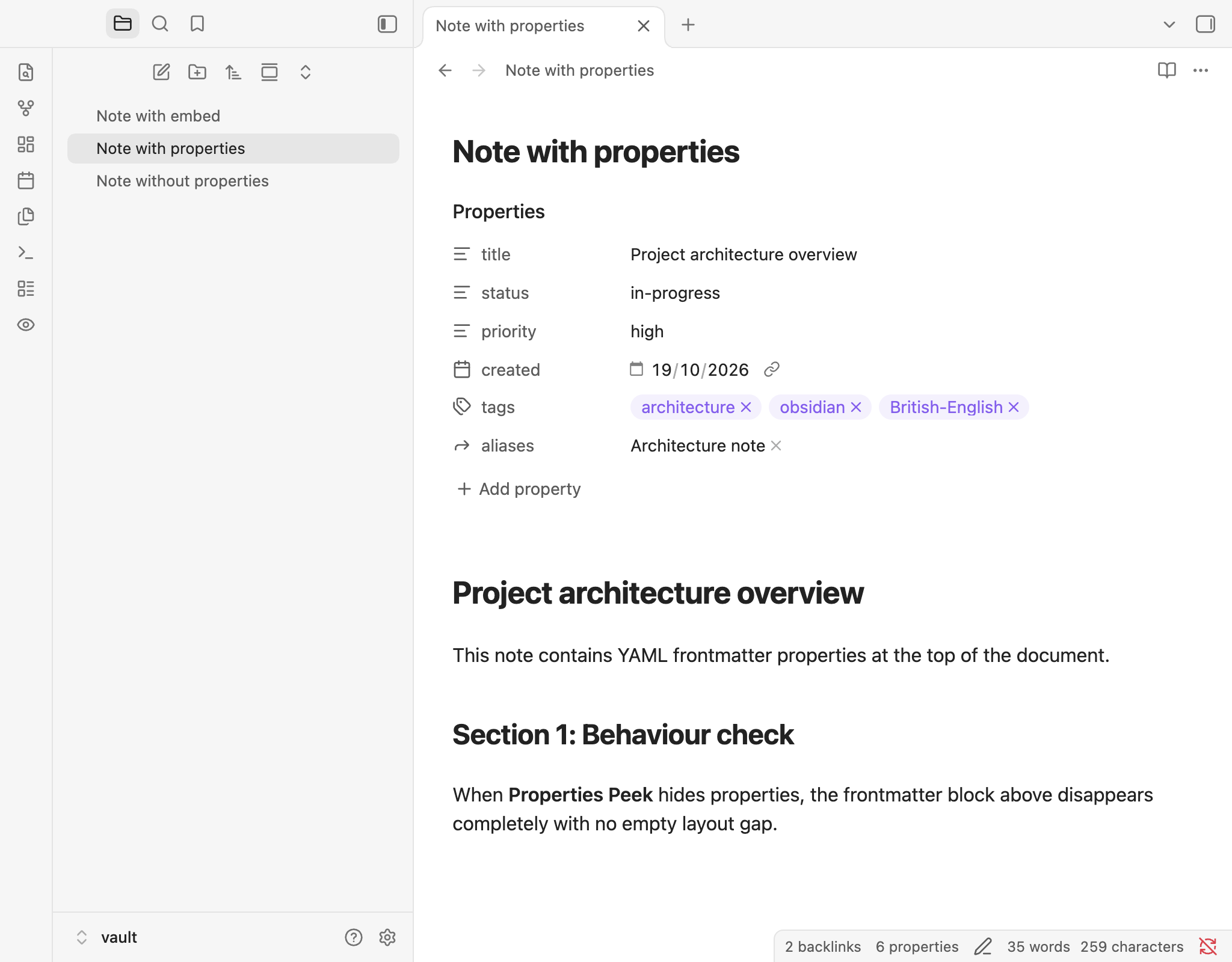
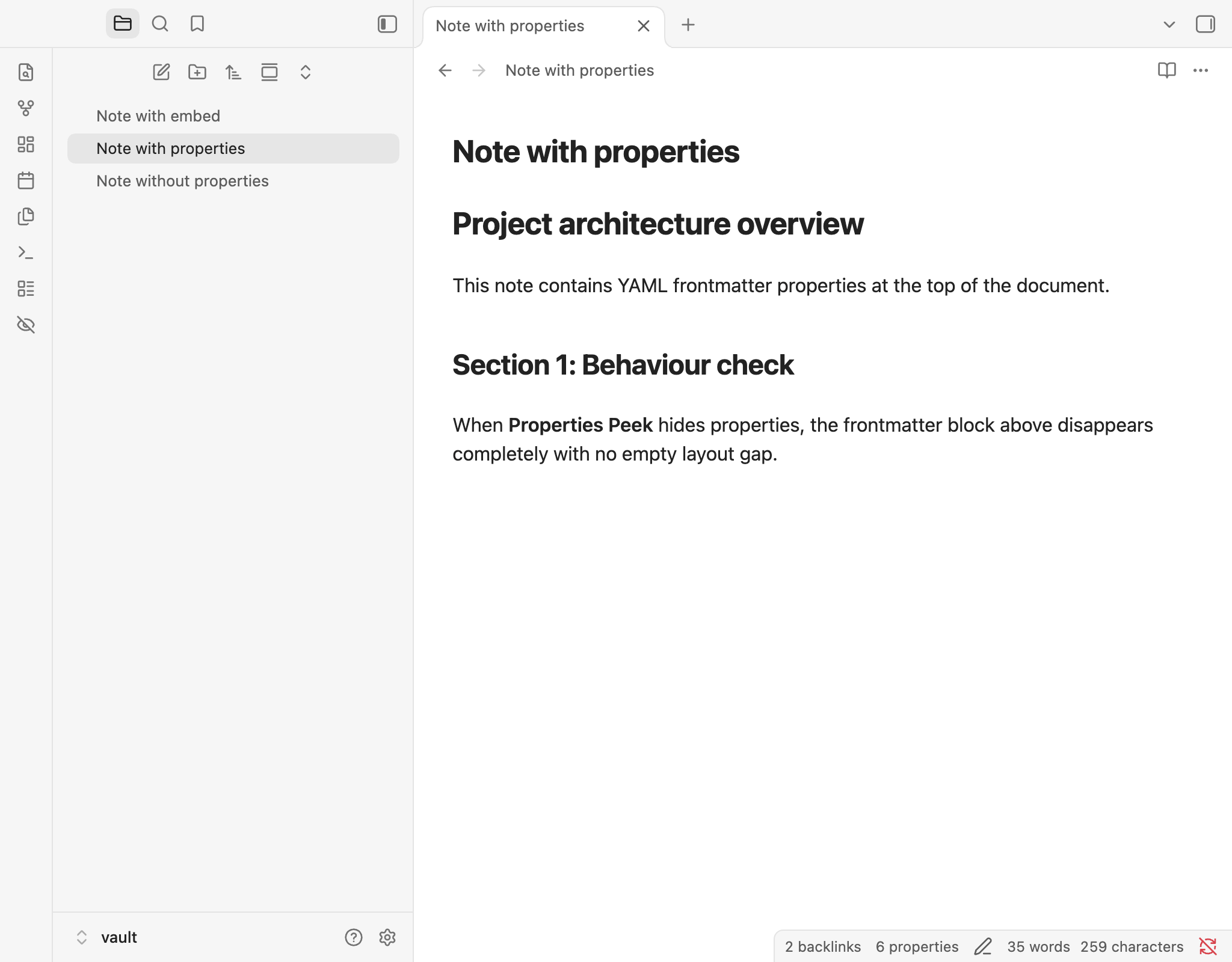
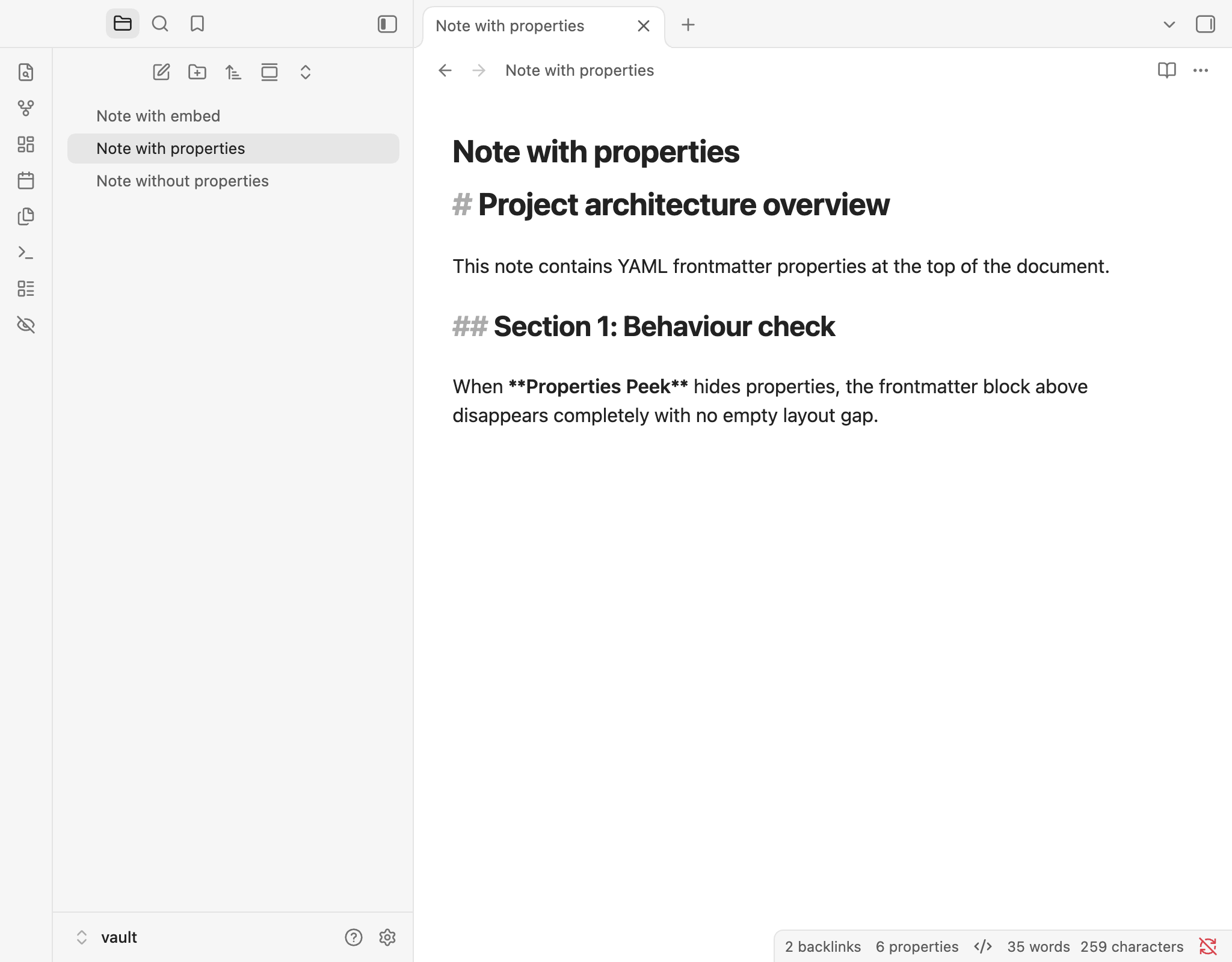
Click the ribbon icon (eye when visible, eye-off when hidden) or press your assigned hotkey for Toggle properties visibility. Every open note updates immediately, and the space where the properties block sat closes up without leaving an empty gap.
Properties Visible (eye icon) |
Properties Hidden (eye-off icon) |
|---|---|
 |
 |
2. Take a quick "peek" without losing your hidden state
When properties are hidden and you just need to check a tag, date, or status field:
- Run Peek at properties from the Command Palette or your hotkey.
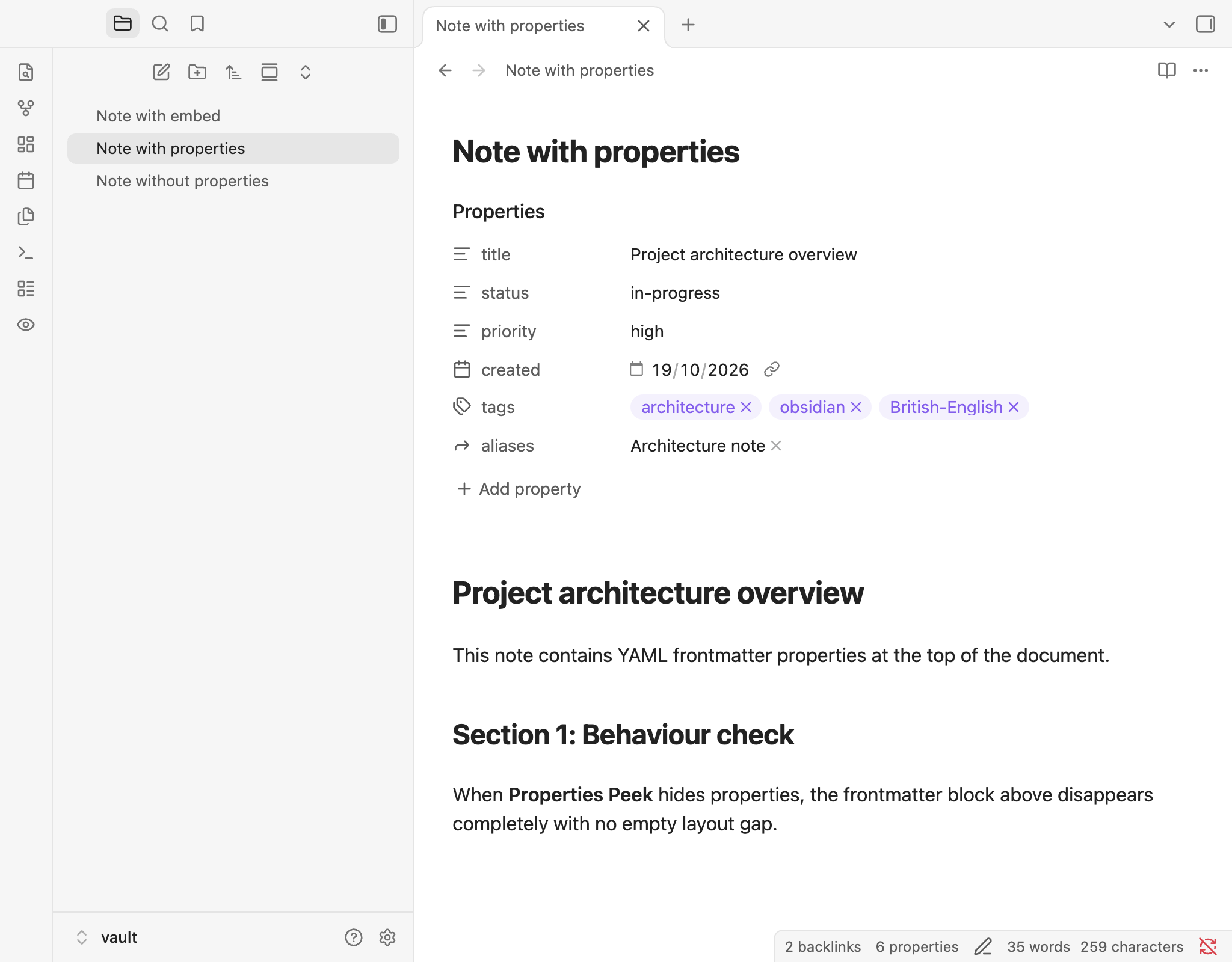
- Properties appear immediately with a brief notice ("Peeking for 5 seconds"), then hide again automatically when the timer finishes.
- Need more time? Trigger Peek at properties again mid-peek to restart the countdown, or trigger Toggle properties visibility mid-peek to cancel the timer and keep properties visible.
| Peeking Temporarily | Optional Source Mode Hiding |
|---|---|
 |
 |
3. Tailor startup, source mode, and per-device sync
Open Settings → Properties Peek to customise how the plugin behaves:
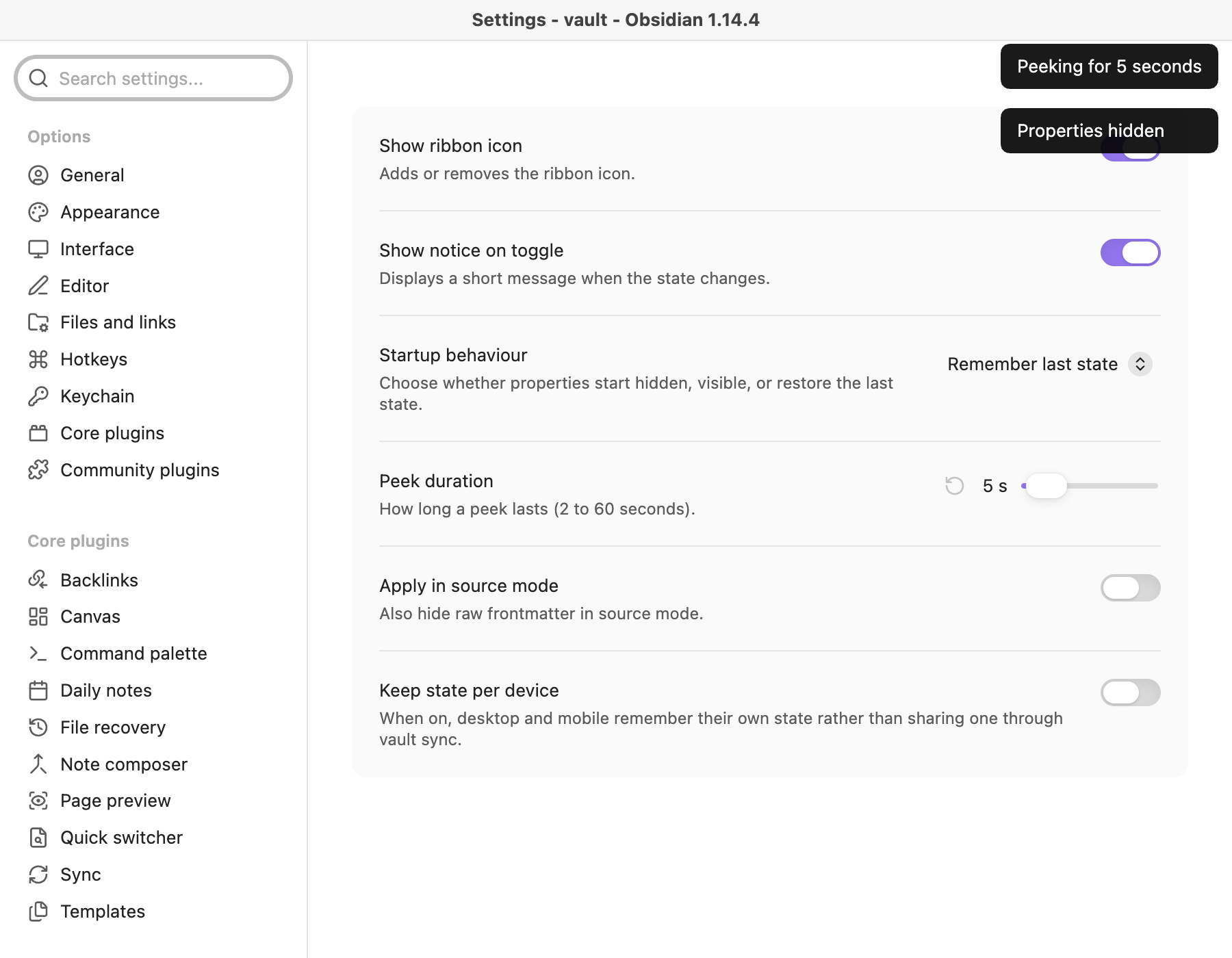
| Setting | Default | What it does |
|---|---|---|
| Show ribbon icon | On |
Adds or removes the toggle icon in the left ribbon. |
| Show notice on toggle | On |
Shows a brief on-screen notice ("Properties hidden", "Properties shown", "Peeking for 5 seconds") when the state changes. |
| Startup behaviour | Remember last state |
Choose between Remember last state, Always hidden, or Always visible when Obsidian starts. |
| Peek duration | 5 seconds |
How long a temporary peek lasts (2 to 60 seconds). |
| Apply in source mode | Off |
When switched on, also hides raw YAML frontmatter lines (---) while editing in Source mode. |
| Keep state per device | Off |
When switched on, desktop and mobile each remember their own visibility state locally rather than sharing one through vault sync. |
Commands & Hotkeys
No default hotkeys are pre-assigned so the plugin never conflicts with your existing setup. Open Settings → Hotkeys and filter by Properties Peek to bind any shortcut you like (or add commands to the mobile toolbar):
| Command | Description |
|---|---|
| Properties Peek: Toggle properties visibility | Switches between hidden and visible. If run during an active peek, ends the peek and leaves properties visible. |
| Properties Peek: Peek at properties | Temporarily reveals hidden properties for the configured duration, then hides them again automatically. |
| Properties Peek: Hide properties | Explicitly hides properties across all open notes (and cancels any active peek). |
| Properties Peek: Show properties | Explicitly shows properties across all open notes (and cancels any active peek). |
Compatibility Notes
- Properties side-panel: The standalone Properties side-panel remains visible and interactive even while in-note properties are hidden.
- Dataview & Bases: Inline tables or lists rendered by Dataview or Bases are not YAML frontmatter blocks and remain untouched.
- Themes & CSS snippets: Works out of the box with Obsidian's default theme and popular community themes. Heavily customised themes or snippets that override
.metadata-containerwith custom display rules may warrant testing. - Clean unload: Disabling the plugin in Settings → Community plugins immediately removes all CSS markers, cancels any active peek timer, and restores your original appearance.
Installation
From GitHub Releases
- Download
main.js,manifest.json, andstyles.cssfrom the latest release. - In your Obsidian vault, create the folder
.obsidian/plugins/properties-peek/. - Copy
main.js,manifest.json, andstyles.cssinto that folder. - Reload Obsidian and enable Properties Peek under Settings → Community plugins.
Build from Source
git clone https://github.com/jrayas/properties-peek.git
cd properties-peek
npm install
npm run build
Privacy & Offline Guarantee
Properties Peek runs 100% locally inside your vault. It never modifies your Markdown files, makes zero network requests, requires no account or telemetry, and stores all settings inside your vault's standard plugin configuration.
Licence
Released under the Zero-Clause BSD (0BSD) Licence © Anthirayas.