PDF Quote Join
 theluckystrike1 downloads
Join two saved PDF quote callouts in a note and keep both source links.
- Overview
- Scorecard
- Updates1
PDF Quote Join joins two saved PDF quote callouts in an Obsidian note. It keeps their bodies in note order and keeps the distinct source wiki links in the joined callout. Open a preview, check the text, and select Apply. The selection and preview commands are free.
This tool edits saved Markdown. It does not make a continuous selection across PDF pages. Use the retained page links to return to the sources. The PDF files must be in your vault.
Features
Preview two adjacent callouts
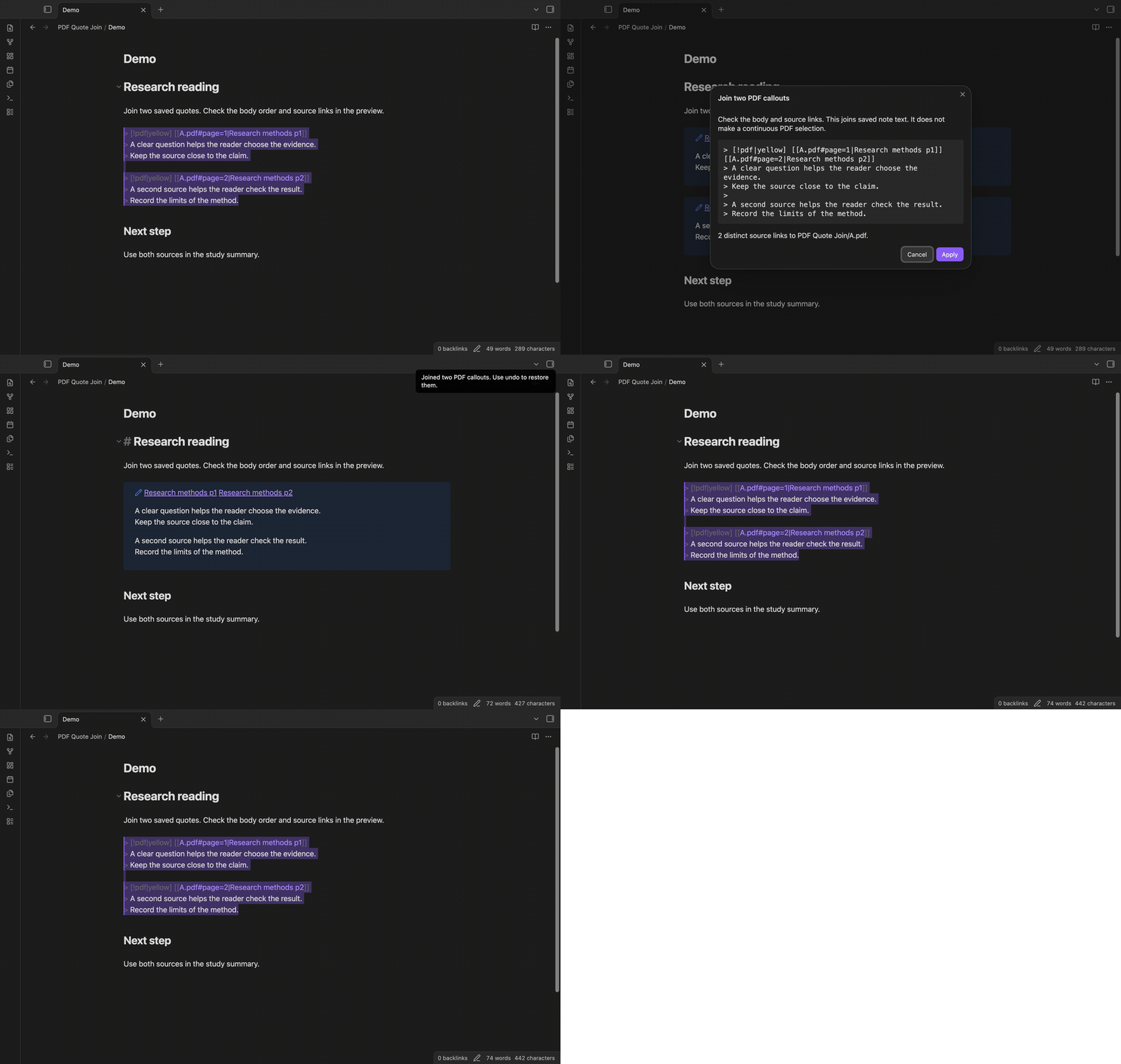
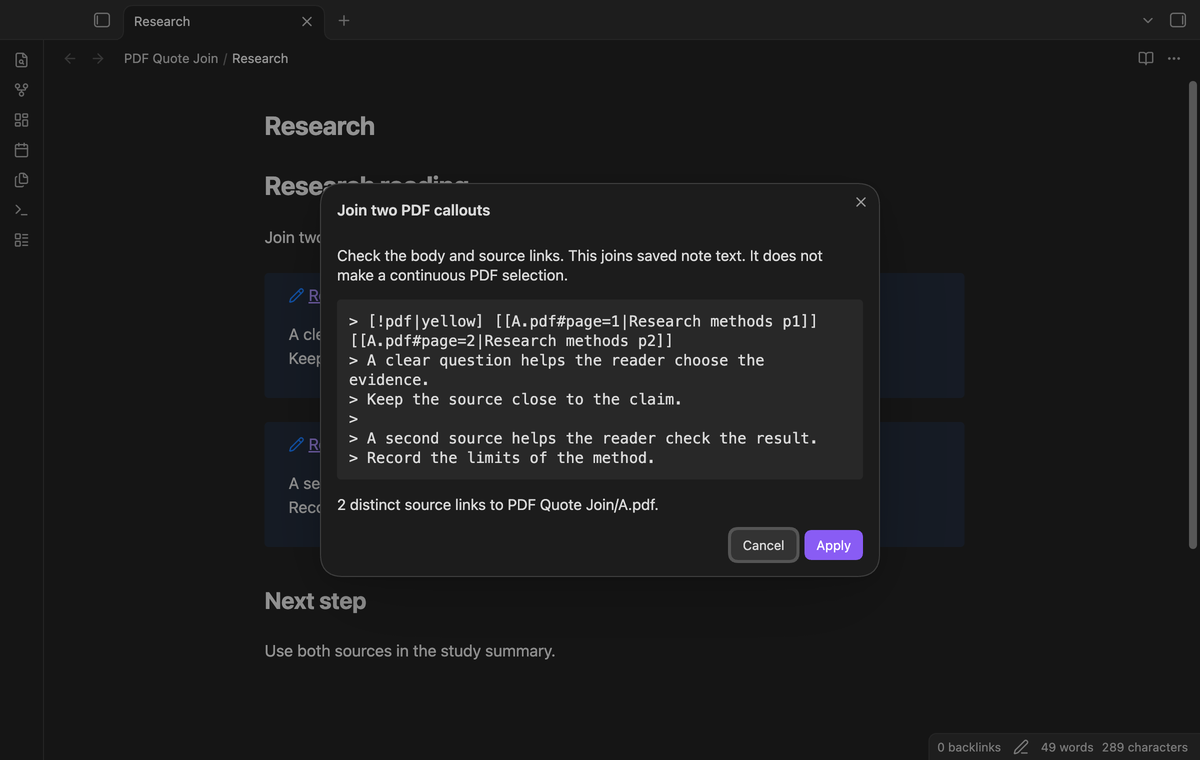
Select two complete callouts in the note editor. Run “PDF Quote Join: Join two selected PDF callouts” from the command palette. The preview shows the joined Markdown, with the first body before the second body. A quoted blank line separates them. The preview also shows the number of distinct source links and the resolved PDF path.
The supported header has a simple callout type and PDF wiki page links. Use quoted lines for the body. Blank lines can separate the two callouts. Text between them causes a rejection. Start the selection at the first header and end after the second body.
Keep distinct source links
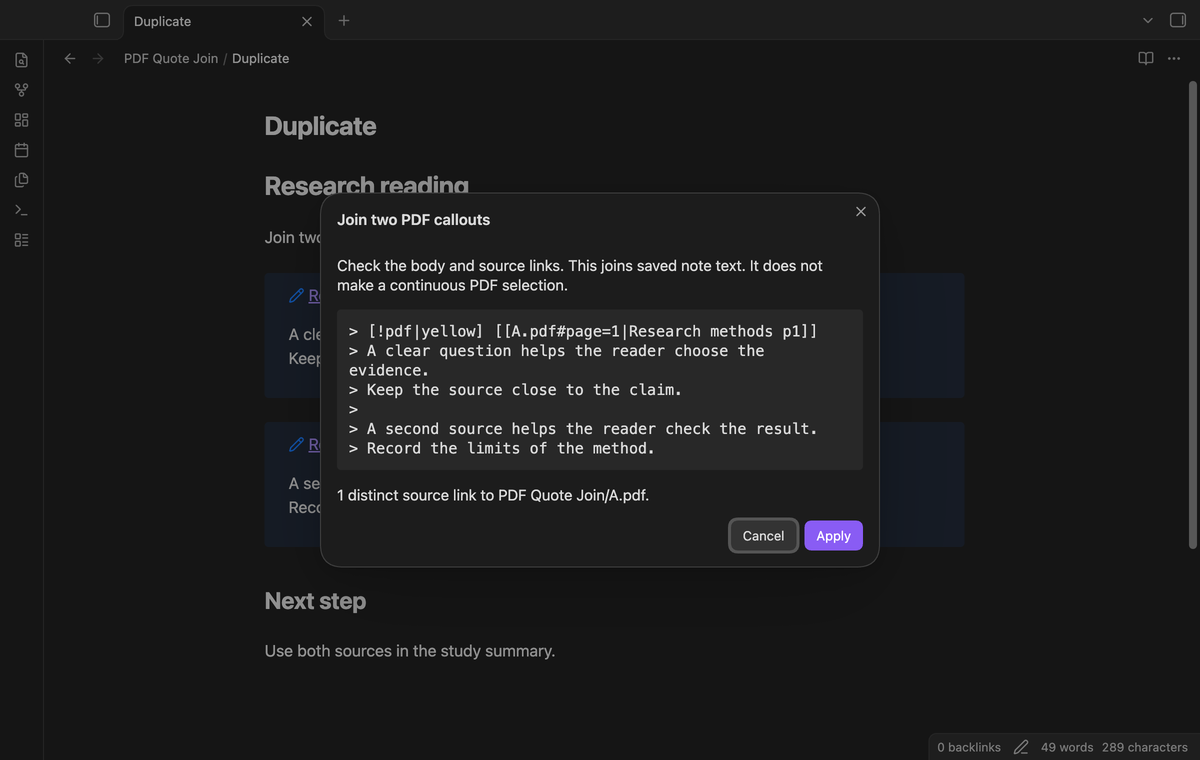
An exact duplicate header link is kept once. Links with different aliases stay distinct because their source text differs. A page fragment, such as a saved selection after the page number, stays in the link. The tool keeps the selected note order. If page 2 comes before page 1, the joined body follows that order.
Source links belong in the callout headers for this format. Links inside the body remain body text. They are not used to select the source PDF.
Reject incompatible sources
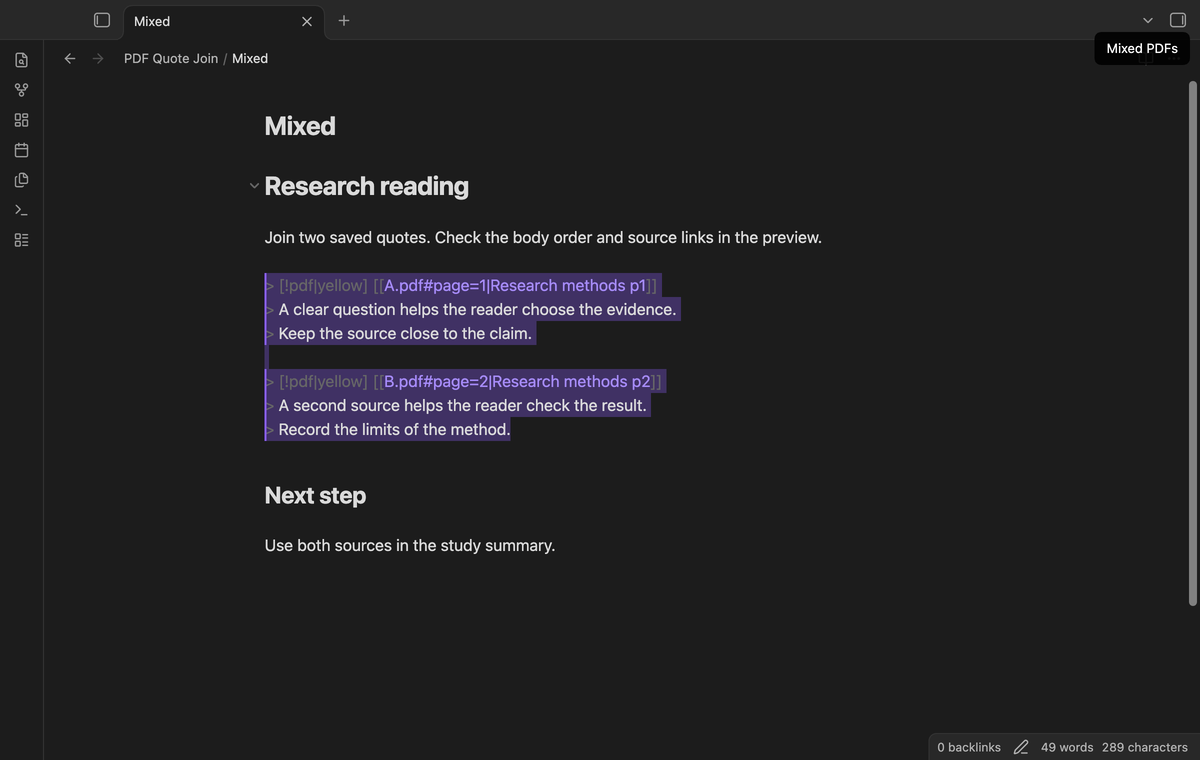
The header links must resolve to one local PDF through the metadata cache. Two different PDFs produce “Mixed PDFs”. Different callout types or colors produce “Incompatible callouts”. A third callout, nested quote, or fence marker causes the selection to be rejected. These checks help you find a supported pair before you edit the note.
Apply with normal undo
Apply replaces the captured range through one editor transaction. One Undo restores the original pair, including its source link text. Cancel closes the preview without an edit. If the note text changes while the preview is open, Apply rejects the stale preview. Close it and select the current text again.
The PDF links are resolved again on Apply. A deleted PDF therefore prevents the edit. Moving the cursor does not change the captured range. A different file or editor also invalidates the preview.
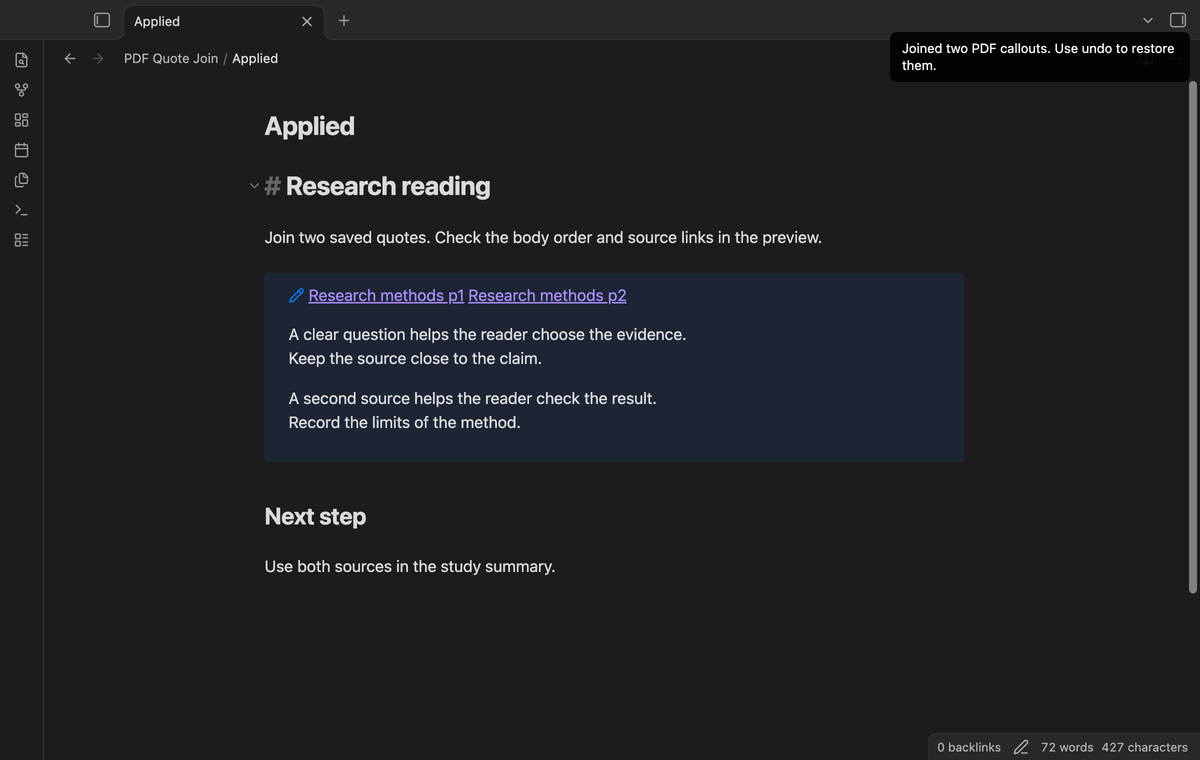
Find eligible pairs (Pro)
Run “Find adjacent PDF pairs (pro)” in the active note. The list shows eligible pairs with their starting lines and joined text. Select Preview pair to inspect one result. The scan does not edit the note or join a batch. A changed document makes the list stale. Run the command again to get current ranges.
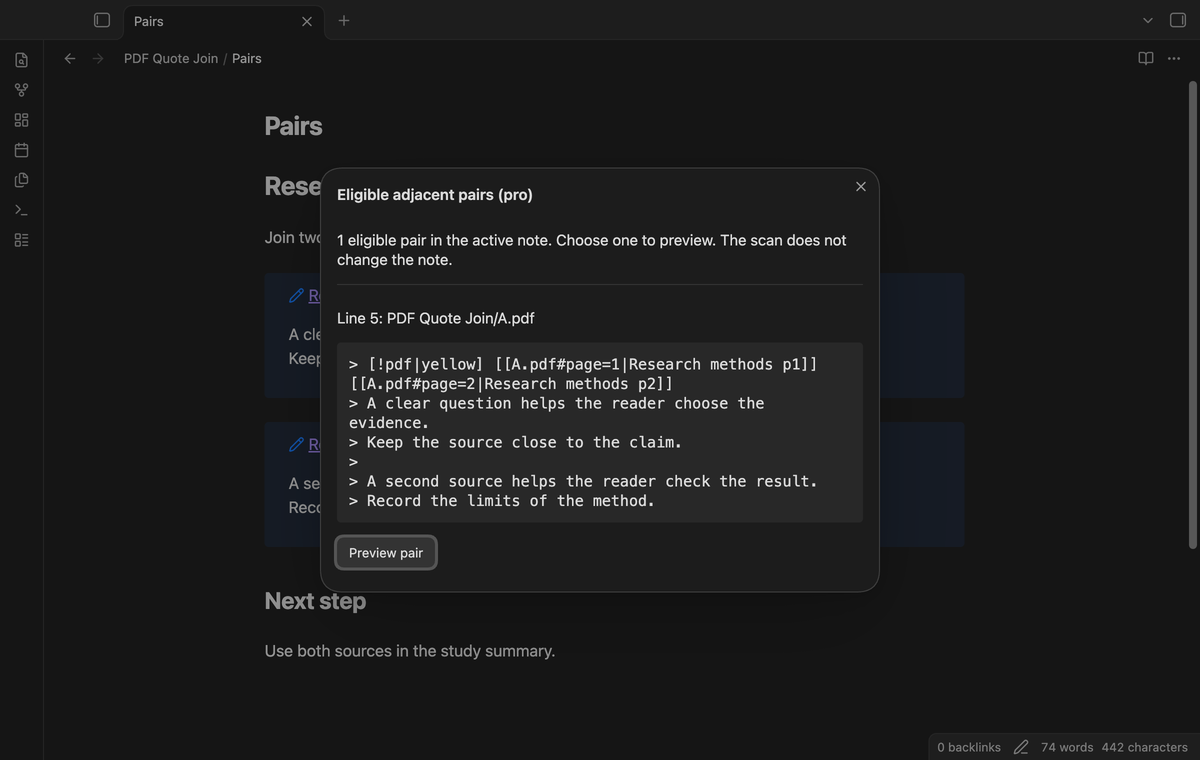
Save named formats (Pro)
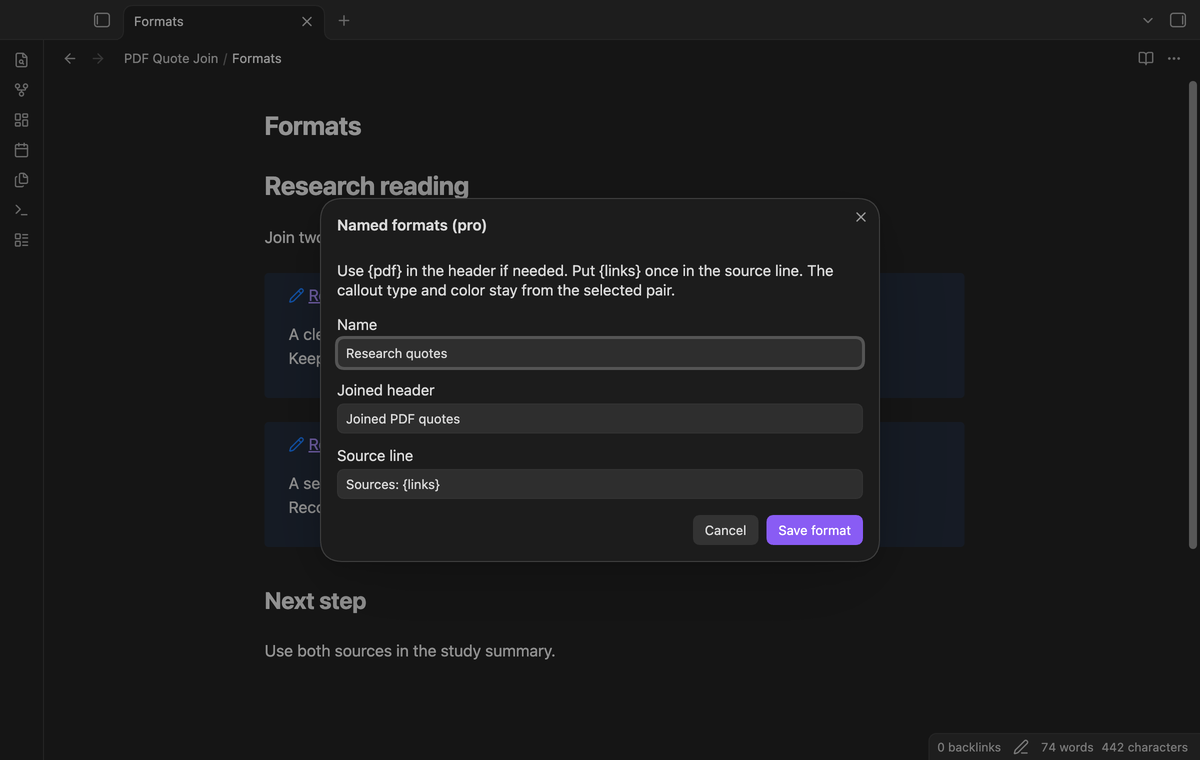
Run “Save a named format (pro)” or select Manage formats in the settings. Enter a name, a joined header and a source line. Use {pdf} in the header to insert the resolved PDF path. The source line must contain {links} once. Choose a saved format from the preview menu. The original callout type and color stay in the marker.
Install
For a manual install, copy main.js, manifest.json and styles.css from a release into <vault>/.obsidian/plugins/pdf-quote-join/. Enable PDF Quote Join in Community plugins. This build requires Obsidian 1.13.4 or later. If your vault does not have the plugins folder, create it first.
Usage
Use this simple input format. The example has two quotes from one PDF. Both header links need to resolve to a file in your vault.
> [!pdf] [[A.pdf#page=1|p1]]
> First.

> [!pdf] [[A.pdf#page=2|p2]]
> Second.
Open the note in an editing mode. Select the two headers and their bodies as one range. Do not include a heading or paragraph before them. Then run the join command and inspect the result. Apply writes the preview to the captured range. A selection can include the final newline. Multiple editor selections are rejected.
Settings
The settings tab describes the input format and has the GitHub Sponsors controls. The free join uses its default header layout. It has no account requirement.
Named formats are saved in the plugin data in this vault. The limit is 20 names. Saving an existing name replaces that format. Use Edit to load a saved entry into the fields, or Remove to delete it. The fields must be single lines. A format can place a label before the source links, for example Sources: {links}. If Pro turns off, saved entries stay stored, and the free preview uses the default layout.
FAQ
Does it support PDF++ output?
It supports the documented simple callout input above. A color marker such as [!pdf|yellow] is accepted when both colors match. Extra header title text, collapse markers, Markdown source links and wider PDF++ formats are not supported in this version. Page numbers must start at 1.
Does it change the PDF?
The tool changes note text through the editor. It does not write PDF files. It does not join highlights in the viewer. The source links remain separate page references, even when the note body is joined.
What was not tested?
Linux and Windows app runs, phone and tablet devices, third-party themes, concurrent sync edits, live GitHub payment and sign-in, and PDF++ format variants were not tested. The app tests use local fixtures and a simulated sponsorship response for Pro. They do not use a paid account.
Payment, account and network
The core features are free. Pro features need a GitHub Sponsors sponsorship of theluckystrike: $5 a month or more, or $15 once. A total payment of $15 meets the payment requirement for Pro without further payment. Sign-in and the checks below still apply. Your notes stay readable and editable with or without Pro.
GitHub handles the payment. Sponsor at https://github.com/sponsors/theluckystrike. You need no account for the free features. Pro needs the GitHub account that sponsors.
Until you select "Sign in with GitHub" in the settings, PDF Quote Join makes no network requests. Sign in uses the GitHub device flow. PDF Quote Join sends its public client ID and the scope read:user to https://github.com/login/device/code and shows you a code. While you enter the code at https://github.com/login/device, it asks https://github.com/login/oauth/access_token every few seconds to check the sign-in status. The scope permits profile reads only. GitHub needs this access to show the sponsorship tier. It grants no repository scope and no write access.
After sign in, PDF Quote Join sends one query to https://api.github.com/graphql. It checks if the signed-in account sponsors theluckystrike. It asks for the tier and the total payment to theluckystrike. The plugin reuses a successful check for 7 days. Failed checks can retry after 6 hours. Select Refresh to request an earlier check. It sends no note content, file names or other vault data, and it has no telemetry.
After a successful check, Pro can work offline for up to 14 days. Sign out or a negative sponsorship answer turns Pro off. The plugin stores the GitHub token through the secret storage API of Obsidian. It does not put the token in its saved settings or its local sponsorship data. The local storage of this device keeps your GitHub login, the tier and the time of the last check. Sign out clears the token. You can also revoke the access in your GitHub settings, under Applications.
Support
Report a fault in the repository issues after publication. Include the Obsidian version, the command used, and a short sample with private text removed. State whether the preview opened and whether a notice appeared. A small sample with two headers is useful for format faults. Do not include a GitHub token or a private PDF in a report.