
- Overview
- Scorecard
- Updates16
An Obsidian plugin that turns recipe notes into a consolidated, category-grouped grocery list you can check off while shopping — and renders those recipe notes as interactive cards while you cook.
Screenshots
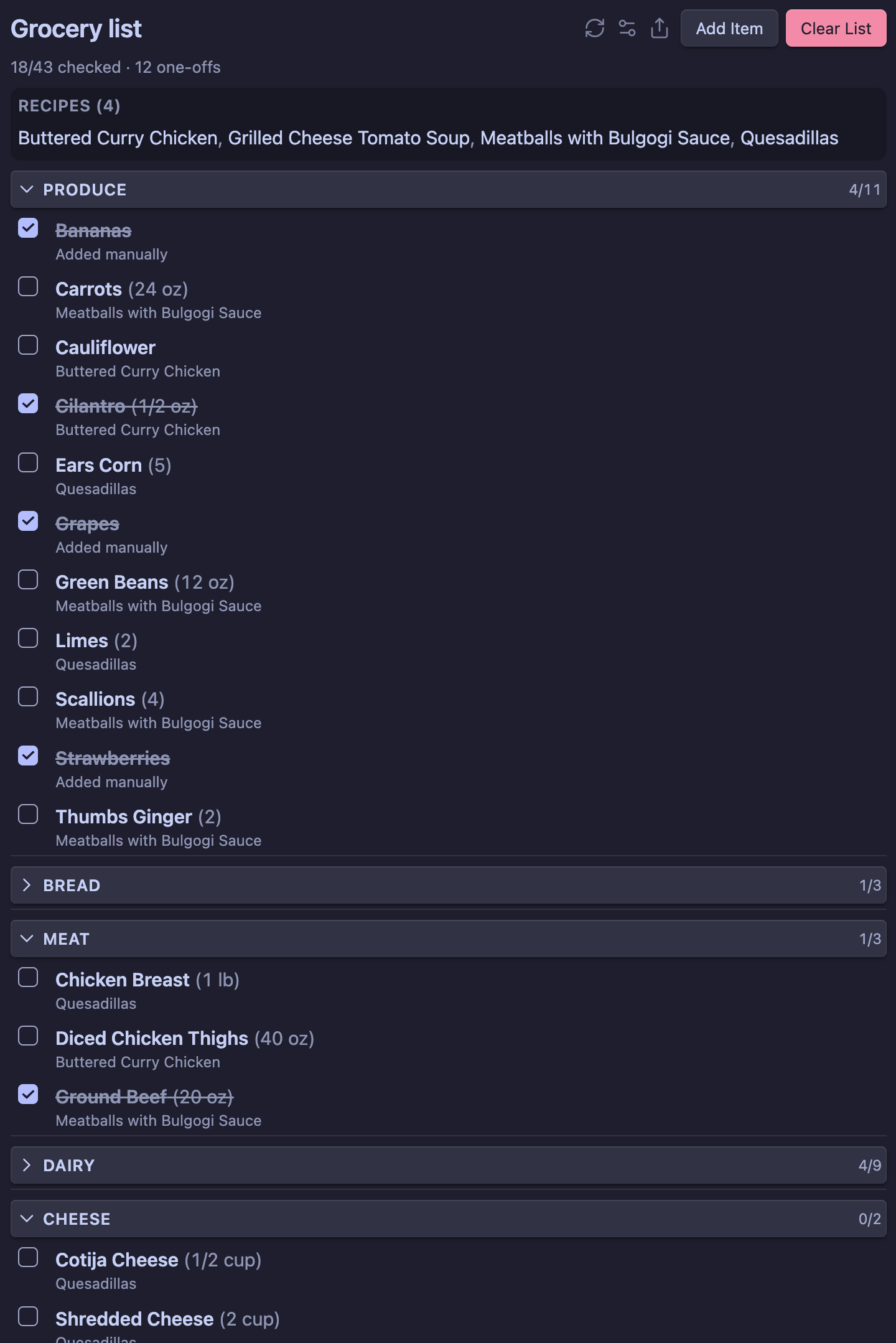
Grouped grocery list with recipe links, checkboxes, and category sections:
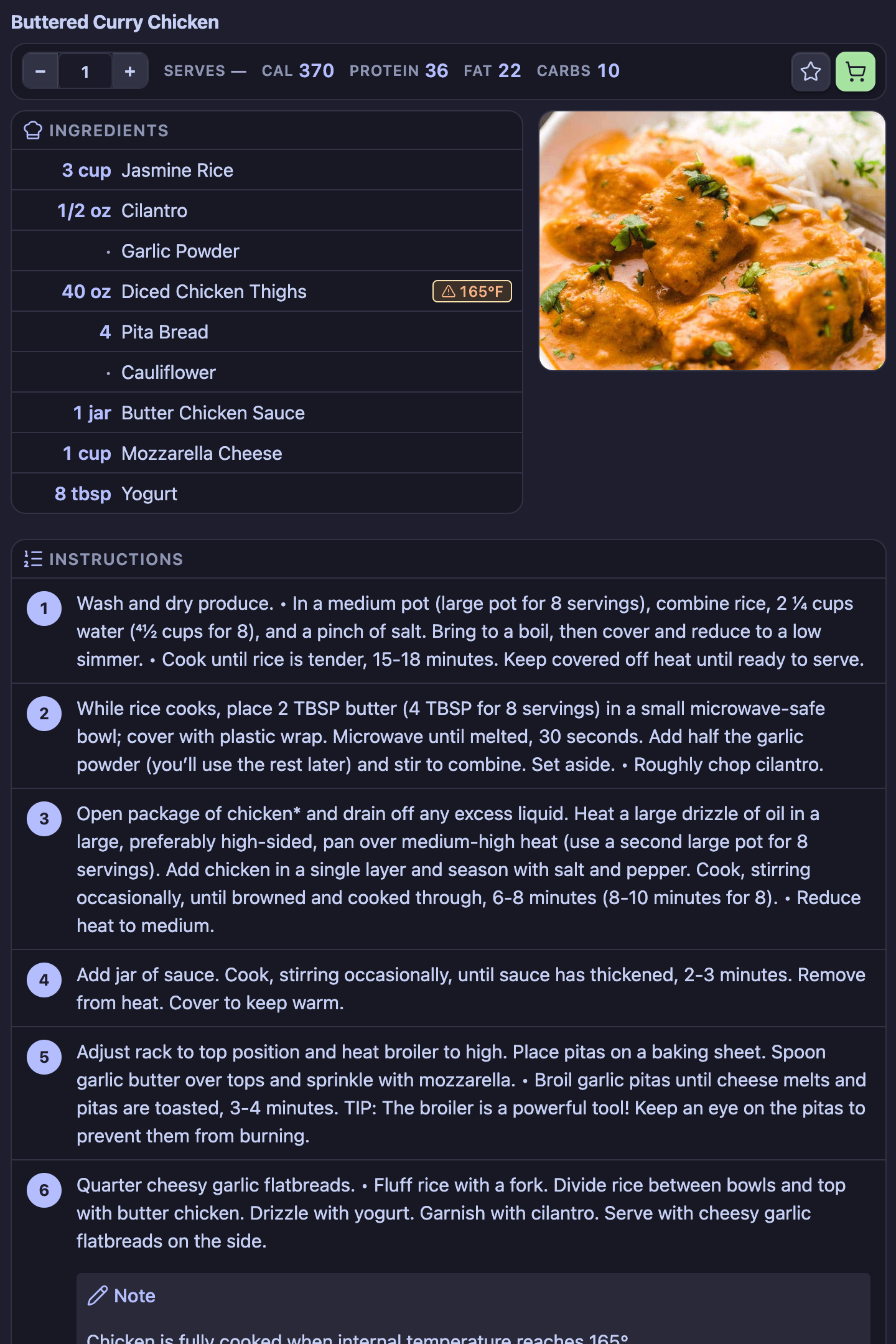
Recipe view with hero image, scaled ingredients, instructions, and portion multiplier:
Features
- Recipes-as-source-of-truth. Mark any recipe note with a single boolean frontmatter property to add it to this week's list.
- Automatic consolidation. Ingredients shared across recipes are merged.
1 cup milk+2 cups milkbecomes3 cup milk. - Smart grouping. Items are grouped by category (Produce, Dairy & Eggs, Pantry, ...) so the list matches the layout of your store. Switch to by-recipe or a flat list at any time.
- One-off items. Add anything that isn't tied to a recipe (paper towels, snacks). One-offs live alongside recipe items and clear with the rest of the list. They are stored in a vault JSON file (
Pantry/shopping-state.jsonby default) so they sync across devices with your notes — unlike plugin settings, which are device-local. - Inventory. Track what you already have (spices, staples, leftovers) in a dedicated inventory view. Toggle In when you have an item; matching grocery lines are omitted automatically (name-only match). Uncheck when you run out so the next recipe pulls it back onto the list. Complements
#IgnoreIngredientfor permanent per-recipe skips. - Persistent checkboxes. Tick items off as you shop. Your progress survives restarts and syncs across devices until you officially clear the list.
- Collapsible sections. Click any section header to collapse or expand it. Sections you finish shopping auto-collapse so the next aisle stays in view (toggleable in settings).
- Custom recipe view. Notes flagged with a configurable type property (
type: recipeby default, and wikilink values like[[Recipes]]are recognised) open in a dedicated view with a hero image, nutrition card, an instructions panel, meat-temperature warnings, and a portion multiplier that scales both the displayed quantities and the grocery list. - Diet & cooking-time badges. Add
diet,prepTime, andcookTimeto the frontmatter and the recipe view shows them as quick-glance badges below the title. - No duplicate hero image. When a recipe both embeds its photo inline and references it via
imagefrontmatter, an optional setting hides the matching inline copy so the image appears only once. - Allergen warnings. Set your personal allergens in settings; recipes whose
allergensfrontmatter overlaps yours show a red banner in the recipe view and a warning icon next to the recipe in the grocery list. - Favorites. Star a recipe with one click and the
favorite: truefrontmatter is set automatically. Used by the meal recommender. - Kids approved. Thumbs-up / thumbs-down buttons in the recipe view write
kidsApproved: trueorkidsApproved: falseto frontmatter (click again to clear). Handy for filtering kid-friendly meals in Bases or your own workflows. - Last-made tracking & cook counts. Optionally stamp today's date into
lastMadeand incrementcookedCountwhenever you add a recipe to the grocery list — powering the cooking-stats leaderboard. - Weekly meal planner. Plan the meals you actually cook — enable only dinner, or breakfast through snacks — in a grid view backed by a plain-Markdown note of recipe links. Push the whole plan to the grocery list with one Add to grocery list button (or enable continuous auto-sync), import any existing meal-plan note full of links you already maintain, and auto-fill empty slots from recipe
statusandmealfrontmatter. - Import from URL. Paste a recipe page address and Pantry extracts structured data (schema.org JSON-LD) into a normalized recipe note with the full Pantry frontmatter shape, then opens it in the recipe view.
- Import from text. Paste recipe text copied from a website, email, or PDF and Pantry parses it into the same normalized note — ideal for pages with many recipes, paywalled sites, or anything without structured data.
- Meal recommender. "Suggest a meal" surfaces recipes you haven't cooked recently, with optional filters for favorites and allergens.
- Cooking stats leaderboard. "Show cooking stats" ranks every recipe by how often you've cooked it.
- Export & share. Export the grocery list from a modal and copy it yourself, or append it to any note as plain text, a Markdown checklist, or grouped by category.
- Diabetic mode. Optional toggle that surfaces high-glycemic-index ingredients with an inline
↑ GIbadge in the recipe view. Ships with a curated regex dictionary you can edit freely. - One command to start fresh. "Clear grocery list" deselects every flagged recipe, removes all one-offs, and resets all checks.
Quick start
- Build and load the plugin (see Development).
- Open Settings → Community plugins → Pantry and configure:
- Recipe folders — vault folders to scan (leave blank to scan everything).
- Selection property — the frontmatter field that marks a recipe for the week (default:
groceryList). - Ingredients heading — the heading that introduces each recipe's ingredient list (default:
Ingredients). - Shopping state file — vault JSON used for one-offs and checkmarks (default:
Pantry/shopping-state.json); keep this in the vault so it syncs across devices.
- Tag a recipe note for the week:
--- groceryList: true --- # Pasta with Tomato Sauce ## Ingredients - 1 lb spaghetti - 2 cups crushed tomatoes - 3 cloves garlic - 2 tbsp olive oil - salt to taste - Open the grocery list with the ribbon icon (shopping cart) or the Open grocery list command.
Recipe format
The plugin looks for the configured Ingredients heading (any level) inside each selected recipe and parses every list item beneath it as an ingredient. If no matching heading is found, every list item in the file is parsed.
Each ingredient line is interpreted as [quantity] [unit] [name]. Supported quantities include whole numbers, decimals, simple fractions (1/2), mixed fractions (1 1/2), and unicode fractions (½). Common units (cup, tbsp, tsp, oz, lb, g, kg, can, clove, bunch, ...) are recognised and normalised so plurals consolidate. Trailing parentheticals like (diced) or (softened) are stripped from the name before grocery-list consolidation, but the recipe view keeps them and shows them in italic after the ingredient name.
Lines without a recognisable quantity (salt to taste) still appear on the list - they just won't aggregate quantities.
Skipping ingredients
Two complementary options:
#IgnoreIngredienton a recipe line — permanent skip for that recipe (oil, salt, water, garnishes).- Inventory in-stock list — add staples once under Open inventory, leave In checked, and matching grocery lines are omitted while Exclude in-stock from grocery list is on (default). Uncheck In when you run out.
- 2 tbsp olive oil #IgnoreIngredient
- salt to taste #IgnoreIngredient
- 1 lb spaghetti
The tag is matched case-insensitively; #ignoreingredient, #ignore-ingredient, and #ignore_ingredient all work too. Ignored lines are dropped before consolidation, so they won't show up under any category.
Recipe view
Pantry ships a custom view for recipe notes. To opt a note in, add type: recipe to its frontmatter. Both the property name and the value it's matched against are configurable in Settings → Recipe view (set Recipe type property to category, kind, etc. if you don't use type). Matching is case-insensitive, and wikilink values such as type: [[Recipes]] are matched against the linked note's name — so the property picker's linked values work too. When auto-open is on (the default), freshly opening such a note switches the leaf into the recipe view automatically. Switching to another tab and back keeps whatever view that tab was already in (Markdown stays Markdown). Closing the note and opening it again runs auto-open once more. If frontmatter is not ready the instant the file opens, Pantry retries once Obsidian finishes parsing YAML. After that, Pantry briefly re-asserts the recipe view so Obsidian's own Markdown leaf update cannot overwrite it on warm opens. You can always switch with the Edit as Markdown button in the view's action bar, the Recipe mode entry in the pane's three-dot menu, or the Open as Markdown / Open as recipe commands.
The view shows a meta banner with the multiplier, servings, and nutrition; a hero image card; a tabular ingredients list with safe-cooking-temperature badges next to detected meats; and a numbered instructions card. Trailing parentheticals on ingredient lines (e.g. (softened)) appear in italic after the ingredient name. The meta banner also includes a favorite star, kids approved thumbs-up / thumbs-down controls, and the add-to-grocery-list toggle.
If a recipe both embeds its photo inline and points to the same file via the image frontmatter, enable Settings → Recipe view → Suppress duplicate inline image to hide the first inline copy that matches the frontmatter image so it only renders once (off by default).
Frontmatter properties the view reads and writes:
| Property | Type | Purpose |
|---|---|---|
type |
string or wikilink | When it matches the configured Recipe type value (case-insensitive; recipe by default), opens the file in the recipe view. The property name itself is configurable, and wikilink values like [[Recipes]] are matched against the linked note name. |
category |
string | Free-form recipe type/cuisine (e.g. bbq, soup, pasta, mexican, rice). Not used by the view directly, but handy for building Bases views that filter or group recipes by what they are. Included in the import template. |
image |
string | Hero image for the recipe. Accepts a wikilink ([[my-photo.jpg]]), a vault-relative path, or an external URL. The key is matched case-insensitively (Image, IMAGE). |
multiplier |
number | Portion multiplier (default 1, minimum 0.5). Scales the displayed ingredient quantities, the grocery list contribution, and the displayed servings count. Does not change per-serving nutrition. |
servings |
number | Optional. Used to compute per-serving nutrition when values are recipe totals. |
calories, protein, fat, carbs, fiber |
number | Nutrition for the recipe as written (multiplier 1). Accepts fibre as an alias for fiber. By default these are recipe totals; per-serving display divides by servings. |
perServing / per-serving |
boolean | When true, the nutrition numbers above are already per serving (shared with Coach). Pantry shows them as-is in per-serving mode and multiplies by servings for totals; Coach skips dividing when logging one serving. |
diet |
array of strings | Diet tags shown as badges (e.g. ["vegan", "gluten-free"]). Free-form. |
allergens |
array of strings | Allergens this recipe contains (e.g. ["nuts", "dairy"]). Compared case-insensitively against your allergen list in settings. |
prepTime, cookTime, totalTime |
number | Minutes. totalTime is computed from prepTime + cookTime when not provided. |
favorite |
boolean | Set with one click via the star button in the recipe view. |
kidsApproved |
boolean | Set with the thumbs-up (true) or thumbs-down (false) buttons in the recipe view. Absent when neither is selected. |
status |
number | Optional priority for meal-planner auto-fill (lower numbers are weighted more heavily). Not read by the recipe view itself. |
meal |
array of strings | Optional meal tags (breakfast, lunch, dinner, snacks) matched when auto-filling empty planner slots. |
lastMade |
date | Auto-stamped to today's date when you add the recipe to the grocery list (configurable in settings). |
cookedCount |
number | Auto-incremented when lastMade advances to a new day. Powers the cooking stats leaderboard. |
source |
string | Original recipe page URL. Written automatically when you import from a URL. |
Example:
---
type: recipe
image: "[[pasta-photo.jpg]]"
groceryList: true
multiplier: 1.5
servings: 4
calories: 720
protein: 28
fat: 18
carbs: 96
---

## Ingredients
- 1 lb spaghetti
- 2 cups crushed tomatoes
- 3 cloves garlic

## Instructions
1. Boil water and salt heavily.
2. Cook spaghetti to al dente.
3. Toss with sauce and serve.
With multiplier: 1.5, the recipe view shows 1.5 lb spaghetti and the grocery list adds 1.5 lb spaghetti (consolidating with any other recipe that also calls for spaghetti). Servings displays Serves 6 (4 × 1.5). Per-serving nutrition stays constant at the values derived from nutrition / servings. The grocery list also displays the multiplier badge next to recipe links so you can see at a glance which recipes are scaled up or down.
Import from URL
Run Import recipe from URL from the command palette, paste a recipe page address, and choose a target folder (defaults to your first Recipe folders entry). Pantry fetches the page, reads schema.org JSON-LD Recipe data when present, and writes a note using the canonical Pantry recipe shape:
- Frontmatter always includes your configured recipe-type property, selection property, multiplier, servings, nutrition, diet/allergen arrays, times, favorite/last-made/cooked-count fields, and
source. - The body uses your configured Ingredients and Instructions headings with bullet ingredients and numbered steps.
See templates/recipe-note-template.md for the reference layout. To customize imports, point Settings → Recipe import → Import template note at your own vault note using the same {{token}} placeholders (property-name tokens are filled from settings).
Sites that embed structured recipe data (most major recipe blogs and publishers) import cleanly. Pages that require login or render entirely via client-side JavaScript may not expose extractable data — use Import recipe from text for those.
Import from text
Run Import recipe from text from the command palette to paste raw recipe text — handy for emailed recipes, pages that block automated fetching, or sites listing many recipes where you only want one. Set an optional title and target folder, paste the recipe, and Pantry writes a note using the same normalized shape as the URL importer.
Parsing works in two passes:
- Headings first. If the text contains
IngredientsandInstructions/Directions/Method/Steps/Preparationstyle headings, Pantry reads the lines beneath each, stripping bullets and numbering. - Heuristic fallback. Without headings, lines that start with a quantity (
2 cups…,½ tsp…,1 lb…) or short bare items are treated as ingredients, and longer sentences become steps.
Pantry also picks up Serves/Yield, and Prep/Cook/Total time lines when present. Everything happens locally — no network request is made.
Recipe library
Want recipes that already work with Pantry out of the box? My personal, growing collection lives in a companion repository:
github.com/Ekrizdis367/Cooking — a free-to-use vault of recipes spanning dinners, breakfasts, baking, sauces, snacks, and drinks. Every note already uses Pantry's canonical frontmatter (type: recipe, category, nutrition, times, ...) and the #Category / #IgnoreIngredient ingredient tags, so any recipe drops straight into your vault with zero conversion.
Copy individual notes (or the whole thing) into one of your configured Recipe folders and they'll show up in the recipe view and grocery list immediately. PRs adding your own recipes are welcome over there, too — the more we share, the bigger the library gets.
Commands
| Command | Description |
|---|---|
| Open grocery list | Reveal the grocery list in the right sidebar. |
| Open inventory | Reveal the pantry inventory view. |
| Refresh grocery list from recipes | Re-scan selected recipes. Runs automatically on file changes. |
| Add one-off grocery item | Open the modal to add a one-off. |
| Reset grocery list checks | Uncheck everything without removing items. |
| Clear grocery list | Remove all recipe selections, one-offs, and checked state. |
| Toggle this recipe in the grocery list | Toggle the selection property on the active note. |
| Open as recipe | Switch the active markdown note into the recipe view. |
| Open as Markdown | Switch the active recipe view back to standard Markdown editing. |
| Open meal planner | Open the weekly meal planner grid. |
| Auto-fill empty meal planner slots | Fill only empty planner cells from recipes matching your configured status and meal frontmatter. |
| Import meal plan into shopping list | Add the recipes linked in the active meal-plan note (or one you pick) to the grocery list. |
| Suggest a meal | Open a modal with N recipes you haven't cooked recently. Filter by favorites, hide allergens. |
| Show cooking stats | Open the leaderboard ranking every recipe by cookedCount. |
| Export grocery list | Open a modal to copy the current list or append it to a note (plain, checklist, or grouped). |
| Import recipe from URL | Fetch a recipe page and create a normalized Pantry recipe note in your vault. |
| Import recipe from text | Parse pasted recipe text into a normalized Pantry recipe note — fully offline. |
All commands appear in the command palette under the Pantry: prefix.
Meal recommender, leaderboard, and export
- Suggest a meal picks recipes from your library (anything with
type: recipein the configured folders) that you haven't cooked within the Suggestion day window (default: 14 days). The window and number of suggestions live in Settings → Recipe library. - Show cooking stats sorts the same library by
cookedCount(descending), then bylastMade. Click any row to jump straight to the recipe. - Export grocery list opens a modal with a live preview and three formats (plain text, Markdown checklist, Markdown grouped by category). Select and copy the preview with your system shortcut, or append to a note path of your choice; missing notes are created automatically.
Meal planner
Instead of (or in addition to) flagging individual recipes with the selection property, you can plan a week of meals and let Pantry build the grocery list from the linked recipes.
- Open the planner with the calendar ribbon icon or the Open meal planner command. It shows a grid of days with the meal slots you enable under Settings → Meal planning → Planner meal slots (breakfast, lunch, dinner, and snacks — pick Dinner only for a dinners-only plan, or all four for full weekly meal planning). Add Saturday/Sunday via Include weekend days (off by default, so the planner covers Monday–Friday). The current day's card is highlighted, and each slot has an "Add a recipe" / "Add another" button.
- The grid is backed by a plain-Markdown note at the path you set in Settings → Meal planning → Meal plan note. The planner creates it if needed and reads/writes it as standard Markdown, so it stays editable by hand and syncs like any other note.
- Planning does not touch your grocery list by default. When you're ready, press Add to grocery list in the planner to add every planned recipe to the list in one click (each recipe is flagged once). This is a one-time push, so editing the plan afterward won't change the list until you press it again.
- Prefer continuous syncing? Turn on Settings → Meal planning → Auto-sync meal plan to the shopping list and every recipe linked in the note contributes its ingredients to the grocery list as you edit the planner. A recipe linked three times across the week is counted three times, and the planner shows an "auto-syncing" indicator. (Clearing the list turns this back off.)
- The grocery list shows the two sources separately: Meal plan (live auto-sync) and Selected (individually flagged recipes). A recipe listed in multiple plan slots shows an
×Nbadge next to its name. One-time adds from the planner button land in Selected.
The note format is just day headings with linked list items — the same shape you'd write by hand:
# Weekly Meal Plan

## Monday
- **Breakfast**: [[Overnight Oats]]
- **Dinner**: [[Bahraini Chicken and Rice]]

## Tuesday
- **Lunch**: [[Chengdu Tomato & Egg Noodles]]
- **Dinner**: [[Korean Spicy Chicken Rice Noodle Bake]]
Already keep your own master meal-plan note full of recipe links? Run Import meal plan into shopping list with that note active (or pick it from the modal) to pull every linked recipe straight onto the grocery list — no per-recipe tagging required. Pantry resolves each wikilink to a recipe in your configured Recipe folders; links that don't resolve are skipped and reported.
Auto-fill from status
If your recipes already carry a numeric status field (1 = cook soonest, 5 = lowest priority) and optional meal tags (breakfast, lunch, dinner, snacks), Pantry can fill empty planner slots for you without touching slots you've already picked manually.
- Press Auto-fill empty slots in the planner header, or run Auto-fill empty meal planner slots from the command palette.
- Only blank cells are filled — existing picks stay as-is. Start from an empty grid to populate the whole week in one go.
- By default, recipes with
statusof 1 through 5 are eligible; lower numbers are weighted more heavily (a1is five times as likely as a5). - When a recipe's
meallist includes the slot name, it is preferred for that slot. Recipes with nomealvalue can fill any slot.
Configure the frontmatter property names and allowed status values under Settings → Meal planning → Auto-fill status property, Auto-fill status values, and Auto-fill meal property.
Meal planning settings
| Setting | Default | Purpose |
|---|---|---|
| Planner meal slots | Breakfast, lunch, dinner | Which meal rows appear each day. Enable Dinner only for a dinners-only workflow, or all four slots for full weekly planning. |
| Include weekend days | Off | Adds Saturday and Sunday to the grid (weekdays only when off). |
| Meal plan note | (empty) | Vault path of the Markdown note the planner reads and writes. Created automatically if missing. |
| Auto-sync meal plan to the shopping list | Off | When on, linked recipes in the plan note continuously contribute to the grocery list as you edit the planner. |
| Auto-fill status property | status |
Frontmatter field used when auto-filling empty slots. |
| Auto-fill status values | 1, 2, 3, 4, 5 |
Numeric values eligible for auto-fill. Lower numbers are weighted more heavily. |
| Auto-fill meal property | meal |
Frontmatter list matched against each slot name (breakfast, lunch, dinner, snacks). Recipes with no value can fill any slot. |
---
type: recipe
status: 2
meal:
  - dinner
  - lunch
kidsApproved: true
---
Allergens
Add a comma-separated list of allergens you care about in Settings → Recipe library → My allergens (e.g. nuts, dairy). Pantry compares them, case-insensitively, against each recipe's allergens frontmatter:
- The recipe view shows a red Allergen warning banner above the ingredients.
- The grocery list shows a triangle warning icon next to the recipe link, with a tooltip listing the matching allergens.
- The meal recommender hides matching recipes by default (toggleable per-session).
Diabetic mode
Enable Settings → Diabetic mode → Enable diabetic mode to surface high-glycemic-index ingredients in the recipe view. When the cleaned ingredient name matches a regex in the dictionary, an ↑ GI badge appears next to it (alongside the meat-temperature badge for meats). Hovering shows a tooltip explaining the warning.
When diabetic mode is on, the High GI dictionary editor appears below the toggle. It's a plain text area with one regex per line:
# High glycemic index (GI ≥ 70) ingredients.
# One regex per line, case-insensitive. Lines starting with # are comments.

\bwhite\s+rice\b
\bbaguette\b
\bmashed\s+potato(es)?\b
\bcorn\s+syrup\b
\bwatermelon\b
Patterns are case-insensitive and matched against the cleaned ingredient name (no quantity, no markdown, no trailing tags). Invalid patterns are skipped silently and surfaced in a small red panel below the editor so they're easy to fix. The Reset GI dictionary button restores the shipped list.
GI values vary by source, preparation, and even cultivar - this list is informational only and is not medical advice. Tune the dictionary to match your own dietary plan, and treat it as a hint rather than a verdict.
When diabetic mode is off, no GI badges appear and the dictionary editor stays hidden.
Categories
There are three ways to assign categories, controlled by Settings → Category source:
- Built-in dictionary (default) - items are matched against a keyword dictionary covering common US grocery aisles.
- Recipe tags - if your ingredient lines end with an Obsidian tag (e.g.
- 1 lb Ground Beef #Meat), the trailing tag becomes the category. Items with no tag fall into "Other." - Recipe tags, then dictionary - prefer the trailing tag, fall back to the dictionary when no tag is present.
When multiple recipes contribute different tags for the same merged item, the most common tag wins (ties broken by first-seen order).
You can override or extend the dictionary at any time in Settings → Category overrides with one entry per line:
oat milk: Dairy & Eggs
seltzer: Beverages
chocolate chip: Pantry
Matches are case-insensitive substrings of the ingredient name; the longest match wins. Overrides take precedence over both tags and the dictionary.
The order in which categories appear in the view is configurable via Category order. Unknown categories are appended alphabetically.
Privacy
The plugin runs entirely offline and does not access your system clipboard. Export opens a modal with the generated text so you can copy it yourself or append it to a note.
Import recipe from URL makes a single outbound HTTP request to the address you provide so Pantry can read structured recipe data from that page. No other network calls are made, and nothing is sent to third-party services beyond the site you paste. Import recipe from text makes no network requests at all — parsing happens entirely on-device.
Recipe discovery walks only the folders you configure in Recipe folders (or the vault root when that list is empty) — it does not call vault.getMarkdownFiles() or enumerate unrelated files. The plugin writes to its own data file and only modifies recipe frontmatter when you explicitly clear the list, use the toggle command, change the multiplier, favorite star, or kids-approved buttons in the recipe view, or use similar explicit actions.
Development
npm install
npm run dev      # watch + rebuild main.js
npm run build    # type-check and produce a production main.js
npm run lint     # run eslint
To test locally, this folder must live at <Vault>/.obsidian/plugins/pantry/ (matching the id in manifest.json). After building, reload Obsidian and enable Pantry under Settings → Community plugins.
Release
Push a tag whose name exactly matches the version in manifest.json (no leading v, e.g. 1.2.0). The release workflow builds the plugin, attests main.js and styles.css, and publishes a GitHub release with auto-generated notes and the three assets (main.js, manifest.json, styles.css).