Note Shortcut Button
 Omer Cooper39 downloads
Add left-panel buttons that open chosen notes, each with its own icon and optional keyboard shortcut.
- Overview
- Scorecard
- Updates3
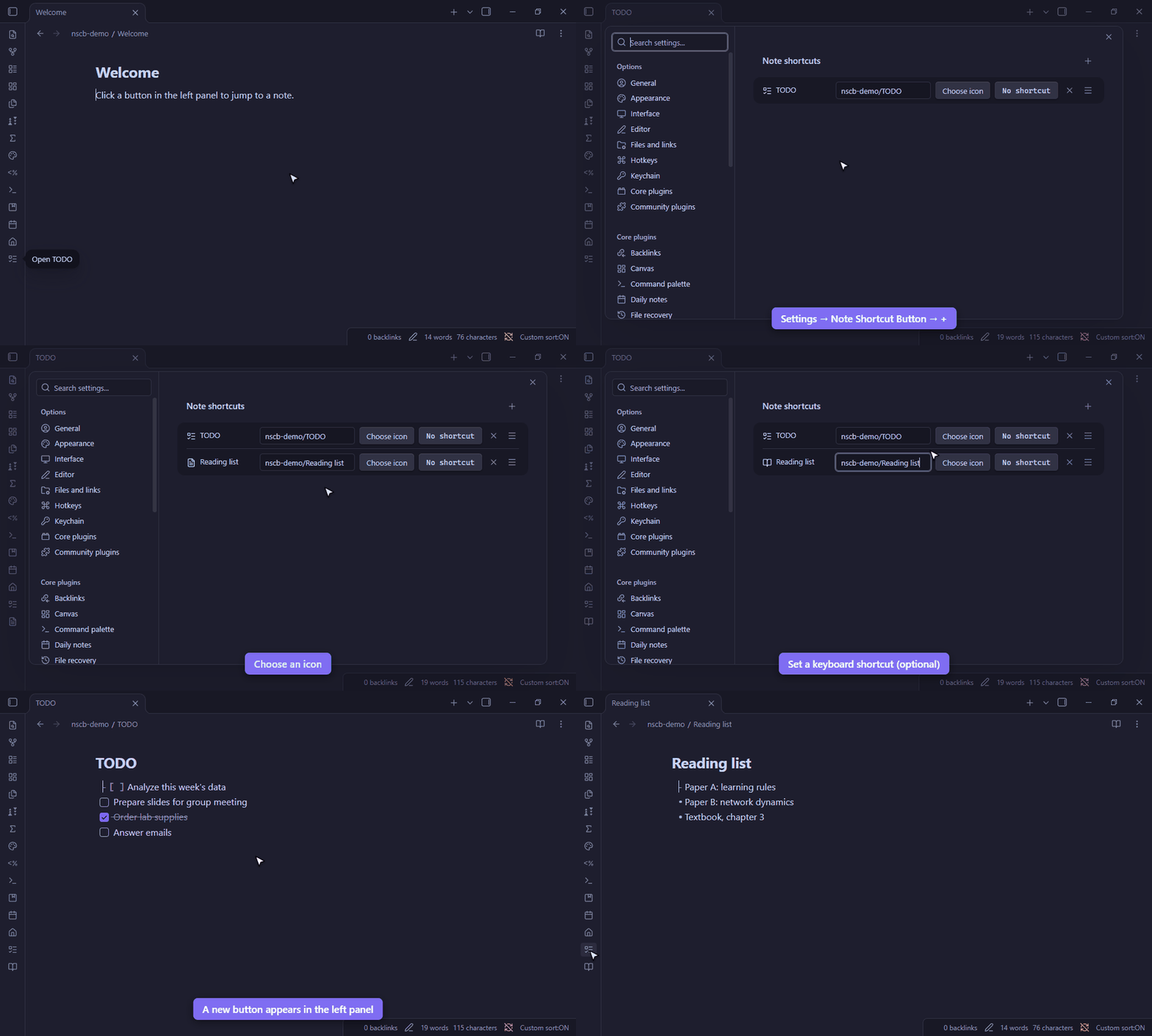
An Obsidian plugin that adds buttons to the left panel (the ribbon) that open the notes you choose, the way the home button opens your homepage. Each button has its own icon and, optionally, its own keyboard shortcut.
This plugin was vibecoded: all of its code and this README were written by AI (Claude Code), directed and tested by Omer Cooper.
Using it
Open Settings → Note Shortcut Button. Each row is one button:
| Control | What it does |
|---|---|
| + | Adds a shortcut |
| Note box | The note to open. Suggests notes as you type; Note, folder/Note and [[Note]] all work, and canvases too |
| Choose icon | Pick the button's icon from a searchable list of all icons |
| Shortcut box | Click it, then press a key combination such as Ctrl+Shift+T. Esc cancels, Backspace removes it |
| No shortcut | Shown once a shortcut is set: sets it back to no shortcut |
| × / drag handle | Delete the row / drag to reorder (Obsidian before 1.13: ↑ and 🗑) |
Changes show up in the left panel right away. Clicking a button opens its note, or switches to its tab if the note is already open.
On first install, if your vault has a note named "TODO", a shortcut to it is added for you.
Good to know
- Renaming and moving: when you rename or move a note (or its folder) inside Obsidian, its shortcut follows it. Renames made outside Obsidian, such as in your file manager, are not seen; fix the link in the settings.
- Keyboard shortcuts win over Obsidian's own hotkeys. If you pick a combination Obsidian already uses, the note opens instead. Combinations with Ctrl+Shift or Ctrl+Alt rarely clash. Two shortcuts can't share a combination: setting it on one removes it from the other.
- Note suggestions read the list of file paths in your vault, only while you type in a shortcut's note box, to show matching notes. Nothing is read from inside the notes and nothing leaves your computer.
- Buttons are removed through an internal Obsidian method (
removeRibbonAction, the one Obsidian uses when a plugin is turned off), because the public API has no way to remove a single ribbon button.
Install
From Obsidian: Settings → Community plugins → Browse → search for "Note Shortcut Button" (once it is listed).
With BRAT: install BRAT, run
BRAT: Add a beta plugin for testing and enter OmerCooper/note-shortcut-button.
Manually: copy main.js, manifest.json and styles.css from the
latest release into
<vault>/.obsidian/plugins/note-shortcut-button/, reload Obsidian and turn the plugin on under
Settings → Community plugins.