Tags for Markdown
 binarynoir11k downloads
Enhance your Markdown documents with tags and arrow tags. Use predefined or custom labels, customizable colors, and arrow indicators to visually track tasks and statuses.
- Overview
- Scorecard
- Updates10
Add visual flair to your Markdown documents with custom tag styles! Tags for Markdown lets you highlight and style labels within Markdown documents using simple syntax, customizable colors, and optional arrow indicators—all within Obsidian. If you like Tags for Markdown, get our extension for Visual Studio Code!
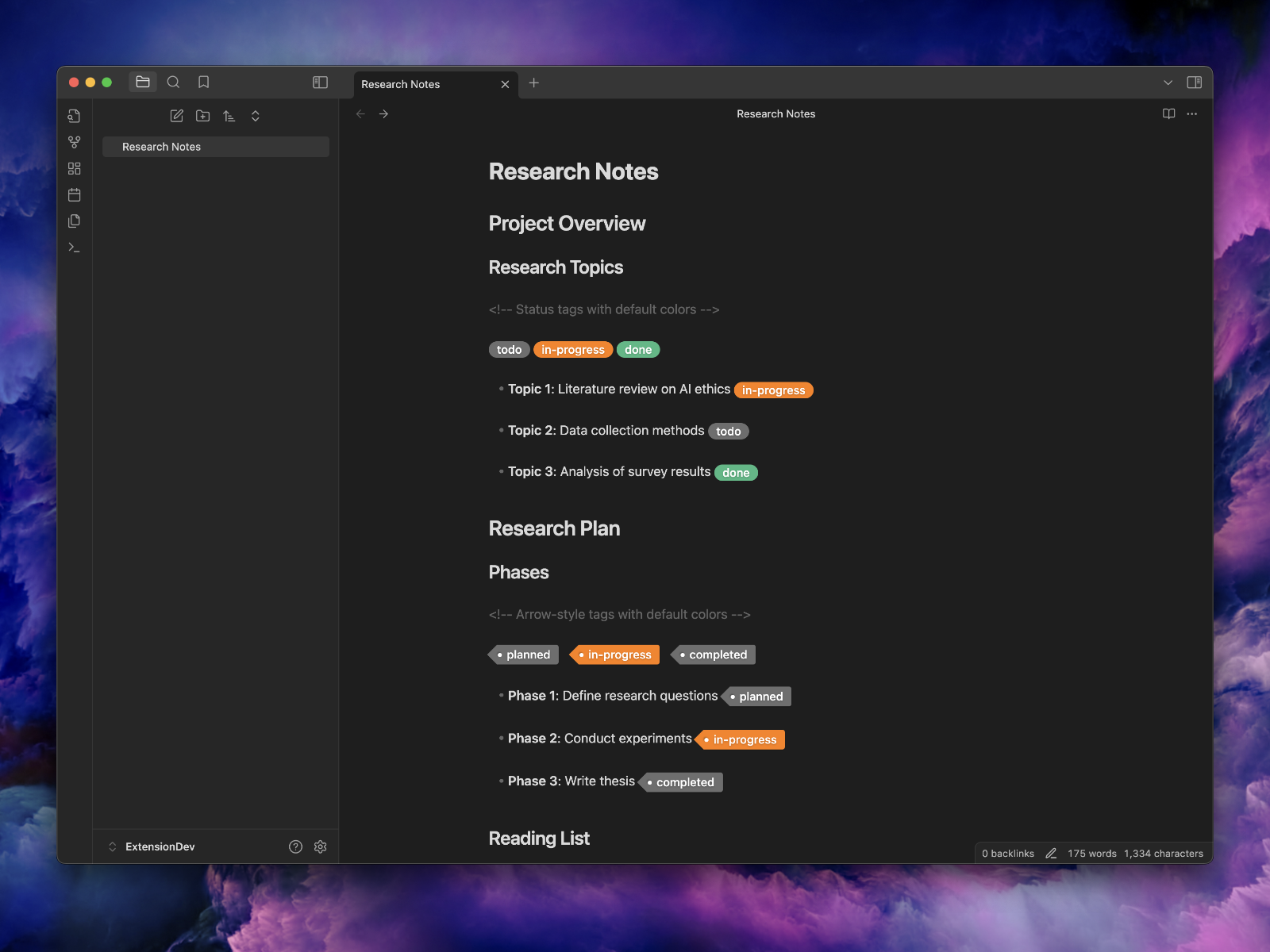
Features
🎨 Styled Tags
Highlight and style tags with ease using predefined or custom styles.
🖌️ Customizable Colors
Use predefined colors or specify custom hex codes for both background and foreground colors, enabling unlimited styling options.
📄 Flexible Syntax
Simple, flexible syntax options:
You can use either the | (pipe) or / (slash) character as a separator between tag components:
((tag|label))
((tag/label))
((tag|label|background-color))
((tag/label/background-color))
((tag|label|background-color|foreground-color))
((tag/label/background-color/foreground-color))
((<tag|label)) <!-- Adds an arrow to the left -->
((<tag/label)) <!-- Adds an arrow to the left -->
Note: Both
|and/are supported as separators. Use whichever you prefer or fits your workflow. This is especially useful when using tags within markdown tables.
🌈 Supports a Variety of Colors
Choose from predefined colors (grey, green, orange, etc.) or use custom hex codes to suit your design preferences.
Getting Started
- Install the plugin from the Obsidian Community Plugins.
- Enable the plugin in the Obsidian settings.
- Add Tags in your Markdown files using the syntax below.
Basic Syntax Examples
Status Tags
((tag|todo)) ((tag|in-progress|#ffcc00)) ((tag|done|#28a745|#ffffff))
Arrowed Tags
((<tag|planned)) ((<tag|custom test))
Customizing Colors
((tag|background|#ff4500)) ((tag|foreground||#ff6347)) ((tag|both colors|#32cd32|#ffffff))
Tags and Colors
Available supported tags: todo, planned, in-progress, doing, done, tip, on-hold, tbd, proposed, draft, wip, mvp, blocked, canceled, error, warning, warn
For each tag, the following colors are available: grey, green, yellow, orange, blue, purple, red.
See Examples Markdown Documents
Tag Examples
TODO
((tag|todo|grey))((tag|todo|green))((tag|todo|yellow))((tag|todo|orange))((tag|todo|blue))((tag|todo|purple))((tag|todo|red))
PLANNED
((tag|planned|grey))((tag|planned|green))((tag|planned|yellow))((tag|planned|orange))((tag|planned|blue))((tag|planned|purple))((tag|planned|red))
IN-PROGRESS
((tag|in-progress|grey))((tag|in-progress|green))((tag|in-progress|yellow))((tag|in-progress|orange))((tag|in-progress|blue))((tag|in-progress|purple))((tag|in-progress|red))
DOING
((tag|doing|grey))((tag|doing|green))((tag|doing|yellow))((tag|doing|orange))((tag|doing|blue))((tag|doing|purple))((tag|doing|red))
DONE
((tag|done|grey))((tag|done|green))((tag|done|yellow))((tag|done|orange))((tag|done|blue))((tag|done|purple))((tag|done|red))
TIP
((tag|tip|grey))((tag|tip|green))((tag|tip|yellow))((tag|tip|orange))((tag|tip|blue))((tag|tip|purple))((tag|tip|red))
... (repeat as necessary for remaining tags: on-hold, tbd, proposed, draft, mvp, etc.)
With Arrow (using ((<tag|label|bgcolor)))
MVP
((<tag|mvp|grey))((<tag|mvp|green))((<tag|mvp|yellow))((<tag|mvp|orange))((<tag|mvp|blue))((<tag|mvp|purple))((<tag|mvp|red))
... (repeat as necessary for remaining tags: on-hold, tbd, proposed, draft, mvp, etc.)
Advanced Options
CSS Integration
Add custom styles by modifying the style.css file in the plugin folder to match your preferences.
Error Handling
The plugin defaults to grey when invalid colors are detected to ensure a consistent and polished look.
How to install the plugin
- Download the Latest release
- Extract the
obsidian-markdown-tagsfolder from the zip to your vault<vault>/.obsidian/plugins/
Manually installing the plugin
Copy over main.js, styles.css, manifest.json to your vault VaultFolder/.obsidian/plugins/obsidian-markdown-tags/.
Contributing
Feel free to submit issues, feature requests, or contribute code on GitHub.
Development
npm install
npm run build
cp main.js manifest.json /path/to/your/vault/.obsidian/plugins/obsidian-markdown-tags
Release
Releasing new releases
- Update the changelog with new features and fixes
- Commit all changed files and create a pull request
- Update the
manifest.jsonwith the new version number, such as1.0.1, and the minimum Obsidian version required for your latest release. - Update the
versions.jsonfile with"new-plugin-version": "minimum-obsidian-version"so older versions of Obsidian can download an older version of your plugin that's compatible. - Create new GitHub release using the new version number as the "Tag version". Use the exact version number, don't include a prefix
v. See here for an example: https://github.com/obsidianmd/obsidian-sample-plugin/releases - Upload the files
manifest.json,main.js,styles.cssas binary attachments. Note: The manifest.json file must be in two places, first the root path of your repository and also in the release. - Publish the release.
You can simplify the version bump process by running
npm version patch,npm version minorornpm version majorafter updatingminAppVersionmanually inmanifest.json. The command will bump version inmanifest.jsonandpackage.json, and add the entry for the new version toversions.json
git checkout main
git pull
git tag -a x.y.z -m "x.y.z"
git push --tags
The release will automatically be drafted.
License
MIT License
Support
If you encounter any issues or have questions, please open an issue on GitHub.
Author
John Smith III
Acknowledgments
Thanks to all contributors and users for their support and feedback.