
- Overview
- Scorecard
- Updates2
Import highlights and notes from KOReader into your Obsidian vault.
KOHi scans your KOReader device for .sdr metadata directories, parses the Lua-serialized annotations, and generates one Markdown note per book — with full control over the output format via Nunjucks templates.
Features
- Auto-detect all 3 KOReader storage modes — book folder,
koreader/docsettings, andkoreader/hashdocsettings - Customizable templates — Nunjucks-based templates with access to book metadata, highlights, and chapter grouping
- Selective import — import all books at once, or pick specific ones via fuzzy search
- Clean filenames — illegal characters are sanitized automatically
- Overwrite on re-import — simple, predictable behavior
Usage
- Connect your Kobo (or other KOReader device) via USB
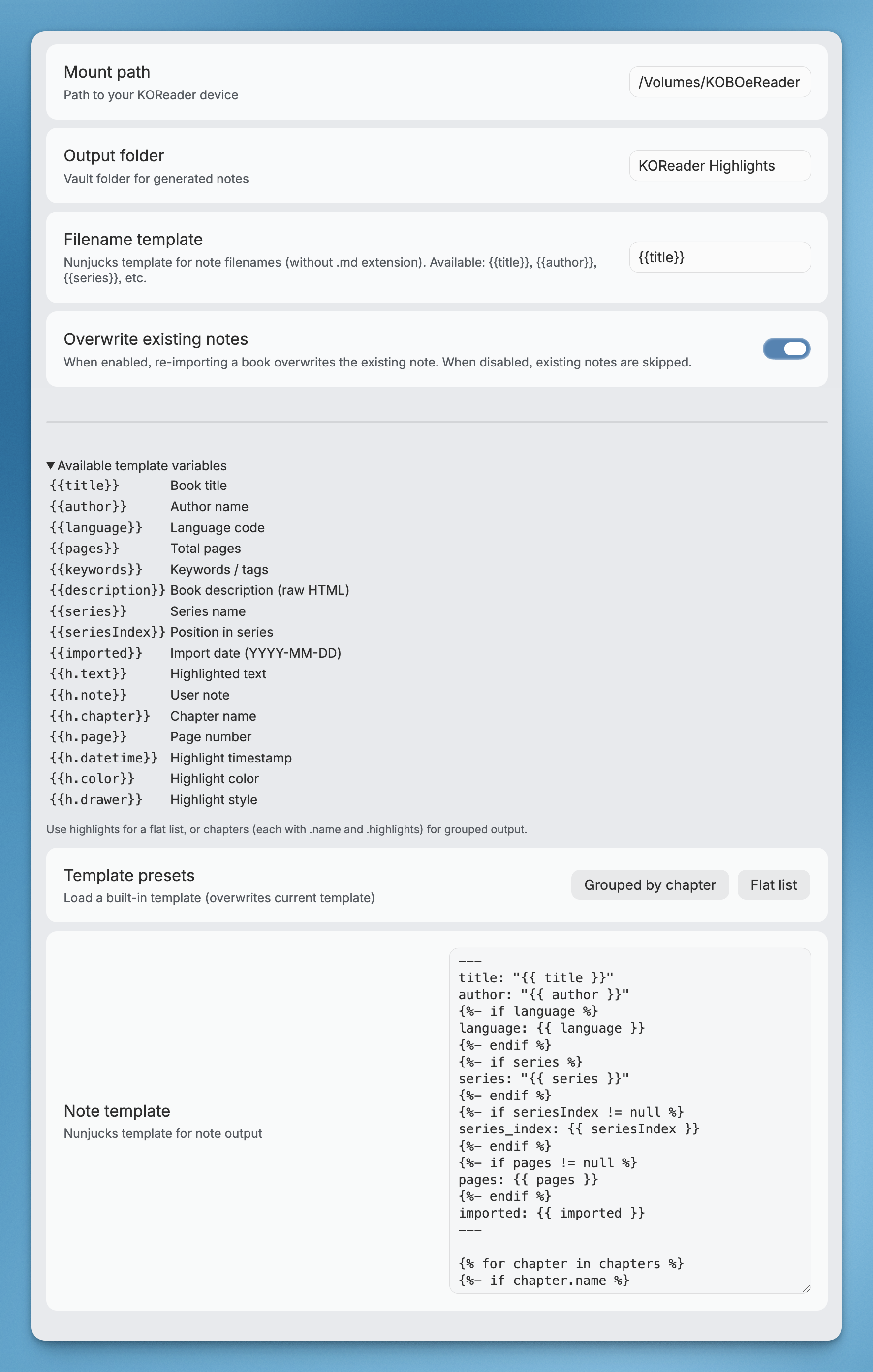
- Open Obsidian → Settings → KOHi → set Mount path (e.g.
/Volumes/KOBOeReader) - Command Palette → KOHi: Import all highlights or KOHi: Import selected highlights
- Notes appear in your configured output folder
Settings
| Setting | Description | Default |
|---|---|---|
| Mount path | Absolute path to your mounted KOReader device | — |
| Output folder | Vault folder for generated notes | KOReader Highlights |
| Filename template | Nunjucks template for note filenames (e.g. {{author}} - {{title}}) |
{{title}} |
| Overwrite existing | Whether to overwrite notes on re-import or skip them | On |
| Skip imported books | Hide previously imported books from future imports. Turn off to re-import. | Off |
| Note template | Nunjucks template for note output | See below |
Template
Notes are generated using Nunjucks templates. You can customize the output format in plugin settings.
Available variables
Book level:
| Variable | Description |
|---|---|
{{title}} |
Book title |
{{author}} |
Author name |
{{language}} |
Language code |
{{pages}} |
Total pages |
{{keywords}} |
Keywords / tags |
{{description}} |
Book description (raw HTML from EPUB) |
{{series}} |
Series name |
{{seriesIndex}} |
Position in series |
{{imported}} |
Import date |
Highlight level (within loops):
| Variable | Description |
|---|---|
{{h.text}} |
Highlighted text |
{{h.note}} |
User note (if any) |
{{h.chapter}} |
Chapter name |
{{h.page}} |
Page number |
{{h.datetime}} |
Highlight timestamp |
{{h.color}} |
Highlight color (e.g. yellow, green, red) |
{{h.drawer}} |
Highlight style (lighten, underscore, strikeout, invert) |
Two data structures are provided for flexibility:
highlights— flat array, original reading orderchapters— grouped by chapter, each with anameandhighlightsarray
Default template
---
title: "{{title}}"
author: "{{author}}"
{% if language %}language: {{language}}{% endif %}
{% if series %}series: "{{series}}"{% endif %}
{% if seriesIndex != null %}series_index: {{seriesIndex}}{% endif %}
{% if pages != null %}pages: {{pages}}{% endif %}
imported: {{imported}}
---
{% if description %}
{{description}}

---
{% endif %}
{% for chapter in chapters %}
{% if chapter.name %}
## {{chapter.name}}
{% endif %}
{% for h in chapter.highlights %}
> {{h.text}}
{% if h.page %}
>
> — p.{{h.page}}
{% endif %}
{% if h.note %}

> [!note]
> {{h.note}}
{% endif %}

{% endfor %}
{% endfor %}
Flat list (no chapter grouping)
---
title: "{{title}}"
author: "{{author}}"
{% if series %}series: "{{series}}"{% endif %}
{% if seriesIndex != null %}series_index: {{seriesIndex}}{% endif %}
imported: {{imported}}
---
{% if description %}
{{description}}

---
{% endif %}
{% for h in highlights %}
> {{h.text}}
{% if h.page %}
>
> — p.{{h.page}}
{% endif %}
{% if h.note %}

> [!note]
> {{h.note}}
{% endif %}

{% endfor %}
Installation
From community plugins
- Open Obsidian → Settings → Community plugins → Browse
- Search for KOHi
- Click Install, then Enable
Via BRAT
- Install the BRAT plugin
- BRAT settings → Add Beta Plugin → paste
chiahsien/obsidian-kohi
Manual install
- Download
main.js,manifest.json, andstyles.cssfrom the latest release - Create a folder
<vault>/.obsidian/plugins/kohi/ - Copy the downloaded files into that folder
- Restart Obsidian → Settings → Community plugins → Enable KOHi
Build from source
git clone https://github.com/chiahsien/obsidian-kohi.git
cd obsidian-kohi
npm install
npm run build
Then copy main.js, manifest.json, and styles.css into your vault's plugin folder as described above.
Development
Prerequisites
- Obsidian ≥ 1.7.2
- Node.js ≥ 18
- npm
Setup
git clone https://github.com/chiahsien/obsidian-kohi.git
cd obsidian-kohi
npm install
Commands
| Command | Description |
|---|---|
npm run dev |
Start esbuild in watch mode |
npm run build |
Type-check + production build |
npm run lint |
Run ESLint checks |
npm test |
Run tests once |
npm run test:watch |
Run tests in watch mode |
Project structure
src/
├── types.ts              # Shared interfaces (Book, Highlight, BookData, etc.)
├── lua-parser.ts         # Recursive descent parser for KOReader Lua metadata
├── scanner.ts            # Three-phase .sdr directory scanner
├── book-parser.ts        # Metadata → BookData extraction + chapter grouping
├── note-generator.ts     # Nunjucks template rendering
├── note-writer.ts        # Vault file creation with filename sanitization
├── multi-select-modal.ts # Fuzzy-search book picker modal
├── settings.ts           # Plugin settings tab
└── main.ts               # Plugin entry point + commands
Hot-reload during development
- Build with
npm run dev(watch mode) - Symlink or copy the repo into your test vault:
ln -s /path/to/obsidian-kohi /path/to/vault/.obsidian/plugins/kohi - Enable the plugin in Obsidian → changes are picked up on reload (Cmd+R)
License
MIT
HealthExcellent
ReviewPassed
About
Import highlights and notes from KOReader devices into Obsidian as one Markdown note per book. Auto-detect KOReader storage modes, parse Lua-serialized annotations, use Nunjucks templates for customizable output, pick books via fuzzy search, sanitize filenames, and handle re-import overwrites predictably.Details
Current version
0.2.0
Last updated
4 months ago
Created
5 months ago
Updates
2 releases
Downloads
309
Compatible with
Obsidian 1.7.2+
Platforms
Desktop only
License
MIT
Sponsor