Search...Search plugins and themes...
⌘K
Sign in
  • Get started
  • Download
  • Pricing
  • Enterprise
  • Account
  • Obsidian
  • Overview
  • Sync
  • Publish
  • Canvas
  • Mobile
  • Web Clipper
  • CLI
  • Learn
  • Help
  • Developers
  • Changelog
  • About
  • Roadmap
  • Blog
  • Resources
  • System status
  • License overview
  • Terms of service
  • Privacy policy
  • Security
  • Community
  • Plugins
  • Themes
  • Discord
  • Forum / 中文论坛
  • Merch store
  • Brand guidelines
Follow us
DiscordTwitterBlueskyThreadsMastodonYouTubeGitHub
© 2026 Obsidian

Full Document View for iOS TTS

tigger developertigger developer40 downloads

Lets iOS/macOS Accessibility Reader see the whole document for on-device Text-to-Speech (TTS)

Add to Obsidian
  • Overview
  • Scorecard
  • Updates9

The purpose of this plugin is to unlock native Apple Text-to-Speech (TTS) on Obsidian notes. Normally the Accessibility Reader in iOS only sees a portion of the note, as Obsidian's preview is optimized to load only the visible portion of the note give or take some caching. This plugin presents a special preview mode that Accessibility Reader can use to read the entire document

If you are using an iOS device and are using a TTS plugin with an API key, you are spending money for something your device is already capable of doing for free. Modern iOS/macOS TTS has improved substantially and is on a quality par with the best TTS API services. However, accessing it is not straightforward.

By enabling a shortcut to the Accessibility Reader (instructions), you can activate TTS on your notes on-device, even if you have no wifi or data connection. The one remaining limitation is that Accessibility Reader only sees a portion of the document - per Obsidian's preview optimization. This plugin enables a full-document preview for use with the Accessibility Reader.

Instructions for how to use it and how to invoke it are in the help text and the setup and usage guide.

No speech service account or API key is needed.

Requires Obsidian 1.13+ and iOS 26+ or macOS 26+.

How to use

Install and enable Full Document View for iOS TTS from its Obsidian Community listing. Then set up Apple's Accessibility Reader once for each device.

Set up iPhone (iOS)

Open Settings > Accessibility > Read & Speak.
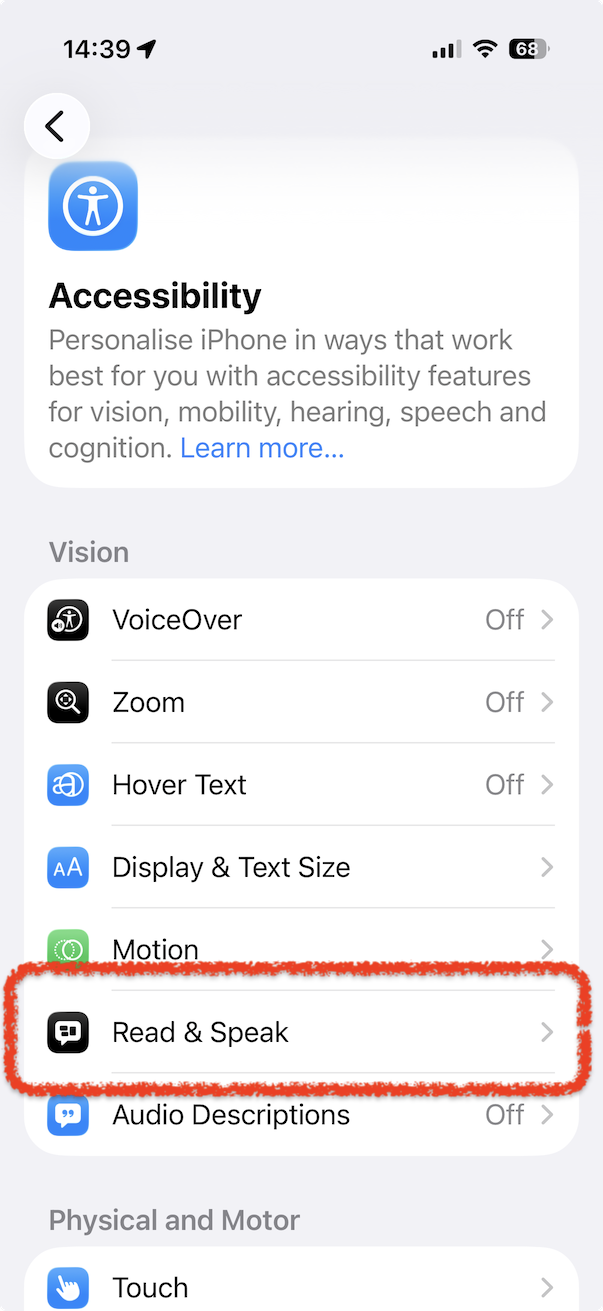
iPhone Accessibility settings with Read & Speak highlighted

Open Accessibility Reader and turn it on.
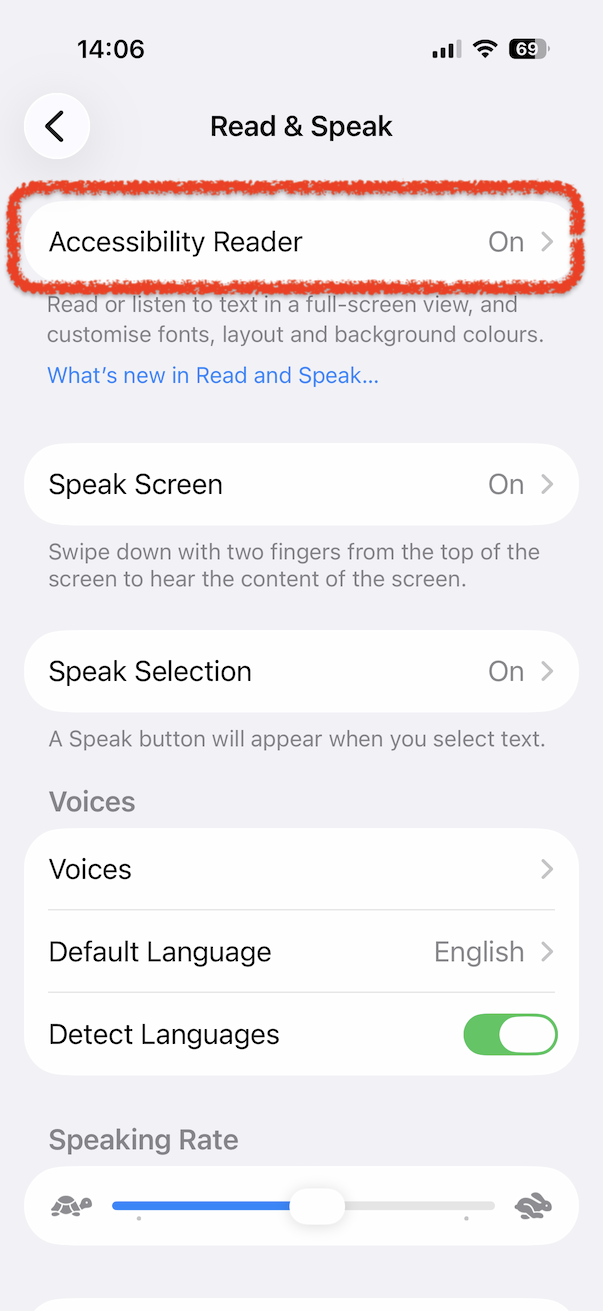
Read & Speak settings with Accessibility Reader highlighted

Turn on Autoplay in Accessibility Reader if you want speech to start when Accessibility Reader opens.
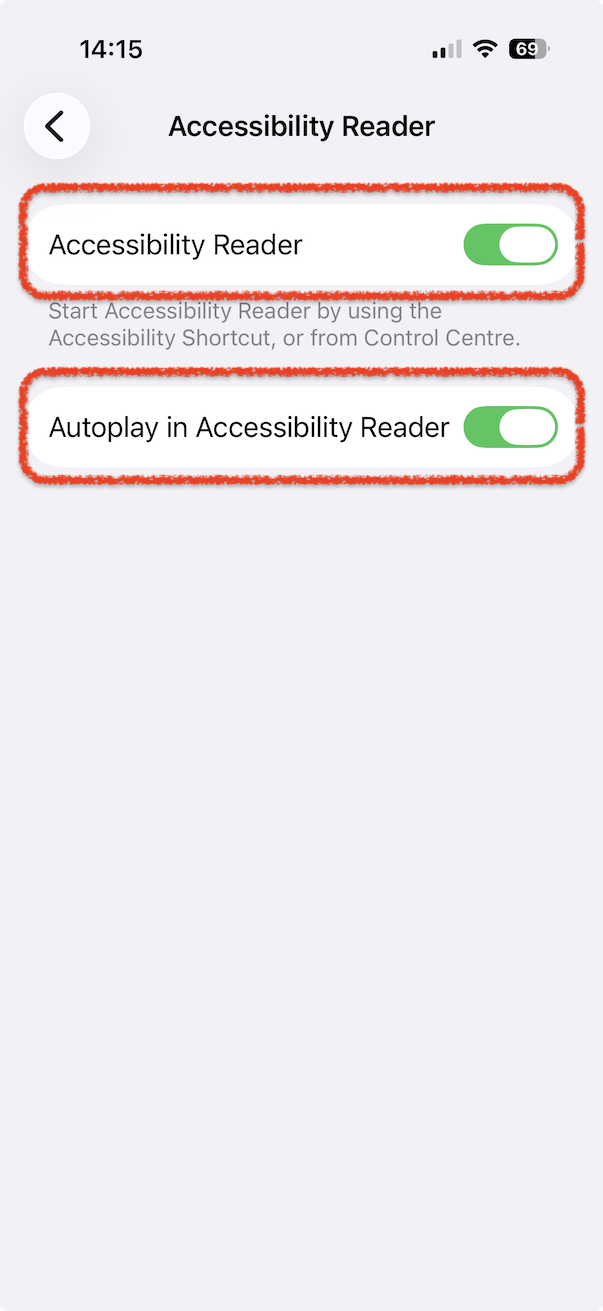
Accessibility Reader and Autoplay switched on

Return to Settings > Accessibility and check Accessibility Shortcut.
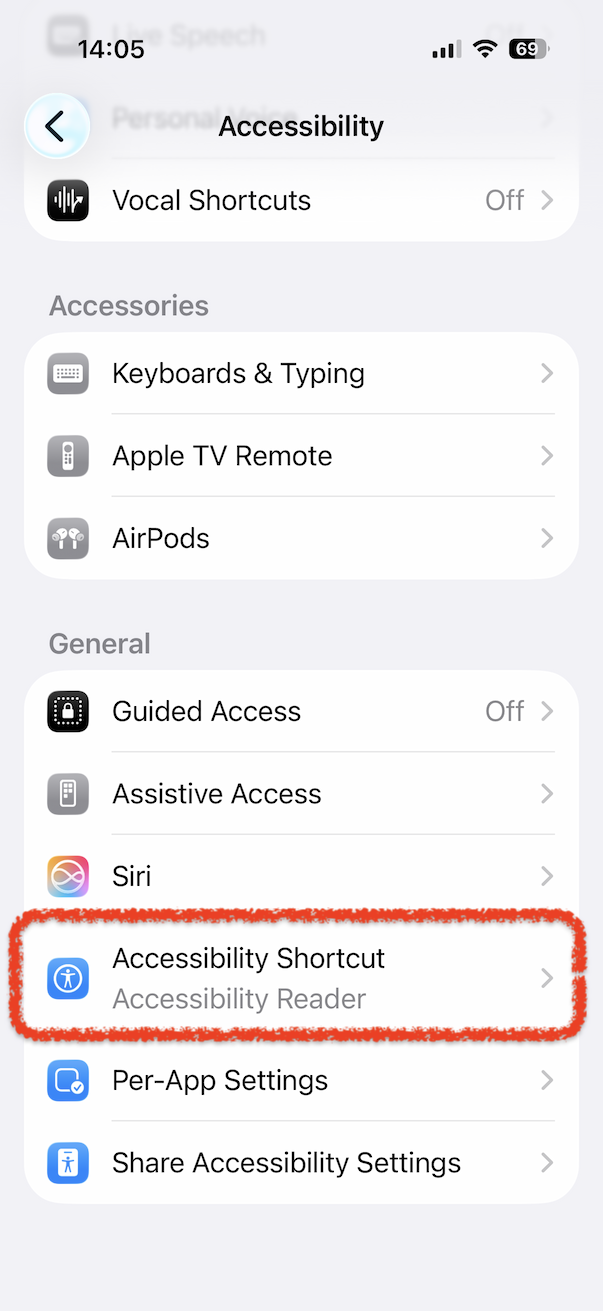
Accessibility settings with Accessibility Shortcut highlighted

Check that Accessibility Reader is selected. The default shortcut is a triple-click of the lock button.
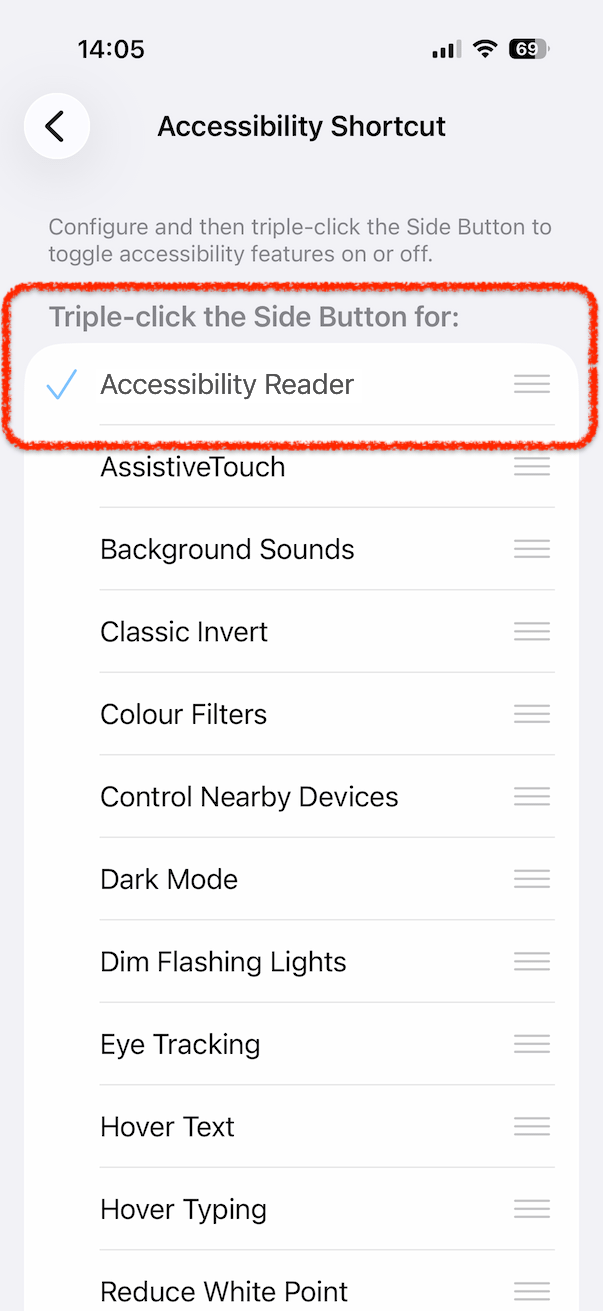
Accessibility Reader selected for the accessibility shortcut

Set up Mac (macOS)

Open System Settings > Accessibility > Read & Speak.
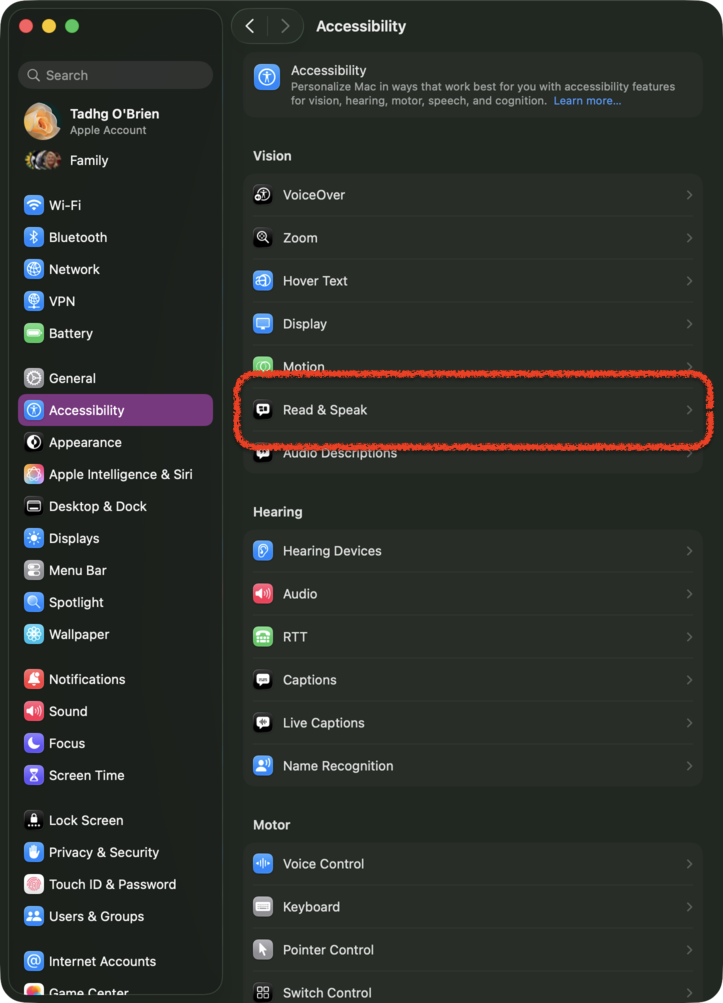
macOS Accessibility settings with Read & Speak highlighted

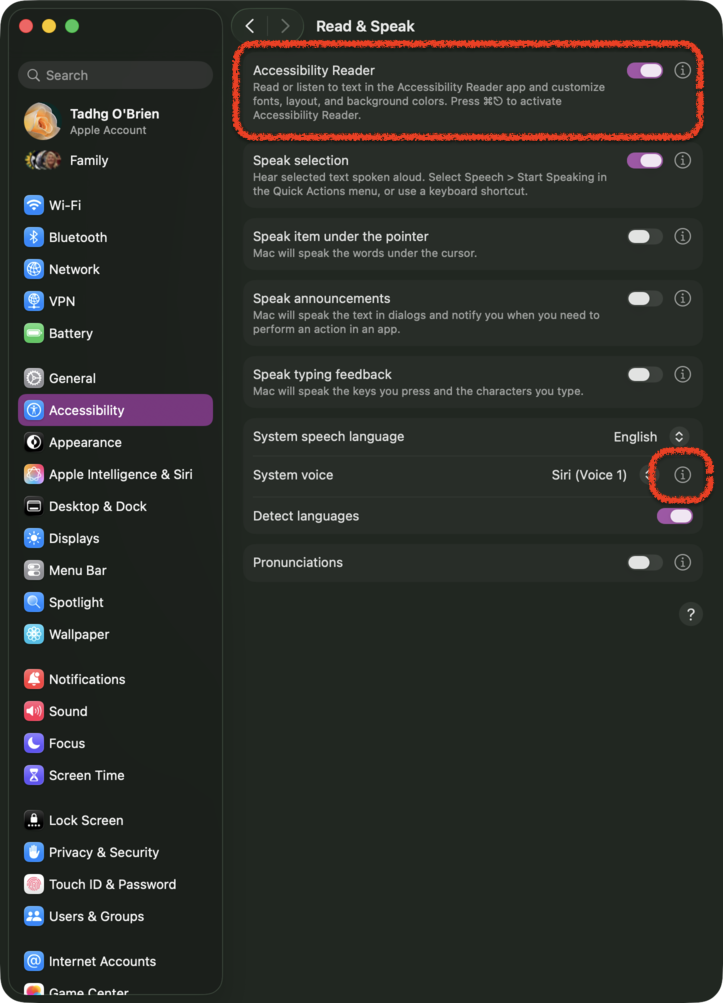
Turn on Accessibility Reader.

Accessibility Reader enabled, with the info button beside System voice highlighted

Important: for high-quality TTS, click the info button (i) beside System voice and select a Siri voice. The default selector alone does not expose the Siri voices; the info button opens the voice selection options. The standard voice has much lower fidelity. Download the Siri voice if prompted before using it offline.

The default Accessibility Reader shortcut is Command-Escape.

Listen to a note

Open a note in Obsidian. The plugin's icon appears beside the normal edit/preview buttons in the document pane.
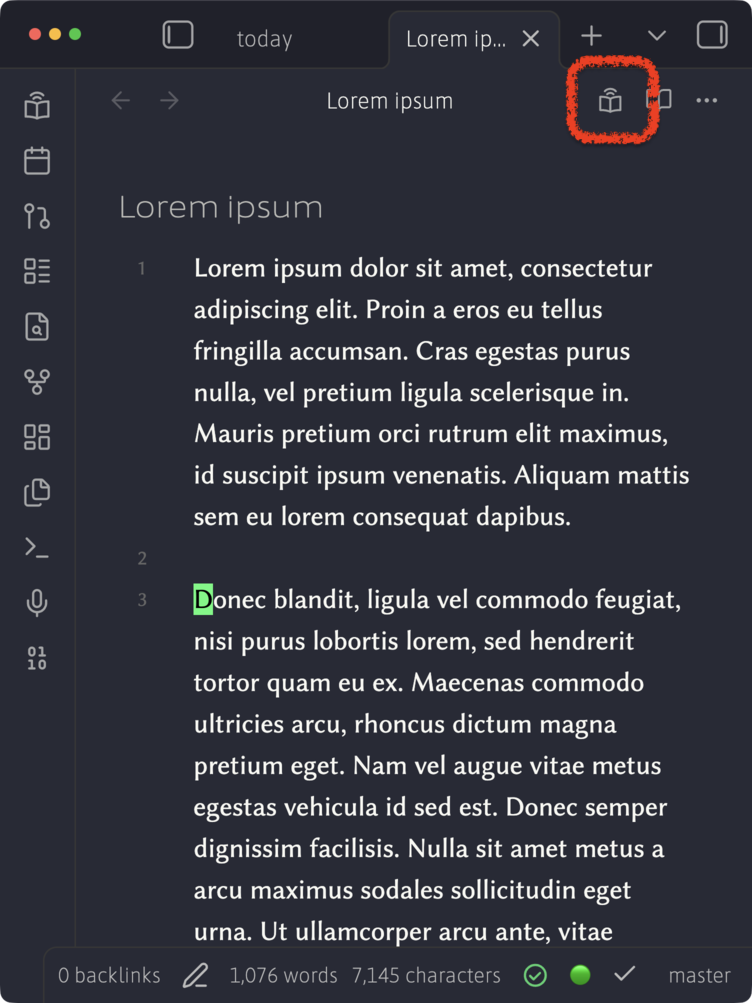
Obsidian note toolbar with the plugin button highlighted beside the edit and preview controls

Click this icon:

Full-document preview icon

This opens the full-document preview. You can also use Preview for Accessibility View (TTS on iOS/macOS) in Obsidian's command palette. On Mac, you can assign a hotkey to this command in Obsidian Settings > Hotkeys to open the preview from the keyboard.

Invoke Apple's Accessibility Reader. The defaults are triple-click the lock button on iPhone and Command-Escape on Mac.

Speech starts automatically if Autoplay is enabled. Otherwise, press Play. Accessibility Reader's controls manage the voice and playback.
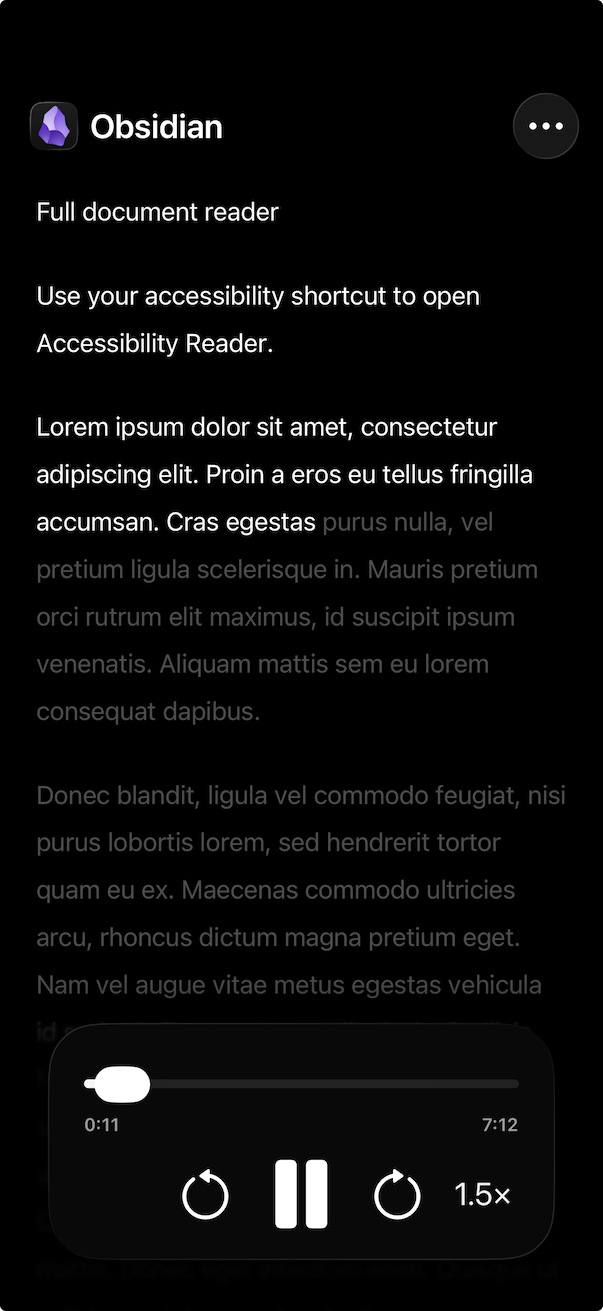
Accessibility Reader reading an Obsidian note aloud, with playback active and the pause control visible

Apple's iPhone instructions · Apple's Mac instructions · Choosing a Mac voice

The default limit is 100,000 words, adjustable in plugin settings.

Shortcut setup and further help · Manual installation · Development · Releases and provenance

Licensed under Apache License 2.0.

HealthExcellent
ReviewSatisfactory
About
Modern iOS/macOS Text-to-Speech (TTS) has improved substantially and is on a quality par with the best TTS API services. However, accessing it is not always straightforward. By enabling a shortcut to the Accessibility Reader (see help text), you can activate TTS that runs natively on your device, even if you have no wifi or data connection. The purpose of this plugin is to unlock Apple's Text-to-Speech on Obsidian notes. Normally the Accessibility Reader in iOS only sees a portion of the note, as Obsidian's preview is optimized to load only the visible portion of the note give or take some caching. This plugin presents a special preview mode that Accessibility Reader can use to read the entire document
AudioCommandsInterface
Details
Current version
1.0.7
Last updated
4 days ago
Created
2 weeks ago
Updates
9 releases
Downloads
40
Compatible with
Obsidian 1.13.0+
Platforms
Desktop, Mobile
License
Apache-2.0
Report bugRequest featureReport plugin
Author
tigger developertigger developertigger-dev
tigger.dev
GitHubtigger-developer
  1. Community
  2. Plugins
  3. Audio
  4. Full Document View for iOS TTS

Related plugins

Note Toolbar

Add customizable toolbars to your notes.

Commander

Customize your workspace by adding commands everywhere, create macros and supercharge your mobile toolbar.

Lean Terminal

Embedded terminal panel powered by xterm.js and node-pty - no external windows.

Hotkey Helper

Easily see and access any plugin's settings or hotkey assignments (and conflicts) from the Community Plugins tab.

Tray

Run Obsidian from the system tray for customisable window management and global quick notes.

Slash Commander

Customize the slash command list, assign each command an icon.

Hider

Hide interface elements such as tooltips, status bar, titlebar, and more.

Meta Bind

Make your notes interactive with inline input fields, metadata displays, and buttons.

Quick Switcher++

Enhanced Quick Switcher, search open panels, and symbols.

Copilot

Run AI agents such as Claude Code, Codex, and OpenCode inside your vault. Turn your second brain into a smart assistant that gets knowledge work done.