Search...Search plugins and themes...
⌘K
Sign in
  • Get started
  • Download
  • Pricing
  • Enterprise
  • Account
  • Obsidian
  • Overview
  • Sync
  • Publish
  • Canvas
  • Mobile
  • Web Clipper
  • CLI
  • Learn
  • Help
  • Developers
  • Changelog
  • About
  • Roadmap
  • Blog
  • Resources
  • System status
  • License overview
  • Terms of service
  • Privacy policy
  • Security
  • Community
  • Plugins
  • Themes
  • Discord
  • Forum / 中文论坛
  • Merch store
  • Brand guidelines
Follow us
DiscordTwitterBlueskyThreadsMastodonYouTubeGitHub
© 2026 Obsidian

Inline Toggles

n1ktran1ktra19 downloads

Create reliable inline toggles that save their state directly in Markdown.

Add to Obsidian
  • Overview
  • Scorecard
  • Updates3

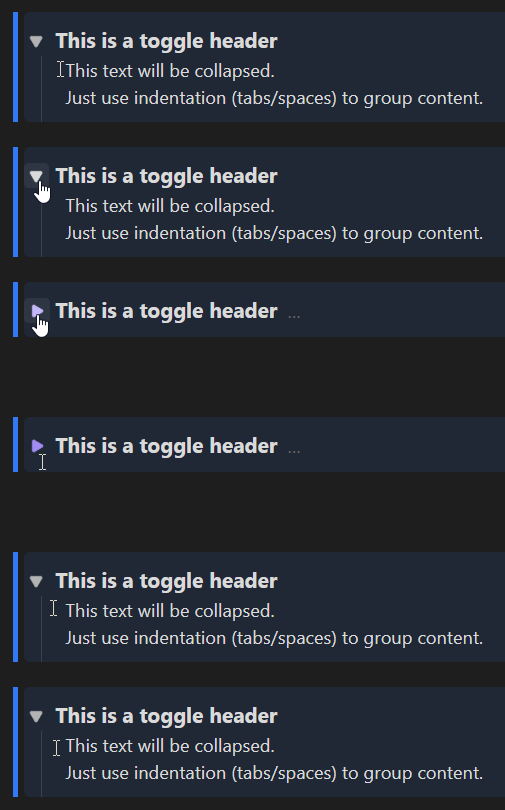
Inline Toggles brings Notion-style collapsible sections directly to your Markdown lines. The collapse state is saved directly in your file (%%⏷%% / %%⏵%%), ensuring your view remains perfectly synced across desktop and mobile.

✨ Why Inline Toggles?

Unlike standard Obsidian callouts, Inline Toggles offer a more fluid writing experience:

  • Interactive Widgets: In Live Preview, toggles become clickable icons to instantly expand or collapse sections.
  • No Syntax Overhead: Stop prefixing every line with >. Just write normal text or indented lists.
  • No Layout Jumps: Editing content doesn't force the view to switch to raw source code. You type exactly where you read.
  • Reliable State: Your vault remembers what was collapsed—even after syncing or restarting Obsidian.
  • Flexible Placeholders: Use any symbols you like to define your toggles. While %% is the default, you can customize the border and icons to fit your aesthetic.

🚀 Usage

Basic Syntax

Source Mode (Markdown) Live Preview (Result)
%%⏷type: info%% This is a toggle header
    This text will be collapsed.
    Just use indentation to group content.
Toggle Preview

Commands & Hotkeys

  • Insert/Remove Toggle: e.g., set to Ctrl/Cmd + Shift + L
  • Edit Attributes: Opens a modal for quick styling (via command or Right-Click on the widget).
  • Change Type: Cycle through callout types (via command or Right-Click on the widget).

🎨 Styling & CSS

You can add CSS attributes to any toggle (e.g., %%⏷type: info; bg: rgba(0,100,255,0.1)%%).

  • Shorthands: type (presets), bg (background), col (color), border (left border).
  • Free CSS: Use any valid CSS attribute (e.g., opacity: 0.5).
  • End Styling: Block styling stops automatically at the end of the collapsed section or as soon as a horizontal rule (---) appears in the text.

⚙️ Settings & Migration

[!CAUTION]

⚠️ Important: Create a Backup!

The "Migrate Entire Vault" and "Remove All Toggles" features modify many files at once. Always create a backup of your vault before using these tools.


Disclaimer: This plugin is not affiliated with or endorsed by Notion Labs, Inc. It provides a similar user experience within Obsidian.

Developed by Niklas Tran

HealthExcellent
ReviewSatisfactory
About
Add Notion-style inline collapsible sections to Markdown lines and indented lists, with clickable widgets in Live Preview so you can expand or collapse sections without switching to source mode. Save collapse state directly in the file using inline markers so views stay synced across devices and restarts, and style toggles with simple inline attributes.
MarkdownEditingInterface
Details
Current version
1.0.2
Last updated
7 hours ago
Created
7 months ago
Updates
3 releases
Downloads
19
Compatible with
Obsidian 1.1.0+
Platforms
Desktop, Mobile
License
MIT
Report bugRequest featureReport plugin
Author
n1ktran1ktra
GitHubn1ktra
  1. Community
  2. Plugins
  3. Markdown
  4. Inline Toggles

Related plugins

Meta Bind

Make your notes interactive with inline input fields, metadata displays, and buttons.

Editing Toolbar

The Editing Toolbar is modified from cMenu, which provides more powerful customization settings and has many built-in editing commands to be a MS Word-like toolbar editing experience.

Hover Editor

Transform the Page Preview hover popover into a fully working editor instance.

Outliner

Work with your lists like in Workflowy or Roam Research.

Typewriter Mode

Typewriter scroll, writing focus, current line highlight, paragraph dimming, and more!

Various Complements

Complete words similar to auto-completion in an IDE.

Heading Shifter

Easily Shift and Change Markdown headings.

Shortcuts extender

Use shortcuts for input special symbols without language switching.

Dragger

Drag and drop any block (paragraphs, headings, lists, etc.) to rearrange content like Notion.

Chord Sheets

Work with chord sheets (chords over lyrics or inline) in Live Preview and reading mode: Chord diagrams for guitar, ukulele, mandolin and piano, transpose, autoscroll, and more.