Icon Frontmatter Mirror
 theluckystrike1 downloads
Copies the file icons that you set in Iconize to a property in each note, and keeps the property current.
- Overview
- Scorecard
- Updates1
Copies the file icons that you set in Iconize to a property in each note, and keeps the property current.
Iconize keeps the icon of each note in its own data file, data.json in the Iconize plugin folder. When you use "Change icon", the icon goes only to that file. Iconize issue #380 asks for "a separate option to have the addon write to frontmatter". This plugin is that option. It reads the Iconize data file and never writes it.
Features
Icons become note properties
Set an icon with the Iconize icon picker, as you always do. The plugin writes the same icon to the icon property of the note. If you also set a color in Iconize, the color goes to the iconColor property. The value is the exact text that Iconize stores, for example LiBookOpen or an emoji. If "Use icon in frontmatter" is on in Iconize, Iconize reads the property back, finds the same icon and changes nothing. In that case the plugin always writes the color too, because Iconize removes its color when the color property is empty.
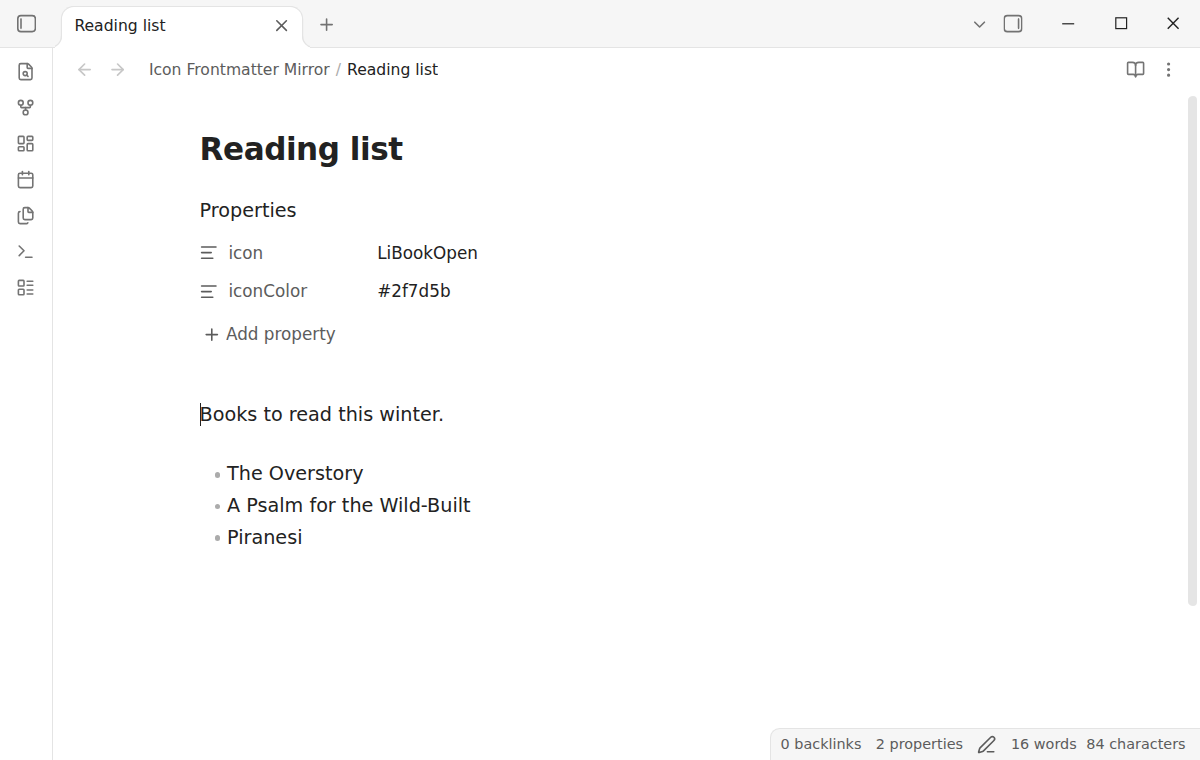
Follows each change
The plugin checks the Iconize data file every 2 seconds. When the file changes, the plugin waits until it stays the same for one more check, then reads it, so a change shows in 2 to 4 seconds. A changed icon updates the property. A removed icon removes the property, but only when the property still has the value that the plugin wrote. If one check would remove values from more than 10 notes, or the Iconize data has no icons at all (for example after a reinstall of Iconize), the plugin removes nothing and shows a notice. Run "Apply held icon removals" to remove them. The "Mirror icons now" command reads the file at once.
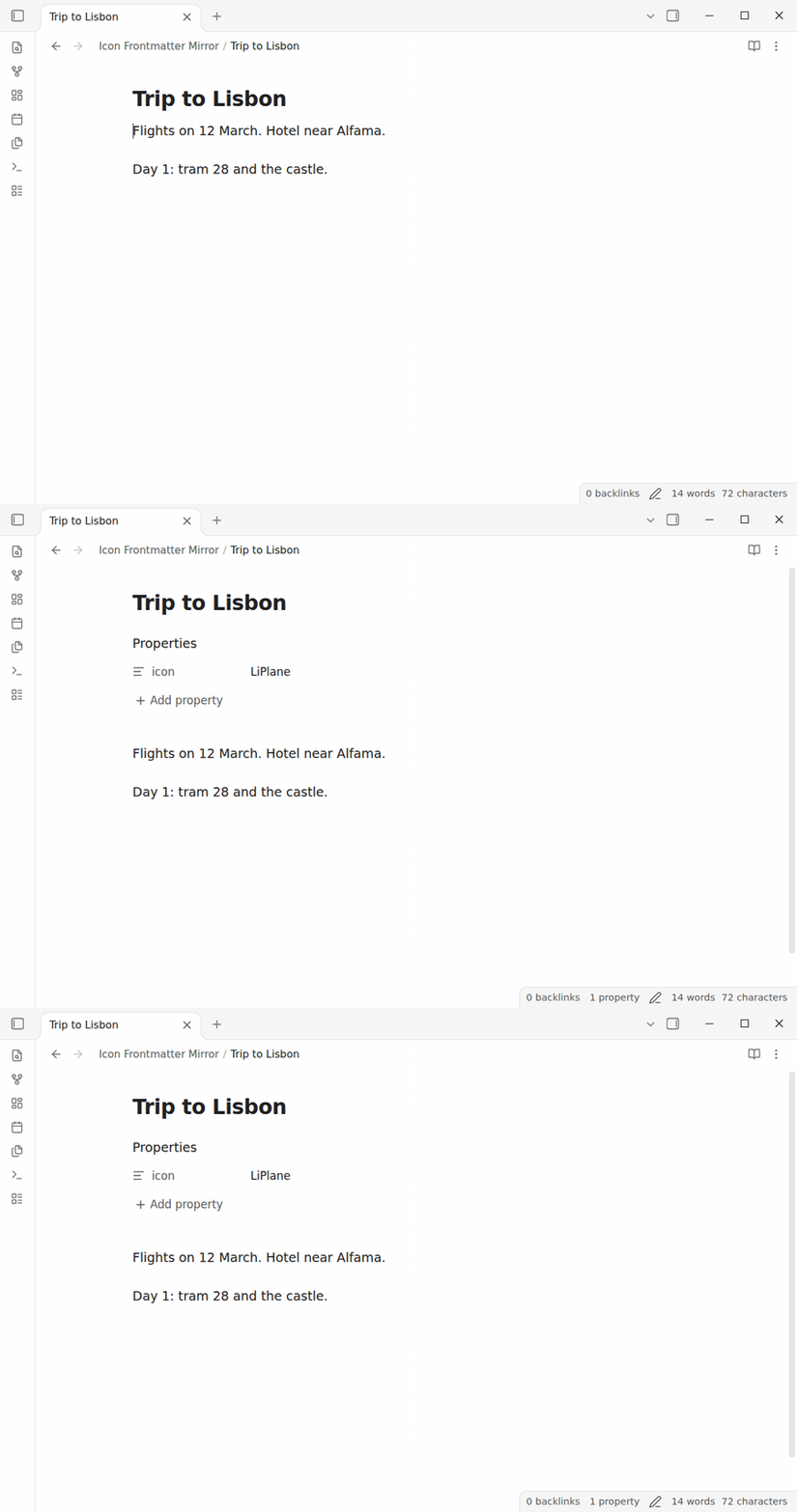
When you rename or move a note, Iconize moves its icon to the new path, and the property stays in the note. The plugin does not remove a property because of a data file that Iconize saved before the rename.
Never overwrites your own value
If a note already has another value in the property, the plugin does not change it. It puts the note in a conflict list. Run "Show icon conflicts" to see each note with its value and the Iconize value. Select "Replace with the icons from the data file" to use the Iconize values, or "Keep the note values" to close the list.
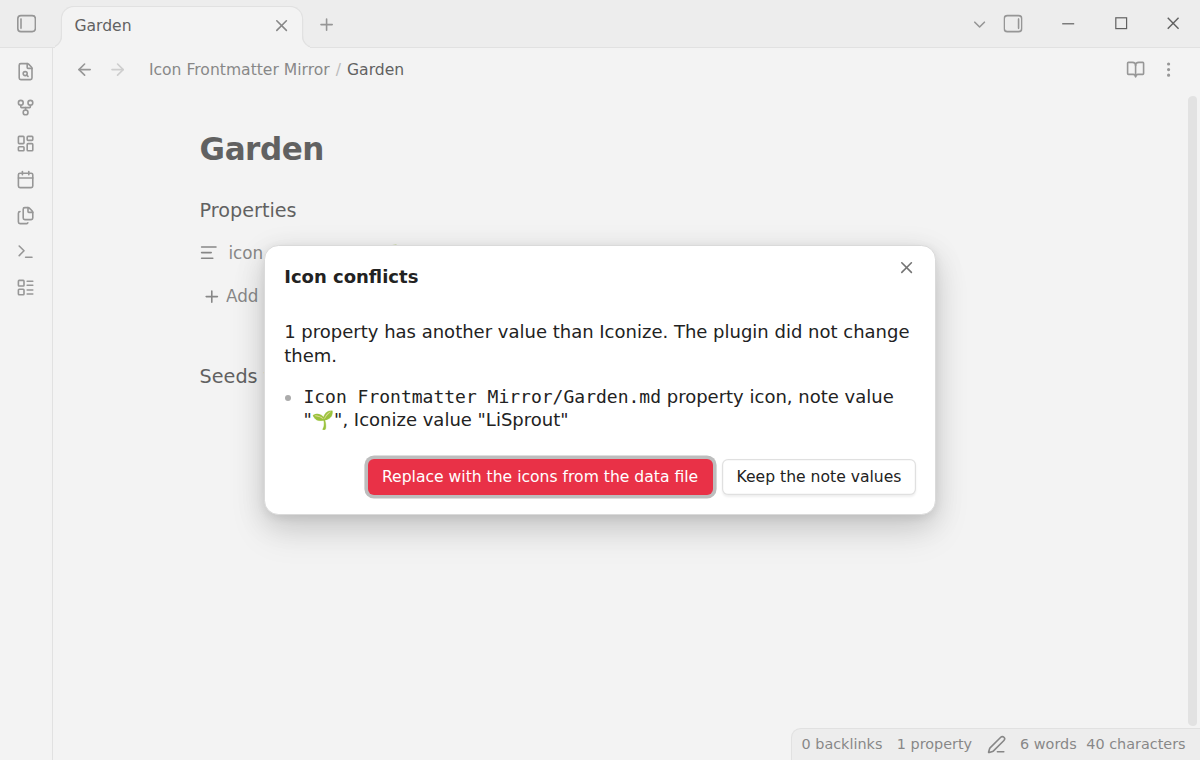
The plugin remembers the values that it wrote, so it can tell its own value from yours. A value that was in the note before, or that you type later, is your value, also when it equals the icon.
Status, folders and large vaults
The settings tab shows a status line: the number of mirrored notes, the folder icons that it skipped, the values that the last run wrote and removed, and the number of conflicts. Folders have no properties, so the free version skips folder icons. Icons of other file types, such as canvas or PDF files, are skipped too.
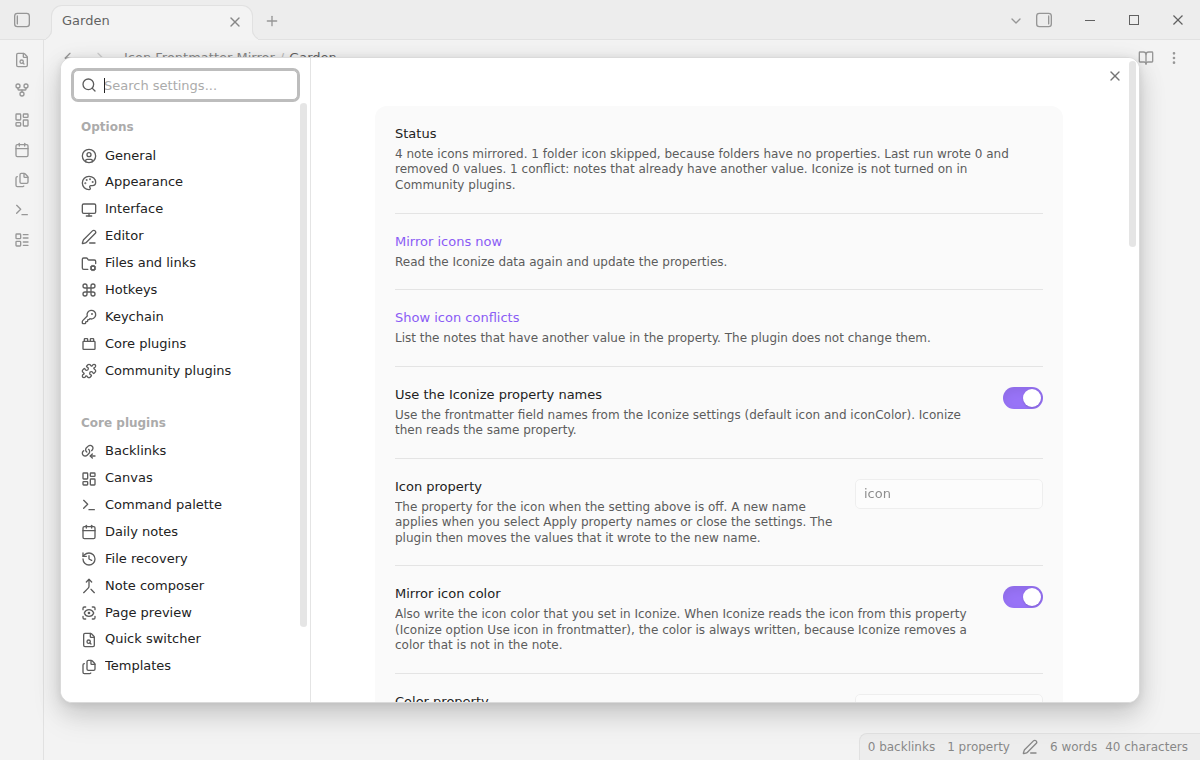
The plugin writes a note only when a value must change, so a vault with thousands of icons gets no writes when nothing changed. It works in chunks of 200 notes.
Extra properties and folder notes (Pro)
Pro writes the icon to one or two more properties, each in a format that you select: as Iconize stores it (LiHouse), the name without the icon pack prefix (House), or lowercase with dashes (house, arrow-big-down). Emoji stay as they are. Pro can also write a folder icon to the folder note, Folder/Folder.md or Folder/index.md, in the property folderIcon. The note must exist. The plugin does not make notes.
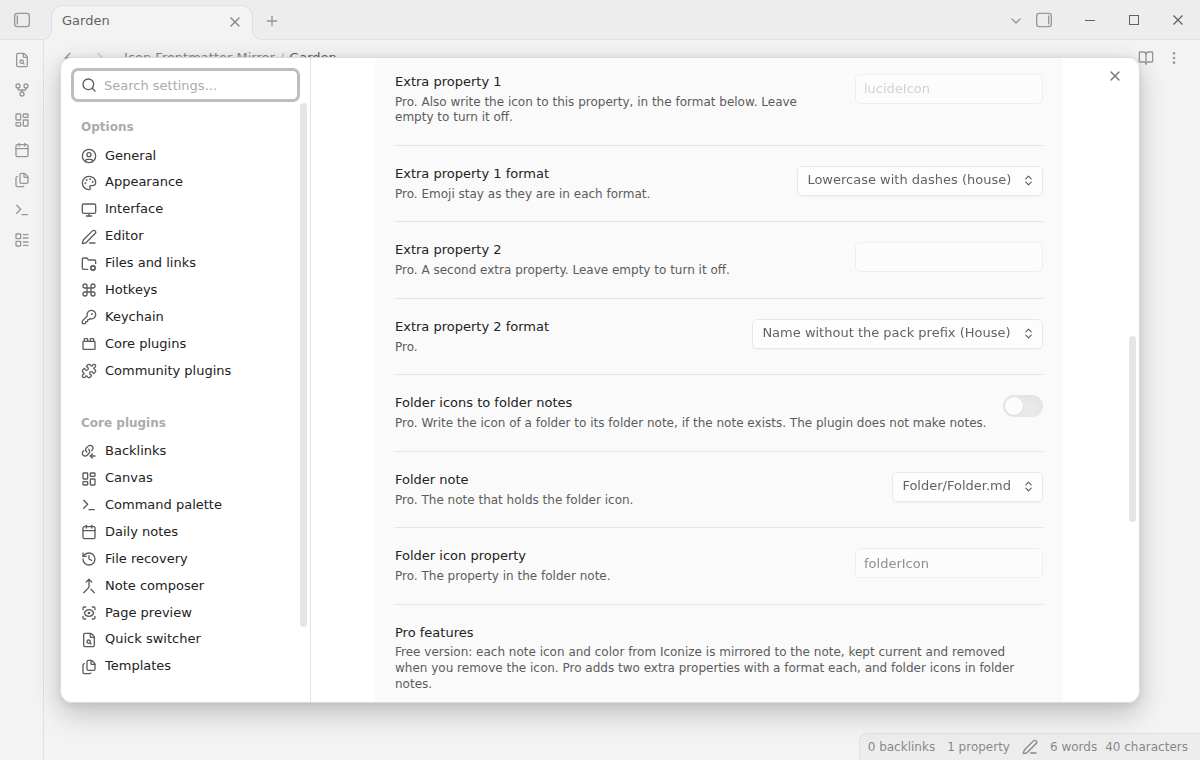
If Pro turns off, the values that Pro wrote stay in your notes. The plugin stops updating them.
Install
When Icon Frontmatter Mirror is listed in the community directory, open Settings, then Community plugins, then Browse, and search for "Icon Frontmatter Mirror". Select Install, then Enable.
To install by hand, download main.js, manifest.json and styles.css from the latest release. Put the three files in <vault>/.obsidian/plugins/icon-frontmatter-mirror/. Restart Obsidian or reload the list of community plugins, then turn on Icon Frontmatter Mirror.
You also need Iconize. Without Iconize data, the plugin writes nothing and the status says "Iconize data not found".
Usage
- Install and turn on Iconize and this plugin.
- Right-click a note in the file explorer, select "Change icon" and pick an icon.
- After 2 to 4 seconds, open the note. The properties show
iconwith the name of the icon. - To update all notes at once, open the command palette and run "Icon Frontmatter Mirror: Mirror icons now".
- If some notes already had an icon property, run "Icon Frontmatter Mirror: Show icon conflicts".
Settings
After a minor or major update, this plugin opens one What's new tab in the background. The tab and settings card suggest other NoteMods plugins and Zovo Chat and link to notemods.com for feedback (privacy). The tab sends no data. Turn the tab off in Settings.
| Setting | What it does |
|---|---|
| Use the Iconize property names | On by default. Uses the frontmatter field names from the Iconize settings, icon and iconColor unless you changed them in Iconize. |
| Icon property | The property name when the setting above is off. A new name applies when you select "Apply property names" or close the settings. The plugin moves the values that it wrote to the new name. |
| Mirror icon color | On by default. Also writes the Iconize icon color. |
| Color property | The color property when the Iconize names are off. |
| Check interval in seconds | 2 by default, from 1 to 60. How often the plugin checks the Iconize data file. |
| Extra property 1 and 2 | Pro. More properties for the icon, each with a format. Empty means off. |
| Folder icons to folder notes | Pro. Off by default. Writes folder icons to the folder note. |
FAQ
Does it change the Iconize data?
No. The plugin only reads the Iconize data file. It writes only to your notes, through the frontmatter API of Obsidian.
What happens when I remove an icon in Iconize?
The plugin removes the property if it still has the value that the plugin wrote. If you changed the value, the plugin keeps your value.
What if my sync tool writes the Iconize file slowly?
The plugin reads the file only after it stays the same for one check. If the file is not complete or not valid JSON, the plugin keeps the last good copy and writes nothing. It reads the file again at the next change.
Payment, account and network
The core features are free. Pro features need a GitHub Sponsors sponsorship of theluckystrike: $5 a month or more, or $15 once. A total payment of $15 meets the payment requirement for Pro without further payment. Sign-in and the checks below still apply. Your notes stay readable and editable with or without Pro.
GitHub handles the payment. Sponsor at https://github.com/sponsors/theluckystrike. You need no account for the free features. Pro needs the GitHub account that sponsors.
Until you select "Sign in with GitHub" in the settings, Icon Frontmatter Mirror makes no network requests. Sign in uses the GitHub device flow. Icon Frontmatter Mirror sends its public client ID and the scope read:user to https://github.com/login/device/code and shows you a code. While you enter the code at https://github.com/login/device, it asks https://github.com/login/oauth/access_token every few seconds to check the sign-in status. The scope permits profile reads only. GitHub needs this access to show the sponsorship tier. It grants no repository scope and no write access.
After sign in, Icon Frontmatter Mirror sends one query to https://api.github.com/graphql. It checks if the signed-in account sponsors theluckystrike. It asks for the tier and the total payment to theluckystrike. The plugin reuses a successful check for 7 days. Failed checks can retry after 6 hours. Select Refresh to request an earlier check. It sends no note content, file names or other vault data, and it has no telemetry.
After a successful check, Pro can work offline for up to 14 days. Sign out or a negative sponsorship answer turns Pro off. The plugin stores the GitHub token through the secret storage API of Obsidian. It does not put the token in its saved settings or its local sponsorship data. The local storage of this device keeps your GitHub login, the tier and the time of the last check. Sign out clears the token. You can also revoke the access in your GitHub settings, under Applications.
Support
Plugin page: icon-frontmatter-mirror.
Report bugs in the GitHub issues of this repository. Add your Obsidian and Iconize versions.
Community
Questions, bugs or plugin ideas? Talk to me and other Obsidian users in Zovo Chat on Telegram. It has a topic for these plugins. You can also open an issue here.