
- Overview
- Scorecard
- Updates18
Introduction
A light-weight plugin for displaying inline "badges" in Obsidian.md.
Installation
Install from community.obsidian.md
From Obsidian's settings or preferences:
- Community Plugins > Browse
- Search for "Badges"
Manually:
- download the latest release archive
- uncompress the downloaded archive
- move the
badgesfolder to/path/to/vault/.obsidian/plugins/ - Settings > Community plugins > reload Installed plugins
- enable plugin
or:
- download
main.js,manifest.json&styles.cssfrom the latest release - create a new folder
/path/to/vault/.obsidian/plugins/badges - move all 3 files to
/path/to/vault/.obsidian/plugins/badges - Settings > Community plugins > reload Installed plugins
- enable plugin
Usage
default syntax
`[!!KEY:VAL]`
| syntax | details |
|---|---|
KEY |
the type and name of the ICON |
VAL |
the value and text displayed |
shorthand syntax
For built-in badge types, you can omit the value and colon:
`[!!KEY]`
For example, [!!success] displays as "Success" with a checkmark icon. This works for all types defined in constants.ts.
[!TIP] In addition to the built-in badge types (note, info, success, etc.), you can use any Lucide icon name as the
KEY. For example:[!!rocket:launched]or[!!heart:favorite].
[!IMPORTANT] the
VALcannot contain either the|pipe or the:colon symbols, as they are used as delimiters for the custom syntax. See Usage in tables for using badges inside Markdown tables.
example
`[!!note:note]`
`[!!info:info]`
`[!!todo:todo]`
...
`[!!cite:cite]`
results
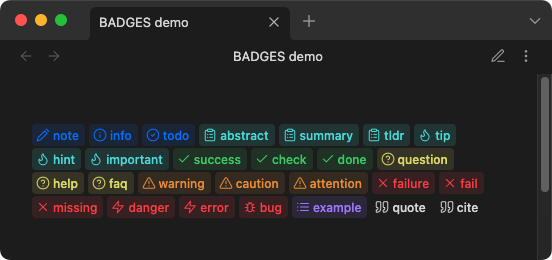
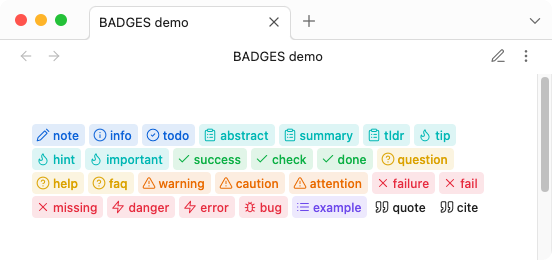
example
`[!!emergency: emergency]`
`[!!prohibit: prohibit]`
`[!!stop:stop]`
…
`[!!reward: reward]`
`[!!vault: vault]`
results
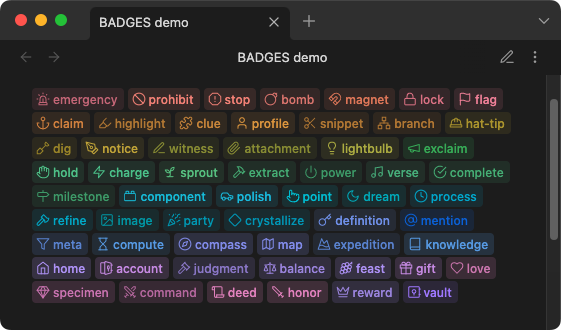
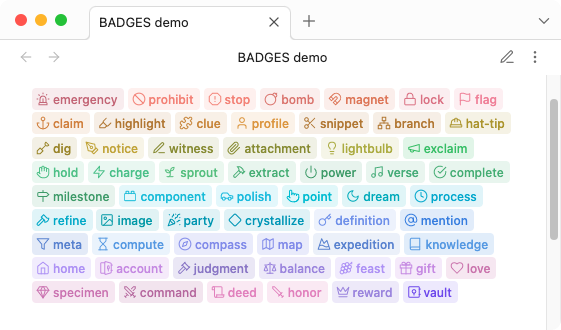
Github
syntax
`[!!|GHX>KEY:VAL]`
| syntax | details |
|---|---|
| |
start pipe symbol |
GHX |
Github style, either ghb for the blue style or ghs for the green success style |
> |
greater than symbol (delimiter) |
KEY:VAL |
KEY is the type or label, VAL is the value text displayed. e.g. release:1.0.0 |
example
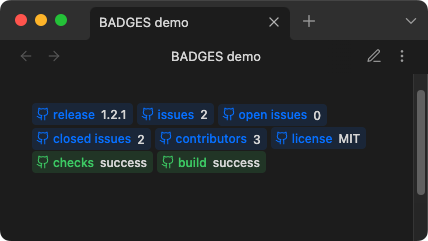
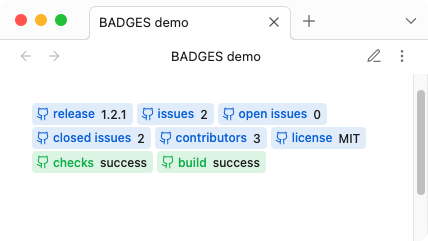
`[!!|ghb>release:1.2.1]`
`[!!|ghb>issues:2]`
`[!!|ghb>open issues:0]`
`[!!|ghb>closed issues:2]`
`[!!|ghb>contributors:3]`
`[!!|ghb>license:MIT]`
`[!!|ghs>checks:success]`
`[!!|ghs>build:success]`
results
Plain-text
syntax
`[!!|KEY:VAL]`
| syntax | details |
|---|---|
| |
start pipe symbol |
KEY:VAL |
KEY is the type, VAL is the value |
example
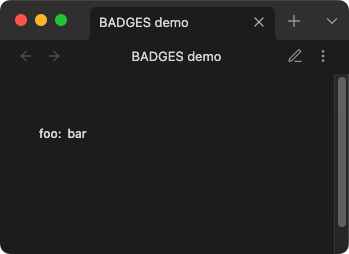
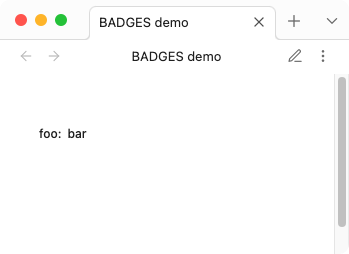
`[!!|foo:bar]`
results
custom
syntax
`[!!|ICON|KEY:VAL|COLOR-RGB]`
| syntax | details |
|---|---|
| |
start pipe symbol |
ICON |
Lucide icon name. e.g. dice or lucide-dice |
| |
pipe symbol |
KEY:VAL |
KEY is the type or label, VAL is the value text displayed. e.g. release:1.0.0 |
| |
pipe symbol |
COLOR-RGB (optional, defaults to currentColor) |
3 (R.G.B.) numeric (0-255) values, separated by commas. e.g. 144,144,144 or CSS variable e.g. var(--color-red-rgb) |
[!NOTE] The
KEYis used for the aria-label (accessibility) and is not displayed visually. Only theVALtext is shown. To display a label, include it in theVAL:`[!!|tag|release:Release 1.2.1]`or simply:
`[!!|tag|:Release 1.2.1]`
[!IMPORTANT] Custom syntax requires actual Lucide icon names (e.g.,
pen-tool,message-square). The built-in aliases likenoticeorsuccessonly work with standard syntax. For example, use[!!|pen-tool|notice:text|color]not[!!|notice|notice:text|color].
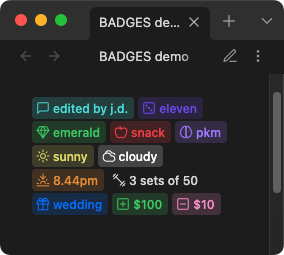
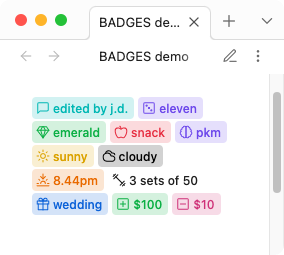
example
`[!!|message-square|comment:edited by j.d.|var(--color-cyan-rgb)]`
`[!!|dice|roll:eleven|120,82,238]`
`[!!|gem|mineral:emerald|var(--my-custom-rgb)]`
`[!!|apple|fruit:snack|var(--color-red-rgb)]`
`[!!|brain|brain:pkm|var(--color-purple-rgb)]`
`[!!|sun|weather:sunny|var(--color-yellow-rgb)]`
`[!!|cloudy|weather:cloudy|var(--mono-rgb-100)]`
`[!!|sunset|weather:8.44pm|var(--color-orange-rgb)]`
`[!!|dumbbell|reps:3 sets of 50|var(--mono-rgb-00)]`
`[!!|gift|event:wedding|var(--color-blue-rgb)]`
`[!!|plus-square|credit:$100|var(--color-green-rgb)]`
`[!!|minus-square|debit:$10|var(--color-pink-rgb)]`
results
Links
Badges can be made clickable by adding a link using the >> syntax.
syntax
`[!!KEY:VAL>>LINK]`
| syntax | details |
|---|---|
>> |
link delimiter |
LINK |
wikilink [[Note]] or external URL https://... |
examples
`[!!info:Documentation>>https://obsidian.md]`
`[!!note:See also>>[[My Note]]]`
`[!!tip:Jump to section>>[[My Note#Heading]]]`
[!NOTE] Links work with all badge types including custom badges.
Usage in tables
When using badges inside Markdown tables, the | pipe character conflicts with the table cell separator. To work around this, use escaped pipes \| instead of | in your badge syntax.
syntax
`[!!\|ICON\|KEY:VAL\|COLOR-RGB]`
example
| Task | Status |
| ---- | ------ |
| Review code | `[!!\|snowflake\|comment:On Hold\|var(--color-cyan-rgb)]` |
| Write docs | `[!!success:Done]` |
[!NOTE] Badges without pipes (e.g.
[!!success:Done]) work in tables without any changes.
Inserting badges
The Insert badge command opens a searchable list of every badge type and inserts the one you pick at the cursor.
| situation | inserted | cursor |
|---|---|---|
| no selection | `[!!KEY: ]` |
on the placeholder, type to add a label |
| text selected | `[!!KEY:selected text]` |
after the badge |
Typing replaces the placeholder. Arrow past it or click away to leave the badge icon only.
Available from the command palette, or bind it to a hotkey via Settings → Hotkeys. Any plugin that triggers commands can use it too, such as Editing Toolbar.
Pipes in the selected text are escaped automatically so the badge stays valid inside tables.
CSS
Custom CSS styles can be applied via CSS snippets. All colors and styles can be over-written just the same.
See CSS snippets - Obsidian Help
variables
body {
    /* border */
    --inline-badge-border-color: transparent;
    --inline-badge-border-radius: var(--radius-s);
    --inline-badge-border: 1px solid var(--inline-badge-border-color);
    /* example custom color */
    --my-custom-rgb: var(--color-green-rgb);
}
/* example CSS customization */
.inline-badge[data-inline-badge^="vault"] {
    --badge-color: var(--my-custom-rgb);
    color: rgba(var(--badge-color), .88);
    background-color: rgba(var(--badge-color),.22);
}
Styling plain-text badges by type
Plain-text badges include a data-badge-type attribute containing the KEY value, enabling CSS targeting of specific badge types.
examples
/* Style all "Status" badges */
.inline-badge-extra[data-badge-type="Status"] {
    background-color: rgba(var(--color-green-rgb), .22);
    color: rgba(var(--color-green-rgb), .88);
}

/* Style "Priority" badges differently */
.inline-badge-extra[data-badge-type="Priority"] {
    background-color: rgba(var(--color-red-rgb), .22);
    color: rgba(var(--color-red-rgb), .88);
}
Dataview
Badges can act similarly to a key-value store(database) for querying via default search or Dataview plugin.
View and copy example dataview queries: badges-dataview
Development
Clone this repo
cd /path/to/vault/.obsidian/plugins
git clone https://github.com/gapmiss/badges.git
cd badges
Install packages and run
npm i
npm run dev
Enable plugin
- open
Settings→Community plugins - enable the
Badgesplugin.
Notes
Thanks to Markdown Furigana Plugin as an example implementation of Live Preview.
Lucide Icons: https://lucide.dev
Lucide Icons LICENSE: https://lucide.dev/license