Horizontal Blocks
 icodealchemy11k downloads
Bring Notion-style layouts with blocks side-by-side, resizable Markdown blocks that support texts, images, embeds, and internal links.
- Overview
- Scorecard
- Updates5
README.md
🧱 Horizontal Blocks Plugin
Bring Notion-style layouts with blocks side-by-side, resizable markdown blocks that support full Obsidian syntax including images, embeds, and internal links.
✨ Features
- 🔲 Side-by-side markdown blocks using
horizontal/hblockcode block - 📏 Resizable columns with a draggable divider
- 🧠 Dynamic layout — support for 2 or more columns using
---separator - 🖼️ Auto-scaling images inside blocks
- 💾 Block width persistence — remembers layout when you return
- Live editing for page/section embeds within blocks, with reduced extra spacing for a cleaner look.
- Styling settings tab: tweak divider (color, thickness, opacity, style), block backgrounds/borders, padding and gaps, toolbar visibility, and theme-aware colors — all applied live via CSS variables.
- Also includes text color option for block content.
- Title text color for block headers.
- Per-block toolbar inside each column: width +/- controls, and per-block background/text color pickers with instant updates and persistence.
- Right-click any block for quick visibility toggles (toolbar, borders, alternating shading).
⚠️ WARNING
Please refrain from entering tasks directly within the Horizontal code block.

The Horizontal function operates based on the code block. In Obsidian, text within a code block is treated as plain text. Consequently, if you input tasks inside a code block, neither the tasks plugin nor the dataview plugin will be able to recognize them.
🚀 Examples
Code 1:
```horizontal
### Block 1
This is the left block.
---
### Block 2
This is the right block.
```
Preview 1:
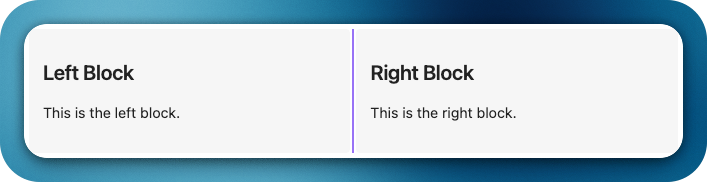
Code 2:
```horizontal
### Left Block
This is the left block.
---
### Middle Block
This is the middle block.
---
### Right Block
This is the right block.
```
Preview 2:
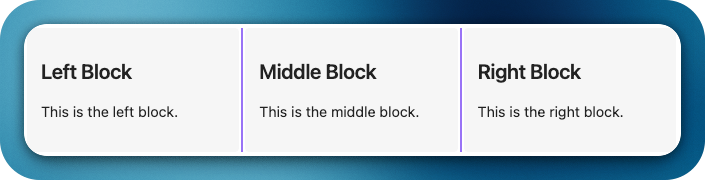
Code 3:
```hblock
### Left Block
This is free text
- Item 1
- [ ] Item 2
- **Item 3**

This is a ***formatted*** **text**
---
### Right Image Block
![[test_image.png]]
```
Preview 3:
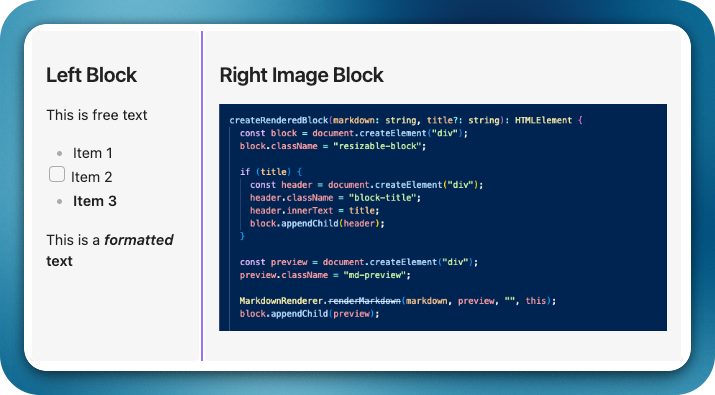
🎨 Styling Settings
You can customize the layout appearance globally without editing CSS:
- Divider: color, thickness (1–5px), opacity, and style (solid | dashed | dotted | transparent); hover accent and drag highlight.
- Blocks: background color, optional alternating shading (zebra), show/hide borders, border radius, border thickness.
- Text color for content inside blocks.
- Title text color for block headers.
- Spacing: inner padding (0–32px) and gap between blocks (0–24px).
- Toolbar: global visibility toggle for optional
.hblocks-toolbarareas. - Theme-aware: auto-inherit theme colors instead of custom picks.
Find it under Obsidian → Settings → Community Plugins → Horizontal Blocks – Styling.
All options apply via CSS variables/classes, so themes/snippets can override them; changes apply live without restart.
Toolbar Controls
- Width +/-: Nudge the current block’s width by small steps; changes are saved.
- Background: Per-block background color picker (overrides global background).
- Text color: Per-block foreground color picker (overrides global text color).
🧾 Changelog
See the full release history in CHANGELOG.md.
🤝 Contributing
Contributions are welcome! Whether it's a bug fix, a new feature, or a UI improvement — here's how to get involved.
Getting Started
- Fork the repository and clone your fork locally.
- Install dependencies:
npm install - Start the dev build (watches for changes):
npm run dev - Link to your Obsidian vault for testing — copy
main.js,manifest.json, andstyles.cssinto your vault's plugin folder:
Reload Obsidian or use the Reload App Without Saving command to pick up changes.<vault>/.obsidian/plugins/horizontal-blocks/
Submitting a Pull Request
- Create a focused branch for your change:
git checkout -b feature/your-feature-name - Keep commits atomic and write clear commit messages (e.g.
fix: correct font size in block content). - Make sure
npm run buildpasses without TypeScript errors before opening a PR. - Open your PR against the
mainbranch. Include a clear description of what changed and why. - Reference any related issues in the PR description (e.g.
Closes #12).
Code Style Guidelines
- This project is written in TypeScript. Keep type annotations explicit.
- Follow the existing patterns for
StyleSettingswhen adding new styling options — add the field to the interface, set a default inDEFAULT_STYLE_SETTINGS, wire it up inapplyStylingVariables(), and add a toggle/picker inHBlockStylingSettingTab. - Avoid hardcoding paths, user-specific directories, or environment-dependent commands in
package.jsonscripts.
Reporting Bugs & Requesting Features
Please use our GitHub Project board to submit bug reports and feature requests. It helps us triage and prioritize efficiently.
👏🏼 Support
Have you found the Horizontal Blocks plugin helpful, and want to support it? I welcome donations to support future development efforts. However, I typically do not accept payments for bug bounties or feature requests, as financial incentives can create stress and expectations that I prefer to avoid in my hobby project!
Support @iCodeAlchemy: