Glossary Linker
 max-fluff2k downloads
Auto-link glossary terms across your vault in any word form: plurals, declensions, and cases, powered by morphological stemming for six languages. Convert highlights into real wiki links.
- Overview
- Scorecard
- Updates16
Glossary Linker
Highlights glossary terms in your notes in any word form (declensions, plurals), lets you turn them into real links, and picks up new aliases from links you've already made by hand. It was inspired by Virtual Linker, but it matches inflected forms instead of exact spellings only.
Links whole notes as terms — not the headings inside them. If you want a word to link to an individual heading in a file, that's the one thing this plugin leaves out, and its sibling Heading Linker does exactly that, on the same matching engine. The two are made to work together.
Available in the Obsidian community catalog: community.obsidian.md/plugins/glossary-linker.
The plugin ships as main.js, manifest.json and styles.css. Eight language modules are baked into main.js, so it works the moment you install it. You can add more languages as modules (see Adding a language). main.js is built from src/ with esbuild (see Development).
Contents
- What it does
- Morphology and languages
- Commands
- Settings
- Skipped contexts
- Performance
- Public API
- Licenses & credits
- Development
- Installation
- Compatibility
- Related plugins
What it does
Highlight terms in any word form
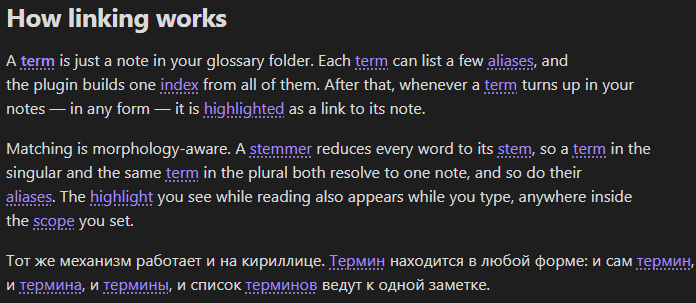
The term list comes from each glossary file's name and its aliases. Matching words are found even when inflected (unit → units, RU юнит → юнита/юниту/юнитов). The engine is multilingual and picks itself by the word's script: Russian for Cyrillic, English for Latin (more in Morphology and languages). Highlighting runs in Reading view and in the editor (Live or On save). Multi-word terms (Vision radius, hyphenated Flow-field) match as a whole, longest match first.
The highlights behave like real internal links, in both Reading view and the editor:
- hover shows the term's page preview (following your Page Preview settings, with or without a modifier key);
- click opens the glossary note — in the editor a plain click just places the cursor, Ctrl/Cmd+click follows the term, and middle-click opens it in a new tab;
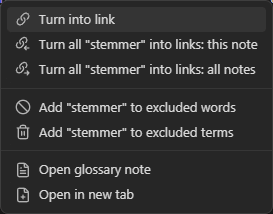
- right-click opens an actions menu — link to term, exclude the word or term, open the note, and more (see Commands). Each group can be hidden under Settings → Context menu; with all off, right-click shows the native menu. On mobile, a long-press opens this menu (there's no hover preview).
Turn terms into real links
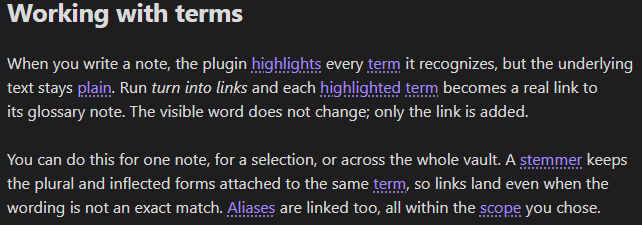
There are commands for the current note, the selection, or every note. A matching word becomes [[Title|word]]: the visible text stays exactly as you wrote it, and the link points to the glossary title. An "only first match per note" option is available, and every change is previewed before it's written.
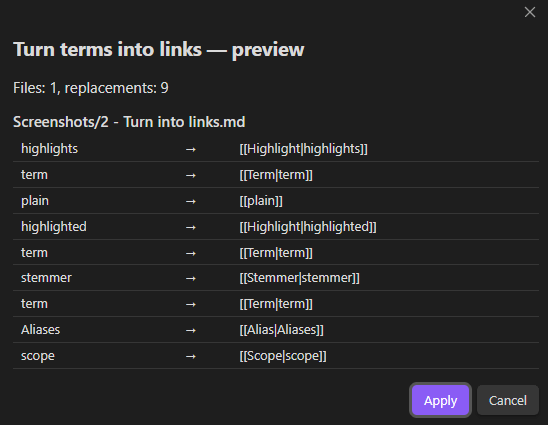
Every change is previewed before it's written.
Same words before and after — the visible text is unchanged, only the link is added:
 |
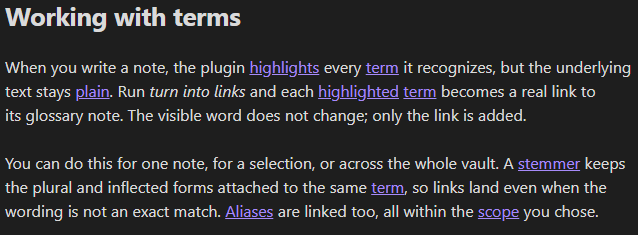 |
| Before — highlighted, text still plain | After — real links |
Vault-wide preview (all notes)
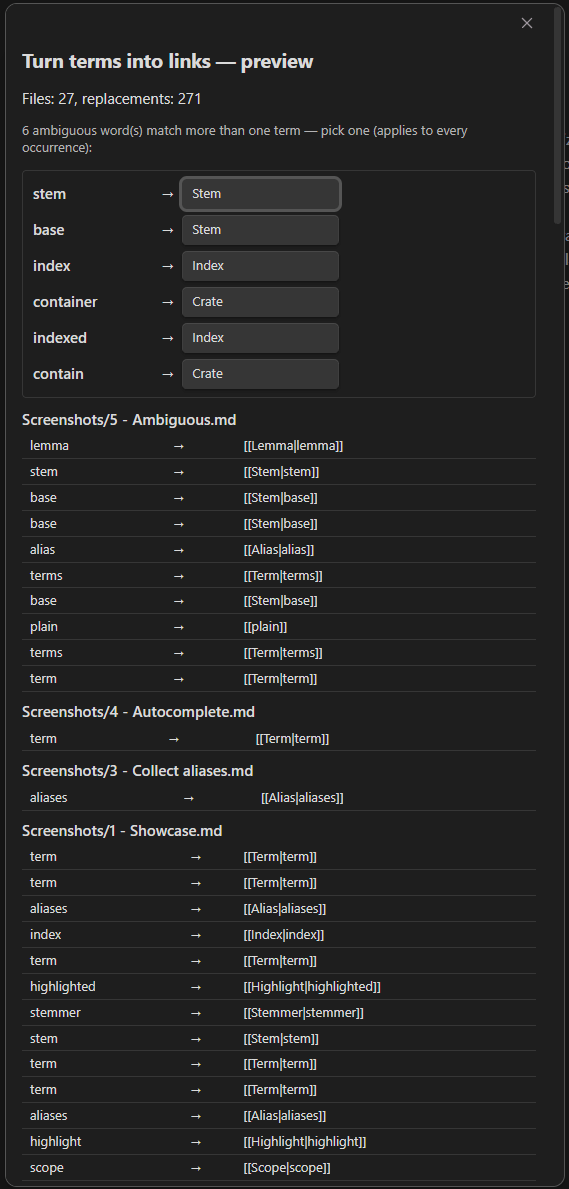
Across the whole vault, replacements are grouped by file, with a single picker at the top for any word that matches more than one term.
Collect aliases from links you made
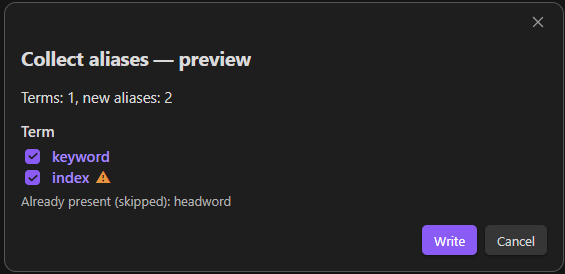
This scans for [[Term|some wording]] links you wrote by hand. If Term is a glossary note and the wording is custom, that wording becomes a new alias for the term; inline code and emphasis (`code`, italics) are stripped from it first. By default the wording is reduced to a base form ([[fruit|fruits]] → fruit). Aliases are de-duplicated case-insensitively, and nothing is added if the term already matches that wording anyway. Run it as a command or automatically on save. The preview gives each alias a checkbox, flags aliases that would collide with another term with ⚠ and leaves those unchecked, and lists separately the candidates skipped for already existing. A silent (on-save) collect skips colliding aliases entirely.
Alias form (aliasHarvestMode) controls how the collected wording is stored:
lemma(default) — reduce the wording to a base (dictionary) form: ENboxes → box, RUроем → рой,юнитов → юнит. RU soft-stem nouns (боем → бой) have a dedicated rule; irregular alternations may still need a manual fix in the preview.literal— store the wording as written.both— store both.
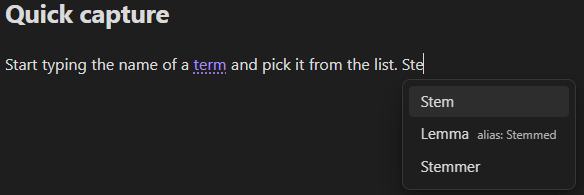
Suggest links as you type (optional)
Turn on Autocomplete → Suggest links while typing and typing in an in-scope note offers to insert a [[link]] to a matching glossary term. The match can be a prefix of a term's title or alias (type Vis → Vision radius) or an inflected form of one. A prefix match inserts [[Term]]; an inflected form keeps your wording as [[Term|word]]. It's off by default and never fires inside a glossary folder, code, links or other protected spans. It also stays quiet when the word follows a sigil like @, # or $, so it doesn't fight tags, math or another plugin's autocomplete — see Skip after characters.
Ambiguous terms
When a word matches more than one glossary term (the same alias lives on two notes), it gets a distinct double underline, and hovering shows a tooltip listing every matching term instead of a single, misleading page preview. Acting on it — clicking to open, or Link to term / Open from the right-click menu — opens a small picker so you choose which term rather than silently following the first. A word that matches a single term acts immediately, as usual.
Each row in the tooltip and the picker carries a second line saying what it is, and — when the word reached that term through one of its aliases rather than its title — which alias. That last part matters when an alias on one term collides with another term's title: you interact with "A", the list offers "A" and "B", and the line under "B" says it answers to "A" as well.
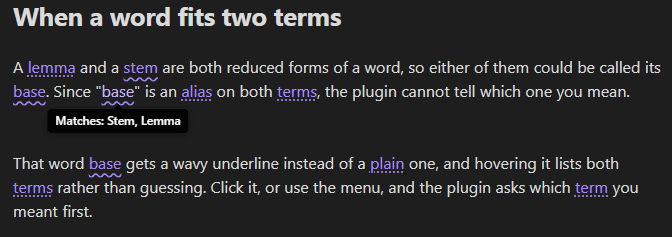
A word that fits two terms gets a distinct underline and a tooltip listing them.
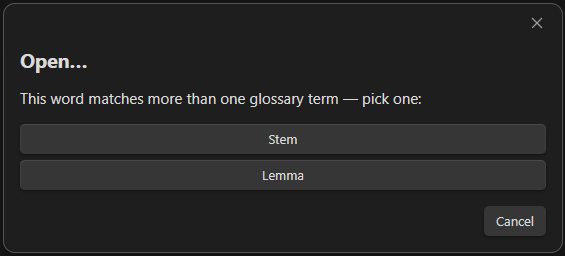
Acting on it asks which term you meant.
Glossary overview
A right-sidebar panel (the Open glossary overview command, or the ribbon icon) for the whole glossary at once, in two lists:
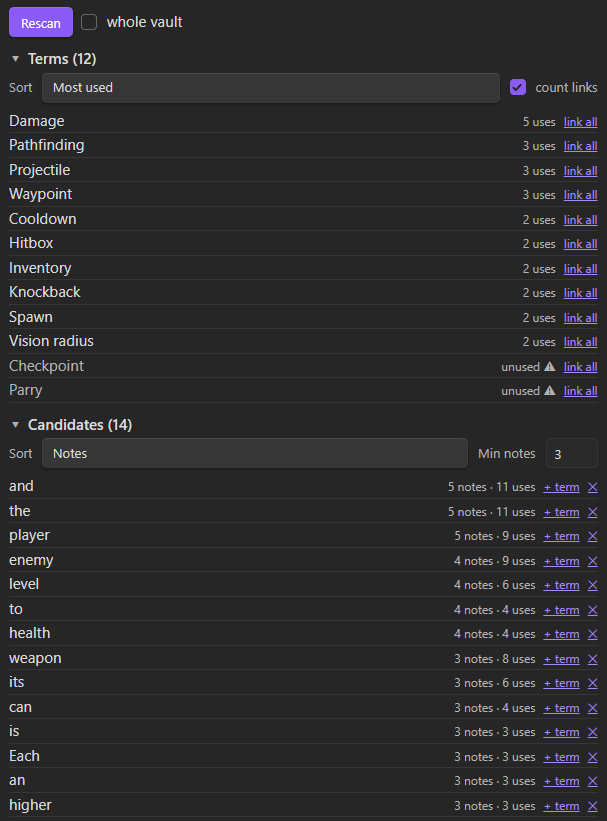
- Terms — every indexed term with how often it's used across in-scope notes; sort by usage or by name. The count is plain-text mentions, plus existing
[[Term]]links when count links is ticked (on by default — so a term you've already linked everywhere isn't mistaken for unused). Terms with no uses are flagged as orphans. Click a term to open it (middle-click for a new tab), or use link all to link its occurrences across the vault. A title held by more than one note — sayStatusin two of your glossary folders — carries a[1] [2]marker instead: a[[Status]]link can't say which note it means, so click a number to open that one and decide which to rename. - Candidates — frequent words that are not terms yet, so you can spot what's worth defining. Each shows how many notes it appears in and its total uses; sort by either, and set the Min notes threshold in the panel. Per candidate: create a term from it, or dismiss it with ✕ (which adds its base form to Excluded words as
word*, so no form of it comes back on the next scan). Collapse the section to skip the (heavier) candidate scan.
Both lists come from scanning your notes, so they refresh on demand — hit Rescan after a round of edits. By default the scan follows the linker's Link scope; tick whole vault in the panel header to scan every note regardless of scope.
Morphology and languages
Morphology is modular. Eight language modules are bundled in, and you can add more and rebuild (see Adding a language). Each one is validated against the module contract on load and gets a toggle in settings (Matching → Languages). For a given word, the keys from every enabled language that claims it are combined, so same-script languages like English, Spanish, German and French all contribute on a Latin word. If no language claims a word, it's matched exactly (lowercased), with no morphology.
The built-in modules are stemmer code compiled into the plugin:
ru.js(Russian) — Porter stemmer (Snowball, public domain). The keys are the union of the Porter stem and an ending strip, dropping an over-short stem. That covers both awkward cases:юнит/юнитов(the stemmer over-truncates toюн, the ending strip rescuesюнит) andрой/роем, whileюный/юнга/юностиdon't stick toЮнит. Beyond the stemmer there is a rule for the fleeting vowel, which no suffix trimming can reach (песок/песка,отец/отца,палец/пальца), and a table for the irregular plurals: the ten-мяneuters (имя/имена), the stem-growing nouns (мать/матери,небо/небеса) and the suppletive ones (человек/люди,ребёнок/дети).uk.js(Ukrainian) — the plugin's own light stemmer, handling the о/і and е/і vowel alternation in closed syllables (кіт/кота,ніч/ночі), plus a table for the irregular plurals (людина/люди,дитина/діти,ім'я/імена, however the apostrophe is typed).en.js(English) — Porter stemmer (Porter 1980, public domain):units → unit,running → run. On top of it, tables for the plurals no stemmer reduces: classical (cacti → cactus,indices → index), native (mice → mouse,children → child) and-f/-ves(wolves → wolf,lives → life). The tables apply to a compound's last word too, sograndchildren → grandchildandsalespeople → salesperson. Greek-sisnouns are too many to list, so they follow a rule instead:prognoses → prognosis,neurogeneses → neurogenesis. An invariant plural likemooseneeds nothing.es.js/de.js/fr.js(Spanish / German / French) — ports of the UniNE / Apache Lucene light stemmers (Apache License 2.0, J. Savoy):unidades → unidad,Einheiten → einheit,chevaux → cheval. Lighter than full Snowball, but enough to link a term across its word forms. German umlaut plurals (Maus/Mäuse,Buch/Bücher) come out of the stemmer already; French adds a table for the closed-ail/-auxgroup and the suppletive plurals (travail/travaux,œil/yeux).la.js/el.js(Latin / Greek) — the plugin's own: a Schinke case stemmer for Latin (rosae → rosa), and for Greek a light stemmer that folds polytonic diacritics so accented case forms meet (λόγου → λόγος). Both stay off by default; English already covers the latinised plurals an English note actually uses.
Enable only the languages your vault actually uses. Since same-script languages combine, leaving German on in an English-only vault can occasionally over-stem a word. On first run the plugin enables English plus your Obsidian interface language (if a module exists for it); switch on any others you need.
The mode (matchMode) is a global switch for all languages: stemmer, endingStrip (a light ending trim), or exact. Each mode's actual algorithm comes from the language module. A separate setting, Alias form (aliasHarvestMode), controls how collected aliases are stored — see Collect aliases from links you made.
Which scripts fit
The matcher splits text into words (Unicode \p{L}/\p{Nd}) and reduces each one by trimming endings, so it fits alphabetic scripts with word separators and suffix inflection: Latin, Cyrillic and Greek fit fully, and Indic abugidas and Korean fit where a module strips suffixes or particles. It does not fit spaceless CJK or root-and-pattern scripts like Arabic and Hebrew, which need word segmentation or substring search that the core doesn't do.
Matching ignores case, except for terms that look like acronyms — see Smart case for acronyms below. The visible text keeps the casing from your note, and collected aliases are stored lowercased.
Adding a language
A language is a small JavaScript module bundled into main.js at build time; nothing is loaded or executed at runtime. The modules are shared with the sibling linker plugins, so they live in the obsidian-linker-shared submodule and a new one benefits every plugin at once. Adding one means contributing a module and rebuilding, through a pull request (see Contributing). The full contract, an annotated template and a step-by-step guide live in languages/README.md. The short version:
- Copy
_template.jstosrc/shared/morphology/languages/<id>.js(e.g.uk.js). A module exportsid,name,match(word)andkeys(word, mode), plus optionalpriorityandlemma(word). Reusing a built-inid(ru/uk/en/es/de/fr) overrides it. - Implement
match(claims a word, usually by script) andkeys(returns the comparison keys for a word in the current mode —stemmer/endingStrip/exact). Two words link when their key sets overlap. - Register the module in
builtin-languages.jsand runnpm run build. - Restart the plugin. The language shows up under Matching → Languages; turn its toggle on.
Every module is validated against the contract on load (src/shared/morphology/language-api.js). A module that doesn't export an object with a valid id / name / match / keys is dropped and listed under Languages with a ⚠ marker and the reason, so the index keeps working and a mistake is easy to spot.
Commands (command palette, Ctrl+P)
- Link glossary terms: this note / selection / all notes
- Unlink glossary terms: this note / selection / all notes — the reverse of Link glossary terms: each
[[Title|word]]pointing at a glossary note becomes plainwordagain, previewed first. Links inside code or frontmatter, links you wrote to a specific heading ([[Term#section]]), and links to non-glossary notes are left untouched. - Collect aliases from links: this note / all notes
- Create glossary term from selection — creates a note in the first glossary folder named after the selected text, and links the selection to it
- Open glossary overview — the right-sidebar panel (see Glossary overview)
- Rebuild glossary index
Priority among linker plugins
Install more than one linker and they will sometimes claim the same word or the same link. It goes to whichever sits highest in Settings → Maintenance → Priority among linker plugins, and the loser stands aside — no double highlight, one entry in the right-click menu, one merged list of suggestions while you type.
The list appears only when another linker is installed. Each plugin moves itself, so reordering may take a move from more than one settings tab; every arrangement is reachable that way.
You can also act on a highlighted term from its right-click menu: Link to term, Link all "…" to term: this note, Link all "…" to term: all notes (the last previews changes across the whole vault), plus Add "…" to excluded words / Add "…" to excluded terms to quickly suppress a false match. Each exclude item is reversible: right-click a word or link that's already excluded and the same item reads Remove "…" from excluded words / terms. Right-click an existing glossary link for Glossary: unlink this term (turn just that link back into plain text) and Glossary: collect this alias (add this one link's wording as an alias for its term). Right-click a plain-text selection for Glossary: create term & link (create the term note and replace the selection with a link), Glossary: create term (just create and open it), and Glossary: add "…" to excluded words (suppress that word, term or not). Right-click anywhere else in the editor — empty space or a link — for Glossary: collect aliases from links (this note). Each of these groups can be toggled off under Settings → Context menu.
A status-bar counter (e.g. 3 terms) shows how many glossary terms are on the current note: plain-text mentions plus, optionally, terms already linked directly. Click it to link this note's terms (toggles under Highlighting → Status bar count).
Templates for new terms
A new term is a blank note by default. Set Term template to a note path to use that note as the body instead. These tokens are filled in when the term is created:
{{title}}— the term name{{selection}}— the text you selected{{source}}/{{sourcePath}}— the note the term was created from{{date}},{{time}}— current date/time; pass a moment format as{{date:YYYY-MM-DD}}
{{title}} is the selection with characters that aren't allowed in file names stripped out, so it matches {{selection}} for an ordinary word and differs only when the selection contains such characters.
These are the same tokens the core Templates plugin uses, so a Templates file works here too. Frontmatter in the template (an empty aliases: list, say) carries over as-is. The folder and file name come from the plugin, not the template, since the file name is the term.
To use Templater instead, leave Term template empty and add a Templater folder template for the glossary folder new terms land in. The plugin creates a blank note and Templater fills it. Use one or the other for a folder, not both.
Settings
Settings are grouped into sections, each with a short description in the UI. The tables below carry the full details and tips.
Scope
| Setting | Default | Description |
|---|---|---|
| Glossary folders | glossary |
folders with the term notes, indexed as one glossary; new terms are created in the first (and it is created for you if it is missing). Has folder autocomplete, and shows the indexed-term count, any missing folder and any title held by more than one note below it. Empty list = the whole vault is the glossary |
| Term template | — | note used as the body of new term notes; tokens like {{title}} / {{selection}} / {{date}} are filled in (see Templates for new terms above); empty = blank note |
| Link scope | Everywhere |
Listed paths only (an allow-list) or Everywhere. To link everywhere except a few folders, use Everywhere and list them under Always-excluded below |
| Paths to include | — | path list (file or folder); only these are in scope. Shown only in Listed paths only mode |
| Always-excluded paths | — | always out of scope, on top of the mode above |
You can also manage these lists from the file explorer: right-click a file or folder for Glossary: add to always-excluded (and the reverse once it's listed), or — in Listed paths only mode — Glossary: include in scope.
Matching
| Setting | Default | Description |
|---|---|---|
| Morphology | Stemmer |
how an inflected word is matched: Stemmer reduces words to a root (units → unit, recommended); Ending strip only chops common endings (lighter); Exact match needs the exact spelling. The algorithm itself comes from the enabled language modules |
| Minimum term length | 2 |
ignore term titles and aliases shorter than this many characters, so single letters don't match everywhere |
| Smart case for acronyms | on | a term written mostly in capitals ("IT", "NASA") only matches text spelled the same way, so it leaves the ordinary word alone. Decided per form: an acronym alias stays case-sensitive even when its term is an everyday word |
| Languages | English + interface language | per-language toggle; reorder with ↑↓ to set priority (higher in the list wins when same-script languages overlap, deciding the lemma); on first run only English and your Obsidian interface language are enabled |
| Link first occurrence only | off | link only the first occurrence of each term per page |
| Excluded terms | — | term titles or aliases that drop the whole matching entry from the index; a shared alias (e.g. _toc on every index/MOC note) drops them all at once. Use Excluded words to suppress a single word |
| Excluded words | — | surface words that never trigger a link even if they match a term — for homonyms, e.g. a common word "lead" colliding with a term "Lead". A line stops that spelling alone; lead* stops every form behind it. The term itself keeps linking either way |
Highlighting
| Setting | Default | Description |
|---|---|---|
| Highlight in Reading view | on | underline detected terms as clickable links in Reading view (file unchanged); they behave like real links — hover preview, click to open, right-click for the actions menu |
| Highlight while editing | Live |
editor highlighting: Off / Live (as you type) / On save; applied immediately, no reload |
| Skip headings | on | do not link inside headings (#) |
| Status bar count | on | show the count of terms on the current note (e.g. 3 terms) in the status bar; the base count is plain-text (not-yet-linked) mentions; click it to link them |
| Count direct links | on | also count terms already linked directly ([[Term]] / [[Term|alias]]), not just plain-text mentions |
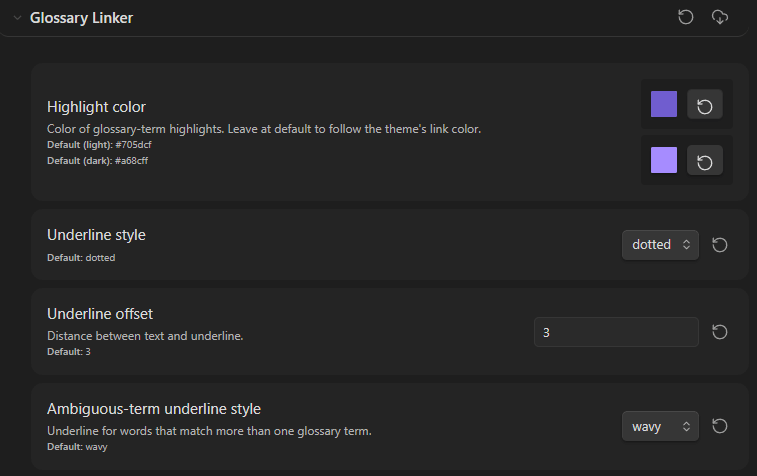
How a highlight looks is exposed to the Style Settings plugin under a Glossary Linker section, so you can restyle it from a UI. Without Style Settings, or left at default, a highlight follows your theme's link color with a dotted underline and nothing else changes.
| Section | What you can set |
|---|---|
| Links | colour and underline (style, thickness, offset), the same again for hover, Follow the link colour (a hue of your own, kept in step with the colour your theme gives links there), a marker-pen background with its corner radius, font weight, italic, and Show highlight only on hover — a highlighted word reads as plain text until you point at it |
| Ambiguous terms | the double underline (style, thickness), a colour that tells a collision apart, a symbol beside the word, and how wide the list of meanings grows on hover |
| Autocomplete, Side panel | hide the note column in suggestions; row density and text size in the overview |
Every colour picker opens on the colour actually in use and follows your theme until you pick one; every option is a plain CSS variable or a class on body, so a snippet in .obsidian/snippets/ does just as well:
- Links —
--glossary-link-color,--glossary-link-color-hover,--glossary-hue-shift,--glossary-hue,--glossary-underline-style,--glossary-underline-style-hover,--glossary-underline-width,--glossary-underline-offset,--glossary-link-background,--glossary-link-background-hover,--glossary-link-radius,--glossary-link-weight;body.glossary-hue-turned,body.glossary-hue-fixed,body.glossary-link-italic,body.glossary-quiet - Ambiguous terms —
--glossary-ambiguous-underline-style,--glossary-ambiguous-underline-width,--glossary-ambiguous-color,--glossary-ambiguous-symbol,--glossary-choices-width;body.glossary-mark-after - Autocomplete and panel —
--glossary-panel-font-size;body.glossary-hide-suggestion-path,body.glossary-dense,body.glossary-roomy
Follow the link colour derives a highlight from the link colour of the note it sits in — the one your theme paints there, including a colour a cssclass gives a single note — and either turns its hue by Hue shift or replaces it with Hue. Lightness and saturation stay the theme's, so the highlight keeps its relationship to your links when the theme, the accent colour or the note changes. It needs an Obsidian installer new enough for relative colours; without them the colours above are used.
To mark collisions, set Ambiguous-term colour, or type anything into Ambiguous-term symbol — a character or an emoji, shown before the word unless you turn on Put the symbol after the word. The colour marks the word at rest; hovering shows the ordinary hover colour, and the double underline keeps saying it is ambiguous either way.
Show highlight only on hover leaves the ambiguity symbol visible, so a collision is still easy to spot on an otherwise quiet page.
Autocomplete
| Setting | Default | Description |
|---|---|---|
| Suggest links while typing | off | offer a [[link]] to a matching term as you type in an in-scope note (prefix of a title/alias, or an inflected form); only triggers at the end of a word and only when there are matches |
| Minimum characters | 3 |
how many characters to type before suggestions appear |
| Skip after characters | @#$^ |
stay quiet when the word follows one of these, so tags, math, and other plugins' autocompletes (e.g. Code Linker's @@) keep their slot; clear it to disable |
| Insert plain text | off | pick a suggestion and get the word alone instead of a link — the completion without the brackets |
Collecting aliases
| Setting | Default | Description |
|---|---|---|
| Alias form | Base form |
how link text is stored: Base form reduces it to a dictionary form so one alias covers many word forms ("boxes" → "box"; it is a stem, so it can be grammatically odd but still matches); As written keeps the exact text; Both stores both |
| Collect on save | Off |
Off / Silent (add automatically) / Ask first — collect aliases on save (with a short delay) |
| Single-word aliases only | on | collect single-word link texts only (multi-word ones reduce poorly) |
| Minimum alias length | 2 |
ignore aliases shorter than N characters |
| Warn about alias collisions | on | when collecting an alias or creating a term, flag wording that already matches a different term, so you don't make one word point at two terms |
Context menu
| Setting | Default | Description |
|---|---|---|
| "Link to term" items | on | show the link-to-term actions when right-clicking a term |
| "Collect aliases" item | on | show Glossary: collect aliases from links (this note) in the editor menu (empty space / a link) |
| "Exclude word / term" items | on | show Add … to excluded words / terms when right-clicking a term |
| "Open glossary note" items | on | show Open glossary note / Open in new tab when right-clicking a term (all groups off → native menu) |
| "Create term from selection" items | on | show the Glossary: create term… actions when right-clicking a selection |
| "Unlink term" item | on | show Glossary: unlink this term when right-clicking an existing glossary link |
Overview
| Setting | Default | Description |
|---|---|---|
| Ribbon icon | on | show a ribbon button that opens the Glossary overview panel; the Open glossary overview command works either way |
The candidate threshold (Min notes) and the term sort live in the panel's own header, not here.
Skipped contexts
Code blocks (``` and ~~~), inline code, frontmatter, existing [[...]] and [..](..) links, and URLs are left untouched. A term is never linked inside its own note. In Reading view, links and (optionally) headings are skipped by DOM ancestry; in the editor, by the CM6 syntax tree. When a link is written into a Markdown table cell, the alias pipe is escaped ([[Term\|word]]) so the table isn't broken.
Performance
The index is built on load and rebuilt when glossary notes change (debounced). Word-form keys are cached in the index, and per-word stemmer results are memoised across a render pass (invalidated on rebuild). Scanning is token-based with longest-match-first. The editor's right-click menu reads the term straight from the clicked decoration instead of re-scanning the document.
The glossary overview's usage and candidate scans are cached per note: a Rescan only re-reads notes whose file changed since the last one, and the cache drops itself whenever the term index is rebuilt (so counts never lag the glossary). The first scan of a large vault still reads every note; later ones are near-instant.
Public API
The plugin exposes a small read-only API at app.plugins.plugins['glossary-linker'].api, so other plugins and DataviewJS can query the glossary:
| Method | Returns |
|---|---|
getTerms() |
every indexed term: { canonical, path, aliases } |
resolveTerm(name) |
the term a title or alias (case-insensitive) belongs to, or null |
keysFor(word) / lemmaFor(word) |
the morphology keys / base form of a word, same engine the matcher uses |
findMatches(text) |
glossary matches in arbitrary text (protected spans skipped) |
getUsageReport(opts?) |
async; per term, how many occurrences across in-scope notes and in which files — terms with count: 0 are orphans. Counts plain-text mentions; pass { includeLinks: true } to also count direct [[Term]] links |
collectCandidates() |
async; frequent in-scope words that are not yet terms: { lemma, display, count, docFreq }, ordered by how many notes they appear in |
onChange(cb) |
subscribe to index rebuilds; returns an unsubscribe function |
A "glossary dashboard" in DataviewJS, for example:
const api = app.plugins.plugins['glossary-linker'].api;
const report = await api.getUsageReport();
dv.table(['Term', 'Uses'], report.sort((a, b) => b.count - a.count).map((r) => [r.canonical, r.count]));
// orphans:
dv.list(report.filter((r) => r.count === 0).map((r) => r.canonical));
Licenses & credits
Most bundled language modules port well-known, permissively-licensed stemming algorithms (uk.js and el.js are the plugin's own, under its MIT license). All are free for commercial and non-commercial use; the only obligation is keeping the attribution notices, which are already in each file's header.
| Module | Algorithm | License | Reference |
|---|---|---|---|
ru.js |
Snowball Russian stemmer (Porter framework), plus fleeting-vowel and irregular-plural rules of the plugin's own | BSD (© 2001–2006 M. Porter & R. Boulton) | snowballstem.org · license |
uk.js |
Light suffix stemmer with vowel alternation | MIT (this plugin) | — |
en.js |
Porter stemmer (M. F. Porter, 1980), plus irregular-plural tables of the plugin's own | Free use for the stemmer, MIT for the tables | tartarus.org |
es.js |
Apache Lucene SpanishLightStemmer (UniNE, J. Savoy) |
Apache License 2.0 | source |
de.js |
Apache Lucene GermanLightStemmer (UniNE, J. Savoy) |
Apache License 2.0 | source |
fr.js |
Apache Lucene FrenchLightStemmer (UniNE, J. Savoy), plus an irregular-plural table of the plugin's own |
Apache License 2.0, MIT for the table | source |
la.js |
Schinke Latin stemmer (Schinke, Greengrass, Robertson & Willett, 1996) | Own implementation, MIT (this plugin) | snowballstem.org |
el.js |
Light suffix stemmer with polytonic diacritic folding | MIT (this plugin) | — |
The es/de/fr stemmers were translated to JavaScript and adapted to this plugin's module interface; per the Apache License the source files note that they are modified ports. Apache 2.0 full text: https://www.apache.org/licenses/LICENSE-2.0.
Glossary Linker itself is released under the MIT license — see LICENSE.
Development
The core is written as small CommonJS modules in src/ and bundled into main.js by esbuild. The language modules live in the shared submodule, under src/shared/morphology/languages/, and are bundled in through src/shared/morphology/builtin-languages.js; adding a language means contributing a module there and rebuilding (see languages/README.md). Nothing is loaded or executed at runtime.
Generic code shared with the sibling linker plugins lives in src/shared/, a git submodule of obsidian-linker-shared. Clone with --recurse-submodules so the build can find it:
git clone --recurse-submodules https://github.com/max-fluff/obsidian-glossary-linker
npm install      # once, installs esbuild
npm run build    # bundle src/ -> main.js
In an existing clone without the submodule, run git submodule update --init first.
src/ layout:
main.js— thePluginclass: lifecycle, commands, language loading, scope, small shared helpers; applies the mixins below.constants.js— default settings.matcher.js— the term index and matching engine (keysFor,tokenizeForm,rebuildIndex,findMatches,termsMatchingText, protected ranges).highlight.js— Reading-view DOM highlighting and the CM6 editor extension.actions.js— turning terms into links and collecting aliases.api.js— the public API mixin (app.plugins.plugins['glossary-linker'].api).modals.js— the preview dialogs and the confirm dialog.settings-tab.js— the settings UI.vault-suggest.js— vault folder/file autocomplete for the settings fields (feature-detected).term-suggest.js— the editor autocomplete (EditorSuggest, feature-detected).shared/— git submodule shared with the sibling linker plugins: markdown helpers, the i18n engine, the folder-list settings editor, andmorphology/(the language modules, their contract andvalidateLanguage()). Interface strings live per-plugin inlocales/.
main.js is generated; edit src/ and rebuild rather than editing main.js directly. node_modules/ and package-lock.json are git-ignored.
Installation
From Obsidian (recommended). Open Settings → Community plugins → Browse, search for Glossary Linker, then Install and Enable. You can also open its catalog page directly: community.obsidian.md/plugins/glossary-linker. The default languages are baked into main.js, so nothing else is needed.
Manually. Download main.js, manifest.json and styles.css from the latest release into <vault>/.obsidian/plugins/glossary-linker/, then enable the plugin in Settings → Community plugins.
Beta builds via BRAT. Add the repository max-fluff/obsidian-glossary-linker to test unreleased changes before they reach the catalog.
Compatibility
Requires Obsidian 1.4.0 or newer, and works on both desktop and mobile.
Nothing below is required — the plugin runs on its own — but it cooperates with a few others if you have them:
- Style Settings — a UI for everything the plugin draws: highlight color and underline, the marker-pen background, how ambiguous terms are told apart, and the overview panel's density.
- Page Preview (core plugin) — provides the hover preview on glossary links; the plugin registers as its own Glossary Linker source you can toggle independently.
- Dataview — query the glossary from DataviewJS through the public API (usage reports, orphan terms, and so on).
- Templates (core) / Templater — fill the body of newly created term notes (see Templates for new terms).
Related plugins
Also by the author — the rest of the linker family. Two of them highlight words already in your notes and link them; two autocomplete a name into a deep-link that lands on the exact spot.
Heading Linker — the file-based sibling of this plugin: each heading inside a chosen file is a term, matched in any word form and turned into a link, on the same matching engine. Works on desktop and mobile.

Code Linker — autocompletes references to your source code and inserts a deep-link that opens the file at the exact line in your editor (VS Code, JetBrains, …). Desktop-only.
Reference Linker — autocompletes links to external documents (PDF, Office, images) and inserts a deep-link that opens them at the right page in an external viewer. Desktop-only.
License
MIT, see LICENSE. Bundled third-party notices are in THIRD_PARTY_NOTICES.md.