FlowTask For Super Productivity
 Gilberto Olimpio Jr.76 downloads
Capture, sync and complete Super Productivity tasks without leaving Obsidian.
- Overview
- Scorecard
- Updates9
FlowTask For Super Productivity
Capture, synchronize, and complete Super Productivity tasks without leaving Obsidian.
FlowTask connects Obsidian, your place for notes and continuous thinking, to Super Productivity, your place for execution and task state.
Contents
- What it does
- Requirements
- Installation
- First-time setup
- Import tasks from notes
- Obsidian Tasks compatibility
- Quick capture
- Task panel
- Tracking tasks
- Command Palette commands
- Connection and fallback
- Settings reference
- Troubleshooting
- Development
- Contributing
- Release process
- Privacy and security
- Limitations
- License
What it does
FlowTask provides three complementary workflows:
- Import an Obsidian checkbox into Super Productivity while writing a note.
- Create a task quickly from a configurable command or hotkey.
- Browse, search, group, track, pause, resume, complete, and delete Super Productivity tasks from an Obsidian sidebar.
The integration is deliberately local-first. The primary transport is the Super Productivity Local REST API. When the local app is unavailable, optional file-based fallback queues commands in a vault folder that can be synchronized by your preferred sync service.
Requirements
- Obsidian Desktop 1.13.0 or later.
- Super Productivity with the Local REST API enabled.
- A local Super Productivity API URL, normally
http://127.0.0.1:3876. - A token only when the installed Super Productivity version displays and requires one.
FlowTask is desktop-only because it uses the Obsidian desktop request API and a local application endpoint.
Installation
Community plugins
After FlowTask is accepted into the Obsidian community plugin directory:
- Open Settings in Obsidian.
- Open Community plugins.
- Search for FlowTask For Super Productivity.
- Install and enable the plugin.
Manual installation
Download main.js, manifest.json, and styles.css from a GitHub release and copy them into:
<vault>/.obsidian/plugins/flowtask-super-productivity/
Then reload Obsidian and enable FlowTask For Super Productivity under Settings > Community plugins.
Development installation
Clone the repository, build the plugin, and copy the generated files into the vault plugin directory:
git clone https://github.com/giba0/obisidan-flowtask-sp.git
cd obisidan-flowtask-sp
npm install
npm run build
Copy main.js, manifest.json, and styles.css into the plugin directory described above. Rebuild after source changes and reload the plugin in Obsidian.
First-time setup
- Open Settings > FlowTask For Super Productivity.
- Set Base URL. The default is
http://127.0.0.1:3876. - Set Access token only if Super Productivity shows one under Settings > Misc > Local REST API.
- Click Test connection.
- Confirm that the status in the FlowTask panel changes to connected.
Recent Super Productivity versions may not require a token for local loopback requests. Leave the field empty in that case. FlowTask never sends an empty Authorization header. When a token is configured, FlowTask sends Authorization: Bearer <token> on authenticated task, project, tag, and task-control requests. The GET /health check is always sent without an authorization header.
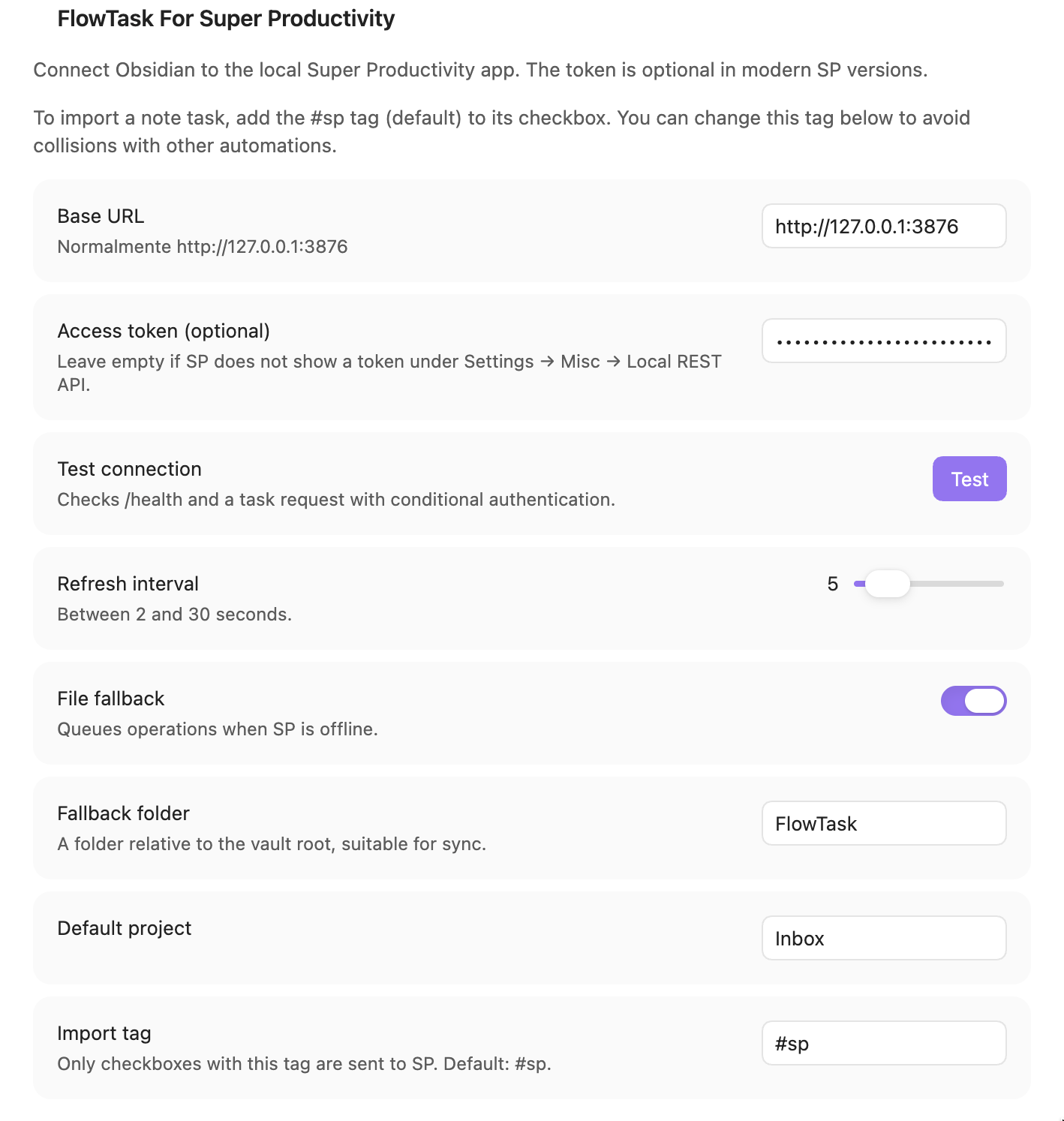
FlowTask connection, fallback, and import settings.
Import tasks from notes
The default import tag is #sp. A checkbox must contain the configured import tag to be sent to Super Productivity:
- [ ] Review the release notes #sp
A normal checkbox without the import tag is left untouched:
- [ ] This remains an Obsidian-only checklist item
The import tag is configurable under Settings > FlowTask For Super Productivity > Import tag. The value may be entered as sp or #sp; FlowTask normalizes both forms.
Supported note metadata
- [ ] Review the release +Engineering #sp 📅 2026-09-20 30m
Supported metadata includes:
+Projectresolves an existing Super Productivity project.#tagresolves an existing Super Productivity tag.@today,@tomorrow,@next monday, and@next weekresolve relative dates.@YYYY-MM-DDand@YYYY/MM/DDresolve explicit dates.30m,1h, and2ddefine an estimate.📅 YYYY-MM-DDis the due-date syntax used by the Obsidian Tasks plugin.⏳ YYYY-MM-DDis also accepted as a date marker.
Projects and tags are resolved only when they already exist in Super Productivity. FlowTask never creates projects or tags through the API. An unresolved project or tag is preserved as literal task text instead of silently creating the wrong entity.
Task identity marker
After successful import, FlowTask appends an inline Obsidian comment:
- [ ] Review the release #sp %%sp-id:task-id%%
The marker is hidden in Live Preview and Reading View and remains visible in Source/Code mode. It makes synchronization idempotent and connects the note checkbox to the remote task. Legacy <!--sp-id:...--> markers are still recognized and migrated automatically during synchronization.
Completion synchronization
- Checking the note checkbox completes the linked Super Productivity task.
- Completing the task in Super Productivity checks the linked note checkbox.
- Reopening the task in Super Productivity unchecks the linked note checkbox.
- Remote completion synchronization runs during polling even when the FlowTask panel is closed.
Subtasks from notes
Indented checkboxes under an imported parent are created as Super Productivity subtasks:
- [ ] Release FlowTask #sp 📅 2026-09-25
  - [ ] Update the README
  - [ ] Publish the release
The parent needs the configured import tag. Its indented children inherit the parent relationship and project. Super Productivity's Local REST API currently supports one subtask level through parentId; deeper indentation is attached to the top-level parent rather than creating unsupported nested API relationships.
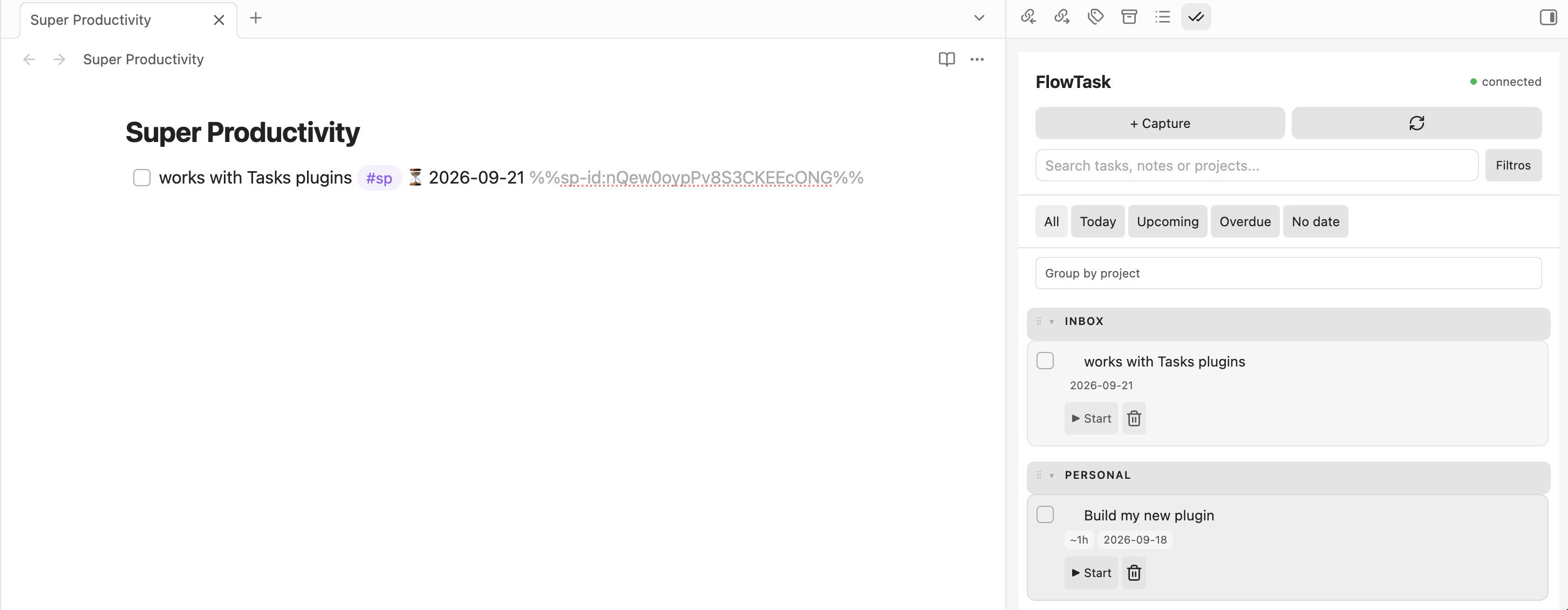
Write in Obsidian while monitoring the linked FlowTask panel.
Obsidian Tasks compatibility
FlowTask is compatible with the common Obsidian Tasks format:
- [ ] Prepare the demo #sp 📅 2026-09-21
The task remains a normal Obsidian Tasks item. FlowTask only adds its hidden identity marker and sends the due date to Super Productivity as dueDay.
See the official Tasks documentation for the full Tasks syntax:
https://publish.obsidian.md/tasks/Introduction
Quick capture
Open FlowTask: Quick capture from the Command Palette or assign your own hotkey under Settings > Hotkeys.
Enter a task using this syntax:
Buy milk +Home #shopping @tomorrow 15m
The modal provides:
- Project autocomplete after
+. - Tag autocomplete after
#. - Date suggestions after
@. - Keyboard navigation with Up, Down, and Tab to select; Enter submits the capture.
- A live preview showing the resolved date and estimate.
- An option to attach an
obsidian://link to the current note. - A collapsed Subtasks section with
+ Add subtaskfor creating child tasks before the parent is submitted.
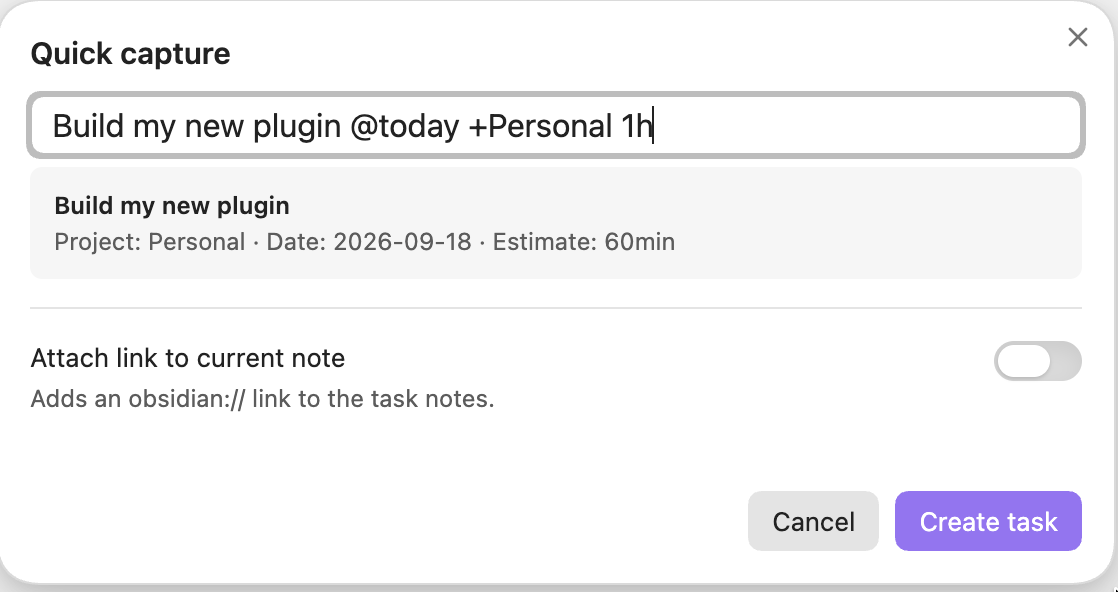
Quick Capture with a live project, date, and estimate preview.
Quick capture uses #tag because it is an isolated modal. Note import uses the configured routing tag and remains compatible with normal Obsidian note syntax.
Task panel
Open the panel with the ribbon icon, the Command Palette, or FlowTask: Open panel.
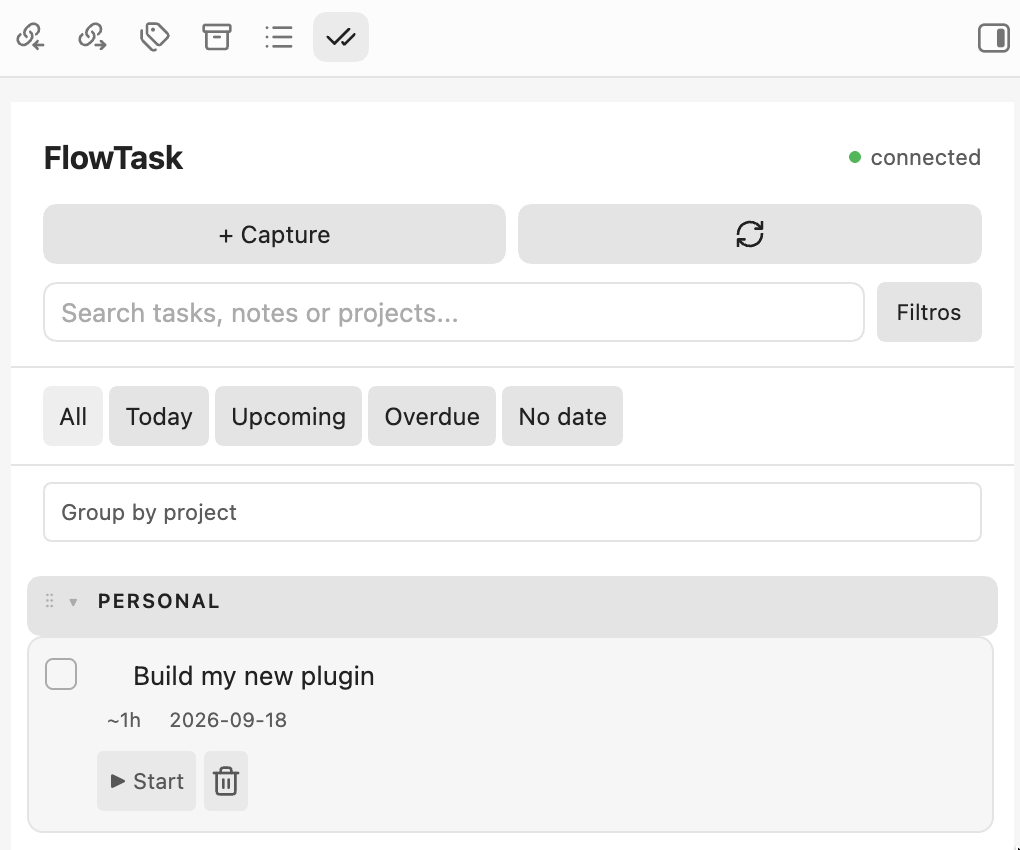
Search, filter, group, and track tasks from the sidebar.
Views
- All shows active tasks.
- Today shows tasks due today.
- Upcoming shows future scheduled tasks.
- Overdue shows tasks whose due date has passed.
- No date shows tasks without a due date.
Filters
The Filters menu provides:
- All tasks.
- Inbox.
- Archived tasks.
- Include completed tasks.
Search
The search field uses fuzzy matching across:
- Task titles.
- Task notes.
- Project names.
- Tag names.
Searching rpr can match a task such as Review pull request without requiring an exact phrase.
Grouping
Use the grouping selector to group tasks by:
- Project.
- Due date.
- Tag.
Click a group header to collapse or expand it. Use the ⋮⋮ handle to drag project groups into a preferred order. Inbox is always placed first. Custom project order is stored in FlowTask settings and affects only the FlowTask presentation.
Task cards
Each card can show:
- Completion checkbox.
- Due date.
- Tags.
- Time already invested.
- Start, pause, or resume action.
- Delete action.
Tasks with subtasks display a ▾ or ▸ control beside the title. The control collapses or expands the child tasks without hiding the parent.
Parent cards and Quick Capture both use a dedicated Subtasks (n) section with an Add subtask action, following the Super Productivity workflow.
Tracking tasks
The tracking action reflects the actual current task reported by Super Productivity:
Startstarts tracking a task with no recorded time.Resume (time)starts tracking a task that already has recorded time.Pausestops the current task throughPOST /task-control/stop.
Time values are read in the millisecond format used by Super Productivity and displayed as seconds, minutes, or hours.
Starting a task does not guarantee starting a Pomodoro or focus session. Super Productivity does not expose a guaranteed external focus-session API; focus behavior depends on the application's own configuration.
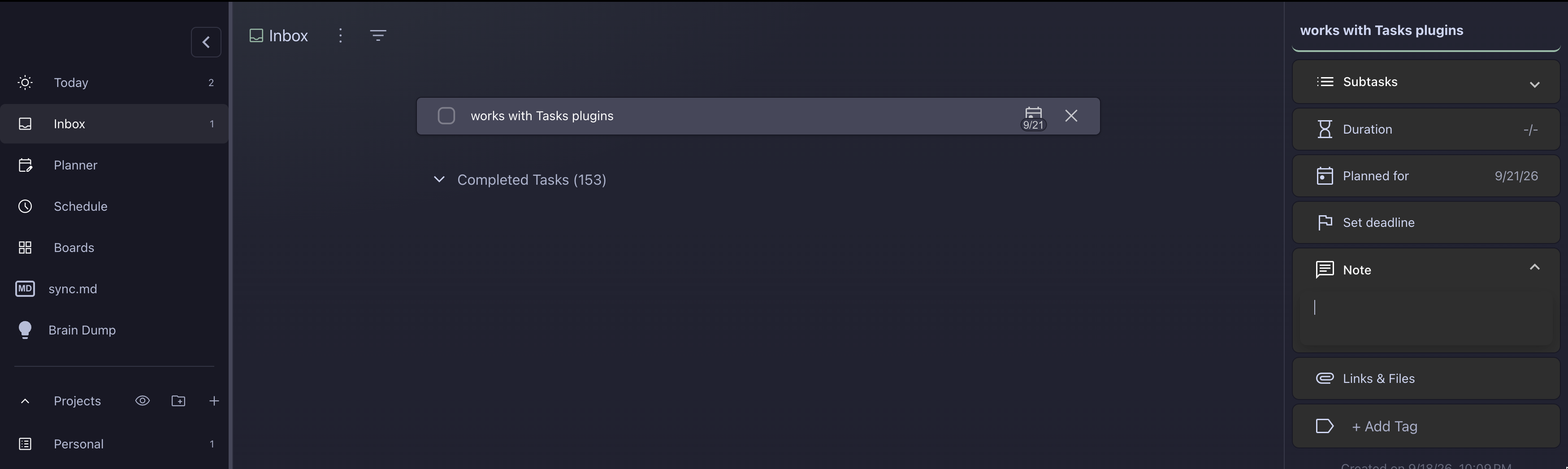
The linked task in Super Productivity's Inbox.
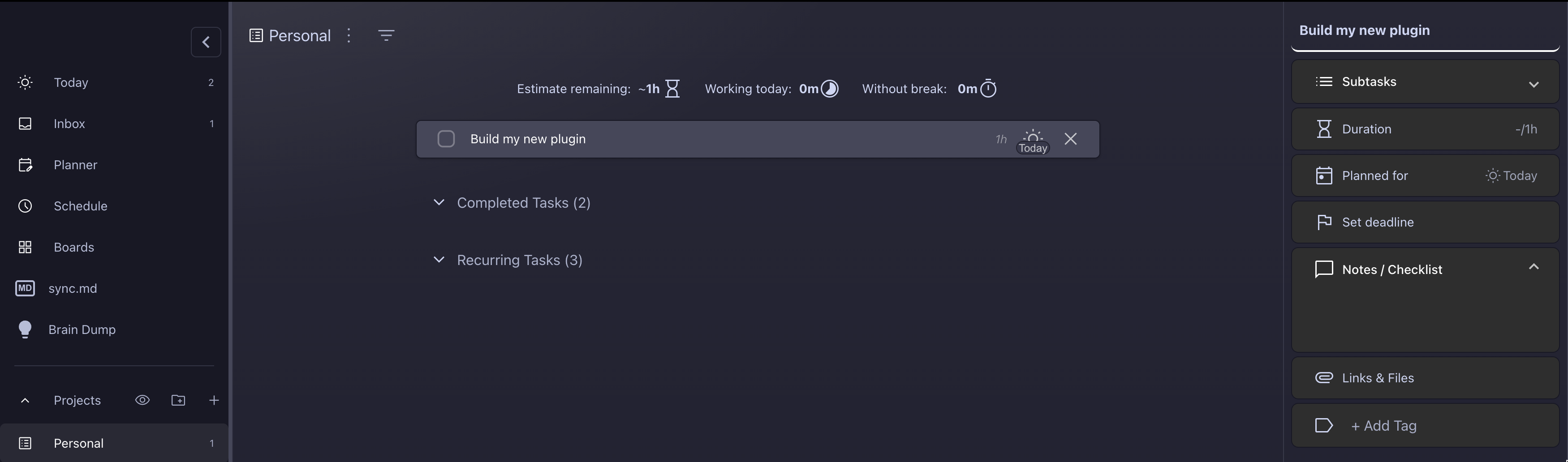
Tracking and scheduling the task inside a Super Productivity project.
Command Palette commands
FlowTask registers independent commands so each can receive its own Obsidian hotkey:
- FlowTask For Super Productivity: Quick capture
- FlowTask For Super Productivity: Sync current line
- FlowTask For Super Productivity: Open panel
- FlowTask For Super Productivity: Refresh tasks
- FlowTask For Super Productivity: View today's tasks
Configure hotkeys under Settings > Hotkeys.
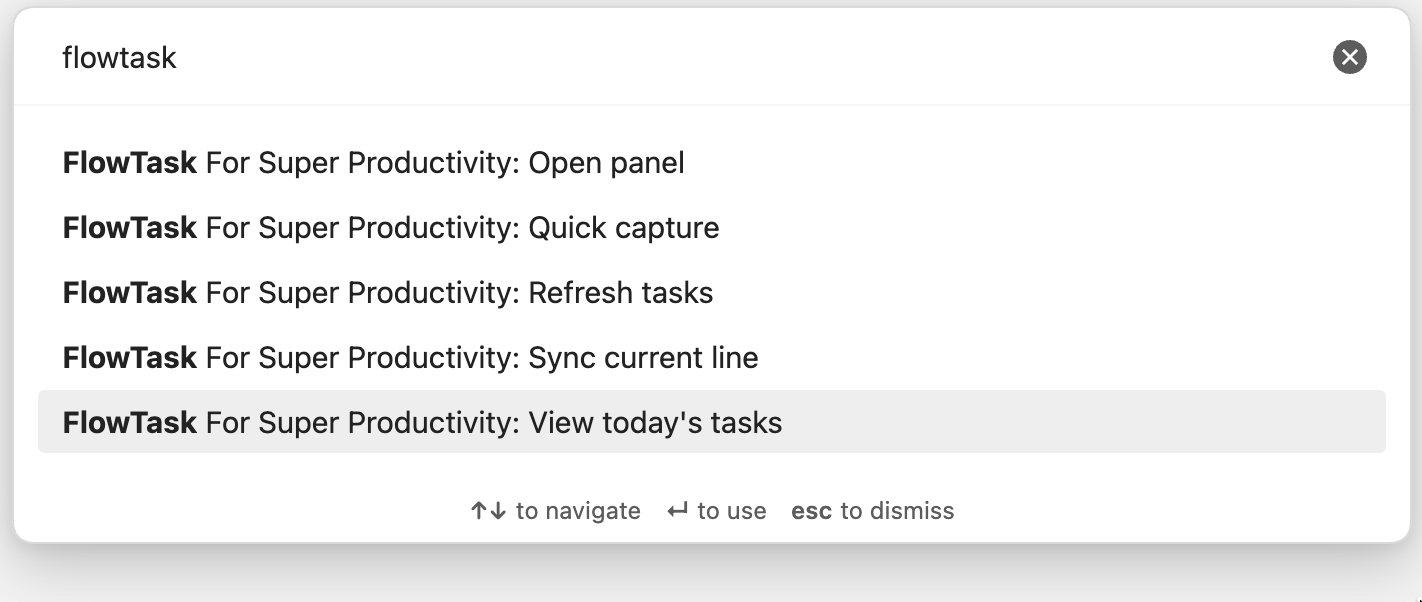
FlowTask commands are independently available in the Obsidian Command Palette.
Connection and fallback
Local REST transport
FlowTask uses Obsidian's requestUrl() API rather than browser fetch(). This avoids sending an Origin header that the Super Productivity local API rejects.
The REST transport uses these endpoints:
GET /healthGET /tasksPOST /tasksPATCH /tasks/:idDELETE /tasks/:idGET /projectsGET /tagsPOST /tasks/:id/startGET /task-control/currentPOST /task-control/stop
File fallback
When enabled, offline task operations are written atomically below the configured folder:
FlowTask/
  commands/
  events/
  processed/
  state/snapshot.json
The fallback is intended for an optional companion integration or a synchronized vault workflow. It does not pretend that a local REST operation succeeded.
Settings reference
Base URL
The Super Productivity Local REST API URL. Default: http://127.0.0.1:3876.
Access token
Optional. Leave empty when your local SP API does not require authentication. If your SP version displays or requires a token, enter it here. FlowTask sends Authorization: Bearer <token> on authenticated task, project, tag, and task-control requests; GET /health is always unauthenticated.
Refresh interval
Polling interval from 2 to 30 seconds. The default is 5 seconds. FlowTask also refreshes when the Obsidian window regains focus.
File fallback
Enables or disables the JSON command queue used while Super Productivity is unavailable.
Fallback folder
Vault-relative folder used by the file transport. The default is FlowTask.
Default project
Optional existing Super Productivity project name used when a newly created task does not specify a project.
Import tag
The routing tag used by the checkbox watcher. Default: #sp.
Troubleshooting
The panel says that Super Productivity is unavailable
- Confirm that Super Productivity is running.
- Confirm the Base URL and port.
- Run
curl http://127.0.0.1:3876/health. - Add the access token if your SP version requires one.
- Click Test connection in FlowTask settings.
Tasks are not imported from a note
- Confirm that the checkbox contains the configured import tag, normally
#sp. - Confirm that the line starts with an Obsidian checkbox such as
- [ ]. - Use FlowTask: Sync current line to process the current line immediately.
- Check the note source for the hidden
%%sp-id:...%%marker.
The task has no date in Super Productivity
Use a supported date marker:
- [ ] Task #sp 📅 2026-09-20
Do not use a locale-formatted date such as 20/09/2026 when creating a task from the note.
The task shows ##sp
Update to the latest plugin build. FlowTask normalizes legacy tag settings and prevents the routing tag from being appended as a second hash-prefixed tag. Existing tasks already containing ##sp must be edited once in Super Productivity.
The panel does not show completed tasks
Open Filters and enable Include completed.
Development
Prerequisites
- Node.js 18 or later.
- npm.
- Obsidian Desktop for manual runtime testing.
- A local Super Productivity instance for API integration testing.
Install dependencies
npm install
Run checks
npm run typecheck
npm test
npm run build
The test suite covers:
- Multi-timezone date parsing.
- Obsidian Tasks date syntax.
- REST response envelopes.
- Bearer header presence and omission.
- Super Productivity task field mapping.
- Start and pause endpoint mapping.
- Fuzzy search and task presentation.
- File fallback writes.
- Tag normalization and autocomplete.
Build output
npm run build creates the Obsidian distribution bundle at the repository root:
main.js
manifest.json
Do not commit node_modules. The generated main.js is part of a release and should be committed with the release tag.
Versioning
FlowTask follows Semantic Versioning. Use the version scripts from the repository root:
npm run version:patch  # bug fixes and compatible changes
npm run version:minor  # backwards-compatible features
npm run version:major  # breaking changes
Each script updates the version in package.json, package-lock.json, and manifest.json. Run the validation suite, commit the version change, and create a tag matching the new version. Pushing a major.minor.patch tag triggers the GitHub release workflow.
Project structure
src/domain/       Pure parsing, dates, search, tags, and presentation logic
src/transport/    REST and file transports
src/ui/           Sidebar and Quick Capture UI
src/watcher.ts    Checkbox import and bidirectional synchronization
src/main.ts       Obsidian lifecycle, commands, settings, and polling
tests/            Unit and integration-seam tests
Contributing
Before opening an issue, search existing issues and confirm that you are using the latest release.
Report a bug
Open a bug report with:
- Obsidian version.
- Super Productivity version.
- Operating system.
- FlowTask version.
- Whether a token is configured.
- Minimal note/task input that reproduces the issue.
- Expected behavior and actual behavior.
- Relevant console output with secrets removed.
Never include an access token, private note contents, or personal task data in an issue.
Request an improvement
Describe the user problem before proposing the implementation. Include:
- The workflow that is currently difficult.
- The smallest useful behavior.
- How the behavior should work offline.
- Whether it affects the REST API, note syntax, panel, or settings.
Pull requests
- Fork the repository.
- Create a focused branch from
main. - Keep changes small and explain the user-facing behavior.
- Add or update tests for behavior changes.
- Run
npm run typecheck,npm test, andnpm run build. - Update the README when settings, commands, syntax, or limitations change.
- Open a pull request with a clear summary and validation results.
Pull requests should not include secrets, vault data, node_modules, or unrelated formatting changes. A maintainer may request changes before merging.
See CONTRIBUTING.md for the full development and review policy.
Privacy and security
FlowTask does not use a hosted account or telemetry service. It sends task data to the configured Super Productivity Local REST API and writes fallback commands to the configured vault folder.
Do not publish:
- Super Productivity access tokens.
- Private vault content.
- Private task data.
- Personal API request logs containing authorization headers.
For security reports, see SECURITY.md instead of opening a public issue.
Limitations
- Project and tag creation through the Super Productivity API is not supported.
- Focus/Pomodoro sessions cannot be guaranteed through the external task API.
- The file fallback requires a companion process or integration to consume its command queue.
- Project ordering is a FlowTask presentation preference and does not reorder projects in Super Productivity.
- The plugin is desktop-only.
License
FlowTask For Super Productivity is distributed under the MIT License.
Support the project
If FlowTask improves your workflow, you can support development: