Curtis AI Chat
 Jordan Newell167 downloads
Polyglot AI chat with 30+ providers (Anthropic, OpenAI, Gemini, Ollama, and more), image attachments, long-term memory, slash commands, and inline selection actions.
- Overview
- Scorecard
- Updates5
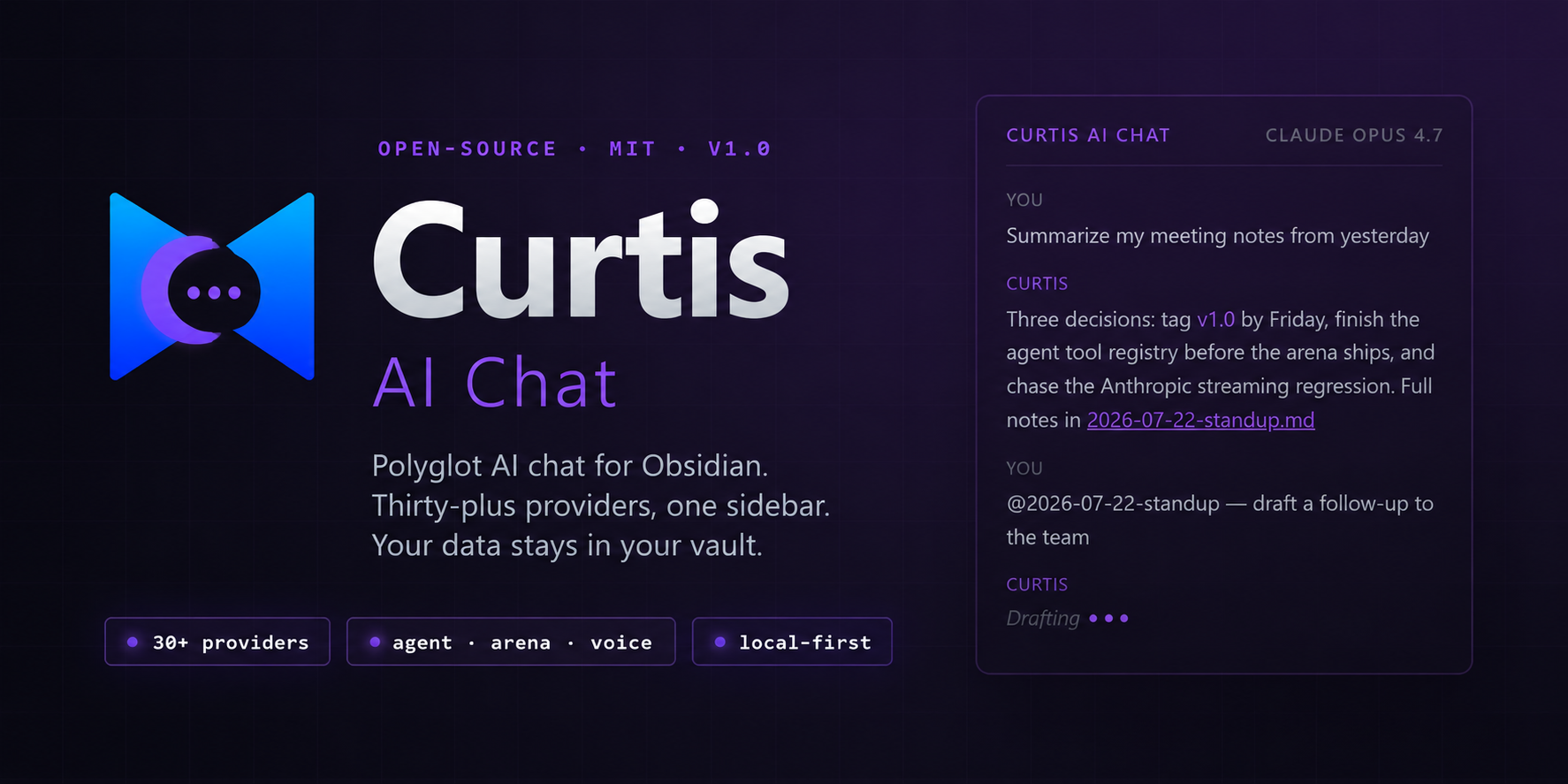
Polyglot AI chat for Obsidian.
Thirty-plus providers, one sidebar. Your data stays in your vault.
Website ↗ · Quick start · What's new · Features · Docs · Changelog · Feedback
Quick start
60 seconds to your first message.
Install — download the latest release (
main.js,manifest.json,styles.css) into<vault>/.obsidian/plugins/curtis-ai-chat/, then enable it under Settings → Community plugins. Or use BRAT for auto-updates during the beta.Configure one provider — open Settings → Curtis AI Chat → Provider Configuration, enable a provider, paste an API key. Keys are stored in your OS keychain (Obsidian 1.13+).
Send a message — click the robot icon in the ribbon (or
Ctrl+Shift+G), pick a model from the header dropdown, type, hit Enter.
[!TIP] Want fully private, free, offline AI? Install Ollama, run
ollama pull qwen2.5:7b-instruct, then enable Ollama (Local) in provider settings. No API key. Nothing leaves your machine.
Highlights
Eight flagship features in this initial release. Full details in CHANGELOG.md and the per-feature docs.
| Feature | What it does | |
|---|---|---|
| 🤖 | Curtis Agent | AI calls tools to read, create, and edit your vault notes. Nine built-in tools. |
| ⚔️ | Multi-model arena | Stream one prompt to 2 models in parallel, side-by-side. Pick a winner, promote to chat. |
| 🎨 | Inline diff rewrite | Cursor-style rewrite with an Accept/Reject diff modal. Assignable hotkey. |
| @ | @-mention vault notes | Type @ in chat → fuzzy-search your vault → attach note content as context. |
| 🎙️ | Voice I/O | Whisper speech-to-text on the mic button. Browser TTS on every assistant message. |
| 🔍 | Cross-conversation search | Assignable hotkey opens a fuzzy-matched picker across all conversations and messages. |
| 📝 | Markdown export | Download any conversation as .md. /export slash command or download icon. |
| 🧠 | Memory editing UI | Edit/delete individual memory facts from Settings → Memory. No more append-only. |
Plus a full type-safety pass: every AI provider response shape is strictly typed, with type-guard narrowing at every JSON boundary. Zero lint warnings on npm run build.
Features
🤖 Curtis Agent
The AI can now call tools to modify your vault. Nine built-in tools: read_note, search_notes, create_note, edit_note, list_notes, get_tags, get_backlinks, get_current_note, calculator.
- OpenAI-compat providers only for v1.0 (Anthropic / Gemini / Ollama agent support lands in v1.1)
agentMaxTurnssafety cap (default 5) prevents runaway tool loops- Opt-in via Settings → Agent → Enable
⚔️ Multi-model arena
Pick 2 models, send one prompt, watch responses stream side-by-side. Click Promote to chat on any column to continue with that model.
- Compare quality, latency, and cost live
- All providers supported (mind per-provider rate limits)
- Stacks vertically on mobile
🎨 Inline diff rewrite
Select text in any note → right-click → Rewrite with AI (diff) (or assign a hotkey under Settings → Hotkeys). The AI generates an improved version and a modal shows line-by-line green/red diff. Accept or reject.
- Cursor-style review workflow
- Reuses your active provider and model
- Word-level diff and inline editor decorations planned for v1.1
@ @-mention vault notes
Type @ in the chat input → fuzzy-search your vault → click a result to attach. Note content is prepended to your message as invisible context. Chips above the input show what's attached.
- Active-note pill in the chat header for one-click attach of the current note
- AI uses attached content as the source of truth — no re-searching
- Works with or without the Agent enabled
🎙️ Voice I/O
- Speech-to-text via OpenAI Whisper — click the mic button, talk, transcribed text lands in the chat input
- Text-to-speech via browser
speechSynthesis— speaker button on every assistant message, no API key needed - Auto-speak toggle in the header for hands-free listening
- Markdown is stripped before synthesis so the voice reads naturally
💬 Chat that gets out of the way
- Streaming responses with a clean Telegram-style bubble layout
- Model picker with capability pills (vision 👁, tools 🔧, context length)
- Per-message hover actions: copy, quote-into-input, save-as-note, insert-into-active-note, regenerate, edit-and-resend
- Conversation history dropdown
- Cross-conversation search (assignable hotkey)
🖼️ Image attachments
- Paste (
Ctrl+V), drag-and-drop, or paperclip — three ways to attach - Images save as real vault files (not base64 blobs in
localStorage) - Vision-capable models see them automatically; non-vision models get a clear "switch to a vision model" notice
- Transcripts via
/save-allembed images as![[wikilinks]]
✂️ Inline selection actions
Right-click any selection in a note for Explain · ELI5 · Summarize · TL;DR · Improve · Fix grammar · Shorten · Translate · Make a table · Pros & cons · Code review · Refactor · Add tests. Each writes the result directly back into the note — replace or insert-below.
🧠 Long-term memory
Curtis remembers durable facts about you across conversations — preferences, identity, projects, standing instructions. Facts live in a markdown file in your vault.
- Auto-capture: background LLM extraction after each turn (0–3 facts)
- Manual:
/remember <fact>or right-click selection → Save to memory - Edit UI: edit/delete individual facts from Settings → Memory
- Recall: every prompt includes a
## What you know about the userblock
⌨️ Slash commands
Type / in the chat input for an autocomplete menu of 16 commands — /clear, /regen, /title, /copy, /note, /save-all, /paste, /model, /provider, /system, /stats, /remember, /forget, /memory, /export (new), /help.
⚙️ Customizable
- Chat panel position (left/right), width, background (theme default or a wallpaper image from your vault)
- Configurable system prompt, temperature, max tokens
- Enter-to-send (default) or Enter-for-newline
- Auto-save assistant responses to a folder of your choice
- Show or hide token counts after each response
Why Curtis AI Chat
Curtis AI Chat is the agent layer for Obsidian. Where other plugins focus on a single workflow (chat, RAG, or text generation), Curtis ships all three with a polyglot provider model and a native Obsidian feel.
| Curtis AI Chat | Smart Connections | Text Generator | Copilot for Obsidian | |
|---|---|---|---|---|
| Agent tools (vault-modifying) | ✅ 9 built-in | ❌ | ❌ | Partial |
| Provider count | 30+ | 1–2 | 1–2 | 5–10 |
| Local-first (Ollama, LM Studio) | ✅ | ❌ | ✅ | ✅ |
| Multi-model arena | ✅ | ❌ | ❌ | ❌ |
| Inline diff rewrite | ✅ | ❌ | ❌ | ❌ |
| Voice I/O | ✅ | ❌ | ❌ | ❌ |
| Long-term memory | ✅ Markdown-file | Vector index | ❌ | ✅ JSON |
| Native Obsidian rendering | ✅ MarkdownRenderer |
Partial | ❌ | Partial |
[!NOTE] Comparison reflects v1.0 capabilities as of 2026-07-23. Other plugins may have added features since. Not a knock on them — Smart Connections is the gold standard for RAG, Text Generator excels at template-driven writing. Curtis aims to be the agent layer that ties chat, tools, and memory together.
Principles
- Your data stays yours. Conversations in
localStorage. Images as real vault files. Memory as a markdown file you can read and edit. No telemetry, no tracking, no phone-home. - No vendor lock-in. Thirty providers ship built-in. Add any OpenAI-compatible endpoint as a custom provider in 30 seconds. Switch models mid-conversation.
- Local-first when you need it. Enable Ollama and nothing ever leaves your machine. Useful for private notes, air-gapped machines, or when you just don't want to pay per token.
- Native Obsidian feel. Real Obsidian setting components. Messages render through
MarkdownRenderer. Themes respected — light, dark, Things, Minimal, all of them.
Configuration
Full configuration reference lives in the docs:
- Providers (API keys, endpoints, custom providers)
- Slash commands
- Memory
- Curtis Agent
- Voice I/O
- Image attachments
- Selection actions
- @-mentions
- Inline diff rewrite
- Multi-model arena
Or start at the docs index.
Privacy & security
Curtis AI Chat accesses your vault files only in user-initiated cases:
- Agent vault-search tool — when you explicitly invoke a tool in chat, the plugin enumerates markdown files. The agent sees file paths and contents you ask it to read.
- Image picker — when you click the paperclip, the plugin lists image files.
- Folder picker — when you configure auto-save or wallpaper folders.
- @-mention autocomplete — when you type
@, the plugin fuzzy-searches note names. Note contents are only read when you actually attach and send.
No file contents are sent to AI providers except message text, attached images, attached note contents, and tool-call results. API keys are stored in your OS keychain (Windows Credential Manager / macOS Keychain / Linux Secret Service), never in the vault.
[!IMPORTANT] Tool calls go to your AI provider. Vault contents read by agent tools are sent to the provider as part of the conversation. If you're on a cloud provider, that content leaves your machine. Switch to Ollama for fully offline operation.
Network access
Curtis is vault-first — no background telemetry, no analytics, no auto-update checks. Every outbound request is user-initiated. The plugin may contact these domains:
| When | Domain | Why |
|---|---|---|
| You send a message (cloud providers) | Your provider's API (e.g. api.anthropic.com, api.openai.com, generativelanguage.googleapis.com) |
Chat completion / streaming |
| You send a message (Ollama / LM Studio) | localhost / your custom endpoint |
Local model inference |
| You click "Test connection" or "Refresh models" | Your provider's API | Auth + reachability check, model list |
| You use voice transcription | api.openai.com |
Whisper API (only when voice input is on) |
The agent calls web_search (opt-in) |
html.duckduckgo.com |
DuckDuckGo search |
The agent calls read_url (opt-in) |
r.jina.ai |
URL → markdown reader |
| You click a sponsor link | buymeacoffee.com, github.com |
Opens in your browser, off the plugin |
The two web tools (web_search, read_url) and voice transcription are off by default. Without them, the only external calls are to whichever AI provider you configured — or none, if you're on Ollama.
Installation
[!TIP] Curtis AI Chat is in the community plugin directory (awaiting v1.0 review). Install from there, manually (below), or via BRAT for beta-channel updates.
Manual install
- Download the latest release
main.js,manifest.json, andstyles.css. - In your vault, create
.obsidian/plugins/curtis-ai-chat/. - Copy the three files into that folder.
- Open Settings → Community plugins, refresh the list, enable Curtis AI Chat.
From source (developers)
git clone https://github.com/JordanNewell/curtis-ai-chat.git
cd curtis-ai-chat
npm install
npm run build
See CONTRIBUTING.md for dev setup, code style, and the audit checklist.
Mobile
Curtis AI Chat works on iOS and Android with a few caveats:
- Hover-only elements (per-message toolbar, code-block copy) are always visible on touch at reduced opacity
- Touch targets sized to Apple HIG minimums (44pt send button, 40pt header icons)
- Wallpaper background auto-disabled on phones for scroll performance
/pastemay fail if the OS blocks clipboard read — useCtrl+V/ long-press → Paste- Streaming may degrade to buffered responses on some providers due to mobile CORS
- Local providers work over LAN (
http://192.168.1.50:11434/v1/chat/completions)
Roadmap
- Curtis Agent: Anthropic, Gemini, and Ollama provider support (v1.1)
- Inline diff rewrite: word-level diff and inline editor decorations (v1.1)
- Settings: migrate to declarative
getSettingDefinitions()once Obsidian 1.13 reaches stable (see ADR: settings API) - Voice: streaming TTS, wake-word detection
- Conversation branching UI
- Plugin settings import/export
- Semantic memory retrieval via sqlite-vec (when memory exceeds ~150 facts)
See the open issues for the live list.
Contributing
PRs welcome — see CONTRIBUTING.md for dev setup, code style, and the audit checklist every change goes through before merge.
[!NOTE] Not accepting external PRs yet while the v1 line stabilizes. Bug reports and feature requests via Issues are very welcome.
Architecture decisions
Settings API
Curtis targets Obsidian 1.11.4+ (set by the SecretStorage API used for per-provider key storage). The settings tab therefore uses the imperative display() API, which works on every supported version including 1.13+.
Obsidian 1.13.0 introduced a declarative getSettingDefinitions() API that also powers the new settings-search panel, and marked display() as @deprecated. Migrating to it fully would drop the floor to 1.13.0 — but 1.13.x is still Catalyst/early-access as of July 2026; the stable line is 1.12.x. Adopting it now would make the plugin uninstallable for every user on stable.
The dual-path (getSettingDefinitions() + display() fallback) was evaluated and rejected: on 1.13+ the declarative path needs SettingTab.update() for re-renders, which is also 1.13-only and trips the no-unsupported-api lint rule regardless of runtime guards. The migration will be adopted once 1.13 reaches stable — tracked in the Roadmap.
The 13 display is deprecated lint warnings this produces are expected, justified, and non-blocking for plugin review.
💬 Feedback
All feedback is public and lives on GitHub:
- Bug found? Open an issue
- Feature idea? Start a discussion
- Love it? Share in Show & Tell
- Stuck? Ask in Q&A
No GitHub account? Email [email protected] and it gets posted publicly for you.
License
MIT © Jordan Newell
🙏 Support Curtis AI Chat
If Curtis AI Chat saves you time, consider sponsoring the project or buying me a coffee.
The donate button is also available in Settings → Curtis AI Chat inside Obsidian.
[!NOTE] Curtis AI Chat is and will remain free and open source under the MIT license. Every feature — 30+ providers, memory, image attachments, slash commands, agent, arena — works with your own API keys. Sponsorship is voluntary and appreciated, never required.
