CSV Glossary Lookup
 theluckystrike1 downloads
Look up selected terms in a local CSV glossary and insert a meaning.
- Overview
- Scorecard
- Updates1
CSV Glossary Lookup finds meanings for selected text in a local CSV or TSV file. Select a term in your note, run the lookup command, and choose a meaning to insert. The free version includes file import, column mapping, exact lookup, several senses, insertion, and manual reload.
A glossary can come from a spreadsheet, a course handout, or a list you keep outside the vault. The plugin reads a file that you select through a browser file input. It stores a local snapshot for later use. It does not watch that source file.
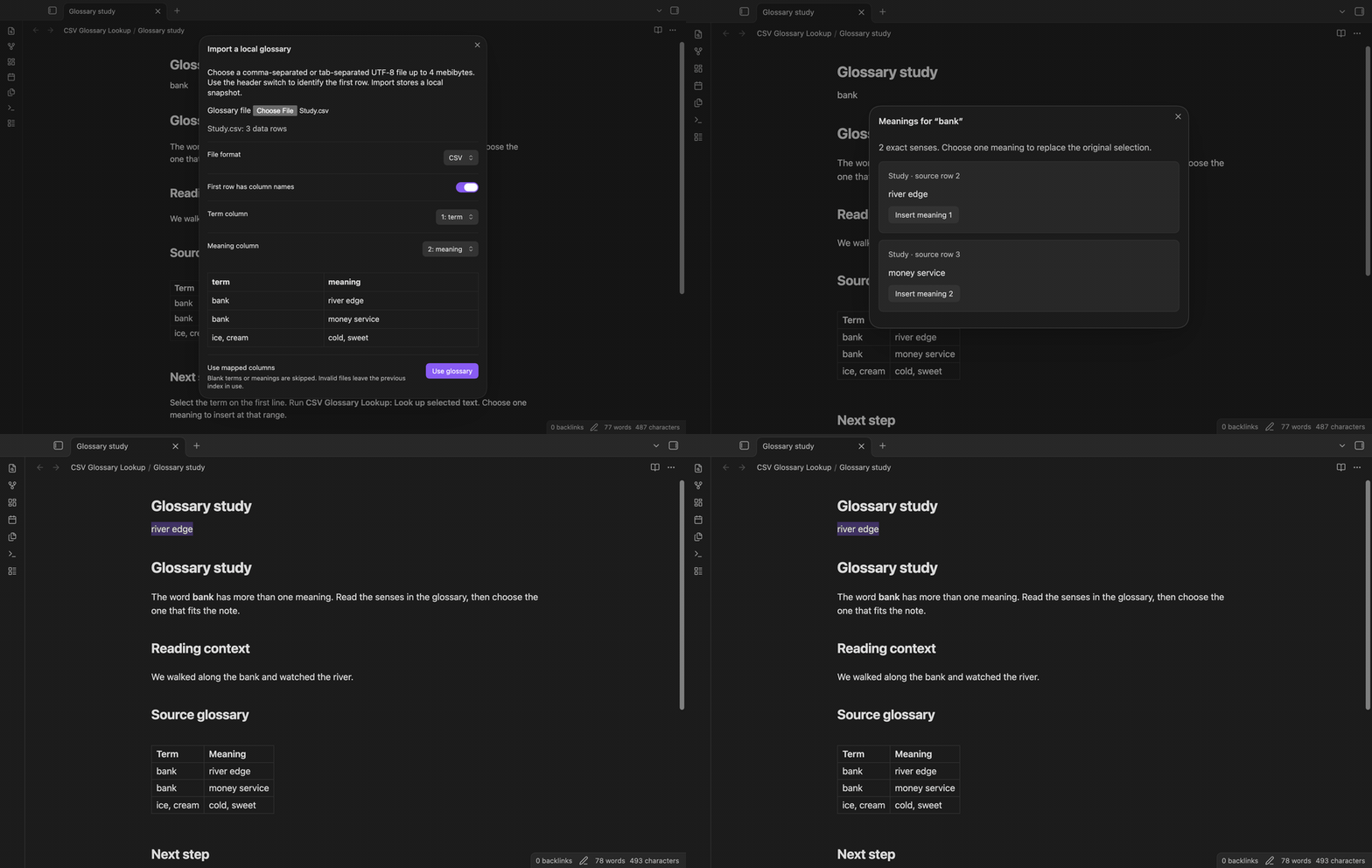
Features
Load a local file
Import a UTF-8 CSV or TSV file up to 4 MiB. The header switch tells the plugin whether the first row supplies column names. If the first row is data, turn off “First row has column names”. A single row with no recognized term and meaning headers starts with this switch off.
Quoted commas, quoted newlines, and doubled double quotes remain part of their fields. A UTF-8 BOM is accepted. The parser supports CRLF line endings. Blank terms and blank meanings are skipped. A malformed file leaves the previous glossary available.
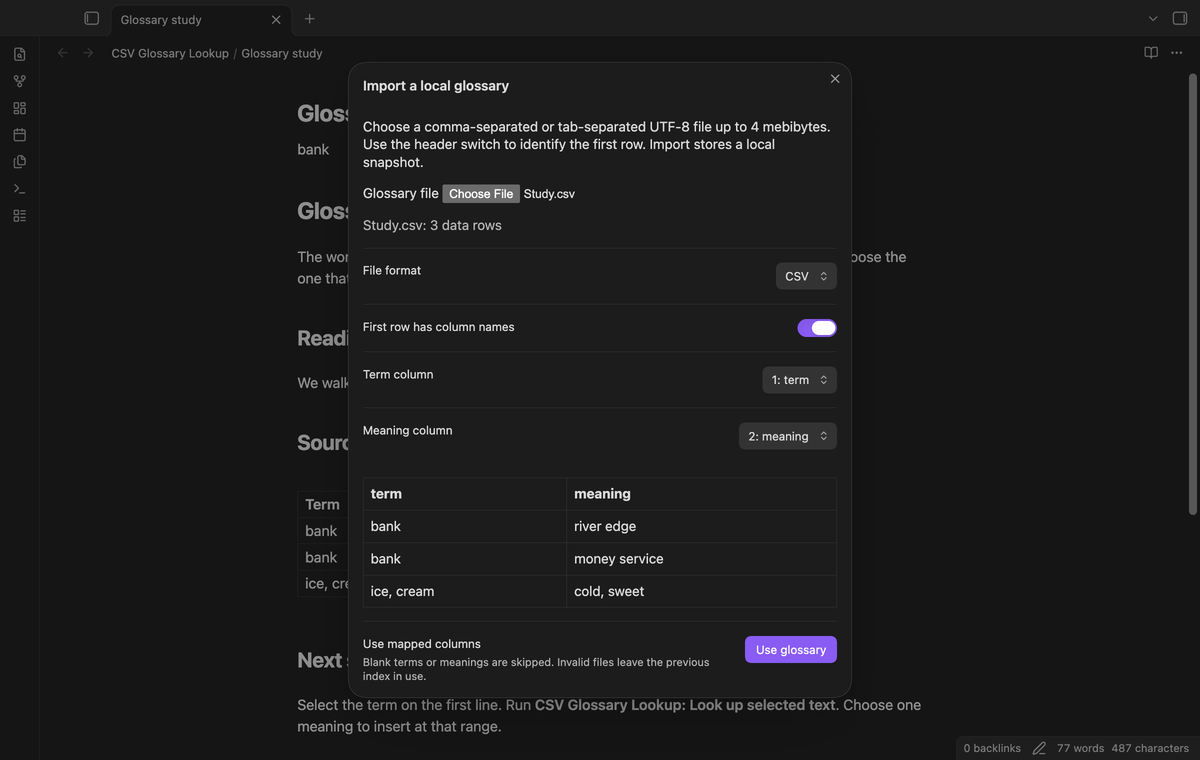
Map columns in a preview
Select the term column and meaning column in the preview, then select “Use glossary”. The preview shows the first five data rows. Extra columns can stay in the file; lookup uses the two mapped columns.
Exact lookup with several senses
Select “bank” and run “Look up selected text”. The result modal shows the matching senses in source order. Each result has the glossary name and source row number. Rows are counted after blank rows are skipped; a header counts as one row. “Ignore case” starts on, so “Bank” can match “bank”. Turn it off when capitalization changes a term's meaning.
Lookup trims spaces at the ends of the selection and stored terms. It matches the complete term. “BANKER” does not match “bank”. The result text is shown as plain text.
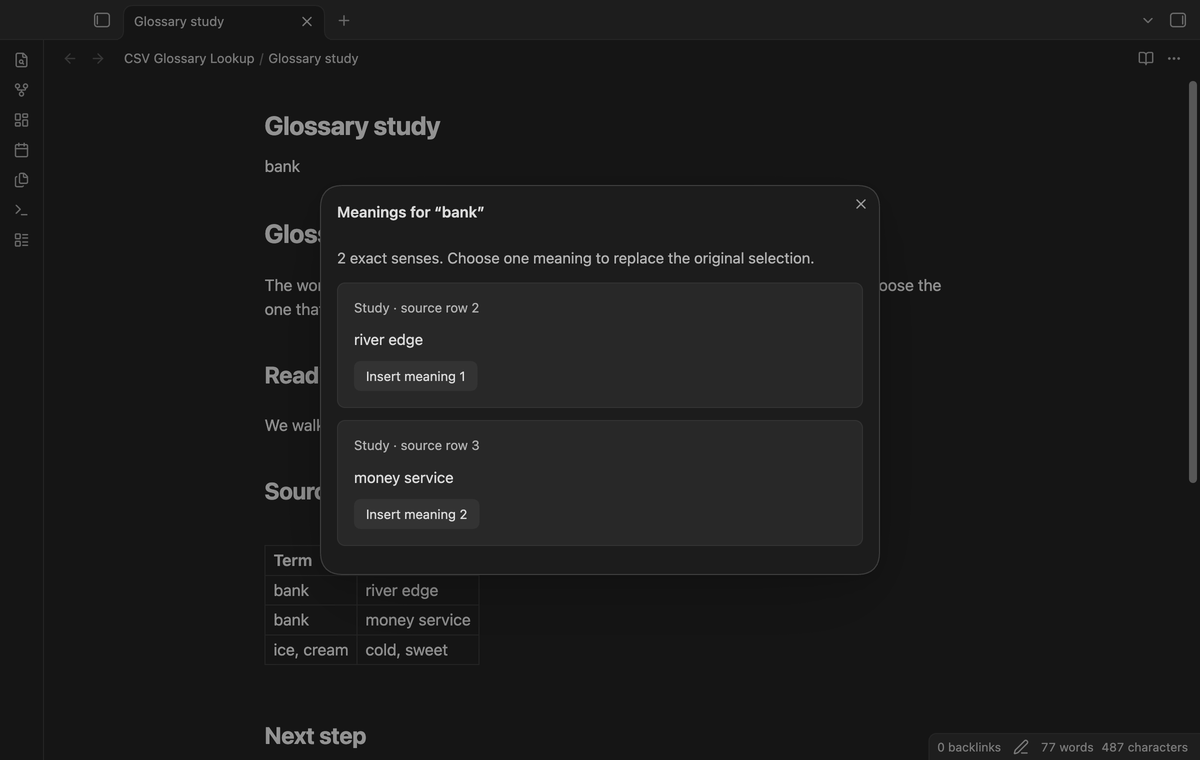
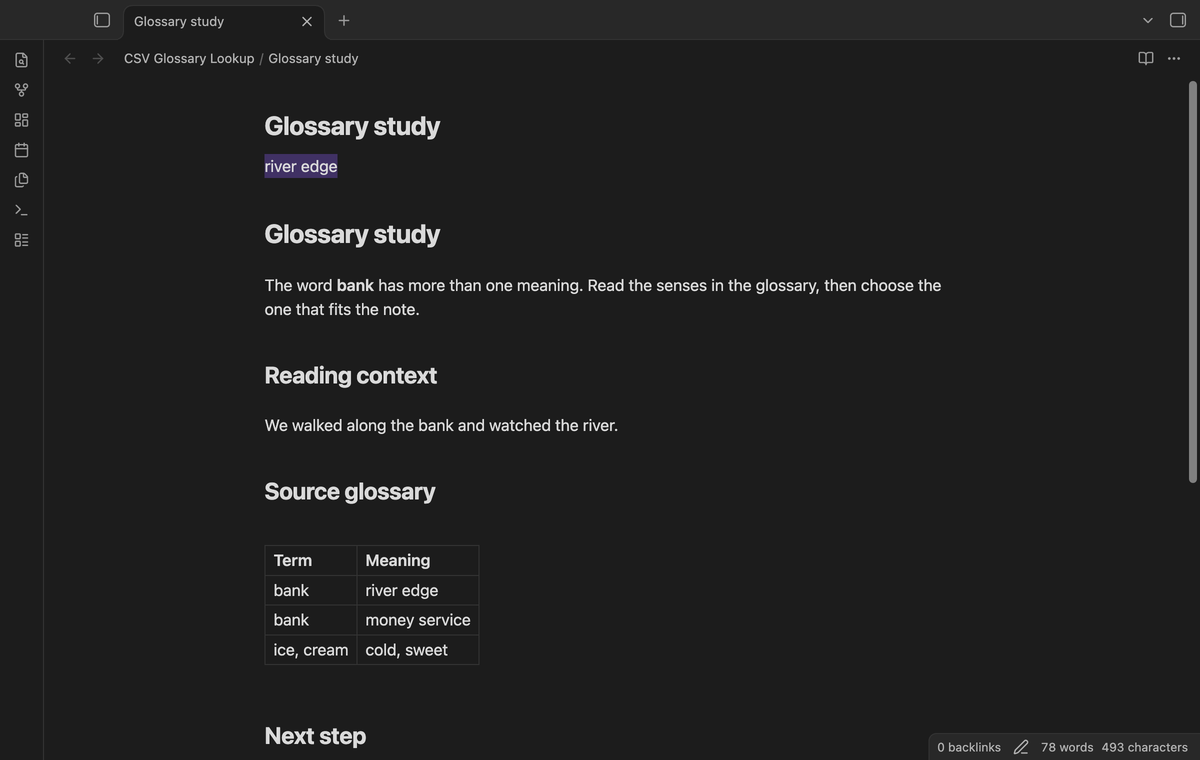
Insert at the original selection
Select the insertion button below a meaning to replace the original selection. Spaces at the ends of the selection stay in the note. Moving the cursor after lookup does not move this target. The plugin checks the captured source note and range before it writes. If the note text changes, or another note becomes active, insertion is refused. Close the modal and start a fresh lookup.
This check also refuses edits outside the selected range. Use a fresh lookup after an edit, even when the term still looks the same.
Reload a snapshot
Run “Reload the glossary” after the source file changes. Select the updated file, check the mapped columns, and select “Use glossary”. The next lookup uses the new snapshot and index. Reload replaces the active glossary; it does not append old rows.
Parsing and indexing pause between batches. The unit tests include 50,001 valid data rows below the file limit and check that scheduled UI work runs between batches. The batch test does not measure response time.
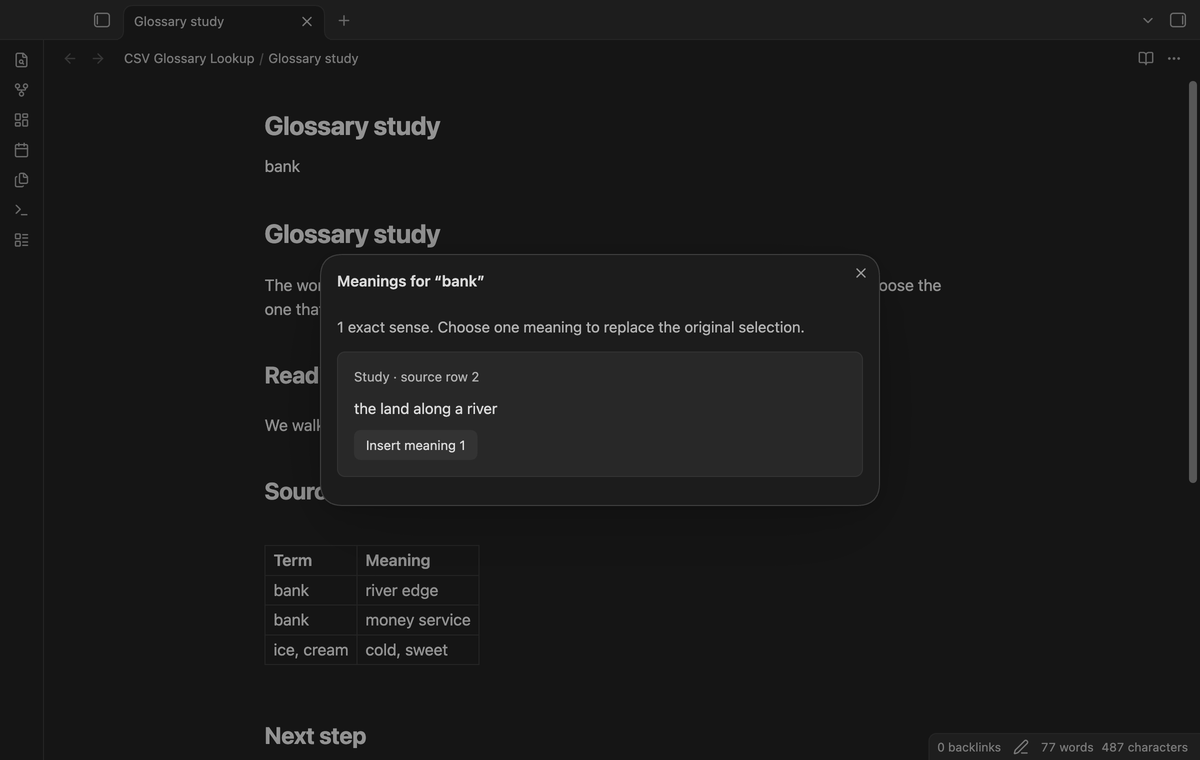
Separate glossary profiles (Pro)
Keep separate glossaries for different subjects. Use “Manage glossary profiles” to add a named profile, select a profile, or remove its stored snapshot. Each profile keeps its file name, imported text, delimiter, and column mapping. Removing a snapshot does not delete the source file.
Without Pro, the first stored profile supplies the free glossary. Other profiles stay saved. They become available when Pro is active again.
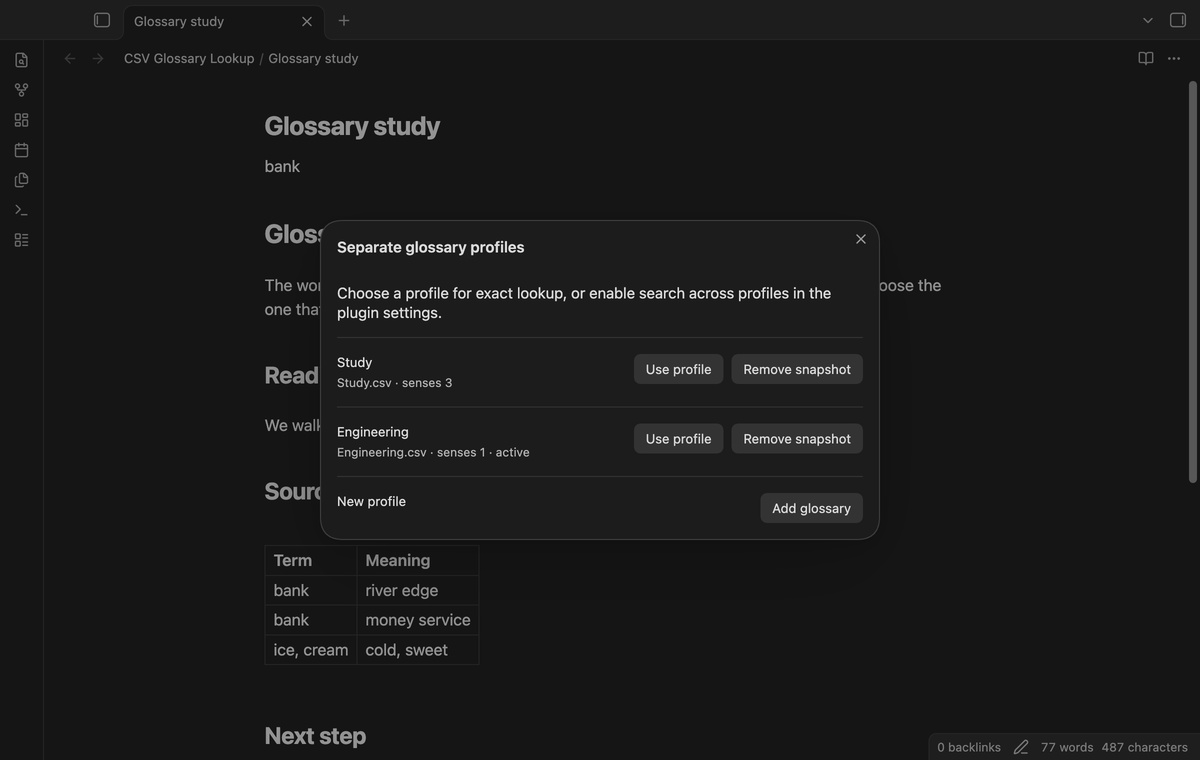
Search several glossaries (Pro)
Enable “Search several glossaries” in the plugin settings to use the stored profiles in one lookup. Results follow profile order, then source row order. The glossary name beside each sense identifies its source. Duplicate senses stay visible so that you can compare the sources.
The setting applies only while Pro is active. With it off, lookup uses the selected profile.
Install
For manual installation, copy main.js, manifest.json, and styles.css from a release into <vault>/.obsidian/plugins/csv-glossary-lookup/. Enable CSV Glossary Lookup in Community plugins. Obsidian 1.13.4 or later is required. The source uses the public plugin and editor APIs and browser file APIs.
This repository does not install an updater. Keep a backup of your source glossary and note before you try a new version.
Usage
- Open the plugin settings and select “Import glossary”.
- Choose a CSV or TSV file and check the header switch.
- Map two different columns and inspect the preview.
- Select “Use glossary”, then close settings.
- Select a term in a Markdown editor and run “Look up selected text” from the command palette.
- Read the senses. Select an insertion button, or close the modal to keep the note text.
A small starter file can contain a term,meaning header and the rows bank,river edge and bank,money service. Use double quotes around a field that contains a comma or newline. Write a literal double quote inside a quoted field as two double quotes. Data rows must have the same number of fields as the first row.
Settings
“Ignore case” controls exact matching and is on by default. “Local glossary” opens import. The two Pro controls manage profiles and enable lookup across profiles. The GitHub account controls show the sponsorship status and provide sign-in, refresh, and sign-out actions.
Glossary snapshots and these options are saved in the plugin's data.json in the vault. Treat that file as glossary data when you back up or sync the vault. Import replaces the free glossary, or the active Pro profile. There is no background source-file update.
FAQ
Why does reload ask for the file again?
A browser import grants access to the selected file, not a persistent external path. Select the updated file to load its current contents. A snapshot remains usable after a restart without that source file.
Why was the file refused?
Check its UTF-8 encoding, size, quotes, row widths, and column mapping. The file limit is 4 MiB in bytes. The mapped columns must contain at least one nonblank term and meaning. The refusal message explains the detected problem. Fix the source file and import it again.
What was not tested?
Linux and Windows apps, phone and tablet apps, light-theme visual layout, assistive technology, large numbers of profiles, live GitHub payments, and live account sign-in were not tested in this build run. The real-app tests cover the earliest supported public desktop version and the latest version used by the test launcher. Pro QA uses a local simulated sponsorship answer. No real sponsorship payment is made for these tests.
Payment, account and network
The core features are free. Pro features need a GitHub Sponsors sponsorship of theluckystrike: $5 a month or more, or $15 once. A total payment of $15 meets the payment requirement for Pro without further payment. Sign-in and the checks below still apply. Your notes stay readable and editable with or without Pro.
GitHub handles the payment. Sponsor at https://github.com/sponsors/theluckystrike. You need no account for the free features. Pro needs the GitHub account that sponsors.
Until you select "Sign in with GitHub" in the settings, CSV Glossary Lookup makes no network requests. Sign in uses the GitHub device flow. CSV Glossary Lookup sends its public client ID and the scope read:user to https://github.com/login/device/code and shows you a code. While you enter the code at https://github.com/login/device, it asks https://github.com/login/oauth/access_token every few seconds to check the sign-in status. The scope permits profile reads only. GitHub needs this access to show the sponsorship tier. It grants no repository scope and no write access.
After sign in, CSV Glossary Lookup sends one query to https://api.github.com/graphql. It checks if the signed-in account sponsors theluckystrike. It asks for the tier and the total payment to theluckystrike. The plugin reuses a successful check for 7 days. Failed checks can retry after 6 hours. Select Refresh to request an earlier check. It sends no note content, file names or other vault data, and it has no telemetry.
After a successful check, Pro can work offline for up to 14 days. Sign out or a negative sponsorship answer turns Pro off. The plugin stores the GitHub token through the secret storage API of Obsidian. It does not put the token in its saved settings or its local sponsorship data. The local storage of this device keeps your GitHub login, the tier and the time of the last check. Sign out clears the token. You can also revoke the access in your GitHub settings, under Applications.
Support
Use this repository's issues for bug reports. Include your Obsidian version, the error message, and a small CSV or TSV sample with private data removed. For an insertion problem, describe what changed between lookup and insertion. Do not include your GitHub token. CSV Glossary Lookup is available under the MIT license; see LICENSE.