Code Import
 yhao3126 downloads
Import code files with @import syntax. Compatible with Markdown Preview Enhanced.
- Overview
- Scorecard
- Updates1
Import external code files in your Obsidian notes using @import syntax (compatible with Markdown Preview Enhanced).
🔗 Website · Community plugin page
Screenshots
Desktop
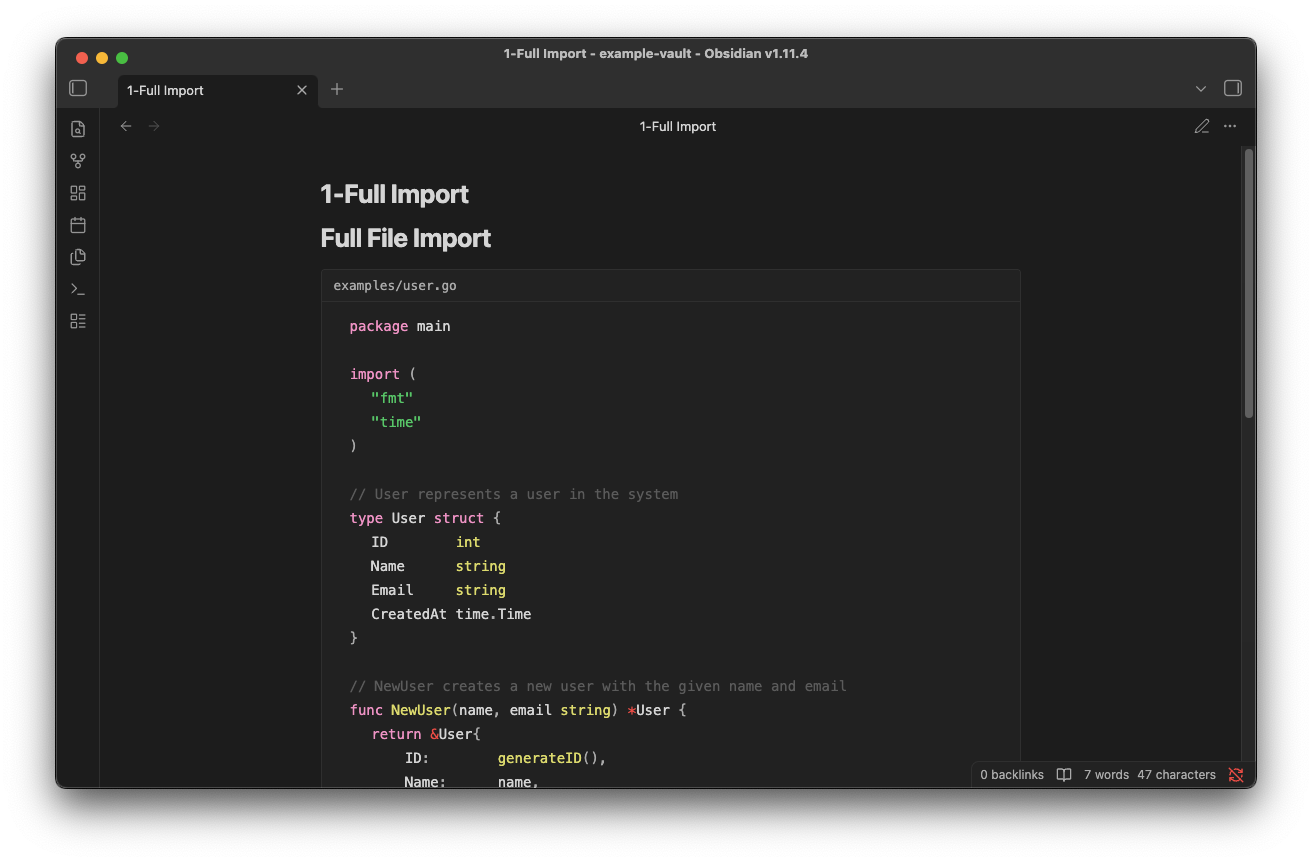
Full file import:
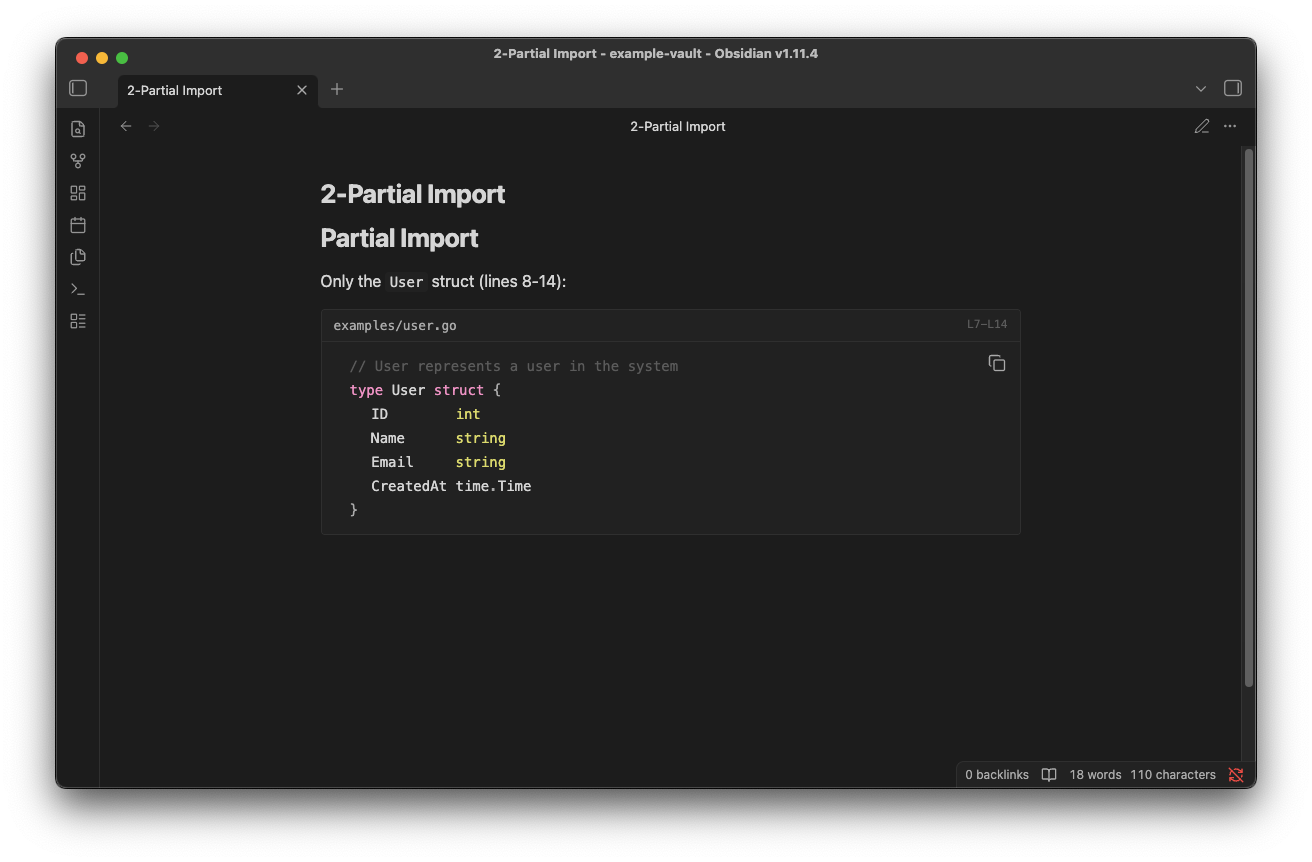
Partial import (specific lines):
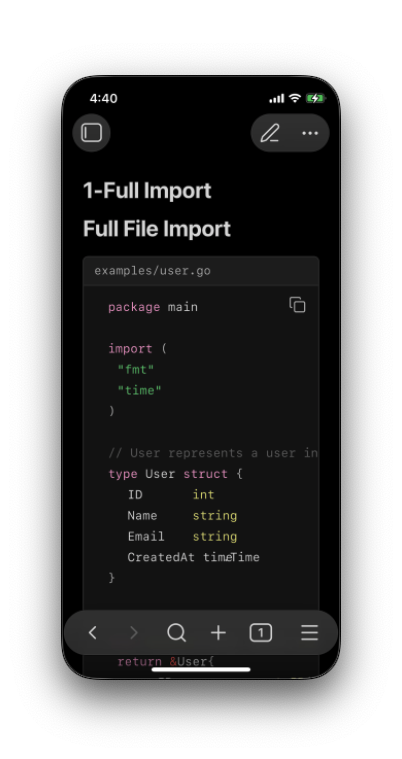
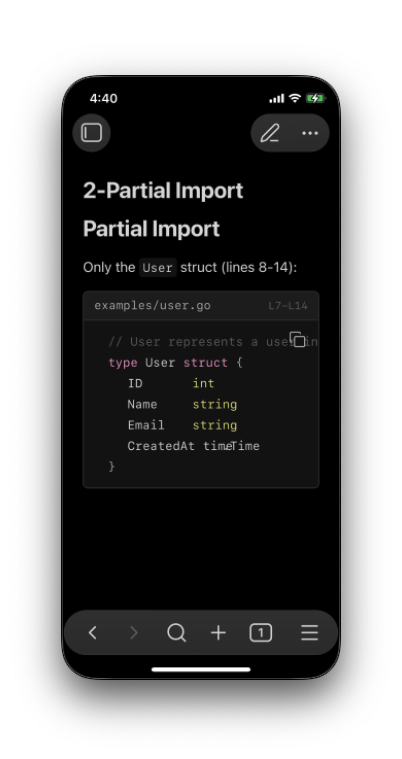
Mobile (iOS)
| Full import | Partial import |
|---|---|
 |
 |
Features
- Import code files directly in Reading View
- Support line range selection (
line_begin,line_end) - Automatic syntax highlighting based on file extension
- Works with relative paths (including
../)
Syntax
@import "path/to/file.go"
@import "path/to/file.go" {line_begin=4 line_end=14}
@import "examples/main.py" {line_begin=10}
@import "config.yaml" {line_end=-4}
Parameters
| Parameter | Description (0-based) | Description (1-based) |
|---|---|---|
line_begin |
Start line, 0-based index | Start line, 1-based index |
line_end |
End line, exclusive (supports negative) | End line, inclusive (supports negative) |
Line Index Examples
0-based mode (default, MPE-compatible):
{line_begin=0 line_end=10}→ Lines 1-10 (indices 0-9){line_begin=5}→ From line 6 to end{line_end=-2}→ From start, excluding last 2 lines
1-based mode:
{line_begin=1 line_end=10}→ Lines 1-10{line_begin=5}→ From line 5 to end{line_end=-2}→ From start, excluding last 2 lines
Installation
From Community Plugins
- Open Settings → Community plugins
- Search for "Code Import"
- Install and enable
Or install directly from the community plugin page.
Manual Installation
- Download
main.js,manifest.json,styles.cssfrom Releases - Create folder:
<vault>/.obsidian/plugins/code-import/ - Copy the files into the folder
- Enable the plugin in Settings → Community plugins
Usage
- Place your code files in your vault (or reference them with relative paths)
- Add
@importdirective in your markdown file - Switch to Reading View to see the imported code
Example
In your markdown file:
## User Struct Definition

@import "examples/user.go" {line_begin=10 line_end=25}
Settings
| Setting | Description | Default |
|---|---|---|
| Show file name | Display filename header above code block | On |
| Wrap code | Wrap long lines instead of horizontal scrolling | Off |
| Line number base | 0-based (MPE-compatible) or 1-based indexing for line_begin/line_end |
0-based |
License
HealthExcellent
ReviewSatisfactory
About
Import external code files into your notes using @import syntax (compatible with Markdown Preview Enhanced). Select specific line ranges, use relative paths (including ../), and display imported code with automatic syntax highlighting in Reading View.Details
Current version
1.0.0
Last updated
2 months ago
Created
8 months ago
Updates
1 release
Downloads
126
Compatible with
Obsidian 1.0.0+
Platforms
Desktop, Mobile
License
MIT
Sponsor