Chronoboard
 Emberleif654 downloads
A Gantt-style timeboard for project-based time tracking across notes.
- Overview
- Scorecard
- Updates6
Chronoboard is an Obsidian community plugin for visual, task-native time tracking.
It turns Markdown tasks into draggable time blocks across day, week, and month views while writing time data back into frontmatter. Chronoboard works well with TaskNotes-style task notes, but it is not tied to Jira, TaskNotes, or any specific vault structure.
What Chronoboard Does
- Builds a left-side task pool from a folder in your vault
- Lets you click and drag time blocks onto a day or week board
- Stores time entries directly in task frontmatter
- Supports dedicated time entry notes for individual blocks
- Tracks scoped totals for day, week, and month
- Exports selected tasks and date ranges to CSV
- Keeps the data portable because the source of truth remains Markdown
Core Workflow
- Configure a task folder and a metadata property such as
Status. - Make sure the task files you want to use actually contain that frontmatter property so they can appear in the Chronoboard task pool.
- Add tasks into the Chronoboard side rail.
- Select a task and drag on the board to create time.
- Move or resize blocks directly on the board.
- Use right-click actions for color, subtitles, block notes, precise edits, and time entry notes.
Views
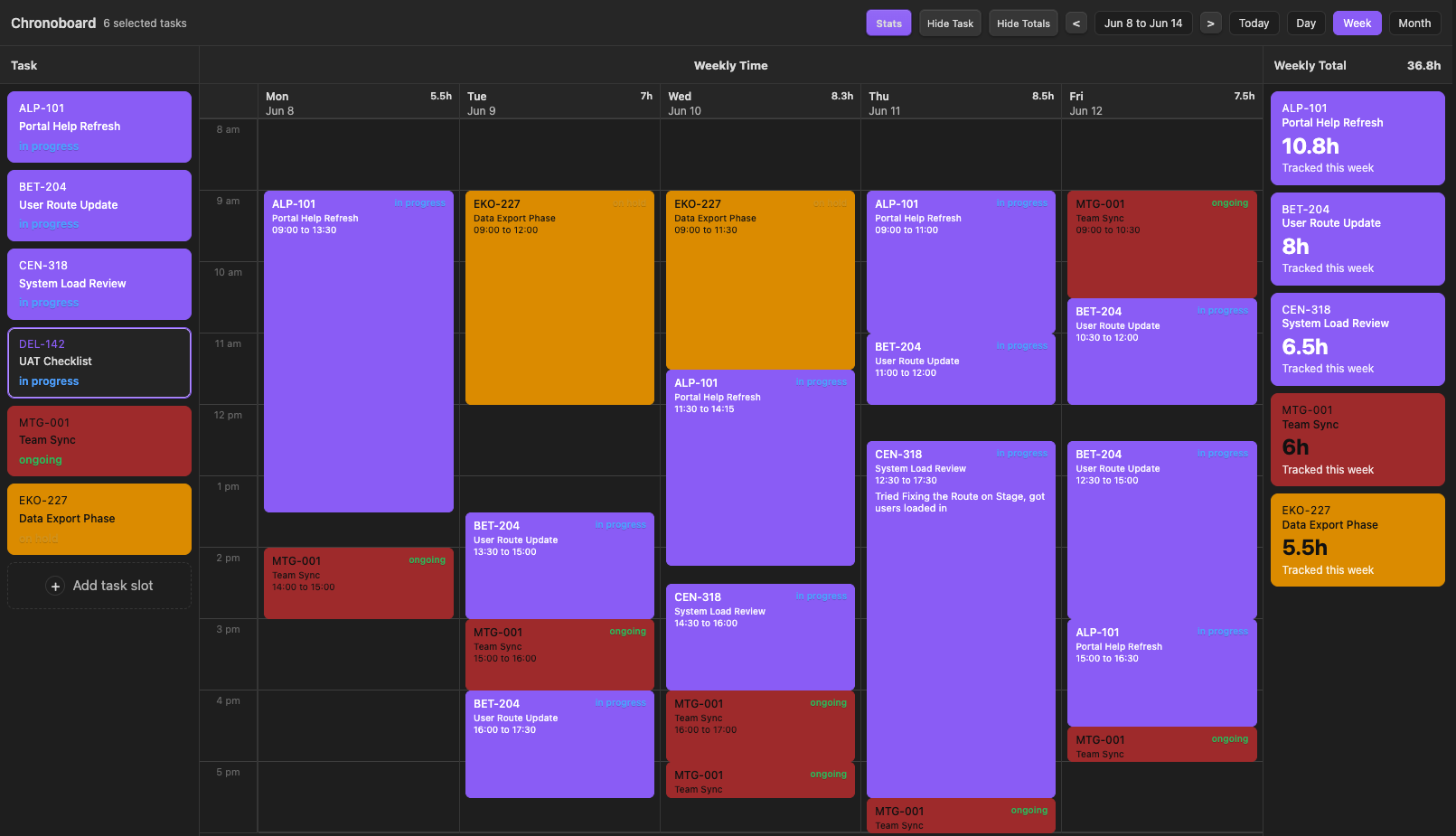
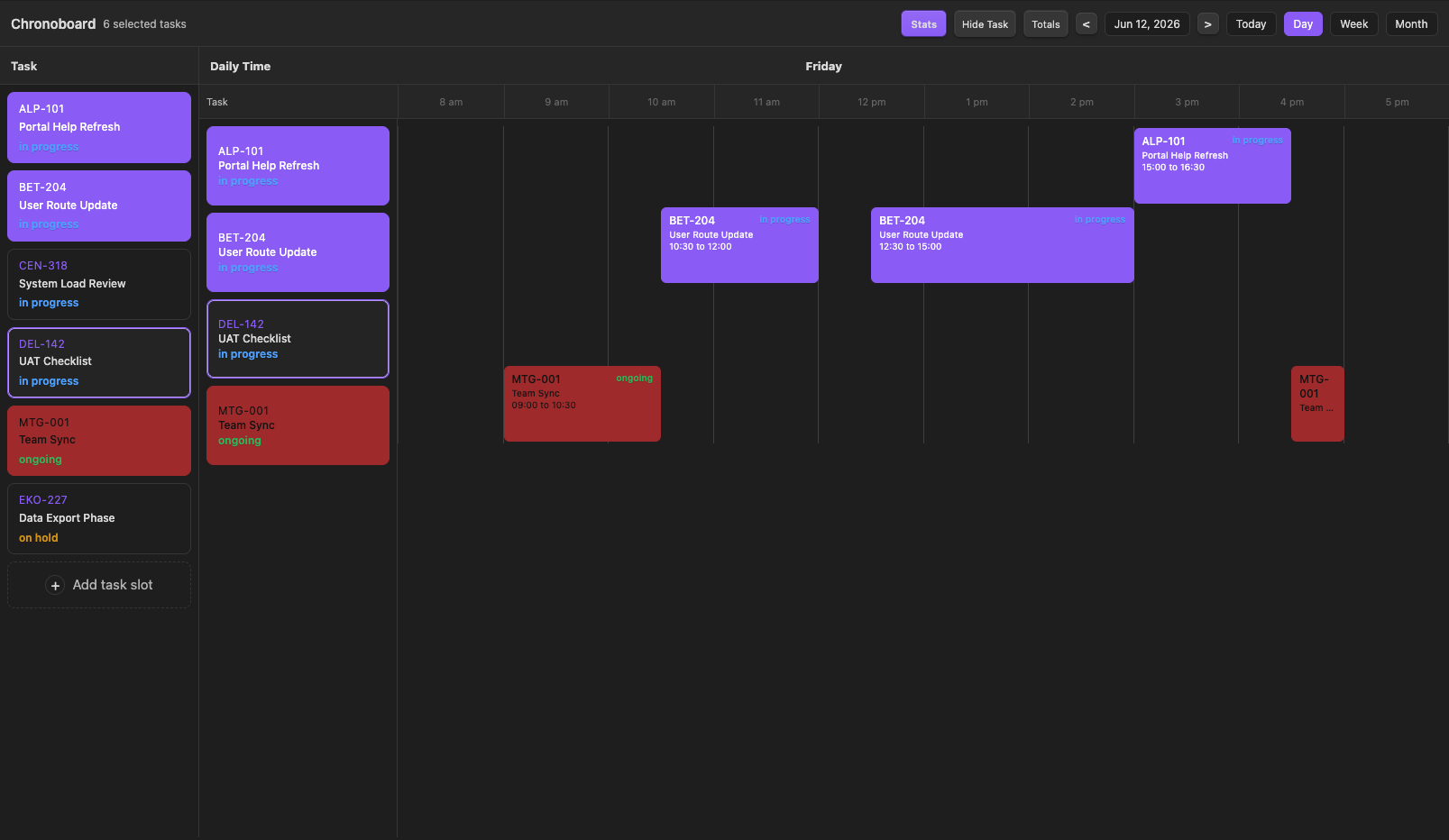
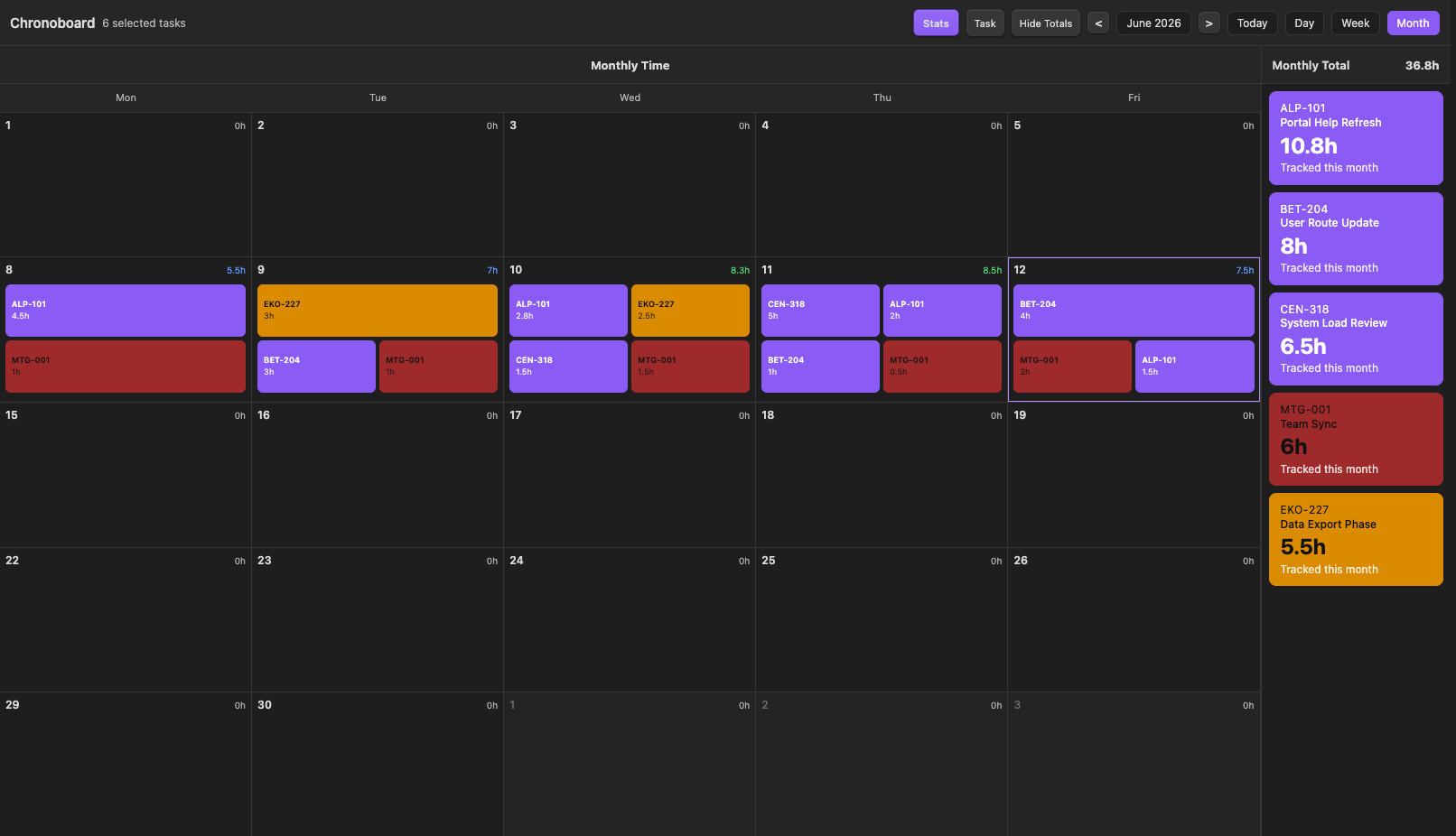
Day: horizontal time planning for a single dayWeek: vertical multi-day planning with per-day totalsMonth: high-level overview of tracked time across the monthStats: summary-oriented view for totals and reporting
Interaction Model
Time blocks
- Click and drag to create a time block
- Hold and drag to move a time block
- Drag the handles to resize a time block
- Double click a time block to remove it
- Use
Ctrl+ZorCmd+Zto undo time block add or remove actions
Right click on a time block
Open task noteChange colorEdit task subtitleEdit task block textCreate time entry noteorOpen time entry notePrecise Edit TimeRemove time block
Right click on a task in the side panels
Open task noteChange colorEdit task subtitleRemove Task
Removing a task from the left task rail does not remove existing time blocks from the board. It only removes that task from the currently selected pool.
Commands
Chronoboard adds the following commands to the Obsidian command palette:
Open ChronoboardAdd task to ChronoboardOpen manual time entryExport tracked time as CSVOpen selected Chronoboard taskOpen Chronoboard guideAdd TaskNotes fields to current task
Help
Select the question mark in the Task panel or run Open Chronoboard guide to open the help modal. Chronoboard does not create help or changelog notes in your vault.
CSV Export
Select the upload icon or run Export tracked time as CSV. The export modal uses the date range from the current view and lists tasks from most tracked time to least tracked time.
- Uncompressed mode creates one row for each time block.
- Compressed mode puts tasks in columns and dates in rows. The second row contains totals for the full date range.
- Chronoboard remembers the export folder and mode after a successful export.
- Chronoboard does not overwrite an existing CSV file.
Frontmatter
Chronoboard reads and writes these properties when present:
title: "Example Task"
Status: "In Progress"
timeboardColor: "#7c5cff"
timeboardSubtitle: "Project subtitle"
timeEntries:
  - startTime: "2026-06-12T09:00:00"
    endTime: "2026-06-12T11:00:00"
    label: "Worked on API review"
If you enable dedicated time entry notes, Chronoboard can also write:
aliases:
  - chrono-1234567890-abcd12
Links: "[[Example Task]]"
ChronoboardEntryId: chrono-1234567890-abcd12
ChronoboardParent: "[[Example Task]]"
ChronoboardStart: 2026-06-12T09:00
ChronoboardEnd: 2026-06-12T11:00
Settings
FolderTime entry notes folderTime entry note templateAlways include tasksMetadata propertyExcluded valuesHide weekends in week and month viewsVisible start hourVisible end hourHighlight colorForce dark text on colored cards
Screenshots
Week view
Day view
Month view
Release Files
GitHub releases should include:
manifest.jsonmain.jsstyles.css
Changelog
See CHANGELOG.md for release notes.