Bucket Sidebar
 Cha X.11 downloads
Organise notes, PDFs and folders around your projects without moving or duplicating files. Reuse the same reference across spaces and groups, with English and Chinese UI.
- Overview
- Scorecard
- Updates4
One file. More than one way to organise it.
A research note can belong beside a project brief, on a reading shelf and in this week’s working set. Bucket Sidebar lets you organise references to Markdown notes, PDFs and folders around what you are doing, without moving or duplicating the originals. Keep the folder structure you already have; give each task its own useful view.
中文 · Downloads · Keyline theme
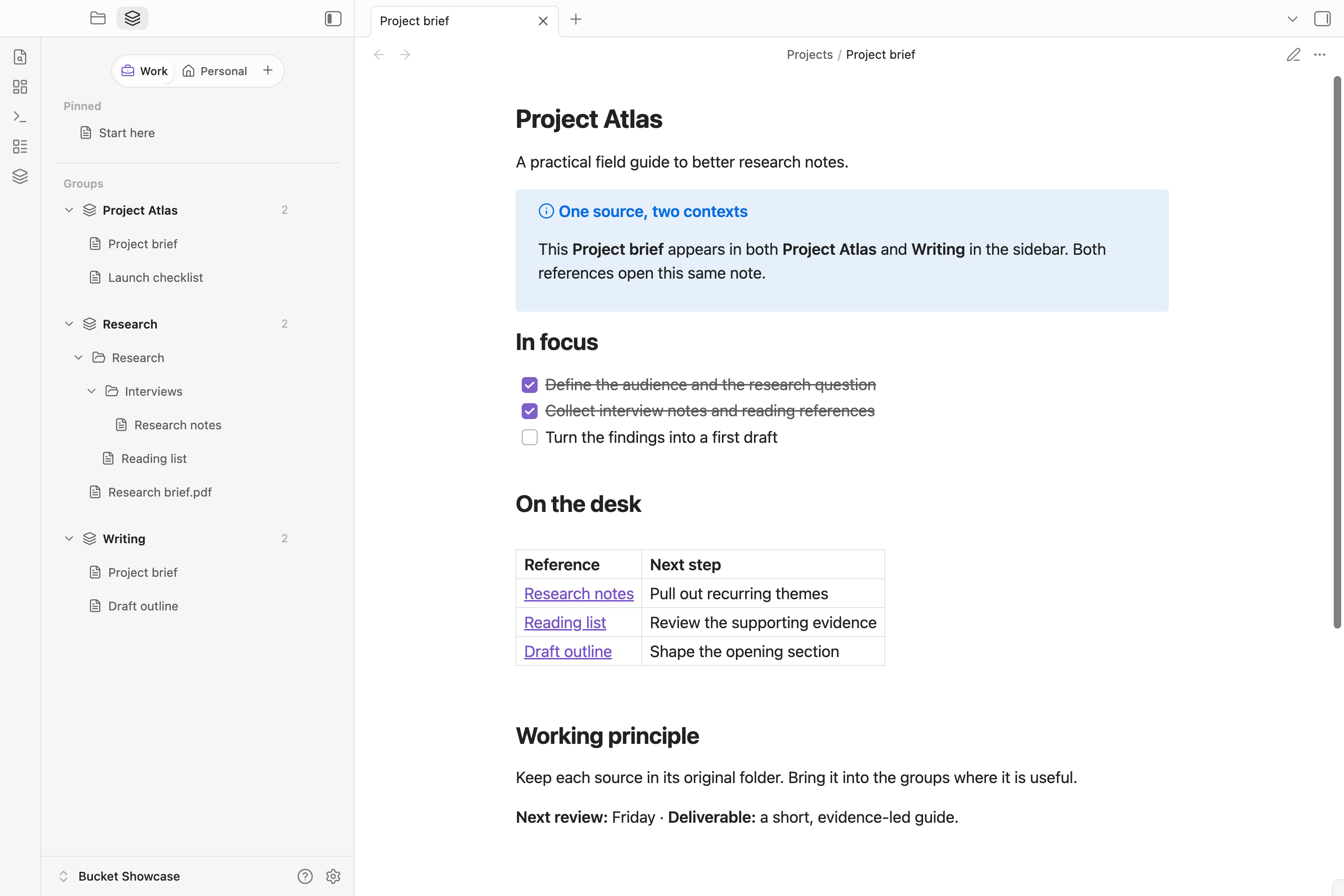
Bucket is the sidebar on the left. These are real Obsidian 1.13.7 screenshots of the published Bucket Sidebar 0.5.7, using the default light and dark themes. The fictional, all-English showcase has no other community plugins or custom CSS.
Organise around your work
- Reuse a reference, not a copy. Put the same note or PDF in several Buckets. Each reference opens the same source file, so edits do not create competing versions.
- Separate contexts without splitting the Vault. Use spaces for work, personal projects or research, then arrange named Buckets within each space.
- Keep today’s material close. Pin frequently used references and drag items into an order that makes sense for the current task.
- Bring in folders without taking everything. Navigate nested folders and exclude items that do not belong in the group. Create a note or subfolder at a chosen real path when you need new material.
- Change the arrangement, keep the files. Removing a reference only removes it from Bucket. References follow file renames, and supported Bucket operations can be undone.
A sidebar for the task at hand
The example separates Work and Personal spaces, pins Start here, and groups references under Project Atlas, Research and Writing. The same Project brief appears in Project Atlas and Writing; both references open one Markdown file. The expanded Research folder shows nested interview notes alongside a PDF reference. You can build your own view without rearranging the Vault's real folders. English and Chinese menus and settings follow Obsidian’s interface language.
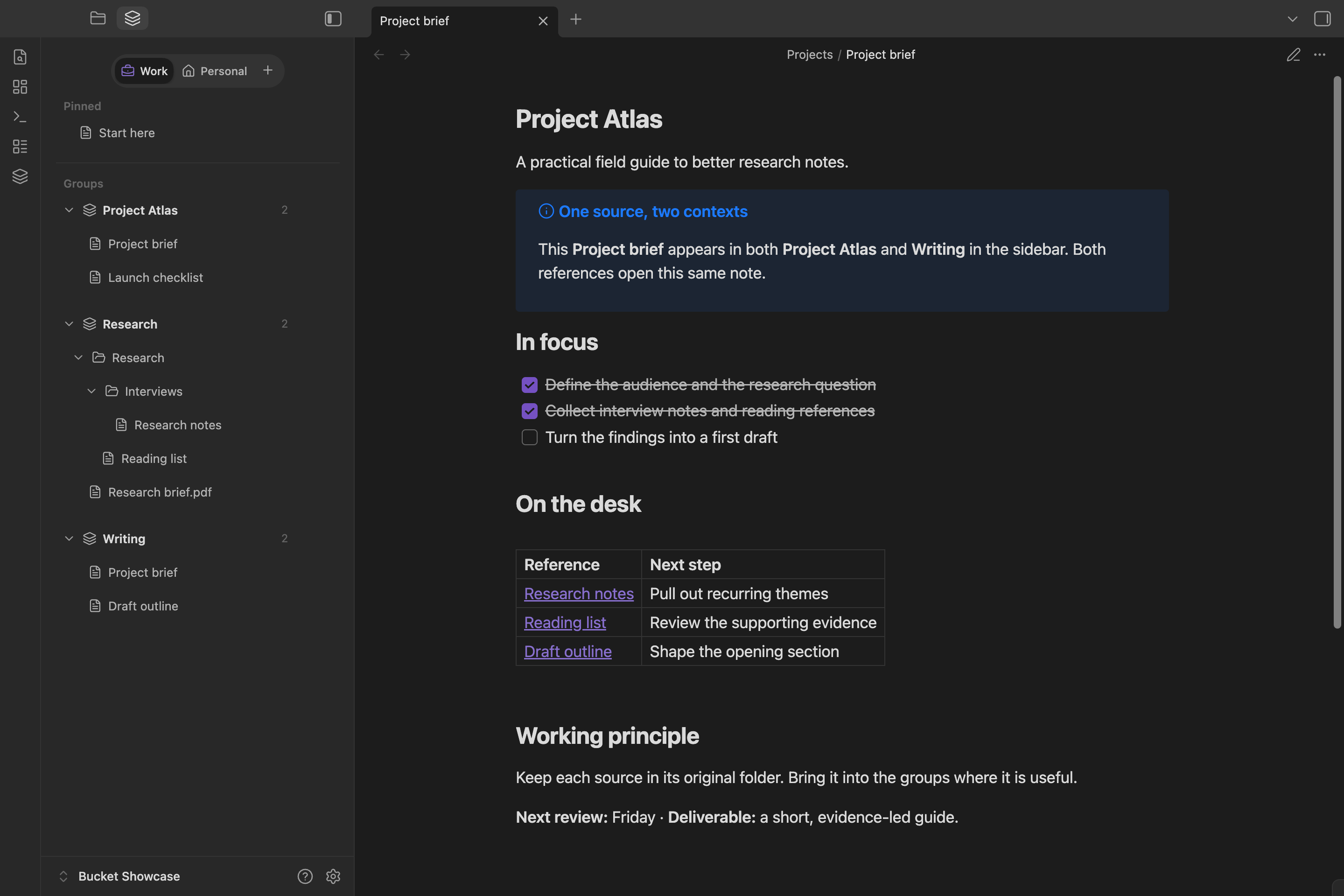
Bucket currently supports Markdown notes, PDFs and folders. The note, checklist, callout and table on the right are Obsidian's native Markdown rendering, not extra Bucket features.
Recommended companions
Bucket works independently. Pair it with the Keyline theme for a coordinated, ready-to-use light and dark workspace. Add Keyline interactions for block editing, file-type icons and workspace switching. Neither is required by Bucket.
Your files and data
Bucket stores references and settings in this Vault’s plugin data.json. Normal operation makes no network requests, and there is no telemetry or self-updater. Removing a Bucket reference does not delete its source; an explicit Delete file action in a file menu does delete the real file.
Install / upgrade
Use Add to Obsidian on the Bucket Sidebar Community page, or use the manual installation steps below.
Requires Obsidian 1.7.7+. Back up .obsidian and close the Vault. Copy main.js, manifest.json, and styles.css from Releases into .obsidian/plugins/bucket-sidebar/. Preserve your existing data.json, reopen Obsidian, and enable Bucket Sidebar.
Language and compatibility
Current release: 0.5.7. The interface supports English and Chinese; restart after changing Obsidian’s language. Settings are searchable on Obsidian 1.13+; older versions keep the same controls. Existing user-defined names stay unchanged. Disabling and re-enabling the plugin preserves its pane placement. Desktop macOS is the release-tested environment; mobile is not yet device-validated. See release verification.
Build
Use Node.js 22 and pnpm 10.11.0:
pnpm install --frozen-lockfile
pnpm typecheck
pnpm lint
pnpm test
pnpm build
pnpm check:release
The type check also validates browser-only ES2018 APIs without ambient Node types. check:release stages exactly main.js, manifest.json, and styles.css in a temporary folder. Releases use the Release with provenance workflow to build, attest and verify these exact three files before publication. Optional manual-install ZIPs belong outside Community release assets. See contributing and release instructions.
Feedback and license
Report version, reproduction steps, and a sanitised screenshot. Do not attach your private Vault or plugin data file to a public issue.
MIT. See LICENSE and THIRD_PARTY_NOTICES.md.