Bases View Tabs
 theluckystrike1 downloads
Switch between Base views from a visible tab strip with keyboard navigation.
- Overview
- Scorecard
- Updates1
See the saved views of a Base in a tab strip under its toolbar. Select a name to change views in one click. Keep the view names in sight while you compare open tasks, finished work or different layouts of the same notes.
Features
Select a view in one click
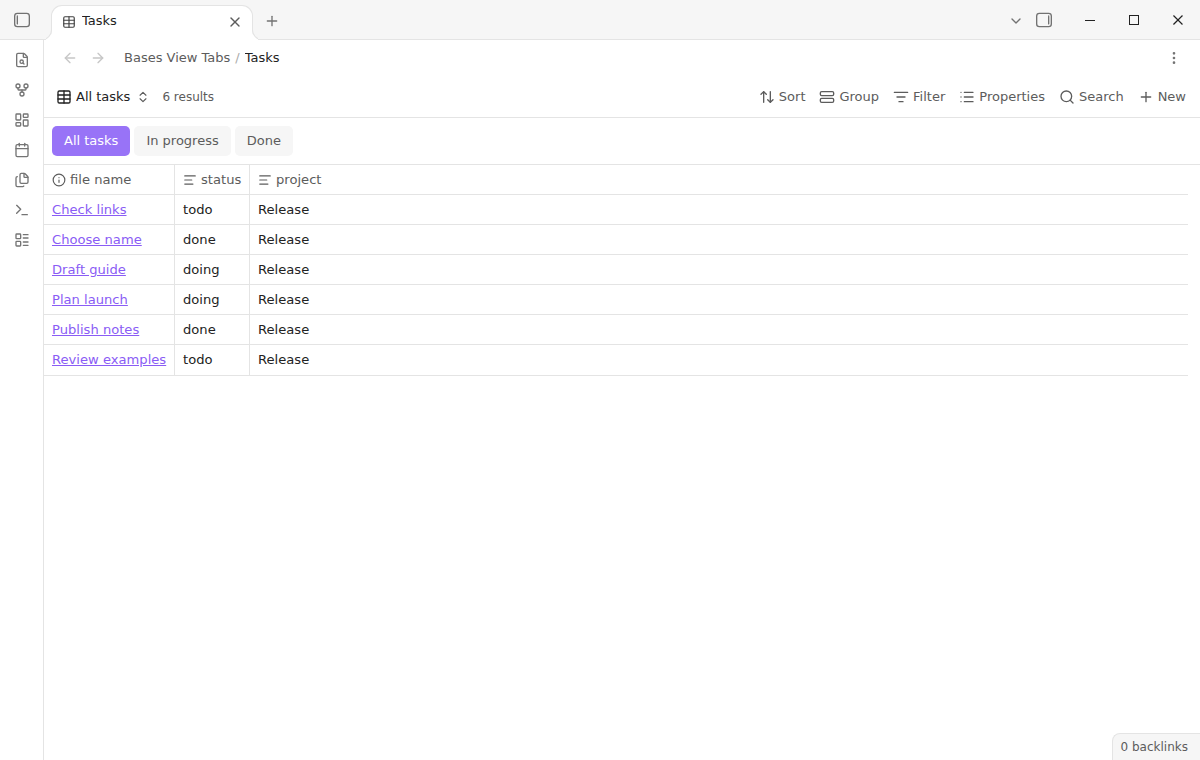
All view tabs, switching, keyboard navigation and wrapping are free, with no view limit. Pro adds pinned views and per-view icons for $15 one time or $5 a month. The free version needs no account.
Each saved view gets a tab, in the order written in your Base. Select Done to see that view's rows, filters, sort order and columns. Select All tasks to return. The plugin selects an existing view; it does not build a second table or make a copy of the Base.
The selected name uses your theme's accent color. Empty or invalid view lists have no strip. The original view menu stays available for creating, renaming and configuring views, so these controls remain in their usual place.
Keyboard navigation
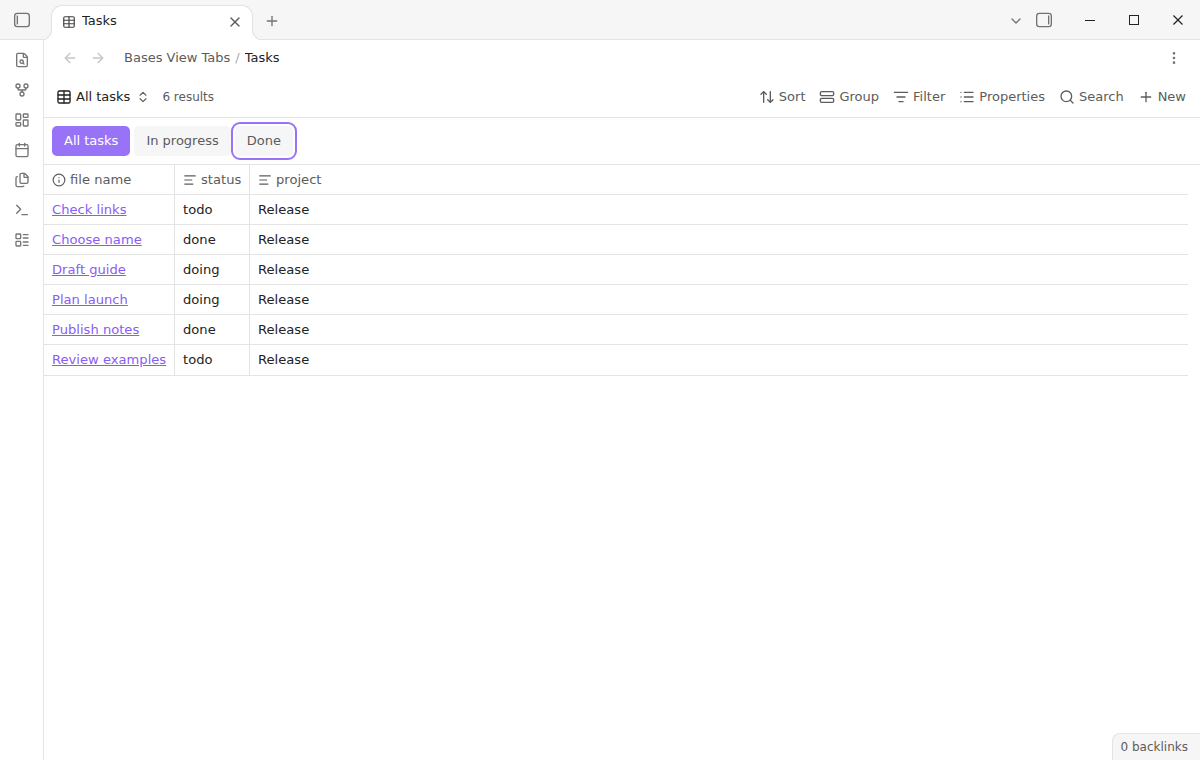
Run Focus the view tabs from the command palette, or press Tab until the selected view has focus. Left and Right move focus through the names. Home goes to the first tab, and End goes to the last. Press Enter or Space to select the focused view. Moving focus alone does not change the table.
Navigation wraps at either end. Arrow direction follows right-to-left interfaces. The strip exposes a tab list and a selected state to assistive technology. No hotkey is assigned by default; you can assign one to the focus command in Obsidian's Hotkeys settings.
Fit a narrow pane
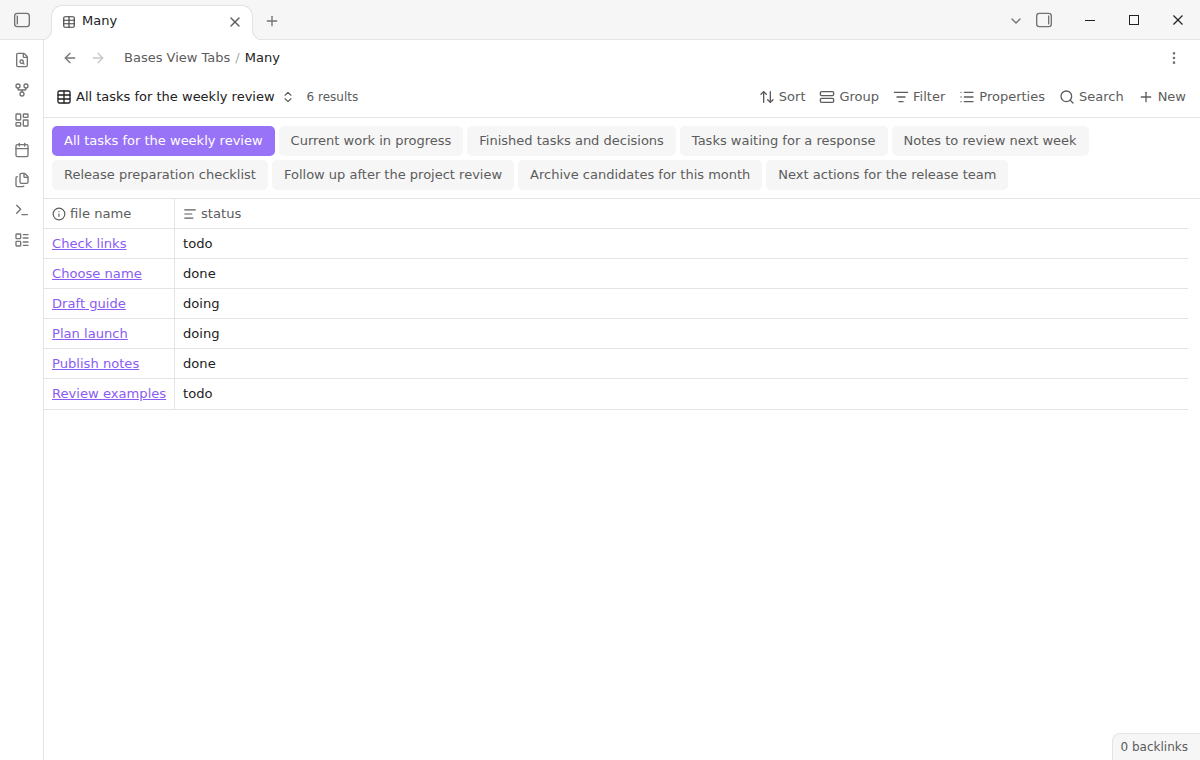
By default, the strip scrolls horizontally when names do not fit. Turn on Wrap tabs to use more than one line instead. This option is free and applies to all open Base panes. It changes the strip, while the table keeps its normal scrolling behavior.
Colors come from theme variables, in light and dark mode. If you keep the same Base in two panes, each pane keeps its own selected view. Selecting a tab in one pane does not switch the other pane to match.
Pinned views and icons with Pro
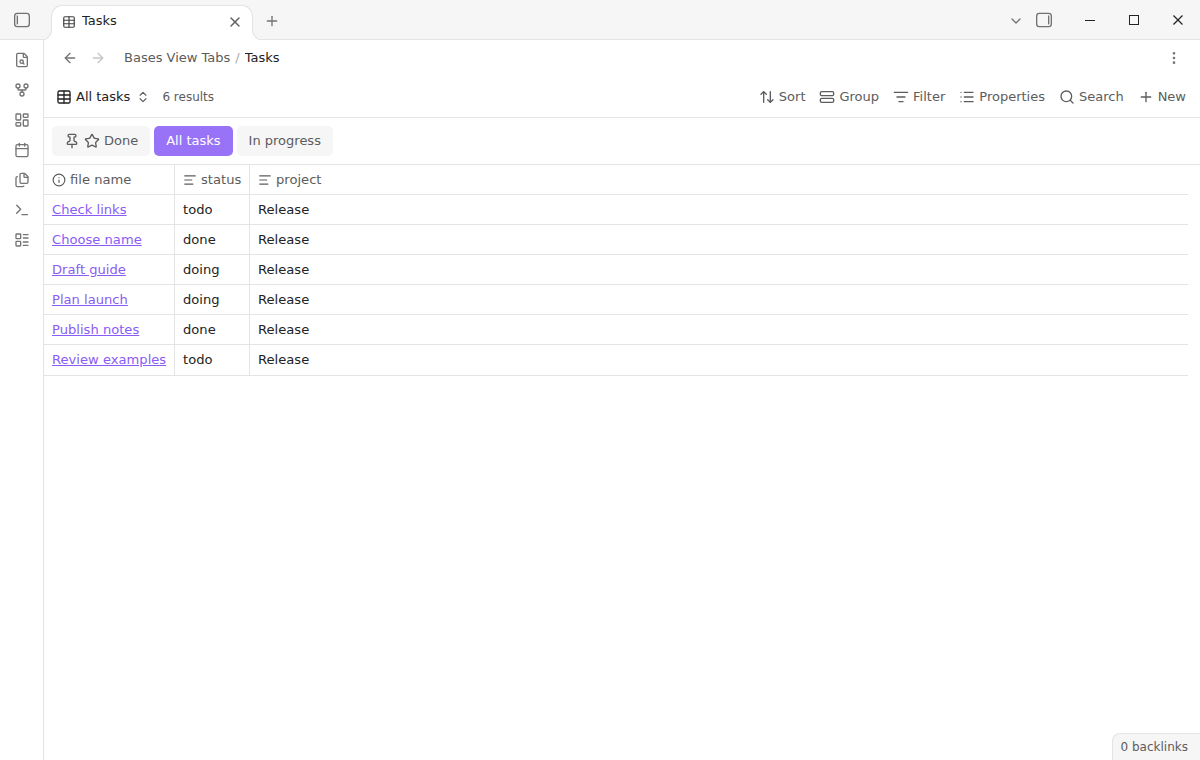
With Pro active, right-click a tab to pin or unpin it and choose an icon. Pins move to the beginning of the strip. Pinned names keep their original relative order, followed by the remaining views. Pinning does not hide a view, and it does not pin an Obsidian workspace tab.
Choose a table, list, calendar, columns, star, checks or briefcase icon, or choose No icon. Preferences belong to the Base path and view name. Two Bases with a view called Done can have different appearances.
Install
When this product is listed, open Settings, Community plugins, Browse, and search for Bases View Tabs. Install it, then enable it. Enable the Bases core plugin too.
For a manual installation, put the release files main.js, manifest.json and styles.css in <vault>/.obsidian/plugins/bases-view-tabs/. Reload the community plugin list and enable the plugin. It needs Obsidian 1.13.4 or newer. This repository contains the source and tests; a source archive alone is not an installed build.
Usage
Open an existing .base file. If it has saved views, their names appear under the toolbar. Select one name to change the active view. Add and configure views through the native view menu, then use the strip for daily navigation.
For example, give a task Base three views: All tasks, In progress and Done. Set their filters in Bases first. The strip then provides direct access to those same views, with their existing configuration. A view supplied by another plugin keeps its own renderer; this plugin adds no view types.
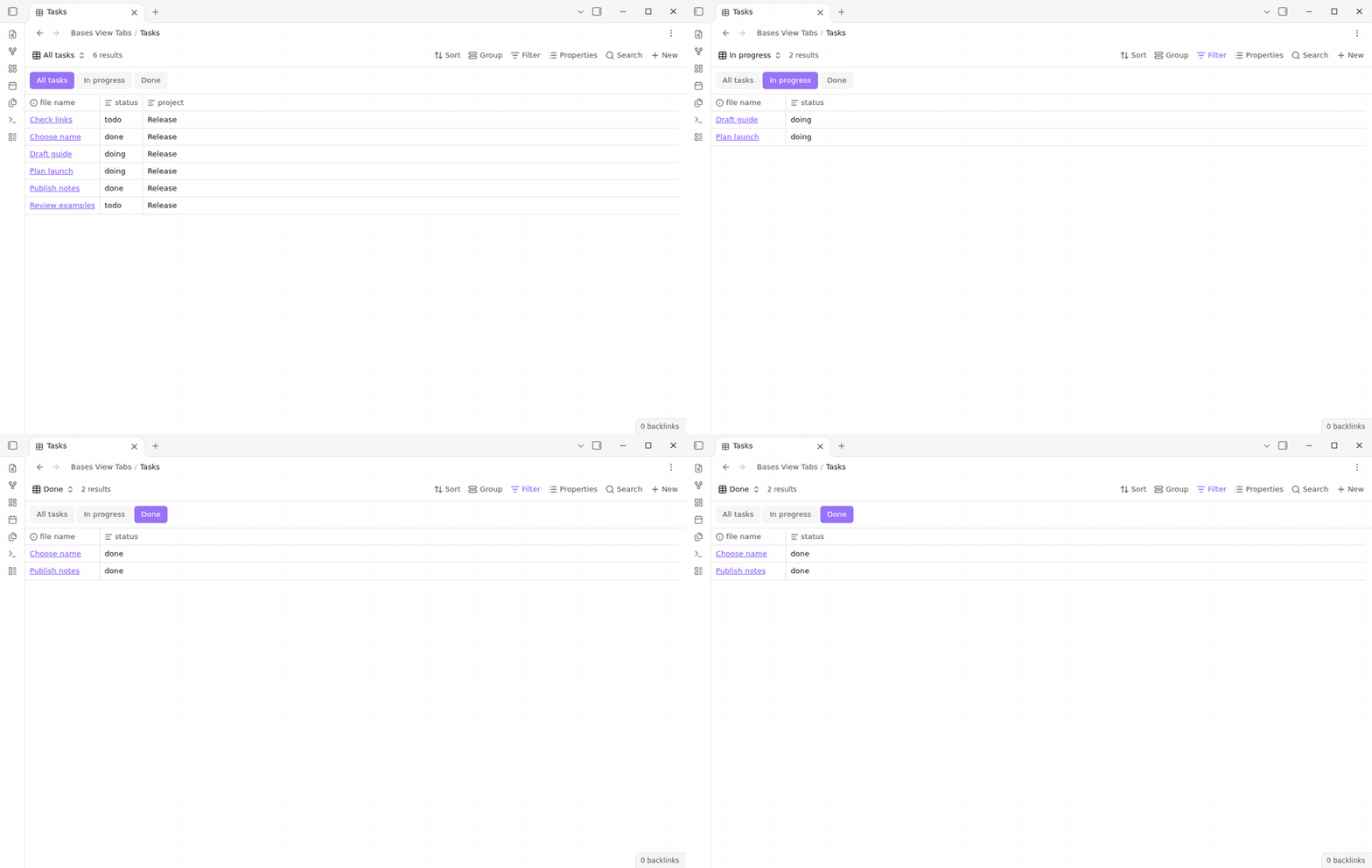
Settings
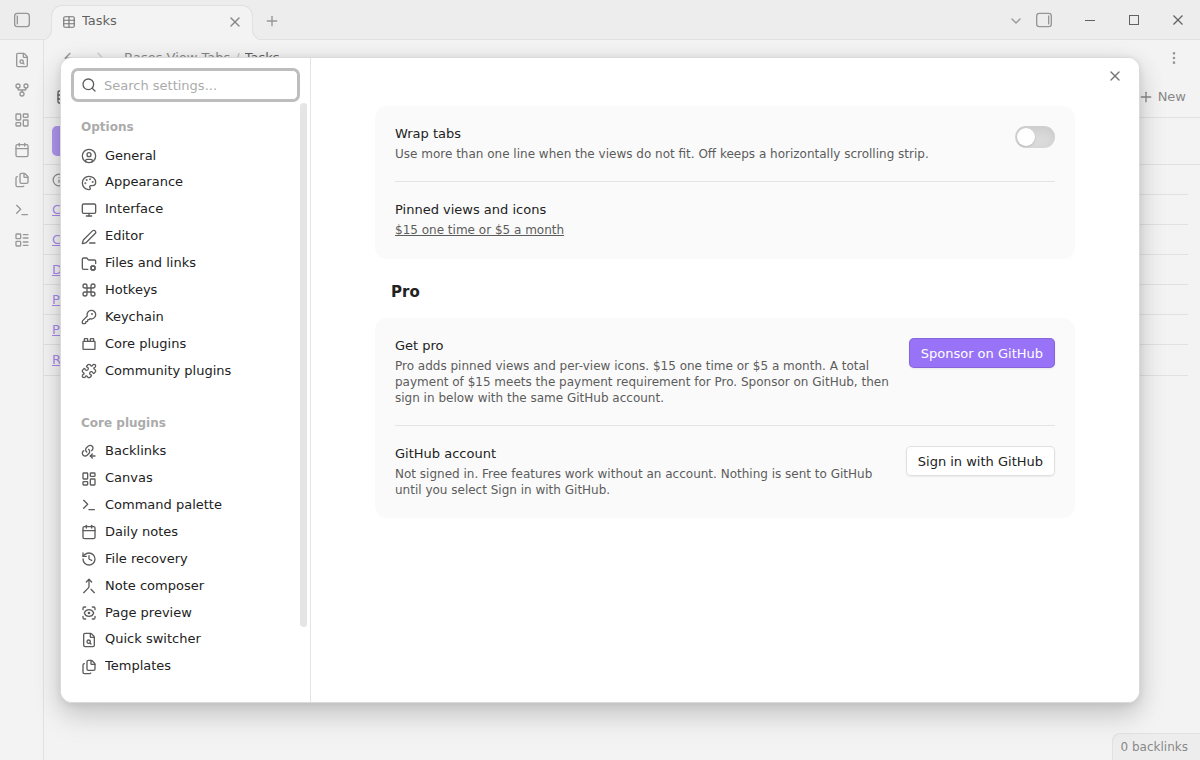
Wrap tabs is off by default. Turn it on for multiple rows of names. The Pro section provides GitHub sign in, sponsorship refresh and sign out. The price link appears here while Pro is off. There is no startup offer window.
Settings are saved in this plugin's data.json. Base file and folder renames made in Obsidian carry appearance choices to the new path. Renaming a view gives it a new identity, so pin it and choose its icon again. This version has no appearance editor on mobile; the free strip still uses normal buttons.
FAQ
Does switching change my Base file?
The plugin reads the Base and changes the selected view in the pane's workspace state. It never writes the Base text. Filters, formulas and view definitions remain managed by Bases. Disable the plugin and the original view menu continues to work.
Do embedded Bases get tabs?
This version supports standalone Base panes. It does not add a strip to embeds or inline base code blocks. Open the linked .base file to use its tabs.
What happens if Pro ends?
All views remain available. Pins and icons stop applying, and names return to file order. Saved appearance choices remain in plugin settings for a later valid Pro check. No notes or Base files are locked.
What if the strip does not appear?
Check that Bases is enabled and that you opened a .base file with named views. Invalid YAML or duplicate view names hide the strip to avoid selecting the wrong view. Use the native selector while correcting the Base. A future core layout change can also affect the toolbar attachment. If Obsidian does not confirm a requested view switch, the strip hides and shows one notice. Continue with the native selector.
How does this compare with Base View Switcher?
Base View Switcher is a free alternative with custom buttons, icon or text mode, drag ordering and toolbar visibility options. You configure each Base in its settings first. Choose it if you want those controls, including free icons and ordering. Bases View Tabs automatically lists all saved views when you open a Base and adds keyboard navigation and wrapping. Its pins and icons are optional paid conveniences. Neither choice requires TaskNotes.
How does this compare with Base Views?
Base Views offers configurable view lists plus custom table and task list views. Bases View Tabs focuses on existing view renderers, keyboard access and appearance preferences stored outside Base files. You do not need TaskNotes to use it.
Payment, account and network
The core features are free. Pro features need a GitHub Sponsors sponsorship of theluckystrike: $5 a month or more, or $15 once. A total payment of $15 meets the payment requirement for Pro without further payment. Sign-in and the checks below still apply. Your notes stay readable and editable with or without Pro.
GitHub handles the payment. Sponsor at https://github.com/sponsors/theluckystrike. You need no account for the free features. Pro needs the GitHub account that sponsors.
Until you select "Sign in with GitHub" in the settings, Bases View Tabs makes no network requests. Sign in uses the GitHub device flow. Bases View Tabs sends its public client ID and the scope read:user to https://github.com/login/device/code and shows you a code. While you enter the code at https://github.com/login/device, it asks https://github.com/login/oauth/access_token every few seconds to check the sign-in status. The scope permits profile reads only. GitHub needs this access to show the sponsorship tier. It grants no repository scope and no write access.
After sign in, Bases View Tabs sends one query to https://api.github.com/graphql. It checks if the signed-in account sponsors theluckystrike. It asks for the tier and the total payment to theluckystrike. The plugin reuses a successful check for 7 days. Failed checks can retry after 6 hours. Select Refresh to request an earlier check. It sends no note content, file names or other vault data, and it has no telemetry.
After a successful check, Pro can work offline for up to 14 days. Sign out or a negative sponsorship answer turns Pro off. The plugin stores the GitHub token through the secret storage API of Obsidian. It does not put the token in its saved settings or its local sponsorship data. The local storage of this device keeps your GitHub login, the tier and the time of the last check. Sign out clears the token. You can also revoke the access in your GitHub settings, under Applications.
Support
Report a reproducible problem in this repository's issue tracker. Include your app version, theme, a small Base example without private content, and whether it opens in one or two panes. Visit NoteMods for the product collection.
To build the exported source, run npm ci, npm run build and npm test. Tests cover view parsing, free and Pro behavior, keyboard movement, pane state and unload cleanup.
License
MIT