Automatic Time Tracker
 kluesn25 downloads
Track time automatically for every note, PDF and drawing. Live sidebar with start, pause and stop, areas and projects, idle detection, Pomodoro, reminders and manual entries.
- Overview
- Scorecard
- Updates2
Track time automatically for every note, PDF and drawing in your vault. Press Start once – the plugin records how long you work in each document, groups it into areas and projects, and keeps a live overview in your sidebar.
Features
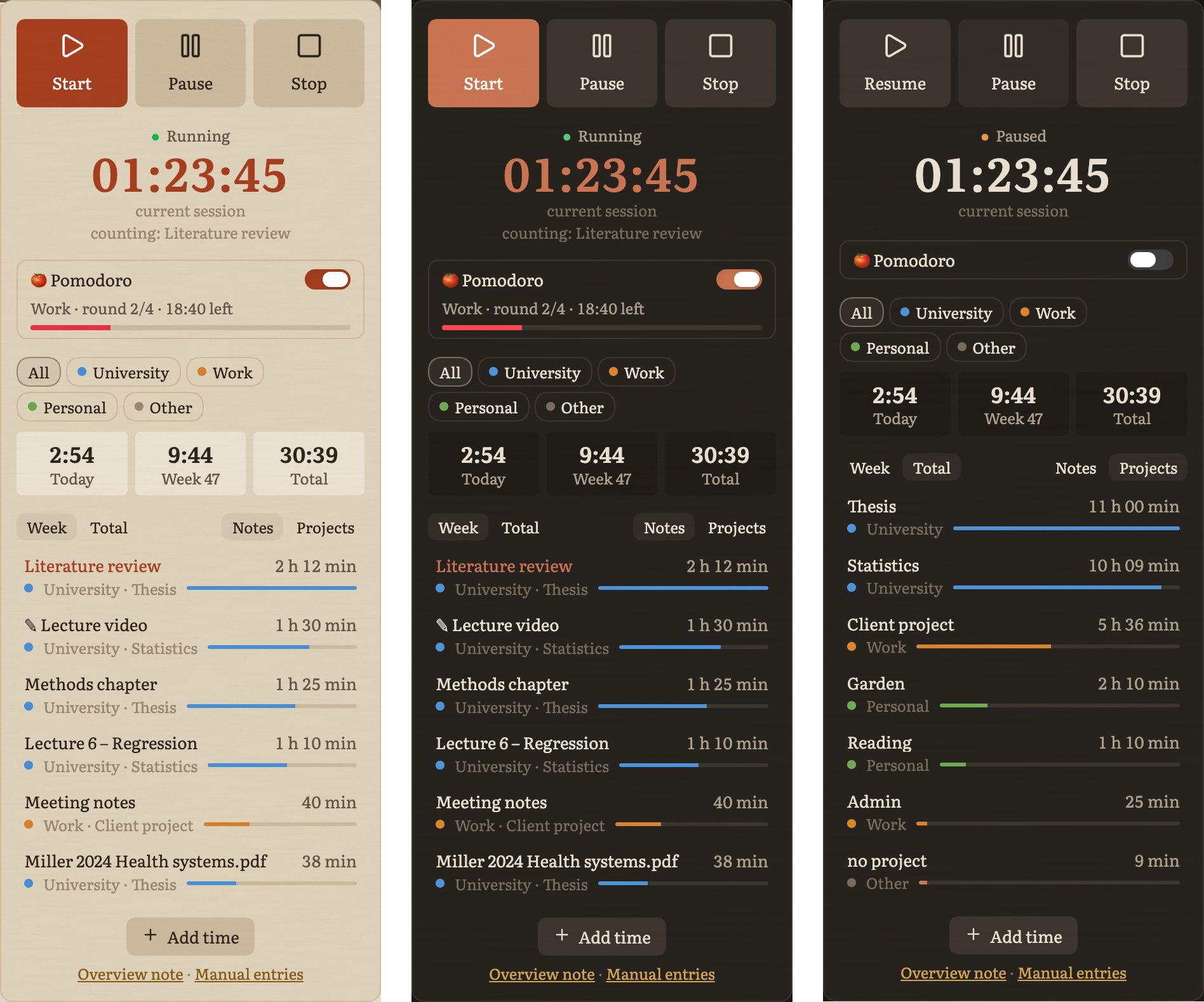
- Automatic per-document tracking – time is booked to the document you are working in (notes, PDFs, Excalidraw drawings, images …). Switching documents switches the counter.
- Live view – a sidebar panel with large Start / Pause / Stop buttons, a live session clock (hh:mm:ss), today / this week / total and a list of your documents or projects.
- Areas and projects – group your vault into areas such as University, Work or Personal, either by folder or by a property in your notes. The first subfolder of an area becomes the project.
- Idle and sleep detection – after a configurable time without mouse or keyboard input (default 5 min) time stops counting, and the idle time is subtracted again. Time while your computer sleeps is never counted.
- Pomodoro – optional work phases with short and long breaks, a countdown in the live view and the status bar, an optional sound and a "Resume" prompt when the break is over.
- Reminder – if you write for a few minutes without tracking, a notice offers to start. It stays quiet after you pause or stop on purpose.
- Manual entries – add time you spent outside Obsidian (reading on paper, watching a lecture video …) to a document or to an area and project.
- Overview note – a Markdown note with tables by area, project, document and day. It links to every tracked document, so tracked work shows up in backlinks and the graph.
- Renames are handled – renaming or moving files and folders keeps their tracked time.
- English and German – follows Obsidian's interface language.
Installation
From the community plugins: Settings → Community plugins → Browse → search for "Automatic Time Tracker" → Install → Enable. You can also open the plugin page and click Install.
Manually: download main.js, manifest.json and styles.css from the latest release, put them into <your vault>/.obsidian/plugins/automatic-time-tracker/ and enable the plugin under Settings → Community plugins.
Getting started
- Enable the plugin. A clock icon appears in the ribbon and a timer in the status bar.
- Open the live view: command palette → Automatic Time Tracker: Open live view. Drag it wherever you like, e.g. below the file explorer.
- Press Start and work as usual.
- Optional: define your areas in the settings.
How time is counted
| Situation | Counted? |
|---|---|
| A note, PDF or drawing is open in the main area and you are active | ✅ for that document |
| Graph view, settings or the overview note are active | ❌ |
| No input for longer than the idle timeout | ❌ (and the idle time is subtracted) |
| Computer is asleep | ❌ |
| You work outside Obsidian | ❌ – add it as a manual entry |
Documents you only opened for less than 30 seconds are summarised instead of listed individually.
Areas and projects
By folder (default): each area has one or more folders. The first subfolder below an area folder is the project.
| Area | Folders | Example | Project |
|---|---|---|---|
| University | Uni, Library/Attachments |
Uni/Statistics/Lecture 3.md |
Statistics |
| Work | Work |
Work/Client A/Notes.md |
Client A |
| Other | everything else | Daily notes/2026-11-16.md |
– |
By property: an area property (default area) in a note decides, e.g. area: Work. Files without properties, such as PDFs, fall back to the folder rules.
Project property (optional): for notes that are not inside a project subfolder, the project is read from this property. If its value is a link, the project of the linked note is used.
Pomodoro
Turn it on in the live view. Defaults: 25 min work, 5 min break, 15 min long break after 4 rounds – all adjustable.
- When a work phase ends, tracking pauses automatically.
- When the break ends, a notice with Resume stays until you click it.
- Pausing manually freezes the countdown; Stop ends session and Pomodoro.
Overview note
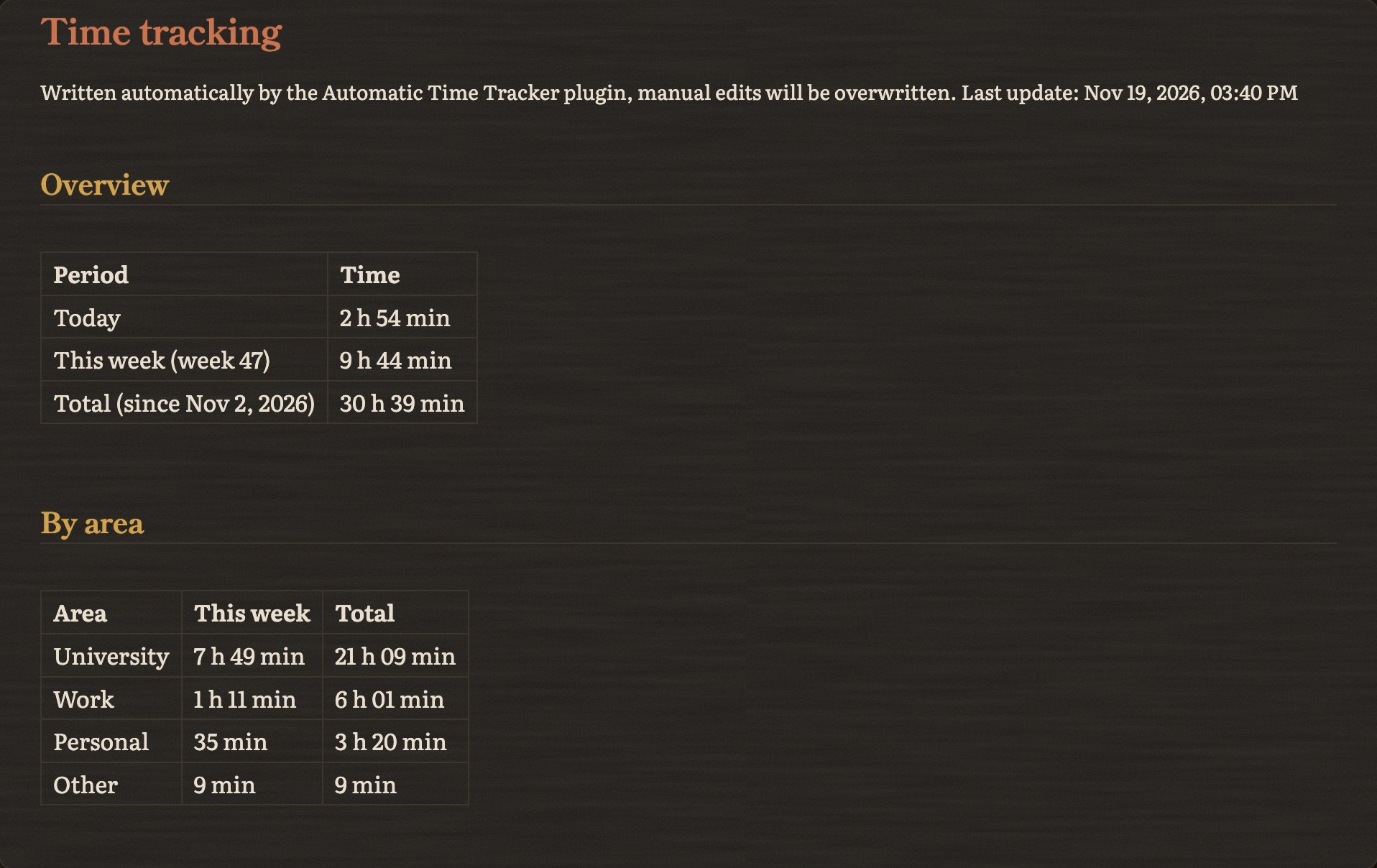
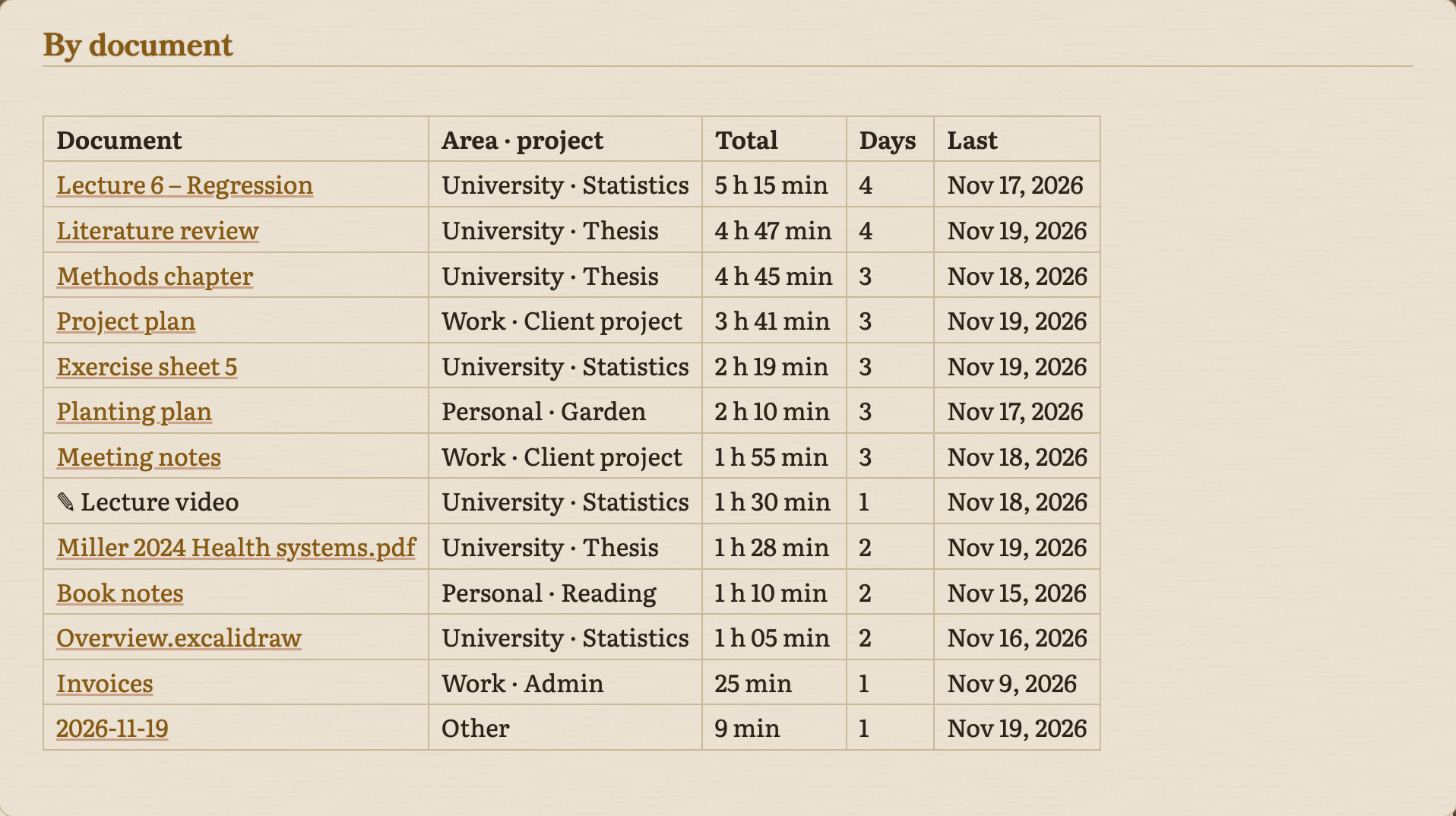
Besides the live view, the plugin keeps a Markdown note with your totals by area, project, document and day. Every tracked document is linked, so you can jump straight to it.
Theme
The screenshots show the Mokume theme, made by the same author. The plugin works with any theme and follows Obsidian's light and dark mode. If you like the warm, paper-like look, you can install Mokume under Settings → Appearance → Themes → Manage.
Data and privacy
- Everything stays local. The plugin makes no network requests.
- Tracked time is stored in the plugin's
data.jsoninside your vault's config folder. - The overview note is regenerated every minute while tracking is running. Edits in that note are overwritten. Its folder, name and additional frontmatter can be set in the settings.
Limitations
- Desktop only. This avoids two devices writing the same data at the same time when the vault is synced.
- Only time inside Obsidian is tracked automatically.
- The overview note is not meant to be edited by hand.
Commands
Start · Pause · Stop (end session) · Start/pause · Open live view · Open overview note · Add time manually · Manage manual entries · Toggle Pomodoro
No hotkeys are set by default – assign your own under Settings → Hotkeys.
Building from source
The plugin is written in plain JavaScript (src/main.js) and bundled with esbuild:
npm install
npm run build
This creates main.js in the repository root. Copy main.js, manifest.json and styles.css into <your vault>/.obsidian/plugins/automatic-time-tracker/ to test it. Releases are built by a GitHub Actions workflow, which also creates artifact attestations for the release files.
Feedback
Bugs and ideas: please open an issue.