
- Overview
- Scorecard
- Updates11
Enhanced workspace management for Obsidian's built-in Workspaces core plugin — workspace hierarchy, mode switching, and quickly switch workspaces via shortcut keys.
增强 Obsidian 原生 Workspaces 核心插件,提供工作区层级管理、模式切换和通过快捷键快速切换工作区。
Prerequisite:Enable the Workspaces core plugin in Settings → Core Plugins.
前提:需先在 设置 → 核心插件 中启用 Workspaces 插件。
Features / 功能
Quick Workspace Switcher / 快速切换
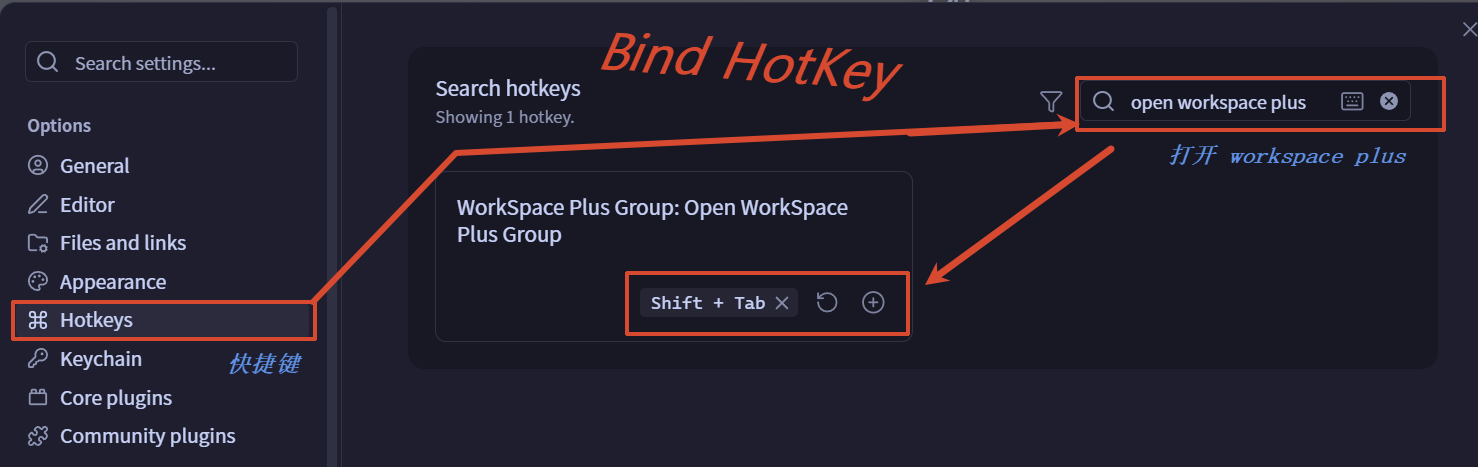
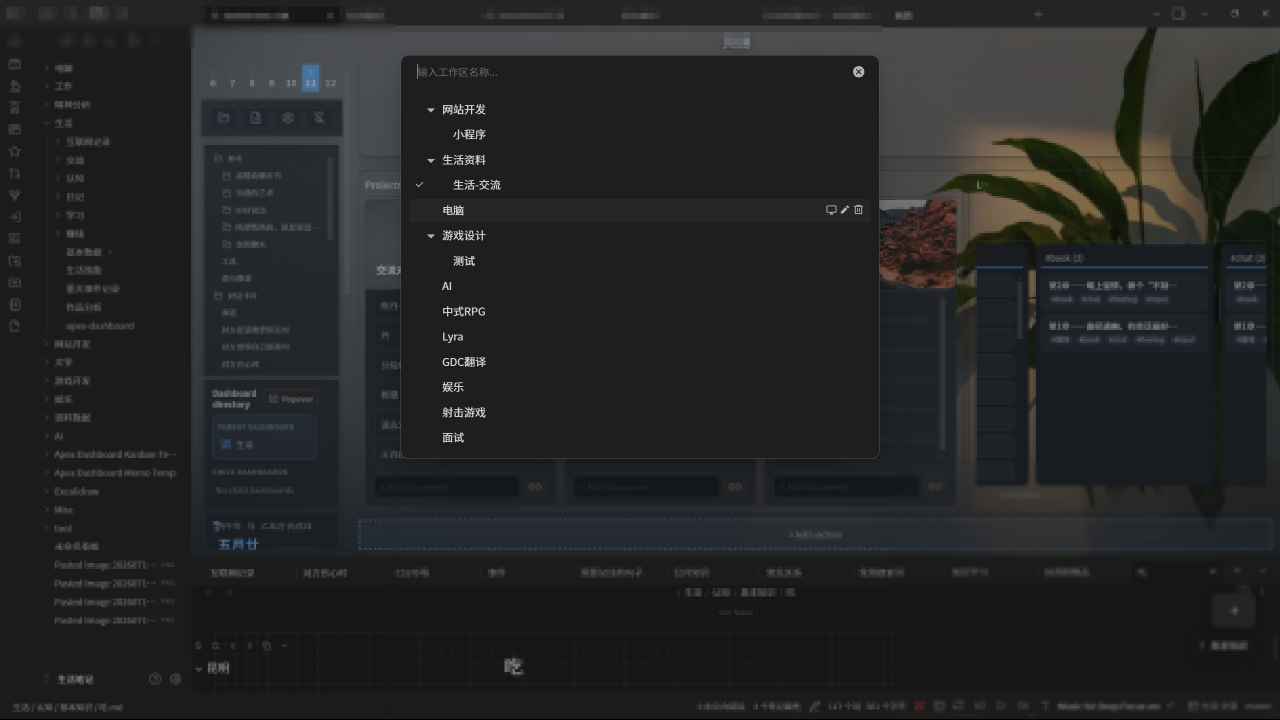
Open via command palette or click the status bar workspace name or bind shortcut keys(recommend shift+tab). Fuzzy search with keyboard shortcuts — type a new name and press Enter to create a new workspace.
通过命令面板或状态栏或快捷键(推荐 shift+tab)打开,模糊搜索,输入新名称按 Enter 直接创建新工作区。
Workspace Hierarchy / 工作区层级
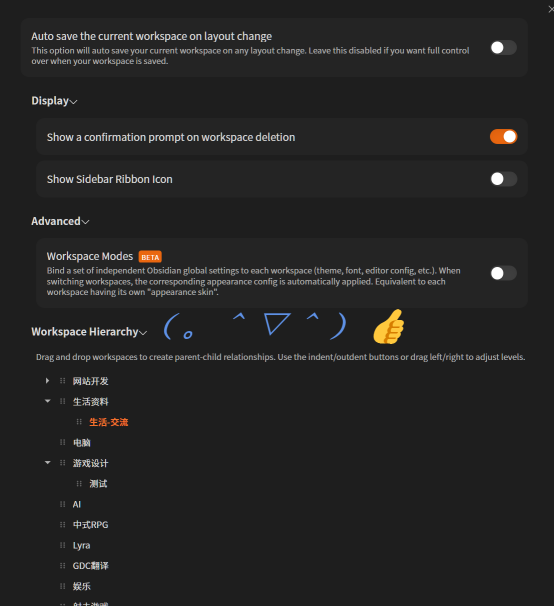
Drag and drop workspaces in the settings panel to build parent-child relationships, clearly displayed with indentation in the switcher modal.
在设置面板拖拽建立父子层级,弹窗中带缩进显示。
| Operation | Description | 操作 | 描述 |
|---|---|---|---|
| Make Child | Drag onto the row center (solid outline) → becomes a child | 建立父子 | 拖到行中央(实线框)→ 成为子工作区 |
| Reorder | Drag to the row edge 25% (colored insertion line) → adjust sibling order | 同级排序 | 拖到边缘 25%(彩色插入线)→ 同级排序 |
| Collapse/Expand | Click the triangle left of a parent | 折叠展开 | 点击父工作区左侧三角按钮 |
| Create Workspace | Type name and click Create in the hierarchy section | 创建工作区 | 输入名称后点击创建按钮 |
| Create as Child | Type name and click Create as child or press Enter | 创建子工作区 | 输入名称后点击创建子工作区或按回车 |
| Rename | Double-click name or click ✏️ icon → Enter to confirm | 重命名 | 双击名称或点击 ✏️ 图标 → 回车确认 |
| Delete | Click 🗑️ icon (hover to reveal) | 删除 | 点击 🗑️ 图标(hover 显示) |
Folder Focus / 聚焦文件夹
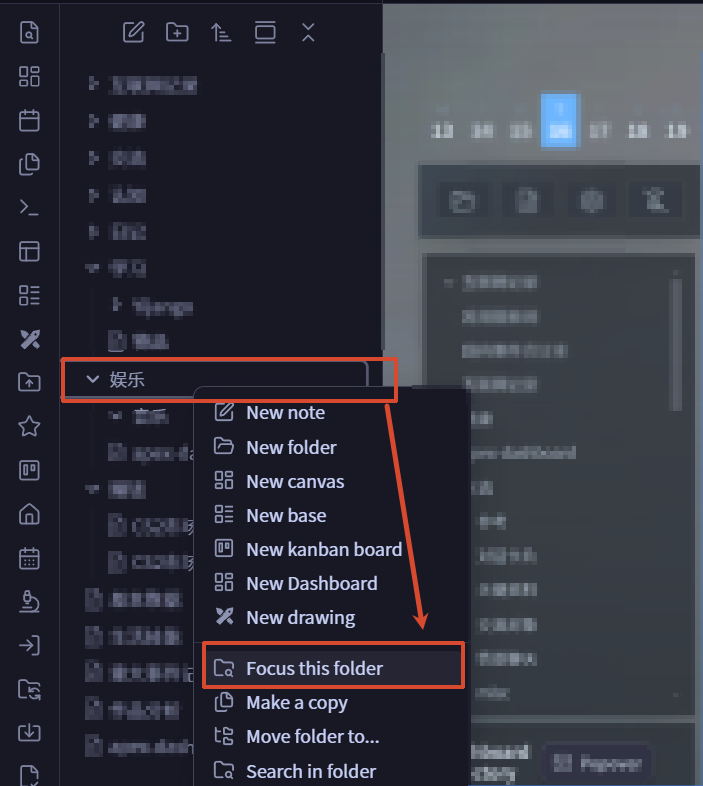
Right-click a folder in the file explorer and choose Focus this folder to visually use that folder as the file explorer root. Other folders are hidden until folder focus is cleared.
在文件浏览器中右键文件夹,选择 聚焦本文件夹,即可在视觉上把该文件夹作为文件浏览器根目录显示;取消聚焦后恢复完整文件树。
Independent File Explorer Fold State / 独立保存文件浏览器折叠状态
Each workspace keeps its own file explorer folder expand/collapse state. Focused and non-focused file explorer states are saved separately, so switching workspaces restores the expected folder tree.
每个 Workspace 独立保存文件浏览器中文件夹的展开/折叠状态。聚焦和非聚焦状态会分别保存,切换 Workspace 时恢复对应的文件树状态。
Status Bar / 状态栏
Shows current workspace and mode. Shift+Click to save.
显示当前名称,Shift+Click 快速保存。
Workspace Modes / 工作区模式
Bind independent Obsidian global settings (theme, font, etc.) to each workspace. Switching applies them automatically. The experimental function of the original author is not recommended.
为每个工作区绑定独立设置方案,切换时自动应用。原作者的实验性功能,不推荐开启。
Settings / 设置
| Setting | Description | 设置 | 描述 |
|---|---|---|---|
| Auto-save layout | Save on any layout change | 自动保存布局 | 布局变更时自动保存 |
| Delete confirmation | Show confirmation before deleting | 删除确认 | 删除前显示确认提示 |
| Sidebar ribbon icon | Show workspace switcher ribbon button | Ribbon 图标 | 显示工作区切换 Ribbon 按钮 |
| Independent file explorer fold state | Save file explorer folder expand/collapse state independently per workspace. Enabled by default | 独立保存文件浏览器折叠状态 | 每个 Workspace 独立保存文件夹展开/折叠状态,默认开启 |
| Workspace Modes | Enable per-workspace settings (beta) | 工作区模式 | 启用独立工作区设置 (beta) |
| Mode ribbon icon | Show mode switcher ribbon button | 模式 Ribbon | 显示模式切换 Ribbon 按钮 |
| System dark mode | Follow OS light/dark when switching modes | 系统深色模式 | 切换模式时跟随系统亮/暗 |
| Live Preview auto-reload | Reload Obsidian on Live Preview change | 自动重载 | Live Preview 变更时自动重载 |
| Workspace Hierarchy | Drag-and-drop tree view | 工作区层级 | 拖拽树形视图管理父子关系 |
| Modal collapse rule | Collapse behavior in switcher (4 modes) | 弹窗折叠规则 | 弹窗中折叠行为(4 种模式) |
Modal Collapse Rules / 弹窗折叠规则
| Mode | Description | 模式 | 描述 |
|---|---|---|---|
| Inherit from settings | Syncs with settings panel | 继承插件设置 | 与设置面板折叠状态同步 |
| Save independently | Separate collapse state | 弹窗独立保存 | 独立维护折叠状态 |
| Always expand all | All expanded on open | 始终全部展开 | 每次打开全部展开 |
| Always collapse all | All collapsed on open | 始终全部折叠 | 每次打开全部折叠 |
Keyboard Shortcuts / 快捷键
Workspace Switcher / 工作区弹窗
| Shortcut | Action | 操作 |
|---|---|---|
Enter |
Switch / create new | 切换或新建工作区 |
Shift + Enter |
Save and switch | 保存并切换 |
Alt + Enter |
Save current, then switch | 保存当前后切换 |
Ctrl + Enter |
Rename workspace | 重命名工作区 |
Shift + Delete |
Delete workspace | 删除工作区 |
Escape |
Close modal | 关闭弹窗 |
Mode Switcher / 模式弹窗
| Shortcut | Action | 操作 |
|---|---|---|
Enter |
Load selected mode | 加载选中模式 |
Ctrl + Enter |
Rename mode | 重命名模式 |
Shift + Delete |
Delete mode | 删除模式 |
Commands / 命令
- Open WorkSpace Plus Group
- Save workspace
- Open WorkSpace Plus Group Modes (requires Workspace Modes)
- Clear folder focus
- Resave current file explorer fold state
- 打开工作区切换器
- 保存工作区
- 打开模式切换器(需要开启工作区模式)
- 取消聚焦文件夹
- 重新保存当前文件浏览器折叠状态
Each workspace auto-registers as workspace-plus-group:<name>, bindable to custom hotkeys.
每个工作区自动注册为独立命令,可绑定快捷键。
Installation / 安装
Community Plugin Browser / 插件市场
Search "WorkSpace Plus Group" → Install and enable.
Manual / 手动
Download main.js, styles.css, manifest.json → place in <vault>/.obsidian/plugins/workspace-plus-group/ → restart and enable.
Language / 语言
Auto-detects Obsidian language. Supports English and 中文.
Credits / 致谢
Original author / 原作者:NothingIsLost
Desktop only / 仅桌面端 · Requires Obsidian 1.5.0+